Convert Capital One Statements to Excel (2026)
Step-by-step guide to converting Capital One checking, savings, and credit card statement PDFs into Excel, CSV, or QBO format.
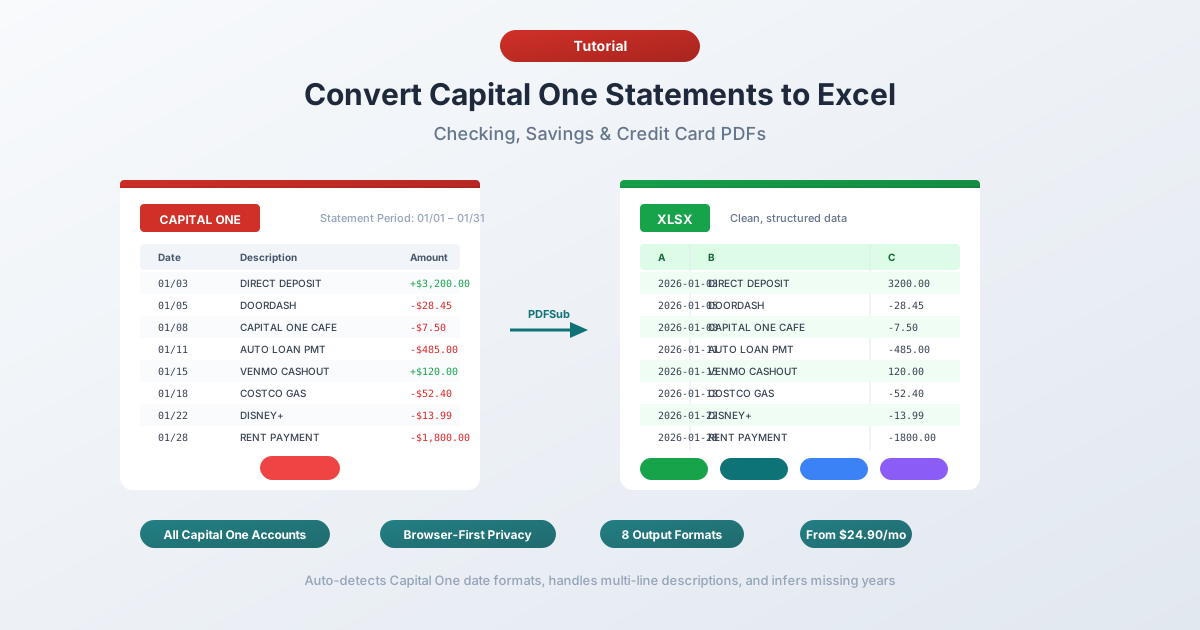
You've got a Capital One statement PDF and you need the data in a spreadsheet. Maybe you're reconciling client accounts, categorizing monthly expenses, or preparing year-end financials for tax season. Capital One makes downloading statements easy enough - but getting that data out of a PDF and into a usable format is another story entirely.
Capital One is the sixth-largest bank in the United States with over $669 billion in assets, and following its Discover Financial acquisition, it's now the largest credit card issuer in the country. The bank's digital DNA - Capital One acquired ING Direct in 2012 and built its 360 product line on that online-first foundation - means most statements are clean, natively digital PDFs. Good news for conversion, since digital PDFs extract far more reliably than scanned paper.
But "clean PDF" doesn't mean "easy to get into Excel." Capital One delivers statements as PDFs only - no native Excel export, no CSV version of the official statement. And the PDF layout has its own quirks: a single Amount column where sign determines direction, Savings Goals that create nested sub-sections, and credit card statements that vary by product. Here's how to handle all of it.
What Capital One Gives You (And What It Doesn't)
Before converting anything, it helps to know what Capital One actually offers.
PDF statements - available through Capital One Online Banking under Statements & Documents. Official statements matching what you'd receive in the mail. PDF format only.
Activity downloads - available through the Activity tab. Capital One lets you download recent transactions as CSV. Sounds like it should solve the problem, right?
Not quite. The activity download has real limitations:
- Only ~90 days of history - Capital One's CSV export covers roughly three months of recent transactions. That's significantly shorter than Chase (~24 months) or Wells Fargo (~18 months)
- Not official statements - the download is a transaction feed. It's missing opening/closing balances, fee summaries, interest breakdowns, and account summary tables
- No QBO or OFX format - Capital One doesn't offer QuickBooks or Xero-compatible exports. QuickBooks users are stuck manually mapping CSV columns
- Credit card activity may differ - the CSV download for credit cards uses different column structures than for banking accounts, and reward details are excluded
So if you need data older than 90 days, need the complete statement for audit purposes, or need to import into QuickBooks - the PDF is your only viable option.
Method 1: Use a Bank Statement Converter (Recommended)
The fastest and most accurate method is a specialized bank statement converter - a tool built to extract transaction data from bank statement PDFs.
Unlike generic PDF-to-Excel tools, bank statement converters understand financial document structure. They know Capital One 360 Checking uses a single Amount column where positive values are deposits and negative values are withdrawals. They handle multi-line ACH descriptions, Savings Goals sub-sections, and the different layouts between banking and credit card statements.
Step-by-Step with PDFSub
- Download your Capital One statement - Log into capitalone.com → Statements & Documents → select the statement period → download PDF
- Go to PDFSub's Bank Statement Converter
- Upload the Capital One PDF - drag and drop or click to browse
- Review the extracted data - PDFSub shows you the transactions before you download, so you can verify accuracy
- Choose your format - Excel (XLSX), CSV, QBO (QuickBooks), OFX (Xero), or any of 8 supported formats
- Download - click Download or use "Download All" for a ZIP with every format
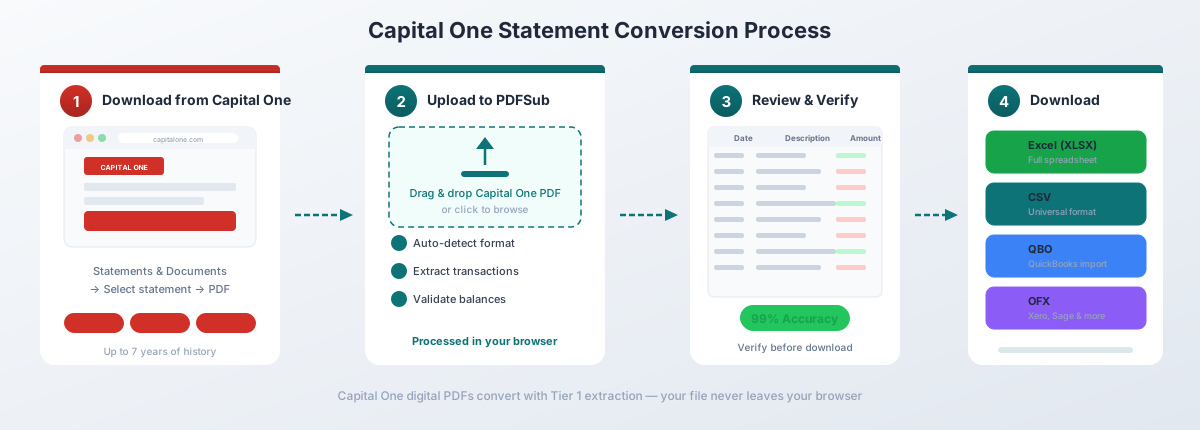
For Capital One's digital PDFs (downloaded directly from Online Banking), PDFSub's Tier 1 extraction handles the conversion entirely in your browser - the file never leaves your device. This matters when you're working with sensitive financial data.
Why this works well for Capital One specifically:
- Auto-detects Capital One's single Amount column and preserves the sign convention (positive for deposits, negative for withdrawals) so you don't lose debit/credit direction
- Handles Capital One's MM/DD date format (no year) and infers the correct year from the statement period header
- Processes multi-line transaction descriptions - common on recurring ACH transactions that span 2–3 lines - without creating duplicate rows
- Recognizes Savings Goals sub-sections and keeps those transactions properly associated with the correct goal
- Works with all Capital One account types - 360 Checking, 360 Savings, 360 Performance Savings, and all credit card products
- Exports to QBO format for direct QuickBooks import with FITID duplicate detection - filling the gap left by Capital One's missing native QBO export
PDFSub's All-In-One plan is $20/user/mo (annual) or $25/user/mo (monthly), including 500 bank statement pages per user and a 7-day free trial.
Method 2: Capital One's Built-In Activity Download
If you only need recent transactions (not the full statement), Capital One's native CSV export is the quickest option.
How to Download
- Log into capitalone.com
- Navigate to your checking, savings, or credit card account
- Go to the Activity tab
- Set the date range for the transactions you need (within the last 90 days)
- Click Download and select CSV
- Open the downloaded file in Excel
What You Get
Capital One's CSV for banking accounts includes these columns:
| Column | Description |
|---|---|
| Date | Transaction date (MM/DD/YYYY) |
| Description | Merchant or transaction detail |
| Amount | Signed amount (negative for withdrawals, positive for deposits) |
| Balance | Running balance after transaction |
Credit card CSVs use a slightly different structure:
| Column | Description |
|---|---|
| Transaction Date | Date of purchase |
| Posted Date | Date posted to account |
| Card No. | Last 4 digits of card used |
| Description | Merchant name |
| Category | Auto-assigned category (Dining, Travel, etc.) |
| Debit | Purchase amount |
| Credit | Payment or refund amount |
Limitations to Watch For
The 90-day cap. Capital One limits CSV downloads to roughly 90 days - the shortest window among major US banks. Need six months? You'll need three separate files. Need a full year? Convert the PDFs instead.
No QBO or OFX format. Capital One doesn't provide QuickBooks or Xero-compatible exports. The CSV requires manual column mapping and has no duplicate detection.
Not the official statement. The CSV is a transaction feed - missing opening/closing balances, fee summaries, interest accrued, and the account summary section.
For quick tracking of recent activity, this works. For anything more comprehensive, convert the PDF.
Method 3: Copy-Paste from PDF (Not Recommended)
You can try selecting text in a Capital One PDF and pasting it into Excel. Here's what happens:
Everything lands in a single column. Dates, descriptions, and amounts get smashed together with no column separation.
You can try Excel's Text to Columns feature (Data tab → Text to Columns), but:
- Multi-line ACH descriptions (often 2–3 lines) break the row alignment
- Savings Goals sub-section headers get mixed in with transaction data
- Interest accrual lines and account summary rows create extra junk entries
- You'll spend 30+ minutes cleaning up a single statement
For one or two simple statements, this is tedious but doable. For anything more, it's not worth the effort.
Method 4: Adobe Acrobat Pro
Adobe Acrobat Pro has an "Export PDF → Spreadsheet → Microsoft Excel Workbook" feature. For Capital One statements, results are better than some banks but still need cleanup:
- Column detection works inconsistently. Acrobat sometimes gets the columns right, but multi-line descriptions still create duplicate rows where continuation lines appear as separate transactions.
- Savings Goals sections confuse table detection. Goal headers and sub-totals get mixed into the transaction table as data rows with no date or amount.
- Credit card statements fare worse. Rewards summaries, APR breakdowns, and payment boxes get merged with the transaction table.
- Amounts format as text, not numbers. The signs are preserved, but Acrobat often outputs them as text strings requiring cleanup before Excel can do math.
Capital One's ING Direct heritage means their PDFs are generally cleaner than legacy banks, so it's worth a quick try. But expect manual cleanup, especially for credit card statements.
Understanding the Capital One PDF Format
Capital One statements have several characteristics that affect conversion:
The Single Amount Column
Unlike Wells Fargo (separate Additions and Withdrawals columns) or Citi (positive amounts everywhere with section headers determining direction), Capital One uses a single Amount column with signed values. Deposits are positive. Withdrawals are negative.
This is the most Excel-friendly approach among major banks - the sign is built into the data, so you don't need a converter that interprets section headers. The catch? Some generic converters strip the minus sign during extraction, turning all withdrawals positive and making it impossible to tell money in from money out.
Section-Based Transaction Layout
Capital One checking and savings statements organize transactions into sections:
- Deposits and Other Credits - incoming funds (direct deposits, transfers in, interest)
- Withdrawals and Other Debits - outgoing funds (purchases, bill pay, transfers out, fees)
- Daily Ledger Balance - a summary showing the account balance at the end of each day
Transactions within each section are listed chronologically. The section headers should be skipped during extraction - they're labels, not transactions.
Savings Goals Sub-Sections
If you use Capital One's Savings Goals feature (available on 360 Savings and 360 Performance Savings accounts), your statement gets more complex. Each savings goal creates a sub-section within the statement that shows:
- The goal name (e.g., "Emergency Fund," "Vacation," "Down Payment")
- Transfers into and out of that goal
- The goal's current balance
These sub-sections nest within the main transaction sections, creating multiple levels of headers on a single page. Generic converters will extract goal names as transactions or miss goal-specific transfers entirely.
Date Format
Capital One uses MM/DD format for transaction dates - no year. The year must be inferred from the statement period shown at the top. Good converters do this automatically. For statements spanning December into January, some transactions in the same statement will belong to different calendar years.
Multi-Line Descriptions
Capital One transaction descriptions - especially for recurring ACH payments - commonly span 2–3 lines. A typical ACH withdrawal looks like this on the statement:
03/15  ACH DEBIT COMCAST CABLE COMM           -189.99
       SCHEDULED PAYMENT
       REF: 1234567890
The second and third lines are part of the same transaction. Converters that don't handle continuation lines will create three rows - one with the amount and two orphaned description fragments.
Account Type Differences
Capital One's statement layouts differ by account type:
360 Checking
The standard consumer checking account. Statements use the layout described above - single Amount column, section-based grouping, MM/DD dates. Transaction volumes tend to be high (30–100+ per month), so multi-page statements are common. Zelle transactions include the recipient or sender name plus a reference number across two lines.
360 Savings and 360 Performance Savings
Lower transaction volumes but potentially more complex due to Savings Goals. A customer with three savings goals will have three sub-sections, each with its own transfers and balance. The interest accrual section shows APY and interest earned for each goal separately.
Credit Card Statements
Capital One credit card PDFs have a distinctly different layout from banking products:
| Feature | Banking (360 Checking/Savings) | Credit Cards |
|---|---|---|
| Date columns | Single date (MM/DD) | Transaction Date + Post Date |
| Amount format | Single signed Amount column | Separate Charges and Payments columns |
| Rewards section | None | Miles, Cashback, or Rewards summary |
| APR breakdown | None | Purchase APR, Cash Advance APR, Balance Transfer APR |
| Payment info | None | Minimum payment, due date, late fee warning |
The layout also varies by card product:
- Venture / Venture X - includes a Miles column per transaction, plus a Miles Summary section
- Quicksilver / Quicksilver One - includes a Cashback column with percentage and dollar amount
- SavorOne / Savor - includes a Rewards column with category-specific earning rates (3% dining, 3% entertainment, etc.)
- Platinum / Secured - simpler layout with no rewards section
The rewards columns and summaries should be skipped during transaction extraction. Converters that don't skip them will create extra columns or junk data in the amount fields.
Common Conversion Problems and Solutions
Problem: Negative signs get stripped from withdrawal amounts
Capital One uses a single Amount column where the minus sign is the only indicator of a withdrawal. Some generic PDF extractors treat the minus sign as a formatting artifact and strip it, making every amount positive. Solution: Use a converter that preserves signed amounts. After conversion, verify that deposits are positive and withdrawals are negative. If signs are missing, refer to the section headers in the original PDF to manually add the minus sign.
Problem: Savings Goals create duplicate or nested entries
Savings Goals add sub-section headers and sub-balances within the main statement. Generic converters may extract the goal name as a transaction (e.g., a row with "Emergency Fund" and no amount), or miss transfers between goals entirely. Solution: Use a converter that recognizes Capital One's Savings Goals structure. If cleaning up manually, delete rows where the Date or Amount column is blank - these are section headers or goal labels, not real transactions.
Problem: Multi-line ACH descriptions create extra rows
Recurring ACH payments on Capital One statements often have 2–3 lines of description text. The first line has the date and amount; subsequent lines have "SCHEDULED PAYMENT," reference numbers, or merchant details. Generic converters treat each line as a new transaction. Solution: Look for rows with a description but no date or amount - these are continuation lines belonging to the transaction above. Concatenate them manually or use a converter that handles multi-line descriptions natively.
Problem: Credit card rewards data gets mixed into transaction amounts
Capital One credit card statements include reward calculations (miles earned, cashback earned) alongside transaction amounts. Some converters mistake the rewards column for a second amount column, doubling the apparent value or creating extra fields. Solution: Use a converter designed for financial documents. If cleaning up manually, delete any column containing rewards data (miles, cashback percentages, points) - the core transaction data is in the Transaction Date, Post Date, Description, and Amount columns.
Problem: Statement period spans two calendar years
A December statement might cover 12/15/2025 through 01/14/2026. Since Capital One only shows MM/DD (no year), transactions dated 12/15 through 12/31 are from 2025, while those dated 01/01 through 01/14 are from 2026. Converters that assign a single year to all transactions will get half wrong. Solution: Specialized converters detect the statement period and assign years correctly. If yours doesn't, manually split the transactions at the year boundary.
Importing into Accounting Software
Once your Capital One data is converted, here's how to get it into common accounting platforms:
QuickBooks Online - Use QBO format for the cleanest import. Go to Banking → Link Account → Upload from computer → select the QBO file. Since Capital One doesn't offer a native QBO export, converting the PDF is often the only path to QuickBooks. See our guide to importing bank statements into QuickBooks for detailed steps.
QuickBooks Desktop - Use QBO or IIF format. File → Import → From Web Connect (for QBO files).
Xero - Use OFX format. Go to Accounting → Bank Accounts → your account → Import a Statement. Xero accepts OFX and CSV. OFX is preferred because it includes transaction IDs for duplicate prevention. See our guide to importing bank statements into Xero for detailed steps.
FreshBooks - Use CSV format. Go to Accounting → Bank Import → Import Transactions → select CSV. You'll need to map columns manually.
Wave - Use CSV or OFX format. Go to Accounting → Transactions → Import → select your bank → upload the file.
Excel/Google Sheets - Use XLSX or CSV format. Open directly or import via Data → From Text/CSV. Capital One's signed Amount column means you can immediately sum, filter, and chart without combining separate debit/credit columns.
Tips for Working with Converted Capital One Data
Once you have your Capital One transactions in Excel, here are some practical tips:
Verify with the opening and closing balance. Add up all transaction amounts (keeping the signs) and check that the result matches the balance change on the statement. Since Capital One uses signed amounts, a simple SUM works: Opening Balance + SUM(Amounts) = Closing Balance.
Take advantage of the signed amounts. Use a single SUM for net cash flow, SUMIF for total deposits (amounts > 0) and total withdrawals (amounts < 0). Pivot tables work without needing to combine separate columns.
Standardize the date column. Excel sometimes interprets dates as text rather than date values. Select the date column → Data → Text to Columns → select Date format (MDY). Verify that your converter added the correct year, since Capital One uses MM/DD without the year.
Handle Savings Goals separately. If your 360 Savings statement includes Savings Goals, consider extracting each goal's transactions into a separate sheet. This makes it easier to track progress toward each goal and avoids confusion between inter-goal transfers and real deposits/withdrawals.
Add a category column. Use Excel's SEARCH function to auto-categorize based on merchant names and transaction codes:
=IF(SEARCH("ACH DEBIT",B2)>0,"Bills",IF(SEARCH("ZELLE",B2)>0,"Transfers",IF(SEARCH("INTEREST",B2)>0,"Interest","Other")))Convert monthly, not annually. Don't wait until tax season to convert 12 months at once. Capital One's 90-day CSV limit makes it especially important to convert PDFs monthly or download the CSV within the 90-day window before data becomes inaccessible.
Frequently Asked Questions
Can I download Capital One statements as Excel files directly?
No. Capital One only provides statements as PDFs. You can download recent activity (~90 days) as CSV through the Activity tab, but that's a transaction feed - not the official statement. For full statements with balances and fees, you must convert the PDF.
How far back can I get Capital One statements?
Capital One provides PDF statements for up to 7 years through Online Banking (Statements & Documents). The Activity tab CSV download only covers approximately 90 days - the shortest window among major US banks. For statements older than 7 years, contact Capital One customer service at (877) 383-4802.
Why does Capital One use a single Amount column instead of separate deposit/withdrawal columns?
This traces back to Capital One's ING Direct heritage. ING Direct was built as a streamlined online bank, and the single signed Amount column is simpler than separate columns. Positive amounts are money in; negative amounts are money out. While this looks different from Wells Fargo or Citi, it's actually the easiest format to work with in Excel.
What are Savings Goals and how do they affect conversion?
Savings Goals let you create labeled sub-accounts (e.g., "Emergency Fund," "Vacation") within 360 Savings and 360 Performance Savings. Each goal appears as a sub-section in your statement. During conversion, goal headers and sub-totals can be mistakenly extracted as transactions. Delete rows without dates or amounts, or use a converter that recognizes this structure.
Which format should I choose for QuickBooks import?
Choose QBO format. It's designed for QuickBooks and includes transaction IDs (FITIDs) that prevent duplicate imports. This is especially important for Capital One users since Capital One doesn't offer a native QBO export - converting the PDF to QBO is often the only clean path to QuickBooks. See our guide to importing bank statements into QuickBooks for detailed steps.
Do Capital One credit card statements convert differently than checking/savings?
Yes. Credit card statements use dual date columns (Transaction Date and Post Date), separate Charges and Payments columns instead of a single signed Amount, plus rewards sections that vary by card product. Specialized converters handle these differences; generic tools often merge the rewards column with transaction amounts.
Does this work for Capital One business accounts?
Yes. Capital One Spark Business checking and credit card statements produce digital PDFs that follow similar structures to personal accounts. Business statements may include additional sections for employee card activity and tax-related summaries, but the core transaction data extracts the same way.
Can I convert multiple Capital One statements at once?
Most bank statement converters let you upload multiple PDFs in a single session. Each statement converts independently, and you download separate output files (or a combined ZIP). This is useful for building a full year of data for tax preparation.
How accurate is the conversion?
For Capital One's digital PDFs (downloaded directly from capitalone.com), specialized bank statement converters typically achieve 95–99% accuracy. Capital One's ING Direct heritage means their PDFs are among the cleanest in the industry - the digital-first design produces well-structured text layers that extract reliably. Generic PDF-to-Excel tools average around 75% on Capital One statements, primarily due to multi-line description issues and Savings Goals confusion. Scanned or photographed statements will have lower accuracy because they require OCR processing.
Is my financial data safe during conversion?
For Capital One's digital PDFs, browser-based converters like PDFSub process the file entirely in your browser - the PDF never leaves your device. No upload, no server storage, no third-party access. For scanned PDFs that require server-side processing, look for converters that use encrypted connections and delete files after processing.