How to Import Bank Statements into Xero
Every method for getting bank statement data into Xero - bank feeds, OFX and CSV import, PDF conversion, and troubleshooting common import errors.
You've got a client's bank statements in PDF format and you need them in Xero. Maybe the bank doesn't support automatic feeds. Maybe you're onboarding a new client and need six months of history. Or maybe you're dealing with a closed account where bank feeds were never an option.
Whatever the situation, Xero doesn't accept PDF bank statements directly. You need to get that data into CSV, OFX, or another format Xero can read - and do it without corrupting dates, swapping debits for credits, or spending an hour reformatting a spreadsheet.
This guide covers every method: automatic bank feeds, manual file imports, and PDF conversion. Plus the formatting rules and common errors that trip up even experienced bookkeepers.
The Three Ways to Get Bank Data into Xero
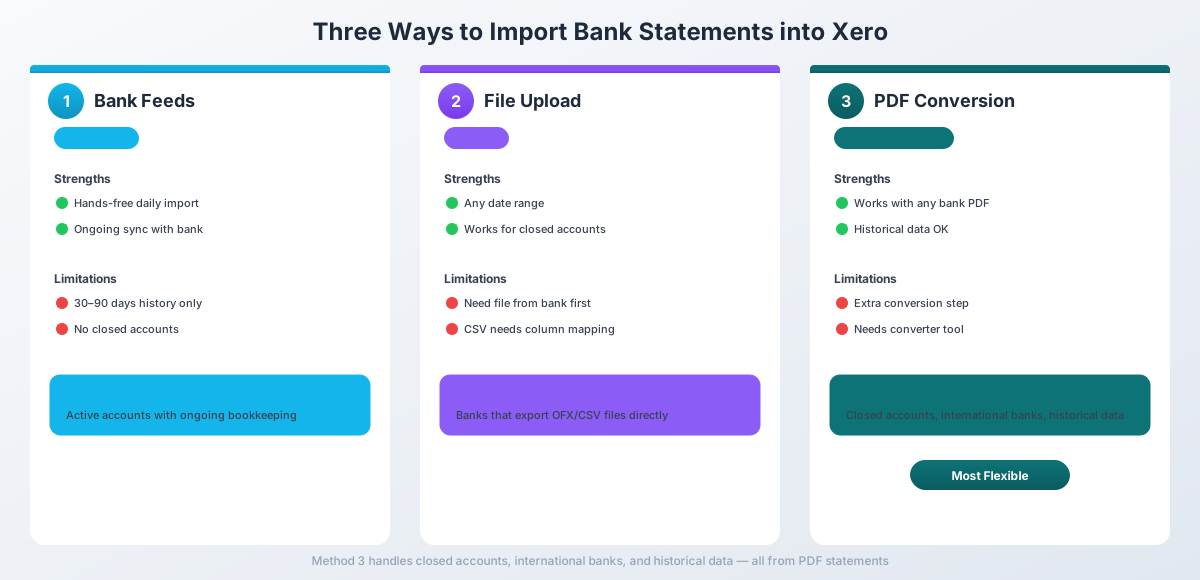
Xero gives you three paths to get transactions into a bank account. Each has different strengths, and most accountants end up using all three depending on the situation.
Method 1: Bank Feeds (Automatic Connection)
Xero connects directly to your bank and pulls transactions automatically - usually daily. This is the easiest approach when it works.
How it works: Go to Accounting > Bank Accounts > Add Bank Account, search for your bank, and authorize the connection. Xero uses either a direct bank partnership or Yodlee (a third-party aggregator) to pull transactions.
Works great when:
- The bank supports Xero feeds (most major banks in the US, UK, Australia, and NZ do)
- You need ongoing, hands-free transaction imports
- You're reconciling within a few months of the transaction date
Doesn't work when:
- Your bank isn't supported (some credit unions, international banks)
- You need transactions from before the feed start date
- The account is closed - bank feeds require an active connection
- Yodlee-based feeds keep disconnecting (a common complaint, especially with banks using multi-factor authentication)
Method 2: Manual File Upload (OFX, CSV, QFX, QBO, QIF)
Upload a statement file directly into Xero. This works for any date range and any bank - as long as you have the file in the right format.
Supported formats:
| Format | Auto-Maps Columns | Duplicate Detection | Best For |
|---|---|---|---|
| OFX | Yes | Yes (FITID) | Recommended |
| QFX | Yes | Yes (FITID) | Quicken exports |
| QBO | Yes | Yes (FITID) | QuickBooks exports |
| CSV | No (manual mapping) | No | Universal fallback |
| QIF | Yes | No | Legacy Quicken |
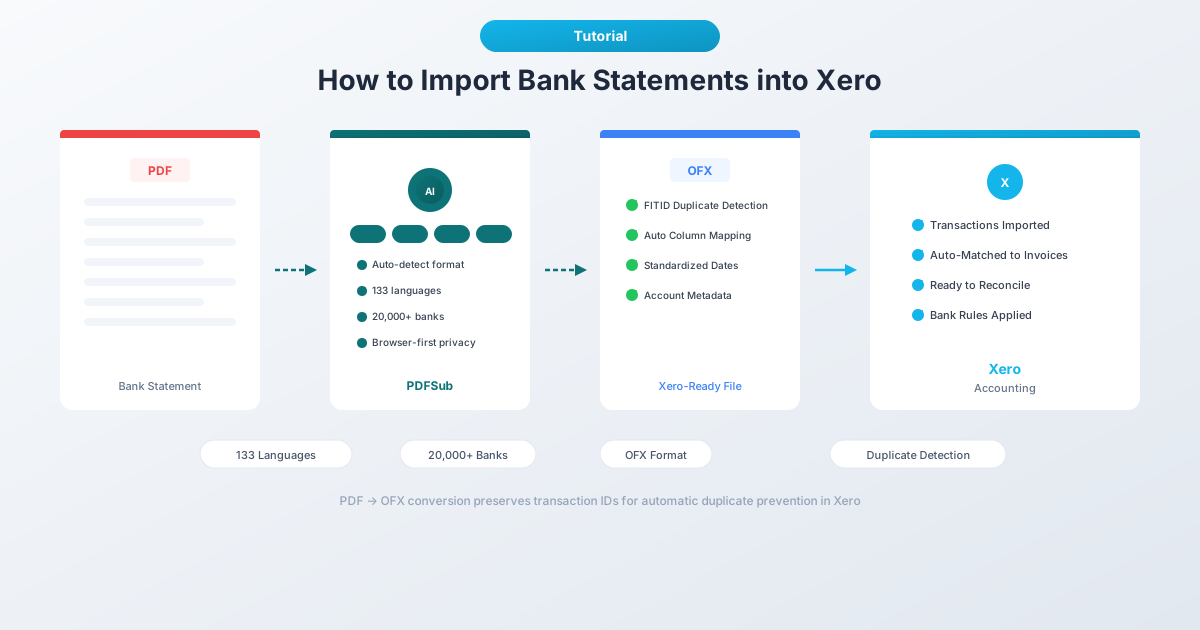
OFX is the best choice for Xero. It imports automatically without column mapping, includes transaction IDs (FITIDs) for duplicate prevention, and carries metadata like account numbers and transaction types. CSV works but requires manual column mapping and has no duplicate protection.
How to upload: Go to Accounting > Bank Accounts, select the account, click Manage Account > Import a Statement, then choose your file.
Limits: Maximum 1,000 transactions per file. Split larger files into multiple imports.
Method 3: Convert PDF Statements to Xero-Ready Formats
When you only have PDF bank statements - which is most of the time for historical data, closed accounts, and international banks - you need to convert them first.
Step-by-step with PDFSub:
- Download your statement PDF from the bank
- Go to PDFSub's Bank Statement Converter
- Upload the PDF - drag and drop or click to browse
- Review the extracted transactions
- Download as OFX (recommended) or CSV
- Import into Xero using Method 2 above
PDFSub auto-detects date formats, separates deposits from withdrawals, and handles multi-line descriptions. The OFX output includes FITIDs for duplicate detection - meaning you won't accidentally import the same transactions twice.
Step-by-Step: Importing a File into Xero
Step 1: Convert Your PDF (If Needed)
If you have a PDF bank statement, convert it using PDFSub's Bank Statement Converter. Choose OFX as your output format - it's Xero's preferred format and skips the column mapping step entirely.
If your bank already provides OFX, QFX, or CSV downloads, skip this step.
Step 2: Upload to Xero
- Click Accounting in the top menu, then Bank Accounts
- Find the target bank account and click Manage Account
- Select Import a Statement
- Click Browse and select your file
- Click Import
Step 3: Map Columns (CSV Only)
If you're importing CSV, Xero shows a column mapping screen:
- Assign each column to a Xero field: Date, Amount, Payee, Description, Reference
- Check "Don't import the first line" if your file has column headers
- Preview the transactions on the right side - verify dates and amounts look correct
- Click Save
OFX, QFX, and QBO files skip this step entirely - columns are mapped automatically.
Step 4: Review and Reconcile
Imported transactions appear as unreconciled statement lines. For each transaction, Xero offers three actions:
- Match - Link to an existing invoice, bill, or transaction in Xero
- Create - Create a new spend or receive money entry, assigning account codes and tax rates
- Transfer - Record as a transfer between two Xero bank accounts
Pro tip: Set up bank rules to automate recurring transactions. Rules match patterns in the payee or description and pre-fill the account code and tax rate. This can cut reconciliation time by 30–50%.
Step 5: Verify Your Balance
After reconciling, compare Xero's bank account balance against your actual bank statement balance. If they don't match, use the Bank Reconciliation Summary report to identify discrepancies.
OFX vs. CSV: Which Format for Xero?
If you have a choice, always use OFX. Here's why:
| Feature | OFX/QFX/QBO | CSV |
|---|---|---|
| Column mapping | Automatic | Manual (first import) |
| Duplicate detection | Yes (FITID-based) | No |
| Date format | Embedded in file | Must match Xero region |
| Amount format | Structured | Must be single column, no symbols |
| Account metadata | Included | Not available |
| Import speed | Upload and done | Upload, map, verify |
| Error risk | Low | High (formatting pitfalls) |
Use CSV when: Your bank only provides CSV, you need to edit transactions before import (remove duplicates, add categories), or you want to use Xero's precoded CSV format for automatic categorization.
Use OFX when: You have the option. It's simpler, safer, and faster.
CSV Formatting Rules for Xero
If you must use CSV, here are the exact requirements. One wrong field can cause the entire import to fail.
Required Columns
| Column | Required | Max Length | Notes |
|---|---|---|---|
| Date | Yes | - | Must match your Xero org's region |
| Amount | Yes | - | Single column: positive = in, negative = out |
| Payee | No | 255 chars | Used for contact matching |
| Description | No | 500 chars | Transaction details |
| Reference | No | 255 chars | Check numbers, IDs |
Date Format (Region-Dependent)
Your CSV dates must match your Xero organization's regional setting:
- US organizations:
MM/DD/YYYY - UK/AU/NZ organizations:
DD/MM/YYYY - Universal (always works):
YYYY-MM-DD
Check your setting: Settings > General Settings > Region.
Two-digit years (01/12/20) and text month names (01 Nov 2022) are not accepted. Future dates are rejected.
Amount Formatting Rules
- Use a single Amount column - positive for money in, negative for money out
- No currency symbols (
$,€,£) - No comma thousands separators - use
1234.56not1,234.56 - Period decimal separator - use
47.99not47,99 - No parenthetical negatives - use
-47.99not(47.99) - No zero-amount transactions - Xero rejects
$0.00lines
Structural Rules
- No blank rows anywhere in the file
- No trailing commas at the end of lines
- No footer rows with totals or balances
- Consistent column count across all rows
- UTF-8 encoding (important for accented characters)
- Maximum 1,000 transactions per file
Common mistake: Many banks export separate Debit and Credit columns. Xero requires a single Amount column. You'll need to merge them before import - deposits positive, withdrawals negative. PDFSub handles this automatically.
Common Import Errors (and How to Fix Them)
"The file does not contain valid statement data"
Cause: Blank rows, trailing spaces, or invisible characters in the CSV. Also triggered by semicolon-delimited files (common when European locale Excel saves CSV).
Fix: Open the file in a text editor (not Excel). Remove blank lines. Check that commas - not semicolons - separate the fields. Save as UTF-8.
"Date format not recognized"
Cause: Your CSV dates don't match your Xero organization's regional setting. 01/03/2026 is January 3rd in US format but March 1st in UK format.
Fix: Check your Xero region (Settings > General Settings) and format dates to match. Or use ISO format (YYYY-MM-DD) which works everywhere.
Transactions importing with wrong signs (debits as credits)
Cause: The sign convention in your CSV is inverted. This happens frequently with credit card statements, where purchases are positive (you owe more) but Xero expects them as negative (money out).
Fix: Multiply the Amount column by -1 in Excel before importing. Or convert using PDFSub, which auto-detects statement type and applies the correct sign convention.
Duplicate transactions after import
Cause: You imported a file covering dates already in Xero from a bank feed or previous import. Xero does not automatically remove duplicates from CSV imports.
Fix: Use the Duplicate Statement Lines report (Reports > All Reports > Duplicate Statement Lines) to identify and delete duplicates. To prevent this, check the date range of existing transactions before importing.
"Amount must be numeric"
Cause: Currency symbols ($), comma thousands separators, or accounting-format parenthetical negatives in the Amount column.
Fix: Strip all formatting from the Amount column. Values should be plain numbers: 47.99 or -47.99.
When You Need Manual Import (Bank Feeds Won't Cut It)
Bank feeds are great for day-to-day bookkeeping, but there are common scenarios where manual import is the only option:
New client onboarding. The client's books haven't been done in months (or years). Bank feeds typically go back 30–90 days. You need the full history from PDF statements.
Closed accounts. An old business account that's been closed. No bank feed possible - the connection requires an active account. But the PDF statements are in the filing cabinet.
International banks. Banks outside the US, UK, and ANZ that don't support Xero's bank feed network. The client emails you PDF statements monthly.
Bank feed gaps. The Yodlee-based feed disconnected for two weeks because the client's MFA token expired. Now you need to backfill the missing transactions from a PDF download.
Year-end write-up. Tax season. A pile of PDF bank statements on your desk. The client never set up bank feeds and you need 12 months in Xero by April.
Migration from another platform. Moving from QuickBooks, Sage, or another system. Historical bank data needs to come into Xero, and the old platform's exports may only be available as CSV or PDF.
For all of these, PDFSub's Bank Statement Converter converts PDF statements to OFX or CSV that Xero can import directly. It works with 20,000+ bank formats in 130+ languages, and the Tier 1 extraction processes digital PDFs in your browser without uploading the file.
Frequently Asked Questions
Can I import bank statements older than 90 days into Xero?
Yes, through manual import. Bank feeds typically cover the last 30–90 days, but you can upload CSV or OFX files for any date range. Convert older PDF statements using PDFSub, then import the file.
What file format is best for Xero bank imports?
OFX is the best format for Xero. It imports automatically without column mapping, includes transaction IDs for duplicate detection, and eliminates formatting errors. CSV works but requires manual column mapping and careful formatting.
Why is Xero rejecting my CSV file?
The most common causes: dates don't match your organization's region setting, amounts contain currency symbols or comma separators, there are blank rows in the file, or the file uses semicolons instead of commas (European Excel). Open the file in a text editor to inspect and fix these issues.
Can I import bank statements from international banks into Xero?
Yes. Convert the PDF statement to OFX or CSV using a tool like PDFSub (which supports 130+ languages and 20,000+ banks), then import the file. Make sure the currency of the imported transactions matches the bank account's currency setting in Xero.
How do I avoid duplicate transactions when importing?
Use OFX format instead of CSV. OFX files include unique transaction IDs (FITIDs) that Xero uses to detect duplicates. For CSV imports, check the date range of existing transactions first and avoid overlapping periods. After import, run the Duplicate Statement Lines report to catch any duplicates.
Does Xero support separate Debit and Credit columns in CSV?
No. Xero requires a single Amount column where positive values represent money in and negative values represent money out. If your bank provides separate columns, you need to merge them before import. PDFSub handles this automatically - it detects the statement layout and outputs a single signed amount column.
Can I undo a bank statement import in Xero?
Yes. Go to Accounting > Bank Accounts, click the account, then the Bank Statements tab. Select the imported statement and click Delete. This removes all imported statement lines (but not any reconciled transactions - those must be un-reconciled first).
Try PDFSub Free - full access to the Bank Statement Converter and 98+ other PDF tools on the All-In-One plan ($20/user/mo annual). Cancel anytime.