How to Translate a PDF Document (Keep the Layout)
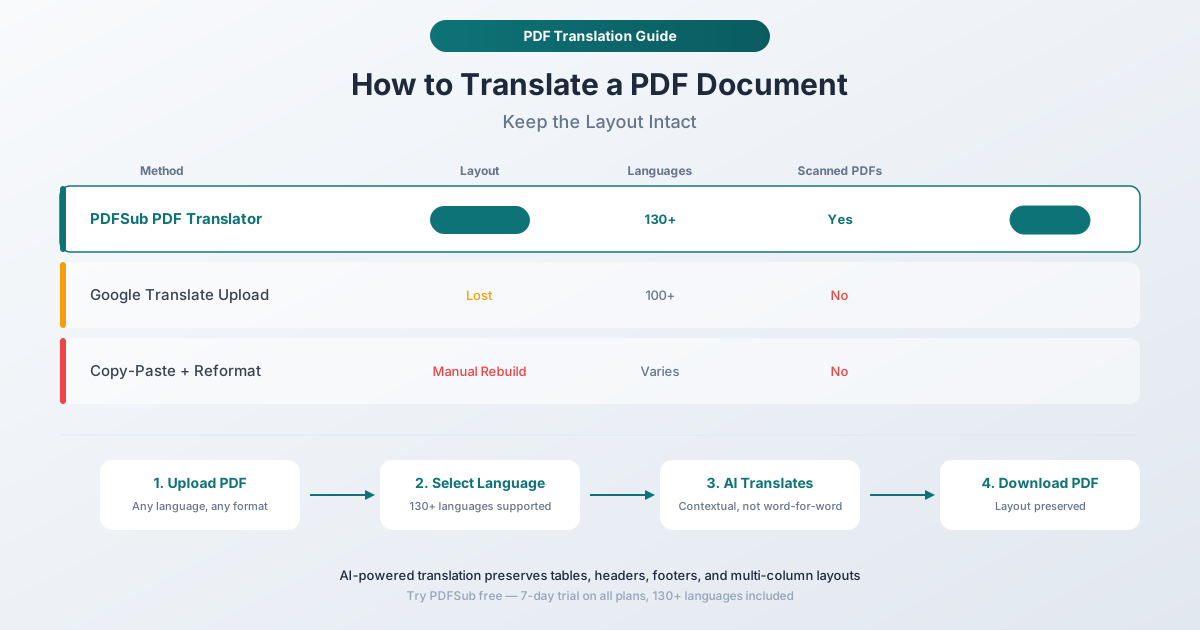
You need your PDF in another language - but copy-paste into Google Translate destroys the formatting. Here are three methods that actually work, from AI-powered tools that preserve layout to free alternatives with tradeoffs.
You have a PDF in a language you don't read. Maybe it's a contract from a German supplier, a bank statement from a Japanese partner, a research paper in Portuguese, or a government form in Arabic. You need to understand what it says - ideally without spending $200 on a professional translator for a document you just need to review.
So you try the obvious: select all the text, copy it, paste it into Google Translate.
And the result is a mess. Columns are merged. Table data is scrambled. Headers and footers are mixed into body text. Numbers that were neatly aligned in the original PDF are now floating in random positions in a wall of translated text. The formatting that made the document readable - the structure that told you which number belongs to which line item - is gone.
This isn't a Google Translate problem. It's a PDF problem. And solving it requires understanding why PDFs and translation tools don't naturally work together.
Why Standard Translation Tools Fail with PDFs
The PDF Format Wasn't Built for Text Extraction
A PDF doesn't store text the way a Word document or HTML page does. There are no paragraphs, no sentences, no "this text goes in this column." Instead, a PDF stores individual characters positioned at precise x,y coordinates on a canvas. What looks like a neatly formatted table to your eyes is actually hundreds of separate text placement commands with no structural relationship between them.
When you copy text from a PDF, your PDF viewer tries to reconstruct the reading order by sorting these coordinates. Sometimes it gets it right. Often it doesn't - especially with:
- Multi-column layouts - Text from the left column gets interleaved with text from the right column
- Tables - Row data gets concatenated into single lines, losing the column structure entirely
- Headers and footers - Running headers, page numbers, and footers get mixed into the main content
- Footnotes and sidebars - Positioned elements get inserted at unpredictable points in the extracted text
- Right-to-left text - Arabic, Hebrew, and Farsi text may extract in reversed character order
Translation Tools Don't Understand PDF Structure
Even if you get clean text out of a PDF, pasting it into a standard translation tool creates a second problem: you lose all context about where that text belongs in the document.
A contract might have text in the header ("CONFIDENTIAL"), text in a table (payment terms), text in footnotes (legal disclaimers), and text in margins (document reference numbers). When these all get flattened into a single text stream and translated together, the translated output is a continuous block of foreign-language text with no indication of what was a heading, what was a table cell, or what was a footnote.
Reconstructing the original layout manually - copying each translated section back into the right position - is so tedious that it often takes longer than the translation itself.
Special Characters and Encoding Problems
PDFs use font-specific character encoding. Some store actual Unicode characters that extract cleanly. Others use custom encodings where the glyph you see doesn't map to the expected character code - producing garbled characters, missing diacritics, or unreadable strings even though the PDF renders perfectly on screen. This is especially common with older PDFs, embedded custom fonts, complex scripts (Thai, Hindi, Arabic), and scanned documents with imperfect OCR.
Method 1: PDFSub PDF Translator (Recommended)
PDFSub's PDF Translator is purpose-built for this exact problem. Instead of extracting text, translating it separately, and trying to reassemble the document, it handles the entire pipeline in one step - understanding the document's structure and translating the content while preserving the layout.
How It Works
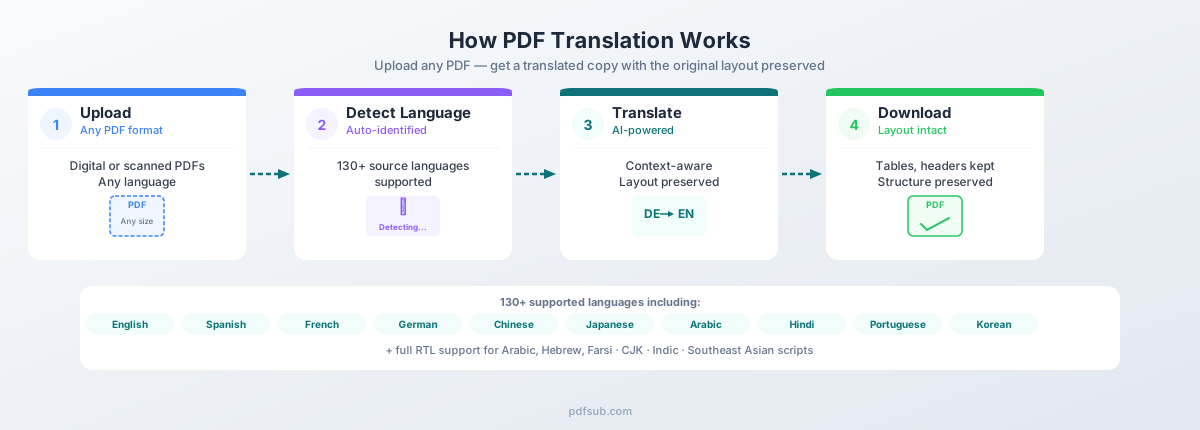
Step 1: Upload your PDF. Drag and drop any PDF file into the translator. There's no file size restriction on paid plans, and the tool handles both digitally-created PDFs and scanned documents.
Step 2: Select your target language. Choose from 130+ supported languages. The full list includes every major world language and dozens of regional ones - from Afrikaans to Zulu, with full support for complex scripts like Chinese, Japanese, Korean, Arabic, Hebrew, Hindi, Thai, and more.
Step 3: Translate. The AI analyzes the document's structure, identifies text regions, tables, headers, footers, and formatting elements, then translates the content contextually. This isn't word-for-word substitution - the AI understands sentence structure, idiomatic expressions, and domain-specific terminology.
Step 4: Download. Get your translated PDF with the original layout preserved. Tables stay as tables. Headers stay as headers. Multi-column layouts maintain their structure.
Why It Works Better Than Copy-Paste Translation
Layout preservation. The translator understands the spatial structure of the PDF - which text blocks are headings, which are table cells, which are footnotes. The translated output maintains these relationships, so you can navigate the translated document just like the original.
Contextual AI translation. Modern AI translation models don't just translate words - they translate meaning. The phrase "net 30" in an English invoice doesn't become a fishing reference in the translated version. Financial terms, legal language, and technical vocabulary are translated with appropriate domain context.
Full document coverage. Headers, footers, watermarks, table cells, form labels, sidebar text - everything gets translated. Standard copy-paste methods miss text in these positions because they fall outside the main content stream.
130+ languages. PDFSub supports over 130 languages including:
- European: English, Spanish, French, German, Italian, Portuguese, Dutch, Polish, Swedish, Norwegian, Danish, Finnish, Greek, Czech, Romanian, Hungarian, and many more
- Asian: Chinese (Simplified and Traditional), Japanese, Korean, Thai, Vietnamese, Indonesian, Malay, Filipino, Hindi, Bengali, Tamil, Urdu
- Middle Eastern: Arabic, Hebrew, Farsi, Turkish
- African: Swahili, Amharic, Yoruba, Zulu, Afrikaans
- Right-to-left scripts: Full RTL support for Arabic, Hebrew, Farsi, and Urdu - the translated document maintains correct text direction
Handles scanned PDFs. If your PDF is a scanned image rather than a digitally-created document, PDFSub uses AI vision to read the text directly from the image, translate it, and produce a clean translated output. No separate OCR step required.
Pricing
PDFSub offers a 7-day free trial so you can test the translator with your actual documents before committing. Translation uses AI credits, which are included with all subscription plans. This means you get translation along with access to PDFSub's full suite of 98+ PDF tools - not a separate per-page translation charge.
Method 2: Google Translate Document Upload
Google Translate has a built-in document translation feature that handles PDFs directly. It's free, it's fast, and it supports over 100 languages.
How to Use It
- Go to translate.google.com
- Click the "Documents" tab
- Upload your PDF (max 10MB)
- Select source and target languages
- Click "Translate"
- Download the translated document
What Works
- Free. No account required, no credit card, no limits on the number of documents (within reasonable daily usage)
- Fast. Most documents translate in seconds
- Good language coverage. Supports 100+ languages with varying quality
- Decent for simple documents. Single-column, text-heavy PDFs with minimal formatting translate reasonably well
What Doesn't Work
- Formatting loss. This is the biggest limitation. Tables, multi-column layouts, headers, footers, and most structural elements are stripped or scrambled in the translated output. What you get back is typically a plain text translation with minimal formatting.
- 10MB file size limit. Large PDFs - especially those with images, scanned pages, or embedded fonts - often exceed this limit.
- No scanned PDF support. If your PDF is a scanned image without a text layer, Google Translate can't extract any text to translate. You'll get a blank or near-blank result.
- Quality varies by language pair. Google Translate is excellent for common language pairs like English-Spanish or English-French. Quality drops noticeably for less common pairs (e.g., Finnish-Korean, Thai-Portuguese) and for documents with specialized vocabulary.
- No domain context. Google Translate doesn't know whether your document is a legal contract, a medical report, or a financial statement. The same ambiguous term gets the same translation regardless of context - which can produce incorrect or misleading results in specialized documents.
- Privacy concerns. Your document is uploaded to Google's servers for processing. For sensitive documents - contracts, financial statements, medical records - this may violate confidentiality requirements or data protection regulations.
When to Use It
Google Translate document upload is a solid choice when:
- You need a quick, rough understanding of a simple document
- The document is mostly text with minimal formatting
- You don't need to preserve the original layout
- The content isn't sensitive or confidential
- The language pair is well-supported (major European languages, Chinese, Japanese, Korean)
Method 3: Copy Text, Translate, Reformat Manually
The manual approach: extract text from the PDF, translate it section by section, and rebuild the document in a word processor.
How to Do It
- Open the PDF in a viewer (Adobe Acrobat, Preview, Chrome)
- Select and copy text sections one at a time
- Paste each section into a translation tool (Google Translate, DeepL, ChatGPT)
- Translate and copy the output
- Paste the translated text into a Word document or text editor
- Manually recreate the original formatting - headings, tables, columns, fonts
When This Makes Sense
- Very short documents. A single-page letter or a brief memo - something with less than a page of text and no tables.
- Partial translation. You only need one specific section translated, not the entire document.
- Maximum control. You want to review and adjust every translated sentence individually.
Why This Usually Doesn't Work
- Time. A 10-page document with tables takes 2–4 hours to manually extract, translate, and reformat. A 50-page technical manual could take days.
- Accuracy. Copying text section by section introduces errors - missed text, duplicated paragraphs, sections in the wrong order.
- Table destruction. Tables copied from PDFs almost never paste cleanly. You'll spend most of your time rebuilding table structure in Word or Excel.
- Inconsistency. Translating sections independently means the same term might be translated differently in different parts of the document. A translation tool processing the full document maintains terminology consistency.
- Encoding issues. Text copied from PDFs with custom font encoding may paste as garbled characters, requiring additional cleanup before translation.
This method is the translation equivalent of retyping a scanned document by hand. It works, technically, but it's almost never the best use of your time.
Translation Quality: What to Expect in 2026
Machine translation has improved dramatically over the past five years. The shift from statistical machine translation (SMT) to neural machine translation (NMT) to large language model (LLM) based translation has narrowed the gap between machine and human output significantly.
How Modern AI Translation Differs from Old-School Machine Translation
Statistical MT (pre-2016): Translated phrase by phrase using statistical patterns. Often produced awkward or incomprehensible output for complex sentences.
Neural MT (2016–2022): Encoder-decoder neural networks trained on millions of sentence pairs. Major improvement in fluency. Google Translate, DeepL, and Microsoft Translator all switched to NMT during this period.
LLM-based translation (2023–present): Large language models translate with full document context, understanding the overall topic, tone, and terminology. They handle ambiguity, idiomatic expressions, and domain-specific vocabulary significantly better than NMT.
Where AI Translation Excels
- General business correspondence. Emails, memos, proposals, presentations - near-professional quality for major language pairs.
- Technical documentation. Product manuals, specifications, user guides - consistent vocabulary works well with AI models.
- News, journalism, and e-commerce content. Standard-language content translates cleanly.
Where Human Review Still Matters
- Legal documents. A single mistranslated clause can change legal obligations. AI is useful for understanding, but certified translations should be done by qualified legal translators.
- Medical documents. Mistranslation of dosages, diagnoses, or contraindications has real safety implications.
- Financial documents requiring regulatory compliance. Official filings typically require certified human translation.
- Marketing and creative content. Slogans and brand messaging require localization, not just translation.
- Rare language pairs. Less common combinations (e.g., Icelandic to Vietnamese) have less training data and lower quality.
Practical Accuracy Expectations
For major language pairs (English to/from Spanish, French, German, Chinese, Japanese, Korean, Portuguese, Italian, Dutch), modern AI translation produces output that is:
- 90–95% accurate for general content - meaning 90–95% of sentences are translated correctly with natural phrasing
- 85–90% accurate for technical content - specialized terminology occasionally misses, but the overall meaning is clear
- 80–85% accurate for legal/financial content - key terms are usually correct, but nuances may be lost
These are useful for understanding, review, and internal communication. For published, legal, or regulatory purposes, professional review is recommended.
PDFSub Language Support: 130+ Languages
PDFSub's translation engine supports over 130 languages, covering every major script system and text direction:
- Right-to-left (RTL): Arabic, Hebrew, Farsi, and Urdu with correct text direction handling and mixed-direction content support
- CJK: Chinese (Simplified and Traditional), Japanese, and Korean - handling word boundaries, multiple writing systems, and complex character sets natively
- Indic: Hindi, Bengali, Tamil, Telugu, Kannada, Malayalam, Gujarati, Marathi, Punjabi, and more with complex conjunct characters and vowel marks
- Southeast Asian: Thai (no spaces between words), Vietnamese (extensive diacritics), Indonesian, Malay, Filipino, Burmese, Khmer, and Lao
- European: Every major and minor European language - from Spanish and German to Catalan, Basque, Welsh, Icelandic, and Albanian
Common PDF Translation Scenarios
International Contracts and Agreements
A US company receives a supply agreement from a manufacturer in Taiwan. The 30-page contract is entirely in Traditional Chinese. The legal team needs to understand the terms before engaging a certified translator for the final version.
Best approach: Translate the full document with PDFSub to get a readable English version with layout intact. Use this for internal review, team discussion, and identifying sections that need close attention from the certified translator. This saves time and money by giving the legal team context before the expensive human translation begins.
Foreign Bank Statements and Financial Documents
An accountant manages clients with international operations. Monthly bank statements arrive from Deutsche Bank (German), BNP Paribas (French), and Mizuho Bank (Japanese). The accountant needs to reconcile these statements and categorize transactions.
Best approach: Translate the statements to understand transaction descriptions and account details. Even better, use PDFSub's Bank Statement Converter to extract the transaction data directly into Excel or CSV - it handles statements in 130+ languages natively.
Academic Papers and Research
A graduate student finds a critical research paper in Portuguese. The 25-page paper includes methodology, data tables, and references.
Best approach: Translate the full paper to get a readable version with tables intact. For direct quotations in a thesis, have specific passages translated by a subject-matter expert.
Government Forms and Official Documents
An immigrant needs to understand a government form in an unfamiliar language before an immigration attorney appointment.
Best approach: Translate the form to understand what information is requested and what declarations are being made. The actual form should be filled out in the required language with professional assistance.
Product Manuals and Specifications
An engineering team receives technical specifications from a South Korean manufacturer - 40 pages of tolerance tables, material specs, and test procedures, all in Korean.
Best approach: Translate the full document for a working reference. The preserved layout keeps tables readable and specifications in context.
Tips for Best Translation Results
Start with Clean, High-Quality PDFs
Translation quality starts with document quality. A clean, digitally-created PDF with embedded fonts produces dramatically better translations than a faded scan of a photocopy.
- Digitally-created PDFs (generated from Word, Excel, or similar software) extract text perfectly and translate with the highest accuracy.
- High-resolution scans (300 DPI or higher, straight alignment, clean original) work well with AI vision-based extraction.
- Low-resolution or skewed scans may produce OCR errors that compound during translation. If possible, obtain a cleaner copy of the original document.
Review Critical Sections Manually
Even with excellent AI translation, critical sections deserve human review:
- Numbers and dates. Verify that monetary amounts, dates, and numerical references translated correctly. Date format differences (MM/DD/YYYY vs. DD.MM.YYYY) can cause confusion.
- Names and proper nouns. Personal names, company names, and place names should remain in their original form or follow established transliteration conventions.
- Legal and financial terms. Verify that key contractual terms, financial categories, and legal concepts are translated accurately.
- Negations and conditions. Sentences with "not," "unless," "except," or "notwithstanding" are the most common source of translation errors that change meaning.
Understand the Difference Between Translation and Certification
AI-translated documents are useful for understanding, review, decision-making, and internal communication. They are generally not acceptable as:
- Certified translations for court proceedings
- Official translations for immigration documents
- Regulatory filings requiring sworn translation
- Notarized translations for government agencies
For these purposes, you need a certified human translator - often one who is ATA-certified (American Translators Association) or holds equivalent credentials in the target country. An AI-translated version can still save money by giving the certified translator a draft to refine rather than starting from scratch.
Use the Right Language Variant
When translating to languages with regional variants, specify the correct one:
- Portuguese: Brazilian Portuguese vs. European Portuguese have significant vocabulary and grammar differences
- Chinese: Simplified Chinese (mainland China, Singapore) vs. Traditional Chinese (Taiwan, Hong Kong)
- Spanish: While largely mutually intelligible, Latin American and European Spanish differ in vocabulary and formality conventions
- French: Canadian French vs. European French differ in some terminology, especially technical and business language
Frequently Asked Questions
What's the difference between AI translation and certified translation?
AI translation uses machine learning models to translate text automatically. It's fast, affordable, and good enough for understanding content, making business decisions, and internal communication. Certified translation is done by a qualified human translator who attests to the accuracy of the translation - often with a signed certificate. Courts, government agencies, and regulatory bodies typically require certified translations for official proceedings.
Can I translate just part of a PDF?
With PDFSub, the translator processes the entire document. If you only need specific pages translated, you can use PDFSub's Split PDF tool to extract those pages first, then translate the smaller document. This also saves AI credits if you're working with a long document where only a few pages are in a foreign language.
How accurate is AI PDF translation?
For major language pairs (English to/from Spanish, French, German, Chinese, Japanese, Korean), accuracy is typically 90–95% for general content. Technical, legal, and financial content ranges from 80–90% depending on the specialization of the vocabulary. Quality has improved significantly since 2023, and continues to improve as AI models are trained on more diverse and specialized text.
Can I translate a scanned PDF?
Yes. PDFSub handles scanned PDFs by using AI vision to read text directly from the page images. You don't need to run a separate OCR step first. The AI reads the scanned content, translates it, and produces a clean translated output. Quality depends on the scan resolution - 300 DPI or higher works best.
What about PDFs with mixed languages?
PDFSub handles documents that contain text in multiple languages. For example, a contract might have English headers with Chinese body text, or a technical manual might have German text with English product names. The AI identifies and translates the foreign-language content while preserving text that's already in the target language.
Is my document secure during translation?
PDFSub processes documents using encrypted server-side AI for translation. Your document is processed and then deleted - it's not stored, shared, or used for model training. For organizations with strict data handling requirements, this is significantly more private than consumer translation services that may retain uploaded documents.
How long does translation take?
Most documents translate in 10–60 seconds depending on length and complexity. Short documents (1–5 pages) typically complete in under 15 seconds. Longer documents (20+ pages) may take up to a minute.
Does PDFSub offer a free trial?
Yes. PDFSub offers a 7-day free trial that includes access to the PDF Translator and all 98+ tools. You can test translation with your actual documents to verify that the quality meets your needs before subscribing.
The Bottom Line
Translating a PDF used to mean choosing between paying a professional translator hundreds of dollars or spending hours copy-pasting text into Google Translate and manually rebuilding the layout.
AI-powered PDF translation changes the equation. Tools like PDFSub's PDF Translator give you readable, layout-preserved translations in seconds - for a fraction of what manual translation costs. The technology isn't perfect for every use case (certified legal translations still need human experts), but for understanding contracts, reconciling foreign bank statements, reviewing research, or reading product specs, it's good enough to act on.
If you regularly work with documents in languages you don't read, try PDFSub's PDF Translator with your actual files. The 7-day free trial gives you enough time to test it against the documents that matter to your workflow.