How to Remove a Password from a PDF
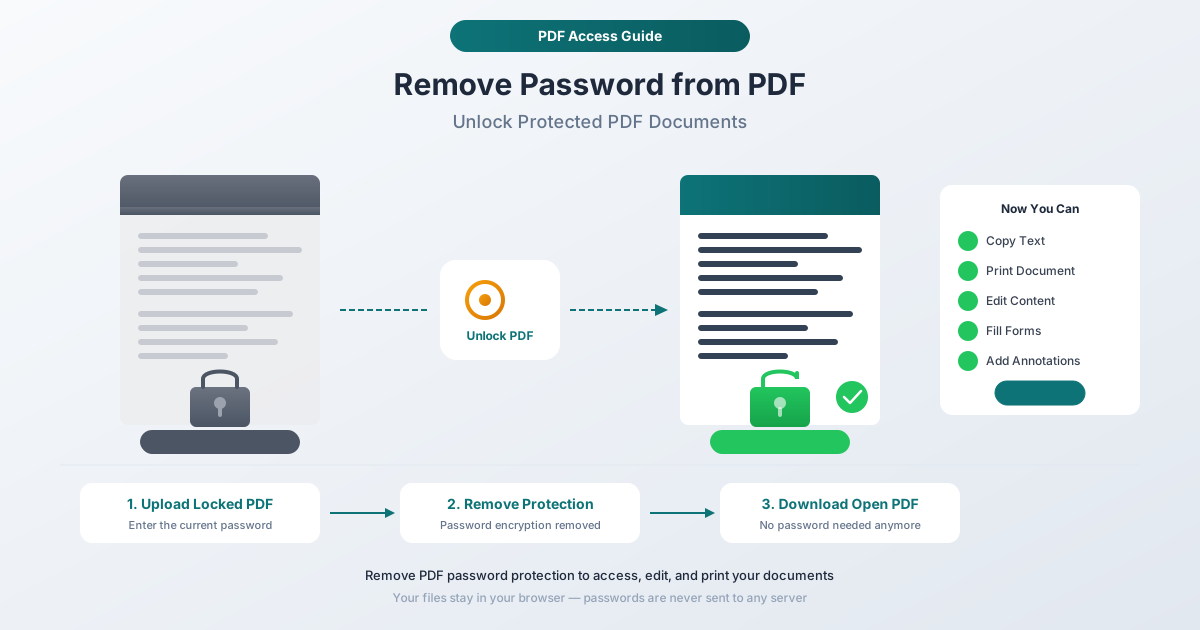
You know the password. You own the file. But retyping it every single time you open the document is driving you crazy. Here are four ways to remove a password from a PDF - from browser-based tools to built-in options on Mac and Windows.
You download a bank statement from your financial institution. You open it, type in the last four digits of your Social Security number, and read through the transactions. Next month, same thing. The month after that, same thing again. For a document sitting in your personal cloud storage that only you can access, that password prompt feels less like security and more like a nuisance.
Or maybe it's a corporate policy document. Everyone in the department knows the password. It's literally written in the onboarding email. But every time you open the file, there it is - a dialog box demanding credentials for a document that isn't secret to anyone.
PDF passwords exist for good reasons. But when you own the file and know the password, removing that protection is perfectly reasonable. This guide covers four methods for doing exactly that, with an honest look at what each approach preserves, what it loses, and when to use which.
Before We Start: An Important Note on Ethics
This guide is for removing passwords from your own documents where you already know the password. Every method described here requires you to enter the correct password first.
This is not a guide for bypassing encryption on files that don't belong to you. Circumventing access controls on protected documents without authorization may violate computer fraud laws (the Computer Fraud and Abuse Act in the US, the Computer Misuse Act in the UK, and similar statutes worldwide). Beyond legality, it's simply wrong to break into someone else's files.
If you've forgotten the password to your own document and can't recover it, your options are limited. We'll cover that scenario in the FAQ at the end.
The rest of this guide assumes you have the password and want to stop entering it repeatedly.
Two Types of PDF Passwords (They're Very Different)
Not all PDF passwords work the same way. The PDF specification (ISO 32000-2:2020) defines two distinct password types, and understanding the difference matters because it affects which removal method you need.
User Password (Open Password)
A user password - sometimes called an "open password" or "document open password" - is required to open the file at all. Without it, you see nothing. The PDF viewer displays a password prompt before rendering a single page. The document content is encrypted, and the password is the key that decrypts it.
This is the stronger of the two password types. The file's contents are actually encrypted - scrambled into unreadable ciphertext using algorithms like AES-256. Without the correct password, a PDF viewer cannot decode the content stream, and even low-level tools see only encrypted binary data.
Common examples:
- Bank statements protected with the last four digits of your SSN or date of birth
- Tax documents from your accountant
- Medical records from a healthcare portal
- Legal documents shared between parties in a case
Owner Password (Permissions Password)
An owner password - also called a "permissions password" or "master password" - doesn't prevent you from opening the file. You can view the document, scroll through every page, and read every word. But certain actions are restricted: printing might be disabled, text selection might not work, copying might be blocked, or editing might be locked down.
The owner password controls permission flags in the PDF's encryption dictionary - printing, content copying, editing, form filling, annotation, and page assembly. These flags tell compliant PDF viewers which operations to allow and which to block.
Here's the thing about owner passwords: they rely on PDF viewer compliance. The document content isn't truly encrypted in the same way as with a user password. A permissions password sets flags that well-behaved software (like Adobe Acrobat) respects. But less restrictive viewers may simply ignore those flags. This is a well-known limitation of the PDF permissions model.
How to Tell Which Type You Have
- If you can't open the file at all without a password - you have a user (open) password.
- If you can open and read the file but can't print, copy, or edit - you have an owner (permissions) password.
- If you need a password to open it and certain actions are also restricted - the file has both. The user password opens the document, and the owner password controls permissions.
Why Remove a Password from a PDF?
There are plenty of legitimate reasons to strip a password from a document you own:
Convenience. You've downloaded 24 monthly bank statements and each one asks for the same password. You want to archive them without the friction.
Workflow efficiency. You're processing dozens of password-protected documents for a client. Entering the password every time adds up.
Archiving. Passwords add a dependency - if you forget the password years later, you lose access to your own records.
Batch processing. You need to merge, split, or convert multiple PDFs, and password protection prevents automated tools from working with the files.
Accessibility. Some assistive technologies struggle with password-protected PDFs. Removing the password ensures screen readers can process the document.
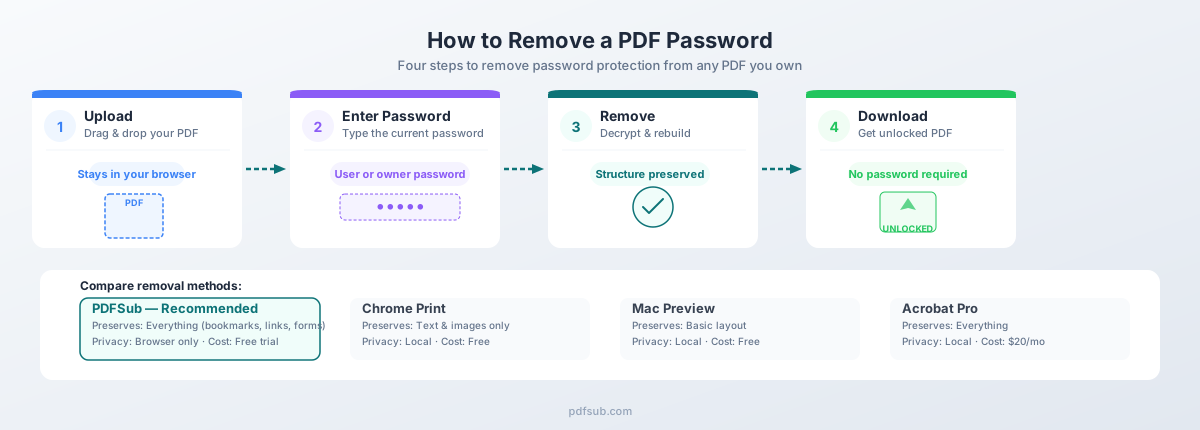
Method 1: PDFSub's Unlock PDF Tool (Recommended)
PDFSub's Unlock PDF tool removes both user passwords and owner passwords from PDF files. It works entirely in your browser - your document is processed on your device and never uploaded to a server.
How It Works
- Go to the Unlock PDF tool. Navigate to pdfsub.com/tools/unlock or find "Unlock PDF" in the tools menu.
- Upload your PDF. Drag and drop the password-protected file, or click to browse your files.
- Enter the password. Type the document's password when prompted. For files with only an owner (permissions) password, some viewers may not even require a password - the tool handles both scenarios.
- Remove the protection. Click the unlock button. The tool decrypts the document and rebuilds it without any password protection or permission restrictions.
- Download the unlocked PDF. Save the new, unprotected version to your device.
Why This Method Is Best
Privacy. The entire process happens in your browser. Your password-protected PDF - which by definition contains sensitive content - never leaves your device. No server upload, no cloud processing, no data retention.
Complete preservation. Unlike the print-to-PDF workaround (Method 2), PDFSub preserves the original PDF structure: bookmarks, hyperlinks, form fields, layers, metadata, and embedded fonts all survive the process. You get the same document, minus the password.
Both password types. It handles user passwords (encrypted content) and owner passwords (restricted permissions) equally well.
No software to install. It runs in any modern browser - Chrome, Firefox, Safari, Edge - on any operating system.
Free to try. PDFSub offers a 7-day free trial so you can test the tool with your own documents before committing.
Limitations
- Requires a modern web browser with JavaScript enabled
- Very large PDFs (hundreds of megabytes) may be slow to process in the browser
- You must know the password - this tool does not crack or bypass unknown passwords
Method 2: Google Chrome (Print to PDF)
If you don't have access to a dedicated tool, Google Chrome's built-in print function can remove certain types of PDF protection. This is a well-known workaround that's been available for years.
How It Works
- Open the PDF in Chrome. Drag the file into a Chrome browser window, or right-click the file and choose "Open with Google Chrome."
- Enter the password. If the file has a user (open) password, Chrome will prompt you. Type it in.
- Open the print dialog. Press
Ctrl+P(Windows/Linux) orCmd+P(Mac). - Change the destination. In the print dialog, set "Destination" to Save as PDF (not your physical printer).
- Save the file. Click "Save" and choose a location. The resulting PDF will have no password protection.
What This Method Handles
- Owner (permissions) passwords: Chrome ignores most PDF permission restrictions. If the file opens without a password but restricts printing and copying, Chrome's print-to-PDF will produce an unrestricted copy.
- User (open) passwords: Once you enter the correct password and the document is open, printing to PDF creates an unprotected copy.
What This Method Loses
This is the critical limitation. Chrome's "Save as PDF" function doesn't preserve the original PDF - it re-renders the document through its print engine, creating a brand-new file. In the process:
- Bookmarks and table of contents - Gone.
- Hyperlinks - Internal and external links are removed.
- Form fields - Interactive fields are flattened into static text.
- Metadata - Document properties may be stripped or replaced.
- Image quality - Chrome may resample images. High-resolution images might lose quality.
- Page dimensions - Non-standard page sizes may default to Letter or A4.
When to Use This Method
Use Chrome's print-to-PDF when you need a quick, free solution and the document is simple - primarily text and basic formatting, without bookmarks, links, or form fields you need to keep.
Method 3: Preview on Mac
If you're on macOS, the built-in Preview application can remove password protection from PDFs without installing any additional software.
How It Works
- Open the PDF in Preview. Double-click the file (or right-click and choose "Open with Preview").
- Enter the password. Preview prompts for the password. Type it in.
- Export as a new PDF. Go to File > Export as PDF.
- Save without encryption. In the save dialog, do not check the "Encrypt" checkbox. Choose a filename and location, then click "Save."
That's it. The exported PDF is a new file without any password protection.
What Preview Preserves and Loses
Preview keeps basic text formatting, images, and page dimensions. It may lose bookmarks, hyperlinks, interactive form fields, layers, and complex color profiles. On older macOS versions, you can also use File > Save As (hold the Option key to reveal it) and uncheck "Encrypt" for similar results.
When to Use This Method
Preview is a good choice for quick, one-off password removal on Mac when the document is straightforward and you don't need to preserve bookmarks or links. It's free, requires no downloads, and is already on every Mac.
Method 4: Adobe Acrobat Pro
Adobe Acrobat Pro offers the most complete password removal capability, as you'd expect from the company that created the PDF format.
How It Works
- Open the PDF in Acrobat Pro. Enter the password when prompted.
- Open Security settings. Go to File > Properties (or press
Ctrl+D/Cmd+D), then click the Security tab. - Change the security method. In the "Security Method" dropdown, select No Security.
- Enter the owner password if prompted. If the file has an owner password separate from the user password, you'll need to enter it here.
- Save the file. Press
Ctrl+S/Cmd+S. The password protection is removed from the original file.
What Acrobat Preserves
Because Acrobat modifies the file's security settings rather than re-creating the document, everything is preserved: bookmarks, hyperlinks, form fields, layers, metadata, annotations, embedded fonts, and JavaScript actions. Digital signatures may be invalidated, since removing encryption counts as a modification.
The Catch: Pricing
Adobe Acrobat Pro is not cheap:
- Acrobat Pro: $19.99/month (annual commitment) or $29.99/month (monthly). That's $239.88 to $359.88 per year.
- Acrobat Standard: $12.99/month (annual). Limited features compared to Pro but includes password removal. That's $155.88/year.
If you already have an Acrobat Pro subscription for other work, using it for password removal makes sense. If removing a password from one or two files is your only need, the cost is difficult to justify.
When to Use This Method
Acrobat Pro is the right choice when you need absolute fidelity - every bookmark, every link, every form field must survive. It's also the right choice when you're already paying for the subscription. For everyone else, the cost-to-value ratio doesn't work for occasional password removal.
Understanding PDF Encryption (What's Actually Happening)
When a password is applied to a PDF, the document's contents are encrypted using one of several algorithms. The strength of that encryption has evolved over the PDF format's 30+ year history.
| Algorithm | Key Length | PDF Version | Security Level |
|---|---|---|---|
| RC4 | 40-bit | PDF 1.1+ | Weak - crackable in seconds on modern hardware |
| RC4 | 128-bit | PDF 1.4+ | Moderate - deprecated due to known cipher weaknesses |
| AES | 128-bit | PDF 1.5+ | Strong - widely used over the last decade |
| AES | 256-bit | PDF 2.0 (ISO 32000-2) | Strongest - current standard, same strength as government systems |
The oldest encryption (40-bit RC4) offers essentially no protection today - modern GPUs can brute-force it in under a minute. Most PDFs created in the last decade use 128-bit AES or stronger. The newest standard, 256-bit AES, is what you'll find in PDF 2.0 documents.
What this means for removal: If you know the password, the encryption level doesn't matter. You provide the key, the document decrypts, and you can save an unprotected copy regardless of the algorithm.
When Passwords Make Sense (Don't Remove Everything)
Before you strip every password in sight, consider whether the protection is actually serving a purpose.
Keep passwords on for financial documents in shared storage (the password adds a layer of defense if someone gains folder access), legal documents with privileged content, medical records subject to HIPAA or similar regulations, and documents being emailed or transferred through insecure channels.
Remove passwords from personal archives in your own encrypted storage, convenience copies of documents you've already filed, files you need to batch-process (merge, split, convert, OCR), and documents destined for accounting or document management systems that can't handle password-protected inputs.
Common Scenarios
Bank Statements with Default Passwords
Banks protect downloaded statements with predictable passwords: the last four digits of your SSN, your date of birth, or your account number. For a single statement, the prompt is a minor annoyance. For 24 months of statements during tax season, it's a workflow killer. Removing the password from your personal copies is completely reasonable.
Corporate Documents with Shared Passwords
IT departments distribute internal documents with department-wide passwords everyone knows. The password prevents external access, not internal use. Once the document is on your corporate device, removing it for easier access is practical.
Old Files and Shared Documents
You password-protected a document five years ago. Will you remember the password in another five? Removing it and relying on device-level security (full-disk encryption, biometric locks) is often more practical. Similarly, when sharing password-protected documents with a spouse or business partner, removing the protection and sharing through your existing secure channels is simpler than sending passwords separately.
Password Best Practices
If you're deciding whether to password-protect a PDF you're creating, here's a quick guide:
- Use a user (open) password for documents with PII, sensitive financial data, or anything subject to compliance requirements (HIPAA, GDPR, PCI-DSS). This encrypts the content and requires the password to view.
- Use an owner (permissions) password to discourage casual copying or printing - but don't rely on it for real security. It restricts well-behaved software but doesn't encrypt the content.
- Store passwords in a password manager (1Password, Bitwarden, KeePass) rather than in a text file or your memory.
- Consider full-disk encryption as your primary defense. BitLocker (Windows), FileVault (Mac), and LUKS (Linux) encrypt your entire drive. Per-file passwords are a second layer, not a replacement.
Frequently Asked Questions
Can I remove a password from a PDF without knowing the password?
For a user (open) password: No legitimate tool will bypass this. The content is encrypted, and without the password there's no key to decrypt it. Online tools that claim to "crack" PDF passwords are overwhelmingly scams or adware. The rare exception is very old PDFs using 40-bit RC4 encryption, where the key space is small enough to brute-force - but this applies to a tiny fraction of documents.
For an owner (permissions) password: This is technically easier because the content isn't truly encrypted. Some tools can remove permissions restrictions without the owner password. However, doing this to a document you don't own raises ethical and legal issues.
Can I remove passwords from multiple PDFs at once?
Yes. PDFSub supports batch processing - you can upload multiple password-protected PDFs and unlock them in a single session. This is particularly useful during tax season when you're working with dozens of bank statements or financial documents that all share the same password.
Can I re-add a password after removing one?
Absolutely. PDFSub's Password Protect tool lets you add a new user password, owner password, or both to any PDF. This is useful when you need to remove a password temporarily for processing and then re-secure the document.
What's the difference between "encrypted" and "password-protected"?
For most users, they're effectively the same thing. A password-protected PDF uses encryption to scramble its contents, and the password is the decryption key. Technically, encryption can also use digital certificates instead of passwords, but that's uncommon for everyday documents.
Does removing a password invalidate digital signatures?
Yes. Any modification to a digitally signed PDF - including removing password protection - invalidates the signature. Verify signatures before removing passwords.
Is it legal to remove a password from my own PDF?
In virtually all jurisdictions, removing a password from a document you own and for which you know the password is legal. You're not circumventing access controls - you're using the access you already have to create an unprotected copy. The legal issues arise when you attempt to bypass passwords on documents you're not authorized to access.
My bank's PDF password isn't working. What's wrong?
Common issues:
- Wrong format: Some banks use MMDDYYYY for date of birth, others use MM/DD/YYYY, and still others use DDMMYYYY. Check the bank's FAQ or the download page instructions.
- Leading zeros: If your SSN last four starts with zero (e.g., 0123), make sure you're including the leading zero.
- Account number format: Some banks use the full account number, others use just the last four digits. Check which format your bank specifies.
- Caps lock / keyboard layout: Obvious, but worth checking. Some passwords are case-sensitive.
Choosing the Right Method
| Feature | PDFSub | Chrome Print | Mac Preview | Adobe Acrobat Pro |
|---|---|---|---|---|
| Removes user password | Yes | Yes | Yes | Yes |
| Removes owner password | Yes | Yes | Yes | Yes |
| Preserves bookmarks | Yes | No | No | Yes |
| Preserves hyperlinks | Yes | No | Sometimes | Yes |
| Preserves form fields | Yes | No | No | Yes |
| Preserves metadata | Yes | No | Partial | Yes |
| Browser-based (no install) | Yes | Yes | N/A (Mac only) | No |
| Privacy (no upload) | Yes | Yes | Yes | Yes |
| Cost | Free trial, then subscription | Free | Free | $12.99–$29.99/mo |
| Batch processing | Yes | No | No | Yes |
For most people, PDFSub's Unlock PDF tool hits the right balance: full document preservation, browser-based privacy, no software to install, and a free trial to test before buying. Chrome's print trick works in a pinch for simple documents where you don't care about bookmarks or links. Preview is convenient if you're on a Mac and the document is straightforward. Acrobat Pro is the enterprise choice - complete and capable, but expensive.
Summary
Removing a password from a PDF is straightforward when you know the password and the document is yours. The key decisions are:
- Which password type? User passwords encrypt content; owner passwords restrict permissions. Most removal tools handle both.
- What do you need to preserve? If bookmarks, links, and form fields matter, choose a method that preserves PDF structure (PDFSub or Acrobat Pro). If you just need the text and images, Chrome or Preview will do.
- How many files? For a single file, any method works. For batch processing during tax season or quarterly reviews, you need a tool that supports multiple files.
- What's your budget? Chrome and Preview are free. PDFSub offers a 7-day free trial. Acrobat Pro starts at $155.88/year.
Whatever method you choose, remember the core principle: remove passwords from your own documents for your own convenience. Keep them on for documents in transit, shared environments, or regulatory compliance contexts. And store the originals in case you ever need the password-protected version again.