How to Redact Sensitive Information from a PDF
Drawing a black box over text in a PDF does not remove it. The text is still there, selectable, searchable, and extractable. Here's how to actually redact a PDF so sensitive information is permanently destroyed.
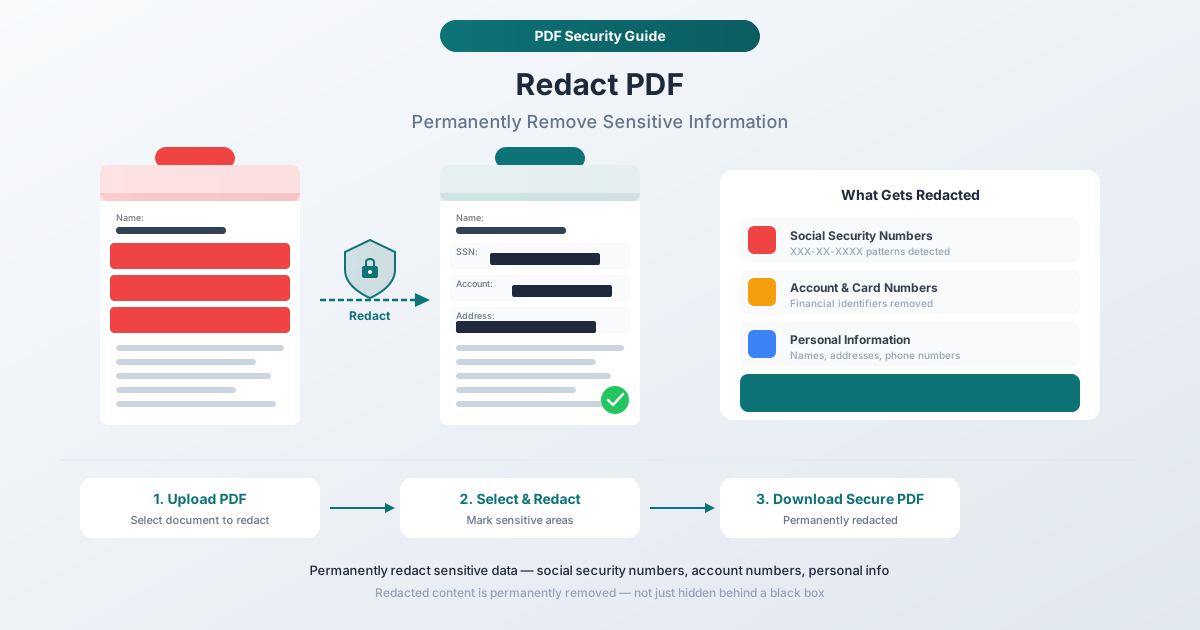
You have a PDF with a Social Security number on page 3, a client's home address on page 7, and a bank account number buried in a table on page 12. You need to share this document - with opposing counsel, a regulatory body, a business partner, or the public - but that sensitive information has to go.
So you open the PDF, draw a black rectangle over the SSN, save, and send.
You just made the most common redaction mistake in the world. The text is still there. Anyone who receives that PDF can select the "redacted" area, copy the hidden text, and paste it into a text editor. Your client's SSN is now sitting in someone's clipboard.
This is not a theoretical risk. It has happened to the U.S. Department of Justice, the TSA, Fortune 500 companies, and law firms handling high-profile cases. Real redaction - the kind that actually removes information permanently - requires a specific process. Drawing shapes over text is not it.
This guide covers what real redaction is, how it differs from the fake version, and three methods for doing it correctly - including one that processes your document entirely in your browser so the sensitive content never touches a server.
What Redaction Actually Means
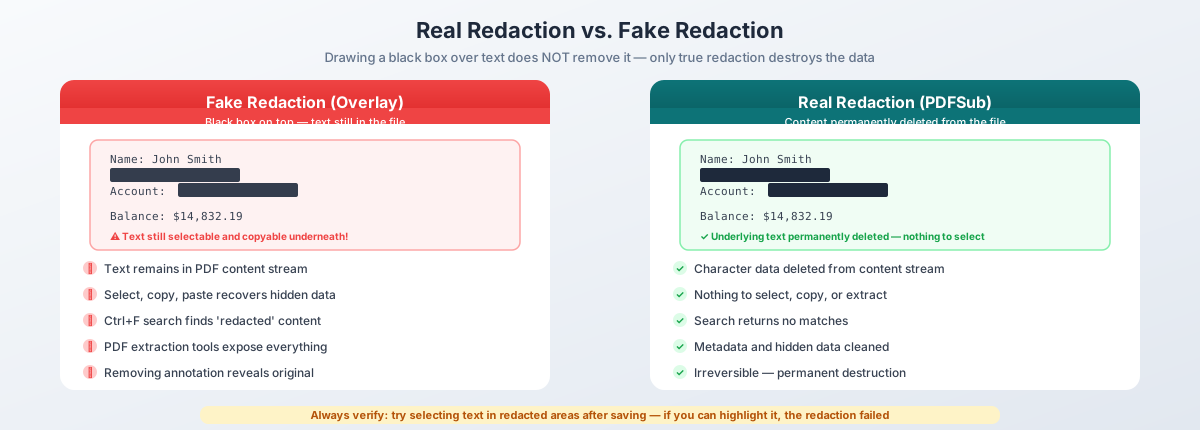
Redaction is the permanent, irreversible removal of information from a document. Not hiding. Not covering. Removal.
When you properly redact a PDF: the visible text is replaced by a black box, the underlying character data is deleted from the PDF's content stream, the text becomes unsearchable, no copy-paste or programmatic extraction can recover it, and related metadata (bookmarks, comments, form fields) is cleaned. If any of these conditions are not met, you have a visual overlay - not a redaction.
How PDFs Store Text (And Why Overlays Fail)
To understand why black boxes don't work, you need to understand how PDFs store text.
A PDF page is a content stream - a sequence of operators that position individual characters at precise x,y coordinates on a canvas. The text "SSN: 123-45-6789" is stored as positioning commands that place each character at specific locations. Drawing a black rectangle on top of that text adds a new graphical element to the content stream, but the original text operators remain untouched. The text is still in the file. It is still selectable. It is still extractable.
Think of it like taping a piece of black paper over a line in a printed document. The ink is still on the page underneath. Real redaction is the digital equivalent of cutting that line out of the page entirely and burning the scraps.
Real Redaction vs. Fake Redaction
| Real Redaction | Fake Redaction | |
|---|---|---|
| Visual appearance | Black box over content | Black box over content |
| Underlying text | Permanently deleted | Still present in file |
| Select and copy | Nothing to select | Text can be copied |
| Text search | No matches | Matches found |
| Programmatic extraction | No data returned | Full text extracted |
| Metadata | Cleaned | Untouched |
| Reversible? | No - information is destroyed | Yes - remove the overlay |
From the outside, real and fake redaction look identical. The black box is there in both cases. The difference is entirely in what happens beneath the surface - and that difference has caused some of the most embarrassing information leaks in recent history.
Famous Redaction Failures
These are not hypothetical scenarios. Every case below involved professionals at major organizations who believed they had redacted sensitive information. They had not.
The Manafort Case (2019)
Lawyers for Paul Manafort filed a court document with the U.S. District Court in which they intended to redact details about their client's interactions with Russian intelligence. The "redacted" sections were black boxes - but the underlying text was fully intact. Reporters simply copied and pasted the hidden text, revealing that Manafort had shared polling data with a Russian associate. The story dominated a full news cycle. The legal team had used a word processor's highlighting feature (black highlight over black text) and exported to PDF without realizing the text layer was preserved.
TSA Airport Security Blueprint (2009)
The Transportation Security Administration published a redacted version of its airport security screening procedures manual. The redactions were simple black rectangles drawn over text in a PDF. Security researchers removed the overlays and accessed the full unredacted document, which contained details about screening exceptions, law enforcement identification procedures, and checkpoint vulnerabilities. The TSA had to revise its entire screening protocol.
AT&T / NSA Wiretapping Case (2006)
In the Electronic Frontier Foundation's lawsuit against AT&T over warrantless wiretapping, AT&T filed a legal brief with "redacted" trade secrets. The redactions were black boxes over text in a PDF. The full text - describing the NSA's surveillance infrastructure inside AT&T facilities - was trivially extractable. The document was downloaded thousands of times before it was pulled.
The Pattern
In every case, the failure mode was identical: a visual element was drawn over text without deleting the text itself. And the people who made these mistakes were not careless - they were lawyers, government officials, and security professionals. The tools they used (word processors, basic PDF editors, annotation features) simply do not perform real redaction.
What Information Should You Redact?
The answer depends on your regulatory environment, but the following categories cover the most common sensitive data in business documents.
Personally Identifiable Information (PII)
- Social Security numbers (SSNs) and taxpayer identification numbers (TINs)
- Bank account numbers and routing numbers
- Credit and debit card numbers
- Driver's license and passport numbers
- Dates of birth
- Home addresses and personal phone numbers
- Email addresses (when associated with other PII)
- Biometric identifiers
Financial Information
- Account balances and transaction histories
- Salary and compensation figures
- Tax return data
- Investment account details
- Loan and mortgage information
- Credit scores and credit report data
Medical and Health Information (HIPAA)
- Patient names in combination with health data
- Medical record numbers
- Diagnoses and treatment details
- Prescription information
- Health insurance policy numbers
- Lab results and medical imaging reports
Legal and Business Information
- Minor names in court documents
- Victim and witness identities in criminal proceedings
- Attorney-client privileged communications
- Trade secrets and proprietary formulas
- Sealed court records and grand jury materials
- Case numbers and docket information (in certain jurisdictions)
- Confidential settlement terms
HR and Employment Records
- Employee SSNs and tax withholding data
- Salary figures and bonus amounts
- Disciplinary records and performance reviews
- Medical leave details
- Background check results
- Internal investigation notes
The general rule: if the information could identify a specific person, reveal their financial situation, expose their medical history, or disclose protected legal communications, it should be redacted before the document is shared with anyone who does not have a legitimate need to see it.
By Document Type
Different documents tend to hide sensitive data in different places:
- Legal documents: Party names and addresses (especially in family/juvenile cases), privileged communications, witness identities, settlement terms, SSNs in financial exhibits, minor names
- Financial documents: Account and routing numbers, SSNs/TINs, transaction details, balances, salary data
- Medical records (HIPAA): HIPAA's Privacy Rule identifies 18 specific identifiers that must be removed for de-identification, including names, geographic data, dates, phone/fax/email, SSNs, medical record numbers, health plan IDs, account numbers, license numbers, device identifiers, biometric data, and photographs. Penalties range from $100 to $50,000 per violation.
- HR documents: Employee SSNs on tax forms (W-2, W-4, I-9), salary figures, disciplinary records, medical leave details, background check results, personal contact information
Method 1: PDFSub Redact PDF Tool (Recommended)
PDFSub's Redact PDF tool performs true redaction - the text beneath redaction marks is permanently removed from the file, not just visually covered. And because the tool runs entirely in your browser, the document containing your sensitive information never leaves your device.
How It Works
Step 1: Upload your PDF. Drag and drop your document onto the Redact PDF tool or click to browse. The file loads directly into your browser - no server upload occurs.
Step 2: Mark areas to redact. Select the text or regions you want to remove. You can highlight specific words, sentences, entire paragraphs, or draw redaction boxes over images and diagrams. The tool shows you exactly what will be redacted before you commit.
Step 3: Apply redactions. Click to apply. The tool permanently removes the marked content from the PDF's content stream. The text is deleted - not hidden, not overlaid, deleted. A black box fills the space where the content was.
Step 4: Download. Save the redacted PDF. The file you download contains no trace of the removed information. You can verify this by trying to select text in the redacted areas (there is nothing to select) or running a text search for the removed content (no matches will be found).
Why This Method Is Best for Sensitive Documents
Browser-based processing. The entire redaction process happens in your browser. Your PDF never travels across the internet, never lands on a third-party server, and never gets logged, cached, or retained. For compliance-sensitive workflows, this is not a nice-to-have - it is a requirement.
True redaction, not annotation. The text is actually deleted from the PDF's internal data structure, not merely covered. After redaction, the content is irrecoverable.
Affordable. Unlike Adobe Acrobat Pro at $240/year, PDFSub provides professional redaction at a fraction of the cost. Start with a 7-day free trial to verify the tool meets your needs.
Works on any device. Redact PDFs from Windows, Mac, Linux, Chromebooks, and tablets - anywhere you have a modern web browser.
Method 2: Adobe Acrobat Pro
Adobe Acrobat Pro includes a dedicated redaction tool that performs true redaction. It is the industry standard for legal and government workflows.
How to Redact in Acrobat Pro
Step 1: Open the Redact tool. Go to Tools > Redact. This opens the redaction toolbar.
Step 2: Mark content for redaction. Click and drag to select text, redact entire pages, or use "Find and Redact" to search for patterns (like SSN formats) across the entire document.
Step 3: Apply redactions. This is the critical step many users miss. Marking puts a red outline around text - it does not remove it yet. You must click "Apply" to permanently delete the content.
Step 4: Remove hidden information. Use "Remove Hidden Information" to clean out metadata, comments, form fields, and embedded files.
Strengths and Drawbacks
Acrobat Pro is the industry standard with broad legal/government acceptance, offers batch "Find and Redact," and removes hidden information. However, it costs $240/year, requires desktop installation, and the two-step process (mark then apply) is a frequent source of errors when users forget the apply step.
The Two-Step Trap
This deserves emphasis because it causes real data leaks: marking content for redaction is not the same as redacting it. Marking places a visual indicator. The text is still in the file. Only applying deletes it. If you save and share after marking but before applying, you have shared a document with fake redactions.
Method 3: Preview on Mac
Apple's Preview app (built into macOS) has annotation tools that can place black rectangles over text. Many Mac users assume this constitutes redaction. It does not.
What Preview Actually Does
When you use Preview's rectangle annotation tool to cover text:
- A black shape is drawn on top of the PDF content
- The underlying text remains completely intact
- The text can still be selected by clicking and dragging beneath the rectangle
- The text still appears in search results (Cmd+F)
- The text can be extracted by any PDF parsing tool
- The annotation can be removed entirely, revealing the original text
WARNING: Preview Does Not Perform Real Redaction
Preview's annotations are not redactions. They are the exact same visual overlay that caused the Manafort, TSA, and AT&T failures described earlier. Using Preview to "redact" a PDF and sharing it is functionally equivalent to sharing the unredacted document.
As of macOS Sequoia (2025), Preview does not include a true redaction feature. If you are on a Mac, use PDFSub's browser-based Redact PDF tool or Adobe Acrobat Pro instead.
How to Verify Preview's Failure
Try it yourself: open any PDF in Preview, draw a black-filled rectangle over some text, save, reopen, and press Cmd+F to search for the "hidden" text. It will be found. It was never removed. This 30-second test demonstrates why annotation tools are dangerous when used for redaction.
Redaction Best Practices
Getting the redaction tool right is only half the battle. The process around redaction matters just as much.
1. Always Verify After Redacting
After applying redactions, test the output. Try selecting text in the redacted areas - if you can highlight anything beneath a black box, the redaction failed. Search (Ctrl+F / Cmd+F) for the content that was supposed to be removed. Open the file in a different PDF viewer, since some handle annotations differently. For high-stakes redactions (legal proceedings, regulatory submissions), use a text extraction tool to dump all text and confirm the redacted content is absent.
2. Remove Metadata
Redacting visible text is necessary but not sufficient. PDFs carry metadata that can reveal sensitive information: document properties (author, organization, creation date), comments and annotations, form field data, embedded file attachments, bookmarks, JavaScript, and XMP metadata. A thorough redaction workflow removes all of this in addition to visible content.
3. Work from a Copy
Never redact the original document. Make a copy, store the original in a secure location, perform all redactions on the copy, verify, and distribute only the redacted version. The unredacted original may be needed later for legal proceedings, audit trails, or internal review.
4. Use Consistent Redaction Appearance
Standardize the appearance of redactions across your organization. Black boxes are the standard for legal and government documents. Consider adding redaction labels (e.g., "REDACTED," "PRIVILEGED," "PII REMOVED") so readers know why content was removed.
5. Document and Review
For legal and compliance purposes, maintain a record of who performed the redaction, when, what categories of information were removed, and what tool was used. This creates an audit trail if the adequacy of the redaction is ever questioned.
Have a second person review the redacted document before it leaves your organization. A fresh pair of eyes catches missed redactions, incomplete removals, and context clues that could allow a reader to infer redacted content from surrounding text. Two-person review is standard practice in government FOIA offices.
Batch Redaction: Finding and Removing Patterns
When you need to redact the same type of information across a large document, manual selection becomes impractical. Batch redaction automates the process by searching for patterns and marking all matches at once.
Common patterns to batch-redact:
| Data Type | Pattern Formats |
|---|---|
| Social Security numbers | XXX-XX-XXXX, XXX XX XXXX, XXXXXXXXX |
| Email addresses | [email protected] |
| Phone numbers | (XXX) XXX-XXXX, XXX-XXX-XXXX, +1XXXXXXXXXX |
| Credit card numbers | 13-19 digit sequences, often in groups of four |
| Account numbers | 8-17 digit sequences following "Account #" or "Acct" |
| Dates of birth | MM/DD/YYYY, Month DD, YYYY, DD-MM-YYYY |
The workflow: define your patterns, run the search across all pages, review each match (not every pattern match is actually sensitive), apply all at once, then do a manual sweep for content that did not match your patterns. Names, addresses, and free-text descriptions rarely match simple patterns and require human review.
Legal Requirements for Redaction
Redaction is not just a best practice. In many contexts, it is a legal requirement.
FOIA (Freedom of Information Act). Federal agencies responding to FOIA requests must disclose documents but are required to redact information falling under nine specific exemptions - including national security information, trade secrets, personal privacy, and law enforcement records. State-level open records laws impose similar requirements. Improper redaction can result in lawsuits, court orders, and agency sanctions.
GDPR. Under the EU General Data Protection Regulation, organizations responding to data subject access requests (Article 15) must redact any third-party personal data in the same documents. The "right to erasure" (Article 17) may also require redacting personal data from documents the organization must otherwise retain. Violations can result in fines up to 20 million euros or 4% of annual global revenue.
HIPAA. Protected health information must be de-identified before disclosure for non-treatment purposes. The "Safe Harbor" method requires removing all 18 identifier categories listed earlier. Penalties range from $100 to $50,000 per violation.
Court orders. Courts routinely order redaction of minor names, trade secrets, informant identities, and sealed material in public filings. Noncompliance can result in contempt sanctions, case dismissal, or attorney discipline.
State privacy laws. California's CCPA/CPRA, Virginia's CDPA, Colorado's CPA, and similar state laws impose GDPR-like obligations. Organizations responding to consumer data requests must redact third-party information before disclosure.
Frequently Asked Questions
Can redacted text ever be recovered?
If the redaction was performed correctly using a true redaction tool - no. The character data is permanently deleted. There is no hidden layer, no encrypted backup, no forensic recovery path. If the "redaction" was just a shape drawn over text (fake redaction), then yes - anyone can select, copy, and paste the hidden text with a basic PDF viewer.
Can I redact information from images within a PDF?
Yes. Redaction tools can place boxes over regions of embedded images, rasterizing the affected area with a solid fill so the original pixels are destroyed. This is important for scanned documents where text exists as part of an image rather than as selectable characters.
What about redacting form fields?
PDF form fields store data separately from visible page content. A redaction box over a form field's visible location does not necessarily remove the stored data. A thorough redaction must also flatten or remove form fields and their associated data.
Does redaction change the page layout?
No. Redacted areas are replaced with solid-color boxes that occupy the same space as the removed content. The surrounding text and layout remain in their original positions.
Can I undo a redaction?
No - that is the point. Redaction is permanent and irreversible. This is why you should always work from a copy and keep the unredacted original stored securely.
How is redaction different from encryption?
Encryption restricts who can access the entire document. Redaction restricts what content is visible within a document that anyone can access. They serve different purposes and are often used together.
Is printing to PDF after covering text a valid redaction method?
Unreliable. Some print-to-PDF drivers flatten the visual layer and remove underlying text. Some preserve it. This method should never be relied upon for sensitive redactions. Use a dedicated redaction tool.
Can I redact a password-protected PDF?
You need to unlock the PDF before redacting. If the PDF has an owner password (restricting editing) or a user password (restricting opening), you need that password first. Once unlocked, the redaction process is the same as for any unprotected PDF.
Conclusion
A document that looks redacted but is not redacted is worse than an unredacted document - it creates a false sense of security that leads people to share sensitive information they would otherwise have protected.
Three takeaways:
- Use a real redaction tool. Drawing shapes over text does not redact anything. The text remains in the file. Use a tool that deletes the underlying content.
- Verify every time. Try to select text in redacted areas, search for the removed content, and test in a second application.
- Protect the document during processing. If your tool uploads your PDF to a server, your sensitive document is now on a third-party server. PDFSub's Redact PDF tool processes documents in your browser - the file never leaves your device.
The cost of getting redaction wrong is exposed SSNs, leaked medical records, disclosed trade secrets, and regulatory fines that reach into the millions. The cost of getting it right is a few minutes of your time.
Try PDFSub's Redact PDF tool free for 7 days and verify for yourself that the sensitive content is permanently gone.