Receipt OCR Accuracy: What to Expect from AI Scanning
Receipt OCR is harder than standard document scanning - thermal paper fades, layouts vary wildly, and fonts are tiny. Here's what accuracy you can realistically expect from traditional OCR vs. AI-powered extraction.
You scan a receipt from last Tuesday's business lunch. The total comes back as $14.73 instead of $114.73. A single dropped digit, and your expense report is wrong.
This is the core tension in receipt OCR: the technology looks magical when it works, but the gap between "mostly right" and "actually right" is where real money gets lost. A 95% character accuracy rate sounds impressive until you realize it means five errors per hundred characters - and on a 30-line restaurant receipt, that's enough to corrupt the total, misread the date, or mangle the vendor name.
Receipt scanning has improved dramatically in the last two years. But accuracy still varies enormously depending on the tool you use, the condition of the receipt, and which fields you're trying to extract. This guide breaks down what you can realistically expect - with specific numbers, not marketing claims.
Why Receipt OCR Is Harder Than Document OCR
If you've ever used OCR on a standard business letter or a typed report, you might assume receipt scanning would be just as reliable. It's not. Receipts are among the hardest documents for OCR engines to process, and the reasons are structural, not just technical.
Thermal Paper Degradation
The single biggest accuracy killer isn't the OCR engine - it's the paper. Approximately 93% of point-of-sale receipts are printed on thermal paper, which uses heat-sensitive chemical coatings instead of ink. This creates three problems:
-
Fading is inevitable. Under normal conditions (cool, dry, low light), thermal receipts begin fading within six months to one year. In harsh environments - a car glove compartment in summer, a humid wallet - fading can start within weeks. Standard-grade thermal paper maintains legibility for five to seven years under ideal storage, but "ideal" means below 77 degrees Fahrenheit, 45-65% relative humidity, and no light exposure. That describes a climate-controlled archive, not a shoebox.
-
Fading is non-uniform. The edges and folds fade first because friction and pressure accelerate the chemical breakdown. This means the very areas where totals and subtotals often appear - the bottom of the receipt - degrade fastest.
-
BPA contamination. Most thermal paper contains bisphenol A (BPA) or its replacement bisphenol S (BPS) as a color developer. Individual receipts can contain BPA at concentrations 250 to 1,000 times greater than what's found in a can of food. The chemicals are not chemically bonded to the paper, so they readily transfer to skin, wallets, and other papers stored nearby. This isn't directly an OCR problem, but it's a strong argument for digitizing receipts immediately and minimizing physical handling.
Variable Layouts
Standard business documents - invoices, bank statements, tax forms - follow relatively predictable layouts. Receipts do not. Consider the variation across just four common receipt types:
| Receipt Type | Layout Characteristics | OCR Challenge |
|---|---|---|
| Restaurant | Itemized food/drink, tip line, multiple subtotals, server name | Handwritten tip amounts, variable spacing |
| Retail/Grocery | Long item lists, SKU codes, discounts, loyalty savings | 50+ line items, mixed alphanumeric codes |
| Gas Station | Pump number, fuel grade, gallons, price per gallon, odometer | Abbreviated field names, weather exposure |
| Online/Email | HTML-rendered, consistent formatting, order numbers | Usually clean - but PDF exports can introduce artifacts |
A template-based OCR system that's trained on retail receipts will fail on restaurant receipts with handwritten tips. An engine optimized for English-language receipts will struggle with multilingual formats common in international travel. And a system designed for standard letter-size documents may not handle the narrow, continuous-roll format of thermal paper at all.
Small Fonts and Low Contrast
Receipt printers typically use fonts between 7 and 10 points - smaller than standard body text in most documents. Combined with thermal printing's inherently lower contrast compared to laser or inkjet printing, this creates character recognition challenges even for state-of-the-art OCR engines. Characters like "1" and "l", "0" and "O", "5" and "S" become ambiguous at small sizes, especially after even minor fading.
Physical Damage
Receipts get crumpled in pockets, folded in wallets, and stuffed in envelopes. Each crease creates a line that the OCR engine may interpret as a character boundary, a strikthrough, or noise. Water damage from rain or spills warps the paper and causes ink bleeding. Oil and grease from food receipts obscure text. None of these problems exist when scanning a pristine office document from a laser printer.
Understanding Accuracy: Three Different Metrics
When a vendor claims "99% accuracy," you need to ask: 99% of what? There are three fundamentally different ways to measure OCR accuracy, and each tells a very different story.
Character Accuracy (Character Error Rate)
Character accuracy measures how many individual characters the engine reads correctly. It's calculated using the Character Error Rate (CER), which counts insertions, deletions, and substitutions at the character level.
Example: If a receipt line reads "COFFEE MEDIUM $4.50" and the OCR produces "C0FFEE MEDIUN $4.5O", that's 3 errors in 21 characters - an 85.7% character accuracy rate.
Character accuracy is the most granular metric and the easiest to benchmark objectively. It's also the least useful for practical purposes because it treats all errors equally. Misreading "MEDIUM" as "MEDIUN" in a description is annoying. Misreading "$4.50" as "$4.5O" (letter O instead of zero) is a data corruption error.
Field Accuracy (Field-Level F1 Score)
Field accuracy measures whether specific data fields are extracted correctly as complete units. Did the system correctly identify and extract the total amount? The date? The vendor name? The tax amount?
Example: If the OCR system reads the receipt and returns:
- Total: $47.83 (correct)
- Date: 02/28/2026 (correct)
- Vendor: "STARBCUKS" (incorrect - should be "STARBUCKS")
- Tax: $3.42 (correct)
That's 3 out of 4 fields correct - 75% field accuracy.
Field accuracy is what matters for expense management and accounting workflows. A character error in a description is tolerable. A field error in the total amount invalidates the entire receipt.
Document Accuracy (End-to-End Success Rate)
Document accuracy measures whether the entire receipt was processed correctly - all fields, all line items, no errors anywhere. This is the strictest metric and the most realistic for production workflows.
If a receipt has 8 extractable fields and the system gets 7 right but misreads one line item quantity, the document accuracy is 0% - one error anywhere means the whole document needs review.
Industry benchmarks at a glance:
| Metric | Traditional OCR | AI-Powered Extraction |
|---|---|---|
| Character accuracy | 85-92% | 95-99% |
| Field accuracy (critical fields) | 70-85% | 93-99% |
| Document accuracy (all fields correct) | 40-60% | 75-92% |
The gap between character accuracy and document accuracy explains why a tool can claim "95% accuracy" and still produce results that need manual correction on half of all receipts.
Traditional OCR Accuracy on Receipts: The Baseline
Traditional OCR - rule-based engines that identify characters through pattern matching and segmentation - has been available for decades. Two systems dominate this space.
Tesseract (Open Source)
Tesseract, originally developed by HP Labs in the 1980s and later maintained by Google, is the most widely used open-source OCR engine. On standard documents (clean scans of typed pages), Tesseract achieves 95-99% character accuracy. On receipts, the picture is far less rosy.
Independent benchmarks show Tesseract achieving 50-80% character accuracy on receipts, depending on image quality and receipt condition. The engine was designed and optimized for recognizing sentences of words in standard documents - not the abbreviated, mixed-format text found on receipts. Common failure modes include:
- SKU codes and item numbers are misread because they look like random character strings to a language model trained on English text
- Price columns lose decimal alignment when whitespace detection fails
- Small thermal fonts produce low-confidence character matches
- Rotated or skewed images from phone cameras degrade accuracy significantly
Tesseract requires substantial preprocessing - deskewing, binarization, noise removal, contrast enhancement - to approach acceptable accuracy on receipts. Even with optimized preprocessing, field-level accuracy on critical fields like totals and dates typically ranges from 60-75%.
ABBYY FineReader (Commercial)
ABBYY represents the high end of traditional OCR. On clean, structured documents, ABBYY achieves up to 99.8% character accuracy - the best in the traditional OCR category. On receipts, ABBYY performs significantly better than Tesseract, typically achieving 88-93% character accuracy on reasonably clear receipts.
ABBYY's advantage comes from decades of training data, superior preprocessing algorithms, and extensive language and font coverage. However, it still relies fundamentally on character-level recognition without semantic understanding of document structure. It can accurately read what's on the receipt, but it doesn't understand that the number at the bottom is the total and the date at the top is when the transaction occurred.
The Template Problem
Traditional OCR systems that go beyond raw character recognition to field extraction typically rely on templates - predefined coordinate maps that tell the system "the total is at position X,Y on the page." This approach works well for standardized forms (tax documents, insurance claims) but fails for receipts because:
- There are thousands of unique receipt formats across vendors, POS systems, and countries
- Even the same store chain may change its receipt layout when upgrading POS hardware
- Template creation and maintenance is labor-intensive - each new layout requires manual configuration
- Receipt length varies (a grocery receipt with 50 items is physically different from a coffee shop receipt with 2 items)
Template-based systems typically support 50-200 receipt layouts. That covers major retailers in a single country. It doesn't cover the long tail of small businesses, international receipts, or restaurants.
AI-Powered Extraction: A Different Approach
Modern AI receipt extraction doesn't work like traditional OCR at all. Instead of pattern-matching individual characters and mapping coordinates to templates, AI systems use large language models and vision models that understand document context.
How AI Extraction Works
The process typically follows three steps:
-
Visual understanding. The AI model processes the receipt image (or PDF) as a visual input, identifying text regions, layout structure, and spatial relationships. This is fundamentally different from traditional OCR, which processes characters in isolation.
-
Contextual extraction. Rather than asking "what character is at position X,Y?", the model asks "what is the total amount on this receipt?" It understands that the total is usually near the bottom, preceded by a word like "Total," "Amount Due," or "Grand Total," and formatted as a currency value. This contextual understanding is what makes AI extraction format-agnostic - no templates needed.
-
Structured output. The model returns a structured data object with labeled fields: vendor name, date, line items, subtotal, tax, total, payment method. The output format is consistent regardless of the input receipt's layout.
AI Accuracy by Condition
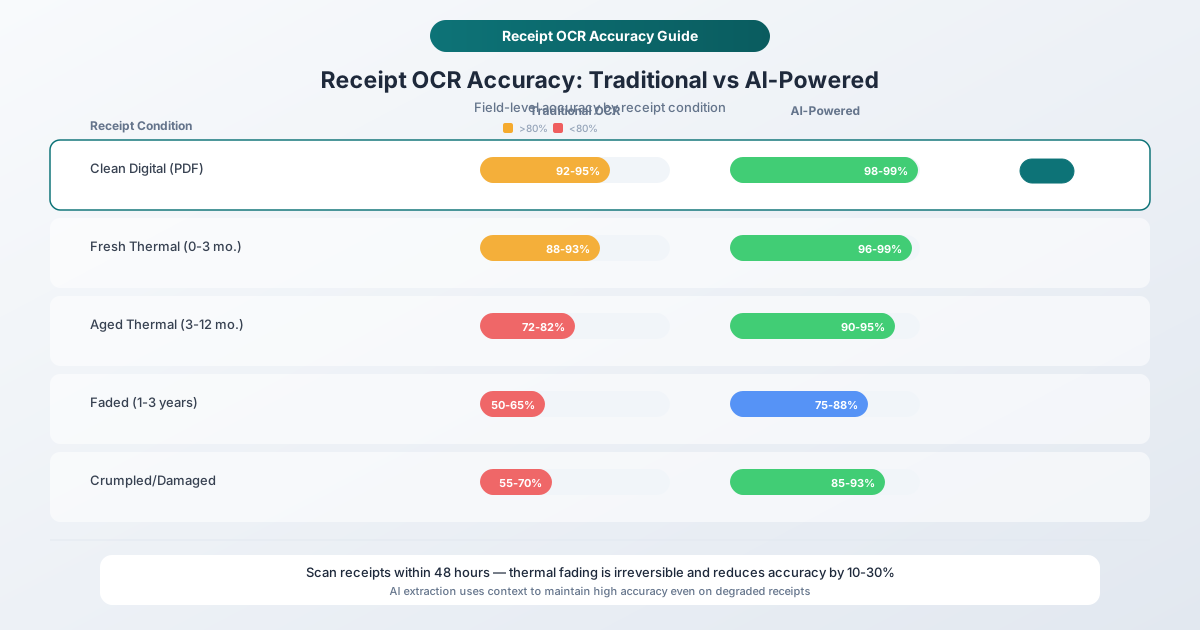
AI-powered extraction achieves dramatically higher accuracy than traditional OCR, but the numbers vary significantly by receipt condition:
| Receipt Condition | Field Accuracy (Critical Fields) | Field Accuracy (All Fields) | Notes |
|---|---|---|---|
| Clean digital receipt (PDF/email) | 98-99%+ | 95-98% | Near-perfect; formatting is consistent |
| Fresh thermal receipt (0-3 months) | 96-99% | 92-96% | High contrast, clear text |
| Aged thermal receipt (3-12 months) | 90-95% | 82-90% | Some fading, especially edges |
| Faded thermal receipt (1-3 years) | 75-88% | 65-80% | Significant character loss; context helps |
| Severely degraded (3+ years, heat exposure) | 50-70% | 40-60% | Missing text regions; partial extraction |
| Crumpled/wrinkled | 85-93% | 78-88% | Creases interfere with line detection |
| Low-quality photo (motion blur, shadows) | 80-90% | 70-85% | Image quality is the bottleneck |
The key insight is that AI maintains higher accuracy than traditional OCR even as conditions deteriorate, because it can use context to fill in gaps. If the engine can read "Tot" followed by "$47.8_" (where the last digit is illegible), it knows from context that this is a total field and the missing digit is likely "3" based on the line items above. Traditional OCR would simply output a question mark or its best single-character guess.
The Accuracy Gap on Critical Fields
Not all fields are equally important. For expense management and tax compliance, there's a clear hierarchy:
| Field | Priority | Why It Matters | AI Accuracy (Clean Receipt) |
|---|---|---|---|
| Total amount | Critical | Determines expense value and deduction amount | 98-99% |
| Date | Critical | Determines tax year and period assignment | 97-99% |
| Vendor name | High | Required for categorization and audit trail | 95-98% |
| Tax amount | High | Needed for tax reporting and input tax credits | 96-98% |
| Payment method | Medium | Useful for reconciliation with card statements | 93-96% |
| Line items | Medium | Needed for detailed expense categorization | 88-95% |
| Tip amount | Medium | Relevant for meal expenses, often handwritten | 85-92% |
| Address/phone | Low | Rarely needed for expense processing | 90-95% |
AI extraction tools consistently achieve their highest accuracy on the fields that matter most - total amount and date - because these fields have strong contextual signals (position, formatting, surrounding text) that the model can leverage even when individual characters are ambiguous.
Factors That Affect Accuracy
Understanding what degrades accuracy helps you make better decisions about when to trust automated extraction and when to verify manually.
Image Quality
Image quality is the single largest controllable factor in OCR accuracy. The difference between a carefully captured image and a hasty snapshot can swing field accuracy by 15-20 percentage points.
| Factor | Impact on Accuracy | What to Do |
|---|---|---|
| Resolution | Below 200 DPI, accuracy drops sharply | Use at least 300 DPI; most phone cameras exceed this |
| Lighting | Uneven lighting causes contrast problems | Use natural, diffused light; avoid direct overhead light |
| Shadows | Hand/phone shadows obscure text | Position light source to the side; use a lamp if needed |
| Flash glare | Thermal paper is reflective; flash creates whiteout spots | Disable flash; use ambient light instead |
| Focus | Blurry text is unreadable at any resolution | Tap to focus on the text; hold the phone steady |
| Angle | Perspective distortion warps characters | Hold the camera directly above the receipt, parallel to the surface |
| Cropping | Excessive background confuses edge detection | Fill 80% of the frame with the receipt |
Paper Condition
Paper condition is the largest uncontrollable factor. You can improve image quality with technique; you can't un-fade a receipt.
The fading timeline for thermal receipts depends heavily on storage conditions:
- Ideal storage (dark, cool, 45-65% humidity): 5-7 years of legibility for standard grade, up to 25 years for top-coated thermal paper
- Normal conditions (desk drawer, file folder): 1-3 years
- Wallet or pocket: 3-12 months
- Car dashboard or glove compartment: Weeks to months, depending on climate
- Direct sunlight exposure: Days to weeks
The practical takeaway is clear: digitize receipts within 48 hours of receiving them. Every day of delay reduces the maximum achievable OCR accuracy. A receipt scanned on the day of purchase will produce near-perfect results. The same receipt scanned six months later may have lost 10-20% of its text clarity.
Receipt Length and Complexity
Longer receipts with more line items have lower document-level accuracy simply because there are more opportunities for errors. A 5-item coffee shop receipt has a much higher chance of being 100% correct than a 60-item grocery receipt.
| Receipt Length | Avg. Line Items | Document Accuracy (AI) | Fields Most Likely to Error |
|---|---|---|---|
| Short (1-5 items) | 8-15 lines | 90-95% | Vendor name (abbreviations) |
| Medium (6-20 items) | 16-40 lines | 80-90% | Line item descriptions |
| Long (21-50 items) | 41-80 lines | 70-82% | Item quantities, unit prices |
| Very long (50+ items) | 80+ lines | 55-70% | Multiple fields; cumulative errors |
Font and Formatting
Some POS systems use custom or narrow fonts that are particularly challenging for OCR. Dot-matrix receipt printers - still common at some gas stations and older retail locations - produce lower-quality characters than thermal printers. All-caps formatting, while harder for humans to read, is actually easier for OCR engines because uppercase letters have more distinctive shapes.
Accuracy by Receipt Type
Different receipt categories present unique challenges and produce different accuracy profiles.
Restaurant Receipts
Restaurant receipts are among the most challenging for OCR because they frequently include handwritten elements - tip amount, total, and signature. AI extraction handles the printed portions well (95-98% field accuracy for vendor, date, subtotal) but struggles with handwriting recognition on tip lines (70-85% accuracy). The tip amount is often the most financially important handwritten field.
Best practice: If tip accuracy matters for your workflow, verify the tip and total manually. The subtotal, tax, and vendor fields are usually reliable without review.
Retail and Grocery Receipts
Retail receipts challenge OCR with sheer volume. A typical grocery receipt has 30-60 line items, each with a description, quantity, and price. The line item descriptions are often abbreviated (e.g., "ORG BNS CHKN" for "Organic Boneless Chicken") and may include internal SKU codes that look like corrupted text to the OCR engine.
Critical field accuracy (total, date, vendor) is high at 96-99%. Line item accuracy is lower at 85-92% because of abbreviations and formatting inconsistencies. For expense categorization purposes, the total and vendor are usually sufficient - you rarely need every line item transcribed perfectly.
Gas Station Receipts
Gas station receipts are short but frequently degraded. They're dispensed at outdoor pumps exposed to weather, handled with gloved or greasy hands, and often crumpled immediately. The thermal paper may be lower quality than what's used indoors. Field accuracy for the amount and date is typically 90-96% for fresh receipts but drops faster than other receipt types due to environmental exposure.
Online and Email Receipts
Digital receipts - emailed confirmations, PDF downloads from online purchases, e-receipts from digital POS systems - are the easiest category for OCR. They have consistent formatting, high contrast, no paper degradation, and predictable field positions. Field accuracy typically exceeds 98% for all fields, and document accuracy reaches 92-97%.
If you have the option to receive digital receipts, always choose them. They eliminate the thermal paper problem entirely and produce the highest extraction accuracy.
Comparison Across Receipt Types
| Receipt Type | Total Accuracy | Date Accuracy | Vendor Accuracy | Line Items Accuracy | Overall Field Avg. |
|---|---|---|---|---|---|
| Online/email (PDF) | 99% | 99% | 98% | 96% | 98% |
| Fresh retail | 98% | 98% | 96% | 90% | 95% |
| Fresh restaurant | 97% | 97% | 95% | 92% | 93% |
| Gas station | 95% | 94% | 92% | 88% | 91% |
| Aged thermal (6+ mo.) | 88% | 87% | 82% | 72% | 82% |
| Faded/damaged | 72% | 70% | 65% | 50% | 64% |
How PDFSub Handles Receipt Scanning
PDFSub's Receipt Scanner uses AI-powered extraction to process receipts in any format - thermal paper scans, phone photos, PDF downloads, and email receipt attachments.
What It Extracts
The receipt scanner identifies and extracts structured data from every receipt:
- Vendor name and address - including store number and location when available
- Transaction date and time - with automatic date format detection (MM/DD, DD/MM, YYYY-MM-DD)
- Line items - description, quantity, unit price, and line total for each item
- Subtotal, tax, and total - separated into distinct fields for accounting accuracy
- Payment method - cash, credit card (last four digits), debit, mobile payment
- Currency - auto-detected from symbols and formatting
How It Handles Variable Layouts
PDFSub doesn't use templates. The AI engine analyzes each receipt independently, understanding the document structure through context rather than coordinate mapping. This means it works with any receipt layout from any vendor, in any country, without requiring prior configuration. Whether you upload a coffee shop receipt from Brooklyn, a pharmacy receipt from Munich, or a taxi receipt from Tokyo, the extraction process is the same.
Processing and Privacy
For digital PDF receipts, the initial text extraction happens in your browser - no upload required. For scanned images or receipts that need AI processing, the file is sent to the extraction engine, processed, and the original is not retained after extraction is complete.
You can try the receipt scanner with a 7-day free trial - Upload a few receipts and check the extraction results against the originals to evaluate accuracy for your specific receipt types. Cancel anytime.
Tips for Better Receipt Scanning
You can significantly improve extraction accuracy by following a few simple practices when capturing receipts.
Capture Technique
-
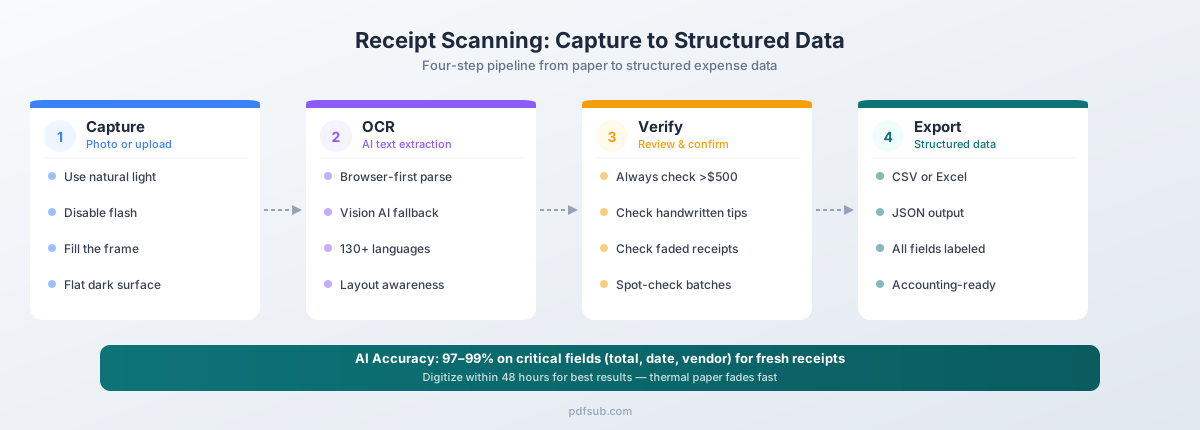
Use natural, diffused light. Scanning near a window during the day produces better results than artificial overhead lighting. The goal is even illumination with no harsh shadows.
-
Place the receipt on a flat, dark surface. A dark desk or countertop creates contrast that helps edge detection and text recognition. Avoid scanning receipts on white surfaces - the edges become invisible.
-
Hold your camera directly above. Position the camera parallel to the receipt to avoid perspective distortion. Even a slight angle can warp characters enough to reduce accuracy.
-
Disable flash. Thermal paper is reflective. Camera flash creates glare spots that appear as blank white areas to the OCR engine, often right over the most important text.
-
Fill the frame. The receipt should occupy about 80% of the image. Too much background wastes resolution. Too tight a crop risks cutting off edge text.
-
Tap to focus on the text. Auto-focus often locks onto the paper surface rather than the printed text. Tap the text area to ensure sharp character rendering.
-
Flatten creases and wrinkles. Press the receipt flat before scanning. Folds create shadows that the OCR engine may interpret as characters or line breaks. If the receipt is badly crumpled, try pressing it under a heavy book for a few minutes first.
Timing
-
Scan within 48 hours. Thermal receipts begin degrading immediately. The sooner you capture them, the higher the accuracy. Make receipt scanning a daily or end-of-day habit rather than a monthly batch process.
-
Don't wait for batch day. The common practice of saving receipts for a month and then scanning them all at once guarantees lower accuracy. Some of those receipts will have spent four weeks in a wallet, pocket, or car - fading the entire time.
File Management
-
Keep the original image. Even after extraction, retain the original scan or photo. If you need to re-extract later with an improved tool, the original image is your source of truth.
-
Use PDF format when possible. If your scanner app or phone offers PDF output, prefer it over JPEG. PDF preserves higher quality and handles multi-page receipts (such as long grocery receipts that were scanned in two parts).
When to Manually Verify
AI extraction is good enough to trust blindly for low-stakes receipts - a $4.50 coffee, a $12 parking ticket. But some situations warrant manual verification.
Always Verify These
- Receipts over $500. The financial impact of an extraction error on a high-value receipt justifies the 30 seconds of manual checking.
- Tax-critical receipts. Any receipt you plan to use as a tax deduction should be verified. The IRS requires documentation for individual expenses over $75, and an incorrect amount on a deduction can trigger audit questions.
- Receipts with handwritten elements. Tip amounts, manual price adjustments, and handwritten notes are still the weakest point for AI extraction. If the receipt includes handwriting, check those fields.
- Faded or damaged receipts. If you can barely read the receipt with your own eyes, don't trust the AI extraction without verification. Severely degraded receipts should be treated as approximate rather than authoritative.
- Foreign currency receipts. Currency conversion and unfamiliar number formats (periods vs. commas as decimal separators) can cause extraction errors. Verify the amount and currency on international receipts.
Spot-Check These
- Grocery receipts with 20+ items. Spot-check 3-5 line items and verify the total matches the sum. If the total is correct, individual line item errors are unlikely to affect your expense reporting.
- Receipts from unfamiliar vendors. The first receipt from a new vendor may produce lower accuracy because the AI hasn't seen that particular layout before. After verifying the first one, subsequent receipts from the same vendor are typically more reliable.
- Batch-processed receipts. If you're processing 50+ receipts at once, spot-check 10-15% of them. If accuracy is consistently high, you can trust the rest.
Trust Without Checking
- Digital/email receipts with clean formatting and standard layouts.
- Fresh receipts from major retailers where the total is a round number or matches your bank statement.
- Receipts under $25 where the cost of verification exceeds the cost of a potential error.
The Business Case for Digitizing Receipts Immediately
The accuracy data points to one overwhelming conclusion: the best time to scan a receipt is immediately. Every day of delay costs accuracy, and accuracy lost to thermal fading can never be recovered.
Consider the economics:
- Average deductible receipt value: $35-75
- Probability of fading beyond OCR readability within 1 year: 30-50% (wallet storage)
- Probability of loss before scanning: 15-25% per month
- Average tax savings per receipt (at 25% marginal rate): $8.75-18.75
- Time to scan one receipt with a phone: 5-10 seconds
The math is simple. A 10-second scan that preserves a $12 tax deduction is worth $4,320 per hour in equivalent productivity. Even if you only scan the high-value receipts, the return on time invested is overwhelming.
Add BPA exposure to the equation - handling thermal receipts transfers measurable amounts of bisphenol compounds through skin contact - and the case for immediate digitization becomes both financial and health-related. The European Union has already begun phasing out BPA in thermal paper, and several US states have enacted or proposed similar restrictions.
What to Expect Going Forward
Receipt OCR accuracy has improved roughly 2-3 percentage points per year over the last five years, driven primarily by advances in vision-language models rather than traditional OCR engineering. The current generation of AI extraction tools represents a meaningful accuracy threshold: for the first time, critical field accuracy on clean receipts consistently exceeds 97%, making fully automated receipt processing viable for most business workflows.
The remaining accuracy gaps - handwritten tips, severely faded thermal paper, exotic POS formats - will continue to narrow. But the thermal paper problem is physical, not computational. No amount of AI advancement will recover text that has chemically disappeared from the paper surface.
The practical solution remains the same: capture early, capture in good light, and let the AI handle the extraction. For the receipts that matter most, verify the total. For everything else, trust the numbers and move on.
PDFSub's receipt scanner processes receipts in any format, from any vendor, in any language. Start a 7-day free trial to test it against your own receipts - the accuracy numbers in this article are industry benchmarks, and the only numbers that matter are the ones you see on your own documents.