PDFSub vs Google Docs for PDF Editing: What Each Actually Does (2026)
Google Docs can open PDFs - but it converts them to Google Docs format, destroying formatting. Here's what Google Docs can and can't do with PDFs vs a dedicated tool.
PDFSub is best for:
- Users frustrated by Google Docs destroying PDF formatting - PDFSub works with PDFs natively
- Anyone who needs to merge, split, compress, or convert PDFs without losing tables and layout
- Professionals who need AI summarization, e-sign, and data extraction that Google Docs cannot do with PDFs
- Users working with financial documents, invoices, or bank statements that Google Docs mangles completely
PDFSub is NOT best for:
- Users who only need basic text extraction from simple, text-only PDFs (Google Docs works for this)
- Teams deeply embedded in Google Workspace who prefer staying within that ecosystem
- Users with zero budget who only edit PDFs rarely and accept Google Docs' formatting limitations
Someone sends you a PDF. You need to make a quick change - fix a typo, update a date, sign it. Google Docs is right there in your browser, free, familiar. You upload the PDF to Google Drive, open it with Google Docs, and...
The formatting is destroyed. Tables are gone. Images shifted to random locations. The careful layout of the original document looks like it went through a blender.
This isn't a bug. It's how Google Docs works with PDFs. And understanding why can save you a lot of frustration.
This comparison explains what Google Docs actually does when you open a PDF, what it can and can't handle, and when a dedicated PDF tool like PDFSub is the better choice. This isn't a hit piece on Google Docs - it's a genuinely excellent tool for what it was designed to do. It just wasn't designed for PDF workflows.
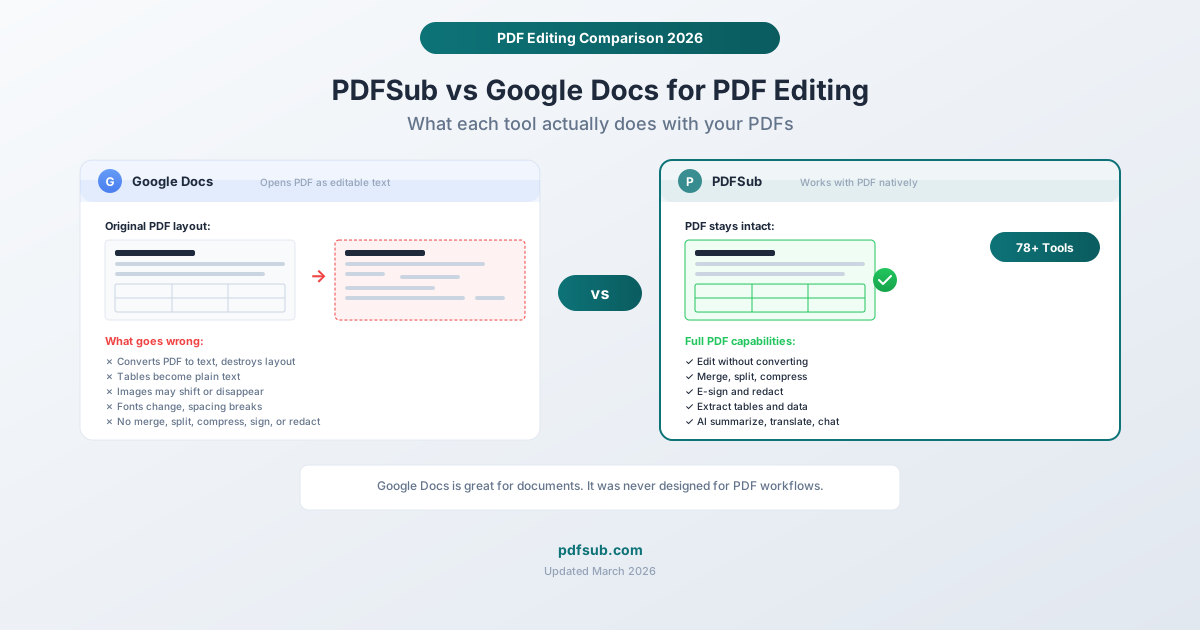
What Google Docs Does When You Open a PDF
When you open a PDF in Google Docs, it doesn't edit the PDF. It converts the PDF into a Google Docs document.
This is an important distinction. Google Docs doesn't understand the PDF format. It treats the PDF as a source of text and images, extracts what it can, and reconstructs everything in its own document format. The original PDF structure - page layout, font positioning, table formatting, image placement - is reinterpreted rather than preserved.
Here's what happens during conversion:
Text: Usually OK, Sometimes Garbled
For simple, text-heavy PDFs with standard fonts, Google Docs does a reasonable job extracting the text. Paragraphs come through mostly intact. Basic formatting (bold, italic, font size) is often preserved.
But it breaks down quickly with:
- Custom or unusual fonts: Google Docs substitutes with available fonts, changing the document's appearance
- Multi-column layouts: Google Docs doesn't understand columns. Two columns of text become a single stream, with lines from different columns interleaved
- Precise text positioning: Headings, labels, and positioned text lose their placement
Tables: Frequently Broken
This is where Google Docs fails most noticeably. PDF tables are visual constructs - they look like tables to humans, but the PDF format doesn't always store them as structured table data. Google Docs often converts tables into:
- Plain text with spaces between columns (losing all structure)
- A series of separate text boxes
- A partial table missing rows or columns
- A completely garbled mess of text fragments
If your PDF contains financial data, invoices, or any tabular information, opening it in Google Docs is almost guaranteed to produce unusable results.
Images: Hit or Miss
Simple images (photos embedded in a document) sometimes survive the conversion. But:
- Image positions shift, often dramatically
- Images may overlap text or disappear entirely
- Background images and watermarks are usually lost
- Charts and diagrams may import as images but lose their context within the layout
Headers, Footers, and Page Structure
Google Docs doesn't preserve PDF page boundaries in any meaningful way. Headers and footers might become regular text. Page numbers disappear or become inline text. The concept of "pages" in the PDF sense doesn't translate to Google Docs' continuous scroll format.
What Google Docs Can Do With PDFs
To be fair, Google Docs handles certain PDF scenarios well enough:
Simple, text-only PDFs with basic formatting: If the PDF is essentially a Word document saved as PDF - plain text, standard fonts, no complex layout - Google Docs does a decent job converting it to editable text.
Quick text extraction: If you just need to copy text from a PDF and don't care about formatting, opening it in Google Docs and copying the text is fast and free.
Making minor text edits to simple documents: Fix a typo, update a phone number, change a date - if the document is simple enough that the conversion doesn't destroy the layout, this works.
Adding comments for collaboration: You can share the converted document and use Google Docs' collaboration features. The formatting will be wrong, but the text will be there.
What Google Docs Cannot Do With PDFs
Here's the comprehensive list of PDF operations that Google Docs simply cannot perform:
Document Operations
- Merge PDFs: Google Docs can't combine multiple PDFs into one
- Split PDF: Can't extract specific pages into separate documents
- Compress PDF: No file size reduction capability
- Rotate PDF: Can't rotate individual pages
- Reorder pages: Can't rearrange page order
- Delete pages: Can't remove specific pages
- Extract pages: Can't save selected pages as a new PDF
Security
- Redact PDF: No redaction capability (and no, drawing a black box in Google Docs is not redaction)
- Password Protect: Can't add encryption to a PDF
- Remove metadata: Can't strip hidden information from PDFs
- Watermark: No watermarking functionality
Conversion
- PDF to Excel: Google Docs has no PDF-to-spreadsheet conversion
- PDF to PowerPoint: No presentation conversion
- Preserve formatting in PDF to Word: The conversion destroys formatting, which defeats the purpose
- Batch Convert: Can't process multiple files
Specialized Features
- E-Sign PDF: No e-sign capability
- OCR on scanned documents: Google Docs has limited OCR, but it's unreliable on complex documents
- Extract Tables: Cannot extract tables into usable spreadsheet format
- Compare PDFs: No document comparison
- AI summarization or translation: While Google Translate exists separately, Google Docs doesn't offer integrated PDF translation or AI-powered summarization
Financial Document Processing
- Bank Statement Converter: Cannot convert bank statements to Excel, CSV, QBO, or any accounting format
- Invoice Extractor: Cannot extract structured invoice data
- Receipt Scanner: No receipt data extraction
What PDFSub Does Differently
PDFSub works with PDFs natively. It doesn't convert PDFs to another format to edit them - it reads, modifies, and writes the PDF format directly. This preserves the original layout, fonts, images, and structure.
The Key Difference: Native PDF Processing
When you open a PDF in PDFSub:
- The layout stays exactly as it was
- Tables remain tables
- Images stay where they belong
- Fonts don't change
- Page structure is preserved
You're working with the actual PDF, not a converted approximation.
What PDFSub Offers (That Google Docs Doesn't)
98+ dedicated PDF tools organized by category:
Edit and Annotate: Add text, shapes, and annotations without converting the document. Draw on PDFs, add stamps, fill forms.
Merge, Split, and Organize: Combine multiple PDFs, extract specific pages, reorder, rotate, delete pages, change page size, add page numbers, headers, and footers.
Convert: PDF to/from Word, Excel, PowerPoint, images (JPG, PNG), HTML, EPUB, SVG, RTF, and OpenDocument formats - with layout preservation.
Compress: Reduce file size with adjustable quality settings, entirely in your browser.
Security: True redaction (permanently removes data), AES-256 password protection, metadata removal, watermarking.
E-Sign: Draw, type, or upload your signature and place it on any page.
AI Features: Summarize documents, translate to 130+ languages, chat with PDFs to ask questions, extract structured data.
Financial Tools: Bank statement converter (20,000+ banks, 8 output formats), invoice extractor, receipt scanner, Financial Report Analyzer.
OCR and Scanning: Extract text from scanned documents, clean scanned PDFs (deskew, denoise), Photo to Document to convert photos to clean document PDFs.
Side-by-Side Comparison
| Capability | Google Docs | PDFSub |
|---|---|---|
| Open/view PDFs | Converts to Docs format | Views natively |
| Preserve formatting | No (destroys layout) | Yes |
| Edit text in PDF | Only after conversion (formatting lost) | Add text/annotations |
| Handle tables | Usually breaks them | Preserves, extracts to Excel |
| Merge PDFs | No | Yes |
| Split PDFs | No | Yes |
| Compress | No | Yes |
| Rotate/reorder | No | Yes |
| E-sign | No | Yes |
| Redact | No | Yes (true redaction) |
| Password protect | No | Yes (AES-256) |
| Convert to Excel | No | Yes |
| Convert to Word | Lossy conversion | Layout-preserving |
| OCR | Basic | Full featured |
| AI summarize/translate | No | Yes |
| Bank statement converter | No | Yes (20,000+ banks) |
| Invoice/receipt extraction | No | Yes |
| Batch processing | No | Yes |
| Compare PDFs | No | Yes |
| Price | Free | 7-day free trial; $20/month annual ($25/month monthly) |
| Collaboration | Excellent | Not designed for real-time collaboration |
| Works offline | With Chrome extension | Browser-based (online) |
When to Use Google Docs
Google Docs is the right choice when:
- You're creating documents from scratch and will export to PDF at the end
- You need real-time collaboration with comments, suggestions, and simultaneous editing
- The PDF is simple text and you just need to extract or edit the text content
- You don't care about formatting - you need the text, not the layout
- You're already in the Google ecosystem and want to keep everything in Drive
Google Docs is an outstanding word processor and collaboration platform. When someone says "I need to work on a document," Google Docs is often the best choice. The problem only arises when the document is a PDF that needs to stay a PDF.
When to Use PDFSub
PDFSub is the right choice when:
- You need to edit, annotate, or sign a PDF without destroying its layout
- You need to merge, split, compress, or reorganize PDF files
- You need to convert a PDF to Excel, Word, or PowerPoint with formatting preserved
- You're working with sensitive documents that shouldn't upload to any cloud server (PDFSub processes in your browser)
- You need to redact, encrypt, or watermark documents
- You work with financial documents - bank statements, invoices, receipts
- You need AI features - summarize, translate, or ask questions about a document
- The PDF has tables that you need to extract as structured data
- You need to process multiple PDFs in a batch workflow
The Hybrid Approach
Many people use both tools. Here's a practical workflow:
- Receive a PDF from a client, colleague, or vendor
- Use PDFSub to do PDF-specific work: merge files, compress, extract data, sign, redact
- If you need to create a new document based on the PDF content, extract the text and build a new document in Google Docs
- Use Google Docs for collaboration on the new document - comments, suggestions, simultaneous editing
- Export from Google Docs to PDF when the document is finalized
- Use PDFSub again if the final PDF needs page numbers, watermarks, or signatures
The tools complement each other. Google Docs is for creating and collaborating on documents. PDFSub is for working with PDFs as PDFs.
Frequently Asked Questions
Why does Google Docs mess up PDF formatting?
Google Docs converts PDFs to its own document format, which means it has to interpret the PDF's visual layout and reconstruct it using Google Docs elements. PDFs store content as precisely positioned text and images on a fixed-size canvas. Google Docs uses flowing text, paragraphs, and flexible layouts. These are fundamentally different approaches, and the translation between them is inherently lossy - especially for complex layouts, tables, and precisely positioned content.
Can I edit PDF text without converting the document?
Not in Google Docs - it always converts. PDFSub lets you add text annotations and overlay content without converting the underlying PDF. For true in-place text editing (changing existing words in a PDF), you'd need a tool like Adobe Acrobat Pro, which can modify the actual text objects in the PDF. PDFSub adds text on top of the existing document, which works for most use cases (adding missing information, filling in blanks, making annotations).
Is there a way to make Google Docs handle PDFs better?
The conversion quality depends entirely on the PDF's complexity. For the best results with Google Docs: use PDFs that were originally created in word processors (not designed layouts), stick to standard fonts, avoid tables when possible, and keep the layout single-column. But even with these precautions, some formatting will be lost. If formatting matters, use a tool that works with PDFs natively.
Can Google Docs convert PDFs to other formats?
Only indirectly. Google Docs can open a PDF (as a Docs file) and then export to Docs, DOCX, PDF, EPUB, RTF, or plain text. But since the initial PDF-to-Docs conversion destroys formatting, the subsequent export also has formatting issues. PDFSub converts PDFs directly to Word, Excel, PowerPoint, images, HTML, EPUB, and other formats without the intermediate conversion step.
Is PDFSub free?
PDFSub offers a 7-day free trial with full access to all features (credit card required). The All-In-One plan is $20/month annual ($240/year, saves $60 vs monthly) or $25/month billed monthly, and includes all 98+ tools, 500 AI credits/mo, 500 bank statement pages/mo, e-sign + form filling, 50 GB cloud storage; add unlimited team seats at the same per-user rate. Google Docs is free with a Google account and has no paid tier for individual users. If you only need to work with PDFs once in a while, the Google Docs conversion may be sufficient. For regular PDF work, PDFSub's paid plan is more capable.