PDF Tools for Freelancers: Invoices, Contracts, and Proposals
Freelancers handle every document themselves - proposals, contracts, invoices, receipts, and tax forms. Here's how to manage the entire freelance document lifecycle with one platform instead of six separate tools.
You are the CEO, the sales team, the project manager, the accountant, and the admin assistant. You write the proposal, sign the contract, do the work, send the invoice, chase the payment, scan the receipt, and file the taxes. Every document that keeps your freelance business running passes through your hands - and most of them are PDFs.
An estimated 73 million Americans freelance in some capacity, contributing roughly $1.3 trillion to the US economy annually. That number is projected to reach 86.5 million by 2027 - over half the total workforce. Globally, the independent workforce is growing even faster, driven by remote work and a generational shift toward autonomy over employment.
But here is the part nobody talks about when they romanticize the freelance lifestyle: the paperwork. Industry surveys consistently find that freelancers spend 15 to 20 hours per month on administrative tasks - proposals, contracts, invoices, expense tracking, and tax preparation. That is nearly a full work week every month not spent on billable client work.
The problem gets worse when you realize that most freelancers cobble together five or six different tools to handle their documents: one for merging PDFs, another for e-signatures, a third for invoice management, a fourth for receipt scanning, and maybe a spreadsheet for tracking it all. Each tool has its own subscription, its own learning curve, and its own way of handling files.
This guide maps every document task in the freelance lifecycle to the right tool - and shows how a single platform can replace the entire patchwork.
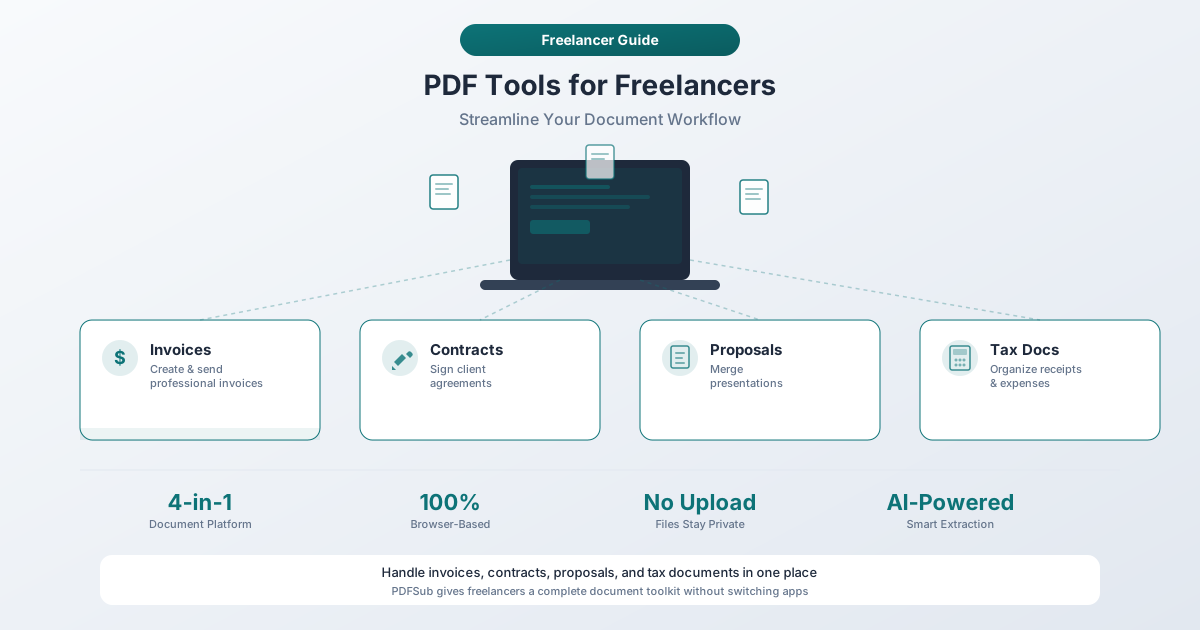
The Freelancer Document Lifecycle
Every freelance engagement follows the same five-phase document flow:
-
Win the work - Assemble proposals and portfolio samples into polished PDFs. Your pitch might include a cover page, case studies from past projects, a scope of work, and a pricing table - all from different source files that need to become one professional document.
-
Formalize the relationship - Sign contracts, NDAs, and onboarding forms. Surveys consistently show that 74% of freelancers experience payment issues, making written contracts essential. This phase also includes filling out W-9 tax forms, vendor registration, and insurance certificates.
-
Get paid - Create invoices, track payments, and extract data from invoices you receive from subcontractors and vendors. Every invoice needs to be logged for expense tracking and tax purposes.
-
Track expenses - Digitize and categorize business receipts for tax deductions. The IRS requires documentation showing the amount, date, business purpose, and vendor for every deduction. Common freelancer expenses include software, hardware, home office costs, professional development, travel, marketing, and insurance.
-
File taxes - Gather 1099 forms, convert bank statements to spreadsheets, categorize transactions, match expenses with receipts, and complete Schedule C. For freelancers who have been organized throughout the year, this takes hours instead of days.
PDFSub Tools for Every Phase
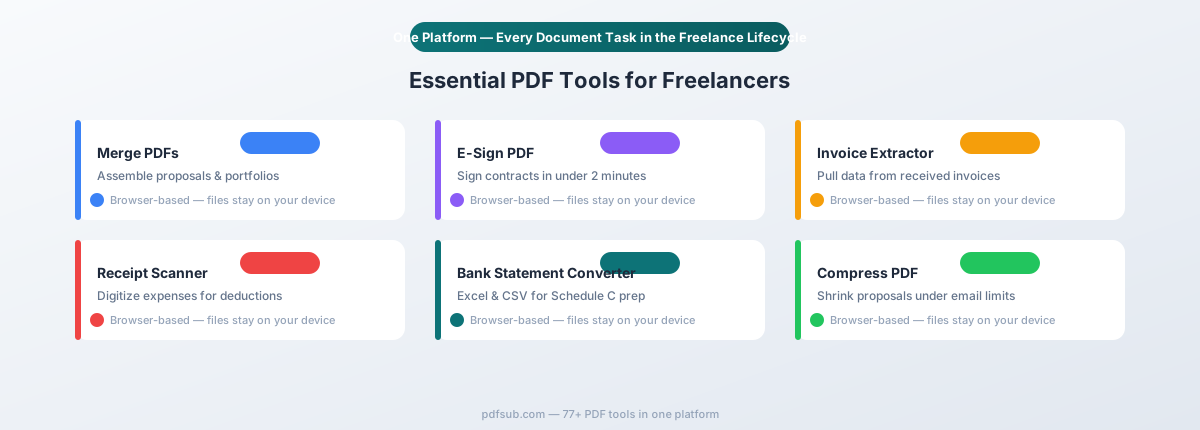
Here is where each PDFSub tool fits into the freelancer workflow, organized by the phase where you need it most.
Merge PDFs - Build Polished Proposals and Portfolios
Phase: Win the Work
When a potential client asks for a proposal, you want to send a single, professional document - not a zip file of loose attachments. PDFSub's Merge PDFs tool lets you combine multiple files into one cohesive PDF.
How freelancers use it:
- Portfolio + Proposal: Merge your best portfolio samples with your proposal document into one file. A designer might combine a cover page, three case studies, a scope-of-work section, and a pricing page into a single 15-page PDF.
- Case study packages: Combine client testimonials, before/after screenshots, and project summaries for pitch meetings.
- Multi-document submissions: Some clients require your proposal, resume, references, and insurance certificate in one file. Merge them all and submit a single attachment.
The merge runs entirely in your browser - your files stay on your device. You can drag and drop to reorder pages, preview the result, and download a clean PDF with a professional file name.
Pro tip: Name your merged file with the client's name and the date (e.g., "ProposalPackage_AcmeCorp_2026-03-02.pdf"). This makes it easy to find later and signals professionalism to the recipient.
E-Sign PDF - Sign Contracts and NDAs in Minutes
Phase: Formalize the Relationship
Freelancers sign a lot of documents. Client contracts, NDAs, subcontractor agreements, licensing forms, vendor registration - and printing, signing with a pen, scanning, and emailing back is a workflow that should have died in 2010. Studies show that 70% of companies save time and money using electronic signatures, and most jurisdictions worldwide now recognize them as legally binding.
PDFSub's E-Sign PDF tool lets you:
- Draw your signature with a mouse or trackpad
- Type your name and select a signature style
- Upload an image of your handwritten signature
- Place the signature precisely on any page
- Add dates and initials alongside your signature
- Download the signed document as a timestamped PDF
Practical workflow: A client sends you a 12-page master services agreement. You open it in E-Sign PDF, scroll to the signature page, place your signature and the date, and send it back - all in under two minutes. No printing, no scanning, no trip to the post office. Electronic signatures are legally recognized in over 60 countries under laws like the US ESIGN Act and EU eIDAS regulation.
Fill PDF Form - Complete W-9s, Onboarding Forms, and Tax Documents
Phase: Formalize the Relationship / File Taxes
Every new client engagement seems to come with a stack of forms. Tax forms (W-9 for US freelancers), vendor registration forms, insurance verification forms, and client-specific onboarding questionnaires. These arrive as PDF forms with fillable fields - or worse, as flat PDFs where you need to type over the fields yourself.
PDFSub's PDF Form Filler detects interactive form fields automatically and lets you fill them in your browser:
- W-9 forms: Enter your name, business name, taxpayer identification number, address, and certification. Download and send to your client.
- Vendor registration: Fill standardized vendor forms once, save a copy, and reuse for similar forms.
- Insurance certificates: Complete certificate of insurance request forms with your policy details.
Time saver: Keep a completed W-9 on file. When a new client asks for one, send the saved copy instead of filling it from scratch. You will complete dozens of these over a freelance career.
Invoice Extractor - Pull Data from Received Invoices
Phase: Get Paid / Track Expenses
As a freelancer, you receive invoices too - from subcontractors, software vendors, co-working spaces, and other business service providers. Manually entering each invoice into your expense tracking system is tedious and error-prone.
PDFSub's Invoice Extractor uses AI to automatically pull structured data from invoice PDFs:
- Vendor name and contact information
- Invoice number and date
- Line items with descriptions, quantities, and amounts
- Subtotal, tax, and total
- Payment terms and due date
How it fits the freelance workflow: You receive a $500 invoice from a subcontractor. Instead of manually typing the details into your spreadsheet, run it through Invoice Extractor. The structured data exports in seconds, ready to paste into your expense tracker. At the end of each month, gather all received invoices, extract the data in bulk, and reconcile against your bank account.
Receipt Scanner - Digitize Expense Receipts for Tax Deductions
Phase: Track Expenses
Every dollar of business expenses that you fail to document is a dollar of tax deductions you lose. The IRS requires records showing what you bought, when, how much you paid, and why it was a business expense. While receipts under $75 can technically be supported by bank statements alone, having the original receipt provides stronger documentation in an audit.
PDFSub's Receipt Scanner extracts key data from receipt PDFs and scanned images:
- Merchant name and location
- Purchase date and time
- Individual line items
- Subtotal, tax, and total amount
- Payment method
The freelancer receipt workflow:
- Scan or photograph every business receipt as soon as you get it. Most phone cameras produce PDF-quality images.
- Run through Receipt Scanner to extract the structured data.
- Categorize the expense (office supplies, software, travel, meals, etc.).
- Store the digital receipt in your client/project folder structure.
- At tax time, export the categorized data and hand it to your accountant - or use it to complete Schedule C yourself.
Bank Statement Converter - Convert Statements for Tax Preparation
Phase: File Taxes
When tax season arrives, your bank statements become the backbone of your financial records. They show every payment received, every expense charged, and every transfer made. But bank statement PDFs are notoriously difficult to work with - the data looks clean on screen, but try copying it into a spreadsheet and you get a jumbled mess.
PDFSub's Bank Statement Converter extracts transaction data from PDF bank statements and converts it into structured formats:
- Excel (.xlsx) - for manual review and categorization
- CSV - for import into any spreadsheet or accounting tool
- QBO - for direct import into QuickBooks
- OFX - for Xero, Sage, and other accounting software
- QFX and QIF - for additional accounting platform compatibility
The tax season workflow:
- Download bank statements from your bank's website for the full tax year (all 12 months).
- Convert each statement to Excel or CSV using Bank Statement Converter.
- Categorize transactions as income or expenses, and tag each expense by category (office supplies, software, travel, etc.).
- Match expenses with receipts from your digital receipt archive.
- Calculate totals by category for Schedule C.
- Hand the organized spreadsheet to your accountant, or use it to file yourself.
Digital PDFs are processed entirely in your browser - your bank statements never leave your device. For scanned statements, encrypted server-side processing handles extraction with automatic file deletion.
Unlike W-2 employees who receive a single income statement, freelancers often have income from multiple clients spread across multiple bank accounts. Converting and consolidating all of this data manually can take an entire weekend. Automated conversion reduces it to a couple of hours.
Compress PDF - Shrink Files for Email Delivery
Phase: All Phases
Email attachment limits are real. Gmail caps at 25MB. Outlook at 20MB. Many corporate email systems set even lower limits. When your proposal package includes high-resolution portfolio images, or your signed contract is a 50-page scanned document, the file might be too large to send.
PDFSub's Compress PDF reduces file size while preserving visual quality:
- Reduce portfolio PDFs from 30MB to under 5MB
- Shrink scanned contracts to email-friendly sizes
- Compress multiple documents before merging them into a package
Common scenario: You have merged your proposal, case studies, and portfolio samples into a single PDF that clocks in at 45MB - well over most email limits. Compress it to 8MB and send a direct attachment instead of resorting to a file-sharing link that the client might ignore.
Tax Season: The Complete Freelancer Workflow
Tax preparation is where good document habits pay off - literally. Here is the end-to-end workflow using PDFSub tools.
Step 1: Gather Your Financial Documents
Collect everything you need for the tax year:
| Document | Where to Find It | PDFSub Tool |
|---|---|---|
| Bank statements (all 12 months) | Bank website download | Bank Statement Converter |
| 1099-NEC forms from clients | Client or IRS mailbox | Fill PDF Form (for your own 1099s) |
| Business expense receipts | Your digital receipt archive | Receipt Scanner |
| Subcontractor invoices | Email attachments | Invoice Extractor |
| Home office documentation | Lease, utility bills, measurements | Merge PDFs |
Step 2: Convert Bank Statements to Spreadsheets
Download your bank statements as PDFs and convert them to Excel or CSV. This gives you a structured dataset of every transaction for the year.
For freelancers with multiple bank accounts (a common setup where one account handles business income and another handles expenses), convert each account's statements separately, then combine them in a single workbook with labeled tabs.
Step 3: Categorize and Match
With your bank data in spreadsheet form, categorize each transaction as income or one of the standard Schedule C expense categories: office supplies, software, professional services, travel, home office, marketing, education, and cost of goods sold (subcontractors, materials). Then cross-reference expenses with the receipts you have digitized throughout the year using Receipt Scanner. The IRS requires you keep records for at least three years from filing.
Step 4: Calculate and File
Total your income and expenses by category. These numbers populate Schedule C, which flows into your Form 1040. If you are paying an accountant, hand them the organized spreadsheet and your receipt archive - they will appreciate you more than you know.
Contract Management for Freelancers
Contracts are your safety net. Without them, you have no legal recourse for scope creep, late payments, or disputes over deliverables. Here is how to manage the contract lifecycle efficiently.
Building a Contract Template Library
Most freelancers do not need a custom contract for every engagement. Create three to five templates that cover your most common scenarios:
- Standard project contract - Fixed scope, fixed price, defined deliverables and timeline
- Retainer agreement - Monthly fee for ongoing services, with hour caps and scope boundaries
- Subcontractor agreement - For when you bring in help on larger projects
- NDA / Confidentiality agreement - Required by many clients before sharing project details
- Kill fee / Cancellation clause - A standalone addendum for projects with high cancellation risk
Store each template as a PDF. When a new engagement begins, customize the relevant template, fill in the specific terms using PDF Form Filler, and sign with E-Sign PDF.
Version Control for Contracts
Clients negotiate. Terms change. Scope expands. Track contract versions with a simple naming convention:
ClientName_ProjectName_Contract_v1_2026-03-01.pdf    (initial draft)
ClientName_ProjectName_Contract_v2_2026-03-05.pdf    (client revisions)
ClientName_ProjectName_Contract_SIGNED_2026-03-07.pdf (final signed copy)
Always keep the signed version as your definitive record. If a dispute arises months later, you need to find the signed contract quickly - not sort through five drafts in your downloads folder.
Change Orders
When the scope changes mid-project (and it will), document the change formally with a one-page change order that references the original contract, describes the new scope, adjusts the price and timeline, and requires signatures from both parties. Merge it with the original contract using Merge PDFs so everything lives in a single document.
Portfolio and Proposal Creation
Your proposal is often your first impression. Research consistently shows that personalized, client-focused proposals outperform generic templates. Instead of sending the same pitch to every prospect, tailor each proposal to the specific client's problem.
Structure for a freelance proposal PDF:
- Cover page - Your name/brand, the client's name, project title, date
- Understanding the problem - Show that you have listened and understood their challenge
- Your approach - How you will solve it, broken into phases or milestones
- Relevant work samples - Two to four case studies or portfolio pieces that demonstrate similar work
- Timeline and milestones - A realistic schedule with check-in points
- Investment - Pricing with clear payment terms (avoid the word "cost" - frame it as an investment)
- Next steps - A clear call to action ("Sign the attached contract to begin")
Use Merge PDFs to combine your proposal text, case studies, and pricing into a single cohesive PDF. If the result exceeds email limits, run it through Compress PDF - aim for under 10MB.
Budget-Friendly Advantage: One Platform Instead of Six
Here is the reality of the freelance tool stack. Most independent professionals end up paying for multiple single-purpose tools:
| Task | Typical Standalone Tool | Monthly Cost |
|---|---|---|
| PDF merging and editing | Adobe Acrobat Pro | $22.99/mo |
| E-signatures | DocuSign or HelloSign | $10–$25/mo |
| Invoice management | FreshBooks or QuickBooks | $17–$30/mo |
| Receipt scanning | Expensify or Dext | $5–$20/mo |
| PDF compression | Standalone tool | $5–$10/mo |
| Bank statement conversion | Specialized converter | $15–$30/mo |
| Total | $75–$138/mo |
That is $900 to $1,650 per year - a significant expense when you are watching every dollar as a freelancer.
PDFSub consolidates 98+ PDF and document tools into a single platform. Merge, sign, fill, extract, scan, convert, and compress - all in one place, with one subscription. The 7-day free trial lets you test every tool before committing.
For freelancers specifically, the value proposition is straightforward: fewer subscriptions to manage, fewer passwords to remember, fewer interfaces to learn, and more money staying in your pocket.
Tips for Freelancer PDF Organization
Good document habits compound over time. Here is a system that scales from your first client to your fiftieth.
Folder Structure
Create a consistent hierarchy that you use for every client:
Freelance/
  Clients/
    ClientName/
      Proposals/
      Contracts/
      Invoices/
      Deliverables/
      Correspondence/
    AnotherClient/
      ...
  Finance/
    2026/
      Bank Statements/
      Receipts/
      Tax Documents/
      Invoices Received/
    2025/
      ...
  Templates/
    Contracts/
    Proposals/
    Invoices/
Naming Conventions
Consistency matters more than the specific format. Pick a convention and stick to it:
- Proposals:
Proposal_ClientName_ProjectName_YYYY-MM-DD.pdf - Contracts:
Contract_ClientName_ProjectName_vN_YYYY-MM-DD.pdf - Invoices:
Invoice_ClientName_###_YYYY-MM-DD.pdf - Receipts:
Receipt_Vendor_Amount_YYYY-MM-DD.pdf - Bank statements:
BankStatement_BankName_YYYY-MM.pdf
Cloud Backup and Monthly Maintenance
Never store your only copy of important documents on a single device. Use cloud storage (Google Drive, Dropbox, iCloud, OneDrive) for automatic backups. Critical documents to protect: signed contracts, tax returns (keep seven years), invoices, and insurance policies.
Monthly Maintenance Routine
Set aside 30 minutes at the end of each month to:
- File any loose documents into the correct folders
- Scan and process any paper receipts using Receipt Scanner
- Download and convert that month's bank statement
- Reconcile income received against invoices sent
- Follow up on any unpaid invoices
This monthly habit prevents the tax-season scramble that costs freelancers days of productive time every spring.
Frequently Asked Questions
What is the best format for freelance invoices?
PDF is the standard. It preserves your formatting across every device and operating system, it looks professional, and it cannot be accidentally edited by the recipient. Create your invoice in your preferred tool (Word, Google Docs, Excel, or a dedicated invoicing app), then export or save as PDF before sending. Include your name or business name, contact information, invoice number, date, payment terms, line items with descriptions and amounts, and the total due.
How do I create a PDF contract?
Start with a contract template in a word processor that covers scope of work, deliverables, timeline, payment schedule, revision policy, intellectual property rights, termination clause, and signature blocks. Export as PDF. Use PDF Form Filler for fillable fields and E-Sign PDF for signatures. Always have a lawyer review your template at least once - the cost is a fraction of a contract dispute.
What receipt documentation do freelancers need for tax deductions?
The IRS requires records that show the amount, date, place, and business purpose of each expense. For expenses under $75, a bank or credit card statement may suffice. For expenses over $75, you need a receipt or invoice. Lodging expenses require receipts regardless of amount. Keep all records for at least three years from your filing date (seven years if you underreported income by more than 25%). Digital copies are accepted - you do not need to keep the paper originals, but the digital version must be legible and complete.
Can I use electronic signatures on freelance contracts?
Yes. Electronic signatures are legally binding in the United States under the ESIGN Act (2000) and in the European Union under eIDAS. Over 60 countries recognize them as equivalent to handwritten signatures. The key requirement is that the signer must intend to sign, and the process must create a record identifying the signer. PDFSub's E-Sign PDF meets these requirements with timestamped signature placement.
How should freelancers organize bank statements for taxes?
Download PDF statements from your bank's website for every month of the tax year. Convert each statement to Excel or CSV using Bank Statement Converter so you can sort, filter, and categorize transactions. Organize by account (checking, savings, credit card), then categorize each transaction as income or one of the standard Schedule C expense categories. If you use an accountant, most prefer to receive organized spreadsheets rather than raw PDF statements - it saves them time and saves you money on their hourly rate.
Get Started
The freelance document lifecycle never stops. There is always another proposal to send, another contract to sign, another invoice to track, and another tax deadline approaching. The question is whether you spend your time on the documents or on the work that earns you money.
PDFSub brings every PDF task into a single platform. No more juggling six subscriptions. No more switching between tools. No more wondering which app you used to sign that contract three months ago.
Try PDFSub Free - 98+ tools for proposals, contracts, invoices, receipts, bank statements, and everything in between. Editing tools run in your browser. Conversions use the PDFSub Engine - an isolated service with auto-deletion.