How to Import Bank Statements into Wave Accounting
Wave's bank connection doesn't cover every bank or go back far enough. Here's how to import bank statements manually - using CSV, OFX, or PDF conversion.
Wave Accounting is the go-to free accounting software for freelancers and small businesses. It does invoicing, expense tracking, and basic bookkeeping without charging a dime. But when it comes to getting bank statement data into Wave, you'll run into limitations faster than you'd expect.
Wave's automatic bank connection covers major banks, but it doesn't support every institution - especially international banks, credit unions, and smaller regional banks. It typically goes back only 30 to 90 days, which means historical transactions from a previous quarter or tax year are out of reach. And if an account is closed, the bank feed connection simply won't work.
The workaround is manual CSV import. Wave lets you upload CSV files containing your transactions, and once you know the format requirements, the process is straightforward. This guide covers everything: Wave's CSV format, how to convert PDF bank statements to the right format, and how to avoid the import errors that trip up most users.
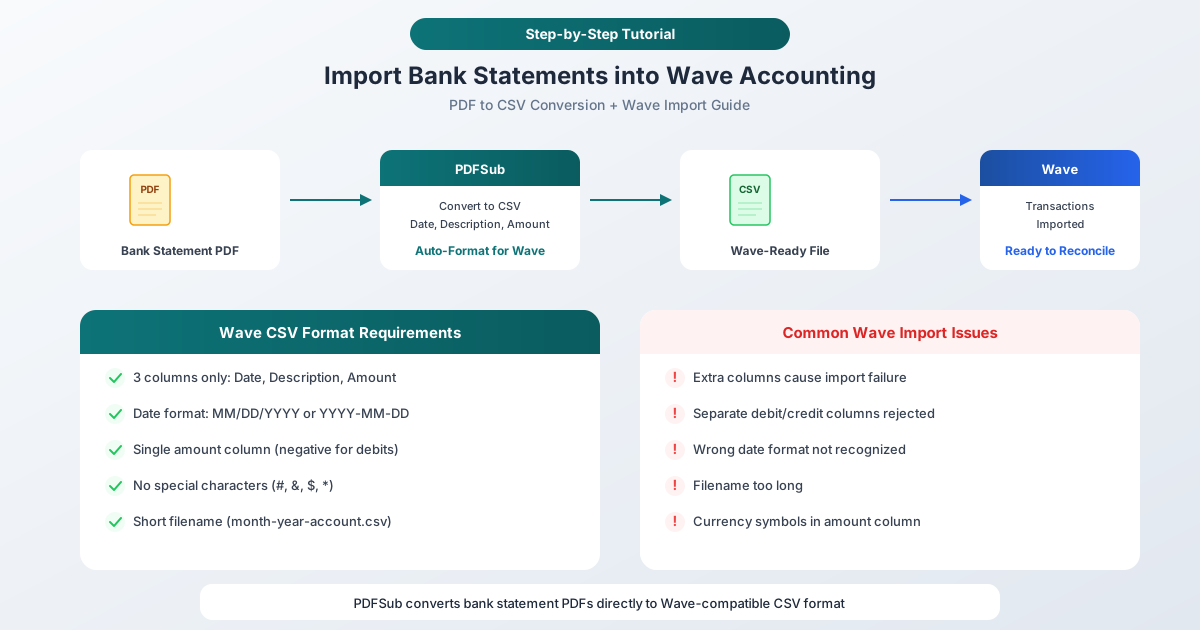
Wave's Import Options
Wave supports two methods for getting bank transactions into your books:
Automatic Bank Connection
Go to Accounting > Transactions > Connect a Bank Account. Search for your bank, enter your credentials, and Wave pulls transactions automatically.
When it works: Currently open accounts at supported banks, for recent transactions (typically 30-90 days back).
When it doesn't:
- Closed accounts
- International banks not in Wave's connection network
- Historical transactions older than 90 days
- Banks that frequently break third-party connections
- Credit unions and smaller institutions
Manual CSV Upload
Go to Accounting > Transactions > Import CSV/OFX. Select the bank account, upload your CSV file, map the columns, and confirm.
When to use it: Any time the bank connection doesn't cover your needs - which, in practice, is surprisingly often.
Wave's CSV Format Requirements
This is where most people get stuck. Wave is particular about CSV formatting, and files that don't match the requirements get rejected with unhelpful error messages.
The Three Required Columns
Wave's CSV import accepts exactly three columns:
| Column | Description | Example |
|---|---|---|
| Date | Transaction date | 2026-03-15 |
| Description | Transaction name/memo | GROCERY STORE #1234 |
| Amount | Transaction amount | -45.67 |
That's it. Three columns, in that order. If your CSV has more than three or four columns, Wave may reject it or mismap the data.
Date Format
Wave accepts dates in these formats:
- YYYY-MM-DD (recommended - unambiguous) -
2026-03-15 - MM/DD/YYYY -
03/15/2026 - DD/MM/YYYY -
15/03/2026(risky - Wave may confuse DD/MM with MM/DD)
Wave recommends ISO format (YYYY-MM-DD) because it prevents date interpretation errors. If your dates are in DD/MM/YYYY format and the day is 12 or less, Wave may interpret them as MM/DD/YYYY - flipping the month and day silently.
Amount Column Rules
- Single column - deposits are positive, withdrawals/debits are negative
- Use a minus sign or brackets for negative amounts:
-45.67or(45.67) - No currency symbols -
45.67not$45.67 - No thousand separators -
1234.56not1,234.56 - Decimal point, not comma, for cents:
45.67not45,67
Credit card accounts: Purchases must be positive amounts, payments must be negative. This is the opposite of what some banks show on statements.
What to Avoid
Wave will reject your file if:
- There are more than 3-4 columns with data
- Special characters appear in the data:
#,&,$,* - The filename is too long - keep it short like
march-2026-checking.csv - There are blank rows in the middle of the data
- Header rows don't match expected column types
- Separate debit and credit columns are used (Wave needs a single amount column)
Converting PDF Bank Statements to Wave-Ready CSV
Most banks provide statements as PDFs, not CSVs. If your bank offers CSV downloads, use those - but for PDF-only statements or historical records, you'll need to convert.
Step 1: Convert PDF to CSV
Upload your bank statement PDF to PDFSub's Bank Statement Converter. The tool extracts transactions automatically:
- Go to pdfsub.com/tools/bank-statement-converter
- Upload your bank statement PDF
- Review the extracted transactions
- Export as CSV
PDFSub supports over 20,000 banks worldwide, automatically detecting the statement layout and extracting dates, descriptions, and amounts.
Step 2: Verify the CSV Format
Open the exported CSV in a spreadsheet application and check:
- Three columns only: Date, Description, Amount
- Date format: YYYY-MM-DD or MM/DD/YYYY
- Amount: Single column, negative for debits, no symbols
- No extra columns: Remove any balance, reference number, or category columns
- No special characters: Strip
#,&,$,*from descriptions
If you exported from PDFSub in CSV format, the file should already be in the right structure. You may need to remove a balance column if one was included.
Step 3: Upload to Wave
- In Wave, go to Accounting > Transactions
- Click Import CSV/OFX (or look for the upload option)
- Select the bank account these transactions belong to
- Upload your CSV file
- Wave will show a preview - verify the column mapping:
- Column 1 → Date
- Column 2 → Description
- Column 3 → Amount
- Confirm the date format matches your file
- Click Import
Step 4: Verify and Categorize
After import:
- Check the transaction count matches your statement
- Verify a few dates and amounts against the original PDF
- Categorize transactions using Wave's category system
- Look for any duplicates if you also have a bank feed connected
Using OFX Instead of CSV
Wave also accepts OFX files, which can simplify the process. OFX (Open Financial Exchange) is a structured financial data format that includes transaction dates, amounts, descriptions, and transaction types - all in a standardized format that Wave reads without column mapping.
Advantages of OFX over CSV for Wave:
- No column mapping needed - Wave reads OFX automatically
- Transaction types (debit/credit) are explicit, not implicit from positive/negative amounts
- Less room for formatting errors
- Includes unique transaction IDs that help prevent duplicates
PDFSub can export bank statement conversions in OFX format. If you're importing into Wave regularly, OFX is often the smoother path.
Troubleshooting Common Wave Import Errors
"We can't read your statement"
Cause: The CSV format doesn't match Wave's expectations.
Fix: Open the CSV and verify:
- Only 3 columns (Date, Description, Amount)
- No empty rows
- No special characters
- Short filename
"Date column not recognized"
Cause: Date format doesn't match Wave's expected format, or dates are ambiguous (e.g., 03/04/2026 could be March 4 or April 3).
Fix: Convert all dates to YYYY-MM-DD format. This eliminates ambiguity.
Amounts are reversed
Cause: Credits showing as debits and vice versa.
Fix: Check whether the amounts need to be inverted. For checking accounts, deposits should be positive and withdrawals negative. For credit cards, purchases are positive and payments are negative. If they're reversed, multiply the amount column by -1.
Duplicate transactions after import
Cause: Importing transactions for a period that's already covered by the bank feed.
Fix: Before importing, check which date range is already in Wave from the bank feed. Only import CSV data for dates not covered. If duplicates were imported, you can delete them individually in Wave's transaction list.
Import succeeds but amounts are wrong
Cause: Thousand separators (commas) in the amount column are being interpreted as decimal separators, or the file uses a comma as the decimal separator.
Fix: Remove all thousand separators from the amount column. Use a period as the decimal separator. 1,234.56 should become 1234.56.
Tips for Ongoing Wave Imports
Establish a Monthly Routine
If you regularly need to import statements that the bank feed doesn't cover:
- Download the PDF statement as soon as it's available
- Convert to CSV using PDFSub within the same session
- Import into Wave immediately
- Categorize transactions while they're fresh in your memory
Keep a File Naming Convention
Use a consistent format: bankname-YYYY-MM-accounttype.csv
Example: chase-2026-03-checking.csv
This prevents Wave's filename-too-long errors and keeps your records organized.
Create Bank Rules
After importing, use Wave's bank rules to automatically categorize recurring transactions. Set up rules for your most common vendors, utilities, and subscription services. This saves hours of manual categorization over the course of a year.
Wave vs. Other Accounting Software Import Capabilities
Wave's CSV import is functional but limited compared to some alternatives:
| Feature | Wave | QuickBooks Online | Xero | Zoho Books |
|---|---|---|---|---|
| CSV Import | 3 columns only | 3-4 columns | Flexible | Very flexible |
| OFX Import | Yes | Yes | Yes | Yes |
| QBO Import | No | Yes | No | No |
| Date Flexibility | Limited | Moderate | Good | Good |
| Column Mapping | Basic | Advanced | Advanced | Advanced |
| Duplicate Detection | Manual | Automatic | Automatic | Automatic |
| Price | Free | Paid | Paid | Paid (free tier) |
Wave's strength is that it's genuinely free. The import limitations are the trade-off.
Frequently Asked Questions
Can I import QBO files into Wave?
No. Wave does not support QBO (QuickBooks Web Connect) format. Your options are CSV and OFX. If you have a QBO file, you'll need to convert it to CSV or OFX before importing. PDFSub can convert bank statement PDFs directly to CSV or OFX format, bypassing the QBO format entirely.
How far back can I import historical transactions?
There's no date limit on CSV imports in Wave. You can import transactions from any time period as long as the data is in the correct format. This makes CSV import the only way to get historical data into Wave when the bank feed only goes back 90 days.
Does Wave support separate debit and credit columns?
No. Wave requires a single amount column where debits are negative and credits are positive. If your CSV has separate columns for debits and credits, you'll need to merge them into a single amount column before importing. PDFSub's CSV export handles this automatically.
Can I undo a CSV import in Wave?
There's no "undo import" button. You'll need to delete the imported transactions individually or in bulk. To avoid mistakes, import a small batch first to verify formatting, then import the full file once you've confirmed everything looks correct.
Why does Wave reject my CSV when it works in other tools?
Wave has stricter formatting requirements than most accounting software. The most common issues are extra columns (Wave wants exactly 3), special characters in descriptions, and ambiguous date formats. PDFSub's export is designed to match these requirements, but if you're preparing CSVs manually, double-check against the format rules in this guide.
Summary
Getting bank statement data into Wave doesn't have to be frustrating. The key is understanding Wave's narrow CSV requirements and having a reliable way to convert PDF statements into the right format. PDFSub's Bank Statement Converter handles the conversion - extracting transactions from PDF statements and exporting them as Wave-compatible CSV or OFX files.
For freelancers and small business owners using Wave, this workflow fills the gap between what the bank feed provides and what your bookkeeping needs.
Convert bank statements for Wave - PDF to CSV or OFX in seconds.