How to Import Bank Statements into Sage
Every method for getting bank statement data into Sage 50, Sage Business Cloud, and Sage Intacct - from bank feeds to PDF conversion.
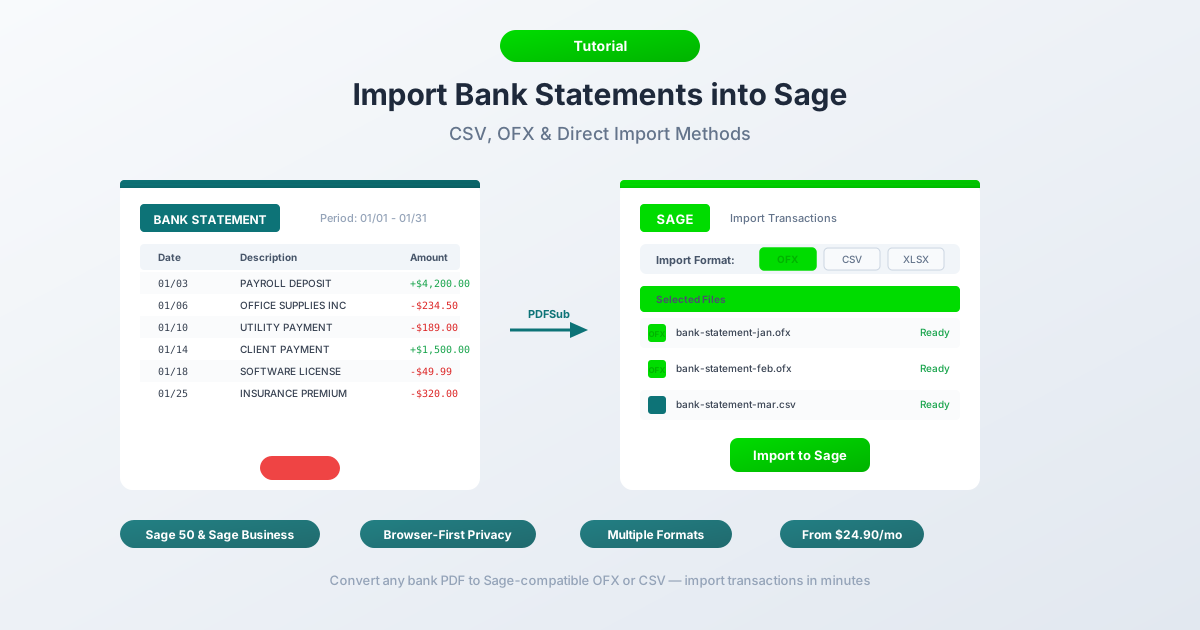
Sage is used by millions of businesses worldwide - from solo bookkeepers running Sage 50 on a desktop to enterprise finance teams on Sage Intacct. But when a client hands you a PDF bank statement from a closed account, a foreign bank, or a prior year that predates your bank feed connection, you hit a wall fast.
Sage can't read PDF bank statements directly. None of the three versions can. You can't drag a PDF into the import dialog and expect it to parse transactions. The data is locked inside the document's formatting - tables, headers, page breaks - and Sage needs structured data in a specific file format before it can do anything useful.
So how do you get those transactions into Sage without retyping every line? This guide covers every method across all three Sage platforms: automatic bank feeds, manual file uploads, and PDF-to-CSV/OFX conversion. By the end, you'll know exactly which approach works for your version of Sage and how to avoid the formatting pitfalls that cause failed imports.
The Three Sage Versions (and Their Import Capabilities)
Before diving into methods, it helps to understand which Sage you're working with. Each version has different import capabilities, and the steps vary significantly.
Sage 50 (Desktop) - The classic on-premise accounting package, popular in the UK and North America. Sage 50 runs locally on your computer and stores data in a local database. It supports CSV and OFX imports but has the most rigid formatting requirements of the three versions.
Sage Business Cloud Accounting (Online) - Sage's cloud-based platform, formerly known as Sage One. Browser-based, accessible anywhere. Supports CSV, OFX, and QIF imports with a column mapping interface that gives you more flexibility than Sage 50.
Sage Intacct (Enterprise) - The enterprise-grade, cloud-based ERP. Used by mid-market and larger organizations. Imports through the Cash Management module with the most flexible column mapping of any Sage product. CSV is the primary import format.
The good news: all three versions accept CSV files. If you can get your bank statement data into a properly formatted CSV, you can import it into any Sage product.
Method 1: Bank Feeds (Sage Business Cloud and Sage Intacct)
The most hands-off approach - connect your bank and let transactions flow in automatically.
Sage Business Cloud uses Yodlee as its bank feed aggregator. Go to Banking > Connect to Your Bank, search for your institution, and authorize the connection. Once linked, transactions typically sync daily.
Sage Intacct supports bank feeds through its Cash Management module. Connections are configured under Cash Management > Bank Feeds. Intacct partners with multiple aggregators depending on region.
Sage 50 has more limited bank feed support. Sage 50cloud (the connected version) offers some bank feed functionality, but it varies by region and bank. Many Sage 50 users don't have bank feed access at all.
Bank feeds work when:
- The account is currently open and active
- Your bank is on Sage's supported list
- You need recent transactions (typically last 90 days)
- You want ongoing, automated imports
Bank feeds don't work when:
- The account is closed - no connection possible
- You need transactions older than 90 days
- Your bank isn't supported (common with international banks, credit unions, and smaller regional institutions)
- The Yodlee connection keeps dropping (a frequent complaint, especially with banks using aggressive multi-factor authentication)
- You're onboarding a new client and need historical data that predates the feed
If bank feeds cover your situation, use them. For everything else - closed accounts, historical data, international banks, PDF-only statements - you need Method 2 or Method 3.
Method 2: Manual File Upload
Each Sage version has its own import path and supported formats. Here's how each one works.
Sage 50 (Desktop)
Import path: File > Import > Bank Transactions (or File > Import > Audit Trail Transactions depending on your version and region).
Supported formats: CSV and OFX.
CSV column requirements for Sage 50:
Sage 50 expects columns in a specific order. The exact layout depends on whether you're using the UK or US/Canada version:
| Column | UK Version | US/Canada Version |
|---|---|---|
| 1 | Type (e.g., BP, BR, JD, JC) | Date |
| 2 | Account Reference | Reference |
| 3 | Nominal Code | Description |
| 4 | Date | Amount |
| 5 | Reference | - |
| 6 | Description | - |
| 7 | Net Amount | - |
| 8 | Tax Code | - |
| 9 | Tax Amount | - |
For basic bank transaction imports in Sage 50 UK, the minimum columns are: Date, Reference, Description, Amount (or separate Debit/Credit columns). The date format must match your Sage locale - DD/MM/YYYY for UK, MM/DD/YYYY for US.
OFX import: Sage 50 can import OFX files directly. This is often simpler than CSV because OFX files carry their own date format and transaction structure. Go to File > Import > Bank Statement (OFX) and select your file.
Sage Business Cloud Accounting (Online)
Import path: Banking > Import Statement (or Banking > [Select Account] > Import Statement).
Supported formats: CSV, OFX, QIF.
Sage Business Cloud has a column mapping UI - when you upload a CSV, it asks you to tell it which column is Date, which is Description, and which is Amount. This is much more forgiving than Sage 50's rigid column order.
Steps:
- Go to Banking and select the target bank account
- Click Import Statement
- Choose your file (CSV, OFX, or QIF)
- If CSV: map columns to Date, Description, Amount (or separate Money In/Money Out)
- Select the date format
- Preview and confirm
- Imported transactions appear for reconciliation
Sage Intacct (Enterprise)
Import path: Cash Management > Bank Transactions > Import
Supported formats: CSV (primary), with some integrations supporting OFX.
Sage Intacct offers the most flexible column mapping. You can define and save import templates for recurring file formats - useful if you regularly import from the same bank. The mapping lets you assign columns to fields like Date, Description, Reference Number, Transaction Amount, and more.
Common Pitfalls Across All Versions
Date format mismatches. This is the number one cause of failed imports. If your CSV uses 03/02/2026 and Sage expects DD/MM/YYYY, it reads that as February 3rd, not March 2nd. Always verify your date format matches the Sage locale.
Decimal separator issues. European bank statements often use comma as the decimal separator (1.234,56). Sage 50 UK expects period decimals (1234.56). You may need to reformat amounts before importing.
Duplicate detection quirks. Sage's duplicate detection varies by version. Sage Business Cloud checks date and amount combinations but can still import duplicates if descriptions differ slightly. OFX files with transaction IDs provide better duplicate prevention than CSV.
Method 3: Convert PDF to a Sage-Compatible Format
This is the method you'll need most often - when all you have is a PDF bank statement and you need it in Sage.
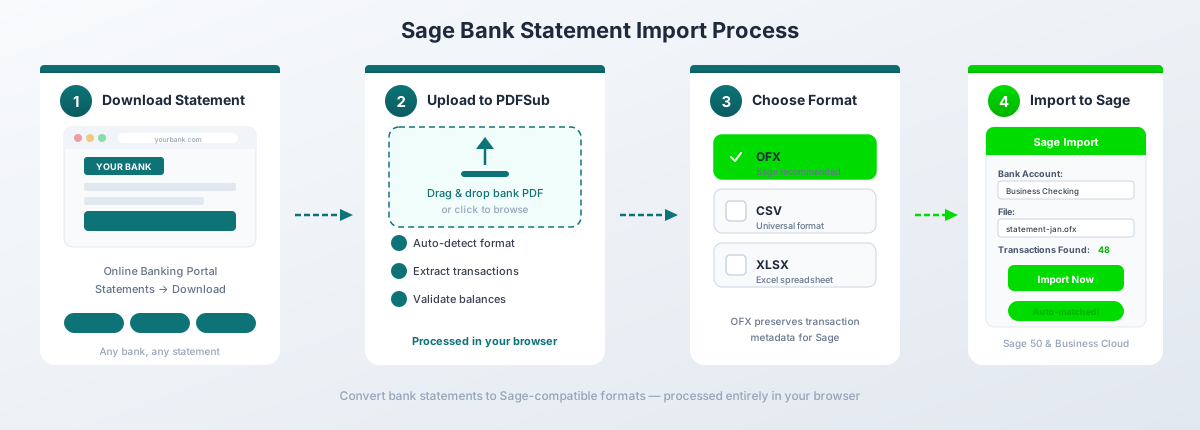
Step-by-step with PDFSub's Bank Statement Converter:
- Download your bank statement PDF from your bank's online portal (or scan a paper statement)
- Go to PDFSub's Bank Statement Converter
- Upload the PDF - drag and drop or click to browse
- Review the extracted transactions - verify dates, descriptions, and amounts look correct
- Select your output format: CSV for Sage 50, OFX for Sage Business Cloud (or CSV if you prefer the column mapping UI)
- Download the converted file and import into Sage using Method 2 above
Which format for which Sage version?
| Sage Version | Recommended Format | Why |
|---|---|---|
| Sage 50 (Desktop) | CSV | Best compatibility with Sage 50's import dialog |
| Sage Business Cloud | OFX | Auto-maps columns, includes transaction IDs for duplicate detection |
| Sage Intacct | CSV | Best compatibility with Intacct's flexible import templates |
PDFSub's Tier 1 extraction processes digital PDF bank statements entirely in your browser - the file never leaves your machine. It works with 20,000+ bank formats in 130+ languages and auto-detects date formats, decimal conventions, and deposit/withdrawal column layouts. The All-In-One plan is $20/user/mo (annual) or $25/user/mo (monthly), including 500 bank statement pages per user. All paid plans include a 7-day free trial.
CSV Formatting Rules for Sage
If you're importing CSV files - whether you created them manually, exported from another tool, or converted from a PDF - these are the formatting rules that determine whether the import succeeds or fails.
Column Requirements
At minimum, Sage needs three columns:
- Date - the transaction date
- Description - the payee or transaction narrative
- Amount - the transaction value (single column), or separate Money In / Money Out columns
Additional columns like Reference, Check Number, and Category are optional but helpful.
Date Format
Your CSV dates must match your Sage organization's locale setting:
| Region | Date Format | Example |
|---|---|---|
| UK / Ireland | DD/MM/YYYY |
02/03/2026 |
| US / Canada | MM/DD/YYYY |
03/02/2026 |
| International (safe) | YYYY-MM-DD |
2026-03-02 |
Sage 50 is particularly strict about this - an incorrect date format will cause the import to fail silently or, worse, misinterpret dates without warning. Always verify before uploading.
Header Row
- Sage Business Cloud: Expects a header row. Check "First row is headers" during import.
- Sage 50: Depends on the import method. Some Sage 50 import dialogs expect no header; others do. Test with and without.
- Sage Intacct: Expects a header row that matches your saved import template.
Amount Format
- No currency symbols - remove
$,GBP,EUR, etc. - No thousand separators - write
1234.56, not1,234.56 - Period as decimal separator - write
49.99, not49,99 - Positive/negative convention:
- Single Amount column: deposits are positive, withdrawals are negative
- Separate Money In/Money Out columns: all values are positive, placed in the correct column
- No parenthetical negatives - use
-234.56, not(234.56)
Encoding
- UTF-8 is the safest choice for most Sage imports
- Windows-1252 (ANSI) may be required for some older Sage 50 installations, especially UK versions that struggle with UTF-8 BOM (byte order mark)
- If you see garbled characters after import (especially with accented characters like umlauts or cedillas), try saving the CSV with a different encoding
OFX Import Details
OFX (Open Financial Exchange) is a structured XML-based format designed specifically for financial data exchange. It offers several advantages over CSV for Sage imports.
What OFX provides that CSV doesn't:
- Transaction IDs (FITIDs) - unique identifiers for each transaction that Sage uses for duplicate detection. Import the same OFX file twice and Sage skips already-imported transactions.
- Account identification - routing number, account number, and account type are embedded in the file
- Standardized date format - dates are always
YYYYMMDD, eliminating format ambiguity - Transaction type codes - debit, credit, transfer, fee, interest, etc.
- Currency information - the file specifies the currency, reducing misinterpretation
When to use OFX:
- Sage Business Cloud imports (skip column mapping entirely)
- Any time duplicate prevention matters (historical imports, overlapping date ranges)
- When importing from international banks where date/number formats vary
When to use CSV instead:
- Sage 50 Desktop (some versions handle CSV more reliably than OFX)
- When you need to manually edit transactions before import (OFX is harder to edit by hand)
- Sage Intacct imports with custom templates
QIF Import (Sage Business Cloud)
QIF (Quicken Interchange Format) is a legacy format originally created by Intuit for Quicken. Sage Business Cloud still supports it, though it's becoming less common.
When QIF is useful:
- You're migrating from an older system that only exports QIF
- Your bank provides QIF downloads but not OFX or CSV
- You have historical QIF files from a previous Quicken installation
Limitations:
- No transaction IDs - no duplicate detection
- No column mapping flexibility
- Not supported in Sage 50 or Sage Intacct
- Limited metadata compared to OFX
For most users, OFX or CSV are better choices. QIF is a fallback for legacy scenarios.
Troubleshooting Common Import Errors
"Date format does not match" / dates are wrong
Cause: Your CSV uses MM/DD/YYYY but Sage expects DD/MM/YYYY (or vice versa). This is especially treacherous for dates where day and month are both 12 or below - 03/02/2026 could be March 2nd or February 3rd, and Sage won't warn you if it picks the wrong interpretation.
Fix: Check your Sage locale settings. In Sage Business Cloud, go to Settings > Financial Settings to verify the expected date format. Reformat your CSV to match. If in doubt, use YYYY-MM-DD - it's unambiguous.
"Invalid data" or "Cannot import file"
Cause: Usually a structural problem - extra blank rows at the bottom, a summary row with totals, invisible characters, or the file saved with semicolons instead of commas (common with European Excel).
Fix: Open the file in a plain text editor (Notepad, TextEdit, VS Code - not Excel). Check for blank lines at the end. Verify commas separate the fields. Remove any rows that aren't transactions (totals, page headers, balance summaries).
Duplicate transactions after import
Cause: You imported overlapping date ranges, or you imported the same file twice. CSV files have no transaction IDs, so Sage can't detect duplicates automatically.
Fix: Before importing, check the date range of existing transactions in the target account. If you must import overlapping periods, review transactions carefully after import and manually delete duplicates. Better yet - use OFX format, which includes FITIDs for automatic duplicate detection.
Missing transactions
Cause: Transactions with zero amounts, transactions on the same date that look like duplicates to Sage, or rows that don't match the expected column structure.
Fix: Check the original CSV for zero-amount lines (some banks include authorization holds or reversed transactions as $0.00 entries). Verify all rows have the same number of columns. Some Sage versions silently skip rows that don't parse correctly - compare the transaction count in your file against the count imported.
Encoding issues with international characters
Cause: The CSV is saved in Latin-1, Windows-1252, or another encoding that doesn't match what Sage expects. Characters like umlauts (ae), accents (e with accent), and non-Latin scripts render as garbled text.
Fix: Re-save the file as UTF-8 in your text editor or spreadsheet application. In Excel: File > Save As > CSV UTF-8 (Comma delimited). In Google Sheets, the default export is already UTF-8.
Sage 50 vs. Sage Business Cloud: Import Comparison
| Feature | Sage 50 (Desktop) | Sage Business Cloud |
|---|---|---|
| Supported formats | CSV, OFX | CSV, OFX, QIF |
| Column mapping UI | No (fixed column order) | Yes (interactive mapping) |
| Date format | Must match locale exactly | Selected during import |
| Duplicate detection | Limited | Better (OFX FITIDs) |
| Max file size | No hard limit (performance degrades) | Varies by plan |
| Bank feeds | Limited (Sage 50cloud only) | Yes (Yodlee-based) |
| Import path | File > Import > Bank Transactions | Banking > Import Statement |
| Separate Debit/Credit columns | Supported | Supported (Money In/Money Out) |
| Encoding | Windows-1252 preferred | UTF-8 preferred |
| Batch import | One file at a time | One file at a time |
| Best format | CSV | OFX |
Tips for Accountants
Batch Processing Multiple Clients
If you're a bookkeeper or accountant handling bank statements for multiple clients, establish a repeatable workflow:
- Collect all PDF statements at once - request them from clients in a single batch at month-end or quarter-end
- Convert in batches - use PDFSub's Bank Statement Converter to process each statement. Keep the converted files organized by client and date range
- Use consistent file naming -
ClientName_AccountType_YYYY-MM.csv(e.g.,AcmeCorp_Checking_2026-02.csv) - Import in chronological order - import the oldest month first and work forward. This helps Sage's reconciliation engine match transactions correctly
- Reconcile immediately after import - don't let imported transactions sit in an unreconciled state. Compare ending balances against the original PDF statement
Organizing Your Files
Create a folder structure that mirrors your client list - separate folders for original PDFs, converted files, and imported/archived files. Move files to an "Imported" folder after successfully importing them into Sage. This prevents accidental re-imports and makes it easy to trace which files have been processed.
Monthly Workflow
For ongoing clients, establish a monthly routine:
- Download or receive bank statement PDFs by the 5th of the following month
- Convert PDFs to CSV or OFX
- Import into the correct Sage bank account
- Reconcile against the statement ending balance
- Investigate and resolve any discrepancies
- Archive the original PDF and converted file
This workflow takes 10-15 minutes per bank account per month once you have it down.
Frequently Asked Questions
Can I import bank statements older than 90 days into Sage?
Yes, but not through bank feeds. Bank feeds typically pull only the last 30-90 days of transactions. For older statements, download the PDFs from your bank's website, convert them to CSV or OFX, and import the file manually. All three Sage versions support manual file import for any date range.
What file format is best for Sage bank imports?
It depends on your Sage version. For Sage 50 Desktop, use CSV - it has the broadest compatibility with Sage 50's import dialogs. For Sage Business Cloud, use OFX - it auto-maps columns and includes transaction IDs for duplicate detection. For Sage Intacct, use CSV with a saved import template for consistency.
Why is Sage rejecting my CSV file?
The most common causes are: date format doesn't match your Sage locale setting, currency symbols or comma separators in the Amount column, blank rows at the end of the file, or a summary/totals row that Sage can't parse. Open the file in a text editor (not Excel) to inspect the raw data and verify formatting.
Can I import bank statements from international banks into Sage?
Yes. Convert the PDF statement to CSV or OFX first, making sure to reformat dates and decimal separators to match your Sage locale. For example, a German bank statement using DD.MM.YYYY dates and comma decimals (1.234,56) needs to be converted to your Sage-expected format before import. PDFSub handles this conversion automatically, including date and number format normalization.
How do I avoid duplicate transactions when importing into Sage?
Use OFX format whenever possible - OFX files include unique transaction IDs (FITIDs) that Sage uses to detect and skip duplicates. For CSV imports, keep a log of which date ranges you've already imported and avoid overlapping periods. After importing, review transactions carefully and delete any duplicates manually.
Does Sage 50 support OFX file imports?
Yes, Sage 50 supports OFX imports through File > Import > Bank Statement (OFX) (the exact menu path varies by version and region). However, some older Sage 50 versions have limited OFX support. If you encounter issues, fall back to CSV import.
Can I import QIF files into Sage 50?
No. QIF (Quicken Interchange Format) is only supported in Sage Business Cloud Accounting. Sage 50 and Sage Intacct do not accept QIF files. If you have a QIF file and need to import into Sage 50, convert it to CSV first.
What's the difference between importing as a single Amount column vs. separate Money In/Money Out?
A single Amount column uses positive numbers for deposits and negative numbers for withdrawals. Separate Money In/Money Out columns use positive numbers in both - the column placement determines the direction. The separate-column approach avoids sign-convention confusion and is generally less error-prone, especially for users unfamiliar with how their bank formats amounts.
How do I handle multi-currency bank statements in Sage?
Set up a bank account in Sage with the correct currency before importing. Sage 50 supports multi-currency in the Professional and above editions. Sage Business Cloud and Intacct both support multi-currency natively. Make sure the amounts in your import file are in the account's base currency - Sage does not auto-convert currencies during import.
Can I undo a bank statement import in Sage?
In Sage Business Cloud, you can delete imported statement lines from the banking reconciliation screen before they're reconciled. In Sage 50, you'll need to find and delete individual transactions or restore from a backup taken before the import. Always take a backup before importing large batches. In Sage Intacct, imported transactions can be reversed through the Cash Management module.