How to Stamp a PDF Online (Approved, Received, Confidential)
Need to add an APPROVED, RECEIVED, or custom stamp to a PDF? Here's how to stamp documents online - free, in your browser.
Document stamps solve a universal problem: you need to mark a PDF with its status. Approved. Rejected. Received. Confidential. Draft. Not for distribution. Reviewed. Final.
In a paper world, you'd grab a rubber stamp and an ink pad. In a digital world, you need a PDF stamping tool. The good news: you don't need Acrobat or any desktop software. Browser-based tools handle stamping quickly and privately.
This guide covers how to add preset and custom stamps to PDFs, common stamping workflows, and best practices for document approval processes.
Why Stamp a PDF?
Stamping a PDF serves the same purpose as a physical rubber stamp - it visually communicates a document's status at a glance. Here's when you'd use it:
Approval workflows
- "Approved" on purchase orders, expense reports, or project proposals
- "Rejected" on denied requests with a note about why
- "Reviewed" on documents that have been checked but need further action
Document control
- "Confidential" on sensitive internal documents
- "Draft" on documents still being revised
- "Not for Distribution" on pre-release materials
- "Final" on the approved, definitive version
Receiving and processing
- "Received" with a date on incoming documents (invoices, applications, submissions)
- "Paid" on processed invoices
- "Filed" on archived records
Legal and compliance
- "Copy" on duplicate documents
- "Original" on source documents
- "Void" on cancelled contracts or checks
The stamp doesn't change the document content - it adds a visible overlay that tells anyone looking at the PDF what its status is.
How to Stamp a PDF Online (Step by Step)
Step 1: Open the Stamp Tool
Go to PDFSub's Stamp PDF tool and upload your document. The PDF loads directly in your browser - nothing gets sent to a server.
Step 2: Choose a Stamp
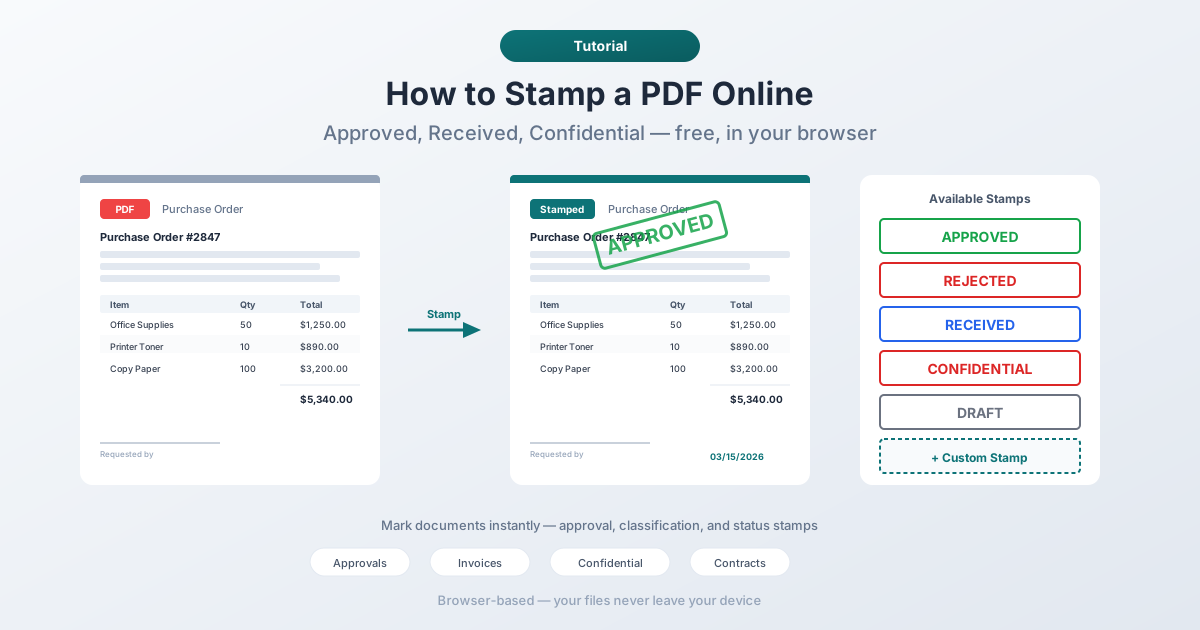
You'll see preset stamps for the most common use cases:
- Approved - green stamp for accepted documents
- Rejected - red stamp for denied documents
- Received - blue stamp for incoming documents
- Confidential - red stamp for restricted documents
- Draft - gray stamp for work-in-progress
- Reviewed - blue stamp for checked documents
Each preset has appropriate colors and formatting. Select the one that fits your workflow.
Step 3: Position the Stamp
Click on the PDF page where you want the stamp to appear. Common positions:
- Top right corner - the most traditional placement, visible without scrolling
- Center of page - for watermark-style stamps (like "Draft" or "Confidential")
- Near a signature line - for "Approved" stamps on signed documents
- Header area - for "Received" stamps with dates
Drag the stamp to adjust its exact position. Resize if needed.
Step 4: Customize (Optional)
Want something different from the presets? Create a custom stamp:
- Type any text ("Paid in Full," "For Review Only," "Rush Order")
- Choose colors that match your organization's conventions
- Adjust the size to be prominent without overwhelming the document
- Set rotation if you want an angled stamp (the classic rubber-stamp look)
Step 5: Apply to Multiple Pages
Need the stamp on every page? Some workflows require stamping only the first page (approval stamps), while others need every page marked (confidential documents). Apply the stamp to individual pages or all pages at once.
Step 6: Download
Download the stamped PDF. The original file stays untouched - you get a new version with the stamp embedded.
Common Stamping Workflows
Purchase Order Approval
- Department submits a purchase order PDF
- Manager reviews the details
- Stamps "Approved" on the first page with the date
- Forwards the stamped PDF to accounting for payment
Invoice Processing
- Invoice arrives as a PDF
- Accounts payable stamps "Received" with the date
- After verification and payment, stamps "Paid" with the payment date
- Files the stamped version for records
Document Review Cycle
- Author shares a PDF marked "Draft"
- Reviewers add comments and annotations
- After revisions, the lead reviewer stamps "Reviewed"
- Final approver stamps "Approved" and the document becomes "Final"
Confidential Distribution
- Before sending sensitive documents, stamp every page "Confidential"
- For extra caution, add "Not for Distribution" as a second stamp
- Recipients see the classification on every page they print or view
Stamps vs. Watermarks - What's the Difference?
People sometimes confuse stamps and watermarks. They're similar but serve different purposes:
Stamps:
- Opaque, fully visible, meant to be read
- Usually placed in a corner or specific position
- Indicate status ("Approved," "Received")
- Applied once to communicate a decision
Watermarks:
- Semi-transparent, visible but not obstructing content
- Usually centered and repeated on every page
- Indicate classification ("Confidential," "Draft")
- Applied across the entire document
In practice, the same tool handles both. A stamp with reduced opacity becomes a watermark. A watermark with full opacity becomes a stamp. The difference is intent and presentation.
PDFSub's Watermark PDF tool specializes in the watermark style (centered, semi-transparent, every page), while the Stamp PDF tool gives you more control over position and appearance.
Best Practices for Stamping Documents
Use consistent colors across your organization. Green for approval, red for rejection or confidentiality, blue for informational stamps. Consistency helps everyone interpret stamps instantly.
Include dates on status stamps. "Received" is useful. "Received - March 15, 2026" is much more useful. If your tool supports adding a date alongside the stamp, use it.
Don't over-stamp. One or two stamps per page is clear. Five stamps on the same page is visual noise. If a document needs multiple status indicators, consider using a cover sheet.
Place stamps where they won't obscure content. Top right corner is traditional because most documents leave that area relatively empty. Avoid stamping over signatures, key data, or important text.
Keep originals. Always stamp a copy of the document, not the only version. You may need the un-stamped original for other purposes.
Match stamp importance to visual weight. "Confidential" should be large and prominent. "Filed" can be smaller and subtler. The visual weight should match how urgently the stamp needs to be noticed.
When Physical Stamps Still Win
Digital stamping covers most modern workflows, but there are edge cases where physical rubber stamps still have a role:
- Notarized documents that require a physical seal
- Government forms with specific stamping requirements
- Archival processes where physical originals must be marked
For everything else - email workflows, digital records, shared drives, internal approvals - digital stamping is faster, neater, and more flexible.
FAQ
Can I add a custom stamp with any text?
Yes. Beyond the preset stamps (Approved, Rejected, Received, Confidential, Draft), you can type any text for your stamp. "Paid in Full," "Rush Order," "For Internal Use Only," or any other text. You also control the color, size, and position.
Does stamping alter the original PDF content?
No. Stamping adds a visual overlay on top of the existing content. The original text, images, and formatting remain unchanged underneath. The stamp is an additional layer embedded in the PDF.
Can I stamp multiple pages at once?
Yes. You can apply a stamp to a single page or all pages in the document. For confidentiality stamps, applying to all pages is common. For approval stamps, the first page is usually sufficient.
Is the stamped PDF legally meaningful?
A visual stamp shows intent (someone marked this document as approved) but doesn't provide cryptographic proof like a digital signature. For legally binding approval, consider using a digital signature in addition to a visual stamp. The stamp communicates status to humans; the signature proves authenticity to systems.
Are my documents secure when stamping online?
With PDFSub's Stamp PDF tool, yes. The tool runs entirely in your browser - your PDF never leaves your device. No server upload, no cloud processing. This is important for confidential documents where the stamp itself indicates sensitivity.
Wrapping Up
Stamping a PDF is one of those tasks that should be simple - and with browser-based tools, it is. Choose a preset stamp or create a custom one, position it on your document, and download the result.
No desktop software required, your files stay on your device, and a 7-day free trial lets you try it risk-free.
Try PDFSub's Stamp PDF tool for your next approval, receipt, or confidential marking.