How to Split a PDF by Page Range (Free)
Need just a few pages from a long PDF? Here's how to split any PDF by page range in your browser with a 7-day free trial.
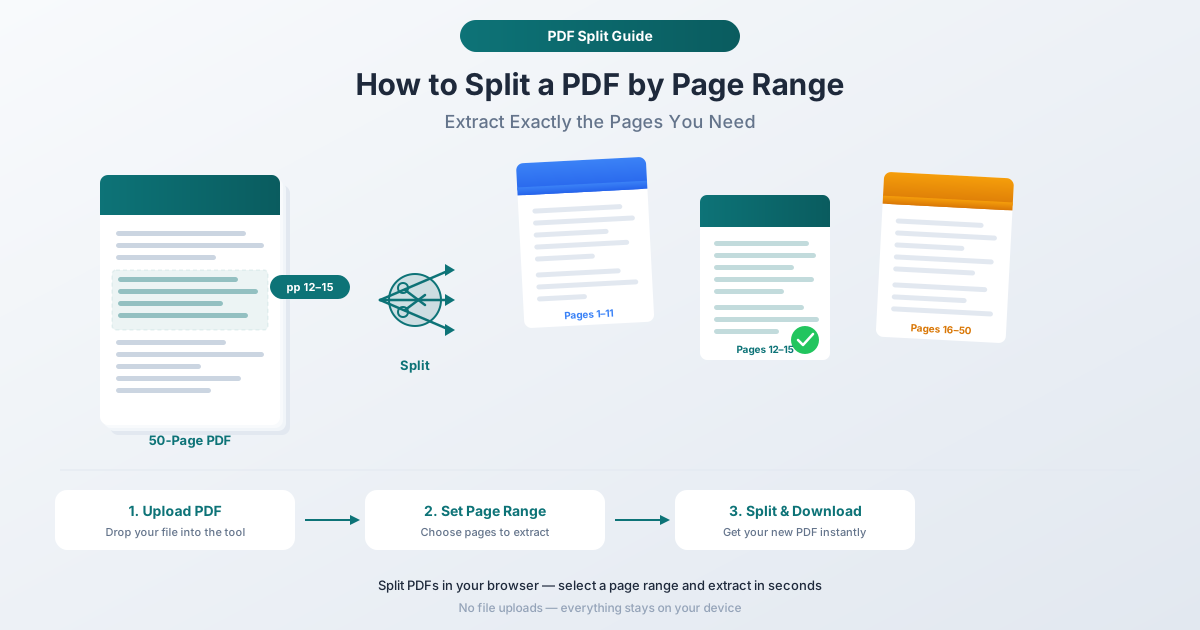
You have a 50-page PDF report, but you only need pages 12 through 15. Maybe it's a contract and you need just the signature pages. Maybe it's an annual report and your colleague only needs the Q3 financials. Or maybe you're a teacher pulling a single chapter from a textbook PDF before sharing it with students.
Whatever the reason, splitting a PDF by page range is one of the most common document tasks - and it should be simple. This guide covers three ways to do it, starting with the fastest and most private method, along with tips for handling common splitting scenarios.
Why Split a PDF?
Before jumping into methods, here are the most common reasons people split PDFs.
Share Only What's Relevant
Sending a 200-page document when someone only needs 3 pages wastes their time and bandwidth. Splitting lets you send exactly what's needed - nothing more, nothing less.
Reduce File Size
Large PDFs are difficult to email, upload to portals, or attach to forms. Extracting just the pages you need can turn a 50MB file into a 2MB file. This is especially useful when submission portals have file size limits.
Extract Chapters or Sections
Textbooks, manuals, and long reports are often distributed as single large PDFs. Splitting by page range lets you pull out individual chapters, appendices, or sections for focused reading or sharing.
Organize and Archive
Splitting a monthly bank statement PDF into individual statements, or separating a combined invoice file into individual invoices, makes it easier to file, search, and retrieve documents later.
Meet Upload Requirements
Many government forms, insurance claims, and college applications require specific documents as separate files. If all your supporting documents are in one PDF, splitting is the fastest way to comply.
Method 1: PDFSub Split PDF Tool (Recommended)
PDFSub's Split PDF tool is the fastest and most private way to split a PDF by page range. It processes everything directly in your browser - your files never leave your device, and a 7-day free trial lets you get started without committing.
Step-by-Step Instructions
Step 1: Open the Split PDF tool. Go to pdfsub.com/tools/split. No software to install - start with a 7-day free trial.
Step 2: Upload your PDF. Drag and drop your file into the upload area, or click to browse your computer. The tool loads the document and displays a page count so you know exactly what you're working with.
Step 3: Set the page range. Enter the pages you want to extract. You can specify a simple range like 12-15, a single page like 7, or multiple ranges and individual pages like 1-3, 7, 12-15. The tool shows you exactly which pages will be included in the output.
Step 4: Split. Click the split button. The tool extracts the specified pages into a new PDF. For most documents, this takes under a second.
Step 5: Download. Your new PDF is ready to download. The original file is unchanged - splitting creates a new document containing only the pages you selected.
Why This Method Is Best
Privacy by design. The split operation happens entirely in your browser. Your PDF is never uploaded to a server. This matters when you're working with contracts, financial statements, medical records, tax filings, or anything containing personal information.
No file size limits. Unlike many online tools that cap uploads at 10MB or 25MB, PDFSub handles large files. Multi-hundred-page documents with embedded images work without issues.
Flexible page selection. Specify any combination of page ranges and individual pages. Extract pages 1-5 and 20-25 in a single operation - no need to split twice.
Preserves document quality. Text, images, annotations, and formatting from the original pages are preserved exactly. There's no re-compression or quality loss.
Works on any device. Because it runs in the browser, it works on Windows, Mac, Linux, Chromebooks, and tablets. No software installation required.
Free to try. PDFSub offers a 7-day free trial with full access to all tools, including Split PDF.
Method 2: Adobe Acrobat
Adobe Acrobat (the paid version, not the free Reader) includes a page organization feature that can split PDFs.
How to Split
- Open the PDF in Adobe Acrobat.
- Go to Tools > Organize Pages.
- Select the pages you want to extract by clicking their thumbnails (hold Shift for a range, Ctrl/Cmd for individual pages).
- Click Extract in the toolbar, then choose Extract as Separate File.
- Save the new PDF.
Limitations
- Requires a paid subscription. Adobe Acrobat Pro costs $19.99/month or more. If you only need to split a PDF occasionally, that's an expensive solution.
- Desktop software. You need to download and install the application. It's not available on Chromebooks or most tablets.
- Files are processed locally, which is good for privacy - but the cost and installation requirements are barriers for a task that should be simple.
Method 3: Chrome Print-to-PDF (Limited)
If you don't have access to any PDF tools, you can use Chrome's built-in print function as a basic workaround.
How to Split
- Open the PDF in Google Chrome (drag the file into a browser tab).
- Press Ctrl+P (Windows) or Cmd+P (Mac) to open the print dialog.
- Set the Destination to Save as PDF.
- In the Pages field, enter the range you want (e.g.,
12-15). - Click Save and choose a filename.
Limitations
- No visual preview of selected pages. You're typing page numbers blind and hoping you got the range right.
- May alter formatting. Chrome re-renders the PDF for printing, which can change fonts, shift layouts, flatten form fields, and reduce image quality.
- No batch operations. You can only extract one continuous range at a time. Extracting pages 1-3 and 20-25 requires two separate operations.
- Strips interactive features. Bookmarks, links, annotations, and form fields are lost in the output.
This method works in a pinch for simple text documents, but it's unreliable for anything with complex formatting.
Common Splitting Scenarios
Extract a Chapter from a Book or Manual
Most PDF textbooks and manuals include a table of contents with page numbers. Find the start and end page of the chapter you need, then split that range. If the PDF has bookmarks, use them to identify exact page boundaries.
Split a Report into Sections
Annual reports, audit packages, and board meeting documents often combine multiple sections. Split by the page ranges that correspond to each section - executive summary, financial statements, appendices - and distribute each section to the people who need it.
Create Individual Pages
Need every page as a separate file? Some split tools let you split into individual pages in one operation. With PDFSub, you can specify each page individually (e.g., 1, 2, 3, 4, 5) or use the tool multiple times to extract individual pages quickly.
Pull Signature Pages from a Contract
Contracts often run 30-50 pages, but you may only need the signed signature pages for your records. Split just those final pages into a standalone file.
Separate Combined Invoices or Statements
Some vendors send all monthly invoices as a single combined PDF. Split the file by page ranges that correspond to each invoice so you can file, forward, or process them individually.
Split vs. Extract vs. Delete: What's the Difference?
These three operations are closely related but serve different purposes.
| Operation | What It Does | Best For |
|---|---|---|
| Split | Divides a PDF into separate files by page range | Pulling out a specific section from a larger document |
| Extract Pages | Saves selected pages as a new PDF | Cherry-picking non-consecutive pages from throughout a document |
| Delete Pages | Removes specific pages from a PDF | Cleaning up a document by removing blank pages, cover sheets, or irrelevant sections |
PDFSub offers all three operations - Split PDF, Extract Pages, and Delete Pages - and each processes entirely in your browser.
Frequently Asked Questions
Is splitting a PDF free?
Yes. PDFSub's Split PDF tool is available during the 7-day free trial with no limitations. Chrome's print-to-PDF method is also free, though it has significant quality trade-offs. Adobe Acrobat requires a paid subscription.
Does splitting a PDF reduce quality?
Not when done correctly. A proper split extracts the original page data without re-encoding or re-compressing anything. Text stays as text, images remain at their original resolution, and vector graphics keep their precision. Chrome's print-to-PDF method is the exception - it re-renders the document, which can degrade quality.
Can I split a password-protected PDF?
You need to remove the password protection first. If you know the password, PDFSub's Unlock PDF tool can remove it - processing happens in your browser. Once unlocked, you can split the file normally.
Does the original PDF change when I split it?
No. Splitting creates a new PDF containing only the selected pages. Your original file remains completely untouched.
Can I split a scanned PDF?
Yes. Scanned PDFs (where each page is essentially an image) split just like any other PDF. The pages are extracted as-is. If you need the text from those scanned pages to be searchable, run OCR on the split file using PDFSub's OCR tool after splitting.
Can I split a PDF on my phone?
Yes, if you use a browser-based tool. PDFSub works in any modern mobile browser on iOS and Android - same interface, same privacy, same results as on desktop.
Start Splitting
Ready to extract the pages you need? Open the Split PDF tool and drop in your file. Set your page range, split, and download - the entire process takes seconds. Everything happens in your browser, so your documents never leave your device. No account required to get started, and PDFSub offers a 7-day free trial with full access to all tools.