How to Password Protect a PDF Online (Free)
Need to lock a PDF before sharing? Here's how to add password protection with AES-256 encryption - free, in your browser, files never leave your device.
You're about to email a contract with salary information. Or share tax documents with your accountant through a file-sharing service. Or upload an insurance claim with your Social Security number on it. The document needs to get to the right person, but it absolutely cannot be accessed by anyone else along the way.
Password protecting a PDF adds a layer of encryption that prevents anyone without the password from opening or viewing the file. It's the difference between sending a postcard and sending a sealed envelope - except in this case, the "seal" is military-grade AES-256 encryption that would take billions of years to crack with current computing power.
This guide covers how to password protect a PDF, the two types of PDF passwords and when to use each, and why browser-based encryption is the most private way to secure your documents.
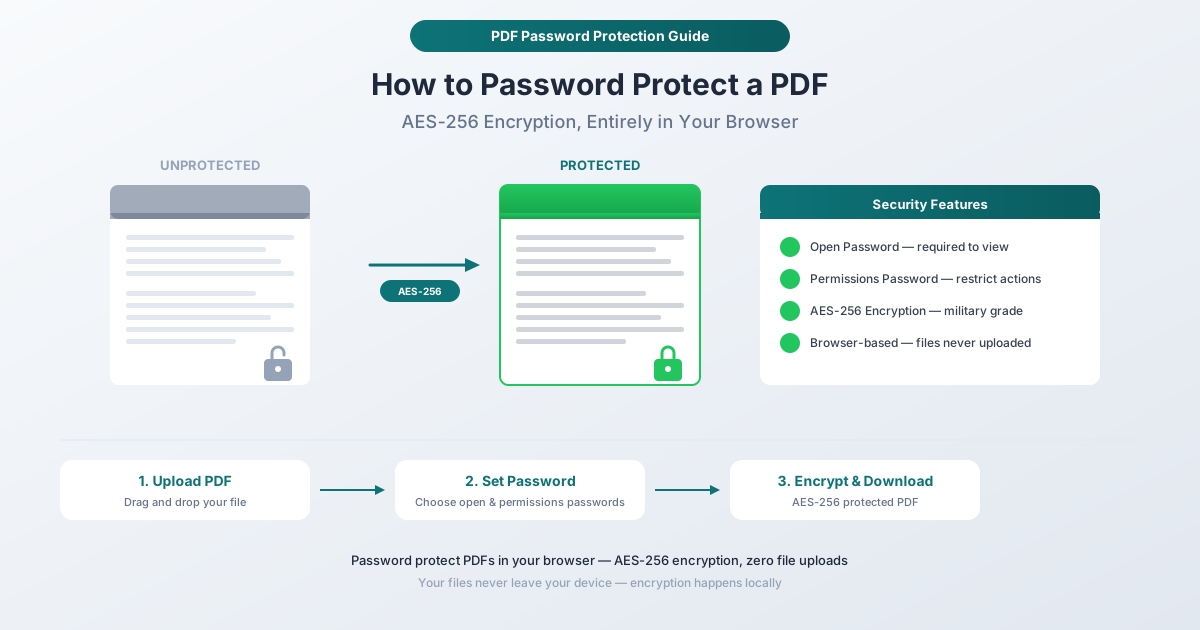
Two Types of PDF Passwords
PDF encryption supports two distinct passwords, each serving a different purpose. Understanding the difference is important because using the wrong one leaves your document less protected than you think.
Open Password (User Password)
An open password prevents anyone from viewing the document without entering the password. When someone tries to open the PDF, their viewer prompts for a password before displaying any content. Without the correct password, the document is completely inaccessible - not partially hidden, not blurred, but entirely unreadable.
Use an open password when:
- The document contains sensitive personal information (SSN, financial data, medical records)
- You're sharing via email or cloud storage and want to prevent unauthorized access
- The document would cause harm if read by the wrong person
- You need to comply with data protection requirements (HIPAA, GDPR, FTC Safeguards Rule)
Permissions Password (Owner Password)
A permissions password doesn't prevent viewing - it restricts specific actions. You can control whether recipients can:
- Print the document
- Copy text or images
- Edit or modify content
- Extract pages
- Add annotations or comments
- Fill in form fields
The document opens normally without a password, but attempting a restricted action requires the permissions password.
Use a permissions password when:
- You want people to read the document but not print or copy it
- You need to prevent editing while allowing viewing
- You're distributing a form that should be filled in but not structurally modified
- You want to discourage casual text copying for redistribution
Using Both Together
For maximum control, set both passwords. The open password prevents unauthorized viewing entirely. The permissions password restricts what authorized viewers can do with the document. This is common for sensitive documents that need to be read by specific people but shouldn't be printed, copied, or edited.
How to Password Protect a PDF with PDFSub
PDFSub's Protect PDF tool adds password protection and AES-256 encryption to any PDF. The entire encryption process happens in your browser - your unprotected file is never transmitted anywhere.
Step-by-Step Instructions
Step 1: Open the Protect PDF tool. Go to pdfsub.com/tools/protect. No software to install - start with a 7-day free trial.
Step 2: Upload your PDF. Drag and drop your file into the upload area, or click to browse. The tool loads your document locally in the browser.
Step 3: Set your open password. Enter a strong password that recipients will need to view the document. This is the critical password - without it, no one can open the file.
Step 4: Set permissions (optional). If you want to restrict specific actions (printing, copying, editing), configure the permissions settings. You can optionally set a separate permissions password.
Step 5: Choose encryption strength. Select AES-256 encryption - the strongest option available. This is the same encryption standard used by governments and financial institutions.
Step 6: Encrypt and download. Click the action button. The tool encrypts your PDF with the specified passwords and settings. Download the protected file. The original unprotected version remains on your device.
Why Browser-Based Encryption Matters
Here's the critical point: when you use an online tool that uploads your file to a server for encryption, your unencrypted document exists on that server during processing. The file you're trying to protect is, for a period of time, sitting on someone else's computer without any protection.
PDFSub's Protect tool eliminates this risk entirely. The encryption happens in your browser, on your device. The unprotected version of your file never leaves your computer. There's no upload, no server processing, no window of vulnerability. The only file that could theoretically be intercepted is the already-encrypted output - which is useless without the password.
For documents containing financial data, personal health information, legal materials, or any other sensitive content, this distinction matters.
Understanding AES-256 Encryption
AES-256 (Advanced Encryption Standard with 256-bit keys) is the gold standard in symmetric encryption. Here's what it means in practical terms.
How Strong Is It?
A 256-bit key has 2^256 possible combinations - that's a number with 77 digits. To put it in perspective: if every computer on Earth worked together trying every possible key, it would take longer than the age of the universe to crack a single AES-256 encrypted file. This isn't theoretical - it's mathematical certainty based on the key space.
Who Uses AES-256?
- The U.S. government (classified documents up to TOP SECRET)
- Banks and financial institutions
- Healthcare organizations (HIPAA compliance)
- VPN providers
- Cloud storage services
- Military communications
When you encrypt a PDF with AES-256, you're using the same standard that protects national security information. For a contract or tax document, it's more than sufficient.
Older Encryption Standards
Some tools still offer RC4 or AES-128 encryption. While these aren't trivially breakable, they're considered weaker than AES-256. If given the choice, always select AES-256. There's no performance penalty - encryption takes the same amount of time regardless of key length for typical document sizes.
When to Password Protect a PDF
Before Emailing Sensitive Documents
Email is not secure. Messages can be intercepted, forwarded, or accessed through compromised accounts. When you email a PDF with sensitive content - financial statements, legal agreements, medical records, tax filings - password protecting it ensures that even if the email is intercepted, the attachment is unreadable.
Best practice: Send the password through a different channel. Email the encrypted PDF, then text or call the recipient with the password. This way, an attacker would need to compromise both communication channels.
Before Uploading to Cloud Storage
Files in Google Drive, Dropbox, OneDrive, and other cloud services are stored on third-party servers. While these services use encryption at rest, they can technically access your files (and may be compelled to by legal process). Password-protecting the PDF adds a layer of encryption that you control - even the cloud provider can't read the contents.
Before Sharing Contracts and Legal Documents
Contract negotiations often involve sharing draft agreements with multiple parties. Password protection ensures that only intended recipients can view the terms - preventing premature disclosure of pricing, conditions, or strategic positions.
Before Archiving Financial Records
Tax returns, bank statements, investment records, and financial reports should be encrypted when stored digitally. If your computer is stolen or your backup drive is compromised, encrypted PDFs remain secure.
Before Sharing HR and Employee Documents
Offer letters, performance reviews, salary information, disciplinary records, and benefits documents contain personal information that should never be freely accessible. Password protection is the minimum standard for sharing these documents electronically.
Creating Strong Passwords
The strength of PDF encryption is only as good as the password. AES-256 is unbreakable by brute force, but a weak password can be guessed.
What Makes a Strong Password
- Length over complexity. "correct-horse-battery-staple" is stronger than "P@55w0rd!" because it's longer and harder to guess, despite being easier to remember.
- At least 12 characters. Shorter passwords can be brute-forced with modern hardware.
- Avoid dictionary words alone. "password," "contract," "confidential" - these are the first things an attacker tries.
- Mix character types if practical. Letters, numbers, and symbols increase the search space. But a long passphrase beats a short complex password every time.
Password Sharing Best Practices
- Never include the password in the same email as the file. This defeats the entire purpose.
- Use a different channel. Text, phone call, secure messaging app, or in-person.
- Agree on passwords in advance. For recurring document exchanges, establish a shared password convention.
- Don't reuse passwords. Each document should have a unique password, especially for different recipients.
Frequently Asked Questions
What happens if I forget the password?
There is no recovery mechanism. AES-256 encryption is designed so that the password is the only way to access the content. No one - not PDFSub, not your IT department, not a forensic specialist - can recover the contents without the password. Always keep a record of your passwords in a password manager.
Can I remove the password later?
Yes, if you know the password. Open the protected PDF, enter the password, and use PDFSub's Unlock PDF tool to remove the protection. This creates an unprotected copy. You'll need the password to do this - there's no way to remove protection without it.
Does password protection work on all devices and PDF viewers?
AES-256 encrypted PDFs are supported by all modern PDF viewers: Adobe Acrobat Reader, Preview on Mac, Chrome's built-in PDF viewer, Foxit Reader, and others. Very old software might not support AES-256, but any viewer updated in the last decade handles it without issues.
Is a permissions password as secure as an open password?
No. Permissions passwords are easier to bypass because the document content is visible - it's just the actions that are restricted. Dedicated PDF editing tools can sometimes remove permissions restrictions. An open password, by contrast, encrypts the entire file content. For genuine security, always use an open password.
Can I password protect a PDF that's already password protected?
You'll need to remove the existing protection first (using the current password), then apply new protection with the new password. You can't layer passwords on top of each other.
Start Protecting
Ready to secure your PDF? Open the Protect PDF tool and upload your file. Set a strong password, select AES-256 encryption, and download your protected document. The entire encryption process happens in your browser - your unprotected file never leaves your device. No account required to get started, and PDFSub offers a 7-day free trial with full access to all tools.