How to Extract Pages from a PDF Online (Free)
Need specific pages from a large PDF as a separate file? Here's how to extract pages - free, in your browser, keeping the original intact.
Your client sent a 120-page annual report, but you only need the three pages covering Q4 revenue. Or HR distributed a 50-page employee handbook and you need to pull out the PTO policy for a quick reference. Or you're reviewing a contract and want to share just the payment terms with your accountant - not the entire 30-page agreement.
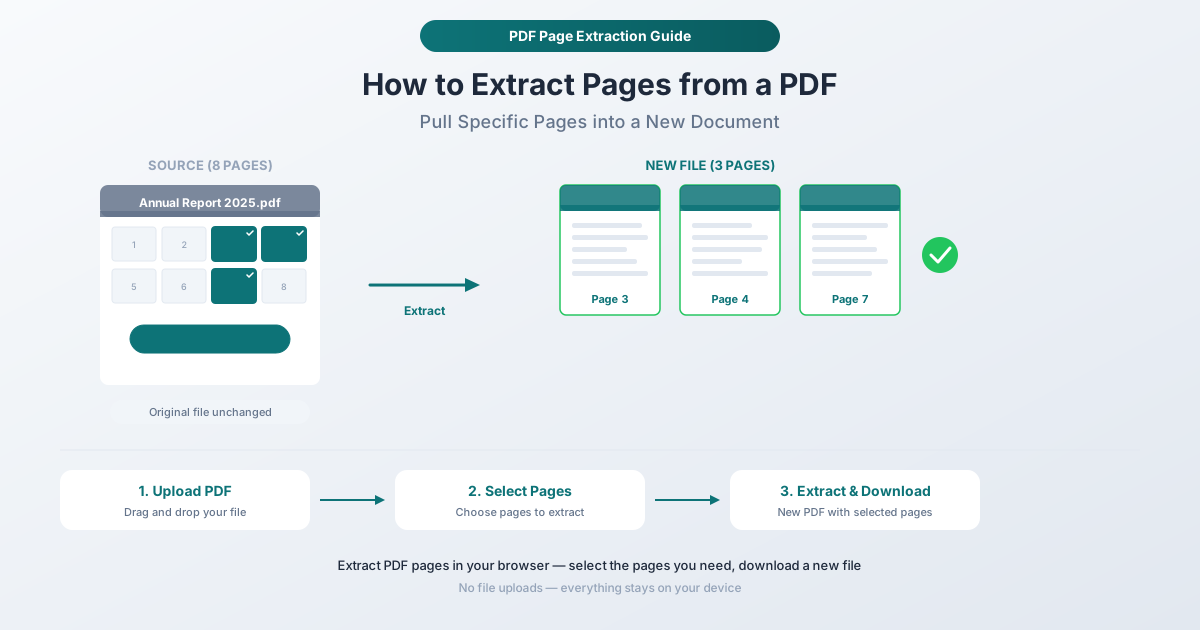
Extracting pages from a PDF creates a new, smaller file containing only the pages you choose. The original document stays completely intact. It's like photocopying specific pages from a book, except the copy is a proper PDF with all the formatting, images, and quality of the original.
This guide walks through how to extract pages from a PDF, explains the difference between extracting and similar operations like splitting and deleting, and covers the real-world scenarios where extraction is the best approach.
Extract vs. Split vs. Delete: What's the Difference?
People use these terms interchangeably, but they do different things. Understanding the distinction helps you pick the right tool.
Extracting pages pulls your selected pages into a brand new PDF. The original file doesn't change. You end up with two files: the original (unchanged) and a new file with just the pages you picked.
Splitting divides one PDF into multiple separate files. You might split a 20-page document at page 10, creating two 10-page PDFs. Or split by every page, creating 20 individual one-page files. Splitting is about dividing a document into parts.
Deleting removes pages from a PDF. You end up with one file that's shorter than the original. If you need to keep most pages and remove a few, deletion is more efficient than extraction.
When to extract: You want specific pages as a separate file while keeping the original document intact. Extraction is the right choice when you're pulling content out of a larger document.
How to Extract Pages with PDFSub
PDFSub's Extract Pages tool lets you select specific pages from any PDF and download them as a new file. The process runs entirely in your browser - your document never leaves your device.
Step-by-Step Instructions
Step 1: Open the Extract Pages tool. Go to pdfsub.com/tools/extract-pages. No software to install - start with a 7-day free trial.
Step 2: Upload your PDF. Drag and drop your file into the upload area, or click to browse. The tool loads the document and shows thumbnail previews of every page.
Step 3: Select the pages you want to extract. Click on the thumbnails of the pages you want in your new file. Selected pages are visually highlighted. You can select any combination - consecutive pages, scattered pages, or a mix of both. Click a selected page again to deselect it.
Step 4: Review your selection. Before extracting, verify that the highlighted pages are the ones you want. The thumbnail previews let you confirm content without guessing by page number alone.
Step 5: Extract and download. Click the action button. The tool creates a new PDF containing only your selected pages, in the order they appeared in the original document. Download it. Your original file remains completely unchanged.
What Makes This Approach Effective
Visual page selection. Thumbnails let you see what's on each page before selecting it. No need to open the PDF separately to figure out which pages you need - it's all visible in the tool.
Non-destructive by default. The original PDF is never modified. This is important when you're extracting pages from a master document that you'll continue to use, or from a file that belongs to someone else.
Maintains page quality. Extracted pages retain their full quality - text, images, vector graphics, annotations, and formatting are all preserved exactly as they appear in the original. There's no re-encoding or compression during extraction.
Browser-based privacy. The entire operation happens on your device. For legal documents, financial records, medical files, and any other sensitive content, this eliminates the privacy risk of uploading to third-party servers.
Real-World Extraction Scenarios
Sharing Specific Sections of a Report
You have a comprehensive quarterly report, but different stakeholders need different sections. Extract the financial summary for the CFO, the project timeline for the project manager, and the risk assessment for the legal team. Each recipient gets only the pages relevant to them, without wading through irrelevant content.
Pulling Exhibits from a Legal Filing
Court filings and legal packages often include dozens of exhibits appended to the main document. When you need to reference or share a specific exhibit, extract just those pages rather than sending the entire filing.
Creating a Portfolio Sample
You have a 60-page portfolio but want to send a prospective client just three representative samples. Extract those pages into a concise document that showcases your best work without overwhelming the recipient.
Isolating a Single Form
Government and corporate PDFs frequently bundle multiple forms into one document. If you need to fill out and submit just one form, extract it so you're working with a clean single-purpose file.
Preparing Study Materials
A textbook chapter is available as a PDF, but you only need the summary tables and key figures for review. Extract those specific pages to create a focused study reference.
Extracting a Certificate or Official Page
Insurance documents, diplomas, licenses, and certifications often come embedded in larger PDF packages. Extract the specific certificate page when you need to submit it as a standalone document.
Tips for Better Extraction Results
Know Your Page Numbers Before Starting
For very long documents, it helps to identify the page numbers you need before opening the extraction tool. Open the PDF in any viewer, note the pages, then use those numbers to quickly select the right thumbnails in the extraction tool.
Extract Contiguous Ranges When Possible
If you need pages 5 through 15, select them as a contiguous block rather than individually. The result is the same, but contiguous ranges are faster to select and less error-prone than clicking 11 separate thumbnails.
Check for Cross-Page Dependencies
Some PDF content spans multiple pages - a table that starts on one page and continues on the next, or a paragraph that flows across a page break. When extracting, make sure you include all pages that contain related content. Extracting page 7 without page 8 when a table spans both will give you an incomplete table.
Combine Extraction with Other Tools
A practical workflow: extract the pages you need, then use PDFSub's Reorder Pages tool if the page sequence doesn't match your needs, and add page numbers to the extracted document if it will be distributed as a standalone file.
Use Extraction for Document Comparison
When comparing specific sections of two different versions of a document, extract the same pages from each version. Then use PDFSub's Compare tool to see exactly what changed in those sections - without the noise of unrelated pages.
Professional Use Cases
Legal and Compliance
Attorneys regularly extract specific clauses, exhibits, or signature pages from contracts for review, client communication, or court filing. Compliance teams extract relevant policy sections when responding to audits or regulatory inquiries.
Finance and Accounting
Financial analysts extract specific tables, charts, or disclosures from annual reports. Tax professionals extract relevant forms from bundled tax packages. Auditors extract specific workpaper sections for review committees.
Real Estate
Agents extract specific disclosure pages, inspection findings, or pricing sections from listing packages. Title companies extract signature pages from closing packages for separate processing.
Healthcare
Medical professionals extract specific test results, imaging reports, or consultation notes from comprehensive patient records when making referrals or seeking second opinions. HIPAA compliance makes browser-based processing particularly valuable - files never leave the device.
Education
Teachers extract specific chapters, worksheets, or assessment sections from curriculum guides. Students extract relevant pages from research papers or textbooks for study groups or presentations.
Frequently Asked Questions
Does extracting pages affect the original PDF?
No. Extraction creates a completely new file. Your original PDF remains exactly as it was - same number of pages, same content, same file. You can extract different page combinations multiple times from the same source document.
Can I extract pages from a scanned PDF?
Yes. The extraction tool works with any PDF regardless of how it was created. Scanned documents (where each page is an image), digitally-created PDFs, and hybrid documents with both scanned and digital pages all extract the same way.
Are the extracted pages in the same order as the original?
Yes. Extracted pages appear in the new PDF in the same order they had in the original document. If you extract pages 3, 7, and 12, the new PDF will have page 3 first, page 7 second, and page 12 third. If you need a different order, use the Reorder Pages tool on the extracted file.
Can I extract pages into different file formats (not PDF)?
The Extract Pages tool creates a new PDF. If you need the content in a different format - like images (PNG, JPG) or Word documents - extract the pages first, then use PDFSub's conversion tools. For example, PDF to Images converts PDF pages to individual image files.
Is there a limit on how many pages I can extract?
No hard limit. You can extract one page or hundreds. The practical constraint is your device's available memory since processing happens in the browser. Modern computers and tablets handle large documents without issues.
Start Extracting
Need specific pages from a PDF? Open the Extract Pages tool and upload your document. Select the pages you want, preview them, and download a new PDF with just those pages. The original stays intact, processing happens in your browser, and your file never leaves your device. No account required to get started, and PDFSub offers a 7-day free trial with full access to all tools.