How to Extract Images from a PDF Online
Need to pull photos or graphics out of a PDF? Here's how to extract individual images - preserving original quality and resolution.
Somewhere inside that PDF is a photo you need. Maybe it's a product image from a brochure, a logo from a partner's media kit, a chart from a research paper, or a family photo embedded in a scanned document. The image is right there - you can see it on the page - but the PDF won't let you simply right-click and save it.
This is one of the most common frustrations with PDFs. The format is designed for consistent document display, not for pulling individual pieces out. Images inside a PDF are embedded as separate objects - stored in their original format (JPEG, PNG, or raw bitmap) within the PDF's internal structure. Getting them out requires a tool that can read that structure and extract each image object individually.
The good news: extracting images from a PDF is straightforward with the right tool, and the extracted images retain their original resolution and quality. Here's how to do it.
Extracting vs. Converting: An Important Distinction
Before going further, it's worth clarifying what "extract images" actually means, because people often confuse it with "convert to image."
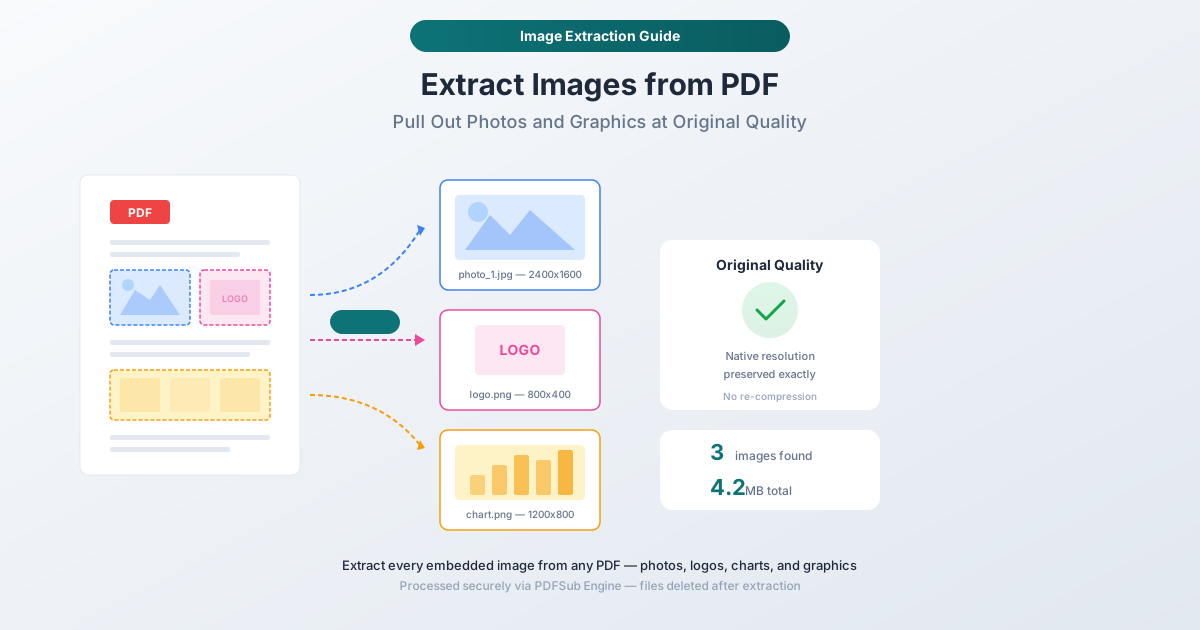
Extracting images pulls out the individual image objects embedded inside the PDF. If a PDF contains three photos and a logo, extraction gives you exactly those four files - at whatever resolution they were originally embedded. You get the raw images, not screenshots of the pages.
Converting PDF to image renders entire pages as images. Every element on the page - text, images, backgrounds, borders - becomes part of a single image. This is like taking a screenshot of each page.
If you need the full page as a picture (for a presentation slide, for example), use PDF to Image. If you need the individual photos, logos, or graphics pulled out at their original quality, you want image extraction - and that's what this guide covers.
How Images Are Stored Inside PDFs
Understanding how PDFs store images helps explain what extraction actually does and why it preserves quality.
A PDF file is essentially a container. Text instructions tell the renderer where to place characters, what fonts to use, and how to draw vector graphics. But images are stored differently - they're embedded as separate binary objects within the PDF's cross-reference structure.
Each embedded image has its own properties:
- Resolution: The pixel dimensions of the original image (e.g., 2400 x 1600 pixels)
- Color space: RGB, CMYK, grayscale, or indexed color
- Compression: JPEG, JPEG2000, Deflate (PNG-style), CCITT (fax-style for black and white), or JBIG2
- Bit depth: Typically 8 bits per channel, but can be higher for professional work
When a PDF creator embeds a photo, the full image data goes into the file. Even if the page layout scales the image down to a 2-inch thumbnail, the original 4000 x 3000 pixel image is still inside the PDF. Extraction recovers that full-resolution image.
This is why extraction is so valuable - you're not screenshotting a page at whatever DPI you choose. You're recovering the original image as it was embedded, at its native resolution.
How to Extract Images with PDFSub
PDFSub's Extract Images tool processes the PDF on the server using the PDFSub Engine, which reads the internal structure and pulls out each embedded image object.
Step-by-Step Instructions
Step 1: Open the tool. Navigate to pdfsub.com/tools/extract-images.
Step 2: Upload your PDF. Drag and drop the file or click to browse. The file uploads to PDFSub's secure processing servers.
Step 3: Start extraction. Click the extract button. The PDFSub Engine scans the PDF's internal structure, identifies all embedded image objects, and extracts each one.
Step 4: Review and download. You'll see a preview of each extracted image with its format, dimensions, and file size. Download individual images or grab them all as a ZIP file.
What Gets Extracted
The extraction process finds every image object in the PDF, including:
- Photographs: Embedded JPEGs at their original resolution
- Logos and icons: Often stored as PNG with transparency
- Charts and graphs: Usually embedded as raster images when exported from tools like Excel or Tableau
- Scanned page backgrounds: Each page of a scanned PDF is technically one large image
- Inline graphics: Small decorative elements, dividers, and background patterns
What Doesn't Get Extracted
Vector graphics (drawn with PDF path commands) aren't images - they're mathematical instructions for drawing shapes. Text rendered as fonts also isn't extractable as an image. These elements are part of the PDF's drawing instructions, not embedded image objects.
If you need vector graphics or text as part of an image, use PDF to Image conversion instead, which renders the entire page.
Common Use Cases
Recovering Photos from Documents
A client sends you a PDF brochure with product photos you need for your website. Rather than asking them to dig up the original image files, extract them directly from the PDF. The images come out at whatever resolution they were embedded - often 300 DPI or higher, which is more than adequate for web use.
Reusing Logos and Graphics
Marketing teams frequently need logos from partner PDFs, press kits, or brand guidelines that were shared as PDF documents. Extraction pulls the logo at its embedded resolution, often as a PNG with transparency preserved.
Salvaging Images from Old Documents
You have a PDF from years ago, but the original image files are long gone. Maybe the designer who created the document has moved on, or the files were lost in a migration. Extraction recovers every image at its original quality - no degradation from the PDF embedding process.
Academic and Research Use
Researchers often need to reference charts, diagrams, or figures from published papers. Extracting these images at their original resolution produces cleaner results than screenshotting the PDF viewer, and avoids the resolution limitations of conversion.
Archiving and Cataloging
Organizations with large PDF archives sometimes need to index or catalog the images within those documents - product images from catalogs, photos from inspection reports, or artwork from design files. Batch extraction makes this feasible.
Quality Considerations
Original Quality Is Preserved
The most important thing to understand: image extraction is lossless in terms of the stored data. The image comes out exactly as it was stored inside the PDF. If a 3000 x 2000 pixel JPEG was embedded, you get that exact JPEG back - same pixels, same compression, same file.
However, this means the quality depends on what was embedded in the first place. If the PDF creator compressed images heavily before embedding them, the extracted images will show that same compression. If images were downsampled to 72 DPI for a web-optimized PDF, that's what you'll get. Extraction recovers what's there - it doesn't enhance or upscale.
JPEG vs. PNG Output
Images are extracted in their original format when possible. A JPEG embedded in the PDF comes out as JPEG. A PNG comes out as PNG. Some internal formats (like raw bitmap or CCITT fax compression) are converted to PNG during extraction since they don't have a direct web-friendly equivalent.
Handling CMYK Images
Some print-oriented PDFs embed images in CMYK color space. These extract with CMYK colors intact, which may look different on screen (monitors display RGB). If you need the images for web use, you may want to convert them to RGB after extraction using any image editor.
Tips for Best Results
Check the Source PDF Quality First
Before extracting, zoom into the images in your PDF viewer. If they look pixelated at 200-300% zoom, they were embedded at low resolution - extraction won't improve this. If they look sharp when zoomed in, you'll get high-quality output.
Large PDFs with Many Images
Brochures, catalogs, and design documents can contain dozens or hundreds of images. The extraction process handles these efficiently, but the resulting ZIP download can be large. For a 200-page product catalog with high-resolution photos, expect the extracted images to total several hundred megabytes.
Scanned PDFs Are a Special Case
If the PDF was created by scanning paper pages, each page is stored as a single large image. Extracting images from a scanned PDF gives you one image per page - essentially the raw scan. This is useful for accessing the original scan data, but if you want individual photos from within a scanned page, you'll need to crop them manually from the extracted page image.
Duplicate Image Detection
Some PDFs reference the same image multiple times - for example, a logo that appears on every page. The extraction process identifies these duplicates and extracts the image only once, saving you from sorting through 50 copies of the same logo.
Frequently Asked Questions
Can I extract images from a scanned PDF?
Yes, but each scanned page is stored as a single large image. You'll get one image per page - the raw scan of the entire page, including text and margins. If you need to isolate specific photos or elements from within a scanned page, you'll need to crop the extracted page image in an image editor.
Will extraction reduce image quality?
No. Images are extracted at their original embedded resolution and quality. The extraction process reads the stored image data directly - there's no re-compression or quality loss. What you get is exactly what was embedded in the PDF.
Can I extract images from a password-protected PDF?
You'll need to unlock the PDF first. If it has an owner password (restricting printing/copying but allowing viewing), PDFSub can usually extract images after you provide the password. If it has a user password (required to open the file), you must enter that password before extraction can begin.
How is this different from taking a screenshot?
A screenshot captures whatever is displayed on your screen at your screen's resolution (typically 72 or 144 DPI). Image extraction recovers the original embedded image - which is often 300 DPI or higher, with dimensions many times larger than what appears on screen. For a photo that displays at 3 inches wide on your screen, the embedded image might be 3000 pixels wide.
Does extraction work with all types of PDFs?
It works with any PDF that contains embedded raster images. This includes most documents created by Word processors, design tools, presentation software, and scanners. The only PDFs without extractable images are those composed entirely of vector graphics and text - typically engineering drawings or text-only documents.
Summary
Extracting images from a PDF gives you the original embedded files - at their native resolution, in their original format, without quality loss. It's the right approach when you need individual photos, logos, or graphics rather than full-page screenshots.
| What You Need | Use This Tool |
|---|---|
| Individual photos/logos from a PDF | Extract Images |
| Full page as a single image | PDF to Image |
| All text content from a PDF | PDF to Text |
For most use cases - recovering product photos, reusing logos, salvaging images from old documents - extraction is the fastest path from "I can see it in the PDF" to "I have the file I need."
Ready to extract? Try PDFSub's Extract Images tool - upload your PDF and get every embedded image in seconds.