How to Edit a PDF Online (Free)
Need to add text, images, or annotations to a PDF? Here's how to edit any PDF online - free, in your browser, no software to install.
You have a PDF. You need to add a note, drop in a logo, highlight a paragraph, or sign a field. The document is "done" - but not quite. This happens constantly. Contracts need initials. Reports need annotations. Forms need filled-in details.
The good news: you don't need expensive desktop software to edit a PDF. Modern browser-based tools handle the most common editing tasks without installing anything and without uploading your files to a server.
This guide covers what you can (and can't) do when editing a PDF online, how to do it step by step, and when you might need a different approach.
What "Editing a PDF" Actually Means
Here's the thing most people don't realize: PDF was designed as a finished format. It's a snapshot of a document - like a printed page frozen in digital form. That's great for sharing and printing, but it makes certain kinds of editing genuinely difficult.
When people say "edit a PDF," they usually mean one of two things:
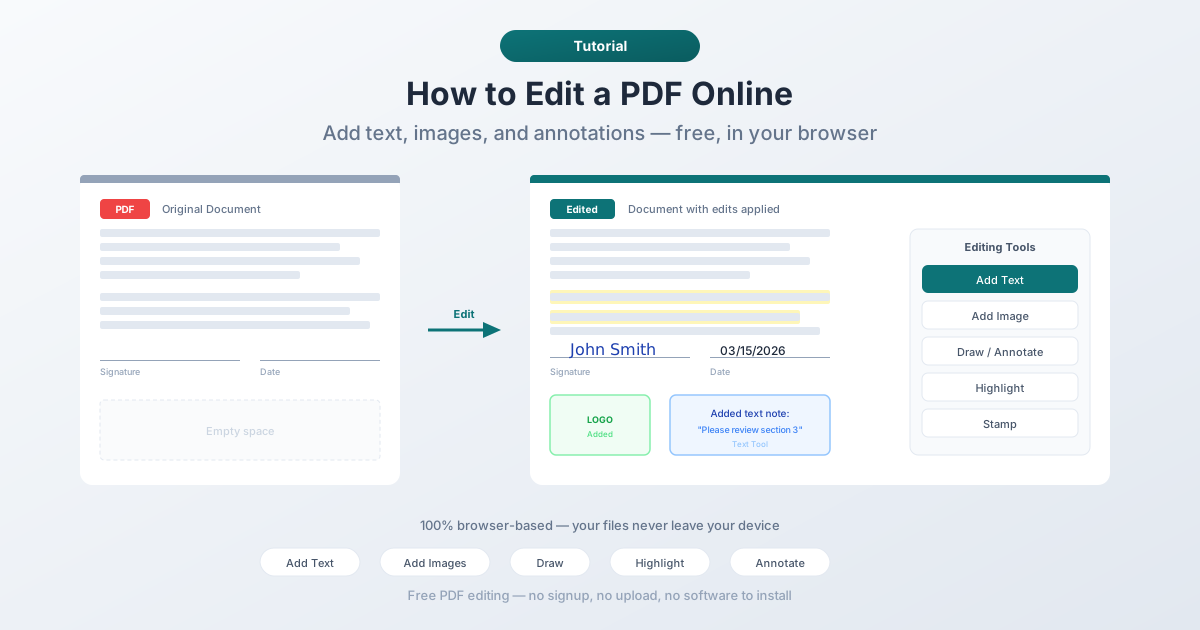
Adding new content on top of the existing document:
- Typing new text over blank areas
- Inserting images, logos, or signatures
- Drawing shapes, arrows, or freehand marks
- Highlighting, underlining, or striking through text
- Adding stamps like "Approved" or "Confidential"
- Filling in form fields
Modifying existing content within the document:
- Changing a word in a paragraph
- Deleting a sentence
- Moving an image to a different position
- Reflowing text after an edit
The first category - adding content - works great in browser-based tools. The second category - modifying existing text - is much harder. PDF text isn't stored like a Word document with paragraphs and formatting. It's stored as positioned characters with specific fonts and coordinates. Changing a single word can break the layout of an entire page.
For most online editing needs, you're adding content, not rewriting it. And that's exactly what browser-based PDF editors excel at.
How to Edit a PDF in Your Browser (Step by Step)
Here's how to add text, images, and annotations to a PDF using PDFSub's editor (7-day free trial, $20/user/mo annual after):
Step 1: Open the PDF Editor
Go to PDFSub's Edit PDF tool and upload your document. Drag and drop the file or click to browse. The PDF renders directly in your browser - nothing gets uploaded to a server.
Step 2: Add Text
Click the text tool and click anywhere on the page to place a text box. Type your content, then adjust the font size, color, and position. This is perfect for filling in forms, adding notes, or labeling sections.
Tips for adding text:
- Match the font size to the surrounding text for a natural look
- Use black text on white backgrounds for readability
- Position text carefully - you can drag it after placing it
Step 3: Add Images
Click the image tool to insert a photo, logo, signature scan, or any other image. Resize and position it on the page. Common uses include adding a company logo to a cover page, inserting a scanned signature, or placing a photo into a report.
Step 4: Draw and Annotate
Use the drawing tools to add freehand marks, shapes, arrows, or lines. The highlight tool lets you mark important passages in yellow (or any color). Underline and strikethrough work for reviewing documents.
Step 5: Download
When you're done, download the edited PDF. Your original file stays untouched - the editor creates a new version with your changes layered on top.
Common Editing Tasks and How to Handle Them
Filling Out a PDF Form
If the PDF has interactive form fields, most PDF viewers already let you type in them. But many "forms" are actually just PDFs with blank lines - they don't have real form fields. For those, use the text tool to type over the blank spaces.
Adding a Signature
You have three options: type your name in a script-style font, draw your signature with the freehand tool, or insert an image of your signature. All three work. For legal documents, check whether the recipient requires a specific type of electronic signature.
Annotating for Review
When reviewing a document, use highlighting for important passages, text boxes for comments, and the drawing tool for circling or underlining specific sections. This is faster than printing, marking up with a pen, and scanning back.
Adding a Watermark or Stamp
Need to mark a document as "Draft," "Confidential," or "Approved"? Use the text tool with a large font size and reduced opacity, or check if the tool offers preset stamps. PDFSub has a dedicated Stamp PDF tool for this.
Adding Page Numbers
If your PDF is missing page numbers, you can add them manually with the text tool on each page, or use a dedicated page-numbering tool for bulk processing.
What You Can't Do (Easily) in an Online Editor
Be realistic about limitations. Browser-based PDF editors are great for adding content, but they struggle with:
- Editing existing text inline - changing a word in an existing paragraph usually requires desktop software with font matching. Online tools add new text; they don't modify existing characters.
- Reflowing text - if you need to insert a sentence in the middle of a paragraph and have the text reflow naturally, convert the PDF to Word first, edit there, then convert back.
- Editing complex layouts - multi-column documents, tables, and heavily formatted pages don't respond well to inline edits.
- Replacing images - you can add new images, but removing or replacing an existing embedded image requires more advanced tools.
For these cases, the workflow is: convert PDF to an editable format (Word, PowerPoint), make your changes there, and convert back to PDF. PDFSub offers PDF to Word and Word to PDF for this round-trip.
Privacy and Security
One major advantage of browser-based editing: your files never leave your device. With PDFSub's Edit PDF tool, the document loads and renders entirely in your browser. No server upload, no cloud storage, no third-party access. When you close the tab, the file is gone from memory.
This matters for sensitive documents - contracts, medical forms, financial statements, legal agreements. You get the convenience of online editing without the privacy tradeoff.
Tips for Better Results
- Work on a copy. Always keep your original PDF untouched. Edit a copy so you can start over if needed.
- Match fonts visually. When adding text near existing text, adjust your font size and color to match the surrounding content.
- Use high-resolution images. Logos and signatures look best at 300 DPI or higher. Low-resolution images appear blurry when printed.
- Check the final output. After editing, open the downloaded PDF in a different viewer to confirm everything looks right. What you see in the editor should match the final file, but it's worth verifying.
- Consider the recipient. If you're filling out a form for someone else, make sure your additions are clearly legible. Contrast matters - dark text on light backgrounds.
FAQ
Can I try PDFSub's Edit PDF tool without committing to a subscription?
Yes. PDFSub offers a 7-day free trial with full access to the Edit PDF tool and 98+ other tools. Signup is required to start the trial, but you won't be charged until the trial ends, and you can cancel anytime in one click. The All-In-One plan is $20/user/mo (annual) or $25/user/mo (monthly).
Is it safe to edit a PDF online?
With browser-based tools like PDFSub's editor, yes. Your file never leaves your device - all processing happens locally in your browser. This is fundamentally different from tools that upload your file to a server for processing. Look for tools that explicitly state "browser-based" or "client-side" processing.
Can I change existing text in a PDF online?
Most online editors let you add new text but don't let you modify existing text inline. To change existing words or paragraphs, convert the PDF to Word, make your edits, and convert back. This round-trip approach preserves most formatting.
Will the edited PDF look the same when printed?
Yes. The edits (text, images, annotations) are embedded into the PDF's content layers. They'll appear the same on screen and in print, on any device. What you see in the editor is what you get in the final file.
Can I edit a scanned PDF?
You can add text, images, and annotations on top of a scanned PDF, but you can't select or modify the scanned text itself. If you need to edit the actual text content of a scanned document, you'll need to run OCR (Optical Character Recognition) first to convert the scanned image into selectable text.
Wrapping Up
PDF editing doesn't have to involve expensive desktop software or complicated workflows. For the most common tasks - adding text, inserting images, annotating, highlighting, and filling forms - a browser-based editor handles it quickly and privately. PDFSub bundles editing with 98+ other PDF tools on a single All-In-One subscription ($20/user/mo annual; 7-day free trial).
When you need to modify existing text or restructure a document, convert to Word first, edit there, and convert back. It's an extra step, but it gives you full control over the content.
Try PDFSub's Edit PDF tool - your files stay on your device, and there's nothing to install.