How to Crop Pages in a PDF Online (Free)
Need to remove margins, trim white space, or resize a PDF page? Here's how to crop PDF pages online - free, in your browser, no install needed.
You open a PDF and half the page is blank margin. Maybe the document was scanned with too much border. Maybe it was exported from a design tool at the wrong page size. Maybe you need to trim off a header, footer, or watermark before sharing. Or maybe you're preparing a document for print and the margins don't match your target paper size.
Whatever the reason, cropping a PDF page is one of those tasks that sounds simple but trips people up. Unlike cropping an image in a photo editor, PDFs don't have a universal "crop" button baked into every viewer. This guide covers three ways to crop PDF pages, explains what cropping actually does under the hood, and walks through the most common scenarios where cropping is the right move.
What PDF Cropping Actually Does
Before jumping into methods, it helps to understand what cropping a PDF means technically, because it works differently from cropping an image.
When you crop an image, the pixels outside the crop area are permanently deleted. The file gets smaller, and there's no going back without the original.
PDF cropping is different. In most tools, cropping changes the visible area of the page - it adjusts the page's "crop box," which tells viewers what portion of the page to display. The content outside the crop box may still exist in the file, just hidden. This means:
- Cropping usually doesn't reduce file size significantly. The hidden content is still embedded in the PDF.
- Some tools can permanently remove cropped content, which does reduce file size and ensures hidden content can't be recovered.
- Cropping is nondestructive in many editors, so you can re-crop or restore margins later.
For most practical purposes, none of this matters - your cropped PDF will display and print with the margins removed, which is what you want. But it's worth knowing if you're cropping to remove sensitive content. If the goal is to permanently delete something from a page, use a redaction tool instead.
Method 1: PDFSub Crop Pages Tool (Recommended)
PDFSub's Crop Pages tool is the fastest way to crop PDF pages online. It runs entirely in your browser - your files never leave your device - and a 7-day free trial lets you get started without committing.
Step-by-Step Instructions
Step 1: Open the Crop Pages tool. Go to pdfsub.com/tools/crop-pages. No software to install.
Step 2: Upload your PDF. Drag and drop your file into the upload area, or click to browse your computer.
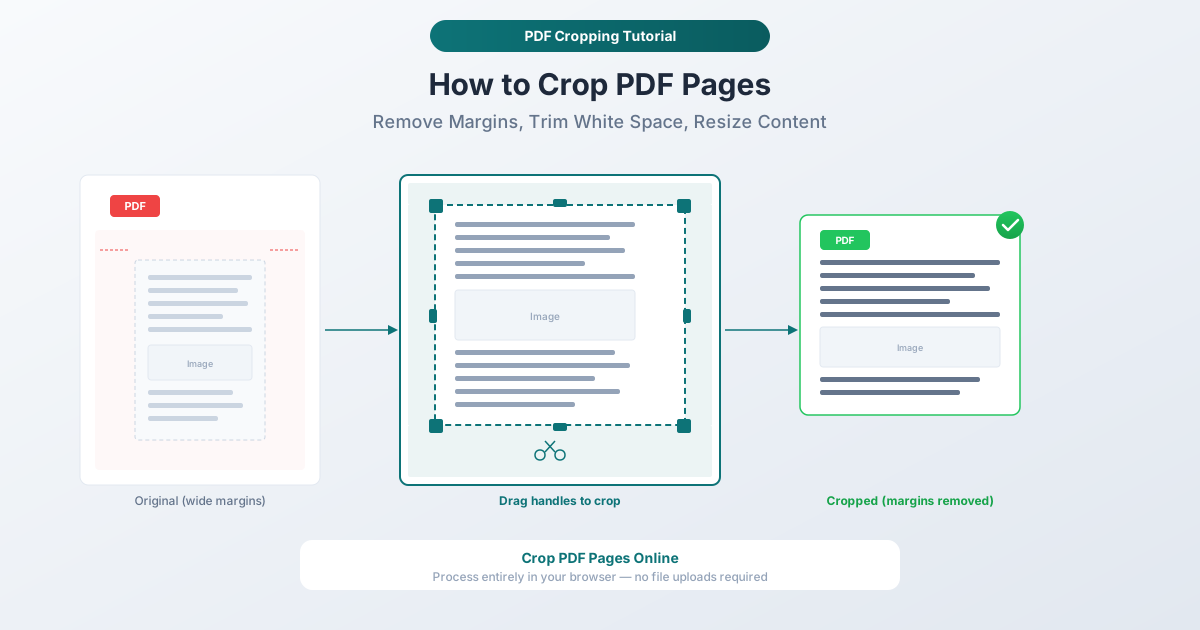
Step 3: Set the crop area. A visual preview of your page appears with draggable crop handles. Drag the handles to define exactly which portion of the page you want to keep. You can also enter precise measurements if you need exact dimensions.
Step 4: Choose which pages to crop. Apply the crop to all pages, a specific page range, or just the current page. This is useful when only certain pages have margin issues - you don't have to crop the entire document uniformly.
Step 5: Crop and download. Click the crop button. Your cropped PDF is ready to download in seconds.
Why This Method Is Best
Privacy by design. Everything processes in your browser. Your PDF never touches a server. This matters for financial documents, legal files, medical records, and anything containing personal data.
Visual crop interface. You see exactly what you're keeping and what you're trimming. No guessing at margin numbers. Drag the crop box until it looks right.
Per-page or batch cropping. Crop all pages uniformly or target specific pages. Scanned documents often have inconsistent margins from page to page - applying different crops to different pages handles this cleanly.
Works on any device. Browser-based means Windows, Mac, Linux, and Chromebooks all work. No installation.
Free to try. PDFSub offers a 7-day free trial with full access to all tools, including Crop Pages.
If your PDF has scanner borders or excess white space with a clear content boundary, PDFSub also offers an Auto-Crop tool that detects content edges automatically and trims accordingly - no manual handle-dragging needed.
Method 2: Adobe Acrobat (Paid)
Adobe Acrobat Pro includes a crop tool with fine-grained control over page dimensions. It's a powerful option if you already have a subscription, but the cost is hard to justify for cropping alone.
How to Crop in Acrobat
- Open the PDF in Adobe Acrobat Pro.
- Go to Tools > Edit PDF, then select Crop Pages from the toolbar.
- Draw a rectangle on the page to define the crop area.
- Double-click inside the crop rectangle to open the Set Page Boxes dialog, where you can enter precise dimensions or adjust margins numerically.
- Choose whether to apply the crop to the current page, a range, or all pages.
- Click OK.
Limitations
- Requires a paid subscription. Adobe Acrobat Pro costs $19.99/month or more. Adobe Reader (the free version) cannot crop pages.
- Desktop software required. You need to download and install the application.
- Nondestructive by default. Acrobat adjusts the crop box but doesn't permanently remove content. To fully remove cropped content, you need to use "Remove Hidden Information" from the Protection panel as a separate step.
Method 3: Preview on Mac (Free, Limited)
If you're on a Mac and need a quick fix, Preview can do basic cropping.
How to Crop in Preview
- Open the PDF in Preview.
- Click the Markup Toolbar button (pencil icon) to show annotation tools.
- Select the Rectangular Selection tool.
- Draw a rectangle around the content you want to keep.
- Go to Tools > Crop (or press Cmd+K).
- Save as a new file using File > Export as PDF to avoid overwriting the original.
Limitations
- One page at a time. Preview crops only the currently visible page. If you need to crop 50 pages, that's 50 manual crop operations.
- No precise measurements. You drag a freehand rectangle - there's no way to enter exact margin values or dimensions.
- Easy to overwrite the original. Pressing Cmd+S saves over your source file. Always use Export as PDF instead.
- Mac only. Not available on Windows or Linux.
- Nondestructive. The cropped content remains hidden in the file. Some PDF viewers or editors can reveal it later.
Common Cropping Scenarios
Removing Wide Margins from Exported Documents
Documents exported from word processors, spreadsheets, or slide decks often come with generous default margins. A report that looks fine on screen may have 1.5-inch margins that waste space when printed or viewed on a mobile device. Cropping the margins creates a tighter, more readable layout.
Trimming Scanned Documents
Scanned pages almost always have border issues - black edges from the scanner lid, uneven white space, or a visible edge where the page didn't sit perfectly flat. Cropping standardizes the page area and makes the document look professional rather than hastily scanned.
For batch scanning jobs where every page has similar border issues, PDFSub's Auto-Crop tool can detect content boundaries automatically and trim all pages in one pass.
Preparing for Different Paper Sizes
If a document was created for Letter size (8.5 x 11") but needs to be printed on A4 (slightly narrower and taller), cropping can trim the width to prevent awkward scaling. Similarly, cropping an A4 document's side margins can prevent cut-off text when printing on Letter paper.
For full paper size conversion - not just cropping, but reflowing content to fit - use PDFSub's Change Page Size tool.
Isolating a Section of a Page
Sometimes you only need one part of a page: a chart, a table, a signature block, or a single paragraph. Cropping to just that section creates a clean, focused document you can insert into a presentation, email, or another report.
Removing Headers and Footers
Legal documents, academic papers, and corporate reports often have headers and footers (page numbers, document titles, confidentiality notices) that you want to remove before repurposing the content. Cropping the top and bottom margins is the quickest way to strip them.
Crop vs. Split vs. Extract: When to Use Each
These three operations are related but solve different problems.
| Operation | What It Does | When to Use It |
|---|---|---|
| Crop | Changes the visible area of a page (trims margins) | Remove white space, borders, headers/footers |
| Split | Divides a multi-page PDF into separate files | Break a document into individual chapters or sections |
| Extract | Pulls specific pages out of a PDF into a new file | Grab pages 5-10 from a 50-page document |
Crop changes how much of each page you see. Split and Extract change which pages you keep. If you need to trim margins, crop. If you need fewer pages, split or extract.
Frequently Asked Questions
Does cropping a PDF reduce the file size?
Usually not significantly. Most cropping tools adjust the page's crop box (the visible area) without deleting the hidden content. The full page data remains in the file. If file size is your goal, use a compression tool after cropping.
Can I crop all pages at once?
Yes, with PDFSub's Crop Pages tool you can apply the same crop to all pages, a specific range, or individual pages. Preview on Mac requires cropping one page at a time.
Will cropping affect the text quality?
No. Cropping changes the visible boundaries of the page, not the content itself. Text, images, and vector graphics remain at their original quality and resolution.
Can I undo a crop?
It depends on the tool. Many PDF editors store cropping as a nondestructive adjustment, so you can restore the original page area later. If a tool permanently removes cropped content, the change cannot be undone without the original file.
How is cropping different from redacting?
Cropping hides content by adjusting the visible area, but the hidden content may still exist in the file and could potentially be recovered. Redacting permanently and irreversibly removes content from the file. If you're removing sensitive information, always redact rather than crop.
Can I crop a scanned PDF?
Yes. Scanned PDFs are actually images embedded in a PDF container, and cropping works the same way - it adjusts the visible area. This is one of the most common reasons to crop: trimming the black borders and uneven edges that scanners produce.
Does PDFSub upload my file to crop it?
No. PDFSub's Crop Pages tool processes everything directly in your browser. Your PDF never leaves your device. There is no upload step, no server processing, and nothing stored remotely.
Start Cropping
Ready to trim those margins? Open the Crop Pages tool and drop in your PDF. Drag the crop handles to the area you want to keep, choose which pages to apply it to, and download the result. Processing happens in your browser - your documents never leave your device. No account required to get started, and PDFSub offers a 7-day free trial with full access to all tools.