How to Create a PDF from Scratch Online
Need to create a PDF without Word or InDesign? Here's how to create professional PDFs from scratch - type text, add images, and download.
Sometimes you need a PDF and you don't have a document to convert. No Word file, no Google Doc, no template. You just need to create something from a blank page - type some text, maybe add an image or logo, and export it as a PDF.
This is surprisingly common. Quick memos, simple certificates, one-page notices, cover letters, inventory lists, event flyers. You don't need InDesign or Illustrator for these. You don't even need Microsoft Word.
Here's how to create a PDF from scratch, directly in your browser, without installing anything.
Why Create a PDF from Scratch?
Most PDF tools focus on converting existing documents. But there are plenty of situations where you're starting from nothing:
- Quick memos and notices - you need a professional-looking PDF in five minutes, not a full document workflow
- Simple certificates - employee awards, course completions, volunteer recognition
- Cover pages - a title page for a report or manual
- Basic forms - a sign-up sheet, feedback form, or checklist
- Labels and signs - door signs, name tags, event signage
- Personal documents - packing lists, gift tags, recipe cards
For these use cases, opening a full word processor, formatting a document, and then exporting to PDF is overkill. A browser-based PDF creator gets you from blank page to finished PDF in minutes.
How to Create a PDF from Scratch (Step by Step)
Step 1: Open the PDF Creator
Go to PDFSub's Create PDF tool. You'll see a blank canvas - a fresh PDF page ready for content. Everything happens in your browser. No files get uploaded anywhere.
Step 2: Add Text
Click the text tool, then click on the canvas where you want text to appear. Type your content. You can adjust:
- Font size - from small body text to large headings
- Font weight - regular or bold
- Color - any color you need
- Position - drag the text box anywhere on the page
For a simple memo, you might add a title at the top in large bold text, then body text below in a smaller size. For a certificate, center a large title with the recipient's name below it.
Step 3: Add Images
Click the image tool to insert photos, logos, or graphics. Upload an image from your device and position it on the page. Resize by dragging the corners.
Common image uses:
- Company logo in the header or corner
- A photo for a flyer or notice
- A decorative border or background element
- A QR code linking to a website
Use high-resolution images (300 DPI or better) if you plan to print the PDF. Low-resolution images look fine on screen but appear pixelated in print.
Step 4: Arrange and Align
Once your content is placed, fine-tune the layout. Drag elements to reposition them. Resize text boxes and images. Layer items so they overlap the way you want.
Layout tips:
- Leave generous margins - at least half an inch on all sides for printing
- Align elements visually. Use consistent spacing between sections
- Keep important content away from the very bottom of the page - some printers clip the edges
Step 5: Add More Pages (If Needed)
Creating a multi-page document? Add pages and continue building your content. Each page starts as a fresh canvas.
Step 6: Download Your PDF
When you're satisfied with the layout, download the finished PDF. The file is created instantly in your browser. Open it in any PDF viewer to confirm it looks right, then print or share as needed.
Use Case Ideas
Quick Business Documents
Need a one-page document in a hurry? Create a memo, price list, product spec sheet, or internal announcement. Add your company logo, type the content, and you have a professional PDF ready to email or print.
Certificates and Awards
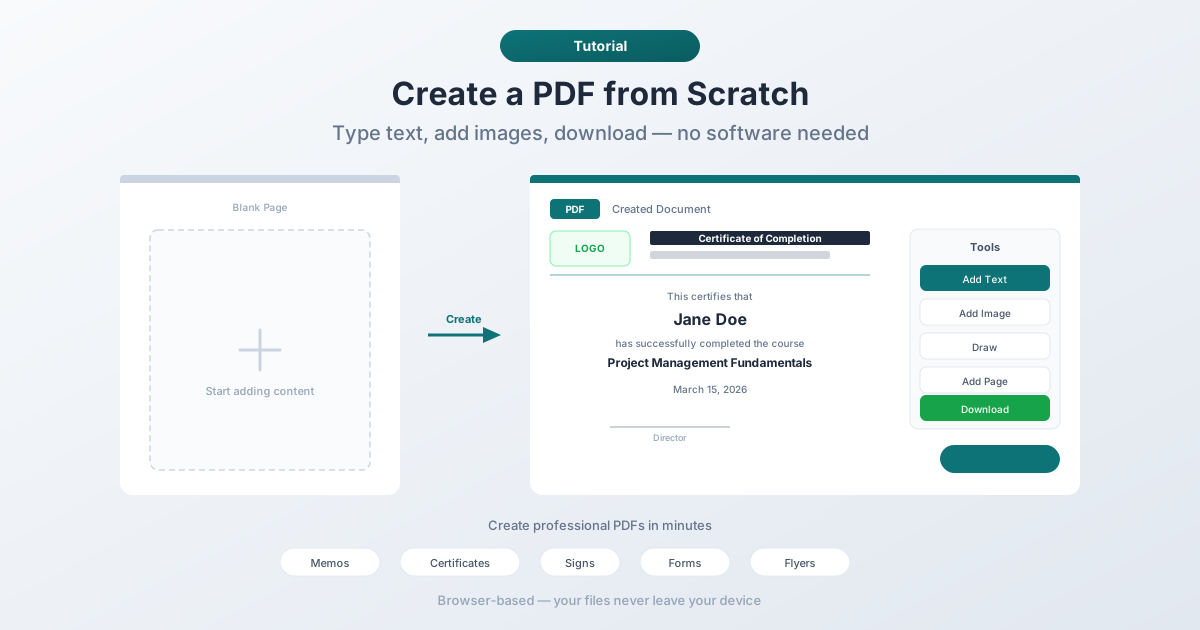
Certificates follow a predictable layout: title at top ("Certificate of Completion"), recipient name in large text, description, date, and a signature line. Add a logo or decorative element and you're done. This works for employee recognition, course completions, volunteer certificates, and event participation.
Signs and Notices
Door signs ("Conference Room - Meeting in Progress"), office notices ("Kitchen closes at 6 PM"), event signage ("Registration This Way"), or safety reminders. Large text, maybe an icon, print on standard paper or cardstock.
Simple Forms
Create a basic form with labeled fields - sign-up sheets, feedback forms, order forms, checklists. Type the labels and leave blank spaces for handwritten responses, or use lines for people to write on.
Personal Projects
Recipe cards, packing lists, gift tags, party invitations, name tags. Not everything needs a polished design. Sometimes "typed text with a border" is exactly the right level of effort.
Tips for Professional-Looking PDFs
Even with a simple tool, small choices make a big difference in how your PDF looks:
Typography
- Use no more than two font sizes - one for headings, one for body text
- Larger text (18-24pt) for titles and headings
- Smaller text (10-12pt) for body content
- Bold sparingly - for emphasis, not for everything
Color
- Stick to two or three colors maximum
- Dark text on a light background is always readable
- Use your brand color for headings or accents if you have one
- Avoid bright colors for body text - they're hard to read
Layout
- White space is your friend. Don't cram content to the edges
- Group related items together with consistent spacing
- Left-aligned text is easiest to read for most content
- Center-aligned text works for titles, certificates, and short items
Images
- Use PNG for logos and graphics with sharp edges
- Use JPEG for photographs
- Make sure images are large enough - scaling up a small image makes it blurry
- Keep logos proportional (don't stretch them)
When to Use a Different Approach
Creating a PDF from scratch works great for simple, one-page (or few-page) documents. But for longer or more complex projects, consider these alternatives:
- Multi-page reports with consistent formatting - use a word processor (Google Docs, Word, LibreOffice Writer) and export to PDF
- Design-heavy layouts - use a design tool (Canva, Figma) and export to PDF
- Automated documents - if you're generating the same PDF structure repeatedly with different data, use a template-based approach
- Forms that need digital input - create a fillable PDF form with dedicated form-building tools
The browser-based creator fills the gap between "I need a PDF right now" and "I need to set up a full document workflow." It's the fastest path from idea to finished PDF for simple documents.
FAQ
Can I create a multi-page PDF from scratch?
Yes. PDFSub's Create PDF tool supports multiple pages. Add a new page, place your content, and all pages are combined into a single PDF when you download. Each page can have different content and layout.
Do I need to create an account?
The Create PDF tool is available with a 7-day free trial. Open the tool, create your PDF, and download it. All paid plans include full access to this and 98+ other tools.
What file formats can I use for images?
You can insert PNG, JPEG, and other common image formats. PNG works best for logos and graphics with transparent backgrounds. JPEG works well for photographs. Use the highest resolution available for print-quality results.
Can I edit the PDF after creating it?
Yes. If you need to make changes after downloading, open the PDF in PDFSub's Edit PDF tool to add more text, images, or annotations. You can also re-create the document from scratch if the changes are significant.
Is there a page size or file size limit?
The tool creates standard letter-size (8.5 x 11 inch) or A4 PDFs by default. Since everything runs in your browser, file size depends on the images you add. Text-only PDFs are tiny (a few KB). PDFs with high-resolution images will be larger but still manageable for email and printing.
Wrapping Up
You don't need expensive software to create a PDF. For quick documents, certificates, signs, forms, and personal projects, a browser-based PDF creator handles the job in minutes. Type your text, add your images, arrange the layout, and download.
Your files stay on your device the entire time - nothing gets uploaded to a server.
Try PDFSub's Create PDF tool and go from blank page to finished PDF in your browser.