How to Convert WEBP to PDF Online
Need to convert WEBP images to PDF? Here's how to turn Google's web image format into a shareable, printable PDF document.
You downloaded an image from a website and it's a .webp file. You try to attach it to an email, drop it into a document, or send it to a printer - and nothing works the way you expected. The recipient can't open it, the printer doesn't recognize it, and your old image viewer gives you a blank screen.
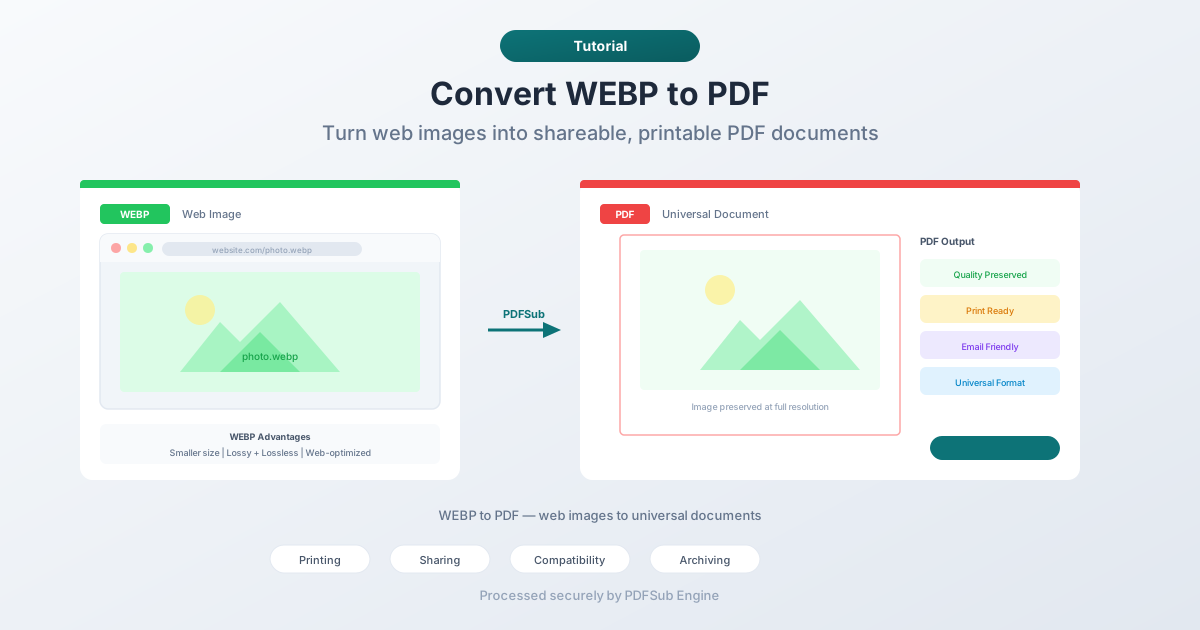
WEBP is Google's image format, designed to make web pages load faster. It's excellent at that job. But outside of web browsers, WEBP support is inconsistent. Converting WEBP to PDF gives you a universally compatible file that opens everywhere, prints cleanly, and works in any professional context.
What Is WEBP?
WEBP (pronounced "weppy") is an image format developed by Google and released in 2010. It uses modern compression algorithms to produce smaller file sizes than JPEG and PNG while maintaining comparable visual quality. Most websites now serve images in WEBP format because it reduces page load times.
WEBP supports:
- Lossy compression - like JPEG, it discards some data for smaller files
- Lossless compression - like PNG, it preserves every pixel exactly
- Transparency - alpha channel support like PNG
- Animation - frame-based animation like GIF but with better compression
The format has become ubiquitous on the web. Chrome, Firefox, Safari, and Edge all display WEBP images natively. But desktop applications, older software, and many professional workflows still don't handle WEBP well.
Why Convert WEBP to PDF?
Printing
Most print workflows expect JPEG, PNG, TIFF, or PDF. WEBP isn't part of that ecosystem. If you want to print a WEBP image - whether at home or through a print service - converting to PDF is the simplest path.
Sharing via Email
Email clients handle PDF attachments reliably. WEBP attachments? Not always. Older email clients may not show inline previews, and the recipient might not have software to open the file. PDF eliminates that guessing game.
Document Inclusion
When you're building a report, proposal, or presentation and need to include images you've saved from the web, those images are likely WEBP. Converting them to PDF gives you a format you can annotate, combine with other pages, or submit to systems that require PDF.
Archiving Web Content
If you're saving web content for reference - product images, research screenshots, design inspiration - WEBP files are tied to the browser ecosystem. PDF is a more durable archival format that will be readable decades from now.
Compatibility with Older Systems
WEBP was standardized in 2010 but didn't achieve broad desktop support until recently. Older operating systems, image viewers, and document management systems don't recognize WEBP. PDF works everywhere.
Method 1: Convert Online with PDFSub (Recommended)
No software to install. Upload your WEBP, download a PDF.
Step by step:
- Go to PDFSub's WEBP to PDF tool
- Upload your WEBP file - drag and drop or click to browse
- The file is processed by PDFSub Engine in a secure, isolated environment
- Download the converted PDF
What to expect:
- Image quality is preserved at the original resolution
- Transparency is maintained (rendered on a white background in PDF)
- Both lossy and lossless WEBP files are supported
- Animated WEBP files convert the first frame (animation isn't supported in PDF)
Best for: Quick, one-off conversions without installing anything.
Method 2: Convert in Your Browser (Print to PDF)
Any browser that displays WEBP can convert it to PDF using the print function.
Step by step:
- Open the WEBP file in your browser (drag it into a browser window)
- Press Ctrl+P (Windows/Linux) or Cmd+P (Mac)
- Select "Save as PDF" as the printer
- Adjust page settings (margins, orientation) as needed
- Save the PDF
Limitations:
- The image is placed on a page with browser-added margins and headers/footers
- You have limited control over how the image is positioned on the page
- Not ideal for precise output - the image may be scaled to fit the print area
Best for: When you need something quick and don't care about precise formatting.
Method 3: Convert via Screenshot or Image Editor
If you have an image editor that supports WEBP (recent versions of Photoshop, GIMP, Paint.NET), you can open the file and export to PDF.
Step by step:
- Open the WEBP file in your image editor
- Export or Save As PDF
- Adjust output settings as needed
Limitations:
- Requires software that supports WEBP import
- Overkill for simple format conversion
- Some editors don't export directly to PDF
Best for: Users who already have a compatible image editor installed.
WEBP vs. Other Image Formats
Understanding where WEBP fits helps explain why conversion is sometimes necessary.
| Feature | WEBP | JPEG | PNG | |
|---|---|---|---|---|
| Lossy compression | Yes | Yes | No | Yes |
| Lossless compression | Yes | No | Yes | Yes |
| Transparency | Yes | No | Yes | Yes |
| Animation | Yes | No | No | No |
| Browser support | All modern | All | All | All |
| Print workflow support | Limited | Excellent | Excellent | Excellent |
| Email compatibility | Variable | Excellent | Excellent | Excellent |
| Archival standard | No | No | No | Yes (PDF/A) |
WEBP wins on web performance. PDF wins on everything else - printing, sharing, archiving, and universal compatibility.
Handling Animated WEBP Files
Animated WEBP files work like GIFs but with better compression and quality. When converting an animated WEBP to PDF, you get a static image because PDF doesn't support animation.
Most converters extract the first frame of the animation. If you need a specific frame, you'll need to use an image editor to select the frame you want before converting.
If the animation itself is what you need to share, consider converting to GIF or MP4 instead of PDF.
Tips for Best Results
- Check the image dimensions first. WEBP files from the web are often small resolution (optimized for screen). If you plan to print the PDF, verify the image is large enough for your target print size.
- Mind the transparency. WEBP images with transparent backgrounds will render on a white background in PDF. If you need a different background color, open the image in an editor and add a background before converting.
- Batch conversion saves time. If you have multiple WEBP files to convert, look for a tool that handles batch uploads rather than converting one at a time.
- Keep the original. WEBP files are small and efficient. Keep them as your web-ready copies and use the PDF for print and sharing.
FAQ
Does WEBP to PDF conversion reduce image quality?
No. The image is embedded in the PDF at its original quality. There's no re-compression during the conversion process. The PDF file will be larger than the WEBP file because PDF doesn't use WEBP's compression algorithm internally.
Can I convert multiple WEBP images into one PDF?
Yes. Many tools let you upload several WEBP files and combine them into a single multi-page PDF, with each image on its own page. This is useful for creating image portfolios or photo collections.
Why is my WEBP file so small but the PDF is much larger?
WEBP uses aggressive compression algorithms that produce very small files - often 25-35% smaller than equivalent JPEG. When the image is embedded in a PDF, it's stored using PDF-native compression, which is less aggressive. A 200 KB WEBP might become a 600 KB PDF.
Can I convert WEBP to PDF on my phone?
Yes. Online tools like PDFSub work in mobile browsers. Open the site in your phone's browser, upload the WEBP file, and download the PDF. No app installation required.
What's the maximum file size for WEBP to PDF conversion?
This varies by tool. PDFSub handles WEBP files up to the platform's file size limit. Most WEBP files are small (under 5 MB) since they're designed for web use, so file size is rarely an issue.
Wrapping Up
WEBP is a great format for the web, but it doesn't travel well outside of browsers. When you need to print, email, archive, or share a WEBP image with someone who might not have a compatible viewer, converting to PDF is the practical solution.
Try PDFSub's WEBP to PDF converter - upload your WEBP file and download a clean PDF in seconds.