How to Convert PowerPoint to PDF Online
Need to share a presentation as a PDF? Here's how to convert PowerPoint to PDF - preserving slides, animations as static frames, and speaker notes.
You finished your presentation. The slides look sharp, and you're ready to share it. But the recipient doesn't have PowerPoint. Or they're on a phone. Or you don't want anyone editing your slides before the meeting.
Converting PowerPoint to PDF solves all of these. Every slide becomes a fixed page. The layout stays exactly as you designed it. And the file opens everywhere - no software needed beyond a browser.
Why Convert PowerPoint to PDF?
Universal viewing. Not everyone has PowerPoint. Everyone has a PDF reader - it's built into every browser and OS.
No accidental edits. A PDF is a locked snapshot. Nobody can move elements, change text, or delete slides.
Email-friendly. Many email systems flag .pptx attachments. PDFs are universally accepted and typically smaller.
Print-ready. A PDF prints cleanly. PowerPoint's built-in print can produce unexpected results with complex layouts.
Method 1: PDFSub (Online)
- Go to PDFSub's PowerPoint to PDF converter
- Upload your
.pptor.pptxfile - The file is processed server-side by the PDFSub Engine in a secure, isolated environment
- Download your converted PDF
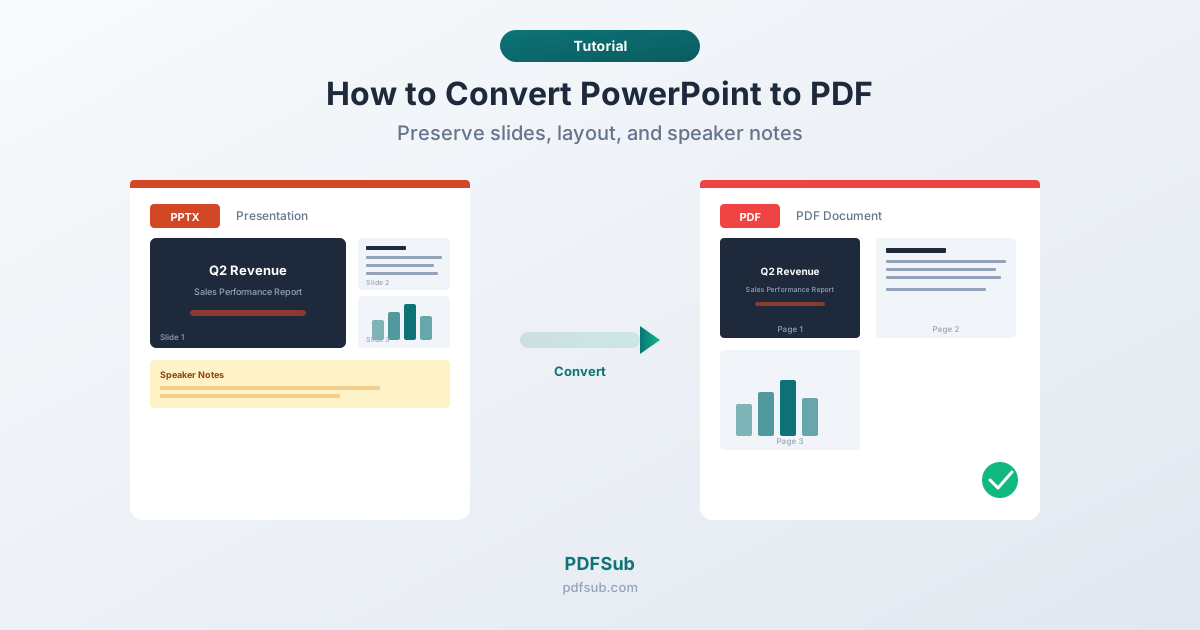
Each slide becomes one page. The conversion preserves text formatting, images, shapes, charts, and SmartArt. Animations are captured in their final state.
Method 2: Microsoft PowerPoint (Desktop)
On Windows: Click File > Export > Create PDF/XPS Document. Click Options to choose what to publish: Slides, Handouts, Notes Pages, or Outline. Select specific slides or all slides.
On Mac: Click File > Save As, select PDF, and click Export.
The Windows Options dialog gives you the most control - you can include speaker notes, frame slides, and choose handout layouts.
Method 3: Google Slides
Upload the PPTX to Google Drive, open in Google Slides, then click File > Download > PDF. This works for simple presentations but may substitute fonts and simplify SmartArt diagrams.
What Happens to Animations?
PDFs are static. Animations, transitions, and interactive elements don't carry over:
| PowerPoint Element | In the PDF |
|---|---|
| Slide transitions | Not included |
| Entrance animations | Element appears in final position |
| Exit animations | Element remains visible |
| Embedded video | First frame or placeholder |
| Hyperlinks | Preserved and clickable |
If your presentation reveals bullet points one at a time, they'll all appear at once on the PDF page. To show each step separately, duplicate the slide for each animation state before converting.
Including Speaker Notes
You have two layout options:
Slides only (default). Each slide fills one page. Notes are excluded. This is standard for audience distribution.
Notes Pages. The slide appears smaller at the top with notes text below. Useful for printing personal reference copies or archiving the complete presentation with context.
In PowerPoint: File > Export > Options, set "Publish what" to Notes Pages.
Handout Layouts
PowerPoint can export multiple slides per page:
| Layout | Slides Per Page | Best For |
|---|---|---|
| Full Page | 1 | Digital sharing |
| 2 Slides | 2 | Quick reference |
| 3 Slides | 3 (with note lines) | Audience handouts |
| 6 Slides | 6 | Compact overview |
The 3 Slides layout includes lined space for the audience to write notes - the most popular handout format.
Tips for Better Conversions
Embed fonts first. In PowerPoint, go to File > Options > Save and check "Embed fonts in the file." This prevents font substitution.
Remove hidden slides if not needed. Hidden slides are usually included in the PDF by default. Delete or exclude them if they're draft content.
Compress images first. Presentations with many photos create large PDFs. Use File > Info > Compress Media to reduce sizes before converting.
Check slide size. Non-standard sizes (not 16:9 or 4:3) are fine - the PDF page dimensions will match. Verify with Design > Slide Size.
Frequently Asked Questions
Can I convert PowerPoint to PDF without PowerPoint installed?
Yes. PDFSub's PowerPoint to PDF converter processes the file server-side - no software needed. Upload from any device with a browser. Google Slides can also convert, though with formatting limitations.
Do animations show up in the PDF?
No. PDFs are static. Each animated element appears in its final state. To capture animation steps, create separate slides for each step before converting.
Can I include speaker notes in the PDF?
Yes. In PowerPoint, use File > Export > Options and select Notes Pages. Each page will show the slide above and notes text below.
How do I convert only specific slides?
In PowerPoint, go to File > Save As > PDF > Options and enter a slide range (e.g., slides 3-7). PDFSub converts all slides in the uploaded file.
Will embedded videos work in the PDF?
No. Videos can't play in a PDF. They're replaced by the first frame or a placeholder. Add a hyperlink to the video's URL - that link will remain clickable.
Presentations are meant to be seen, not struggled with. Converting to PDF ensures your slides look exactly as designed, on any device, with no compatibility issues.