How to Convert a Photo to a Clean Document PDF
Photographed a document with your phone? Here's how to turn that photo into a clean, professional PDF - with auto-crop, perspective correction, and contrast enhancement.
You're standing at a client's desk, and they slide a document across the table. You don't have a scanner - but you do have your phone. You snap a photo, and now you have an image of a document taken at an angle, with your desk visible around the edges, uneven lighting, and text that's not quite as sharp as the original.
We've all been there. Phone cameras have become the de facto scanner for millions of people. Receipts at restaurants, contracts at meetings, whiteboards after brainstorms, business cards at networking events, medical forms at the doctor's office. The phone is always in your pocket, always ready.
The problem is that a photo of a document isn't the same as a scanned document. The perspective is off - text at the top of the page is further from the camera than text at the bottom, creating a trapezoid shape. The background (desk, table, floor) is visible around the edges. Lighting is uneven - one side of the page might be bright while the other is in shadow. The result is functional but unprofessional, and it's often hard to read.
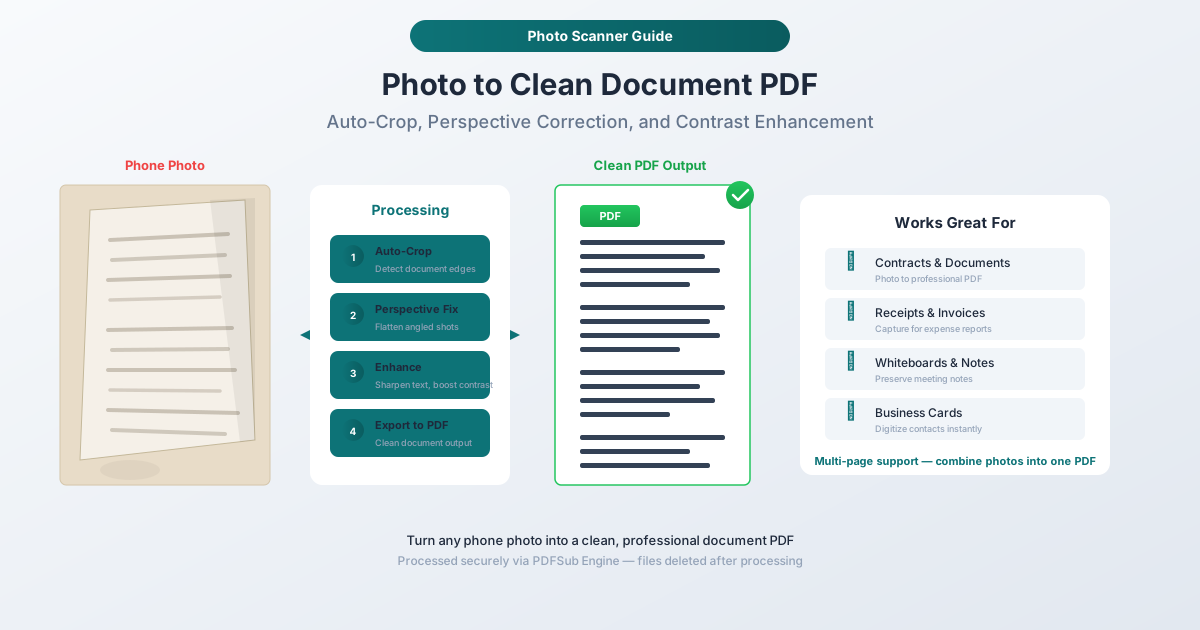
PDFSub's Photo Scanner tool fixes all of this. It takes your phone photo and produces a clean, flat, high-contrast document PDF that looks like it came from a proper scanner. Here's how it works and when to use it.
What Makes a Photo Different from a Scan
When you use a flatbed scanner, the document sits flat on a glass surface, lit evenly by a controlled light source, and captured by a sensor moving at a fixed distance. The result is geometrically perfect - no perspective distortion, even illumination, and consistent focus across the entire page.
A phone photo introduces multiple problems that scanners don't have:
Perspective Distortion
Unless you hold your phone perfectly parallel to the document and centered directly above it (which is nearly impossible freehand), the page appears as a trapezoid rather than a rectangle. The side closer to the camera looks wider, and text lines converge toward the far edge. This is basic projective geometry, and it makes the document look unprofessional and can make text harder to read.
Uneven Lighting
Office overhead lights, window light, desk lamps - whatever's illuminating the document probably isn't even across the entire page. One corner might be bright white while the opposite corner is in shadow. This creates a gradient across the page that makes the background look dirty and reduces text contrast in the darker regions.
Background Clutter
The document is sitting on something - a desk, a table, a dashboard, your knee. That background is visible around the edges of the page and sometimes even through thin paper. A professional document shouldn't have your coffee-stained desk visible in the margins.
Soft Focus and Motion Blur
Camera autofocus may not capture the entire document sharply, especially at close range. The center might be in focus while the edges are slightly soft. And unless you're very steady, slight hand movement can introduce motion blur - making text appear fuzzy.
Barrel and Lens Distortion
Wide-angle phone lenses (especially at close range) introduce barrel distortion, where straight lines near the edges of the frame appear slightly curved. This makes the page edges bow outward, which looks unnatural in a document.
How Photo-to-Document Processing Works
PDFSub's Photo Scanner applies a series of corrections that transform a casual photo into a professional-looking document. Each step addresses one of the problems described above.
Auto-Crop: Finding the Document
The first step is identifying where the document is in the photo. The algorithm looks for the rectangular boundary of the page by detecting edges - the high-contrast boundary between the white (or light) paper and the darker background surface.
This works on most surfaces: wood desks, dark table tops, fabric surfaces, even carpeted floors. The key requirement is that the document edges are visible - the entire page should be in the frame with some background visible around it.
The algorithm identifies the four corners of the document, which may form a trapezoid rather than a rectangle (due to perspective). These four points define the region that will be extracted and corrected.
Perspective Correction: Flattening the Trapezoid
Once the four corners are identified, a projective (homographic) transformation maps the trapezoid back to a rectangle. This is the mathematical inverse of the perspective distortion - it "unfolds" the angled view back to a flat, head-on perspective.
The result is a page that looks as if it were photographed from directly above, perfectly centered. Text lines that converged toward a vanishing point become parallel. The document regains its proper rectangular proportions.
Contrast Enhancement: Cleaning Up the Image
After geometric correction, the image still has uneven lighting, grayish backgrounds, and text that isn't as crisp as a proper scan. The enhancement step addresses this:
Background normalization: The algorithm estimates the background brightness across the page and compensates for uneven lighting. A page that's bright on the left and dim on the right gets balanced to uniform brightness.
White point adjustment: The paper background is pushed to true white (or near-white), eliminating the grayish or yellowish cast that photographs of documents always have. This alone makes a dramatic difference - the document goes from looking like a photo to looking like a scan.
Text sharpening: Edge enhancement is applied selectively to text and line elements, making them appear sharper and more defined. This counteracts the slight softness introduced by phone cameras and perspective correction.
PDF Export: Creating the Final Document
The corrected, enhanced image is embedded into a PDF at an appropriate resolution for the content - typically 200-300 DPI equivalent, which produces sharp text suitable for printing or on-screen reading. The PDF includes proper page dimensions (letter, A4, or custom size as detected) and optimized compression.
How to Use PDFSub's Photo Scanner
Step-by-Step Instructions
Step 1: Open the tool. Navigate to pdfsub.com/tools/photo-scanner.
Step 2: Upload your photo. Drag and drop an image file (JPG, PNG, HEIC, or other common formats) or click to browse. You can upload multiple photos to combine into a multi-page PDF.
Step 3: Review the detected edges. The tool shows you the detected document boundary. In most cases, it identifies the page correctly. If the detection is off, you can manually adjust the corner points.
Step 4: Process. Click the convert button. The PDFSub Engine applies perspective correction, enhancement, and PDF export.
Step 5: Download. Download the clean document PDF.
Multi-Page Documents
When you have multiple pages - a multi-page contract photographed one page at a time, or a set of receipts - upload all the photos at once. The tool processes each one individually and combines them into a single PDF in the order you specify.
This is far more practical than creating separate PDFs and then merging them - the photo scanning and page assembly happen in one step.
Tips for Better Phone Photos
The quality of the final document depends on the quality of your input photo. Here are practical tips for capturing better document photos with your phone.
Lighting
Even lighting is more important than bright lighting. Two overhead lights (or one overhead light plus a window) that illuminate the page from both sides eliminate most shadow problems. Avoid using your phone's flash - it creates a bright hot spot in the center and harsh shadows.
The worst lighting scenario: a single strong light source (desk lamp, direct sunlight) from one side. This creates a bright side and a dark side that even enhancement can't fully fix.
Angle and Distance
Get as close to directly above the document as possible. The more perpendicular your camera is to the page, the less perspective correction is needed - and less correction means less distortion in the output. You don't need to be perfect (the tool handles up to 30 degrees of tilt), but closer to overhead is better.
Fill the frame. Get close enough that the document fills most of the photo. Leave some margin around the edges (the tool needs to see where the page ends), but don't leave excessive background. More document pixels = more detail in the output.
Surface
Use a contrasting surface. A white document on a white desk is harder for edge detection than a white document on a dark desk. If possible, place light documents on dark surfaces and vice versa.
Keep the page flat. Creased, folded, or curled pages are harder to correct. If the document is curled, weight down the corners or press it flat before photographing.
Camera Settings
Tap to focus on the text. Most phone cameras autofocus on the center of the frame, which might be a blank area of the page. Tap on a text-heavy region to ensure the text is sharp.
Avoid zooming in. Digital zoom reduces quality. Instead, get physically closer to the document. If you're too close for the camera to focus (typically closer than 4-6 inches), back up slightly.
Common Use Cases
Receipts and Expense Reports
This is the most common use case. You're at a restaurant, airport, or store, and you need the receipt for expense reporting. Snap a photo, convert it to a clean PDF, and it's ready to attach to your expense report. The cleaned-up version is far more professional - and more legible - than a raw phone photo.
Contracts and Agreements
You're at a meeting and someone has a signed document you need a copy of. Rather than searching for a copier, photograph each page and convert to a multi-page PDF. The perspective correction and enhancement produce a result that's close to a proper scan - clean enough for filing and reference.
Whiteboards and Meeting Notes
After a brainstorming session, the whiteboard is covered with diagrams and notes that need to be preserved. Photograph the whiteboard, and the photo scanner straightens, enhances contrast, and produces a clean PDF that captures the content far better than a straight photo would.
Business Cards
Networking events generate stacks of business cards. Photograph them, convert to PDF, and you have a digital record of every contact. The enhancement makes even small text on business cards legible.
Medical and Legal Forms
When you're at a medical office or government agency, you sometimes need copies of forms you've filled out. Photographing the forms and converting to clean PDFs gives you archival copies that are easy to file and search through later.
Identification Documents
Need to submit a copy of your ID, passport, or license? A photo processed through the scanner looks far more professional than a raw phone photo - and many organizations prefer clean document scans over casual photos.
Frequently Asked Questions
How does this compare to a real scanner?
For most practical purposes, a phone photo processed through PDFSub's Photo Scanner produces results comparable to an office scanner at 200 DPI. Professional flatbed scanners at 300+ DPI will capture more detail, and the geometric accuracy is inherently better (no perspective correction needed). But for everyday document scanning - receipts, contracts, forms - the processed phone photo is more than adequate.
What file formats can I upload?
JPG, PNG, HEIC (iPhone photos), WebP, BMP, and TIFF. Essentially any standard image format your phone or camera produces.
Can I combine multiple photos into one PDF?
Yes. Upload multiple photos, arrange them in the correct page order, and the tool creates a single multi-page PDF. Each page is individually processed - corrected, enhanced, and sized - before being combined.
What if the edge detection gets my document wrong?
If the automatic edge detection doesn't find the correct page boundary - perhaps because the background is very similar to the paper color, or because part of the page is outside the frame - you can manually adjust the four corner points before processing.
Does this work for photographed screens or monitors?
It can work, but the results are less predictable. Screens have their own lighting (backlighting), color rendering, and may show Moire patterns when photographed. For screen content, a screenshot is almost always a better approach. The photo scanner is optimized for physical documents on opaque surfaces.
Summary
Your phone is a scanner - you just need the right software to turn its photos into professional documents. PDFSub's Photo Scanner handles the four transformations that separate a casual photo from a clean document:
| Step | What It Does | Why It Matters |
|---|---|---|
| Auto-Crop | Finds the document in the photo | Removes background clutter |
| Perspective Correction | Flattens the angled view | Creates a proper rectangular page |
| Contrast Enhancement | Balances lighting, whitens background | Makes text crisp and readable |
| PDF Export | Creates a standard document PDF | Ready to file, share, or print |
The result is a clean document that looks like it came from a proper scanner - professional enough for expense reports, client files, and official records.
Ready to try it? Use PDFSub's Photo Scanner - upload a phone photo and get a clean document PDF in seconds.