How to Convert PDF to PowerPoint Online
Need to edit a presentation that's stuck as a PDF? Here's how to convert PDF to PowerPoint - preserving layout, text, and images so you can actually work with it.
Someone emails you a presentation as a PDF. It looks great, but you need to edit it before tomorrow's meeting. You need to swap out a chart, update the quarterly numbers, add your speaker notes, and adjust the branding to match your team's template. A PDF won't let you do any of that.
This guide covers four ways to convert PDF to PowerPoint, with honest assessments of what works, what doesn't, and what to realistically expect from the output.
Why Convert PDF to PowerPoint?
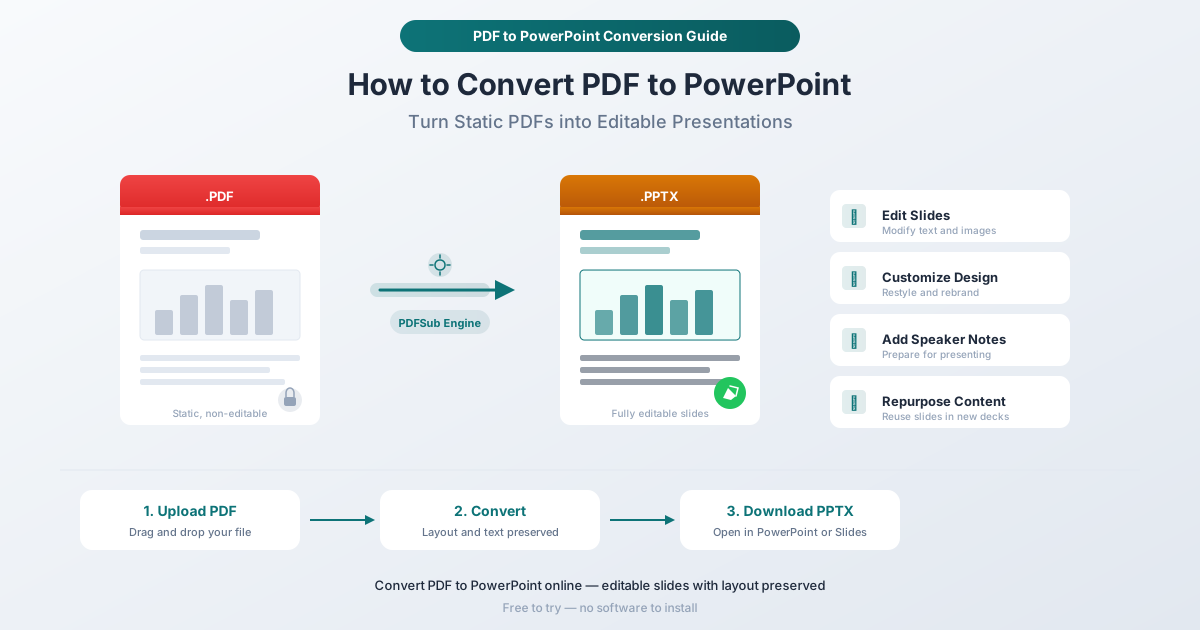
Edit slide content. You have a presentation locked in PDF format and need to change text, swap images, or update data. PowerPoint makes all of that possible.
Customize the design. Restyle a deck with your company's colors, fonts, and logo. You can't do that in a PDF viewer.
Repurpose slides for a new presentation. Pull slides from one deck and combine them with another. PowerPoint is built for this kind of assembly - PDF is not.
Add speaker notes and animations. Converting to PowerPoint lets you add speaker notes, build sequences, and transitions that make the actual presentation smoother.
Method 1: PDFSub PDF to PowerPoint (Recommended)
PDFSub's PDF to PowerPoint tool converts your PDF into an editable .pptx file. The conversion is processed server-side via the PDFSub Engine, which analyzes each page's layout, text, images, and formatting to produce a PowerPoint file that preserves the original structure.
Step-by-Step
Step 1: Go to pdfsub.com/tools/pdf-to-pptx. No software to install - start with a 7-day free trial.
Step 2: Drag and drop your PDF into the upload area, or click to browse.
Step 3: Click convert. The PDFSub Engine processes your file server-side, analyzing text positioning, fonts, images, and page layout.
Step 4: Download your .pptx file. Open it in PowerPoint, Google Slides, or Keynote and start editing.
Why This Method Works Well
Server-side processing. The PDFSub Engine handles the heavy lifting of PDF structure analysis, which produces better results than browser-based converters that are limited by what JavaScript can do with PDF rendering.
Layout preservation. Text blocks, images, and basic formatting transfer to the correct positions on each slide, maintaining the visual structure of the original PDF.
No software to install. Works in any browser on any device - desktop, tablet, or phone.
7-day free trial. PDFSub offers a 7-day free trial with full access to all tools, including the PDF to PowerPoint converter. The All-In-One plan is $20/user/mo (annual) or $25/user/mo (monthly) after the trial.
Method 2: Adobe Acrobat
Adobe Acrobat Pro can export PDFs to PowerPoint format. Open your PDF in Acrobat, go to File > Export a PDF > Microsoft PowerPoint Presentation, and save the output file.
The conversion quality is generally good for PDFs originally created from PowerPoint. The main drawbacks: Acrobat Pro requires a paid subscription (starting at $19.99/month), it's desktop software that requires installation, and conversion can be slow on large files. If you need a quick one-off conversion, an online tool is more practical.
Method 3: Google Slides (Limited)
You can open a PDF in Google Slides by uploading it to Google Drive and opening it with Google Slides. However, this imports each PDF page as an image - not as editable slide content. You can see the slides, but you can't edit text, move objects, or change formatting. This works if you just need to present the content as-is, but it defeats the purpose if editing is your goal.
Method 4: PowerPoint Import (Limited)
PowerPoint itself can insert PDF pages, but only as images. Go to Insert > Object > Create from File and select your PDF. Like the Google Slides approach, this gives you static images on slides, not editable content.
Microsoft 365 online doesn't offer a built-in PDF-to-PPTX converter. For actual conversion with editable text, you need a dedicated tool like PDFSub or Acrobat.
What to Expect from the Conversion
PDFs were designed to preserve exact visual appearance, not to store editable document structure. Converting back to an editable format involves reconstructing slide layouts from positioning data, so results vary depending on the source file.
What transfers well:
- Body text and headings (including font, size, and color in most cases)
- Embedded images at their original resolution
- Basic shapes and colored backgrounds
- Multi-slide structure (each PDF page becomes one slide)
What may need adjustment:
- Complex multi-column layouts may shift slightly
- Tables might convert as grouped text boxes rather than native PowerPoint tables
- Custom fonts may fall back to system defaults if not embedded in the PDF
- Heavily designed slides with layered graphics may not reconstruct perfectly
The general rule: the simpler and more structured the original PDF, the cleaner the PowerPoint output.
Tips for Best Results
Start with a digital PDF. PDFs created from PowerPoint, Word, or design software contain actual text and positioning data that the converter uses to reconstruct slides. Scanned PDFs (photos of printed pages) contain only images, giving the converter much less to work with.
Simpler layouts convert better. A slide with a title, bullet points, and an image will convert almost perfectly. Overlapping text boxes, embedded charts, and decorative shapes require more reconstruction and may need cleanup.
Check fonts after converting. If the original PDF used a font you don't have installed, PowerPoint will substitute a default, which can change text spacing. Install the original font or adjust manually.
Plan for light editing. Treat the output as a strong starting point rather than a pixel-perfect replica. Budget a few minutes to review slides and tidy up any elements that shifted.
Frequently Asked Questions
Will the converted PowerPoint look exactly like the PDF?
Close, but not always identical. Text, images, and basic layout transfer well. Some spacing adjustments or font substitutions may be needed. The more structured the original PDF, the closer the match.
Can I convert a scanned PDF to PowerPoint?
You can, but the result will contain images of each page rather than editable text. For scanned documents, consider running OCR (optical character recognition) first to extract the text, then converting to PowerPoint.
Is the converted file compatible with Google Slides?
Yes. The .pptx file that PDFSub generates is standard PowerPoint format, which Google Slides can open directly. Upload it to Google Drive and open with Google Slides.
How large a PDF can I convert?
PDFSub handles PDFs up to the file size limits of your subscription plan. Large presentations (100+ slides) may take a bit longer since each page requires individual analysis.
Does the conversion preserve animations and transitions?
No. PDFs don't store animation or transition data - that information is lost when a presentation is saved as PDF. The converter produces static slides that you can add animations to in PowerPoint.
Can I convert a password-protected PDF?
You'll need to remove the password protection first. PDFSub offers a separate Unlock PDF tool if you have the password and need to remove the restriction before converting.
Convert Your PDF to PowerPoint
If you have a presentation stuck in PDF format and need to actually work with it, PDFSub's PDF to PowerPoint converter handles the conversion in seconds. Upload your file, get an editable .pptx back, and open it in PowerPoint, Google Slides, or Keynote.