How to Convert PDF to EPUB for E-Readers
Want to read a PDF on your Kindle or e-reader? Here's how to convert PDF to EPUB - with reflowable text that adapts to any screen size.
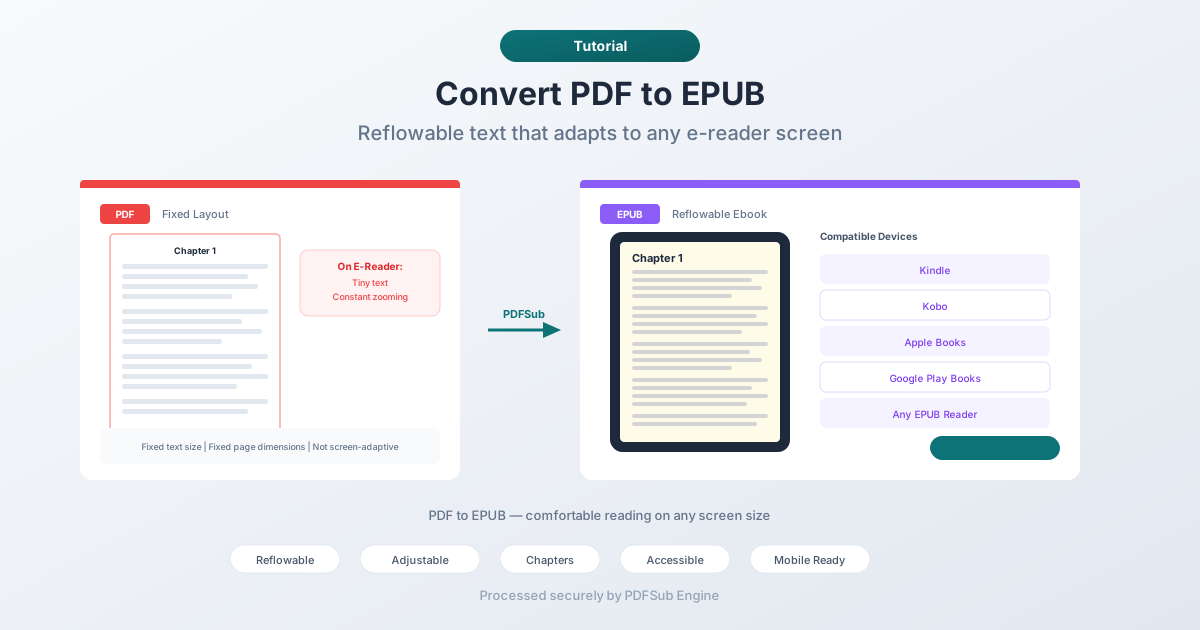
Reading a PDF on a Kindle is miserable. The text is tiny, you're constantly pinching and zooming, and every page feels like reading through a keyhole. PDFs were designed for letter-sized or A4 paper - not 6-inch e-reader screens.
EPUB fixes this. It's the standard ebook format used by Kindle, Kobo, Apple Books, and virtually every e-reader on the market. EPUB text reflows to fit any screen size, font sizes are adjustable, and the reading experience adapts to your device. Converting PDF to EPUB turns a rigid document into a comfortable reading experience.
This guide covers why the conversion matters, the best methods for doing it, and what to realistically expect from the output.
Why Convert PDF to EPUB?
Reading on E-Readers
This is the primary reason. E-readers (Kindle, Kobo, Nook, etc.) are designed for EPUB and similar reflowable formats. They handle PDF too, but the experience is poor - fixed page layouts on small screens means constant scrolling and zooming. EPUB text reflows automatically, making long-form reading comfortable.
Adjustable Text Size
PDF locks the text size. If the font is too small for comfortable reading, you're stuck. EPUB lets readers increase or decrease the font size to whatever works for them. This is especially important for readers with visual impairments or anyone who prefers larger text.
Mobile Phone Reading
Reading a full-page PDF on a phone is even worse than on an e-reader. The screen is smaller, and landscape mode doesn't help much. EPUB reflows text to fit any screen width, making phone-based reading practical for long documents.
Building an Ebook Library
If you're organizing a personal library of reference materials, reports, or books that arrived as PDFs, converting to EPUB lets you manage them in ebook library apps (Apple Books, Calibre, Google Play Books) with proper metadata, covers, and chapter navigation.
Accessibility
EPUB has better accessibility support than PDF. Screen readers work more reliably with EPUB's semantic HTML structure. Text-to-speech engines handle EPUB more naturally. For readers who rely on assistive technology, EPUB is the better format.
Method 1: Convert Online with PDFSub (Recommended)
Upload a PDF, download an EPUB. No software required.
Step by step:
- Go to PDFSub's PDF to EPUB tool
- Upload your PDF file - drag and drop or click to browse
- The file is processed by PDFSub Engine in a secure, isolated environment
- Download the converted EPUB
What to expect:
- Text-heavy PDFs produce the best results - novels, reports, articles
- Chapter headings are detected and converted to EPUB chapters
- Images are preserved and embedded in the EPUB
- Tables and complex layouts may simplify during conversion
- Text becomes fully reflowable
Best for: Quick conversions when you want to read a PDF document on an e-reader.
Method 2: Convert with Calibre (Desktop)
Calibre is a free ebook management application with powerful conversion tools.
Step by step:
- Download and install Calibre from calibre-ebook.com
- Add your PDF to the Calibre library
- Select the book and click "Convert books"
- Choose EPUB as the output format
- In the conversion dialog, adjust settings:
- Look & Feel: Font sizes, line spacing
- Structure Detection: Chapter detection regex
- Table of Contents: How to build chapter navigation
- Click OK and wait for conversion
- Find the EPUB in your Calibre library
Customization options:
- Chapter detection patterns (heading-based, page break-based)
- Font family and base font size
- Margins and line spacing
- Table of contents generation rules
- Input character encoding
Best for: Users who want fine control over the conversion process, especially for complex documents.
Method 3: Use Adobe Acrobat (Paid)
Adobe Acrobat Pro can export PDFs to EPUB format.
Step by step:
- Open the PDF in Adobe Acrobat Pro
- Go to File > Export To > EPUB
- Choose your settings
- Save the EPUB file
Limitations:
- Requires a paid Acrobat Pro subscription
- Quality varies depending on PDF structure
- Limited customization compared to Calibre
Best for: Users who already have Acrobat Pro and want a one-click solution.
Setting Realistic Expectations
PDF to EPUB conversion is not a pixel-perfect transformation. The two formats have fundamentally different philosophies:
- PDF is about exact visual reproduction. Every element has a fixed position on a fixed-size page.
- EPUB is about content flexibility. Text flows, adapts, and restructures for different screens.
Converting between them requires interpreting the PDF's layout and restructuring it as flowing HTML. Here's what that means in practice:
What Converts Well
- Novels and text-heavy documents. Simple flowing text with chapter headings produces excellent EPUB output. The text reflows naturally and the reading experience is great.
- Reports with basic formatting. Documents with headings, paragraphs, bullet lists, and occasional images convert reliably.
- Articles and papers. Single-column academic papers or articles produce clean EPUB output.
What Converts Poorly
- Multi-column layouts. The converter has to decide how to linearize columns into a single text flow. It usually works, but the reading order may not match the original.
- Complex tables. Tables in PDF are positioned elements, not semantic HTML tables. The converter attempts to reconstruct them, but complex tables with merged cells or nested structures may break.
- Scanned PDFs. If the PDF is just images of pages (scanned documents), there's no text to extract. You'd need OCR first to get extractable text, then convert to EPUB.
- Heavily designed layouts. Magazines, brochures, and marketing materials with text wrapping around images, pull quotes, and creative typography will lose their design in EPUB.
- Mathematical formulas. LaTeX-rendered formulas in PDFs don't have a direct EPUB equivalent. They may convert as images or garbled text.
Kindle Compatibility
Kindle e-readers use Amazon's proprietary formats (AZW, KFX) but can read EPUB files directly on newer Kindle devices and the Kindle app. For older Kindles, you can:
- Send via email - email the EPUB to your Kindle's Send-to-Kindle email address. Amazon's service converts it automatically.
- Use Calibre - convert the EPUB to AZW3 or MOBI format using Calibre's conversion tool.
- Use Send to Kindle app - Amazon's desktop app accepts EPUB and delivers it to your Kindle.
Tips for Best Results
- Start with a text-based PDF. Try selecting text in the PDF with your cursor. If you can highlight text, it's a digital PDF and will convert well. If you can't select text, it's a scanned image and you'll need OCR first.
- Simple layouts convert better. If you have a choice between a multi-column version and a single-column version of a document, convert the single-column version.
- Check chapter detection. After conversion, open the EPUB in an ebook reader and verify the table of contents works correctly. If chapters aren't detected, you may need to adjust detection settings.
- Test on your target device. EPUB rendering varies slightly between readers. Check the output on the actual device where you'll be reading.
FAQ
Can I convert a scanned PDF to EPUB?
Not directly. Scanned PDFs contain images of pages, not extractable text. You'd need to run OCR (Optical Character Recognition) on the PDF first to convert the images to text, then convert the OCR'd PDF to EPUB.
Will the EPUB look exactly like the PDF?
No, and that's by design. EPUB uses reflowable text that adapts to your screen size and font preferences. The content is the same, but the presentation changes. This is actually the point - you're converting to EPUB specifically because you want text that reflows.
Can I convert the EPUB back to PDF?
Yes, but expect some differences from the original. Each conversion involves interpretation and restructuring. Going PDF to EPUB to PDF is like translating English to French and back - the meaning is preserved but the expression changes.
How do I handle a PDF with both text and images?
The converter handles mixed content automatically. Text becomes reflowable EPUB text, and images are embedded in the EPUB at their original size. The image positions may shift since EPUB doesn't support fixed positioning.
Is the conversion free?
PDFSub offers PDF to EPUB conversion as part of its tool suite. Check the pricing page for current limits and plan details.
Wrapping Up
PDF to EPUB conversion unlocks comfortable reading on e-readers, phones, and tablets. Text-heavy documents - books, reports, articles - produce the best results. Complex layouts will simplify, but the content comes through.
For the best reading experience, start with a well-structured, text-based PDF and keep your expectations calibrated. The goal isn't to reproduce the PDF's exact appearance - it's to make the content comfortable to read on any screen.
Try PDFSub's PDF to EPUB converter - upload your PDF and get a reflowable ebook in seconds.