How to Convert ODT, ODS, and ODP to PDF (and PDF Back to Open Formats)
Working with LibreOffice or OpenOffice documents? Here's how to convert ODT, ODS, ODP, and ODG files to PDF - and convert PDFs back to Open Document formats.
Open Document Format (ODF) is the standard file format for LibreOffice, OpenOffice, and a growing number of government and enterprise systems. If you work with ODT (text documents), ODS (spreadsheets), ODP (presentations), or ODG (drawings), you'll eventually need to convert them to PDF - or convert a PDF back to an Open Document format for editing.
This guide covers all the ODF-to-PDF and PDF-to-ODF conversions in one place: when you'd need each one, how to do it, and what to expect from the output.
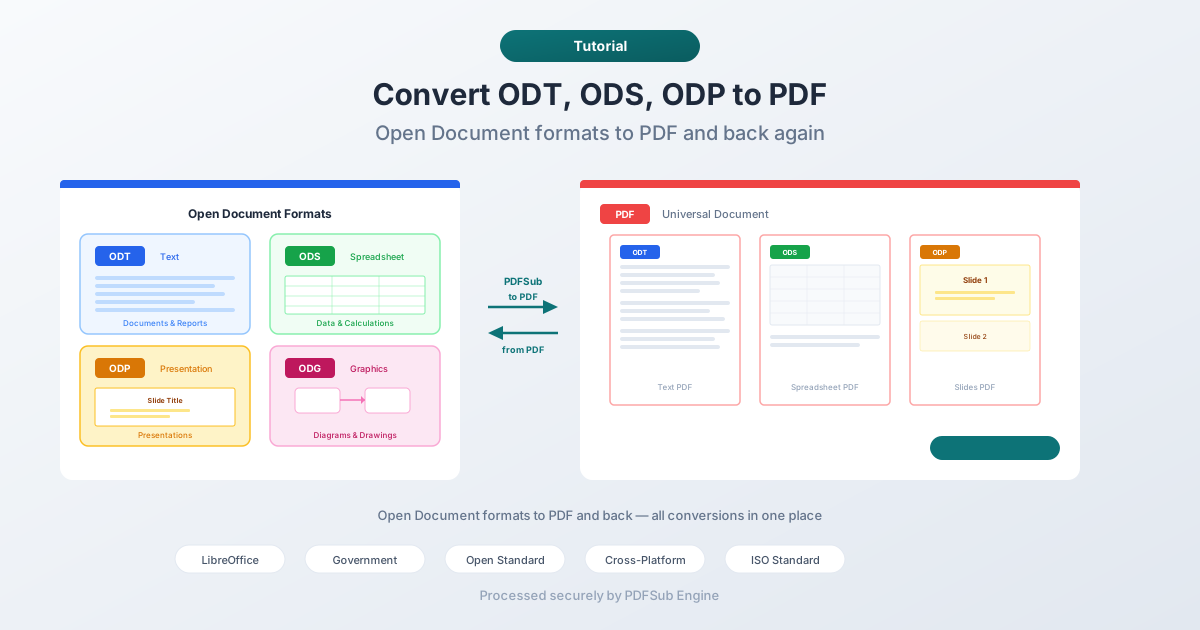
The Open Document Formats
Before diving into conversion, here's what each format is for:
| Format | Extension | Equivalent To | Used For |
|---|---|---|---|
| ODT | .odt | Word (.docx) | Text documents, reports, letters |
| ODS | .ods | Excel (.xlsx) | Spreadsheets, data tables, calculations |
| ODP | .odp | PowerPoint (.pptx) | Presentations, slide decks |
| ODG | .odg | Visio (.vsdx) | Drawings, diagrams, flowcharts |
These formats are developed by OASIS and standardized as ISO/IEC 26300. They're fully open specifications - anyone can read, write, and implement them without licensing fees.
Why Use Open Document Formats?
Government Mandates
Many governments worldwide require or prefer ODF for official documents. The European Commission, the UK government, and several US state agencies mandate ODF for document exchange. If you work with government systems, you'll encounter these formats regularly.
LibreOffice Is Free
LibreOffice is a free, full-featured office suite used by millions of people and organizations. Its native formats are ODT, ODS, and ODP. If your team uses LibreOffice instead of Microsoft Office, your documents are in Open Document Format.
Vendor Independence
ODF doesn't lock you into a specific software vendor. Any compliant application can open and edit ODF files - LibreOffice, Google Docs, Microsoft Office (with some limitations), Collabora Online, and many others.
Long-Term Preservation
As an ISO standard with open specifications, ODF is designed for long-term document preservation. The format can be implemented by anyone, ensuring documents remain readable regardless of which companies survive.
ODT to PDF: Text Documents
ODT (OpenDocument Text) is the equivalent of .docx for LibreOffice users. Converting ODT to PDF is the most common ODF conversion.
When you'd need this:
- Sharing a document with someone who doesn't have LibreOffice
- Submitting a document to a portal or system that requires PDF
- Printing a document with exact layout control
- Distributing a final version that shouldn't be edited
Convert with PDFSub
- Go to PDFSub's ODT to PDF tool
- Upload your ODT file
- PDFSub Engine processes the file in a secure, isolated environment
- Download the converted PDF
What to expect:
- Text formatting (fonts, sizes, bold, italic) is preserved
- Tables, headers, footers, and page numbers carry over
- Images maintain their position and quality
- Table of contents is functional with page numbers
- Page layout (margins, columns, page breaks) is respected
Convert with LibreOffice
- Open the ODT file in LibreOffice Writer
- Go to File > Export as PDF
- Adjust quality, image compression, and other settings
- Export
ODS to PDF: Spreadsheets
ODS (OpenDocument Spreadsheet) conversion to PDF is useful for sharing data that shouldn't be modified, printing spreadsheets with controlled page layout, or submitting financial reports.
When you'd need this:
- Distributing financial reports or budget spreadsheets
- Printing spreadsheets with proper page breaks
- Archiving data in a non-editable format
- Sharing with people who don't have spreadsheet software
Convert with PDFSub
- Go to PDFSub's ODS to PDF tool
- Upload your ODS file
- PDFSub Engine processes the file in a secure, isolated environment
- Download the converted PDF
What to expect:
- Cell data, formulas (as values), and formatting are preserved
- Column widths and row heights carry over
- Charts and graphs are embedded in the PDF
- Multiple sheets may produce multiple pages
- Print area settings are respected if configured
Tips for ODS to PDF
- Set the print area first. In LibreOffice Calc, define the print area (Format > Print Ranges > Define) before converting. This controls which cells appear in the PDF.
- Adjust column widths. Columns that are too wide for the page will be cut off or wrapped. Set widths to fit your target page size.
- Check page orientation. Wide spreadsheets work better in landscape mode.
ODP to PDF: Presentations
ODP (OpenDocument Presentation) to PDF conversion creates a non-interactive version of your slide deck - one page per slide.
When you'd need this:
- Sharing slides with people who don't have presentation software
- Printing handouts
- Submitting presentation materials to conference organizers
- Archiving presentations in a universal format
Convert with PDFSub
- Go to PDFSub's ODP to PDF tool
- Upload your ODP file
- PDFSub Engine processes the file in a secure, isolated environment
- Download the converted PDF
What to expect:
- Each slide becomes one PDF page
- Text, shapes, and images are preserved
- Slide transitions and animations are lost (PDF is static)
- Speaker notes are not included by default
- Charts and SmartArt-style shapes render as visual elements
ODG to PDF: Drawings and Diagrams
ODG (OpenDocument Graphics) is less common but important for technical diagrams, flowcharts, and architectural drawings.
When you'd need this:
- Sharing diagrams with people who don't have drawing software
- Printing technical drawings with precise dimensions
- Submitting flowcharts or diagrams for review
Convert with PDFSub
- Go to PDFSub's ODG to PDF tool
- Upload your ODG file
- PDFSub Engine processes the file in a secure, isolated environment
- Download the converted PDF
What to expect:
- Vector shapes, lines, and connectors are preserved
- Text labels maintain their positions
- Colors, gradients, and transparency carry over
- Drawing dimensions are respected
PDF Back to Open Document Formats
Sometimes you need to go the other direction - you have a PDF and need to edit it in LibreOffice. PDFSub supports converting PDF back to ODT, ODS, and ODP.
PDF to ODT (Text Documents)
Convert a PDF document into an editable ODT file for LibreOffice Writer.
- Go to PDFSub's PDF to ODT tool
- Upload your PDF
- Download the converted ODT
What to expect:
- Text content is extracted and formatted as flowing ODT text
- Headings, paragraphs, and lists are reconstructed
- Tables are converted to editable ODT tables
- Images are embedded
- Complex layouts may simplify - multi-column becomes single-column, precise positioning becomes flowing text
PDF to ODS (Spreadsheets)
Convert a PDF containing tabular data into an editable ODS spreadsheet.
- Go to PDFSub's PDF to ODS tool
- Upload your PDF
- Download the converted ODS
What to expect:
- Tables in the PDF are reconstructed as spreadsheet cells
- Numerical data is placed in cells
- Simple tables with clear grid lines convert well
- Complex tables (merged cells, nested headers) may need manual cleanup
- Non-tabular content (paragraphs, images) may not convert meaningfully
PDF to ODP (Presentations)
Convert a PDF back into an editable ODP presentation.
- Go to PDFSub's PDF to ODP tool
- Upload your PDF
- Download the converted ODP
What to expect:
- Each PDF page becomes one slide
- Text elements are placed on slides as text boxes
- Images are preserved
- The result requires cleanup - positioning and styling will need adjustment
- Original slide transitions, animations, and speaker notes are not recoverable
Quality Expectations for ODF-to-PDF vs. PDF-to-ODF
The conversion quality is asymmetric:
ODF to PDF (excellent quality): This direction is straightforward. ODF files contain structured content (semantic headings, real tables, embedded images) that maps cleanly to PDF. The converter renders the content at the specified page dimensions. What you see in LibreOffice is very close to what you get in the PDF.
PDF to ODF (good but imperfect): This direction is harder. PDF stores content as positioned elements on a canvas - not as semantic structure. The converter has to reconstruct document structure (headings, paragraphs, tables) from spatial positions. It works well for simple documents but degrades with complex layouts.
Tips for Best Results
- For ODF to PDF: Finalize your document in LibreOffice first. Fix formatting, check page breaks, and review print preview before converting.
- For PDF to ODF: Start with a text-based PDF (not scanned). The cleaner the PDF structure, the better the ODF output.
- Spreadsheets: Set print areas and page breaks in ODS before converting to PDF. This gives you control over what appears on each page.
- Presentations: Remember that animations and transitions don't survive PDF conversion. Design slides that work as static pages if you plan to distribute as PDF.
- Batch conversion: If you have many files to convert, process them one at a time to verify quality before converting the entire batch.
FAQ
Can Microsoft Office open ODF files?
Yes. Microsoft Word, Excel, and PowerPoint can open and edit ODT, ODS, and ODP files, though with some formatting limitations. Complex formatting may not render identically between LibreOffice and Microsoft Office.
Are ODF files smaller than PDF?
It depends. ODF files are ZIP-compressed XML, so they're often smaller than equivalent PDFs for text-heavy documents. PDFs with embedded fonts and high-resolution images can be significantly larger. For spreadsheets and presentations with charts, file sizes are comparable.
Can I convert password-protected ODF files?
You'll need to remove the password first. Open the file in LibreOffice, enter the password, go to File > Properties > Security, and remove the password protection. Then save and convert.
What about .doc and .xls files (old Microsoft formats)?
Those are different from ODF. PDFSub has separate tools for Word to PDF and Excel to PDF conversions. The ODF tools (ODT, ODS, ODP, ODG) are specifically for Open Document Format files.
Is ODG to PDF bidirectional?
ODG to PDF conversion is supported, but PDF to ODG is not currently available. For editing PDF graphics, consider converting to SVG instead using PDFSub's PDF to SVG tool.
Wrapping Up
Open Document Format is a practical, open standard for documents, spreadsheets, presentations, and drawings. When you need to share ODF files with people who don't have LibreOffice, converting to PDF ensures everyone can view the content.
Going the other direction - PDF back to ODF - lets you edit locked-down PDFs in LibreOffice. The results are best with simple, text-heavy documents.
PDFSub handles all the ODF conversions: ODT to PDF, ODS to PDF, ODP to PDF, ODG to PDF, and the reverse - PDF to ODT, PDF to ODS, PDF to ODP. Upload, convert, download.