How to Convert EPUB to PDF for Print or Sharing
Need to print or share an EPUB ebook as a PDF? Here's how to convert EPUB to PDF - preserving text, formatting, and chapter structure.
EPUB is great for reading on e-readers and tablets. The text reflows to fit any screen, fonts resize smoothly, and the reading experience adapts to your device. But the moment you need to print an ebook or share it with someone who doesn't have an e-reader app, EPUB falls short.
PDF fixes that. It locks the layout to specific page dimensions, renders consistently on every device, and prints exactly as it appears on screen. Converting EPUB to PDF bridges the gap between a flexible reading format and a universal sharing format.
This guide covers why you'd convert EPUB to PDF, the best methods for doing it, and what to expect from the output.
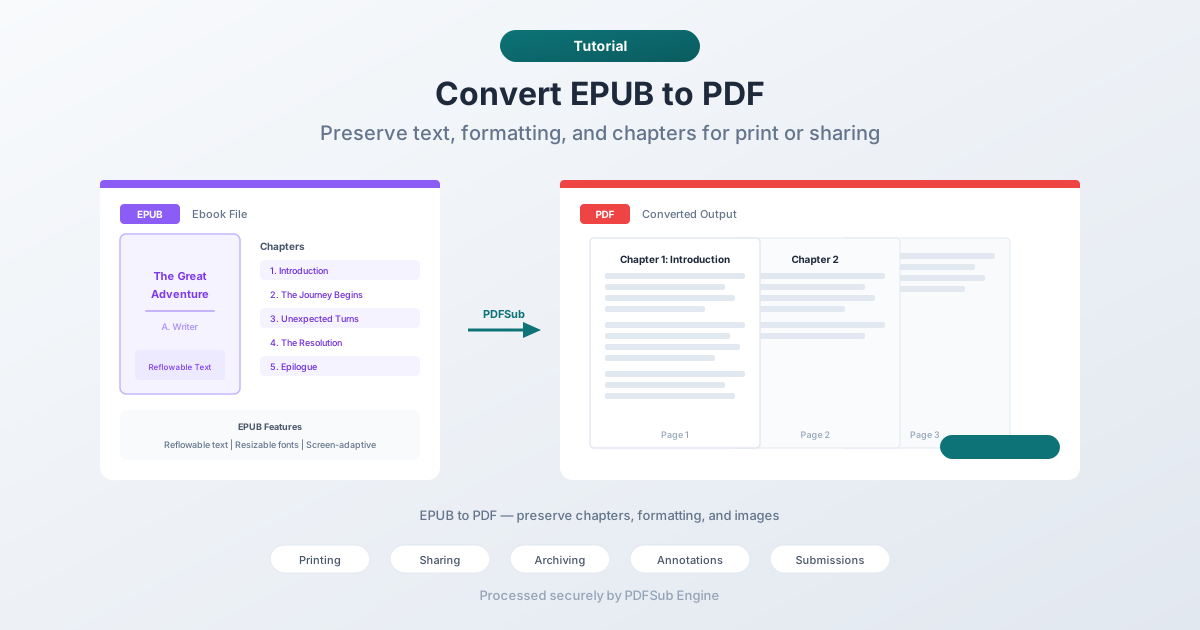
Why Convert EPUB to PDF?
EPUB and PDF serve fundamentally different purposes. EPUB is optimized for reading. PDF is optimized for sharing and printing. Here's when the conversion makes sense:
Printing an Ebook
EPUB wasn't designed for print. It doesn't have fixed page sizes, margins, or page breaks. If you try to print an EPUB directly, you'll get unpredictable results - text might overflow, images might break across pages, and chapter headings might land in awkward positions.
Converting to PDF first gives you a properly paginated document with consistent margins, page numbers, and clean page breaks.
Sharing with Non-Technical Recipients
Not everyone has an EPUB reader. While tech-savvy people have Kindle apps, Calibre, or Apple Books, many people - especially in professional contexts - expect PDF. Converting to PDF means anyone can open the file in any browser, on any device, without installing special software.
Archiving
PDF is an archival format. PDF/A is an ISO standard for long-term document preservation. If you're building a digital library or archiving reference materials, PDF is more universally supported for long-term storage than EPUB.
Annotation and Markup
PDF has mature annotation tools - highlighting, commenting, marking up. While some EPUB readers support basic highlighting, PDF's annotation ecosystem is far richer. Converting to PDF lets you use any PDF annotation tool to mark up the content.
Submitting to Systems That Require PDF
Many submission portals, document management systems, and email workflows only accept PDF. If your content is in EPUB format and the destination requires PDF, conversion is the path forward.
Method 1: Convert Online with PDFSub (Recommended)
The fastest approach for most people. No software to install, works on any device with a browser.
Step by step:
- Go to PDFSub's EPUB to PDF tool
- Upload your EPUB file - drag and drop or click to browse
- The file is processed by PDFSub Engine in a secure, isolated environment
- Download the converted PDF
What to expect:
- Chapter structure is preserved - each chapter starts on a new page
- Text formatting (bold, italic, headings) carries over
- Images are embedded at their original resolution
- Table of contents is maintained
- Page dimensions default to standard sizes (letter or A4)
Best for: Quick conversions when you need results now. No installation, no configuration.
Method 2: Convert with Calibre (Desktop)
Calibre is a free, open-source ebook management application. It handles EPUB to PDF conversion with extensive customization options.
Step by step:
- Download and install Calibre from calibre-ebook.com
- Add your EPUB file to the Calibre library
- Select the book and click "Convert books"
- Choose PDF as the output format
- Adjust settings (page size, margins, fonts) in the conversion dialog
- Click OK and wait for conversion to complete
- Find the PDF in Calibre's library folder
Customization options in Calibre:
- Page size (letter, A4, custom dimensions)
- Margins (top, bottom, left, right)
- Font family and size
- Header and footer content
- Page numbers
- Line spacing
Best for: Batch conversions, custom formatting, and users who already manage ebook libraries.
Method 3: Use Your E-Reader App's Print Function
Most e-reader apps (Apple Books, Google Play Books) have a "Print" option that can output to PDF via your operating system's print dialog.
How it works:
- Open the EPUB in your e-reader app
- Go to File > Print (or the sharing menu)
- Select "Save as PDF" as the printer
- Choose your page settings
- Save the PDF
Limitations:
- Results vary by app - some produce clean PDFs, others produce poorly formatted output
- Limited control over page layout
- May not preserve chapter structure or table of contents
- Images might be downscaled
Best for: Quick, one-off conversions when you already have the EPUB open in a reader.
What Happens During Conversion
Understanding the conversion process helps set expectations for the output quality.
EPUB is essentially a ZIP file containing HTML files, CSS stylesheets, and images. Each chapter is typically a separate HTML file. The CSS controls fonts, colors, and layout. When you convert EPUB to PDF, the converter:
- Parses the HTML content - extracts text, headings, lists, tables, and other structure
- Applies styling - uses the CSS to determine fonts, sizes, colors, and spacing
- Paginates - breaks the flowing content into fixed-size pages
- Embeds images - places images at appropriate positions within the paginated layout
- Generates the PDF - creates the final document with all content, fonts, and images embedded
The quality of the output depends heavily on how the EPUB was created. Well-structured EPUBs with clean HTML produce excellent PDFs. EPUBs with complex CSS layouts, unusual fonts, or intricate formatting may lose some visual fidelity during conversion.
Common Issues and How to Handle Them
Missing or Substituted Fonts
EPUBs sometimes reference fonts that aren't available on the conversion system. The converter substitutes a similar font, which might change the appearance. If font accuracy matters, check the output and consider adjusting font settings in your conversion tool.
Images at Wrong Size
Some EPUB images are sized relative to the screen width, which doesn't translate directly to a fixed page width. Images might appear too large or too small. If this happens, look for image sizing options in your converter.
Poor Page Breaks
Automatic pagination doesn't always put page breaks in ideal locations. A heading might appear at the bottom of a page with no content following it, or a short paragraph might get stranded on its own page. Better converters handle this with intelligent break algorithms, but no tool is perfect.
Large File Size
EPUB files are typically small because they use compressed HTML. PDFs embed all fonts and render content differently, so the PDF may be significantly larger than the original EPUB. If file size matters, look for PDF compression options after conversion.
Missing Table of Contents
Some converters don't generate PDF bookmarks from the EPUB's table of contents. If navigation is important, verify that the converted PDF has clickable bookmarks in the sidebar.
Tips for Best Results
- Check the EPUB quality first. Open it in an e-reader and verify it looks correct. If the EPUB itself has formatting issues, they'll carry through to the PDF.
- Choose appropriate page size. Letter size (8.5 x 11") for US printing, A4 for international. Smaller page sizes work for reading on tablets.
- Set reasonable margins. At least 0.5 inches on all sides for printing. Wider margins (0.75-1 inch) improve readability.
- Review the output. Spot-check several chapters in the converted PDF. Look for formatting issues, missing images, and awkward page breaks.
- Compress if needed. If the PDF is too large for email or upload, run it through a PDF compression tool after conversion.
FAQ
Does EPUB to PDF conversion preserve hyperlinks?
In most cases, yes. Internal links (like table of contents entries linking to chapters) and external links (URLs) are preserved as clickable links in the PDF. However, some converters may not carry over all links - check the output.
Can I convert a DRM-protected EPUB to PDF?
No. Digital Rights Management (DRM) prevents conversion of protected ebooks. If you purchased a DRM-protected ebook, you can typically read it only in the authorized app. The conversion methods described here work with DRM-free EPUB files.
How long does conversion take?
For most EPUBs (under 10 MB), conversion takes a few seconds with an online tool. Larger files with many images may take 10-30 seconds. Desktop tools like Calibre are generally faster for large files since processing happens locally.
Will the PDF look exactly like the EPUB?
Not identically. EPUB uses reflowable layout that adapts to screen size, while PDF uses fixed pages. The content will be the same, but the presentation will differ - fixed page widths, specific page breaks, and static font sizes instead of user-adjustable text. Think of it as the same content in a different frame.
Can I convert PDF back to EPUB?
Yes, but the round-trip isn't perfect. Converting PDF to EPUB produces usable results for text-heavy documents, but complex layouts with tables, multi-column text, or precise positioning may not convert cleanly. Each format conversion involves some interpretation, and going back and forth compounds the approximation.
Wrapping Up
EPUB to PDF conversion is straightforward once you know why you're converting and what to expect. For printing, sharing with non-technical recipients, archiving, or submitting to PDF-only systems, converting your EPUB to PDF gets the job done.
Online tools handle it fastest. Desktop tools offer more customization. Either way, the content carries over - text, formatting, images, and chapter structure.
Try PDFSub's EPUB to PDF converter for a quick conversion - upload, convert, download.