How to Compare Two PDFs Side by Side
Need to spot every change between two versions of a contract or document? Here's how to compare PDFs and highlight differences automatically.
A revised contract arrives in your inbox. The other party says they made "minor edits" - but what exactly changed? Did the payment terms shift from 30 days to 45? Did the liability cap double? Did a termination clause appear that wasn't in the original? Reading both versions side by side, switching back and forth between documents, trying to spot differences in 20 pages of dense legal text - it's exhausting, error-prone, and exactly the kind of task where missing one changed word can cost thousands of dollars.
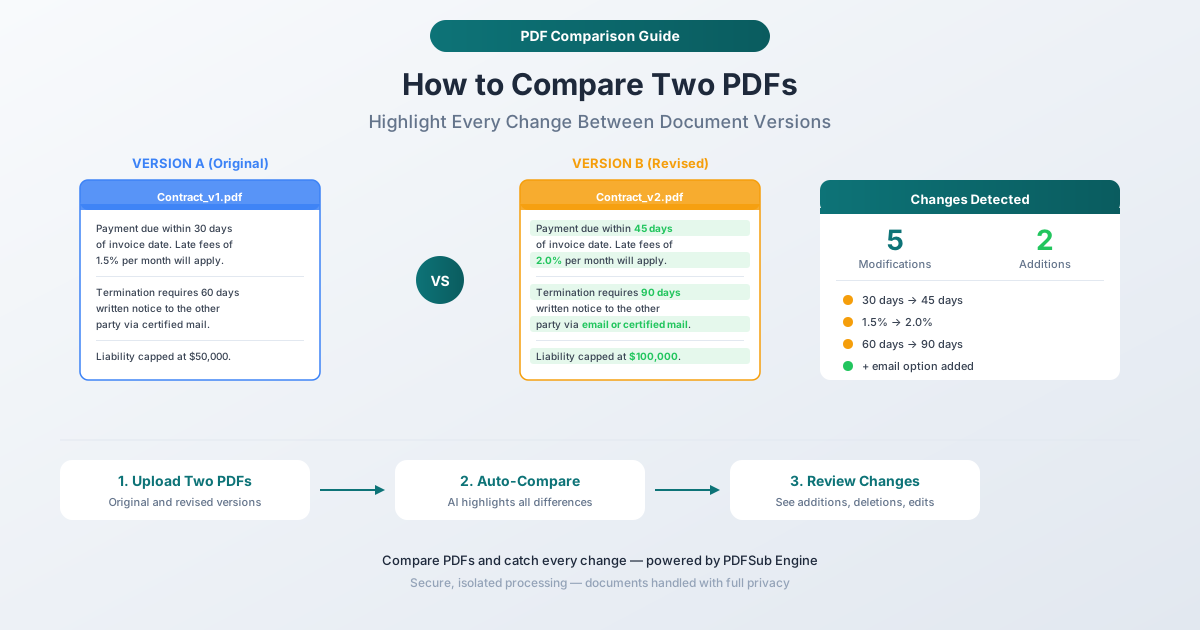
Comparing PDFs automatically solves this. You upload two versions of a document, and the tool highlights every addition, deletion, and modification. Nothing is missed. No more squinting at paragraphs wondering if something changed. No more "I think this clause is new but I'm not sure." Every difference is called out explicitly.
This guide covers how to compare two PDFs, what the comparison results look like, and the real-world scenarios where automated comparison prevents expensive mistakes.
Why Manual Comparison Doesn't Work
Before explaining the automated approach, it's worth understanding why manual comparison fails - because many people still try it and only discover the problems after something goes wrong.
Human Eyes Miss Changes in Dense Text
Studies on proofreading accuracy consistently show that humans miss 10-30% of errors even when specifically looking for them. When you're comparing two dense documents, the error rate is higher because you're not looking for spelling mistakes - you're looking for subtle word substitutions, added clauses, changed numbers, and deleted sentences. A "30" changed to "45" looks almost identical at a glance. A removed "not" reverses the meaning of an entire sentence.
Fatigue Compounds the Problem
Comparing documents is mentally exhausting. By page 10, your attention has degraded significantly. By page 20, you're skimming. The most important change in the document might be on page 18, right when your concentration is at its lowest.
Formatting Changes Hide Content Changes
Sometimes a revised document has different formatting - adjusted margins, a new font, different spacing. These visual changes mask content changes. Your brain registers that something looks different, but it might attribute the difference to formatting when in fact the words themselves changed.
Multiple Revision Rounds Multiply the Risk
Contracts and legal documents often go through 5, 10, or more revision rounds. Each round introduces potential changes. Comparing round 7 against round 6, then round 6 against round 5, manually - across dozens of pages each time - creates compounding risk of missed changes.
How to Compare PDFs with PDFSub
PDFSub's Compare tool uses the PDFSub Engine to extract and compare the text content of two PDF documents, highlighting every difference automatically.
Step-by-Step Instructions
Step 1: Open the Compare tool. Go to pdfsub.com/tools/compare. No software to install.
Step 2: Upload the original document. Drag and drop or browse to select the first PDF - this is your baseline, the "before" version.
Step 3: Upload the revised document. Upload the second PDF - the "after" version you want to compare against the original.
Step 4: Run the comparison. Click the compare button. The PDFSub Engine extracts the text from both documents and performs a detailed comparison, identifying every difference between the two versions.
Step 5: Review the results. The comparison output highlights three types of changes:
- Additions - text that appears in the revised version but not in the original. Typically highlighted in green.
- Deletions - text that was in the original but removed from the revised version. Typically highlighted in red or shown with strikethrough.
- Modifications - text that changed between versions. The old and new versions are shown so you can see exactly what was altered.
Step 6: Act on the findings. Review each highlighted change. Approve, reject, or note changes for discussion. The comparison gives you a complete list - nothing is missed.
How PDFSub Engine Processing Works
Unlike the browser-based tools (merge, split, reorder), PDF comparison uses the PDFSub Engine for server-side processing. This is because accurate text extraction and comparison across different PDF structures requires more computational power than a browser can efficiently provide.
The PDFSub Engine processes your documents in a secure, isolated environment. Documents are processed in memory and not stored permanently. The comparison extracts the text content from both PDFs, aligns corresponding sections, and identifies differences at the word and character level.
What Comparison Results Look Like
Word-Level Differences
The comparison identifies changes at the word level, not just the line level. If a single word changes in a paragraph, that specific word is highlighted - you don't have to re-read the entire paragraph to find the change.
Example:
- Original: "Payment is due within 30 days of invoice date."
- Revised: "Payment is due within 45 days of invoice date."
- Result: The "30" is marked as deleted, "45" is marked as added. The rest of the sentence is unmarked.
Added and Removed Paragraphs
When entire paragraphs are added or removed, the comparison clearly marks the full block of text. This makes it easy to spot new clauses that didn't exist in the original or sections that were deleted.
Moved Text
If a paragraph or section was moved from one location to another without being changed, the comparison shows it as a deletion in the original location and an addition in the new location. Context makes it clear that the text was moved rather than independently deleted and added.
Real-World Comparison Scenarios
Contract Negotiations
This is the most common and highest-stakes use case. During contract negotiations, each party's attorneys make changes and send revised versions. Every changed word matters. A "shall" changed to "may" reverses an obligation. A removed "not" changes a prohibition into a permission. A shifted deadline, an altered dollar amount, an added exclusion - any of these can fundamentally change the agreement.
Automated comparison catches every change, regardless of how subtle. Run the comparison after each revision round to see exactly what the other party modified.
Policy Updates
When company policies are updated - HR handbooks, safety procedures, compliance guidelines - employees and managers need to know what changed. Compare the old version against the new one and distribute the comparison results alongside the updated policy. This saves everyone from reading the entire document when only two sections were modified.
Regulatory Filings
Financial reports, SEC filings, and regulatory submissions are often compared against previous versions to ensure consistency and catch unintended changes. Comparing this quarter's 10-Q against last quarter's identifies exactly what changed in the financial statements, risk factors, and management discussion sections.
Insurance Documents
Insurance policies are renewed annually with changes that are sometimes buried in dense legalese. Comparing this year's policy against last year's reveals changes to coverage limits, exclusions, deductibles, and premiums. This is far more reliable than trusting the renewal summary letter, which may not mention every change.
Academic Paper Revisions
Researchers compare manuscript versions to track changes between submission, peer review, and publication. This is especially useful when multiple co-authors are editing simultaneously and changes need to be reconciled.
Legislation and Legal Analysis
Attorneys and analysts compare bill versions to understand how legislation evolved during the drafting process. Comparing an introduced bill against the enacted law reveals every amendment - which sections were added, removed, or modified during the legislative process.
Tips for Effective PDF Comparison
Compare the Right Versions
This sounds obvious, but version control confusion is one of the most common comparison mistakes. Make sure you're comparing the correct "before" and "after" documents. Name files clearly: Contract_v1_Original.pdf and Contract_v2_Counterparty_Revisions.pdf is far better than Contract.pdf and Contract (1).pdf.
Start with a High-Level Scan
Before diving into individual word changes, look at the comparison results from a high level. How many changes were made? Are they concentrated in one section or spread throughout? This gives you context before examining each change in detail.
Pay Attention to Numerical Changes
Number changes are the most consequential and easiest to miss manually. Dollar amounts, percentages, days, quantities, and dates - these are often the changes that matter most in contracts and financial documents. The automated comparison highlights them the same as any other change, but they deserve extra attention during your review.
Compare Against the Right Baseline
In multi-round negotiations, decide whether you're comparing against the original document (to see all cumulative changes) or against the immediately previous version (to see only the latest changes). Both are useful, but they serve different purposes.
Document Your Review
After running the comparison, note which changes you've reviewed and your disposition (accepted, rejected, need discussion). The comparison tool identifies the changes; the business decision about each change is yours to make.
Comparison Limitations
Scanned PDFs
If your PDFs are scanned documents (images of printed pages rather than digital text), the comparison tool needs to extract text using OCR first, which introduces potential extraction errors. For scanned documents, verify that the extracted text accurately represents the original before trusting the comparison results.
Complex Formatting
The comparison focuses on text content. Changes to formatting (fonts, colors, spacing, indentation) that don't affect the actual words may not be flagged. If formatting changes are important to track, a visual comparison tool that overlays the documents as images may be more appropriate.
Tables and Charts
Text within tables is compared, but changes to table structure (added rows, reordered columns) may be represented differently than inline text changes. Charts and images are not compared at the text level - a changed bar chart won't be flagged unless its caption text changed.
Frequently Asked Questions
Can I compare PDFs with different page counts?
Yes. The comparison aligns content based on text matching, not page numbers. If the revised version has additional pages (due to added content or formatting changes), the tool still identifies which text was added, removed, or changed regardless of where it falls in the page layout.
Can I compare more than two documents at once?
PDFSub's Compare tool compares two documents at a time - an original and a revised version. For multi-version comparisons (e.g., three revision rounds), compare each consecutive pair: v1 vs. v2, then v2 vs. v3. This gives you a change history for each revision round.
Does the comparison work with password-protected PDFs?
You'll need to unlock the PDFs first. Use PDFSub's Unlock tool to remove password protection (you'll need to know the password), then upload the unprotected versions for comparison.
How accurate is the comparison?
The comparison identifies every text difference between the two documents - it doesn't miss changes. Accuracy depends on the quality of text extraction from the PDFs. Digitally-created PDFs (from Word, Excel, etc.) produce near-perfect extraction. Scanned PDFs require OCR, which may introduce minor extraction inaccuracies.
Can I export the comparison results?
The comparison results are displayed in your browser with highlighted differences. You can use the results for review, copy the identified changes, or take screenshots for documentation purposes.
Start Comparing
Need to spot every difference between two document versions? Open the Compare tool and upload your original and revised PDFs. The PDFSub Engine extracts and compares the text, highlighting every addition, deletion, and modification. Nothing is missed. No account required to get started, and PDFSub offers a 7-day free trial with full access to all tools.