How to Fix Common Bank Statement Import Errors in QuickBooks and Xero
Import failed? Wrong dates? Amounts in the wrong column? Here are the most common bank statement import errors in QuickBooks and Xero - and how to fix each one.
You've got your bank statement CSV ready. You upload it to QuickBooks or Xero. And then: an error message. Or worse - no error, but the data is clearly wrong. Dates are swapped. Amounts are in the description column. Transactions from January show up in October.
Bank statement import errors are the most common bookkeeping bottleneck for accountants managing multiple clients. The errors are usually fixable, but only if you know what's causing them. A vague "import failed" message doesn't tell you whether the problem is the date format, the column structure, the file encoding, or a rogue blank line in row 847.
This guide covers the eight most common import errors in QuickBooks Online and Xero, with specific fixes for each one.
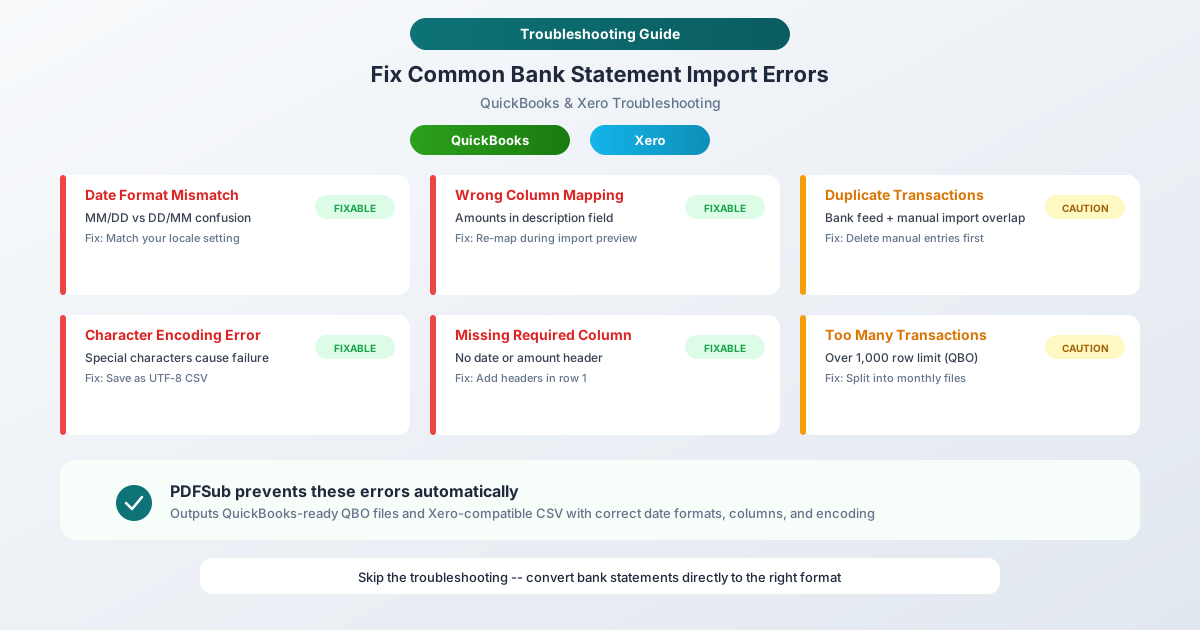
Error 1: Date Format Mismatch
The symptom: Import fails with a "date format not recognized" error. Or the import succeeds, but dates are wrong - March 6 becomes June 3.
Why it happens: QuickBooks and Xero interpret dates based on your account's locale setting. If your account is set to US format (MM/DD/YYYY) but your CSV contains UK format (DD/MM/YYYY), the tool either rejects the dates or silently swaps month and day.
The most dangerous scenario is when dates are ambiguous. 03/06/2026 could be March 6 or June 3 - and if the day number is 12 or less, the tool has no way to know which is correct. It guesses based on your locale setting.
How to fix it:
In QuickBooks Online:
- Go to Settings (gear icon) > Account and Settings > Advanced
- Check the date format setting - it should match your CSV
- If your CSV uses DD/MM/YYYY and your QuickBooks is set to MM/DD/YYYY, either convert the CSV dates or temporarily change the QuickBooks setting during import
In Xero:
- Go to Settings > General Settings > Date Format
- Verify it matches your CSV
- Xero tends to be more flexible about date formats during import, but ambiguous dates can still cause problems
Best practice: Use YYYY-MM-DD (ISO 8601) format in your CSVs. It's unambiguous - no tool can misinterpret 2026-03-15. Both QuickBooks and Xero accept this format regardless of locale settings.
Error 2: Wrong Column Mapping
The symptom: Amounts appear in the description field. Descriptions appear in the amount field. Dates are scattered across multiple columns.
Why it happens: Your CSV's column order doesn't match what the import tool expects, and the column mapping step was done incorrectly or skipped.
QuickBooks Online expects CSV files in either:
- 3-column format: Date, Description, Amount
- 4-column format: Date, Description, Credit, Debit
Xero is more flexible but still requires explicit column mapping during import.
How to fix it:
In QuickBooks Online:
- During import, QuickBooks shows a column mapping preview
- Use the dropdown menus to assign each column to the correct field
- If the preview shows data in the wrong fields, re-map before confirming
- If there's no preview (file rejected), check that your CSV has column headers in the first row
In Xero:
- During import, Xero's Map Columns screen shows each column and a dropdown
- Map "Date" to your date column, "Payee" or "Description" to your text column
- Map "Amount" or "Debit"/"Credit" to your amount column(s)
- Use the preview rows to verify the mapping is correct
Best practice: Always include clear headers in your CSV's first row: Date, Description, Amount. Both QuickBooks and Xero use headers to auto-detect column mapping. Without headers, you're relying on position-based detection, which is fragile.
Error 3: Duplicate Transactions
The symptom: After import, you see the same transactions twice - once from the bank feed and once from the manual import.
Why it happens: You imported a CSV covering dates that are already in your accounting software from a bank feed connection. Both the feed and the import created entries for the same transactions.
This is the most common import problem for ongoing accounts. It's easy to fix but tedious - you need to find and delete the duplicates without accidentally removing legitimate transactions.
How to fix it:
In QuickBooks Online:
- Go to Banking > Bank Feed
- Look for transactions that appear in both the feed and the imported set
- QuickBooks may flag some duplicates automatically - review and confirm
- For undetected duplicates, sort by amount and date to spot matches
- Delete the manually imported version (keep the bank feed version, since it contains the bank's transaction ID)
In Xero:
- Xero's reconciliation view highlights potential duplicates
- Go to Bank Accounts > [Account] > Bank Statements
- Look for duplicate statement lines
- Delete the imported duplicates from the statement, not from reconciled entries
Best practice: Before importing, check which date range is already covered by the bank feed. Only import dates outside that range. If there's overlap, use a spreadsheet to remove the overlapping dates from your CSV before uploading.
Error 4: Character Encoding Errors
The symptom: Import fails with a vague error, or descriptions contain garbled characters like é instead of e or â€" instead of an em dash.
Why it happens: Your CSV file is saved in an encoding (like Windows-1252 or ISO-8859-1) that doesn't match what the import tool expects (usually UTF-8). International characters, accented letters, and special symbols get mangled during the encoding conversion.
This is especially common with bank statements from non-English speaking countries, or from older banking systems that export in legacy encodings.
How to fix it:
- Open the CSV in a text editor that shows encoding (like Notepad++ or VS Code)
- Check the current encoding (shown in the status bar)
- If it's not UTF-8, re-save the file as UTF-8 without BOM
- The BOM (Byte Order Mark) is an invisible character at the start of the file that some systems add but import tools don't expect - removing it prevents a common "first column not recognized" error
In a spreadsheet application:
- Open the CSV
- Use "Save As" and explicitly select "CSV UTF-8" as the format
- If your application doesn't offer UTF-8 CSV, try "Unicode Text" or use a different application
Best practice: Always use UTF-8 encoding for CSVs. It handles every character from every language. PDFSub exports CSVs in UTF-8 by default.
Error 5: Missing or Extra Columns
The symptom: "No valid statement data found" or "Unable to read file" errors.
Why it happens: Your CSV has extra columns (balance, reference number, check number, category) that the import tool doesn't expect, or it's missing required columns.
QuickBooks Online is particularly strict: it expects 3 columns (Date, Description, Amount) or 4 columns (Date, Description, Credit, Debit). Extra columns can cause the entire import to fail.
Xero is more forgiving - you can map the columns you need and ignore extras - but if required columns are missing, the import still fails.
How to fix it:
Remove extra columns:
- Open the CSV in a spreadsheet application
- Delete any columns that aren't Date, Description, or Amount (or Debit/Credit)
- Common columns to remove: Balance, Running Total, Check Number, Reference, Category, Type
- Save and re-upload
Add missing columns: If your CSV only has Date and Amount (no Description), add a Description column with placeholder text like "Bank Transaction." Both QuickBooks and Xero require a text description for each transaction.
Best practice: Format your CSV to exactly match the target: Date, Description, Amount. Nothing more, nothing less. PDFSub's CSV export gives you control over which columns to include.
Error 6: Amount Formatting Issues
The symptom: Amounts are parsed incorrectly - $1,234.56 becomes $1.23 or $123,456. Or amounts are rejected entirely.
Why it happens: Several formatting issues can corrupt amounts during import:
- Currency symbols in the amount column (
$1,234.56instead of1234.56) - Thousand separators being interpreted as decimal points (European
,vs US.) - Parentheses for negative amounts not being recognized -
(500.00)instead of-500.00 - Spaces in the amount field
- Text mixed with numbers -
1234.56 CRorDR 500.00
How to fix it:
- Open the CSV in a spreadsheet
- In the amount column, remove:
- All currency symbols (
$,EUR,GBP, etc.) - All thousand separators (commas in US format, periods in European format)
- All spaces
- Any text labels (
CR,DR,Credit,Debit)
- All currency symbols (
- Convert parenthetical negatives to minus-sign negatives:
(500.00)becomes-500.00 - Ensure the decimal separator matches your accounting software's locale (usually a period)
- Save and re-upload
For European-format numbers (comma as decimal, period as thousand separator):
- Remove all period thousand separators:
1.234,56becomes1234,56 - Replace the comma decimal with a period:
1234,56becomes1234.56 - This converts to US format that QuickBooks and Xero expect (assuming US locale)
Best practice: Export CSVs with clean amounts - digits, decimal point, and minus sign only. No symbols, no separators, no text.
Error 7: Blank Rows and Whitespace
The symptom: "No valid statement data" errors, or the import stops partway through the file.
Why it happens: Your CSV contains empty rows - either at the top (before the header), in the middle (between transaction blocks), or at the bottom (after the last transaction). Some CSVs also contain invisible whitespace characters that look like empty cells but aren't actually empty.
Bank statement PDFs often have page headers, section dividers, and summary blocks that become blank rows when converted to CSV by basic tools.
How to fix it:
- Open the CSV in a spreadsheet application
- Scroll through the entire file looking for blank rows
- Delete all blank rows - especially any before the header row
- Check for rows that appear blank but contain hidden spaces (select the cell and check the formula bar)
- Delete any summary rows at the end (totals, opening/closing balance lines)
- Make sure the first row contains column headers, not a bank name or report title
- Save and re-upload
In a text editor:
- Open the CSV in a plain text editor
- Look for lines that contain only commas (
,,,) - these are blank rows - Delete them
- Also look for lines at the top that aren't transaction data (bank name, account number, statement period)
- Remove everything that isn't the header row or transaction data
Best practice: A clean CSV starts with the header row in row 1, followed immediately by transaction data, with no blank rows anywhere. PDFSub strips non-transaction content during extraction.
Error 8: File Size or Transaction Count Limits
The symptom: "File too large" or the import appears to complete but only imports a portion of the transactions.
Why it happens: Both QuickBooks and Xero have limits on import file size and transaction count:
- QuickBooks Online: Approximately 1,000 transactions per import file
- Xero: No hard published limit, but very large files may timeout
If you're importing a full year of daily transactions for an active account, you'll likely exceed these limits.
How to fix it:
- Split your CSV into monthly files
- Import each month separately
- Verify transaction counts after each import
To split in a spreadsheet:
- Open the large CSV
- Sort by date
- Select all rows for one month, copy to a new file
- Save with the same header row
- Repeat for each month
Best practice: Import monthly. It's not just about avoiding limits - monthly imports are easier to verify, easier to reconcile, and easier to troubleshoot if something goes wrong.
How PDFSub Prevents These Errors
Most of these import errors originate during the PDF-to-CSV conversion step - not during the import itself. A conversion tool that produces clean, properly formatted output eliminates most problems before they start.
PDFSub's Bank Statement Converter addresses each error source:
| Error | How PDFSub Prevents It |
|---|---|
| Date format mismatch | Auto-detects date format from bank template; exports in your chosen format |
| Wrong column mapping | Outputs standard Date, Description, Amount columns |
| Duplicate transactions | Includes transaction dates for easy filtering before import |
| Encoding errors | Exports as UTF-8 by default |
| Missing/extra columns | Outputs only the columns your accounting software needs |
| Amount formatting | Clean numbers: no symbols, no separators, period decimal |
| Blank rows | Strips non-transaction content during extraction |
| File size limits | Can export in monthly segments |
For QuickBooks, you can also export directly to QBO format, which bypasses CSV formatting issues entirely. QBO files are auto-mapped by QuickBooks with no column configuration.
For Xero, the CSV export with standard column headers works smoothly with Xero's flexible import system.
Quick-Reference Troubleshooting Checklist
When an import fails, work through this checklist:
- Headers: Does the CSV have clear column headers in row 1?
- Date format: Do the dates match your accounting software's locale?
- Amount format: Clean numbers only? No symbols, separators, or text?
- Column count: Does the CSV have exactly the right number of columns?
- Encoding: Is the file saved as UTF-8?
- Blank rows: Any empty rows at the top, middle, or bottom?
- Row count: Under 1,000 transactions (for QuickBooks)?
- Date range: Any overlap with existing bank feed transactions?
- File name: Short and simple (no special characters)?
- File format: CSV (comma-separated), not semicolon or tab?
If you've verified all ten items and the import still fails, the problem is likely in the raw data itself - a specific transaction with unusual characters or formatting that's causing the parser to choke. Try importing the first 50 rows only to isolate the issue.
Frequently Asked Questions
Why does QuickBooks reject my CSV when Xero accepts it?
QuickBooks Online has stricter CSV requirements than Xero. QuickBooks expects exactly 3 or 4 columns, is less flexible about date formats, and is more sensitive to encoding issues. Xero's import allows more columns (you just map the ones you need) and handles more date format variations. If your CSV works in Xero but not QuickBooks, check column count and date format first.
Can I import the same file into both QuickBooks and Xero?
Yes, if the file meets both tools' requirements. A CSV with Date, Description, and Amount columns in YYYY-MM-DD format, UTF-8 encoding, and clean numbers will work in both platforms. PDFSub's default CSV export is designed for cross-platform compatibility.
How do I prevent duplicate transactions when importing?
Before importing, check which dates are already in your accounting software from the bank feed. Filter your CSV to include only dates outside the feed range. Both QuickBooks and Xero have some duplicate detection, but it's not foolproof - manual date filtering before import is more reliable.
What if only some transactions fail during import?
Both QuickBooks and Xero report which rows were skipped or failed. Check the error report for the specific row numbers, then examine those rows in your CSV. Common causes for individual row failures: missing dates, non-numeric amounts, or special characters that the parser can't handle.
Should I use QBO format instead of CSV for QuickBooks?
If you're importing into QuickBooks, QBO is usually the better choice. QBO is a structured format that QuickBooks reads without column mapping, date format guessing, or encoding issues. It includes transaction IDs that help prevent duplicates, and it explicitly marks transactions as debits or credits. PDFSub can export directly to QBO format from bank statement PDFs.
Summary
Bank statement import errors in QuickBooks and Xero almost always come down to formatting: wrong date format, bad column structure, encoding issues, or amount formatting problems. The errors are fixable - once you know the cause - but they waste time and create frustration, especially when you're processing multiple clients.
The most efficient approach is to prevent the errors at the source. PDFSub's Bank Statement Converter extracts transactions from PDF statements and exports them in formats that QuickBooks and Xero accept cleanly - correct dates, clean amounts, proper encoding, and the right column structure.
Convert bank statements to QuickBooks or Xero format - skip the troubleshooting and import clean data.