How to Fill Out a PDF Form Online
PDF forms come in two types: fillable (with interactive fields) and flat (just a picture of a form). Here's how to fill out both - no software to install, with a 7-day free trial.
Someone emails you a PDF form. Maybe it's a W-9 from a new client, a rental application, an insurance claim, or a school enrollment packet. You open it and try to type in the first field. Nothing happens. Or maybe something does happen - a blue text box appears and you can type directly into it. Whether it works or not depends on what kind of PDF form you're looking at.
This distinction - fillable versus flat - is the single most important thing to understand about PDF forms. It determines which tools will work, how long the process takes, and whether you'll end up printing, filling by hand, and scanning the result back into a PDF (the worst possible outcome).
This guide covers everything you need to fill out any PDF form online, regardless of type. No software to install. No lengthy sign-up process. Just open your browser and get it done.
The Two Types of PDF Forms
Every PDF form you'll encounter falls into one of two categories. Knowing which one you're dealing with saves time and frustration.
Fillable (Interactive) PDF Forms
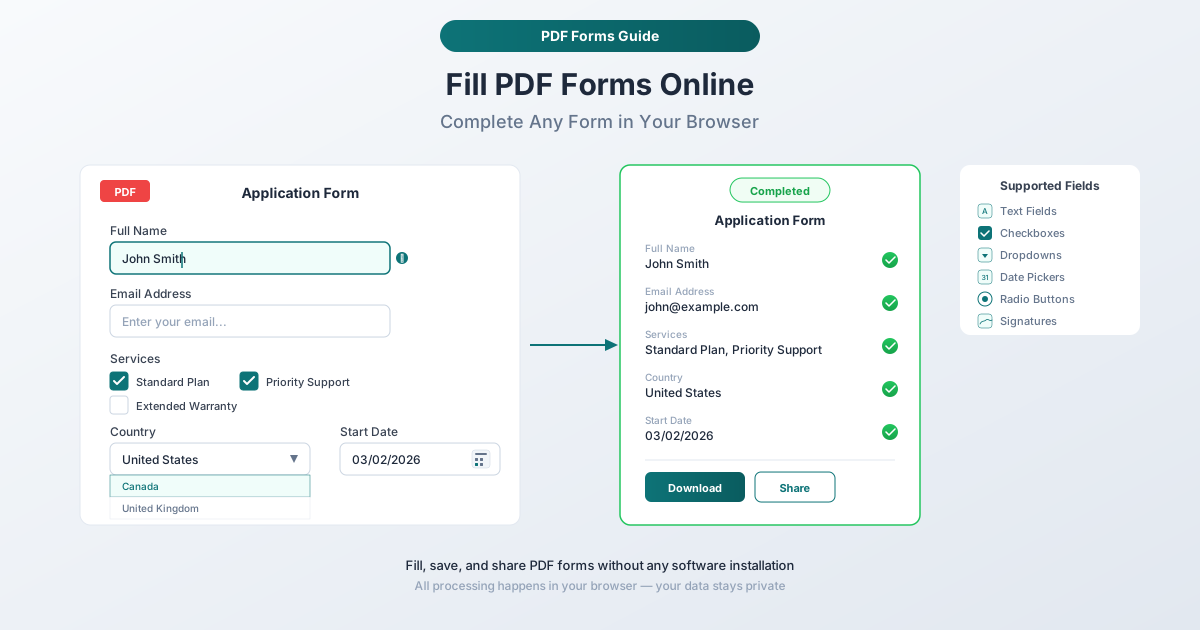
Fillable PDFs contain embedded form fields - invisible boxes, checkboxes, radio buttons, and dropdowns that are programmed into the document. When you click on a field, it activates and lets you type directly into it.
These forms are created intentionally using specialized PDF authoring tools. A well-designed fillable PDF might include:
- Text fields - For names, addresses, phone numbers, and other typed information
- Checkboxes - For yes/no questions, agreement boxes, and multi-select options
- Radio buttons - For single-choice selections (like filing status on a tax form)
- Dropdown menus - For selecting from a predefined list of options
- Date pickers - For entering dates in a consistent format
- Signature fields - For digital or electronic signatures
- Calculated fields - Fields that auto-compute totals based on other fields (common in tax forms)
You can usually spot a fillable PDF before clicking anything. The fields often appear as light blue or white rectangles against the form's background. Many fillable PDFs also display a purple banner at the top in Adobe Acrobat Reader that says "This document contains interactive form fields."
Flat (Non-Interactive) PDF Forms
Flat PDFs are essentially pictures of forms. They look identical to fillable forms on screen - you see blank lines, empty checkboxes, and labeled fields - but there are no interactive elements embedded in the file. Clicking on a "field" does nothing because there's no field there, just printed graphics.
Flat forms exist for several reasons:
- Scanned paper forms. Someone printed a form, scanned it, and saved it as a PDF. The result is just an image wrapped in a PDF container.
- Exported without form fields. The form was designed in Word or another layout tool and exported to PDF without adding interactive fields.
- Flattened after filling. A previously fillable PDF was "flattened" - a process that permanently bakes form data into the page and removes the interactive fields.
- Old or legacy software. Government agencies and large institutions sometimes distribute forms created years ago with software that didn't support interactive fields.
Flat forms are the harder scenario. You need a tool that can overlay text and marks on top of the static PDF content.
How to Tell the Difference
Here's the quick test: open the PDF and click on a field where you'd normally type (like a name field). If a cursor appears and you can type, it's fillable. If nothing happens, it's flat.
You can also press Tab to see if the cursor jumps between fields. In a flat PDF, Tab does nothing. Another method: try selecting text on the form. If you can highlight the form labels by clicking and dragging, the PDF has real text content and may be fillable. If you can't select any text at all, the PDF is probably a scanned image.
Method 1: PDFSub PDF Form Filler (Recommended)
PDFSub's PDF Form Filler handles both fillable and flat PDF forms in a single tool. You don't need to figure out which type you have first - the tool detects interactive fields automatically and provides overlay tools for everything else.
Why It's the Best Option
Works with both form types. This is the key advantage. Most free tools only handle fillable forms well. PDFSub lets you fill interactive fields normally and also add text, checkmarks, and signatures to flat forms - all in the same interface.
Browser-based processing. Your PDF is processed directly in your browser. The file doesn't get uploaded to a server, which matters when you're filling out forms with sensitive information like Social Security numbers, financial details, or medical records.
No account required to start. You can upload a PDF and begin filling it out immediately. PDFSub offers a 7-day free trial so you can test the full toolset without commitment.
Clean output. The filled form downloads as a standard PDF that looks professional - the added text matches the form's styling, checkmarks sit cleanly in checkbox areas, and signatures appear natural.
Step-by-Step: Fill a PDF Form with PDFSub
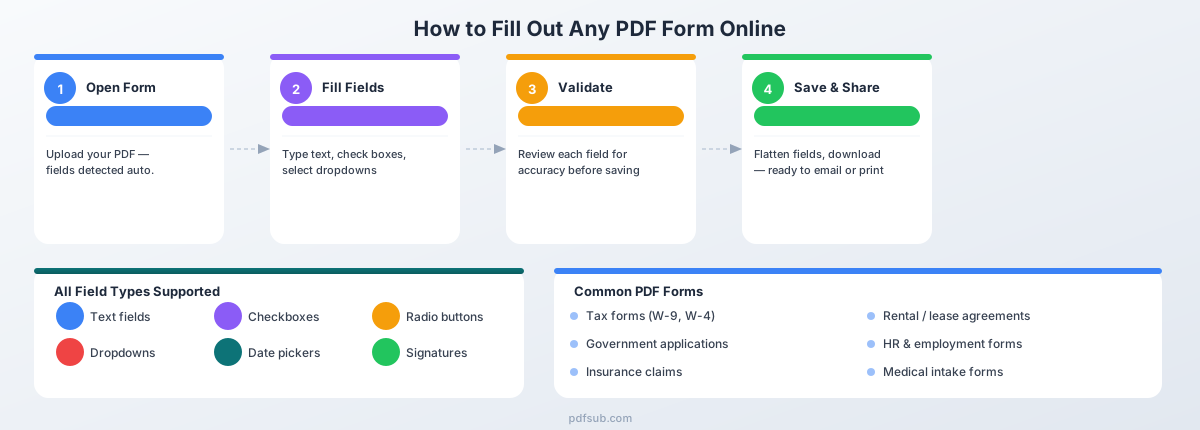
Step 1: Upload your PDF. Go to PDFSub's PDF Form Filler and drag your PDF into the upload area, or click to browse your files. The tool loads the document and displays it in the viewer.
Step 2: Fill interactive fields (if present). If the PDF contains fillable form fields, PDFSub detects them automatically. Click on any interactive field and type your information. Use Tab to move between fields. Checkboxes and radio buttons work with a single click.
Step 3: Add text to flat areas. For flat forms - or for any area on a fillable form that doesn't have an interactive field - use the text tool. Click where you want to add text, type your entry, and adjust the font size to match the surrounding form text.
Step 4: Add checkmarks. For checkboxes on flat forms, use the checkmark tool. Click on the checkbox area and a clean checkmark appears. You can resize it to fit the checkbox.
Step 5: Add a signature. If the form requires a signature, use the signature tool. You can draw your signature with your mouse or trackpad, type your name and select a signature style, or upload an image of your signature.
Step 6: Review and download. Scroll through the entire form to make sure every field is filled. Click to download the completed PDF - ready to email, upload, or print.
Method 2: Adobe Acrobat Reader (Free)
Adobe Acrobat Reader is the most widely installed PDF reader, and its Fill & Sign feature handles basic form filling for free.
Filling a Fillable PDF
- Open the PDF in Adobe Acrobat Reader.
- If the form has interactive fields, Acrobat displays a purple banner. Click "Highlight Existing Fields" to make all fillable areas visible.
- Click on each field and type your information. Use Tab to move between fields.
- For checkboxes and radio buttons, click to toggle them.
- Save the filled form with File > Save As.
Filling a Flat PDF
- Open the PDF and go to Tools > Fill & Sign.
- Click anywhere on the form to place a text insertion point. Type your entry.
- Use the Ab text-size buttons to match the form's font size.
- For checkboxes, click the checkmark icon in the Fill & Sign toolbar.
- For signatures, click Sign > Add Signature to draw, type, or upload your signature.
- Save the completed form.
Limitations
- Adobe account required for some features. Saving filled forms and certain Fill & Sign features may require signing in. Some advanced features require an Acrobat Pro subscription.
- Limited text formatting. The Add Text tool gives you basic font size control but limited font selection. Matching the exact typeface of the form can be difficult.
- Desktop application required. The full Fill & Sign experience requires downloading and installing Acrobat Reader.
- Privacy considerations. Adobe's cloud features sync data to Adobe's servers. Check your sync settings if filling forms with sensitive information.
Method 3: Preview on Mac (Built-In)
If you're on a Mac, Preview can handle basic form filling without installing anything.
Filling a Fillable PDF
Double-click the PDF to open it in Preview. If the form has interactive fields, Preview recognizes them automatically - click on a field and type. Use Tab to move between fields.
Filling a Flat PDF
- Open the PDF in Preview and click the Markup toolbar button (pencil tip icon).
- Click the Text tool ("T" icon) to add a text box wherever you need to place text.
- Type your entry and adjust font size using the formatting controls.
- For checkboxes, use the text tool to type an "X" or checkmark character.
- For signatures, go to Tools > Annotate > Signature to create or place a saved signature.
- Save the completed form.
Limitations
- Mac only. Windows and Linux users need a different tool.
- Tedious for flat forms. Adding individual text boxes for every field on a multi-page form is time-consuming. There's no way to tab between your added text boxes.
- Limited formatting control. Font matching is imprecise - Preview's text tool defaults to a font and size that may not match the form's typography.
- No field detection. Preview won't identify where fields should be on a flat form. You're placing text boxes entirely by eye.
Understanding Fillable PDF Form Fields
If you've received a well-made fillable PDF, here's how each field type works.
Text fields are the most common. Click the field, type your entry, and move on. They can be single-line (for names, phone numbers) or multi-line (for addresses, comments). Some have character limits or input masks - a phone number field might auto-format digits as (xxx) xxx-xxxx.
Checkboxes are independent - click once to check, click again to uncheck. You can check multiple boxes in a group. Common uses: agreement confirmations, feature selections, yes/no questions.
Radio buttons look similar to checkboxes, but they're mutually exclusive within a group - selecting one deselects the others. Used when only one answer is valid: filing status, payment method, priority level.
Dropdown menus show a list of options when clicked. Some let you type the first few characters to jump to a matching option, which speeds up navigation through long lists like state or country selectors.
Date pickers may include built-in calendars. Pay close attention to the expected format - the form may require MM/DD/YYYY, DD/MM/YYYY, or YYYY-MM-DD.
Signature fields are dedicated areas for digital signatures. The signature is cryptographically tied to the document - different from simply placing an image of your signature.
Calculated fields auto-compute values based on other fields. Common in tax forms and order forms. You don't type in these fields - they update automatically.
Common Forms People Need to Fill Out
PDF forms show up across every area of life. Here are the categories you're most likely to encounter.
Tax forms. W-9s (every freelancer's constant companion), W-4s for new employees, 1099 series for information returns, and state tax forms. The IRS typically provides fillable versions, but many companies redistribute their own flat copies. Tax forms require extreme accuracy - double-check every number and match the expected format for SSNs (XXX-XX-XXXX) and EINs (XX-XXXXXXX).
Government applications. Passport applications (DS-11, DS-82), visa applications, driver's license renewals, and business registration forms. Government forms often have strict formatting requirements - read all instructions about which fields to leave blank and which require ink signatures.
Insurance forms. Claims (health, auto, homeowner's), enrollment packets, and prior authorization forms. Have your policy numbers, group numbers, and provider IDs ready before you start.
Education forms. College application supplements, K-12 enrollment packets, permission slips, and transcript requests. School forms often come as packets of 5-15 pages - a tool that handles the full document at once saves significant time.
Medical forms. Patient intake forms, HIPAA consent documents, and prescription authorization forms. These contain highly sensitive personal information - use a tool that processes forms locally in your browser.
Employment and business forms. Job applications, I-9 employment verification, non-disclosure agreements, and vendor setup forms.
Rental and real estate forms. Rental applications, lease agreements (often requiring initials on every page), and property disclosure forms. These frequently require filling the same information on multiple pages - fill the first instance carefully and copy it exactly to maintain consistency.
Tips for Filling Out PDF Forms
Save frequently. Download a copy periodically as you work. Browser crashes and session timeouts can erase your progress on long forms.
Read the entire form first. Some forms have instructions at the end that affect earlier fields. Others have "For Office Use Only" sections that you should leave blank.
Use Tab to navigate. In fillable PDFs, Tab moves your cursor to the next field. Shift+Tab moves backward. This is always faster than clicking each field individually.
Match the font size on flat forms. Adjust your font size to match the existing printed text. If form labels are in 10-point type, your entries should be similar. Stick to standard fonts like Arial or Times New Roman.
Use a checkmark tool for flat form checkboxes. Typing an "X" works, but a proper checkmark looks cleaner and more professional.
Match date formats exactly. If the form shows "MM/DD/YYYY," enter "03/02/2026" - not "March 2, 2026." Format mismatches are one of the most common reasons forms get rejected.
Check whether digital signatures are acceptable. Some government and legal forms require wet ink signatures on paper. The form's instructions will specify this.
After Filling: Flatten and Share
Once you've filled out a PDF form, consider flattening it before sharing.
What Is Flattening?
Flattening permanently merges your form entries into the page content. After flattening, the form fields are gone - no one can click on a field and change your entries.
Why Flatten Before Sharing
Prevent changes. An unflattened form lets the recipient modify your entries by clicking on form fields. Consistent appearance. Unflattened fields can render differently across PDF readers - text might shift or field borders might appear unexpectedly. Smaller files. Flattened PDFs are often smaller because form field metadata is removed. Professional look. No highlight boxes, blue field backgrounds, or interactive cursors when hovering.
How to Flatten
PDFSub's Flatten PDF tool removes all interactive elements and locks the form content in place. Upload the filled PDF, click to flatten, and download the result. Processing happens in your browser.
In Adobe Acrobat Pro (paid), flatten by printing to PDF (File > Print > select Adobe PDF as the printer) or using the Prepare Form tool and selecting "Flatten Fields."
Frequently Asked Questions
Can I save a partially filled form and finish later?
Yes. In PDFSub, your work stays in the browser session as long as you keep the tab open - download a copy periodically for safety. In Adobe Acrobat Reader, use File > Save As for fillable forms (though some forms with restricted permissions may not allow saving). For flat forms with overlay text, download the current version and re-upload it later to continue.
How do I print a filled PDF form?
Open the filled (ideally flattened) PDF and use the standard print command (Ctrl+P on Windows, Cmd+P on Mac). Select "Actual Size" in print settings rather than "Fit to Page" - scaling can shift your entries relative to the form layout.
Can I fill the same form for multiple people?
Fill the common fields once, download that version as a template, and create copies for each person - changing only the unique fields. With PDFSub, fill the shared information, download the partially filled PDF, then upload it again for each additional person.
Is filling a PDF form online secure?
It depends on the tool. Tools that process forms in your browser - like PDFSub - never upload your PDF to a server. Your data stays on your device. Tools that require uploading to a server introduce privacy considerations - check their data retention policies and encryption practices.
Can I fill a PDF form on my phone?
Yes. PDFSub works in mobile browsers - upload a PDF, add text and checkmarks, and download the filled form directly on your phone. For complex multi-page forms, a larger screen is more comfortable. Adobe Acrobat Reader's mobile app also offers Fill & Sign with a free account.
What if the form doesn't accept my entries?
Some fillable forms have validation rules - a date field might reject text that doesn't match a specific format, or a numeric field might reject letters. Check the form's instructions for the expected format. If a field's validation seems wrong, try filling the form as a flat PDF instead - overlay text isn't subject to field validation rules.
What's the difference between filling a form and editing a PDF?
Filling a form means adding your information to existing blank fields without changing the form itself. Editing means modifying the document's content - changing text, moving elements, or adding new content anywhere. PDFSub offers both - the PDF Form Filler for form completion and the PDF Editor for general document editing.
Wrapping Up
Filling out a PDF form comes down to three questions: Is this form fillable or flat? What tool handles my form type? And did I flatten the result before sharing?
For fillable forms, almost any PDF reader works. For flat forms, you need a tool that can overlay text and marks on top of static content. For forms where you're not sure - or where you need both capabilities - PDFSub's PDF Form Filler handles everything in one interface, processes your form locally in the browser, and produces clean, professional results.
Start filling forms now with PDFSub's 7-day free trial - full access to the form filler plus all 98+ PDF tools. Cancel anytime.