How to Convert PDF to Word Without Losing Formatting
PDFs use absolute positioning. Word uses flow layout. Converting between them means bridging two fundamentally incompatible document models. Here's how to get the closest result - and what to expect when you do.
You have a PDF you need to edit in Word. Maybe it's a contract that needs a revised clause, a report that requires updated figures, or a resume you want to restructure. The content is right there - formatted, polished, ready to go. All you need is an editable version.
So you convert it. And the result looks like someone fed your document through a blender.
Tables split across pages. Headers drift into the body text. Images float to random positions. Two-column layouts become a single unreadable stream. The formatting you were trying to preserve is the exact thing that gets destroyed.
This isn't a bug in whichever converter you used. It's a fundamental incompatibility between how PDFs and Word documents represent content. Understanding why formatting breaks - and what "keeping formatting" realistically means - will save you hours of frustration and help you choose the right approach.
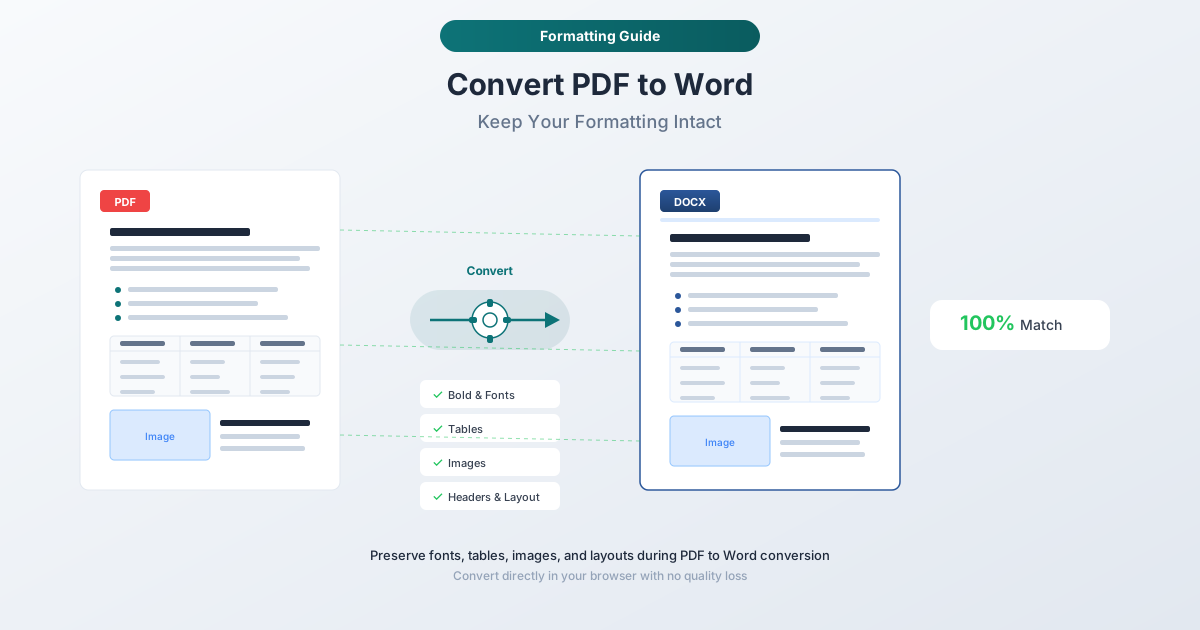
Why PDF to Word Formatting Breaks: Two Incompatible Models
To understand why every PDF-to-Word converter struggles with formatting, you need to understand what's happening under the hood. PDFs and Word documents don't just use different file formats - they use fundamentally different models for placing content on a page.
How PDFs Work: Absolute Positioning
A PDF is essentially a set of drawing instructions. Every character, line, and image is placed at exact x,y coordinates on a fixed-size canvas. The PDF specification (ISO 32000-2:2020) defines operators that position individual elements with pixel-level precision:
- A heading isn't "tagged as Heading 1." It's a text string rendered in a specific font at specific coordinates.
- A table isn't a structured grid. It's individual text fragments positioned to look aligned, with separate line-drawing commands for borders.
- A two-column layout isn't defined as "two columns." It's text placed in two spatial regions on the canvas.
PDFs have no concept of "flow." If you resize the page, nothing reflows - the content stays at its absolute coordinates and gets clipped or shows extra whitespace.
How Word Documents Work: Flow Layout
A .docx file is the opposite. Content flows through a document stream - paragraphs follow paragraphs, text wraps within margins, tables expand or contract based on content, and page breaks are calculated dynamically. Word applies styles (Heading 1, Body Text, List Bullet) that carry semantic meaning, and page layout is derived from these styles combined with margin and column settings.
If you change the font size in a Word document, everything after it reflows. Tables grow or shrink. Page breaks shift. This dynamic behavior is the entire point of the format.
The Conversion Gap
Converting PDF to Word means translating absolute positioning into flow layout. A converter has to answer questions like:
- "These text fragments at coordinates (72, 650) and (380, 650) - are they two columns or one line with a wide gap?"
- "This text at the top of every page - is it a header, or part of the body content?"
- "These lines around text - do they form a table, or are they decorative borders?"
- "This bold 14pt text - is it Heading 2, or just regular text that happens to be bold and large?"
There's no single right answer. Different converters make different guesses, and none of them are correct 100% of the time. This is why you can convert the same PDF with three different tools and get three noticeably different Word documents.
What "Keep Formatting" Realistically Means
Let's set honest expectations. When anyone says "convert PDF to Word without losing formatting," what's achievable is a close approximation - not a pixel-perfect reproduction.
What Typically Preserves Well
- Text content. The actual words almost always come through correctly (assuming the PDF has embedded text, not scanned images).
- Basic character formatting. Bold, italic, underline, font size, and font family usually survive conversion.
- Simple tables. Tables with regular grids - consistent rows and columns, no merged cells - convert reliably.
- Headings and paragraphs. The visual hierarchy of the document (large text for headings, smaller text for body) is usually maintained, even if the Word styles aren't semantically correct.
- Hyperlinks. Clickable links in the PDF typically carry over as hyperlinks in the DOCX.
- Page size and margins. The overall page dimensions are usually preserved.
What Typically Breaks
- Complex tables. Tables with merged cells, nested tables, or cells spanning multiple pages frequently lose their structure.
- Multi-column layouts. Two or three-column designs are among the hardest elements to convert. Converters may stack columns sequentially or interleave text from different columns.
- Text boxes and floating elements. Absolute-positioned text blocks become inline content, anchored frames, or disappear.
- Headers and footers. Repeated content at page tops and bottoms is detected inconsistently across converters.
- Precise spacing. Line spacing, paragraph spacing, and tab stops are approximated but rarely match exactly.
- Embedded forms. Fillable PDF form fields usually convert as static text or disappear entirely.
- Custom fonts. If the PDF uses fonts not installed on your system, Word substitutes them - changing character widths and breaking line wraps.
Understanding these limitations ahead of time means you won't waste an hour trying to "fix" a conversion tool when the problem is inherent to the format gap.
Method 1: PDFSub PDF to Word Converter (Recommended)
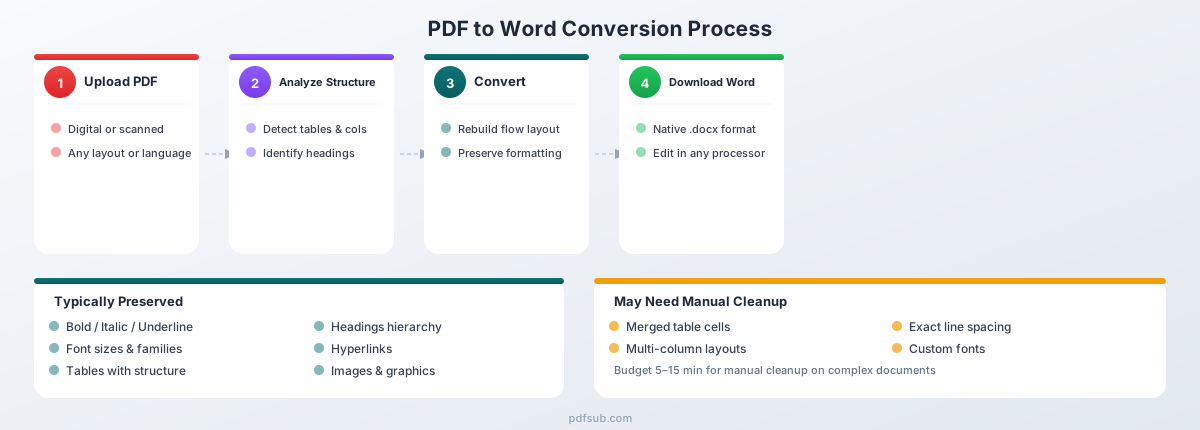
PDFSub's PDF to Word tool is designed to handle the full range of PDF documents - from simple single-page letters to complex multi-page reports with tables, images, and mixed layouts.
How to Convert
- Go to the PDF to Word tool. Navigate to pdfsub.com/tools/pdf-to-word.
- Upload your PDF. Drag and drop your file, or click to browse. There's no need to create an account to start a conversion.
- Convert. PDFSub analyzes the document structure - detecting tables, headings, images, columns, and text flow - and generates an editable DOCX file.
- Download your Word document. The converted file downloads as a .docx that opens in Microsoft Word, Google Docs, LibreOffice, or any word processor that supports the format.
What PDFSub Handles Well
Tables with structure. The converter detects table boundaries by analyzing line positions and text alignment, then rebuilds them as native Word tables with correct cell sizing. This means cells remain editable and the table responds to content changes - unlike some converters that insert tables as images.
Headings and text hierarchy. Font size, weight, and position analysis maps content to appropriate heading levels. The resulting Word document has a usable heading structure, which means the navigation pane, table of contents generation, and outline view all work as expected.
Images and graphics. Embedded images are extracted and placed in approximately the correct position within the document flow. Vector graphics and diagrams are preserved as image elements.
Multi-page documents. Headers and footers are detected and separated from body content, so they appear in Word's header/footer regions rather than cluttering the main text area.
130+ languages. PDFSub handles PDFs in any language - including right-to-left scripts like Arabic and Hebrew, CJK characters (Chinese, Japanese, Korean), and European languages with accented characters and special punctuation.
When to Use PDFSub
- Documents with tables you need to edit (financial reports, invoices, data sheets)
- Multi-page contracts or proposals where preserving structure matters
- PDFs you received from someone else and need to revise
- Any document where you want a clean, editable Word file without spending 30 minutes on manual cleanup
PDFSub offers a 7-day free trial, so you can test it on your actual documents before committing.
Method 2: Microsoft Word's Built-In PDF Import
Microsoft Word (2013 and later) can open PDF files directly and convert them to editable Word documents. This is built into Word - no plugins or extra software needed.
How to Convert
- Open Microsoft Word
- Go to File → Open → Browse
- Change the file type filter to "PDF Files" or "All Files"
- Select your PDF - Word displays a warning that the result may not look exactly like the original
- Click OK, wait for conversion, then save as .docx
What Word Does Well
- Simple text documents. Letters, memos, and single-column documents with basic formatting convert cleanly. If your PDF is essentially a text document with headings and paragraphs, Word handles it well.
- Basic formatting. Bold, italic, font sizes, and paragraph spacing are preserved with reasonable accuracy.
- No extra software. If you already have Microsoft 365 or Word 2019+, this method costs nothing additional and requires no downloads.
- Offline. Everything happens locally on your machine. No files are uploaded to any server, which is important for confidential documents.
What Word Struggles With
- Tables. Word's most documented weakness for PDF import. Tables frequently come out distorted - columns misaligned, cells merged incorrectly, content shifted between cells.
- Multi-column layouts. Two-column documents often convert as a single column with text in the wrong reading order.
- Images. May shift position, resize, or overlay text. Watermarks often disappear entirely.
- Complex layouts. Brochures, academic papers with figures, and non-standard layouts frequently produce unusable results.
- Scanned PDFs. Word's PDF import has no OCR capability. Scanned PDFs are inserted as images, not editable text.
Verdict
Word's built-in PDF import is best for simple, text-heavy documents where you don't need precise layout preservation. For complex documents, the results usually require significant manual cleanup - and in some cases, it's faster to retype the content than to fix the conversion output.
Method 3: Google Docs
Google Docs offers a free way to convert PDFs to an editable format, which you can then download as a Word document.
How to Convert
- Upload your PDF to Google Drive
- Right-click the file → Open with → Google Docs
- Google converts the PDF into an editable Google Doc
- Edit as needed
- Go to File → Download → Microsoft Word (.docx) to get a Word file
What Google Docs Does Well
- Free. No subscription required - just a Google account.
- Accessible. Works in any browser on any operating system.
- Text extraction. The actual text content comes through reliably for digital PDFs.
- Basic OCR. Google Docs can extract text from scanned PDFs, though accuracy varies and formatting is not preserved.
What Google Docs Struggles With
- Aggressive reformatting. Google Docs strips out most of the original layout. Multi-column designs become single-column. Complex spacing is flattened.
- Table destruction. Simple tables may survive, but anything with merged cells or multi-line cell content typically becomes unrecognizable.
- Image handling. Images may move, resize, or disappear entirely.
- No style preservation. Heading styles, paragraph styles, and custom formatting are largely ignored. Everything becomes default-formatted body text.
- Double conversion penalty. Since you're going PDF → Google Docs → DOCX, formatting degrades twice.
- Privacy. Your document is uploaded to Google's servers for processing - a concern for sensitive documents.
Verdict
Google Docs is a last-resort option when you need to extract text from a PDF for free and don't care about preserving formatting. For any document where layout matters, this method produces results that require more manual work than the other options.
Tips for the Best Possible Results
Getting a clean conversion isn't just about choosing the right tool. How you prepare the document and what you do after conversion matters just as much.
Before You Convert
Start with a digital PDF, not a scanned one. This is the single biggest factor in conversion quality. A digital PDF (created by software, not a scanner) contains embedded text that can be extracted directly. A scanned PDF requires OCR, which introduces errors and destroys formatting. To tell the difference: open the PDF and try to select individual words. If you can highlight text, it's digital. If the whole page selects as one block, it's scanned.
Remove password protection first. Most converters fail silently on encrypted files. If the PDF is password-protected, open it in your PDF viewer, then "Print to PDF" or "Save As" to create an unrestricted copy.
Split long documents. Documents over 50 pages may convert more reliably if split into smaller sections first. Layout analysis can accumulate errors across pages.
Know what you need to edit. If you only need to change a few words, consider whether a PDF editor might be more appropriate than converting to Word.
After You Convert
Check tables cell by cell. Tables are where formatting breaks most visibly. Open both the original PDF and the converted Word document side by side. Verify that columns are correctly aligned, cell content hasn't shifted, and the row count matches the original.
Verify headers and footers. Double-click the header/footer region in Word and confirm that header content isn't duplicated in the body, and that body content hasn't been incorrectly moved to the header.
Check image positions and fonts. Scroll through the document to verify images appear near their original context. If text looks "off" - unexpected line wraps, text overflowing table cells - the converter may have substituted a different font. Check Format → Font and install the original font or choose a close alternative.
Expect manual cleanup on complex documents. Even the best conversion from a complex PDF will require 5 to 15 minutes of manual adjustment. Budget this time - the format gap makes perfect conversion impossible. Save as .docx immediately once cleanup is done.
Special Cases
Converting Scanned PDFs
Scanned PDFs require OCR (Optical Character Recognition) before conversion. The result is typically a plain text document in Word with basic paragraph breaks - expect character misrecognition and loss of original formatting. For best results, scan at 300 DPI or higher with black text on white background.
PDFSub handles scanned PDFs automatically - it detects whether the PDF contains embedded text or scanned images and applies OCR when needed.
Converting PDFs with Fillable Forms
Fillable PDF forms (text inputs, checkboxes, dropdowns) have no direct equivalent in Word. Most converters either flatten the fields into static text or ignore them entirely. If you need an editable form in Word, plan to recreate the form structure using Word's content controls after converting the static content.
Converting Password-Protected PDFs
PDFs with an open password (required to view) must be unlocked before any converter can access the content. PDFs with permissions-only restrictions (prevents copying/printing but allows viewing) can usually be converted regardless. If your PDF is password-protected, open it with the password in your PDF viewer, then "Print to PDF" or "Save As" to create an unrestricted copy before converting.
When NOT to Convert to Word
Converting PDF to Word isn't always the right answer. In several common scenarios, there are better alternatives.
You Only Need to Make Small Edits
If you need to change a date, fix a typo, update a phone number, or swap a name - you don't need a Word document. A PDF editor lets you modify text directly in the PDF without any conversion at all. This preserves 100% of the original formatting because you're editing in place rather than translating between formats.
PDFSub offers PDF editing tools for common modifications like adding text, annotations, and page manipulation - no conversion required.
You Need to Extract Data, Not Edit the Document
If your goal is to get numbers from a table into a spreadsheet, converting to Word is an unnecessary intermediate step. Convert directly to Excel or CSV instead. PDFSub's PDF to Excel converter extracts tabular data into structured spreadsheet format, which is far more useful for data analysis than a Word table.
You Need an Exact Visual Copy or the PDF Is Signed
Word is a flow-layout format - it will never reproduce absolute positioning perfectly. If you need an identical visual copy, keep the PDF and use annotation tools to add comments, highlights, or stamps. Similarly, if the document has been digitally signed or certified, converting it to an editable format breaks the signature and may invalidate its legal status.
Method Comparison: Which Should You Use?
| Method | Cost | OCR | Best For | Formatting Quality |
|---|---|---|---|---|
| PDFSub | 7-day free trial | Yes | Complex documents, tables, multi-page reports | High |
| Microsoft Word | Free (with Word) | No | Simple text-heavy documents | Medium |
| Google Docs | Free | Basic | Text extraction when formatting doesn't matter | Low |
PDFSub provides the best balance of quality and ease of use for most documents. Word's built-in import works well for simple text-heavy documents. Google Docs is a last resort when you just need the words and don't care about layout.
Frequently Asked Questions
Can I convert multiple PDFs to Word at once?
Batch conversion depends on the tool. PDFSub supports uploading and converting multiple files. Microsoft Word's built-in import only handles one file at a time - you'd need to repeat the File → Open process for each PDF. Google Docs also handles one file at a time.
Will my hyperlinks survive the conversion?
In most cases, yes. Hyperlinks embedded in digital PDFs (clickable URLs, email links, internal document links) typically transfer to the Word document as working hyperlinks. Links that are just styled text (blue and underlined but not actually linked) will appear as text only. After conversion, hover over links to verify they point to the correct URLs.
Can I convert only specific pages from a PDF?
Not directly with most converters - they process the entire document. The workaround is to extract the pages you need into a separate PDF first (using a PDF split tool), then convert that smaller file. PDFSub offers page extraction tools that make this a quick two-step process: split the pages you need, then convert the result to Word.
Why does my converted document have different fonts?
PDFs can embed fonts that may not be installed on your computer. When Word opens the converted document, it substitutes missing fonts with available alternatives. These substitutions often have different character widths, which causes text to wrap differently, table cells to overflow, and line breaks to shift. To fix this, install the original font or choose a substitute with similar metrics (e.g., Arial for Helvetica, Times New Roman for Times).
Can I convert a PDF back to the original Word document it was created from?
No. Converting a PDF to Word creates a new approximation - it does not recover the original .docx file. Information is lost when Word generates a PDF (styles are flattened, flow layout becomes absolute positioning, edit history is stripped), and that information cannot be reconstructed. If the original Word file exists, always use that instead of converting from PDF.
How large a PDF can I convert?
File size limits vary by tool. For very large documents (50+ pages), splitting into smaller sections before converting typically produces better results because layout analysis can accumulate errors across pages.
Is it safe to convert confidential documents?
Safety depends on where the conversion happens. Tools that process files in your browser (client-side) never upload your document to a server - the file stays on your device. Server-side converters upload your file for processing, which creates a data exposure window. For contracts, financial documents, legal files, or anything containing personal information, prioritize tools with client-side or local processing. PDFSub processes digital PDFs in the browser whenever possible, falling back to server-side processing only for scanned documents that need OCR.
Summary
Converting PDF to Word without losing formatting is one of the most common document tasks - and one of the most frustrating. The core challenge is architectural: PDFs position content at fixed coordinates, while Word flows content dynamically. No converter bridges this gap perfectly, but the right tool and the right expectations make a significant difference.
The practical approach:
- Start with a digital PDF whenever possible - scanned documents add OCR errors on top of format translation.
- Use a purpose-built converter like PDFSub's PDF to Word tool for documents with tables, images, or complex layouts.
- Set realistic expectations - aim for a close approximation that saves time versus retyping, not a pixel-perfect match.
- Budget 5 to 15 minutes for cleanup on complex documents. Check tables, verify headers, and confirm image positions.
- Consider alternatives when conversion isn't actually what you need. Small edits are better handled by PDF editors. Data extraction is better handled by PDF-to-Excel tools.
The good news: for the majority of everyday documents - contracts, reports, letters, proposals, resumes - a modern converter produces results that need only minor adjustments. The days of getting completely garbled output from every conversion are largely behind us. The key is choosing the right method for your document type and knowing what to check afterward.