Convert Bank Statements to QBO Format
How to convert PDF bank statements to QBO files for QuickBooks - format details, step-by-step conversion, and why QBO beats CSV for imports.
QBO is QuickBooks' preferred file format for importing bank transactions. It's the one that just works - no column mapping, no date format guessing, no duplicate headaches. Upload the file, match it to an account, and you're reconciling.
But here's the problem: your bank gives you a PDF statement, not a QBO file. And QuickBooks can't read PDFs.
This guide explains what QBO format actually is, why it matters for QuickBooks users, and how to convert your PDF bank statements into QBO files that import cleanly.
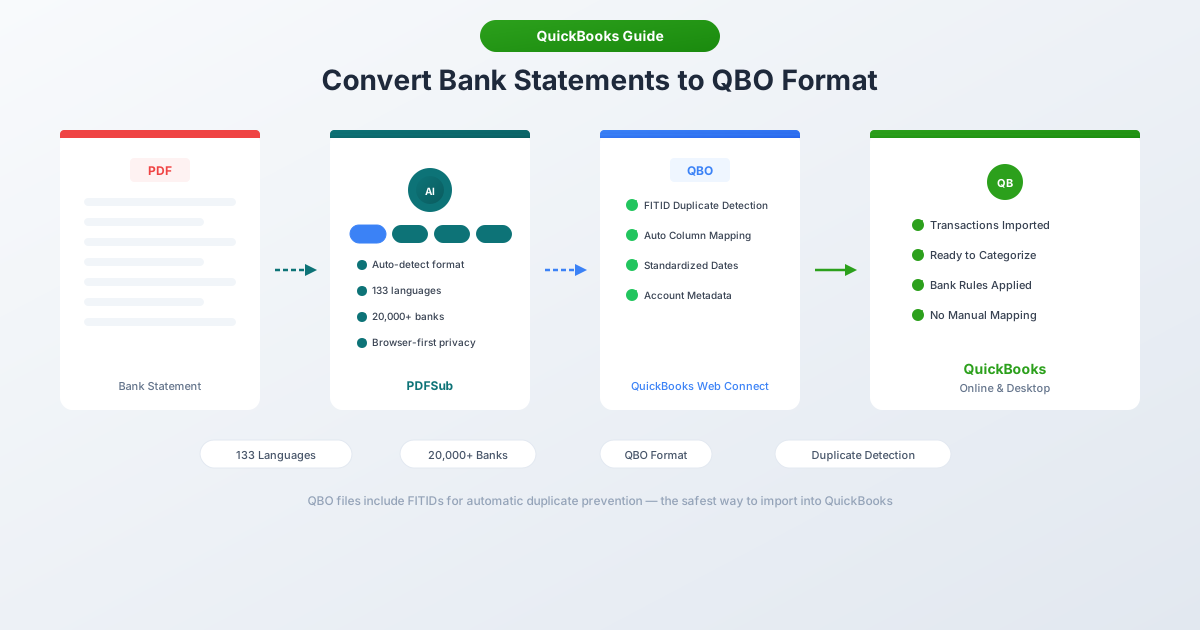
What Is QBO Format?
QBO (QuickBooks Web Connect) is a financial data file format built on the OFX (Open Financial Exchange) standard. It's essentially an OFX file with a .qbo extension and Intuit-specific tags added for QuickBooks compatibility.
The format uses SGML markup (similar to XML but with simpler syntax) and stores transaction data in a structured, machine-readable way. Every QBO file includes:
- Transaction records - date, amount, payee, memo, and check number for each transaction
- FITIDs - unique Financial Institution Transaction IDs that prevent duplicate imports
- Account metadata - bank routing number, account number, and account type
- Date range - the statement period covered by the file
- Currency - the currency code (USD, CAD, GBP, etc.)
When you import a QBO file into QuickBooks, all of this maps automatically. No column assignment. No manual date formatting. The transactions land in your bank feed ready for categorization and reconciliation.
Why QBO Beats CSV for QuickBooks
Both QBO and CSV can get transactions into QuickBooks. But they're not equal.
| Feature | QBO | CSV |
|---|---|---|
| Column mapping | Automatic | Manual - you assign each column |
| Duplicate detection | Yes (FITID-based) | No - reimporting creates duplicates |
| Date handling | Standardized (YYYYMMDD) | Must match your QuickBooks region |
| Amount formatting | Structured - no ambiguity | Must strip symbols, fix separators |
| Account metadata | Included | Not available |
| Check numbers | Preserved | May be lost |
| QuickBooks Desktop | Full support | Not supported for bank imports |
| Import time | Upload and done | Upload, map columns, verify |
The biggest advantage is duplicate prevention. Every transaction in a QBO file has a unique FITID. QuickBooks remembers every FITID it has ever seen - if you accidentally import the same file twice, QuickBooks silently skips the duplicates. With CSV, there's no protection. Import the same file twice and you'll have double entries to clean up.
QuickBooks Desktop note: Desktop versions don't accept CSV for bank transaction imports at all. QBO (via Web Connect) is the primary way to import bank data into QuickBooks Desktop without manual entry.
How QBO Compares to Other Formats
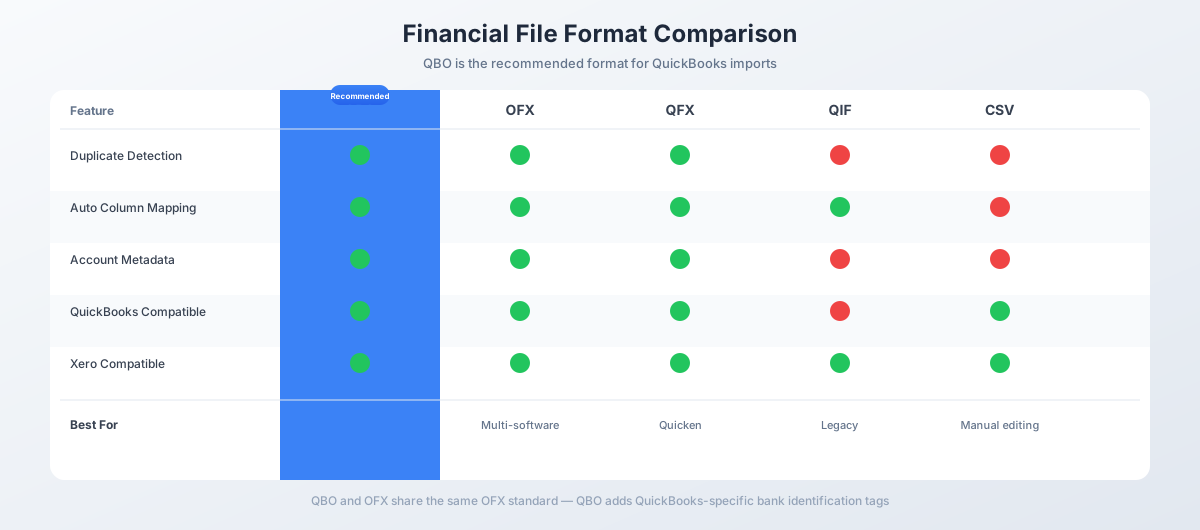
QBO, OFX, and QFX are cousins - they all share the same OFX standard foundation. The differences are in which software reads them:
| Format | Based On | Target Software | Extension |
|---|---|---|---|
| QBO | OFX + Intuit tags | QuickBooks | .qbo |
| QFX | OFX + Intuit tags | Quicken | .qfx |
| OFX | Open standard | Multiple (Xero, Wave, etc.) | .ofx |
| QIF | Intuit proprietary | Legacy Quicken | .qif |
| IIF | Intuit proprietary | QuickBooks Desktop only | .iif |
You can literally rename a .ofx file to .qbo and QuickBooks will usually read it. The main Intuit-specific addition is the INTU.BID tag - a bank identifier code that tells QuickBooks which financial institution the file came from.
QIF is outdated. It's a line-based text format from 1988 with no transaction IDs and no duplicate detection. If you have the choice, always use QBO or OFX instead.
How to Convert Bank Statements to QBO
Method 1: PDFSub (Recommended)
The fastest way to go from PDF bank statement to QBO file.
- Go to PDFSub's Bank Statement Converter
- Upload your PDF bank statement - drag and drop or click to browse
- PDFSub extracts the transactions automatically, detecting dates, amounts, and descriptions
- Review the extracted data in the preview
- Select QBO as the output format
- Download the file
PDFSub generates valid QBO files with unique FITIDs, proper date formatting, and correct debit/credit signs. It handles multi-page statements, running balances, and multi-line descriptions automatically.
The converter works with 20,000+ bank formats in 130+ languages. Digital PDFs (text-based) are processed in your browser - the file never leaves your computer.
The All-In-One plan is $20/user/mo (annual) or $25/user/mo (monthly), including 500 bank statement pages per user and a 7-day free trial.
Method 2: Download from Your Bank
Some banks offer QBO or OFX downloads directly from their online banking portal.
- Log in to your bank's website
- Go to the account's statement or transaction history section
- Look for a download option - it might be labeled "QuickBooks," "Web Connect," "QBO," or "OFX"
- Select the date range and download
The catch: Not all banks offer this, and when they do, it's usually limited to the last 90 days. For historical data, closed accounts, or banks without download options, you'll need Method 1.
Method 3: Convert CSV to QBO
If you already have a CSV file from your bank, you can convert it to QBO using PDFSub or a dedicated CSV-to-QBO converter. The key advantage is adding FITIDs for duplicate protection - something CSV files don't include natively.
Importing QBO Files into QuickBooks
QuickBooks Online
- Go to Banking (or Transactions → Bank Transactions)
- Click Upload transactions (or Link account → Upload from file)
- Select the bank account to upload to - or create a new one
- Choose your
.qbofile - QuickBooks parses the file and shows a preview
- Confirm the import
Transactions appear in the For Review tab. Categorize each one, match to existing entries, or create new transactions.
QuickBooks Desktop
- Go to File → Utilities → Import → Web Connect Files
- Select your
.qbofile - QuickBooks validates the file (requires an internet connection)
- Map the file to an existing bank account or create a new one
- Transactions appear in the Bank Feeds window
Important: QuickBooks Desktop must be within 3 years of its release to import QBO files. Versions older than 3 years lose Web Connect functionality.
Common QBO Import Issues
"Unable to verify financial institution"
Cause: The INTU.BID tag in the QBO file doesn't match a recognized bank in Intuit's directory. This is cosmetic - it affects the bank label shown during import but doesn't prevent the transactions from importing.
Fix: Accept the prompt and proceed. The transactions will import normally. PDFSub's generated QBO files use a compatible default BID.
Duplicate transactions are skipped
Cause: QuickBooks remembers every FITID it has ever imported. If you're reimporting a file (even after deleting the original transactions), QuickBooks silently skips transactions with previously seen FITIDs.
Fix: This is actually a feature - it prevents accidental duplicates. If you genuinely need to reimport, you'd need a file with new FITIDs.
Special characters causing import failure
Cause: Ampersands (&), angle brackets (<, >), or non-ASCII characters in payee names or descriptions. These characters have special meaning in SGML and must be properly encoded.
Fix: PDFSub automatically sanitizes these characters during QBO generation. If you're working with a QBO file from another source, open it in a text editor and replace & with &.
Credit card imported as bank account
Cause: The QBO file uses bank account tags (BANKMSGSRSV1) instead of credit card tags (CREDITCARDMSGSRSV1). QuickBooks creates the account as "Other Current Liability" instead of a credit card.
Fix: The QBO file needs the correct message wrapper for the account type. PDFSub detects whether a statement is from a checking account, savings account, or credit card and uses the appropriate QBO structure.
Payee names truncated
Cause: The QBO format's NAME and MEMO fields have a 32-character maximum. Longer payee names or descriptions get cut off during import.
Fix: This is a format limitation. PDFSub truncates names cleanly at word boundaries when generating QBO files, preserving the most useful part of the description.
When You Need PDF-to-QBO Conversion
Bank feeds handle most day-to-day transaction imports. But there are common scenarios where QBO conversion from PDF statements is the only option:
Catch-up bookkeeping. A new client hasn't done their books in months. Bank feeds go back 90 days at most. You need the rest from PDF statements.
Closed accounts. The business account was shut down last year. No bank feed available - only PDF statements. Convert to QBO and import.
International banks. Most banks outside the US don't support QuickBooks bank feeds. PDF statements are the norm for overseas accounts.
Feed disconnects. The bank feed broke when the client changed their password. Two weeks of transactions are missing. Download the PDF statement for that period and convert.
QuickBooks Desktop users. Desktop doesn't accept CSV for bank imports. QBO via Web Connect is the way to get bank data in without manual entry.
Tax season crunch. A pile of PDF statements, a new client, and a filing deadline. Converting PDFs to QBO is dramatically faster than typing every transaction by hand.
Frequently Asked Questions
What's the difference between QBO and OFX?
QBO is essentially OFX with Intuit-specific tags (primarily INTU.BID, the bank identifier). The underlying structure is identical. Both support FITIDs for duplicate detection, automatic column mapping, and account metadata. QBO is optimized for QuickBooks; OFX is a broader standard accepted by Xero, Wave, and other accounting software.
Can I open a QBO file to see what's inside?
Yes. QBO files are plain text. Open one in any text editor (Notepad, VS Code, TextEdit) and you'll see the SGML-formatted transaction data - dates, amounts, payee names, FITIDs, and account information.
Does QuickBooks Online accept QBO files?
Yes. QuickBooks Online accepts QBO, OFX, QFX, and CSV files. QBO and OFX are recommended because they include FITIDs for duplicate prevention and don't require column mapping.
Why can't I reimport a QBO file into QuickBooks?
QuickBooks tracks every FITID it has ever processed. Once a transaction's FITID has been seen, it won't be imported again - even if you deleted the original transaction. This prevents accidental duplicates but can be frustrating if you need to re-import.
Is QBO format the same for QuickBooks Online and Desktop?
Yes. The same QBO file works for both QuickBooks Online and QuickBooks Desktop. The import process differs (Online uses the Banking upload; Desktop uses File → Import → Web Connect), but the file format is identical.
How many transactions can a QBO file contain?
There's no hard limit in the format specification, but QuickBooks Online restricts uploads to approximately 350 KB per file - roughly 1,000–1,500 transactions. For larger imports, split the file by month or quarter.
Can I convert credit card statements to QBO?
Yes. QBO supports both bank accounts and credit cards. The file structure differs slightly - credit cards use CREDITCARDMSGSRSV1 instead of BANKMSGSRSV1 - but the conversion process is the same. PDFSub detects the statement type and generates the appropriate QBO structure.