Convert Bank Statements to OFX Format
OFX is the standard import format for Xero, MYOB, and FreeAgent. Here's how to convert bank statement PDFs to OFX and what makes it different from CSV and QBO.
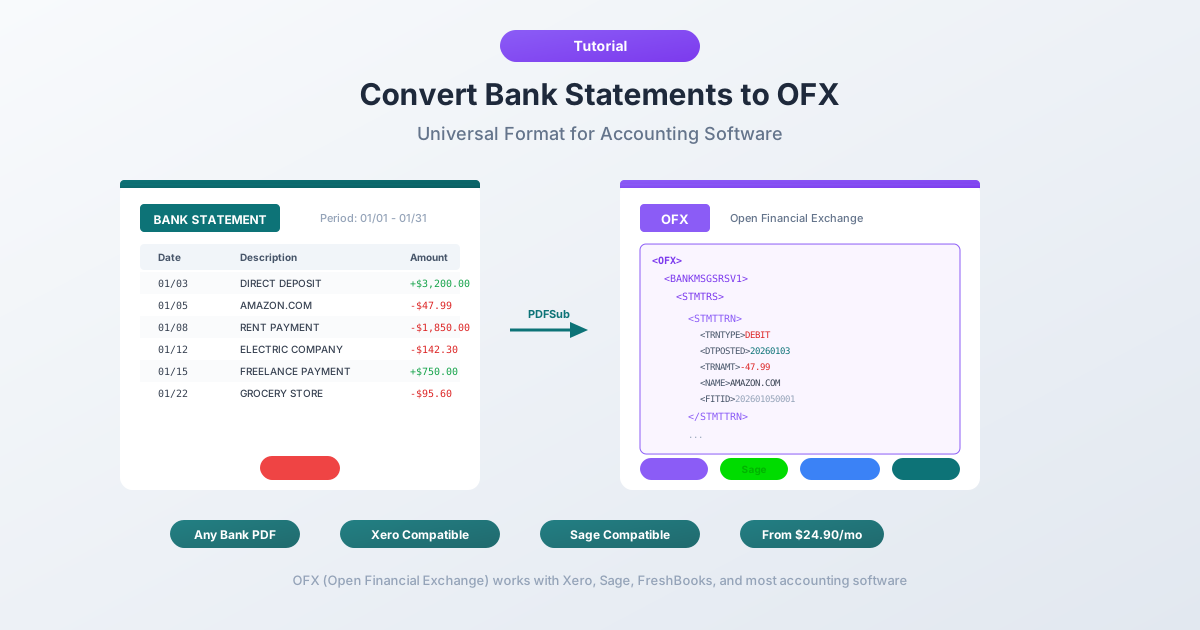
You need to get bank transactions into Xero, MYOB, or FreeAgent. The bank gave you a PDF statement. Maybe a CSV if you're lucky. But the accounting platform wants an OFX file - a format most people have never heard of, let alone know how to create.
OFX - Open Financial Exchange - is the standard financial data interchange format that these platforms were built around. It carries transaction IDs for duplicate detection, embeds account metadata, and maps columns automatically on import. No date format guessing. No manual column assignment. No accidentally importing the same month twice. It just works.
The problem is that banks almost never give you OFX files directly. They give you PDFs. Sometimes they offer CSV downloads - but CSV lacks the structure and duplicate protection that OFX provides. This guide explains what OFX format is, why accounting platforms prefer it, how it compares to CSV and QBO, and how to convert your bank statement PDFs into OFX files that import cleanly into Xero, MYOB, FreeAgent, and other software.
What Is OFX Format?
OFX stands for Open Financial Exchange. It is an XML-based data format designed specifically for exchanging financial information between institutions, software, and end users. Originally developed in 1997 by Microsoft, Intuit, and CheckFree, the specification is now maintained by the Financial Data Exchange (FDX). The current version, OFX 2.2, uses well-formed XML. Earlier versions (1.x) used SGML - a looser markup syntax that allowed unclosed tags. Most accounting software accepts both.
OFX files use the .ofx extension and contain structured financial data:
- Transaction records - date, amount, payee name, memo, check number, and transaction type (debit, credit, transfer, fee, etc.)
- FITIDs - Financial Institution Transaction IDs, unique identifiers assigned to each transaction for duplicate detection
- Account identification - bank routing number (BANKID), account number (ACCTID), and account type (checking, savings, credit card)
- Statement metadata - the opening and closing dates of the statement period, plus opening and closing balances
- Currency - the ISO 4217 currency code (USD, GBP, EUR, AUD, CAD, etc.)
When you import an OFX file into accounting software, every field maps automatically. No ambiguity, no column mapping, no room for misinterpretation.
Why OFX Matters for Accounting
OFX was purpose-built for financial data interchange, and that design shows in the details.
Transaction IDs (FITID) Enable Duplicate Detection
Every transaction in an OFX file carries a unique FITID - Financial Institution Transaction ID. When you import the file, the accounting software records every FITID it has seen. Import the same file again, or import two overlapping files, and the software silently skips any transaction with a previously seen FITID.
CSV has no equivalent. Import the same CSV twice and you get double entries. Cleaning up duplicate transactions is one of the most common - and most time-consuming - bookkeeping headaches. OFX eliminates it at the format level.
Account Identification Is Embedded
OFX files include the bank routing number and account number, so the accounting software can automatically match the import to the correct bank account - or warn you if the file doesn't match. CSV files carry no account metadata.
Standardized Structure Eliminates Column Mapping
With CSV, the software must ask: which column is the date? Which is the amount? Separate debit/credit columns or a single signed amount? OFX skips all of this. Every field has a defined tag - DTPOSTED for the date, TRNAMT for the amount, NAME for the payee. The software reads the tags and knows exactly where everything goes.
Statement Dates and Balances Included
OFX files include the statement period (opening and closing dates) and the ledger balance at the end of the period - context that CSV files don't carry, enabling balance verification and easier reconciliation.
Broad Software Compatibility
OFX is accepted by a wide range of accounting and financial software:
- Xero - preferred import format
- MYOB - supported natively
- FreeAgent - supported natively
- Wave - supported natively
- GnuCash - supported natively
- Sage - supported in most versions
- Microsoft Money (legacy) - the format was originally designed for it
- Moneydance - supported natively
- KMyMoney - supported natively
For QuickBooks users, the closely related QBO format (Intuit's OFX dialect) is the better choice. But for most other accounting platforms - especially Xero - OFX is the standard.
OFX vs. CSV vs. QBO
The three formats you will encounter most often when importing bank data into accounting software.
| Feature | OFX | CSV | QBO |
|---|---|---|---|
| Format basis | XML (structured markup) | Plain text (comma-separated) | SGML/XML (Intuit's OFX dialect) |
| Transaction IDs | Yes (FITID) | No | Yes (FITID) |
| Duplicate detection | Yes - automatic | No - manual cleanup needed | Yes - automatic |
| Column mapping | Automatic | Manual - user assigns each column | Automatic |
| Account metadata | Yes (routing + account number) | No | Yes (routing + account number) |
| Date format | Standardized (YYYYMMDD) | Varies - must match software region | Standardized (YYYYMMDD) |
| Statement balances | Yes (opening + closing) | No | Yes (opening + closing) |
| Amount handling | Single signed field, no ambiguity | May have separate debit/credit columns | Single signed field, no ambiguity |
| Special character handling | XML entities (encoded) | Varies - encoding issues common | SGML entities (encoded) |
| Primary software | Xero, MYOB, FreeAgent, Wave, GnuCash | Universal (any spreadsheet or accounting tool) | QuickBooks (Online + Desktop) |
| Editability | Requires XML knowledge | Easy - open in Excel | Requires SGML knowledge |
When to Use Each
Use OFX when: Importing into Xero, MYOB, FreeAgent, Wave, GnuCash, or any non-QuickBooks accounting software. Cleanest import path - automatic mapping, duplicate protection, no formatting issues.
Use QBO when: Importing into QuickBooks Online or Desktop. QBO is OFX with Intuit-specific tags. See our QBO conversion guide for details.
Use CSV when: The target software only accepts CSV, or you need to edit transactions before import. CSV is the universal fallback but requires more manual work and offers no duplicate protection.
Method 1: Convert PDF to OFX with PDFSub
The most direct path from a bank statement PDF to an OFX file ready for import.
- Download your bank statement PDF from your bank's website or email
- Go to PDFSub's Bank Statement Converter
- Upload your PDF - drag and drop or click to browse
- PDFSub extracts the transactions automatically, detecting dates, amounts, descriptions, and transaction types
- Select OFX as the output format from the format dropdown
- Download the OFX file
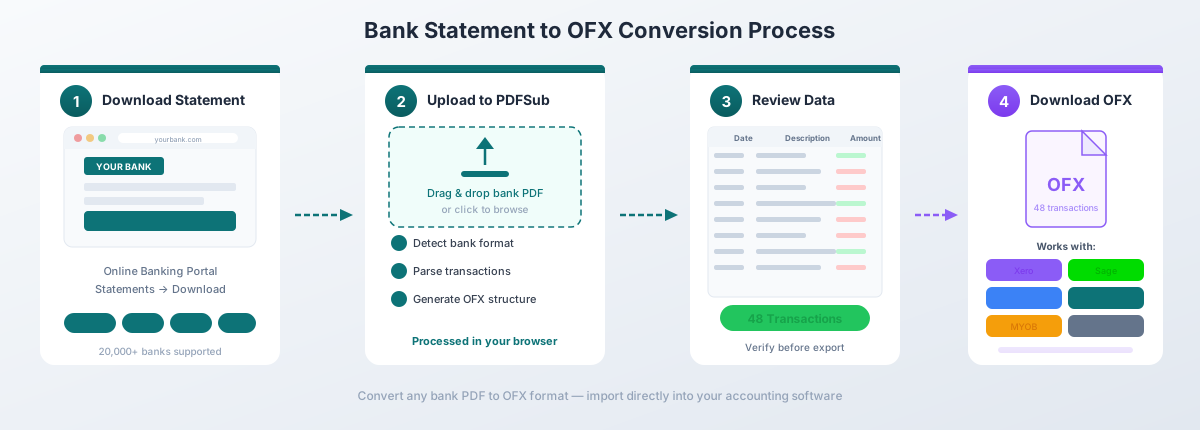
PDFSub generates valid OFX 1.x files with unique FITIDs for every transaction, properly formatted dates (YYYYMMDD), correct debit/credit signs, and the account metadata tags that accounting software expects. It handles multi-page statements, running balances, multi-line transaction descriptions, and both bank accounts and credit cards.
The converter works with 20,000+ bank formats in 130+ languages. Digital PDFs (text-based statements) are processed entirely in your browser - the file never leaves your computer. Scanned or image-based PDFs fall back to server-side AI extraction.
OFX is one of 8 output formats available, alongside CSV, Excel, TSV, JSON, QBO, QFX, and QIF. The All-In-One plan is $20/user/mo (annual) or $25/user/mo (monthly), including 500 bank statement pages per user and a 7-day free trial.
Method 2: Convert CSV to OFX
If you already have a CSV file from your bank - or from another conversion tool - you can convert it to OFX. But this is harder than it sounds because of what OFX requires beyond raw transaction data.
The challenges:
- FITID generation. Every transaction needs a unique Financial Institution Transaction ID. You must generate these deterministically - typically by hashing the date, amount, and description together - so that reimporting the same data produces the same FITIDs and triggers duplicate detection.
- Date formatting. OFX requires dates in YYYYMMDD format (e.g.,
20260302). Your CSV might have MM/DD/YYYY, DD/MM/YYYY, or another locale-specific format. Getting this wrong means transactions land on the wrong dates. - Account metadata. You need to set the BANKID (routing number) and ACCTID (account number) correctly, plus the ACCTTYPE (CHECKING, SAVINGS, or CREDITCARD). These values don't exist in the CSV - you have to know them and add them manually.
- Amount sign convention. OFX uses negative amounts for debits and positive for credits. If your CSV has separate debit/credit columns, you need to merge them. If your CSV uses the opposite sign convention (common with credit card statements), you need to flip it.
- XML structure. The OFX file needs correct header declarations, properly nested tags, and XML entity encoding for special characters (ampersands, angle brackets, non-ASCII characters).
Several desktop tools and online converters handle CSV-to-OFX conversion. PDFSub handles the full chain - PDF to OFX - in a single step, skipping the intermediate CSV entirely.
Importing OFX into Xero
Xero treats OFX as a first-class import format. The import process is straightforward.
Step-by-Step
- Log in to Xero and go to Accounting > Bank Accounts
- Click on the bank account you want to import transactions into
- Click Manage Account (or the three-dot menu) and select Import a Statement
- Click Browse and select your OFX file
- Click Import
- Xero parses the file and shows a summary - number of transactions, date range, and total amounts
- Confirm the import
Imported transactions appear as unreconciled statement lines. For each one, Xero offers three actions: Match (link to an existing invoice or bill), Create (create a new transaction with account codes and tax rates), or Transfer (record a transfer between bank accounts).
How Xero Handles Duplicates
When Xero imports an OFX file, it reads the FITID of each transaction and checks it against all previously imported FITIDs for that bank account. Any transaction with a previously seen FITID is silently skipped. This means you can safely import overlapping date ranges - Xero only adds the transactions it hasn't seen before.
This is one of the primary reasons Xero recommends OFX over CSV. With CSV, Xero has no reliable way to detect duplicates, and overlapping imports create duplicate statement lines that must be found and deleted manually.
For a complete guide to all Xero import methods - including bank feeds, CSV formatting rules, and troubleshooting - see our Xero bank statement import guide.
Importing OFX into MYOB
MYOB (Mind Your Own Business) supports OFX imports across both MYOB Business and MYOB AccountRight.
MYOB Business (Online)
- Go to Banking from the main menu
- Click Import statement
- Select the bank account
- Click Choose file and select your OFX file
- MYOB previews the transactions - review dates, amounts, and descriptions
- Click Import
MYOB AccountRight (Desktop)
- Go to Banking > Bank Feeds > Import Bank Statement
- Select the target bank account from the dropdown
- Browse to your OFX file and select it
- Review the imported transactions in the bank feed window
- Allocate each transaction to the appropriate account
MYOB uses the FITID from OFX files for duplicate detection, just like Xero. If a transaction's FITID already exists in the system, MYOB skips it during import.
Importing OFX into Other Software
FreeAgent
FreeAgent is popular among UK freelancers and small businesses. To import OFX:
- Go to Banking and select the bank account
- Click Import > Upload a bank statement
- Select your OFX file
- Review the preview and confirm the import
FreeAgent supports OFX, QIF, and CSV. Like Xero and MYOB, it uses FITIDs from OFX files to prevent duplicate imports.
GnuCash
GnuCash - the open-source accounting application - has native OFX import support through its AqBanking integration:
- Go to File > Import > Import OFX/QFX
- Select your OFX file
- GnuCash displays the transactions and asks you to map them to an account
- Review the matcher window - GnuCash highlights potential duplicates based on FITID
- Accept the import
GnuCash is one of the oldest OFX-compatible applications, and its import engine handles both OFX 1.x (SGML) and OFX 2.x (XML) files.
Wave
Wave Accounting (now owned by H&R Block) supports OFX import:
- Go to Accounting > Transactions
- Click the bank account
- Click Import CSV or OFX
- Upload the file and map it to the account
- Review and confirm
Wave also supports CSV, but OFX provides automatic field mapping and duplicate detection - the same advantages as with Xero and MYOB.
Understanding OFX File Structure
An OFX file is plain text. You can open one in any text editor to inspect its contents. Here is a simplified example showing the key elements:
OFXHEADER:100
DATA:OFXSGML
VERSION:102
SECURITY:NONE
ENCODING:USASCII
CHARSET:1252
COMPRESSION:NONE
OLDFILEUID:NONE
NEWFILEUID:NONE

<OFX>
  <SIGNONMSGSRSV1>
    <SONRS>
      <STATUS><CODE>0<SEVERITY>INFO</STATUS>
      <DTSERVER>20260302
      <LANGUAGE>ENG
    </SONRS>
  </SIGNONMSGSRSV1>
  <BANKMSGSRSV1>
    <STMTTRNRS>
      <STMTRS>
        <CURDEF>USD
        <BANKACCTFROM>
          <BANKID>021000021
          <ACCTID>123456789
          <ACCTTYPE>CHECKING
        </BANKACCTFROM>
        <BANKTRANLIST>
          <DTSTART>20260201
          <DTEND>20260228
          <STMTTRN>
            <TRNTYPE>DEBIT
            <DTPOSTED>20260205
            <TRNAMT>-85.50
            <FITID>20260205-8550-001
            <NAME>ACME SUPPLIES LLC
            <MEMO>Office supplies purchase
          </STMTTRN>
          <STMTTRN>
            <TRNTYPE>CREDIT
            <DTPOSTED>20260210
            <TRNAMT>3200.00
            <FITID>20260210-320000-001
            <NAME>PAYROLL DEPOSIT
            <MEMO>Direct deposit - February
          </STMTTRN>
        </BANKTRANLIST>
        <LEDGERBAL>
          <BALAMT>12456.78
          <DTASOF>20260228
        </LEDGERBAL>
      </STMTRS>
    </STMTTRNRS>
  </BANKMSGSRSV1>
</OFX>
Key Tags Explained
| Tag | Description |
|---|---|
BANKID |
Bank routing number (ABA number in the US) |
ACCTID |
Account number |
ACCTTYPE |
Account type: CHECKING, SAVINGS, MONEYMRKT, or CREDITLINE |
DTSTART / DTEND |
Statement period start and end dates (YYYYMMDD) |
STMTTRN |
A single transaction record |
TRNTYPE |
Transaction type: DEBIT, CREDIT, INT (interest), FEE, SRVCHG (service charge), DEP (deposit), ATM, POS, XFER (transfer), CHECK, PAYMENT, OTHER |
DTPOSTED |
Transaction date in YYYYMMDD format |
TRNAMT |
Transaction amount - negative for debits, positive for credits |
FITID |
Financial Institution Transaction ID - unique identifier for duplicate detection |
NAME |
Payee or transaction name (max 32 characters in OFX 1.x) |
MEMO |
Additional description or memo (max 255 characters) |
LEDGERBAL |
Closing balance with amount and date |
OFX 1.x (shown above) uses SGML syntax - tags don't require closing elements. OFX 2.x uses well-formed XML with proper closing tags. Most accounting software accepts both. For credit card statements, the wrapper changes to CREDITCARDMSGSRSV1 instead of BANKMSGSRSV1, but the transaction structure inside remains the same.
Common OFX Import Issues
Wrong Date Format
Symptom: Transactions appear on the wrong dates, or the import fails with a date error.
Cause: The OFX file contains dates that don't conform to the YYYYMMDD standard. Some poorly generated OFX files use locale-specific date formats (MM/DD/YYYY or DD/MM/YYYY) inside the XML tags.
Fix: Open the OFX file in a text editor and check the DTPOSTED values. They should be exactly 8 digits - 20260302, not 03/02/2026 or 02-Mar-2026. If the format is wrong, the file needs to be regenerated. PDFSub always outputs dates in the correct YYYYMMDD format.
Duplicate Transactions Are Skipped When You Need Them
Symptom: You deleted transactions and reimported the file, but the software won't import them again.
Cause: The software remembers every FITID it has ever seen. Even after deleting the original transactions, the FITID remains in the system's memory.
Fix: You need a file with new FITIDs. Contact your software's support for guidance on clearing FITID history, or manually edit the FITIDs in the OFX file using a text editor.
Missing Account Number
Symptom: The import fails, or the software cannot match the file to an existing bank account.
Cause: The BANKID or ACCTID tags in the OFX file are empty or contain placeholder values. Some OFX generators omit account metadata entirely.
Fix: Open the OFX file and add the correct BANKID (routing number) and ACCTID (account number). These must match the bank account settings in your accounting software, or you need to manually select the target account during import.
Encoding Problems with International Characters
Symptom: Payee names or descriptions show garbled characters - question marks, boxes, or incorrect accented letters.
Cause: The OFX file uses an encoding (e.g., USASCII or Latin-1) that doesn't support the characters in the transaction data - German umlauts, French accents, Japanese characters, Cyrillic text.
Fix: The OFX file should declare UTF-8 encoding in the header, and the actual file encoding must match. PDFSub generates OFX files with proper UTF-8 encoding.
File Too Large for Import
Symptom: The import times out or the software rejects the file with a size or transaction count error.
Cause: Most accounting platforms impose limits on import file size. Xero limits imports to 1,000 transactions per file. Other platforms have similar caps.
Fix: Split the OFX file into smaller files - typically by month or quarter. Each file should contain fewer than 1,000 transactions. Make sure the DTSTART/DTEND tags and LEDGERBAL values in each split file reflect the correct period.
Credit Card Transactions Import with Wrong Signs
Symptom: Purchases appear as income, and payments appear as expenses.
Cause: The OFX file uses the bank account wrapper (BANKMSGSRSV1) instead of the credit card wrapper (CREDITCARDMSGSRSV1). This confuses the accounting software's sign convention handling.
Fix: The OFX file needs the correct wrapper for the account type. PDFSub detects whether a statement is from a checking account, savings account, or credit card and applies the appropriate OFX structure automatically.
Frequently Asked Questions
What is the difference between OFX and QBO?
QBO is Intuit's proprietary dialect of OFX, designed for QuickBooks. The underlying structure is nearly identical - same tags, same FITIDs, same account metadata. QBO adds Intuit-specific tags like INTU.BID (bank identifier) and uses the .qbo extension. You can often rename a .ofx file to .qbo and QuickBooks will read it. Use QBO for QuickBooks, OFX for everything else.
Can I open an OFX file to see what is inside?
Yes. OFX files are plain text. Open one in any text editor - Notepad, VS Code, TextEdit - and you will see the markup with transaction dates, amounts, payee names, FITIDs, and account information. You can manually edit it if needed, though be careful with the structure.
Does Xero prefer OFX over CSV?
Yes. Xero recommends OFX over CSV for bank statement imports. OFX imports automatically without column mapping, includes FITIDs for duplicate prevention, and carries standardized date/amount formatting. CSV works but requires manual column mapping and offers no duplicate protection.
Can I convert OFX to CSV if I need to edit the data?
Yes. Most spreadsheet applications can't open OFX directly, but many tools can parse OFX and output CSV. If you need to edit transactions before import, converting to CSV first, making your edits, and then converting back to OFX is a common workflow.
How are FITIDs generated?
Banks assign FITIDs from their internal transaction reference numbers. When a converter like PDFSub generates OFX from a PDF, it creates deterministic FITIDs by hashing the transaction date, amount, and description together - so converting the same PDF twice produces the same FITIDs and reimporting does not create duplicates.
What is the maximum file size for OFX imports?
It depends on the software. Xero accepts up to 1,000 transactions per file. MYOB and FreeAgent have similar limits. GnuCash has no practical limit. If your statement contains more than 1,000 transactions, split it into multiple OFX files by month or quarter.
Does OFX support multiple accounts in one file?
The OFX specification allows multiple statement responses in a single file - one for each account. However, most accounting software expects one account per file. For reliable imports, generate a separate OFX file for each bank account.
Can I use OFX for credit card statements?
Yes. OFX supports credit card statements natively. The file structure uses CREDITCARDMSGSRSV1 as the wrapper instead of BANKMSGSRSV1, and transactions follow the credit card sign convention (purchases are negative, payments are positive). PDFSub auto-detects the statement type and generates the correct OFX structure.
Is OFX format still being updated?
Yes. The OFX specification is actively maintained by the Financial Data Exchange (FDX). The current version is OFX 2.2. However, most accounting software still accepts OFX 1.x files (SGML format) alongside the newer XML-based 2.x files. There is no urgency to use the latest version - 1.x compatibility is universal.
What currencies does OFX support?
OFX uses ISO 4217 currency codes - USD, GBP, EUR, AUD, CAD, JPY, CHF, and hundreds more. The currency is declared once in the CURDEF tag and applies to all transactions. Multi-currency statements are supported through the optional ORIGCURRENCY tag on individual transactions.