Best PDF Tools for Document Security (2026)
Need to protect, redact, encrypt, or watermark sensitive PDFs? Here are the best tools for document security - compared on features, privacy, and compliance.
PDFSub is best for:
- Teams that need true redaction, encryption, and metadata removal in a browser-based tool
- Organizations handling sensitive financial or legal PDFs who want files processed locally, not on third-party servers
- Users who want security tools bundled with 98+ other PDF tools instead of buying separate security software
- Professionals who need watermarking, password protection, and AI features in one platform
PDFSub is NOT best for:
- Enterprises requiring certificate-based digital signatures with PKI infrastructure
- Organizations needing DRM or Adobe LiveCycle Rights Management for document access control
- Users who need advanced preflight validation for print-production security compliance
A healthcare company accidentally sends a patient's unredacted medical records. A lawyer emails a contract PDF where "redacted" text can be copied and pasted by anyone who opens it. An accountant attaches a financial statement to an email without password protection, and it gets forwarded to the wrong person.
These aren't hypothetical scenarios. They happen regularly because most people don't understand the difference between real document security and the appearance of it.
This guide compares the best PDF tools for actual document security in 2026 - true redaction, real encryption, metadata removal, watermarking, and browser-based processing that keeps files off third-party servers.
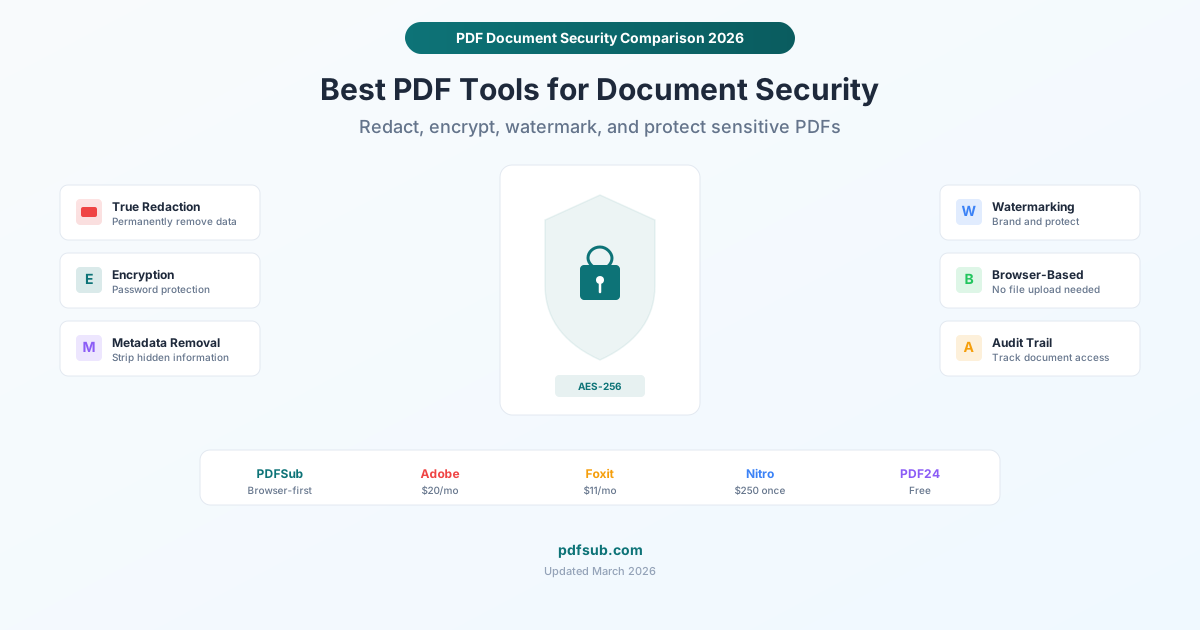
What "PDF Security" Actually Means
PDF security isn't one feature. It's a collection of capabilities that protect documents in different ways:
True Redaction vs. Visual Redaction
This is the most dangerous misunderstanding in document security. Putting a black rectangle over text in a PDF is not redaction. It's decoration.
Visual redaction (wrong): Drawing a black box over sensitive text using PDF annotation tools. The text is still in the file. Anyone can copy-paste it, extract it with a text tool, or open the file in an editor and move the box.
True redaction (correct): Permanently removing the text from the PDF file. After true redaction, the characters no longer exist in the document. There's nothing to copy, extract, or uncover.
Every year, government agencies, law firms, and corporations face embarrassing data leaks because someone used visual redaction instead of true redaction. The difference matters enormously.
Encryption (Password Protection)
PDF encryption uses AES-256 or AES-128 to make the document unreadable without the correct password. There are two levels:
- Open password: Prevents the file from being opened without the password
- Permission password: Allows the file to open but restricts printing, copying, or editing
AES-256 encryption is currently unbreakable by any known method. A well-chosen password makes the document genuinely secure.
Metadata Removal
PDFs contain hidden metadata: author name, software used, creation date, edit history, GPS coordinates (if created from a scanned photo), and more. This metadata can reveal who created a document, when, and with what tools - information you might not want to share.
Watermarking
Adding visible text (like "CONFIDENTIAL" or "DRAFT") across pages discourages unauthorized sharing and identifies the document's status. Not a security measure per se, but an important part of document management.
The Best PDF Security Tools Compared
1. PDFSub - Best for Browser-Based Security
Price: $20/user/mo (annual) - 98+ tools; 7-day free trial True redaction: Yes Encryption: Yes (AES-256) Metadata removal: Yes Watermarking: Yes Processing: Browser-based (files never leave your device)
PDFSub's security tools process entirely in your browser. This is the single most important security feature for many use cases: your sensitive document never uploads to a cloud server, never traverses the internet, and never sits on a third-party server's hard drive - even temporarily.
Security tools included:
- Redact PDF: True redaction that permanently removes text from the document
- Password Protect: AES-256 encryption with both open and permission passwords
- Remove Metadata: Strips author, software, creation date, and other hidden data
- Add Watermark: Add text watermarks across pages
- Unlock PDF: Remove password protection (with the password)
What's good:
- Browser-based processing is a genuine privacy advantage for sensitive documents
- True redaction (not just visual overlays)
- All security features in one subscription alongside 98+ other PDF tools
- No file uploads means compliance-friendly for HIPAA, GDPR, and other regulations
What's limited:
- No AI-powered PII detection (you manually select what to redact)
- Not a dedicated security product - it's a general PDF platform with security features
- Browser-based processing means your device's hardware does the work, which can be slower on large files compared to cloud processing
Best for: Anyone handling sensitive documents who wants security tools that don't compromise the very privacy they're supposed to protect.
2. Adobe Acrobat Pro - Best Enterprise Security Suite
Price: $19.99/month (Acrobat Pro); AI Assistant add-on $4.99/month extra True redaction: Yes Encryption: Yes (AES-256) Metadata removal: Yes Watermarking: Yes Processing: Desktop (files stay local); cloud features available
Adobe Acrobat Pro has the most comprehensive PDF security toolkit available. It's the tool that defined many of these features, and it remains the standard for enterprise document security.
Security tools included:
- True redaction with search-and-redact capability (find all instances of a social security number, for example)
- AES-256 encryption with granular permission controls
- Certificate-based security for enterprise-grade access control
- Digital signatures with certificate validation
- Metadata inspection and removal
- Accessibility compliance tools
What's good:
- The most thorough redaction tools available, including pattern-based search (redact all phone numbers, email addresses, etc.)
- Desktop processing means files stay on your machine
- Industry standard - meets compliance requirements by name in many regulated industries
- Digital signatures with certificate authority validation
What's limited:
- Expensive at $19.99/month, especially if you don't need Adobe's other features
- AI Assistant costs an additional $4.99/month
- Complex interface with a steep learning curve
- Annual commitment required for the best price; monthly billing is $29.99/month
Best for: Legal teams, healthcare organizations, and enterprise environments where compliance requirements specify Adobe or where AI-assisted redaction justifies the price.
3. Foxit PDF Editor - Best AI-Powered Redaction
Price: From $10.99/month (PDF Editor); $13.99/month (PDF Editor+) True redaction: Yes Encryption: Yes Metadata removal: Yes Watermarking: Yes Processing: Desktop + cloud
Foxit has invested heavily in AI features, and their Smart Redact tool is the standout. It uses AI to automatically detect personally identifiable information (PII) - names, addresses, social security numbers, phone numbers - and suggests redaction areas.
What's good:
- AI-powered PII detection in the PDF Editor+ plan ($13.99/month)
- True redaction with batch processing across multiple documents
- Lower price point than Adobe Acrobat Pro
- Desktop application means files stay local during processing
- 150 e-signature envelopes per year on the Professional plan
What's limited:
- AI redaction is only available on the higher-tier plans
- The interface is functional but not as polished as Adobe's
- Some advanced features require additional purchases or credits
- 20 free AI credits per month may not be enough for heavy redaction users
Best for: Organizations that process many documents containing PII and want AI to help identify what needs redacting.
4. Nitro PDF Pro - Best One-Time Purchase
Price: ~$250 one-time purchase (perpetual license) True redaction: Yes Encryption: Yes Metadata removal: Yes Watermarking: Yes Processing: Desktop
Nitro offers a perpetual license option, which is increasingly rare in a world of monthly subscriptions. If you want to pay once and own the software, Nitro is one of the few remaining options for a full-featured PDF security toolkit.
What's good:
- One-time purchase means no recurring costs
- Full redaction, encryption, and metadata removal
- Desktop processing (files stay local)
- Solid e-signature integration
What's limited:
- Perpetual license doesn't include major version upgrades - you'll need to pay again for Nitro's next major release
- No AI-powered features
- Windows only - no Mac or Linux versions
- The perpetual license option may not be prominently displayed (Nitro also pushes subscriptions)
Best for: Users who prefer a one-time purchase over subscriptions and work on Windows.
5. PDF24 - Best Free Security Tools
Price: Free (no limits, no watermarks) True redaction: Limited (basic black-out tools) Encryption: Yes (password protection) Metadata removal: Basic Watermarking: Yes Processing: Cloud-based (online) or local (desktop version)
PDF24 is 100% free with no restrictions. Their security tools are more basic than the paid options, but for password protection and watermarking, they get the job done at zero cost.
What's good:
- Completely free - no catches, no freemium limitations
- Password protection works reliably
- Desktop version for offline processing
- No account required
What's limited:
- Redaction tools are basic - verify that they truly remove data rather than just overlaying rectangles
- Metadata removal is not as thorough as dedicated tools
- Online tool uploads files to PDF24 servers (use the desktop version for sensitive documents)
- Windows only for the desktop app
Best for: Budget-conscious users who need basic password protection and watermarking.
Security Feature Comparison
| Feature | PDFSub | Adobe Acrobat | Foxit | Nitro | PDF24 |
|---|---|---|---|---|---|
| True redaction | Yes | Yes | Yes | Yes | Basic |
| AI-powered PII detection | No | Yes (+$5/mo) | Yes (Editor+) | No | No |
| AES-256 encryption | Yes | Yes | Yes | Yes | Yes |
| Metadata removal | Yes | Yes | Yes | Yes | Basic |
| Watermarking | Yes | Yes | Yes | Yes | Yes |
| Browser-based (no upload) | Yes | No | No | No | No |
| Digital signatures | Basic | Full | Full | Full | Basic |
| Batch redaction | No | Yes | Yes | Yes | No |
| Starting price | $15/mo | $19.99/mo | $10.99/mo | ~$250 once | Free |
| Additional tools | 98+ PDF tools | PDF editing | PDF editing | PDF editing | 30+ tools |
Common Security Mistakes to Avoid
1. "Redacting" by Drawing Black Boxes
If you draw a black rectangle over text using a PDF editor's annotation tools, you have not redacted anything. The text is still in the file. Use a tool that explicitly says "true redaction" or "permanent redaction" - and verify by copying text from the redacted area (nothing should paste).
2. Forgetting About Metadata
Before sharing a sensitive PDF, always check the metadata. It might contain your name, your company's name, the software version you used, or the document's edit history. Use a metadata removal tool before sharing.
3. Using Weak Passwords
"password123" protecting a PDF is barely better than no password. Use a strong, unique password for each encrypted document. If you need to share the password, send it through a different channel than the document itself (e.g., send the PDF by email and the password by text).
4. Uploading Sensitive Documents to Free Online Tools
That "free PDF password protector" you found on Google? You just uploaded your confidential financial statement to a stranger's server. For sensitive documents, use browser-based tools (like PDFSub) or desktop software that processes files locally.
5. Trusting Permission Passwords Alone
PDF permission passwords (which restrict printing or copying) are trivially easy to bypass with free tools. They're a deterrent, not a security measure. For real protection, use an open password (required to view the file) with AES-256 encryption.
Compliance Considerations
If you work in a regulated industry, document security isn't optional - it's mandated:
HIPAA (Healthcare): Protected health information (PHI) must be encrypted in transit and at rest. True redaction is required before sharing documents externally. Browser-based processing (no cloud upload) is the safest approach for HIPAA compliance.
GDPR (European data): Personal data must be protected with appropriate technical measures. Redaction and encryption qualify. The data processor (the PDF tool) must also be compliant - which favors browser-based tools that don't process your data at all.
SOX (Financial): Financial documents require access controls and audit trails. Encryption and password protection help meet these requirements.
Legal (FRCP, state rules): Court filings often require redaction of personal identifiers. Many courts have specific rules about what constitutes proper redaction. Visual overlays don't comply.
Frequently Asked Questions
How can I verify that redaction actually removed the text?
After redacting, open the file and try to select or copy text from the redacted area. If you can select anything, the redaction is just a visual overlay and the text is still there. In Adobe Acrobat, you can also use the "Examine Document" feature to check for hidden data. Alternatively, open the redacted PDF in a plain text editor - if you can find the redacted text in the raw file content, it wasn't truly redacted.
Is AES-256 encryption unbreakable?
For all practical purposes, yes. AES-256 would take billions of years to brute-force with current technology, and it's approved for Top Secret classified information by the U.S. government. However, the encryption is only as strong as the password. A weak password can be guessed or cracked through dictionary attacks in seconds. Always use a strong, unique password.
Should I use a browser-based or desktop tool for security?
For maximum privacy, use a tool that processes files locally - either a browser-based tool like PDFSub (which processes in your browser without uploading) or desktop software like Nitro or Adobe Acrobat. Cloud-based tools require uploading your sensitive document to a third-party server, which introduces risk even if the provider deletes the file after processing.
Can I redact a scanned PDF?
Scanned PDFs contain images rather than text, which makes traditional redaction trickier. You need to redact the image pixels, not text characters. Most professional redaction tools (Adobe Acrobat, Foxit) handle this correctly by removing the pixels in the redacted area. For scanned PDFs, always verify the redaction by zooming in on the redacted area - if you can see any text through the black box, it wasn't properly redacted.
Is PDFSub SOC 2 certified?
PDFSub is SOC 2 Ready, meaning the infrastructure and practices are aligned with SOC 2 requirements, but formal certification is not yet complete. The key security advantage of PDFSub is browser-based processing - since your files never leave your device for most tools, the attack surface is inherently smaller than cloud-based alternatives. For organizations that require formal SOC 2 certification, Adobe Acrobat and Foxit both hold current certifications.