Best Free PDF Editor Online (2026)
You shouldn't need a $23/month subscription to edit a PDF. Here are the best truly free PDF editors - what they can do, where they fall short, and which ones respect your privacy.
PDFSub is best for:
- Users who outgrow free tiers and want 98+ tools at $20/user/mo (annual) instead of juggling multiple free tools (7-day free trial)
- Privacy-conscious users who want browser-based processing instead of uploading to ad-supported servers
- Professionals who need AI summarization, translation, and data extraction alongside basic editing
- Small businesses that need e-sign, bank statements, and PDF editing in a single affordable plan
PDFSub is NOT best for:
- Users with zero budget who are happy with PDF24's unlimited free tools despite ads (PDFSub is subscription-only after the 7-day trial)
- Casual users who only edit PDFs once a month and can live with Smallpdf's 2 tasks/day
- Users who need a fully offline desktop editor like LibreOffice Draw
You need to add a signature to a contract. Or merge two PDFs before a meeting. Or compress a file so it fits in an email attachment. These are five-minute tasks. They should not require a $23/month subscription.
Yet that is exactly what Adobe Acrobat Pro costs. And most "professional" PDF editors charge $10 to $20 per month for features you might use a few times a week. The entire model is built around locking basic document tasks behind a recurring paywall.
The good news: you genuinely do not need to pay for most PDF work. There are free tools that handle merging, splitting, compressing, converting, signing, and annotating PDFs without charging you a cent. Some are completely unrestricted. Others have limits that matter. A few quietly upload your files to servers and keep them there.
This guide breaks down the best free PDF editors in 2026 - what each gives you for free, where the limits are, and which ones respect your privacy.
What to Look for in a Free PDF Editor
"Free" Means Different Things
There are three models:
- Truly free. No limits, no premium tier, no upsells. Supported by ads or offered as a loss leader. PDF24 and LibreOffice fall here.
- Freemium. A limited free tier designed to get you hooked. Smallpdf (2 tasks/day), Sejda (3 tasks/day), and iLovePDF (task limits and ads) use this model.
- Platform free. Bundled with something you already have - Google Docs, Microsoft Edge, Apple Preview.
Privacy Matters
When you use an online PDF editor, ask: does my file leave my device?
Most online tools upload your file to a remote server, process it, and send the result back. Your document sits on someone else's infrastructure for minutes, hours, or days. For a grocery list, this is fine. For a signed contract, medical record, or bank statement, it matters.
Tools that process files in your browser eliminate this risk entirely. The file never leaves your device. There is nothing to retain, nothing to breach.
Limits That Actually Affect You
- Daily task limits. Smallpdf caps you at 2 tasks/day. Sejda allows 3. Merge, compress, and convert one file - that is your daily allowance gone.
- File size limits. Under 10 MB is restrictive. Scanned documents routinely exceed 20 MB.
- Trial duration. PDFSub's 7-day free trial gives full access; after that it is paid only.
- Signup requirements. Having to create an account just to rotate a PDF is friction nobody needs.
The 9 Best Free PDF Editors in 2026
1. PDF24 - Best Completely Free Option
tools.pdf24.org | Completely free (ad-supported)
PDF24 is the most generous free PDF tool available. Over 30 tools with no daily limits, no file size restrictions, no watermarks, and no account required. Merge, split, compress, convert, sign, annotate, redact, compare, and OCR - all free.
The online version processes files on PDF24's servers (GDPR-compliant, auto-deleted after processing). The Windows desktop version works entirely offline.
Pros: Truly unlimited, no watermarks, no signup, GDPR compliant, desktop version for offline use. Cons: Ad-supported, interface is functional but not polished, desktop is Windows-only, no AI features, cannot edit existing text.
2. PDFSub - Best for Browser-Based Privacy
pdfsub.com | $20/user/mo annual (7-day free trial)
PDFSub bundles 98+ PDF and AI tools on a single subscription ($20/user/mo annual), with browser-based processing for tools like Merge PDFs, Compress PDF, E-Sign PDF, and more. Your PDFs never leave your device for these tools - no upload, no server processing, no data retention. Every plan includes a 7-day free trial with full feature access.
For quick tasks on short documents - signing a one-page form, merging a couple of pages, compressing a file - the trial gives full access to the entire toolkit.
Pros: 98+ tools on one subscription, files never leave your browser for core tools, no watermarks, clean interface, AI features included. Cons: Subscription required after the 7-day free trial (credit card required to start) - PDFSub does not have a free tier.
3. Smallpdf - Best Polished Interface
smallpdf.com | Free (2 tasks/day) / Pro at $9/month annually
Smallpdf has the most polished UX of any online PDF editor. Over 30 tools with clean design and reliable results.
The problem: you get exactly 2 tasks per day on free. Need to merge and compress? That is your day done.
Pros: Excellent interface, high-quality output, broad toolset. Cons: Only 2 free tasks/day, files uploaded to servers, account required.
4. iLovePDF - Best Free Batch Processing
ilovepdf.com | Free (with limits) / Premium at $7/month annually
iLovePDF has a more generous free tier than Smallpdf. Merging, splitting, compressing, converting, signing - most common tasks work without major friction. Some batch processing is available on free.
Trade-offs: 15-25 MB file limits, ads, and files uploaded to servers (auto-deleted within 2 hours).
Pros: Generous daily limits, broad tools, batch processing, files deleted within 2 hours. Cons: Ads, file size limits, server-side processing, account required for some features.
5. Sejda - Best Free for Editing Existing Text
sejda.com | Free (3 tasks/day, 200 pages) / Paid at $63/year
Sejda is one of the few free tools that lets you edit existing text in a PDF - click on text and modify it directly. Also supports form filling, signing, merging, and compression. No signup or watermarks.
Pros: Edit existing text (rare for free), 3 tasks/day, no signup, no watermarks. Cons: 3-task daily cap, 50 MB limit, files uploaded to servers.
6. Google Docs - Best for Text-Heavy PDFs
docs.google.com | Free (Google account required)
Google Docs converts PDFs to editable Docs format using built-in OCR. For simple text PDFs, this works well. The catch: layouts break, tables collapse, multi-column formatting disappears. Anything beyond a simple text document often becomes unusable.
Pros: Free with Google account, unlimited usage, OCR built in, collaborative editing. Cons: Formatting destroyed on complex PDFs, not a true PDF editor, files stored on Google's servers.
7. LibreOffice Draw - Best Free Desktop Editor
libreoffice.org | Completely free (open source)
LibreOffice Draw imports PDF pages into a drawing canvas for editing text, images, and shapes. Completely free with no limits. Like Google Docs, it converts PDFs to its own format - simple documents convert well, complex layouts break.
Pros: Completely free, works offline, edits text (after conversion), cross-platform, no ads. Cons: Requires installation, complex layouts break, dated interface, steep learning curve.
8. Microsoft Edge - Best Built-In for Windows
Built into Windows | Free
Edge includes a PDF viewer with highlighting, drawing, text notes, and form filling. It handles basic annotation well. But it cannot edit text, merge files, compress, or convert - annotation only.
Pros: Already installed, smooth annotation, form filling, files stay local, no account. Cons: Cannot edit text, no merge/split/compress/convert, very limited feature set.
9. Apple Preview - Best Built-In for Mac
Built into macOS | Free
Preview supports highlighting, annotations, shapes, signatures via trackpad, form filling, and page organization. Signature capture is excellent. Cannot edit existing text, images, or layout.
Pros: Pre-installed, excellent trackpad signatures, page reorder/delete, merge by dragging, files stay local. Cons: Cannot edit existing text, Mac only, no compression/conversion/OCR, no batch processing.
Feature Comparison
| Feature | PDF24 | PDFSub | Smallpdf | iLovePDF | Sejda | Google Docs | LibreOffice | Edge | Preview |
|---|---|---|---|---|---|---|---|---|---|
| Merge PDFs | Yes | Yes | Yes | Yes | Yes | No | No | No | Yes |
| Split PDFs | Yes | Yes | Yes | Yes | Yes | No | No | No | Yes |
| Compress | Yes | Yes | Yes | Yes | Yes | No | No | No | No |
| Convert (Word, Excel) | Yes | Yes | Yes | Yes | Yes | Partial | Partial | No | No |
| E-Sign | Yes | Yes | Yes | Yes | Yes | No | No | No | Yes |
| Edit Existing Text | No | No | No | No | Yes | Partial | Partial | No | No |
| OCR | Yes | Yes | Yes | Yes | Yes | Yes | No | No | No |
| Fill Forms | Yes | Yes | Yes | Yes | Yes | No | No | Yes | Yes |
| Annotate | Yes | Yes | Yes | Yes | Yes | Yes | Yes | Yes | Yes |
| AI Features | No | Paid | Paid | No | No | No | No | No | No |
Limits Comparison
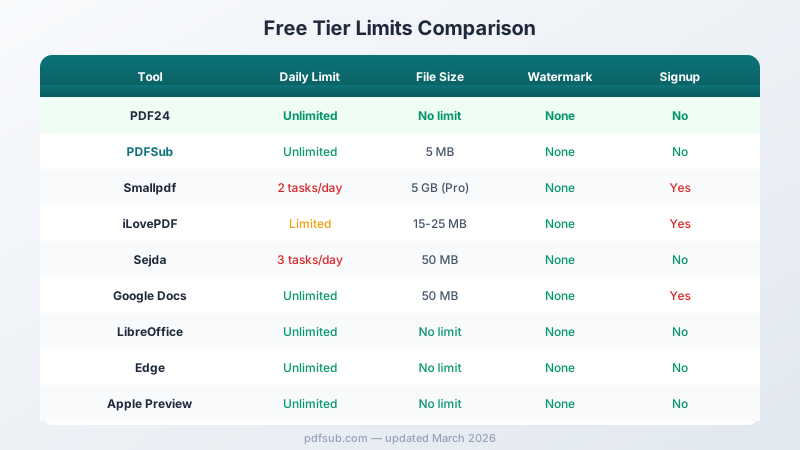
| Tool | Daily Limit | File Size | Output Limit | Watermark | Signup |
|---|---|---|---|---|---|
| PDF24 | Unlimited | No limit | No limit | None | No |
| PDFSub | 7-day trial, then $20/user/mo annual | Per plan | Per plan | None | Yes |
| Smallpdf | 2 tasks | Varies | No limit | None | Yes |
| iLovePDF | Limited | 15-25 MB | No limit | None | For some tools |
| Sejda | 3 tasks | 50 MB | 200 pages | None | No |
| Google Docs | Unlimited | 50 MB | No limit | None | Yes |
| LibreOffice | Unlimited | No limit | No limit | None | No |
| Edge | Unlimited | No limit | No limit | None | No |
| Preview | Unlimited | No limit | No limit | None | No |
Privacy: Who Uploads Your Files?
Files Never Leave Your Device
- PDFSub (browser-based tools) - Core tools process entirely in your browser. No upload. Nothing to delete because nothing was sent. Subscription required after the 7-day free trial.
- LibreOffice Draw - Desktop application. Files stay local.
- Microsoft Edge - Built-in viewer. Files stay local.
- Apple Preview - Built-in viewer. Files stay local.
Files Uploaded to Servers
- PDF24 - Uploaded for processing. GDPR-compliant. Auto-deleted. Desktop version processes locally.
- Smallpdf - Uploaded. Encrypted in transit and at rest. Deleted after 1 hour.
- iLovePDF - Uploaded. Encrypted. Auto-deleted within 2 hours.
- Sejda - Uploaded. Auto-deleted after 2 hours.
Files Stored on Cloud
- Google Docs - Uploaded to Google Drive. Stored indefinitely until you delete it.
If you handle sensitive data - financial records, legal contracts, PII - tools that never upload your files provide a fundamentally stronger privacy guarantee.
When Free Is Not Enough
Free handles the majority of everyday tasks. But there are legitimate reasons to pay:
You hit daily limits regularly. Processing more than 2-3 PDFs per day makes Smallpdf and Sejda impractical.
You need AI-powered extraction. No free tool can look at a bank statement or invoice and extract structured data into a spreadsheet. AI processing costs money.
You need to edit existing text frequently. Only Sejda offers this for free at 3 tasks per day.
You work with large files. Scanned documents and image-heavy PDFs easily exceed 50 MB. Most free tiers restrict file sizes.
You need batch processing. Converting 50 invoices or compressing 30 reports at once is a paid feature everywhere.
Frequently Asked Questions
Is there a truly 100% free PDF editor with no limits?
Yes. PDF24 is completely free with no daily limits, no file size restrictions, and no watermarks. LibreOffice Draw is completely free and open source. Trade-offs are ads (PDF24) and a dated interface (LibreOffice).
Do free PDF editors add watermarks?
None of the tools in this guide add watermarks. This used to be common but has largely disappeared in 2026.
Are online PDF editors safe?
Tools that process files in your browser (PDFSub, desktop tools) never see your file contents. Server-based tools (PDF24, Smallpdf, iLovePDF, Sejda) encrypt data and delete within hours. Low risk for casual use, but browser-based or desktop tools are inherently safer for sensitive documents.
Can I edit existing text in a PDF for free?
Sejda is the best free option (3 tasks/day). Google Docs and LibreOffice can modify text but convert PDFs to their own format first, often breaking formatting.
What is the best free PDF editor for Mac?
Apple Preview for annotations and signatures. PDF24 in the browser for more features (or PDFSub if you want a paid all-in-one suite with a 7-day free trial). LibreOffice Draw for offline editing.
What is the best free PDF editor for Windows?
PDF24 for the most complete free experience (online + desktop). Edge for quick annotations. LibreOffice Draw for offline editing.
Can I merge PDFs for free?
Yes. PDF24, Smallpdf, iLovePDF, Sejda, and Apple Preview all support free merging. PDF24 has no limits. Smallpdf and Sejda count it against daily tasks. PDFSub also offers merging, but as part of a paid subscription with a 7-day free trial.
The Bottom Line
For a completely free, unlimited PDF tool, PDF24 is hard to beat. Every common task, no restrictions, no cost. Ads are the price.
For privacy-first processing where files never leave your device, PDFSub offers 98+ browser-based tools on a single subscription starting at $20/user/mo (annual). Every plan includes a 7-day free trial with full feature access - the privacy guarantee on browser-processed tools is unmatched.
For occasional use with polish, Smallpdf is excellent - if 2 tasks per day is enough.
For zero friction, Preview and Edge are already on your machine.
The days of paying $20/month to sign a PDF are over. Pick the free tool that fits your workflow.