Best Free PDF Compressor Tools Online (2026)
PDF too large for email? Here are the best free tools to compress PDF files - with honest comparisons of compression quality, limits, and privacy.
PDFSub is best for:
- Users who want browser-based compression where sensitive files never leave the device
- Anyone who compresses PDFs regularly and wants adjustable quality levels without ads
- Professionals who also need merge, convert, e-sign, and AI tools in one subscription
- Teams handling financial or legal documents who cannot risk cloud uploads for compression
PDFSub is NOT best for:
- Users who only compress a PDF once or twice a year and prefer a fully free tool
- Power users who need command-line or batch compression for thousands of files
- Anyone on a zero-budget who is fine with ad-supported free compressors like PDF24
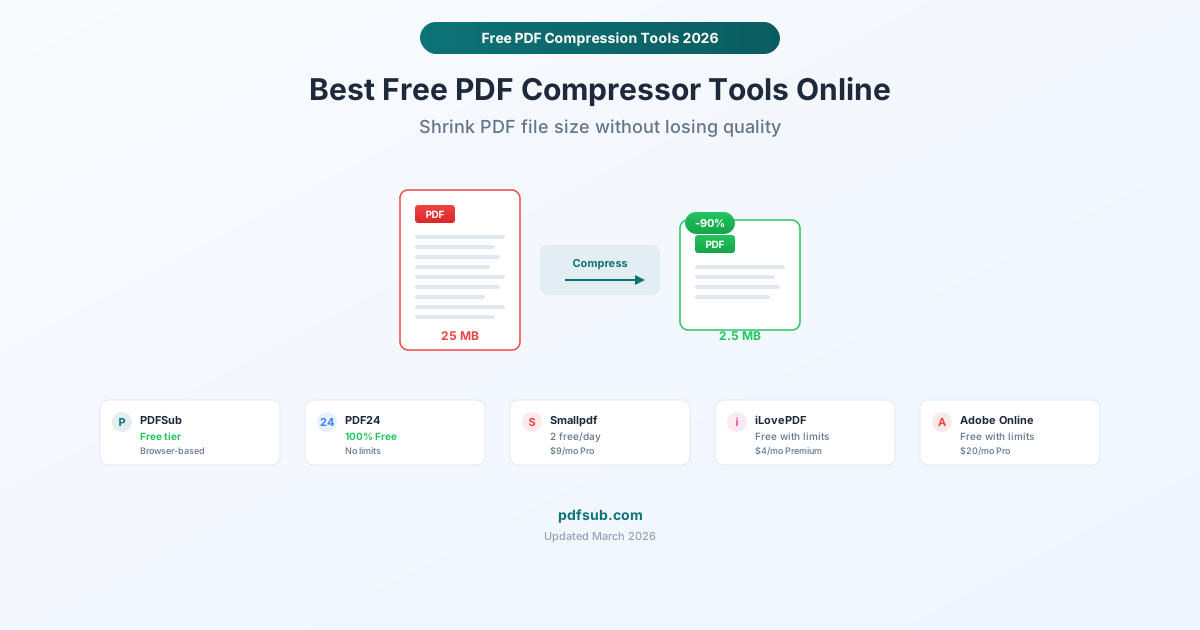
You have a PDF that's too large. Maybe it's a 25 MB report that won't attach to an email. Maybe it's a 50 MB presentation that takes forever to load on your client's phone. Maybe your website's upload form caps at 10 MB and your document is 12.
You need to compress it. You need it free. And you need it to not look terrible afterward.
This guide compares the best free PDF compression tools available online in 2026. We'll be honest about what each tool does well, where the limits are, and which ones respect your privacy.
How PDF Compression Actually Works
Before comparing tools, it helps to understand what happens when you compress a PDF. Most PDF file size comes from three things:
Images. A PDF with high-resolution photos or scanned pages can be enormous. Compression reduces image resolution and applies lossy compression (like JPEG) to shrink them. This is where most of the size reduction happens.
Embedded fonts. PDFs embed fonts to ensure they display correctly on any device. Full font embedding can add megabytes. Compression tools can subset fonts (including only the characters actually used) to reduce this.
Redundant data. PDFs accumulate hidden data over multiple edits - duplicate objects, unused resources, metadata. Compression tools strip this out without affecting appearance.
The tradeoff is always the same: smaller file size versus visual quality. A tool that compresses a 25 MB file to 500 KB will likely produce noticeable image degradation. A tool that maintains original quality might only achieve a 20% reduction. The best tools give you control over this balance.
The Best Free PDF Compression Tools
1. PDFSub - Best Browser-Based Compression (7-Day Free Trial)
Price: $20/user/mo (annual) - 7-day free trial File size limit: Varies by plan Privacy: Browser-based processing - your file never leaves your device Compression levels: Adjustable
PDFSub compresses PDFs entirely in your browser. When you upload a file, it's processed locally using your device's processing power. The file never touches a server. This is a genuine privacy advantage - especially for documents containing financial data, personal information, or confidential business content. Every plan includes a 7-day free trial with full feature access.
What's good:
- True browser-based processing (not just a marketing claim - no network request with your file)
- Part of a 98+ tool suite (Merge PDFs, Split PDF, E-Sign PDF, Redact PDF, AI tools all included)
- Adjustable compression levels let you balance quality vs. size
- Clean interface with no intrusive ads
What's limited:
- Subscription required after the 7-day free trial (credit card required to start) - PDFSub does not have a free tier
- For maximum compression on image-heavy PDFs, cloud-based tools sometimes achieve better ratios because they can run more computationally intensive algorithms
- No desktop app (browser only)
Best for: People who handle sensitive documents and want compression plus other PDF tools in one place.
2. PDF24 - Best Truly Free Option
Price: 100% free - no limits, no watermarks, no registration File size limit: None stated Privacy: Cloud-based (files uploaded to PDF24 servers); desktop version available for offline use Compression levels: Multiple modes (normal, strong, lossless)
PDF24 is the rare tool that's genuinely free with no catches. No account required, no watermarks, no daily limits. They make their money through ads on the site and their desktop software, not by restricting the online tools.
What's good:
- Completely free with no limits - this isn't a freemium bait-and-switch
- Multiple compression modes: normal, strong, and lossless
- DPI and image quality settings for fine-tuned control
- Desktop version (PDF24 Creator) works offline and is also free
- Has been around since 2006, updated regularly (latest version from January 2026)
What's limited:
- Online tool uploads files to PDF24's servers - not ideal for sensitive documents
- The website has ads (the trade-off for free)
- Interface is functional but not as polished as commercial competitors
- Only available on Windows for the desktop version
Best for: Anyone who compresses PDFs regularly and wants zero restrictions. Use the online tool for non-sensitive files; install the desktop version for private documents.
3. Smallpdf - Best User Experience
Price: Free (2 tasks per day); Pro $9/month per user File size limit: 5 MB on free plan Privacy: Cloud-based (files uploaded to Smallpdf servers, deleted after 1 hour) Compression levels: Basic and Strong (Pro only)
Smallpdf built its reputation on a clean, intuitive interface, and it shows. The compression tool is as simple as drag-and-drop. But the free plan has gotten more restrictive over the years - you now get just 2 free tasks per day across all Smallpdf tools.
What's good:
- The best user interface of any PDF tool - simple, fast, no confusion
- Drag-and-drop compression with instant results
- Shows the compression ratio and file sizes clearly
- Pro plan ($9/month) gives unlimited access to ~20 tools
What's limited:
- Free plan limits you to 2 tasks per day (not 2 compressions - 2 total tasks across all tools)
- 5 MB file size limit on the free plan
- Only two compression levels, and "Strong" requires Pro
- Files are uploaded to their servers (deleted after 1 hour, but still cloud-processed)
Best for: Occasional use when you need to compress one or two files. If you need daily compression, the free tier won't cut it.
4. iLovePDF - Best Budget Paid Option
Price: Free with limits; Premium $4/month File size limit: Limited on free plan; generous on Premium Privacy: Cloud-based (files deleted from servers after processing) Compression levels: Low, recommended, and extreme
iLovePDF offers a solid free tier and one of the cheapest premium plans in the market. At $4/month for Premium, you get access to 25+ PDF tools with batch processing and no ads.
What's good:
- Three compression levels on the free plan (low, recommended, extreme)
- Premium plan is just $4/month - hard to beat on price
- Batch processing on Premium (compress multiple files at once)
- Desktop and mobile apps available
- OCR included on Premium
What's limited:
- Free plan has file size and processing limits
- Ads on the free version
- Cloud-based processing (files pass through iLovePDF servers)
- Fewer tools than full-featured platforms (25+ vs. PDFSub's 98+)
Best for: People who need a low-cost paid option. If $4/month gets you everything you need, iLovePDF is tough to beat on value.
5. Adobe Online Compress PDF - Best Brand Name
Price: Free with limits; Acrobat Pro $19.99/month File size limit: 100 MB on the free tool Privacy: Cloud-based (Adobe servers) Compression levels: Limited on free; multiple on Pro
Adobe offers a free online PDF compression tool as part of their web tools. It works, and it carries the Adobe name - which can matter in corporate environments where "I used an online tool" raises eyebrows but "I used Adobe" doesn't.
What's good:
- The Adobe name provides credibility
- 100 MB file size limit is generous for a free tool
- Clean, professional interface
- Integrates with Adobe Acrobat if you have a subscription
What's limited:
- Adobe pushes hard for Acrobat Pro subscriptions ($19.99/month)
- Limited compression control on the free version
- You need an Adobe account (free) to use the online tools
- The free tier restricts how many files you can process
Best for: Corporate environments where you need a recognizable brand name, or if you already have an Adobe subscription.
Privacy Comparison
This matters more than most people realize. When you compress a PDF online, you're often uploading the entire document to a third-party server. For a restaurant menu, that's fine. For a signed contract, financial statement, or medical document, it's worth thinking about.
| Tool | Processing Location | File Retention | Account Required |
|---|---|---|---|
| PDFSub | Your browser (local) | Never uploaded | Yes (7-day trial, then $20/user/mo annual) |
| PDF24 | PDF24 servers (online) / local (desktop) | Deleted after processing | No |
| Smallpdf | Smallpdf servers | Deleted after 1 hour | No |
| iLovePDF | iLovePDF servers | Deleted after processing | No |
| Adobe | Adobe servers | Varies | Yes (free account) |
PDFSub is the only tool that processes entirely in your browser, meaning your document never leaves your device. If you're compressing anything sensitive - financial documents, legal agreements, medical records - this is the most private option.
PDF24's desktop version is the runner-up for privacy since it works offline on your machine.
Compression Quality: What to Expect
Realistic expectations for a typical 25 MB PDF with images:
- Light compression: 15-20 MB (minimal quality loss, images slightly resampled)
- Medium compression: 5-10 MB (noticeable if you zoom to 200%, fine at normal viewing)
- Heavy compression: 1-5 MB (visible quality reduction in images, text remains sharp)
- Extreme compression: Under 1 MB (significant image degradation, acceptable for web viewing only)
Text-only PDFs compress dramatically - a 10 MB text PDF might shrink to 500 KB with no visible change. Image-heavy PDFs (scanned documents, photo albums) have less room to compress without quality loss.
Pro tip: If your PDF is large because of scanned pages, consider running OCR first to convert images of text to actual text. This can reduce file size significantly while also making the document searchable.
When Free Isn't Enough
Free compression tools hit their limits in a few scenarios:
Batch processing. If you regularly compress dozens of files, the per-file workflow of free tools becomes tedious. Paid tools with batch processing (iLovePDF Premium, PDFSub) save significant time.
Maximum compression. Free tiers sometimes restrict the strongest compression algorithms. If you need extreme file size reduction, a paid plan typically offers more options.
API access. If you're building compression into a workflow or application, you need API access - always a paid feature.
No file size limits. Free tiers often cap file sizes at 5-100 MB. If you're compressing 200+ MB files, you'll need a paid plan or desktop software.
Frequently Asked Questions
Does compressing a PDF reduce quality?
It depends on the compression level. Light compression has negligible visual impact. Strong compression reduces image resolution and applies lossy algorithms that can make photos look blurry or pixelated at full zoom. Text always stays sharp because it's stored as vector data, not images. The best tools let you choose your compression level so you can find the right balance.
What's the smallest I can compress a PDF to?
It depends entirely on the content. A 50 MB PDF of scanned photos might compress to 2-5 MB with heavy compression. A 50 MB PDF of vector graphics and text might compress to 200 KB. There's no universal compression ratio. Try medium compression first, check the result, and only increase compression if you need further reduction.
Is it safe to compress PDFs online?
For non-sensitive documents, yes - reputable tools like PDF24, Smallpdf, and iLovePDF process and delete files responsibly. For sensitive documents (financial, legal, medical), use a tool that processes locally. PDFSub processes compression entirely in your browser (paid subscription with 7-day free trial), and PDF24 offers a desktop version for offline use. Your files never leave your device with these options.
Will compressing a PDF break links or forms?
No. PDF compression targets images, fonts, and redundant data. Interactive elements like hyperlinks, form fields, and bookmarks are preserved through compression. If a compressed PDF has broken links, it's a bug in the specific tool, not an inherent limitation of compression.
Can I compress a password-protected PDF?
Most online tools require you to enter the password first before compression. PDFSub and other browser-based tools can handle password-protected PDFs if you provide the password. You cannot compress an encrypted PDF without the password - the encryption prevents any tool from reading the file's content.