Bank Statement to CSV: The Complete Guide (2026)
Everything you need to know about converting bank statement PDFs to CSV - column mapping, date formats, accounting software requirements, and common pitfalls.
CSV is the universal language of financial data. Every accounting platform - QuickBooks, Xero, Sage, FreshBooks, Wave - can import it. Every spreadsheet app can open it. It's plain text, human-readable, and endlessly flexible.
But getting your bank statement into a good CSV file? That's where things get tricky. Banks give you PDFs. Accounting software expects specific column layouts. Date formats vary by region. And one wrong delimiter can corrupt an entire import.
This guide covers everything: what CSV actually is, how to convert bank statements to CSV, what each accounting platform expects, and the formatting pitfalls that silently break your imports.
What Is a CSV File (And Why Accountants Love It)
CSV stands for Comma-Separated Values. It's a plain text file where each line represents a row and commas separate the columns. No formatting, no formulas, no macros - just raw data.
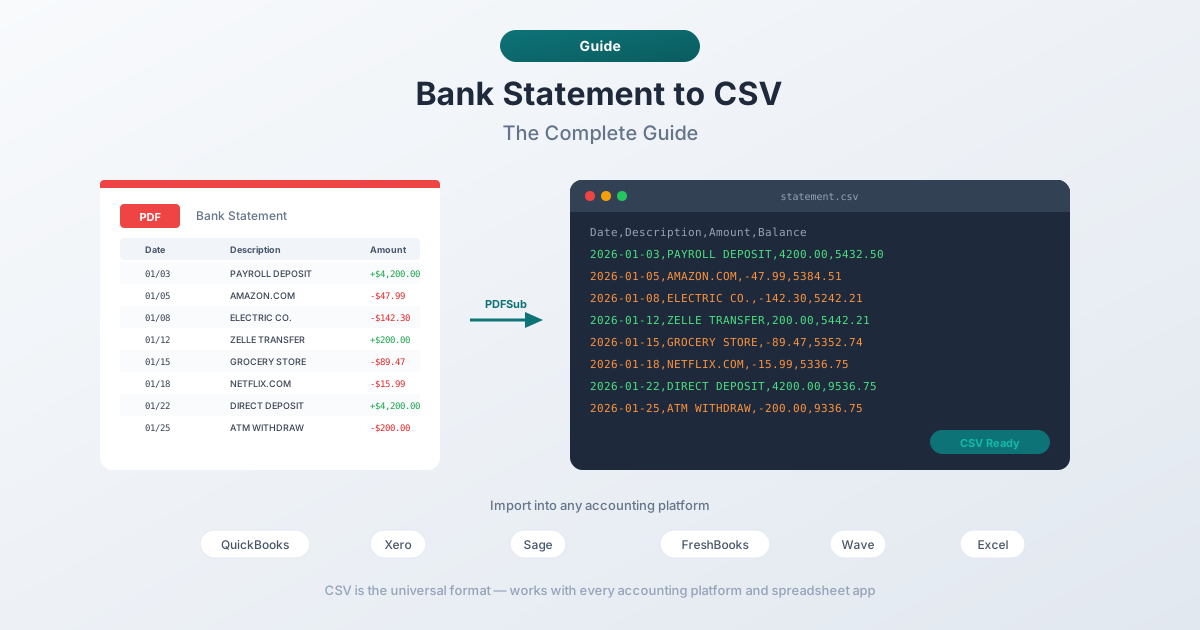
Here's what a bank statement CSV looks like:
Date,Description,Amount,Balance
2026-01-03,PAYROLL DEPOSIT,4200.00,5432.50
2026-01-05,AMAZON.COM,-47.99,5384.51
2026-01-08,ELECTRIC COMPANY,-142.30,5242.21
Accountants prefer CSV for bank data because:
- Universal compatibility - every accounting platform imports CSV
- Small file size - a year of transactions might be 50KB
- No software lock-in - unlike QBO (QuickBooks) or QFX (Quicken), CSV isn't tied to one vendor
- Easy to inspect - you can open it in Notepad and see exactly what's there
- Scriptable - Python, Excel macros, or any automation tool can process CSV files
The downside? CSV has no built-in standard for bank data. Unlike QBO or OFX - which define exactly where dates, amounts, and descriptions go - CSV is freeform. That flexibility is both its strength and its biggest headache.
How to Convert a Bank Statement PDF to CSV
Most banks provide statements as PDFs - not CSV. Here are the methods, from best to worst.
Method 1: Specialized Bank Statement Converter (Recommended)
The fastest and most accurate approach. Tools built specifically for bank statements understand financial document structure: transaction sections, running balances, multi-line descriptions, and date formats.
Step-by-step with PDFSub:
- Download your statement PDF from your bank's online portal
- Go to PDFSub's Bank Statement Converter
- Upload the PDF - drag and drop or click to browse
- Review the extracted transactions before downloading
- Select CSV as your output format
- Download - or use "Download All" for a ZIP with all 8 formats
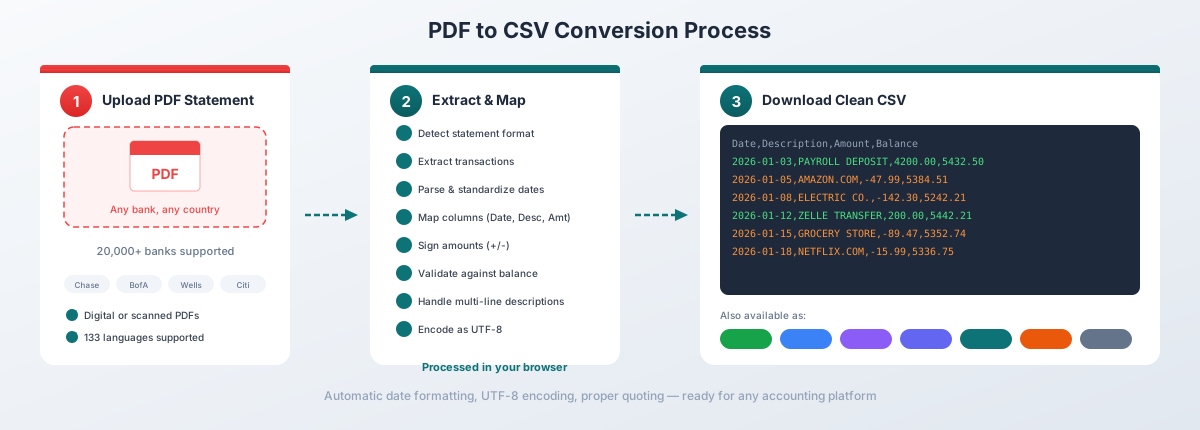
PDFSub's Tier 1 extraction processes digital PDFs entirely in your browser - the file never leaves your device. It auto-detects date formats, separates deposits from withdrawals, and handles multi-line descriptions.
PDFSub exports to 8 formats: CSV, XLSX (Excel), TSV, JSON, QBO, OFX, QFX, and QIF. The All-In-One plan is $20/user/mo (annual) or $25/user/mo (monthly), including 500 bank statement pages per user and a 7-day free trial.
Method 2: Your Bank's Native CSV Export
Some banks offer CSV downloads through their online banking portal. This is fine for recent transactions, but watch for these limitations:
| Bank | CSV History | Transaction Cap | Notes |
|---|---|---|---|
| Chase | ~24 months | 1,000 rows | Silently truncates with no warning |
| Bank of America | ~60 days per download | 3,000 rows | Credit cards limited to 12 months |
| Wells Fargo | ~18 months | Varies | QFX also available |
| Citi | ~24 months | Varies | CSV and QFX options |
Key limitation: These are transaction feeds, not official statements. They're missing opening/closing balances, fee summaries, and interest breakdowns. If you need the complete statement, you need the PDF.
Method 3: Copy-Paste + Manual Cleanup
Copy text from the PDF, paste into Excel, clean up with Text to Columns, then save as CSV. This technically works, but expect 30+ minutes of cleanup per statement. Not recommended for more than one or two simple statements.
Method 4: Adobe Acrobat Export
Acrobat Pro can export PDFs to spreadsheets, but bank statements are one of its worst-case scenarios. Expect fragmented columns, merged headers, and significant manual repair.
CSV Column Layouts for Accounting Software
This is where CSV conversion gets nuanced. Different accounting platforms expect different column structures.
The Three Common Layouts
Single-amount column (most common):
Date,Description,Amount
2026-01-03,PAYROLL DEPOSIT,4200.00
2026-01-05,AMAZON.COM,-47.99
Deposits are positive, withdrawals are negative. Used by QuickBooks Online, Xero, Wave, and FreshBooks.
Separate debit/credit columns:
Date,Description,Money In,Money Out
2026-01-03,PAYROLL DEPOSIT,4200.00,
2026-01-05,AMAZON.COM,,47.99
Both values are positive - the column determines direction. Used by Sage, some Dynamics 365 configurations, and some regional accounting software.
With balance column:
Date,Description,Amount,Balance
2026-01-03,PAYROLL DEPOSIT,4200.00,5432.50
2026-01-05,AMAZON.COM,-47.99,5384.51
Some platforms use the balance column for reconciliation verification. Optional for most imports.
What Each Platform Expects
| Platform | Date Format | Amount Style | Required Columns | Notes |
|---|---|---|---|---|
| QuickBooks Online | MM/DD/YYYY | Single column, signed | Date, Description, Amount | No currency symbols |
| QuickBooks Desktop | MM/DD/YYYY | Single column, signed | Date, Description, Amount | Prefers QBO/IIF format |
| Xero | DD/MM/YYYY or MM/DD/YYYY | Single column, signed | Date, Description, Amount | Matches org region settings |
| Sage | DD/MM/YYYY | Separate In/Out columns | Date, Description, Money In, Money Out | Both positive values |
| FreshBooks | MM/DD/YYYY | Negative amounts only | Date, Vendor, Amount, Category | Only imports negative amounts (expenses) |
| Wave | MM/DD/YYYY | Single column, signed | Date, Description, Amount | Flexible date parsing |
The key takeaway: Always check your accounting software's import documentation before converting. A CSV that imports perfectly into QuickBooks might fail in Sage because Sage expects separate columns instead of signed amounts.
The Five Most Common CSV Pitfalls
These issues silently corrupt your data. You might not notice until your reconciliation is off by thousands of dollars.
1. Date Format Mismatch
The most frequent import error. Your CSV says 01/03/2026 - is that January 3rd or March 1st?
- US format: MM/DD/YYYY (January 3rd = 01/03/2026)
- UK/EU/AU format: DD/MM/YYYY (January 3rd = 03/01/2026)
- ISO format: YYYY-MM-DD (January 3rd = 2026-01-03)
If your accounting software is set to UK date format and your CSV uses US format, every date with day ≤ 12 will silently import with day and month swapped. January 3rd becomes March 1st. You won't get an error - just wrong data.
Fix: Use ISO format (YYYY-MM-DD) when possible. It's unambiguous and supported by most platforms. Otherwise, match the date format to your accounting software's regional settings.
2. Numbers Stored as Text
Excel sometimes saves amounts as text rather than numbers. Your CSV looks fine visually, but "47.99" is actually a text string, not a number. The clue: when you select multiple cells in Excel, the status bar shows "Count" instead of "Sum."
Fix: Before saving as CSV, select the amount column → Data → Text to Columns → Finish. This forces Excel to re-interpret the values as numbers.
3. Comma-in-Description Problem
CSV uses commas as delimiters. But what happens when a description contains a comma?
2026-01-15,SMITH, JOHN - PAYMENT,250.00Without proper quoting, your software reads four columns instead of three: 2026-01-15, SMITH, JOHN - PAYMENT, 250.00. The import either fails or maps data to wrong columns.
Fix: Descriptions containing commas must be wrapped in double quotes:
2026-01-15,"SMITH, JOHN - PAYMENT",250.00Good converters handle this automatically. If you're building your own CSV, always quote the description field.
4. Encoding Issues (Special Characters)
Bank descriptions sometimes contain special characters - accented names (José), ampersands (&), or em-dashes ( - ). If the file isn't saved with UTF-8 encoding, these characters appear as garbled symbols after import.
Fix: Save your CSV as UTF-8. In Excel: File → Save As → choose "CSV UTF-8 (Comma delimited)." Avoid "CSV (Comma delimited)" which uses your system's local encoding.
5. Negative Amount Formatting
Different regions format negative numbers differently:
-47.99(standard, US)(47.99)(accounting format)-47,99(European, comma decimal)
Most accounting software expects the dash format (-47.99). Parenthetical negatives and comma decimals will fail to import or import as text.
Fix: Standardize to -47.99 format with period decimals before importing. If your bank uses European number formatting, you may need to swap commas and periods.
CSV vs. Other Bank Statement Formats
CSV isn't always the best choice. Here's when to use what:
| Format | Best For | Supports Duplicate Detection | Standardized Layout |
|---|---|---|---|
| CSV | Universal compatibility, custom workflows, analysis | No | No |
| QBO | QuickBooks Desktop/Online import | Yes (FITID) | Yes |
| OFX | Xero, Sage, multi-platform import | Yes (FITID) | Yes |
| QFX | Quicken import | Yes (FITID) | Yes |
| XLSX | Analysis, reporting, pivot tables | No | No |
| QIF | Legacy Quicken, Money | No | Partially |
When to use CSV: You need maximum flexibility, want to inspect or edit data before import, or your software only accepts CSV.
When to use QBO/OFX instead: You're importing into QuickBooks or Xero and want duplicate detection. QBO and OFX files include transaction IDs (FITIDs) that prevent the same transaction from being imported twice. CSV doesn't have this - import the same file twice and you'll get duplicate entries.
Tips for Working with Bank Statement CSVs
Test with a small file first. Before importing 12 months of transactions, import one month. Verify dates, amounts, and descriptions look correct. Catch formatting issues early.
Keep one CSV per account, per month. Don't combine multiple bank accounts into a single CSV. Most accounting software imports one account at a time.
Don't open CSVs in Excel before importing. Excel automatically reformats dates and numbers when you open a CSV. A date like 01-03 becomes 1-Mar. If you need to inspect the file, use a text editor (Notepad, VS Code) instead.
Verify your totals. After import, compare the sum of transactions in your accounting software against the opening/closing balance on your bank statement. If they don't match, you have missing or duplicated transactions.
Remove header rows if needed. Some accounting platforms auto-detect headers, others don't. If your import fails, try removing the header row from the CSV.
Watch for multi-currency issues. If you have transactions in multiple currencies on a single statement, they typically need separate CSVs - one per currency. Most accounting software can't handle mixed currencies in a single import.
Frequently Asked Questions
What columns does a bank statement CSV need?
At minimum: Date, Description, and Amount. Some platforms also accept Balance, Category, or separate Debit/Credit columns. Check your accounting software's import documentation for exact requirements.
Can I convert a scanned bank statement to CSV?
Yes, but accuracy drops significantly. Scanned statements require OCR (optical character recognition) to extract text from images, which introduces errors - especially with small fonts, poor scan quality, or handwritten entries. Digital PDFs (downloaded from your bank's website) convert with 95–99% accuracy. Scanned PDFs average 80–90%.
Why does Excel change my dates when I open a CSV?
Excel auto-interprets data types. When you open a CSV, Excel guesses whether values are dates, numbers, or text - and it often guesses wrong. To prevent this, import the CSV using Data → Get Data → From Text/CSV instead of double-clicking the file. This gives you control over how each column is interpreted.
Should I use CSV or QBO for QuickBooks?
Use QBO when possible. QBO includes transaction IDs (FITIDs) that prevent duplicate imports - import the same file twice and QuickBooks will skip already-imported transactions. CSV doesn't have this protection. However, CSV gives you more flexibility to edit data before import. See our guide to importing bank statements into QuickBooks for detailed steps.
How do I handle bank statements with separate deposit and withdrawal columns?
Some banks list deposits and withdrawals in separate columns rather than using a single signed amount. For most accounting software, you need to merge these into a single Amount column where deposits are positive and withdrawals are negative. In Excel: create a new column with =IF(D2>0, D2, -E2) where D is deposits and E is withdrawals.
Can I combine multiple months into one CSV?
Yes, but be careful about duplicates. Transactions at month boundaries sometimes appear on two consecutive statements. Remove duplicates before importing. Also verify your accounting software can handle large files - some platforms have row limits for CSV imports.
What's the best date format for CSV bank statements?
ISO 8601 (YYYY-MM-DD) is the safest because it's unambiguous worldwide. If your accounting software doesn't accept it, use the format that matches your software's regional settings - typically MM/DD/YYYY for US-based platforms or DD/MM/YYYY for UK/EU/AU platforms.