Automate Invoice Processing for Small Business
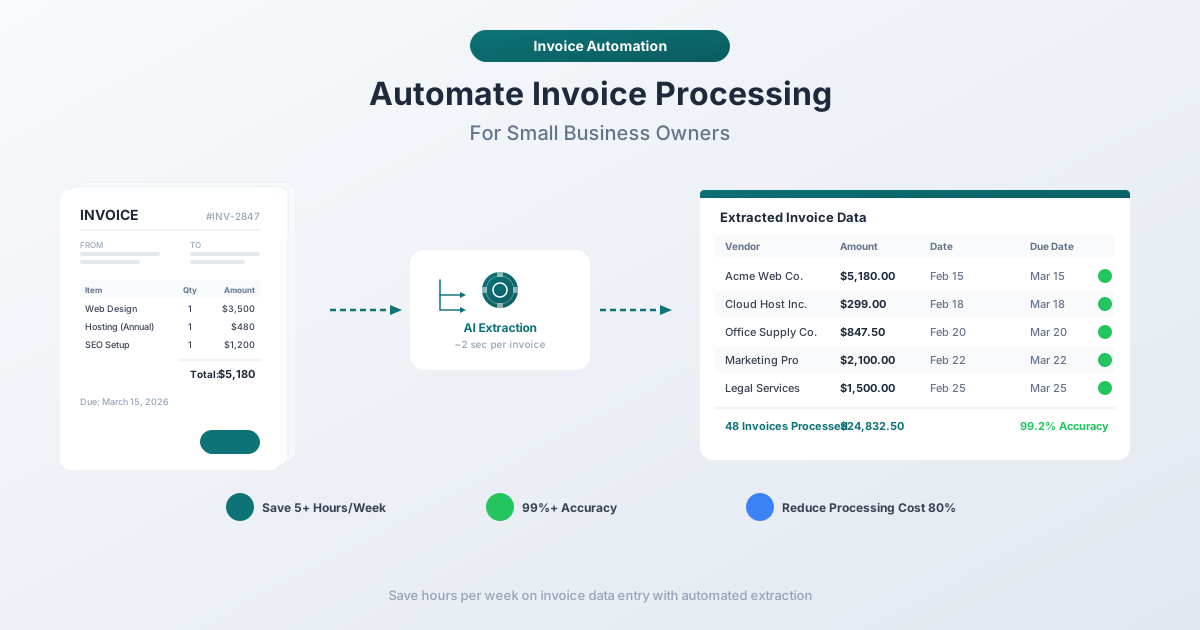
Manual invoice processing costs $15-26 per invoice and drains hours every week. Here's a practical guide to automating your AP workflow - from first steps to full ROI.
Your bookkeeper just spent the entire morning opening PDF invoices, copying vendor names and totals into a spreadsheet, cross-referencing purchase orders, and filing everything in the right folder. By lunch, she's processed 23 invoices. There are 84 more in the queue.
This is the accounts payable reality for most small businesses. It's slow, it's expensive, and it's riddled with errors that nobody catches until the quarterly close - or worse, until a vendor calls about a duplicate payment.
The good news: invoice automation is no longer a luxury reserved for enterprises with six-figure software budgets. In 2026, small businesses processing as few as 50 invoices per month can automate extraction, validation, and routing at a fraction of the manual cost.
This guide walks through exactly how to do it - from understanding where your current process breaks down, to calculating the ROI of automation, to getting your first invoices flowing through an automated pipeline this week.
The Invoice Processing Bottleneck Nobody Talks About
Nearly half of all businesses handle up to 500 invoices each month, according to industry benchmarks. For a 20-person company with a handful of suppliers, that number might be closer to 50-150. For a growing business with multiple locations, vendor contracts, and recurring subscriptions, it can easily exceed 500.
Regardless of volume, the bottleneck looks the same. Every invoice follows the same manual workflow:
- Receive - An invoice arrives via email, postal mail, or a vendor portal. It lands in someone's inbox or on someone's desk.
- Open - Someone opens the PDF (or envelope), identifies the vendor, and determines who needs to approve it.
- Read - A human reads the invoice, locating the vendor name, invoice number, date, line items, tax, and total.
- Type - That same human manually types every field into the accounting system - QuickBooks, Xero, Sage, or a spreadsheet.
- Verify - Someone (ideally a different person) checks the entered data against the original invoice and any related purchase orders.
- File - The original PDF gets saved in a folder structure, renamed, tagged, or printed and filed physically.
- Pay - The invoice enters the payment queue, where it waits for approval and scheduling.
Each step takes time, and each is a potential failure point. According to APQC research, a single clerk can manually process only 4-5 invoices per hour - roughly 12-15 minutes per invoice across the full lifecycle. A business processing 200 invoices per month needs someone spending 40-50 hours per month on nothing but invoice data entry. That's a full-time job consumed by repetitive work.
Where the Errors Actually Happen
The real cost of manual processing isn't just the labor hours. It's the errors. And those errors are more common and more expensive than most business owners realize.
Duplicate Payments
Between 1% and 2.5% of total disbursements processed by companies each year are duplicated or erroneous, according to the American Productivity and Quality Center (APQC). For a business paying $500,000 per year through its AP process, that's $5,000-$12,500 in duplicate payments annually.
Duplicates happen for predictable reasons: a vendor sends the invoice twice (once by email, once through their portal), someone enters the same invoice under a slightly different number, or a credit memo doesn't get matched to the original charge. Manual processes catch some of these - but not all of them.
Wrong Amounts
Manual data entry has an error rate between 1% and 4%, depending on invoice complexity and staff experience. That means for every 200 invoices processed monthly, 2 to 8 will have incorrect amounts entered. Each error costs an average of $25-$50 to find and fix - and that's if it gets caught before payment. If a wrong amount goes through, the correction involves vendor communication, credit notes, and reprocessing.
Missed Early Payment Discounts
Many vendors offer early payment terms like 2/10 Net 30 - a 2% discount if you pay within 10 days instead of the standard 30. That 2% discount for paying 20 days early translates to an annualized return of roughly 36%.
But here's the problem: when invoices sit in someone's inbox for three days, take two more days to enter, and another two days for approval, the 10-day window closes before payment even gets scheduled. Businesses relying on manual AP workflows routinely miss these discounts because their process simply isn't fast enough to capture them.
On $100,000 in annual purchases with 2/10 terms, that's $2,000 left on the table every year.
Slow Vendor Payments and Relationship Damage
Late payments don't just incur fees. They strain vendor relationships, reduce your negotiating leverage, and can lead to supply disruptions. Companies with manual AP processes are significantly more likely to have invoices stuck in approval queues past the due date compared to those using automated systems.
The True Cost of Manual Invoice Processing
Let's put hard numbers on it. Research from Ardent Partners, APQC, and other accounts payable benchmarking organizations consistently places the cost of processing a single invoice manually between $15 and $26, depending on the complexity of the invoice and the efficiency of the AP department.
That number includes labor (receiving, opening, reading, entering, verifying, filing), error correction, exception handling, management overhead, and infrastructure costs.
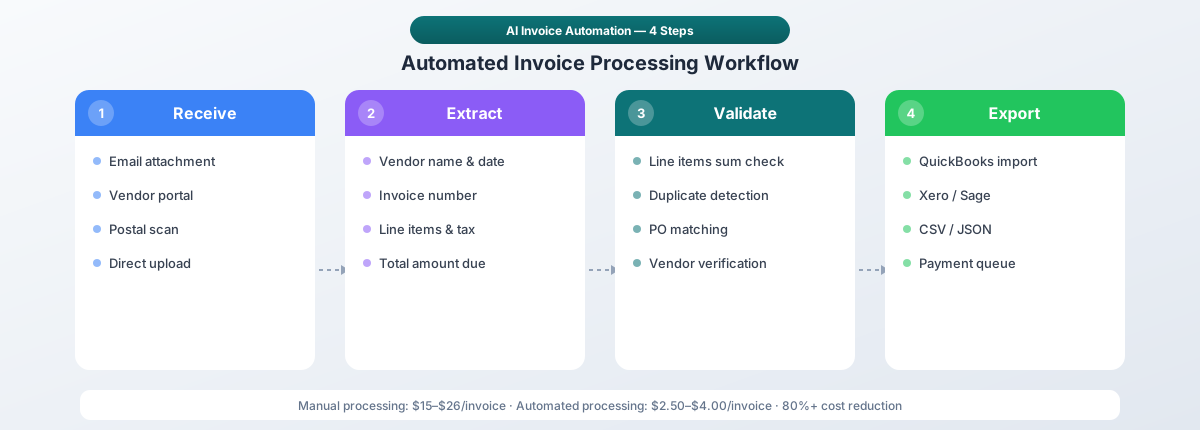
By contrast, automated invoice processing brings the per-invoice cost down to $2.50-$4.00 for best-in-class organizations - a reduction of 80% or more.
Here's what that looks like at different volumes:
| Monthly Volume | Manual Cost | Automated Cost | Monthly Savings | Annual Savings |
|---|---|---|---|---|
| 50 invoices | $750 - $1,300 | $125 - $200 | $625 - $1,100 | $7,500 - $13,200 |
| 150 invoices | $2,250 - $3,900 | $375 - $600 | $1,875 - $3,300 | $22,500 - $39,600 |
| 300 invoices | $4,500 - $7,800 | $750 - $1,200 | $3,750 - $6,600 | $45,000 - $79,200 |
| 500 invoices | $7,500 - $13,000 | $1,250 - $2,000 | $6,250 - $11,000 | $75,000 - $132,000 |
Even at 50 invoices per month, the savings justify automation - and these numbers don't account for captured early payment discounts, better vendor relationships, and reduced audit risk.
What Invoice Automation Actually Means
Invoice automation doesn't just mean scanning paper invoices. Scanning converts paper to an image - you still have an unstructured document that a human needs to read.
True invoice automation covers the entire processing lifecycle:
- Structured extraction - AI reads the invoice and pulls out every relevant field: vendor name, invoice number, date, line items, quantities, unit prices, tax, and total. No templates needed.
- Validation - The system checks extracted data against business rules. Does the total match the sum of line items? Is this a known vendor? Does the invoice number already exist (duplicate check)? Do the amounts match an open purchase order?
- Routing - Based on amount, vendor, or department, the system routes the invoice to the right approver automatically.
Three Levels of Invoice Automation
Not every business needs the full pipeline on day one. Invoice automation comes in levels, and you can start wherever makes sense for your current volume and complexity.
Level 1: Basic (Scan to Image)
- Paper invoices get scanned to PDF
- PDFs are stored in organized folders (by vendor, date, or project)
- A human still reads and enters data manually
- Time savings: Minimal - you've digitized storage but not processing
- Best for: Businesses that still receive significant paper mail and need a digital archive
Level 2: Intermediate (OCR + Extract)
- Software reads the PDF and extracts text using optical character recognition (OCR)
- Key fields (vendor, amount, date) are identified and pre-populated
- A human reviews and corrects the extracted data before it enters the accounting system
- Time savings: 50-70% reduction in data entry time
- Best for: Businesses processing 50-200 invoices per month that want quick wins
Level 3: Advanced (AI Extract + Validate + Route)
- AI reads the invoice, extracts all fields, and understands the semantic meaning of each element
- Extracted data is automatically validated against business rules and existing records
- Invoices are routed to approvers based on configurable rules
- Approved invoices are pushed directly into accounting software
- Time savings: 80-90% reduction in total processing time
- Best for: Businesses processing 200+ invoices per month, or those with complex approval workflows
Most small businesses start at Level 2 and move to Level 3 as volume grows. Starting with extraction alone delivers immediate, measurable ROI.
How AI-Powered Invoice Extraction Works
Traditional invoice extraction tools used templates - fixed rules that told the software where to find each field. "The invoice number is always in the top-right corner. The total is always on the last line before the footer." This worked for a single vendor with a consistent layout. It broke the moment a new vendor appeared or an existing vendor redesigned their invoice.
AI-powered extraction works differently. Instead of looking at fixed positions, AI reads the entire document and uses natural language understanding to identify what each piece of text means based on context.
Here's what happens when you process an invoice through an AI extractor:
-
Document ingestion - The PDF is loaded and its text is extracted. For digital PDFs, this is direct text extraction. For scanned or image-based invoices, OCR converts the image to machine-readable text first.
-
Field identification - The AI model analyzes the full text and identifies fields based on semantic meaning. It understands that "Invoice #: 2026-0147" contains an invoice number, that "$4,250.00" next to "Amount Due" is the total, and that the block of text with a company name and address at the top is the vendor information.
-
Line item parsing - The model identifies the table structure within the invoice and extracts each row: description, quantity, unit price, and line total. It handles multi-line descriptions, subtotals, and tax calculations.
-
Cross-validation - Extracted amounts are checked for internal consistency. Do the line items sum to the subtotal? Does the subtotal plus tax equal the total? If not, the system flags the discrepancy.
-
Structured output - All extracted data is output as structured JSON or CSV - ready to import into your accounting software, spreadsheet, or ERP system.
The critical advantage: AI extraction works on invoices from any vendor, in any layout, without prior configuration. No rules to create. No templates to maintain.
PDFSub's Invoice Extractor: What It Extracts and How
PDFSub's Invoice Extractor is built for exactly this use case. You upload a PDF invoice - from any vendor, in any format - and it extracts all the structured data you need to process it.
What Gets Extracted
Header fields:
- Vendor/supplier name, address, and contact information
- Invoice number and date
- Due date and payment terms
- Purchase order reference
- Customer billing and shipping addresses
- Currency
Line items:
- Item descriptions and SKU/part numbers
- Quantities and units of measure
- Unit prices and line totals
- Tax rates and tax amounts per line
Summary fields:
- Subtotal
- Tax total
- Shipping charges
- Discounts applied
- Grand total / amount due
How It Handles Different Invoice Types
PDFSub handles every type of invoice. Digital PDFs are processed directly - text is extracted and analyzed without OCR. Scanned invoices are automatically detected and processed using server-side AI. International invoices work across 130+ languages, including right-to-left scripts like Arabic and complex character sets like Chinese and Japanese.
The extractor is template-free. Whether it's the first invoice from a new supplier or the hundredth from your regular one, the extraction works the same way.
Privacy and Security
For digital PDFs, processing happens directly in your browser - the file never leaves your device. Only scanned or image-heavy documents that require AI processing are sent to secure servers, where they're processed and immediately discarded. No invoice data is stored, logged, or used for training. You get the accuracy of AI-powered extraction without giving up control of your data.
The Integration Workflow: From Extraction to Accounting
Extracting data from invoices is only useful if that data flows into your accounting system without manual re-entry. Here's the practical workflow for connecting PDFSub's invoice extraction to your existing tools.
Step 1: Extract with PDFSub
Upload your invoice PDFs to PDFSub's Invoice Extractor. You can process invoices one at a time or in batches. Each extraction produces structured data - all the fields listed above, organized and validated.
Step 2: Export to CSV or JSON
Download the extracted data as CSV (for spreadsheet and accounting software import) or JSON (for programmatic integration with APIs and custom systems).
CSV exports are formatted to match common accounting platform import templates. Column headers map directly to the fields your software expects.
Step 3: Import into Your Accounting Software
QuickBooks Online: Use the Import Bills feature (Expenses > Bills > Import) to upload the CSV. Map the columns to QuickBooks fields on first import - subsequent imports use the same mapping.
Xero: Use Xero's Import Bills feature under Business > Bills to Pay > Import. Xero accepts CSV files with vendor, date, amount, and account code columns.
Sage: Import via the Transactions > Import Invoices feature. Sage supports CSV import with field mapping.
Excel / Google Sheets: Open the CSV directly for review, analysis, or custom reporting. Use pivot tables to analyze vendor spending, payment timing, and volume trends.
Step 4: Review and Approve
After import, review the invoices in your accounting system. For most invoices processed by AI extraction, this review takes seconds rather than minutes - you're confirming correct data rather than entering it from scratch.
Calculating Your ROI: A Framework That Actually Works
Here's a framework for calculating what invoice automation would save your specific business.
Step 1: Count Your Current Costs
Time cost:
- How many invoices do you process per month? ____
- How many minutes does each invoice take (end to end, including filing and exceptions)? ____
- Total monthly hours = (invoices x minutes) / 60
- What's the fully loaded hourly rate of the person doing this work? ____
- Monthly labor cost = total hours x hourly rate
Error cost:
- What percentage of invoices have errors that need correction? (Industry average: 1-4%)
- How much time does each error take to fix? (Industry average: 15-30 minutes)
- Monthly error cost = (invoices x error rate x fix time) x hourly rate
Missed discount cost:
- How many invoices offer early payment discounts? ____
- What's the average discount percentage? (Typically 1-2%)
- How many discounts do you currently capture? ____
- Monthly missed discount cost = missed discounts x average invoice amount x discount %
Total current monthly cost = labor + errors + missed discounts
Step 2: Estimate Automated Costs
Automation tool cost:
- PDFSub offers a 7-day free trial to test with your actual invoices
- Ongoing cost depends on your volume and plan
Reduced labor cost:
- With automation, invoice review takes 1-3 minutes instead of 12-15 minutes
- Automated labor cost = invoices x 2 minutes / 60 x hourly rate
Reduced error cost:
- AI extraction cuts error rates to under 1%
- Automated error cost = (invoices x 0.5% x 10 minutes) x hourly rate
Step 3: Calculate Monthly and Annual ROI
Monthly savings = Current monthly cost - Automated monthly cost Annual savings = Monthly savings x 12 ROI = (Annual savings - Annual tool cost) / Annual tool cost x 100
Most small businesses see 300-600% ROI in the first year of implementing invoice automation. A family-run business processing 200 invoices per month with a $30/hour bookkeeper can typically expect:
- Current cost: 200 invoices x 12 minutes / 60 = 40 hours x $30 = $1,200/month
- Automated cost: 200 invoices x 2 minutes / 60 = 6.7 hours x $30 = $201/month
- Monthly savings: ~$1,000
- Annual savings: ~$12,000
That doesn't include captured early payment discounts, reduced audit risk, or the fact that your bookkeeper can now spend 33 hours per month on higher-value work.
Getting Started: Which Invoices to Automate First
You don't need to automate everything on day one. Start small, prove the value, then expand.
Start with Recurring Vendors
Your best candidates for initial automation are invoices from recurring vendors with consistent formats. Think:
- Office supplies - Monthly orders from the same 2-3 suppliers
- Software subscriptions - SaaS invoices that arrive on the same day each month
- Utilities - Electric, internet, phone - predictable formats and amounts
- Professional services - Monthly retainers from your accountant, lawyer, or marketing agency
These invoices are predictable enough that you can quickly verify extraction accuracy before tackling more complex documents.
Then Add Variable Invoices
Once you're comfortable with the extraction quality, add invoices that vary more:
- Materials and inventory - Different line items each order
- Contractors and freelancers - Invoices with detailed time entries and project breakdowns
- International vendors - Invoices in different languages and currencies
Finally, Automate the Long Tail
The last group is one-off and irregular invoices - equipment purchases, conference registrations, travel expenses. These benefit least from automation individually, but in aggregate they still add to the processing burden.
A Practical First-Week Automation Plan
Here's how to go from manual processing to automated extraction in your first week.
Day 1: Audit your current process. Count how many invoices you processed last month. Time yourself on five invoices from open to filed. Note which vendors send the most invoices and which formats they use.
Day 2: Test with PDFSub. Start a 7-day free trial (credit card required) and upload 10-15 invoices from your top vendors. Compare the extracted data against the originals. Check vendor names, amounts, dates, and line items.
Day 3: Establish your workflow. Decide on your export format (CSV for spreadsheet users, JSON for programmatic integration). Do a test import into your accounting software with 5 invoices.
Day 4: Process a real batch. Run your actual incoming invoices through the automated workflow. Extract, review, export, import. Time the entire process and compare it to your Day 1 baseline.
Day 5: Measure and adjust. Calculate your time savings. Identify any invoice types that need manual attention. Document your workflow for your team.
By the end of the first week, you'll have concrete data on how much time and money automation saves for your specific business - actual results based on your real invoices, not theoretical projections.
Common Concerns (and Honest Answers)
"What if the AI gets it wrong?"
It will, occasionally. AI extraction accuracy for well-formatted digital invoices typically exceeds 95%. For scanned documents, 85-95% depending on scan quality. The key difference: AI errors are consistent and predictable, while human errors are random and harder to catch.
The practical approach is human-in-the-loop review: AI extracts the data, a human spends 30-60 seconds confirming it's correct rather than 12-15 minutes entering it from scratch.
"Is my data safe?"
With PDFSub, digital PDFs are processed entirely in your browser - nothing is uploaded. For scanned documents requiring server-side AI, files are processed and immediately deleted. No data is stored or used for training.
"Can it handle my weird invoices?"
Probably. AI extraction handles multi-page invoices, complex line item tables, 130+ languages, and non-standard layouts. The edge cases are handwritten invoices (rare in B2B) and heavily formatted marketing-style invoices where creative design makes field identification harder.
"What about invoices that arrive as paper?"
Scan them to PDF first - any scanner, phone camera, or multifunction printer works. Once you have a PDF, even a scanned image-based one, the extraction pipeline handles the rest.
The Bottom Line
Manual invoice processing is one of the most expensive, error-prone, and time-consuming tasks in small business operations. At $15-$26 per invoice, it's also one of the easiest to justify automating.
The math isn't complicated. If you process 100 invoices per month and automation cuts your per-invoice cost from $20 to $3, that's $20,400 in annual savings. Add captured early payment discounts and eliminated duplicate payments, and the case becomes overwhelming.
You don't need a massive implementation project or an enterprise budget. You need a tool that can read your invoices accurately, extract the data you need, and give it to you in a format your existing systems can use.
Try PDFSub's Invoice Extractor free for 7 days and test it with your actual invoices. Bring your messiest vendor, your longest invoice, your most complex line item table. That's the real test - and it's the fastest way to see what automation can do for your business.