Is het veilig om financiële documenten te uploaden naar online PDF-tools?
Bankafschriften, facturen en belastingdocumenten bevatten uw meest gevoelige gegevens. Hier is een eerlijke kijk op de risico's van het uploaden ervan naar online PDF-tools - en hoe u uzelf kunt beschermen.
U moet een bankafschrift converteren naar Excel. Of meerdere facturen samenvoegen tot één PDF. Of gegevens extraheren uit een belastingdocument. Dus doet u wat iedereen doet - u zoekt naar een online tool, sleept uw bestand naar een browservenster en klikt op "Converteren".
Het duurt tien seconden. Het werkt. U gaat verder met uw dag.
Maar ergens tussen het slepen en downloaden, heeft uw bestand - met uw rekeningnummers, transactiegeschiedenis, saldi en mogelijk uw burgerservicenummer - gereisd naar een server waarvan u niets weet, in een land dat u niet hebt gekozen, beheerd door een bedrijf wiens privacybeleid u niet hebt gelezen.
Dit is de vraag die bijna iedereen die online met financiële documenten werkt zich op een gegeven moment stelt: is dit eigenlijk wel veilig?
Het eerlijke antwoord is: het hangt ervan af. En de details zijn belangrijker dan de meeste mensen beseffen.
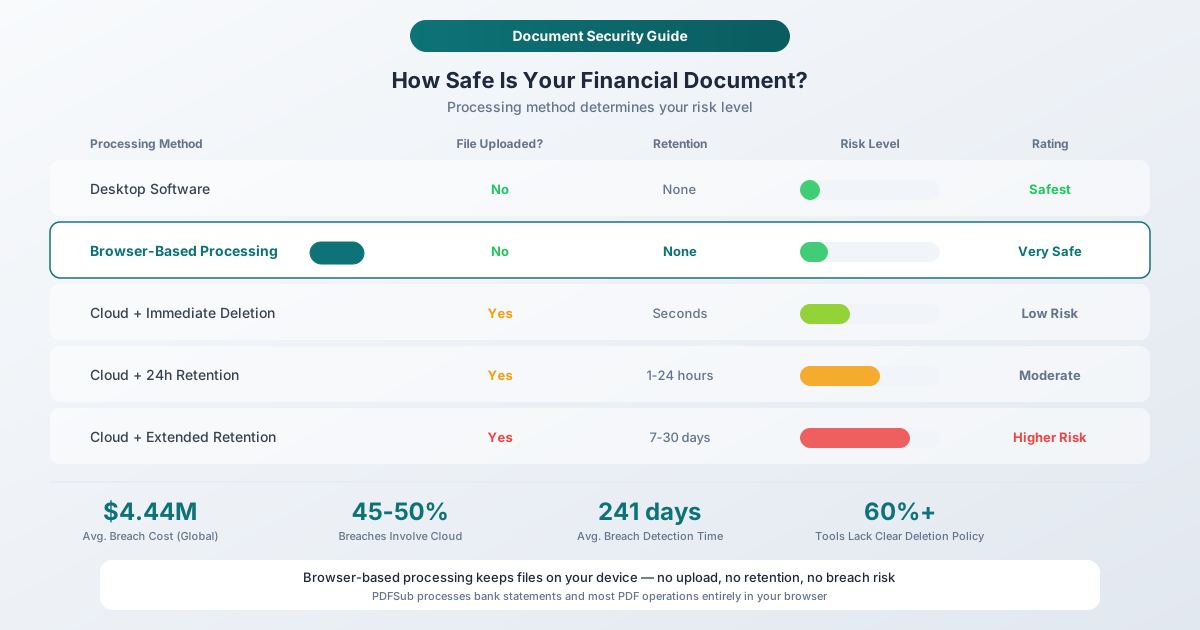
Voor de architecturale diepgaande analyse: Browser vs Cloud PDF Beveiliging vergelijkt de twee verwerkingsmodellen met side-by-side datastroomdiagrammen. Deze gids richt zich op het risico van financiële documenten; die gids is de canonieke referentie voor hoe de architecturen verschillen.
Wat staat er eigenlijk op het spel?
Voordat u specifieke tools evalueert, is het nuttig om precies te begrijpen wat er op het spel staat wanneer u een financieel document uploadt.
Bankafschriften
Een enkel bankafschrift kan bevatten:
-
Rekeningnummers - bank- en rekeningnummers die uw bankrekeningen identificeren
-
Transactiegeschiedenis - elke aankoop, betaling, storting en overboeking voor de afschriftperiode
-
Huidige saldi - uw exacte financiële positie
-
Persoonlijke informatie - volledige naam, adres, telefoonnummer
-
Uitgavepatronen - waar u winkelt, hoeveel u uitgeeft, terugkerende abonnementen
Voor zakelijke bankafschriften, voeg leveranciersrelaties, salarisbedragen, klantbetalingsgegevens en cashflowpatronen toe. Een tegenstander met deze informatie kan identiteitsdiefstal plegen, frauduleuze overschrijvingen initiëren of de gegevens gebruiken voor gerichte social engineering-aanvallen.
Facturen
Facturen lijken onschuldig, maar ze bevatten:
-
Leveranciers- en klantgegevens - bedrijfsnamen, adressen, contactgegevens
-
Betalingsvoorwaarden - bankgegevens voor overschrijvingen, betalingstermijnen
-
Prijsinformatie - stuksprijzen, volumekortingen, contracttarieven
-
Belasting-ID's - EIN, btw-nummers of andere belastingidentificatienummers
Factuurfraude is een groeiende categorie van business email compromise (BEC) aanvallen. Gestolen factuurgegevens geven aanvallers het exacte formaat, de toon en de details die nodig zijn om overtuigende nepfacturen te maken.
Belastingdocumenten
Belastingdocumenten zijn de 'gouden kluis'. Een enkele W-2, 1099 of belastingaangifte kan bevatten:
-
Burgerservicenummers - voor individuen en afhankelijken
-
Inkomensdetails - salaris, beleggingen, bedrijfsinternen
-
Bankrekeningnummers - uit directe stortingsinformatie
-
Werkgeversgegevens - EIN, adressen, salarisinformatie
-
Volledig financieel beeld - aftrekposten, credits, activa, passiva
De IRS meldt dat belastinggerelateerde identiteitsdiefstal een van de meest voorkomende vormen van fraude blijft, met jaarlijks miljarden dollars aan frauduleuze teruggaven die worden geprobeerd.
Hoe online PDF-tools uw bestanden verwerken
Wanneer u een online PDF-tool gebruikt, gebeurt er doorgaans het volgende achter de schermen:
Stap 1: Uploaden via HTTPS
Uw bestand reist van uw browser naar de server van de tool via een versleutelde HTTPS-verbinding. Dit betekent dat de gegevens tijdens de overdracht zijn versleuteld - iedereen die het netwerkverkeer tussen u en de server onderschept, ziet onleesbare gegevens, niet uw bankafschrift.
Dit is goed, maar het is het absolute minimum. Elke legitieme website gebruikt tegenwoordig HTTPS. Het beschermt tegen afluisteren tijdens de verzending, maar zegt niets over wat er met uw bestand gebeurt nadat het is aangekomen.
Stap 2: Server-side verwerking
De meeste online PDF-tools verwerken uw bestand op hun servers. De code van de tool leest uw PDF, voert de gevraagde bewerking uit (conversie, samenvoeging, compressie, data-extractie) en genereert het uitvoerbestand.
Tijdens deze fase bestaat uw onversleutelde document op de computer van iemand anders. De server heeft volledige toegang tot elke byte van uw bestand. Serverbeheerders, geautomatiseerde systemen en potentieel kwaadwillende actoren met ongeautoriseerde toegang kunnen de inhoud van het document lezen.
Dit is het fundamentele beveiligingsprobleem met cloudgebaseerde documentverwerking. Versleuteling tijdens de overdracht beschermt de reis, maar de bestemming heeft uw gegevens in platte tekst.
Stap 3: Tijdelijke opslag
Na de verwerking bevinden zowel uw geüploade bestand als het gegenereerde uitvoerbestand zich doorgaans op de opslag van de server totdat u het resultaat downloadt. Hoe lang ze daar blijven, varieert enorm:
- Beste geval: Onmiddellijk verwijderd nadat u de uitvoer hebt gedownload, of binnen enkele minuten
- Gebruikelijk: Verwijderd na 1-24 uur
- Zorgwekkend: Bewaard voor 7-30 dagen
- Slechtste geval: Onbeperkt bewaard, of de bewaarperiode wordt niet bekendgemaakt
Een beveiligingsanalyse uit 2025 wees uit dat meer dan 60% van de populaire gratis online PDF-tools vage of niet-bestaande beleidsregels voor gegevensverwijdering had. Uw geüploade bestand kan veel langer op een server staan dan u denkt.
Stap 4: Wat gebeurt er daarna?
Dit is waar de zaken onduidelijk worden. Nadat het bestand is verwerkt, doet de service het volgende:
- Verwijdert het volledig? Inclusief back-ups en logboeken?
- Bewaren van metadata? Bestandsnamen, verwerkingstijdstempels, gebruikers-IP-adressen?
- Gebruiken voor analyse? Om hun algoritmen te verbeteren of AI-modellen te trainen?
- Delen met derden? Analyseproviders, advertentienetwerken of databrokers?
Veel gratis online tools worden gefinancierd door advertenties, wat betekent dat uw gebruiksgegevens - en potentieel de inhoud van uw document - kunnen doorstromen naar externe advertentienetwerken, analyseplatforms of AI-trainingspijplijnen. Het privacybeleid vermeldt dit technisch gezien wel, maar begraven in duizenden woorden juridische taal die vrijwel niemand leest.
De realiteit van datalekken
Zelfs met de beste bedoelingen lopen cloudgebaseerde services een voortdurend risico: datalekken.
IBM's 2025 Cost of a Data Breach Report toonde aan dat de wereldwijde gemiddelde kosten van een datalek $4,44 miljoen bedragen. In de Verenigde Staten steeg het cijfer met 9% tot een recordhoogte van $10,22 miljoen. Financiële dienstverleners worden geconfronteerd met nog hogere kosten, gemiddeld $5,56 miljoen per lek.
Enkele belangrijke statistieken die het risico in perspectief plaatsen:
-
45-50% van alle lekken betreft nu cloud- of SaaS-omgevingen - de exacte infrastructuur waarop online PDF-tools draaien
-
Lekken die meerdere cloudomgevingen bestrijken, kosten gemiddeld $5,05 miljoen - 26% meer dan on-premises lekken
-
De gemiddelde tijd om een lek te identificeren en in te dammen is 241 dagen - wat betekent dat uw geüploade bestanden maandenlang blootgesteld kunnen zijn voordat iemand het merkt
-
97% van de organisaties die een AI-gerelateerd beveiligingsincident hebben meegemaakt, had onvoldoende toegangscontroles voor AI - relevant voor tools die AI gebruiken om uw documenten te verwerken
In Europa is de handhaving van de AVG geïntensiveerd. Gegevensbeschermingsautoriteiten legden alleen al in 2025 meer dan $3 miljard aan AVG-boetes op, met een totaal cumulatief bedrag van meer dan $7 miljard. Het gemiddelde aantal meldingsplichtige datalekken steeg tot 363 per dag.
Dit zijn geen hypothetische risico's. Lekken bij cloudserviceproviders, SaaS-platforms en bestandsverwerkingsservices komen regelmatig voor. De vraag is niet of er lekken plaatsvinden - de vraag is of uw financiële gegevens zich onder de blootgestelde gegevens zullen bevinden wanneer ze dat doen.
Acht risicofactoren om te evalueren
Bij het kiezen van een online PDF-tool voor financiële documenten, evalueer deze factoren op volgorde van belangrijkheid:
1. Bestandretentiebeleid
De belangrijkste factor. Hoe lang bewaart de service uw geüploade bestanden?
- Beste: Bestanden worden nooit naar een server geüpload (browsergebaseerde verwerking)
- Goed: Bestanden worden onmiddellijk na verwerking of binnen enkele minuten verwijderd
- Acceptabel: Bestanden worden binnen 24 uur verwijderd
- Zorgwekkend: Bestanden worden 7-30 dagen bewaard
- Onaanvaardbaar: Geen duidelijk retentiebeleid, of bestanden worden onbeperkt bewaard
Een tool die bestanden in uw browser verwerkt, elimineert server-side risico volledig. Geen upload betekent geen retentie, geen blootstelling aan lekken en geen vertrouwen nodig.
2. Locatie en jurisdictie van de server
Waar uw gegevens fysiek verblijven, bepaalt welke wetten ze beschermen. Gegevens die in de Europese Unie zijn opgeslagen, vallen onder de AVG, die sterke individuele rechten biedt, waaronder het recht op vergetelheid. Gegevens die in de Verenigde Staten zijn opgeslagen, vallen onder een lappendeken van staats- en federale wetten. Gegevens die zijn opgeslagen in jurisdicties met zwakke privacywetten, hebben mogelijk minimale bescherming.
Voor bedrijven die financiële gegevens van klanten verwerken, is jurisdictie belangrijk voor naleving. De bankafschriften van uw klanten op een server in een jurisdictie met zwakke gegevensbeschermingswetten creëren regelgevingsrisico - zelfs als u niet van plan was dat de gegevens daar terecht zouden komen.
3. Versleuteling
Twee soorten versleuteling zijn belangrijk:
- Tijdens overdracht (TLS/HTTPS): Beschermt gegevens tijdens de reis tussen uw browser en de server. Dit is standaard en verwacht.
- In rust: Beschermt gegevens terwijl ze zijn opgeslagen op de server. Als iemand ongeautoriseerde toegang krijgt tot de opslag van de server, zijn versleutelde gegevens nog steeds onleesbaar.
Beide zijn noodzakelijk. Versleuteling tijdens overdracht alleen laat uw gegevens kwetsbaar achter voor iedereen met servertoegang - inclusief de eigen werknemers van de serviceprovider, contractanten en iedereen die hun infrastructuur compromitteert.
4. Toegangscontroles
Wie in het bedrijf kan uw geüploade bestanden zien? Een goed ontworpen systeem beperkt de toegang tot het strikt noodzakelijke voor verwerking. Geen enkele mens zou uw bankafschrift moeten kunnen openen en lezen, tenzij er een specifieke, gedocumenteerde reden is (zoals het oplossen van een verwerkingsfout op uw expliciete verzoek).
Zoek naar vermeldingen van:
- Op rollen gebaseerde toegangscontroles (RBAC)
- Auditlogboeken voor bestands toegang
- Principe van minimale privileges
- Achtergrondonderzoek van werknemers
5. Transparantie van het privacybeleid
Een privacybeleid moet duidelijk vermelden:
-
Welke gegevens worden verzameld (bestandsinhoud, metadata, gebruiksanalyses)
-
Hoe lang gegevens worden bewaard
-
Wie er toegang toe heeft
-
Of het wordt gedeeld met derden
-
Hoe u verwijdering kunt aanvragen
Rode vlaggen zijn onder meer: beleidsregels die buitensporig lang en vaag zijn, beleidsregels die brede rechten claimen om geüploade inhoud te "gebruiken, reproduceren, wijzigen en distribueren", en beleidsregels die zich het recht voorbehouden om de voorwaarden zonder kennisgeving te wijzigen.
6. Delen met derden
Worden uw gegevens gedeeld met analyseproviders, advertentienetwerken, AI-trainingsdiensten of andere derden? Veel gratis tools zijn afhankelijk van advertentie-inkomsten, wat inherent gegevensdeling met advertentienetwerken met zich meebrengt.
Zelfs "geanonimiseerde" documentmetadata kan onthullend zijn. Als een advertentienetwerk weet dat een specifiek IP-adres op een bepaald tijdstip een bankafschrift van een specifieke financiële instelling heeft geüpload, is dat waardevolle targetinggegevens - zelfs zonder de daadwerkelijke inhoud van het afschrift.
7. Data Processing Agreement (DPA)
Voor zakelijk gebruik, met name in gereguleerde sectoren (accountancy, juridisch, gezondheidszorg, financiële dienstverlening), is een Data Processing Agreement essentieel. Een DPA verplicht de serviceprovider contractueel om uw gegevens volgens gespecificeerde normen te behandelen en maakt hen wettelijk aansprakelijk voor schendingen.
Als een tool geen DPA aanbiedt, is deze niet ontworpen voor het professioneel verwerken van financiële gegevens van klanten. Dit betekent niet dat het onveilig is, maar wel dat u geen contractuele verhaalopties hebt als er iets misgaat.
8. Compliance-certificeringen
Zoek naar:
- SOC 2 Type II: Geauditeerde controles voor beveiliging, beschikbaarheid en vertrouwelijkheid
- ISO 27001: Internationale norm voor informatiebeveiligingsbeheer
- AVG-naleving: Geen certificering op zich, maar gedocumenteerde nalevingsmaatregelen
- PCI DSS: Relevant als betalingskaartgegevens betrokken zijn
Certificeringen zijn geen garanties - het zijn bewijzen dat een derde partij de beveiligingspraktijken van de organisatie heeft geverifieerd. Het ontbreken ervan betekent niet noodzakelijkerwijs slechte beveiliging, maar de aanwezigheid ervan biedt een extra laag van zekerheid.
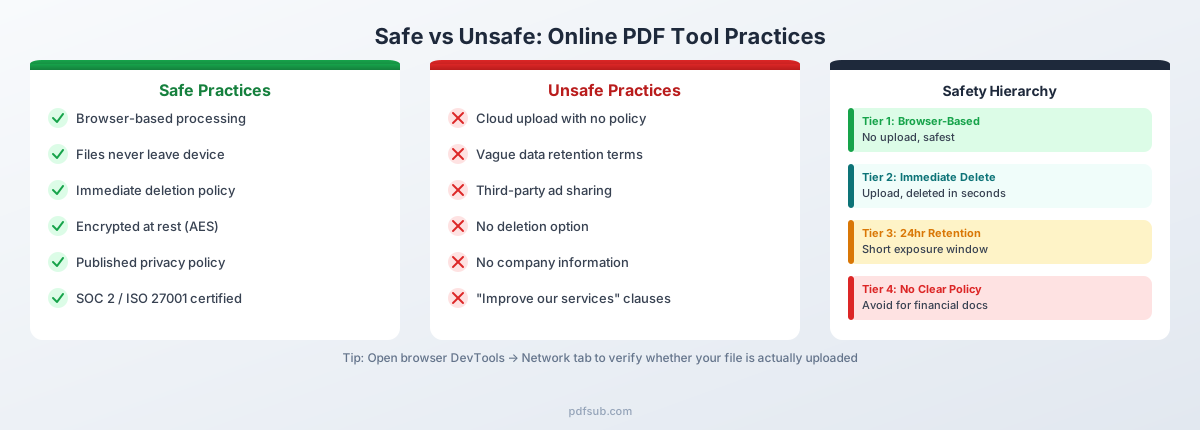
De hiërarchie van veiligheid
Niet alle verwerkingsbenaderingen brengen gelijke risico's met zich mee. Hier is hoe verschillende methoden rangschikken, van veiligst tot minst veilig:
Niveau 1: Desktopsoftware (Veiligst)
Uw bestand verlaat nooit uw computer. De verwerking vindt volledig plaats op uw lokale machine. Er is geen netwerkoverdracht, geen serveropslag, geen toegang door derden. Het enige risico is voor de beveiliging van uw eigen apparaat.
Nadeel: Desktopsoftware vereist installatie, kost vaak meer en ontvangt mogelijk niet zo frequent updates als webgebaseerde alternatieven. Het werkt ook niet op verschillende apparaten.
Niveau 2: Browsergebaseerde verwerking (Zeer veilig)
De tool draait in uw webbrowser, maar het bestand wordt volledig op uw apparaat verwerkt met behulp van client-side code. Het bestand wordt nooit naar een server geüpload. U kunt dit zelf verifiëren door het tabblad Netwerk in de Ontwikkelaarstools van uw browser te controleren - u ziet geen uitgaande uploadverzoeken voor bestanden.
Deze aanpak combineert het gemak van webgebaseerde tools met de privacy van desktopsoftware. De tool laadt in uw browser zoals elke website, maar uw documenten blijven op uw computer. Het is in wezen desktop-kwaliteit privacy met webgebaseerd gemak.
Nadeel: Client-side verwerking is beperkt door het rekenvermogen van uw apparaat. Zeer grote bestanden of bewerkingen die gespecialiseerde AI-verwerking vereisen, hebben mogelijk server-side bronnen nodig.
Niveau 3: Cloudverwerking met onmiddellijke verwijdering (Veilig)
Uw bestand wordt geüpload naar een server, verwerkt en onmiddellijk verwijderd nadat u het resultaat hebt ontvangen. Het blootstellingsvenster wordt geminimaliseerd - doorgaans seconden tot minuten.
Nadeel: Uw bestand reist door en bestaat kort op een server van derden. Gedurende dat venster is het theoretisch toegankelijk. Maar het risico is laag als de service versleuteling tijdens overdracht en in rust gebruikt, sterke toegangscontroles heeft en bestanden daadwerkelijk onmiddellijk verwijdert.
Niveau 4: Cloudverwerking met korte retentie (Matig risico)
Uw bestand wordt geüpload en bewaard voor een bepaalde periode - doorgaans 1-24 uur - om u in staat te stellen resultaten opnieuw te downloaden. Dit verlengt het blootstellingsvenster, maar is nog steeds redelijk als de retentieperiode duidelijk is vermeld en wordt gehandhaafd.
Niveau 5: Cloudverwerking met uitgebreide retentie (Hoger risico)
Bestanden die 7-30 dagen worden bewaard, vertegenwoordigen een aanzienlijk blootstellingsvenster. Gedurende deze periode bestaan uw financiële documenten op servers van derden en zijn ze potentieel kwetsbaar voor lekken, ongeautoriseerde toegang of dagvaardingen.
Niveau 6: Cloudverwerking met onduidelijke retentie (Hoogste risico)
Als een service niet duidelijk aangeeft hoe lang bestanden worden bewaard - of vage taal gebruikt zoals "een redelijke periode" - behandel het dan alsof bestanden onbeperkt worden bewaard. Het ontbreken van een duidelijk beleid geeft vaak aan dat het bedrijf geen serieuze overweging heeft besteed aan het beheer van de levenscyclus van gegevens, wat wijst op bredere beveiligingshiaten.
Hoe PDFSub Documentbeveiliging Behandelt
PDFSub hanteert een browser-first benadering voor documentverwerking. De architectuur geeft prioriteit aan het bewaren van uw bestanden op uw apparaat wanneer dit technisch mogelijk is.
Browsergebaseerde verwerking voor de meeste bewerkingen
De meerderheid van de tools van PDFSub verwerkt bestanden volledig in uw browser:
- Bankafschriftconversie - Digitale bankafschriften worden geparsed en geconverteerd naar Excel-, CSV-, QBO- of OFX-formaten, volledig op uw apparaat. Uw afschrift verlaat nooit uw browser.
- PDF samenvoegen, splitsen en comprimeren - Het combineren, splitsen en comprimeren van PDF's gebeurt client-side.
- PDF naar afbeeldingconversie - Pagina's worden gerenderd naar PNG of JPG in uw browser.
- Paginamanipulatie - Pagina's roteren, herordenen en verwijderen zijn allemaal browsergebaseerde bewerkingen.
U kunt dit zelf verifiëren: open de Ontwikkelaarstools van uw browser (F12), ga naar het tabblad Netwerk en kijk wat er gebeurt wanneer u een bestand verwerkt. Voor browsergebaseerde bewerkingen ziet u geen uploadverzoeken voor bestanden.
Alleen server-side indien nodig
Sommige bewerkingen vereisen server-side verwerking - met name AI-gestuurde functies die rekenkracht vereisen die verder gaat dan wat een browser kan bieden:
- AI data-extractie - Voor gescande documenten of complexe lay-outs die AI-analyse vereisen
- OCR-verwerking - Gescande afbeeldingen converteren naar doorzoekbare tekst
- AI-gestuurde documentanalyse - Samenvatting, vertaling en intelligente data-extractie
Wanneer server-side verwerking noodzakelijk is, gebruikt PDFSub versleutelde transmissie (HTTPS/TLS), verwerkt het bestand en verwijdert het onmiddellijk nadat het resultaat is geleverd. Bestanden worden niet bewaard, niet gebruikt voor training en niet gedeeld met derden.
Wat dit in de praktijk betekent
Voor het meest voorkomende gebruiksscenario - het converteren van bankafschriften naar spreadsheets - verlaten uw bestanden nooit uw computer. De gehele conversiepijplijn draait in uw browser. Dit plaatst PDFSub in Tier 2 van de veiligheidshiërarchie: browsergebaseerde verwerking zonder serverblootstelling.
Voor AI-gestuurde functies opereert PDFSub op Tier 3: cloudverwerking met onmiddellijke verwijdering. Het blootstellingsvenster is minimaal en de gegevensverwerking is transparant.
U kunt deze aanpak zelf proberen met een gratis 7-daagse proefperiode - Annuleer op elk moment.
Praktische aanbevelingen per documentgevoeligheid
Niet alle documenten vereisen hetzelfde beschermingsniveau. Hier is een praktisch raamwerk om te beslissen welke tools te gebruiken:
Zeer gevoelige documenten
Documenten: Bankafschriften, belastingaangiften (W-2, 1099, volledige aangiften), documenten met burgerservicenummer, medische dossiers met financiële informatie, hypotheekaanvragen
Aanbevolen aanpak: Gebruik uitsluitend browsergebaseerde tools of desktopsoftware. Deze documenten bevatten voldoende informatie voor identiteitsdiefstal en financiële fraude. De risico-rendementsberekening voor het uploaden ervan naar een cloudservice is ongunstig - het verkregen gemak rechtvaardigt de blootstelling niet.
Waar op te letten: Tools die expliciet bestanden in de browser verwerken zonder te uploaden. Verifieer door het tabblad Netwerk in de Ontwikkelaarstools van uw browser te controleren.
Matig gevoelige documenten
Documenten: Zakelijke facturen, contracten, inkooporders, financiële rapporten (zonder burgerservicenummer of rekeningnummers), onkostendeclaraties van werknemers
Aanbevolen aanpak: Cloudgebaseerde tools met duidelijke verwijderingsbeleidsregels zijn acceptabel. Zoek naar services die bestanden binnen 24 uur verwijderen, versleuteling in rust bieden, een gepubliceerd privacybeleid hebben en idealiter een Data Processing Agreement aanbieden.
Waar op te letten: Duidelijke retentiebeleidsregels, HTTPS-versleuteling, gedocumenteerde beveiligingspraktijken en een gerenommeerd bedrijf met een track record.
Documenten met lage gevoeligheid
Documenten: Gepubliceerde rapporten, marketingmateriaal, openbaar beschikbare financiële gegevens, interne presentaties zonder vertrouwelijke gegevens
Aanbevolen aanpak: Elke gerenommeerde tool is prima. De gegevens in deze documenten zijn ofwel al openbaar of zouden minimale schade veroorzaken als ze worden blootgesteld. Focus op het kiezen van een tool die het werk goed doet in plaats van een tool met specifieke beveiligingsfuncties.
Hoe te verifiëren of een tool uw bestanden uploadt
U hoeft niet op het woord van een tool te gaan. Hier leest u hoe u zelf kunt controleren of een bestand wordt geüpload naar een server:
Gebruik van browser Ontwikkelaarstools
- Open de website van de tool in Chrome, Firefox of Edge
- Druk op F12 om Ontwikkelaarstools te openen
- Klik op het tabblad Netwerk
- Wis alle bestaande vermeldingen (klik op de knop "Wissen" of het pictogram cirkel-met-streep)
- Laad uw PDF-bestand in de tool
- Bekijk het tabblad Netwerk
Waar op te letten:
- Als de tool bestanden in de browser verwerkt, ziet u geen grote uploadverzoeken. U ziet mogelijk kleine verzoeken voor analyse of paginabronnen, maar niets dat overeenkomt met de grootte van uw PDF.
- Als de tool uw bestand uploadt, ziet u een POST-verzoek met een grote payload (overeenkomend met uw bestandsgrootte) naar de server van de tool of een API-eindpunt.
Offline functionaliteit controleren
Nog een test: verbreek de verbinding met internet (schakel Wi-Fi uit of schakel vliegtuigmodus in) nadat de pagina van de tool is geladen, en probeer vervolgens een bestand te verwerken. Als het werkt zonder internetverbinding, is de verwerking echt browsergebaseerd. Als het mislukt, vereist de tool een serververbinding.
Het privacybeleid lezen
Ja, lees het daadwerkelijk. Zoek specifiek naar:
-
"Uw bestanden worden verwerkt in uw browser" of "client-side verwerking" - geeft aan dat er geen serverupload is
-
"Bestanden worden verwijderd na X uur/minuten" - geeft server-side verwerking met gedefinieerde retentie aan
-
"We kunnen geüploade inhoud gebruiken om onze services te verbeteren" - een rode vlag die suggereert dat uw documenten kunnen worden gebruikt voor training of analyse
-
"We delen gegevens met onze partners" - geeft delen van gegevens met derden aan
Vijf vragen om te stellen voordat u een financieel document uploadt
Voordat u een gevoelig document naar een online tool sleept, doorloopt u deze checklist:
1. Kan ik verifiëren dat het bestand niet wordt geüpload?
Controleer het tabblad Netwerk. Als de tool bestanden in de browser verwerkt, is dit verifieerbaar. Als u het niet kunt verifiëren, ga er dan van uit dat het bestand wordt geüpload.
2. Wat zegt het privacybeleid over gegevensretentie?
Zoek naar specifieke tijdlijnen. "Onmiddellijk verwijderd" is ideaal. "Verwijderd binnen 24 uur" is acceptabel voor de meeste documenten. "Bewaard voor een redelijke periode" is vaag en zorgwekkend.
3. Is het bedrijf gerenommeerd met een track record?
Een tool die al jaren actief is zonder gemelde datalekken is een betere keuze dan een tool die vorige maand verscheen zonder bedrijfsinformatie, fysiek adres en zonder genoemde teamleden.
4. Is er een alternatief dat lokaal verwerkt?
Voor zeer gevoelige documenten, controleer altijd of er een browsergebaseerd of desktopalternatief bestaat. Het gemak van een cloudtool rechtvaardigt zelden het risico voor bankafschriften en belastingdocumenten.
5. Wat gebeurt er als er iets misgaat?
Biedt de service een Data Processing Agreement? Is er een beveiligingscontact? Is er een gedocumenteerd incidentresponsplan? Voor zakelijk gebruik met klantgegevens zijn dit geen opties - het zijn vereisten.
Wat te doen als u al gevoelige documenten hebt geüpload
Als u al financiële documenten naar een online tool hebt geüpload en u zich nu zorgen maakt, kunt u het volgende doen:
Onmiddellijke stappen
-
Controleer het beleid voor gegevensverwijdering van de tool. Veel services verwijderen bestanden automatisch na een bepaalde periode. Als de tool beweert bestanden binnen 24 uur te verwijderen, zijn uw gegevens mogelijk al weg.
-
Vraag om verwijdering. Onder de AVG (als de service in de EU opereert of de EU bedient) en diverse privacywetten van Amerikaanse staten, heeft u het recht om verwijdering van uw persoonlijke gegevens aan te vragen. Stuur een duidelijke e-mail naar het privacy- of ondersteuningscontact van de service waarin u vraagt om verwijdering van alle geüploade bestanden en bijbehorende gegevens.
-
Monitor uw accounts. Als u bankafschriften of belastingdocumenten hebt geüpload, overweeg dan een fraudewaarschuwing of kredietbevriezing te plaatsen bij de grote kredietbureaus (Equifax, Experian, TransUnion). Dit kost niets en voegt een extra beveiligingslaag toe tegen identiteitsdiefstal.
Doorlopende voorzorgsmaatregelen
- Wijzig wachtwoorden voor alle financiële rekeningen waarvan u afschriften hebt geüpload
- Schakel tweefactorauthenticatie in op alle financiële rekeningen
- Monitor kredietrapporten op ongebruikelijke activiteit gedurende de volgende 12 maanden
- Stel transactiewaarschuwingen in op bankrekeningen om ongeautoriseerde activiteit snel op te vangen
In de meeste gevallen zal het uploaden van een document naar een gerenommeerde tool geen schade opleveren. Maar als de tool onbekend, gratis was en u de privacypraktijken niet hebt gecontroleerd, zijn deze voorzorgsmaatregelen de moeite waard.
Veelgestelde vragen
Zijn gratis PDF-tools minder veilig dan betaalde?
Niet noodzakelijkerwijs, maar het stimulatie-structuur is anders. Gratis tools moeten ergens inkomsten genereren - vaak via advertenties, datamonetisatie of upsells. Betaalde tools hebben een direct inkomstenmodel (uw abonnement), wat de prikkel vermindert om uw gegevens op andere manieren te monetiseren.
De echte vraag is niet "gratis vs. betaald", maar "hoe verdient deze tool geld?". Een gratis tool gefinancierd door een privacygericht bedrijf (misschien als leadgeneratietool) kan volkomen veilig zijn. Een gratis tool gefinancierd door advertentie-inkomsten en datapartneringen zal uw gegevens waarschijnlijk eerder delen met derden.
Beschouw ook de architectuur: een gratis tool die bestanden in uw browser verwerkt, is veiliger dan een betaalde tool die alles naar de cloud uploadt - ongeacht de prijs. Het verwerkingsmodel is belangrijker dan het bedrijfsmodel.
Kunnen mijn documenten worden gebruikt om AI-modellen te trainen?
Dit is een steeds relevantere zorg. Sommige services nemen brede taal op in hun servicevoorwaarden, waardoor ze geüploade inhoud mogen gebruiken om "hun services te verbeteren" - wat training van AI-modellen kan omvatten.
Als de voorwaarden van een service zinnen bevatten als "u verleent ons een licentie om uw inhoud te gebruiken, reproduceren, wijzigen en weer te geven", kan dit AI-training omvatten. Zoek naar expliciete verklaringen zoals "geüploade bestanden worden niet gebruikt voor training" of "uw inhoud wordt alleen gebruikt om de gevraagde service te leveren."
Browsergebaseerde verwerking omzeilt dit volledig: als uw bestand nooit een server bereikt, kan het nergens voor worden gebruikt.
Is het veilig om online tools te gebruiken voor financiële gegevens van klanten als ik accountant ben?
Professionele verplichtingen voegen een extra laag toe. Als accountant of boekhouder heeft u fiduciaire plichten met betrekking tot klantgegevens. Het uploaden van bankafschriften van klanten naar een online tool zonder de gegevensverwerkingspraktijken ervan te begrijpen, kan een schending van de professionele plicht vormen - zelfs als er geen daadwerkelijk datalek plaatsvindt.
Voor klantwerk, geef prioriteit aan tools die:
- Bestanden verwerken in de browser (geen serverupload)
- Een Data Processing Agreement aanbieden
- Gedocumenteerde beveiligingspraktijken hebben
- Voldoen aan relevante regelgevingen (AVG, SOC 2, etc.)
Als u server-side verwerking moet gebruiken, zorg er dan voor dat u toestemming van de klant hebt en dat de gegevensverwerking van de tool voldoet aan uw professionele normen. Documenteer uw due diligence - als een regelgevende instantie vraagt hoe u klantgegevens verwerkt, is "ik heb het in een willekeurige website gesleept" geen acceptabel antwoord.
Hoe kan ik zien of een website legitiem is?
Naast het controleren van het privacybeleid en de gegevensverwerkingspraktijken, let op:
- Bedrijfsinformatie: Een echt bedrijf met een fysiek adres, genoemde teamleden en een geschiedenis
- HTTPS: De URL moet beginnen met https:// (zoek naar het slotpictogram in de adresbalk van uw browser)
- Recensies en reputatie: Zoek naar de naam van de tool plus "review" of "security". Gevestigde tools hebben gebruikersrecensies en professionele beoordelingen
- Contactgegevens: Een werkend ondersteunings-e-mailadres, en idealiter een telefoonnummer of livechat
- Domeinleeftijd: Nieuwere domeinen zijn risicovoller. U kunt domeinregistratiedatums controleren met WHOIS lookup tools
Wat met mobiele apps voor PDF-verwerking?
Mobiele apps die bestanden lokaal op uw apparaat verwerken, bieden vergelijkbare privacyvoordelen als desktopsoftware en browsergebaseerde tools. Let echter op app-machtigingen - als een PDF-tool toegang vraagt tot uw contacten, microfoon of locatie, is dat een rode vlag.
Controleer of de app bestanden naar een server stuurt voor verwerking. Veel mobiele "PDF-apps" zijn dunne wrappers rond clouddiensten. Dezelfde verificatieaanpak is van toepassing: als u een bestand kunt verwerken in vliegtuigmodus, is het lokaal. Als het een internetverbinding vereist, worden uw gegevens geüpload.
De bodemlijn
De veiligheid van het uploaden van financiële documenten naar online PDF-tools is geen ja-of-nee-vraag. Het hangt af van wat de tool met uw bestand doet, hoe lang deze het bewaart, wie er toegang toe heeft en of u de claims kunt verifiëren.
De veiligste aanpak voor gevoelige financiële documenten is het gebruik van tools die bestanden in uw browser verwerken - waar uw gegevens uw apparaat nooit verlaten. Voor bewerkingen die server-side verwerking vereisen, kiest u services met duidelijke verwijderingsbeleidsregels, sterke versleuteling en transparante privacypraktijken.
Het gemak van online tools is reëel. Maar dat geldt ook voor het risico. Het goede nieuws is dat de technologie voor browsergebaseerde verwerking zo ver is gevorderd dat u vaak niet hoeft te kiezen tussen gemak en privacy. Tools zoals PDFSub bewijzen dat u beide kunt hebben - krachtige documentverwerking die uw financiële gegevens precies daar houdt waar ze thuishoren: op uw computer.
Begin met een gratis 7-daagse proefperiode en zie het zelf. Verwerk een bankafschrift met de bankafschriftconverter, controleer het tabblad Netwerk en verifieer dat uw bestand op uw apparaat blijft. Dat is het soort transparantie dat elke tool voor financiële documenten zou moeten bieden.