QBO vs CSV vs OFX: Which Bank Statement Format Should You Use?
QBO, CSV, and OFX each have strengths for different accounting platforms. Here's when to use each format and why it matters for bank statement imports.
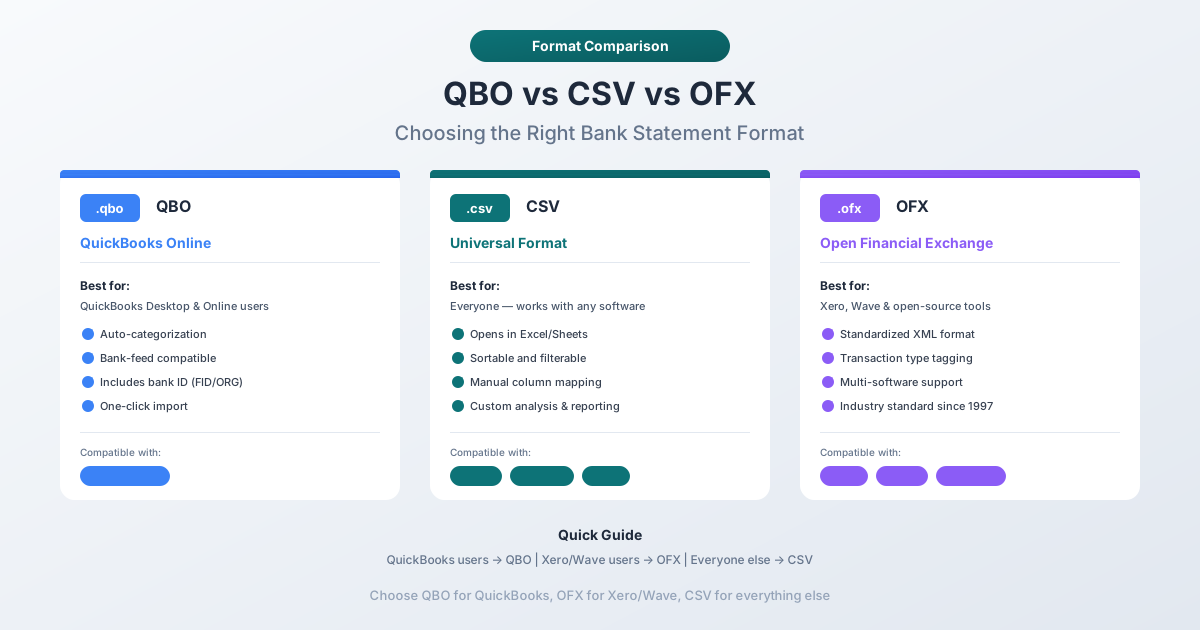
You're converting a bank statement and the tool asks which format you want. QBO, CSV, OFX, QIF, IIF, QFX - the list goes on. You pick one, import it, and immediately run into problems. Columns don't map. Duplicate transactions appear. Dates are wrong. Or the software just rejects the file entirely.
The format you choose determines whether your import takes ten seconds or two hours. Pick the right one and transactions flow into your accounting software with zero manual work - dates, amounts, descriptions, and duplicate protection all handled automatically. Pick the wrong one and you're stuck mapping columns, reformatting dates, and hunting for phantom duplicates that shouldn't exist.
The answer is simple once you know where the data is going. This guide breaks down every major bank statement format - what it does, how it works, and exactly when to use it.

Want to use this infographic on your blog? Copy this embed code:
The Quick Answer: Match Format to Software
If you already know which accounting software you're importing into, here's the short version.
| Software | Best Format | Why |
|---|---|---|
| QuickBooks Online | QBO | Native format, FITID duplicate detection, no column mapping |
| QuickBooks Desktop | QBO or IIF | QBO for Web Connect import, IIF for batch operations |
| Xero | OFX | Preferred import format, built-in duplicate detection |
| Sage | CSV or OFX | Depends on your Sage version and module |
| FreshBooks | CSV | Only supported bank import format |
| Wave | CSV or OFX | Both work - OFX preferred for duplicate protection |
| Excel / Google Sheets | CSV or XLSX | Direct spreadsheet formats, no conversion needed |
| Quicken | QFX or QIF | QFX preferred for modern versions, QIF for legacy |
The rest of this guide explains why these recommendations hold - and what goes wrong when you pick the wrong format.
QBO Format Deep Dive
QBO stands for QuickBooks Web Connect. It's Intuit's proprietary financial data format, built on top of the OFX (Open Financial Exchange) standard with Intuit-specific extensions added.
How It Works
A QBO file is structured markup - similar to XML but using SGML syntax. Every file contains a header block, account metadata, and a list of transactions. Here's a simplified example of the structure:
OFXHEADER:100
DATA:OFXSGML
VERSION:102
...
<BANKMSGSRSV1>
  <STMTTRNRS>
    <STMTRS>
      <CURDEF>USD</CURDEF>
      <BANKACCTFROM>
        <BANKID>021000021</BANKID>
        <ACCTID>1234567890</ACCTID>
        <ACCTTYPE>CHECKING</ACCTTYPE>
      </BANKACCTFROM>
      <BANKTRANLIST>
        <STMTTRN>
          <TRNTYPE>DEBIT</TRNTYPE>
          <DTPOSTED>20260115</DTPOSTED>
          <TRNAMT>-142.30</TRNAMT>
          <FITID>2026011500001</FITID>
          <NAME>ELECTRIC COMPANY</NAME>
        </STMTTRN>
      </BANKTRANLIST>
      <LEDGERBAL>
        <BALAMT>5242.21</BALAMT>
        <DTASOF>20260131</DTASOF>
      </LEDGERBAL>
    </STMTRS>
  </STMTTRNRS>
</BANKMSGSRSV1>
Key Features
- FITID (Financial Institution Transaction ID): Every transaction gets a unique identifier. QuickBooks stores these permanently - if you import the same file twice, it silently skips duplicates. This is the single most important advantage over CSV.
- BANKID and ACCTID: The routing number and account number are embedded in the file. QuickBooks uses these to match the file to the correct bank account automatically.
- ACCTTYPE: Specifies whether the account is checking, savings, or credit card. No manual selection needed.
- Standardized dates: All dates use YYYYMMDD format. No ambiguity between MM/DD/YYYY and DD/MM/YYYY.
- Ledger balance: The ending balance is included for reconciliation verification.
Limitations
QBO is effectively a QuickBooks-only format. While it's technically based on OFX, the Intuit-specific tags and the .qbo extension mean other software either ignores it or misreads it. Xero won't import QBO files. Sage won't either. If you're not using QuickBooks, QBO isn't for you.
The file extension is .qbo.
CSV Format Deep Dive
CSV (Comma-Separated Values) is the simplest financial data format - and the most universally supported. It's plain text. Every row is a transaction. Columns are separated by commas (or semicolons, or tabs, depending on region).
How It Works
A bank statement CSV typically looks like this:
Date,Description,Amount,Balance
2026-01-03,PAYROLL DEPOSIT,4200.00,5432.50
2026-01-05,AMAZON.COM,-47.99,5384.51
2026-01-08,ELECTRIC COMPANY,-142.30,5242.21
There's no wrapper, no header block, no metadata. Just rows and columns. You can open it in any text editor or spreadsheet application and see exactly what's inside.
Strengths
- Universal compatibility: Every accounting platform, spreadsheet, database, and programming language can read CSV. It's the lingua franca of data exchange.
- Human readable: Open the file and you can immediately see and verify every transaction.
- Editable: Need to fix a description or remove a transaction before import? Open it in Excel, make the change, save. Try doing that with a QBO file.
- Small file size: A full year of transactions might total 100KB.
Weaknesses
CSV's simplicity is also its biggest problem for bank statement imports.
- No duplicate detection: CSV files don't contain transaction IDs. Import the same file twice and you get double entries with no built-in way to prevent it.
- Column mapping required every time: When you import a CSV, you have to manually assign which column is the date, description, and amount. Get it wrong and transactions import with descriptions in the date field.
- Date format ambiguity: Is
01/02/2026January 2nd or February 1st? CSV doesn't specify. Your accounting software guesses based on your locale - and sometimes guesses wrong. - Number format issues:
1,234.56is clear in the US, but in Germany that same pattern means something different (1.234,56). CSV has no way to declare which convention it uses, so regional mismatches silently corrupt amounts. - No account metadata: CSV doesn't know which bank account it belongs to. You select the target account manually every time.
The file extension is .csv.
OFX Format Deep Dive
OFX (Open Financial Exchange) is the open standard that QBO is built on. Developed jointly by Microsoft, Intuit, and CheckFree in the late 1990s, it's the universal format for exchanging financial data between institutions and software.
How It Works
OFX files use XML-based markup with a structure nearly identical to QBO. Transaction data, account metadata, and balance information are all present - the difference is that OFX doesn't include Intuit's proprietary extensions.
<OFX>
  <BANKMSGSRSV1>
    <STMTTRNRS>
      <STMTRS>
        <CURDEF>USD</CURDEF>
        <BANKACCTFROM>
          <BANKID>021000021</BANKID>
          <ACCTID>1234567890</ACCTID>
          <ACCTTYPE>CHECKING</ACCTTYPE>
        </BANKACCTFROM>
        <BANKTRANLIST>
          <STMTTRN>
            <TRNTYPE>DEBIT</TRNTYPE>
            <DTPOSTED>20260115</DTPOSTED>
            <TRNAMT>-142.30</TRNAMT>
            <FITID>2026011500001</FITID>
            <NAME>ELECTRIC COMPANY</NAME>
          </STMTTRN>
        </BANKTRANLIST>
      </STMTRS>
    </STMTTRNRS>
  </BANKMSGSRSV1>
</OFX>
Key Features
- Transaction IDs (FITID): Just like QBO, OFX includes unique identifiers for every transaction. Xero, MYOB, GnuCash, and other software that supports OFX will use these for duplicate detection.
- Account metadata: Bank ID, account ID, and account type are embedded. Software can auto-match the file to the correct account.
- Statement date range and balances: Opening and closing dates and balances are included, supporting reconciliation workflows.
- Wide software support: OFX is accepted by Xero, MYOB, GnuCash, Sage (most versions), Wave, Moneydance, and many others. It's the most broadly supported structured financial format outside the QuickBooks ecosystem.
When to Use OFX Over QBO
If you use Xero, OFX is the preferred import format. Xero's bank statement import is optimized for OFX files - transactions map automatically, duplicate detection works via FITID, and account matching is handled by the metadata.
OFX is also the right choice for any non-QuickBooks, non-Quicken software that supports structured financial imports. It gives you all the advantages of QBO - transaction IDs, metadata, standardized dates - without the Intuit lock-in.
The file extension is .ofx.
Other Formats Worth Knowing
Beyond the big three, several other bank statement formats serve specific niches.
QIF (Quicken Interchange Format)
QIF is the original personal finance file format, created by Intuit for Quicken in the 1980s. It's plain text with a simple line-by-line structure:
!Type:Bank
D01/15/2026
T-142.30
PELECTRIC COMPANY
^
D01/05/2026
T-47.99
PAMAZON.COM
^
Each field gets its own line, prefixed by a type code (D for date, T for amount, P for payee). The ^ character separates transactions.
QIF's fatal flaw is no transaction IDs. There's no FITID equivalent, which means no duplicate detection. Import the same file twice and you get double entries. Intuit officially deprecated QIF years ago, but it persists because older versions of Quicken and some niche software still expect it.
QFX (Quicken Financial Exchange)
QFX is essentially an OFX file with a .qfx extension and Intuit-specific headers that tell Quicken to open it. The transaction data structure is identical to OFX. Think of QFX as "OFX branded for Quicken" - the same way QBO is "OFX branded for QuickBooks."
If you use a modern version of Quicken, QFX is your best option. It includes FITIDs for duplicate detection and all the account metadata that OFX provides.
IIF (Intuit Interchange Format)
IIF is a tab-delimited text format designed for batch imports into QuickBooks Desktop. Unlike QBO - which imports bank transactions into the bank feed - IIF imports directly into the register as posted transactions.
!TRNS	TRNSID	TRNSTYPE	DATE	ACCNT	AMOUNT	NAME
TRNS		CHECK	01/15/2026	Checking	-142.30	ELECTRIC COMPANY
ENDTRNS
IIF is powerful but dangerous if misused - transactions bypass QuickBooks' normal review workflow and go straight into the books. Most accountants reserve IIF for specific batch operations and use QBO for routine bank imports. IIF is QuickBooks Desktop only.
MT940 (SWIFT Standard)
MT940 is the international banking standard for electronic bank statements, developed by SWIFT. It's the dominant format in Europe - used by banks across Germany, the Netherlands, Belgium, and much of the EU. MT940 messages use tagged fields (:60F: for opening balance, :61: for transactions, :86: for descriptions) in a compact but cryptic syntax. If your accounting software (SAP, Exact, Datev) expects MT940, this is the format to use. It's not common in North America.
CAMT.053 (ISO 20022 XML)
CAMT.053 is the modern XML-based replacement for MT940, part of the ISO 20022 standard that's gradually replacing SWIFT's legacy message formats. European banks are migrating to CAMT.053, and it's becoming the default for corporate banking platforms.
CAMT.053 provides richer data than MT940 - structured remittance information, detailed party identification, and better support for international transactions. If you work with European corporate bank statements, you'll increasingly encounter this format.
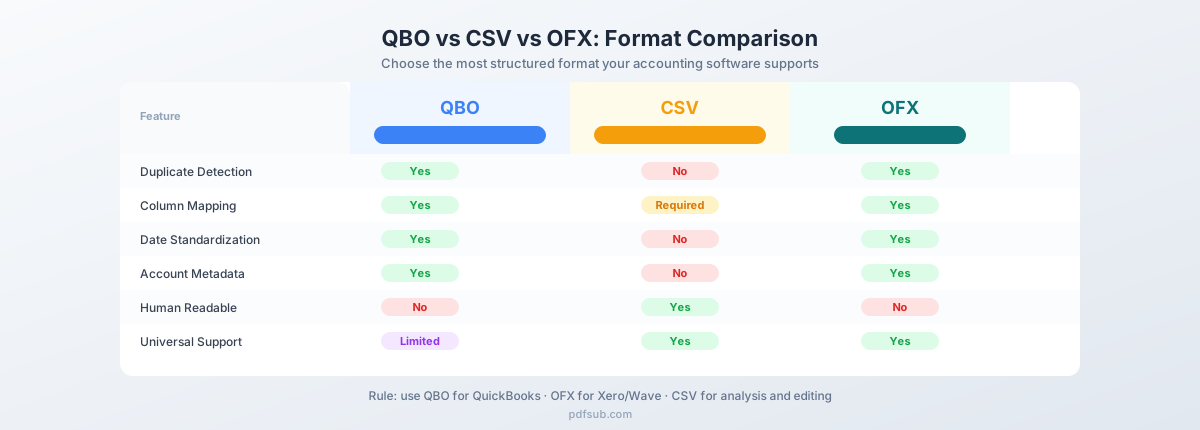
Format Comparison Table
Here's how the major formats stack up against each other across the features that matter most for bank statement imports.
| Feature | QBO | CSV | OFX | QIF |
|---|---|---|---|---|
| Transaction IDs | Yes (FITID) | No | Yes (FITID) | No |
| Duplicate Detection | Yes | No | Yes | No |
| Column Mapping | Not needed | Required | Not needed | Not needed |
| Account Metadata | Yes | No | Yes | No |
| Balance Information | Yes | No | Yes | No |
| Human Readable | No (SGML/XML) | Yes | No (XML) | Yes |
| Universal Support | QuickBooks only | Everywhere | Most accounting software | Limited/legacy |
| Date Standardization | Yes (YYYYMMDD) | No (varies) | Yes (YYYYMMDD) | No (varies) |
| Currency Info | Yes | No | Yes | No |
| Editable in Spreadsheet | No | Yes | No | Possible but fragile |
The pattern is clear: structured formats (QBO, OFX) are better for accounting software imports, while CSV is better for analysis and manual workflows. The structured formats handle the tedious parts - column mapping, date parsing, duplicate prevention - that CSV leaves up to you.
When CSV Is Actually the Better Choice
Despite its limitations for accounting imports, CSV has legitimate advantages in specific scenarios.
When You Need to Edit Data Before Import
Sometimes the raw bank data isn't ready for import. Descriptions need cleaning. Transactions need categorizing. Amounts need splitting. CSV makes this easy - open in Excel, make your changes, save. Structured formats like QBO and OFX are awkward to edit because any change to the XML can break the file's validity.
When Your Target Software Only Accepts CSV
FreshBooks, for example, only supports CSV for bank transaction imports. Some versions of Sage have limited OFX support and work better with CSV. If your software doesn't accept structured formats, CSV is your only option.
When You're Doing Analysis in Excel or Google Sheets
If the goal isn't importing into accounting software but analyzing transactions in a spreadsheet - building pivot tables, running formulas, creating charts - CSV (or XLSX) is the natural choice. You want the data in rows and columns, not wrapped in XML tags.
When Combining Data from Multiple Sources
Need to merge transactions from three bank accounts, two credit cards, and a PayPal export into a single file? CSV makes this trivial - copy rows together, standardize columns, done. Merging QBO or OFX files requires understanding their XML structure and ensuring account metadata is consistent.
When Archiving for Long-Term Storage
CSV is plain text. It will be readable in 50 years by any software on any platform. Proprietary formats depend on vendor support continuing indefinitely. For archival purposes, CSV's simplicity makes it the safest long-term bet.
Converting Between Formats with PDFSub
Most banks give you a PDF statement - not a QBO, OFX, or even CSV file. The challenge isn't choosing a format; it's getting your data into that format in the first place.
PDFSub's Bank Statement Converter solves this by extracting transaction data from your PDF and outputting all eight formats from a single upload:
- Excel (.xlsx) - for spreadsheet analysis
- CSV - for universal compatibility
- TSV - for tab-delimited workflows
- JSON - for developer integrations
- OFX - for Xero, MYOB, GnuCash, Wave, Sage
- QBO - for QuickBooks Online and Desktop
- QFX - for Quicken
- QIF - for legacy Quicken and niche software
Upload once, download whatever format your software needs. Each structured format (QBO, OFX, QFX) includes automatically generated FITIDs for duplicate detection, standardized YYYYMMDD dates, and embedded account metadata.
PDFSub works with statements from over 20,000 banks worldwide and supports 130+ languages. Processing happens in your browser first for privacy, with server-side AI as a fallback for scanned or image-heavy documents.
The All-In-One plan is $20/user/mo (annual) or $25/user/mo (monthly), including 500 bank statement pages per user. All paid plans include a 7-day free trial. See current pricing for details.
Import Guides
Already have your converted file and need help importing it? These step-by-step guides walk you through the process:
- How to Import Bank Statements into QuickBooks - QBO import via Web Connect, CSV import, and troubleshooting
- How to Import Bank Statements into Xero - OFX import, CSV import, and bank feed setup
Frequently Asked Questions
Can I convert a QBO file to CSV?
Yes. Since QBO is structured data, it can be parsed and exported to CSV. However, you'll lose FITID duplicate detection and account metadata in the process. If you're going from QBO to CSV, it's usually because you need to edit the data before re-importing.
Does QuickBooks Online accept OFX files?
QuickBooks Online primarily supports QBO files for bank transaction imports. While some users rename .ofx files to .qbo, this isn't officially supported and can cause import errors. For QuickBooks, use QBO to avoid issues.
Which format has the best duplicate detection?
QBO, OFX, and QFX all use FITID-based duplicate detection, and they're equally effective. The key is that the FITID must be unique and consistent - if you re-convert the same statement, the converter must generate the same FITIDs. PDFSub generates deterministic FITIDs based on transaction data (date, amount, description) to ensure consistency across conversions.
Is QIF still supported in modern Quicken?
Modern versions of Quicken have limited QIF support and strongly prefer QFX files for bank imports. QIF import may be hidden behind an advanced option. If you use current Quicken, choose QFX over QIF.
What format should I use for Sage?
It depends on your Sage product. Sage 50 accepts OFX and CSV. Sage Business Cloud Accounting prefers CSV with a specific column layout. Sage Intacct uses its own CSV import template. In general, CSV is the safest bet because every Sage product accepts it.
Can I import bank statements into Excel?
Excel doesn't "import" bank statements in the accounting sense - but it opens CSV and XLSX files directly. If your goal is to analyze transactions in a spreadsheet rather than import into accounting software, choose CSV or XLSX format. You'll get a clean table of dates, descriptions, amounts, and balances that you can sort, filter, and pivot immediately.
Why do some banks provide OFX downloads but not QBO?
QBO is Intuit's proprietary format, and banks must license the right to produce QBO files. OFX is an open standard - any bank can produce OFX files without licensing fees. This is why smaller banks and international institutions typically offer OFX or CSV downloads but not QBO.
What happens if I import the wrong format?
Most accounting software will reject incompatible files outright with an error like "unsupported file type." The more dangerous scenario is when the software accepts the file but misinterprets it - typically CSV files where date formats don't match or columns are in the wrong order. Always preview imported transactions before finalizing.
The Bottom Line
Format selection isn't a minor detail - it's the difference between a clean import and a cleanup nightmare. The rule is straightforward: use the most structured format your software supports.
For QuickBooks, that's QBO. For Xero, it's OFX. For FreshBooks and software with limited import options, it's CSV. And for spreadsheet analysis, CSV or XLSX keeps things simple.
When you need to go from a PDF bank statement to any of these formats, PDFSub handles the conversion and gives you every format from a single upload - so you never have to convert twice.