Getting Started With Bank Statement Conversion: The Complete Guide
A bookkeeper with 30 clients processes roughly 1,080 bank statements per year. At 20 minutes each, that's 360 hours of manual entry. Here's how to automate it - from your first upload to accounting software import.
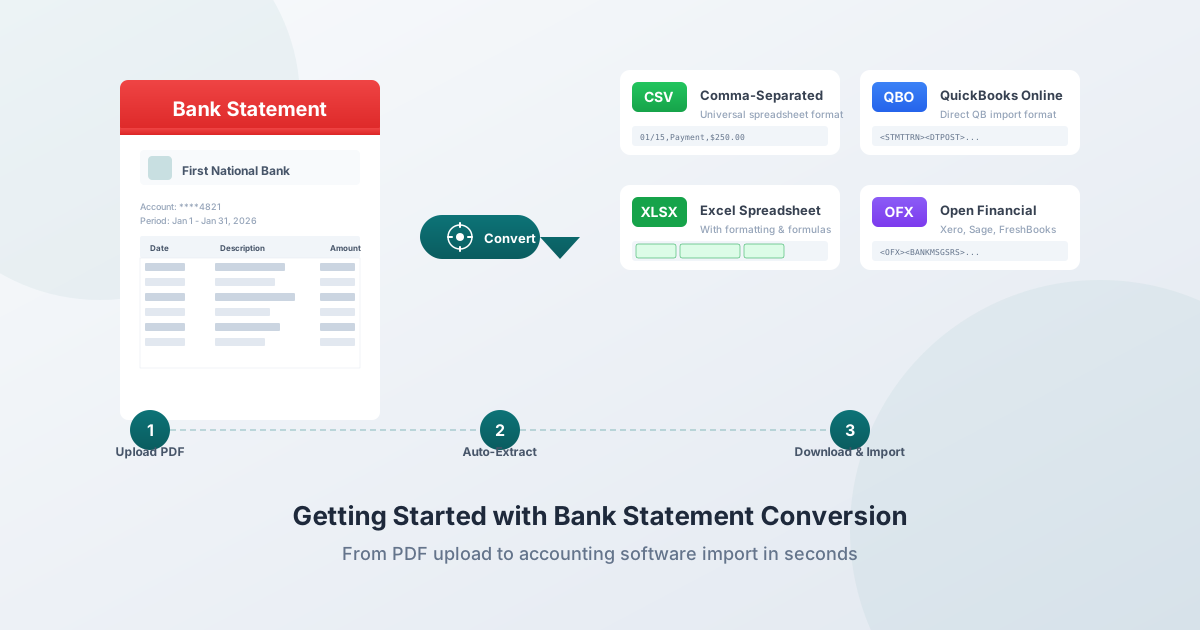
You have a PDF bank statement and you need that data in a spreadsheet - or in QuickBooks, Xero, Sage, or another accounting platform. Copy-paste won't work: you'll end up with jumbled numbers, broken formatting, and hours of cleanup.
This isn't a minor inconvenience. Manual data entry error rates run between 1% and 4% - meaning for every 1,000 transactions you type, 10 to 40 contain errors. At $50 per correction, that adds up fast. Meanwhile, automated extraction achieves 99.96% to 99.99% accuracy and processes a typical statement in seconds rather than the 20–60 minutes required for manual entry.
Whether you're a bookkeeper managing 30 clients, a CPA preparing tax returns, a small business owner reconciling accounts, or an individual organizing personal finances - this guide covers everything you need to know about converting bank statements, from your first upload to importing into accounting software.
What Is Bank Statement Conversion?
Bank statement conversion takes your PDF bank statement and transforms it into structured, importable data - an Excel spreadsheet, a CSV file, a QBO file for QuickBooks, an OFX file for Xero, or other formats your accounting software accepts.
Instead of a document you can only view and print, you get data you can actually work with: sort, filter, categorize, run formulas on, and import into accounting platforms.
The converter reads your statement and extracts transactions automatically. Dates stay as dates, amounts stay as numbers, descriptions are preserved, and everything lands in the correct columns. Running balances can be validated against the statement's opening and closing figures to verify extraction accuracy.
Why You Can't Just Copy-Paste
PDFs are designed to look good on screen - they're digital printouts, not data containers. When you copy from a PDF and paste into Excel, here's what actually happens:
- Column alignment breaks. Numbers that appear in neat columns in the PDF get pasted as a single text block. A date, description, and amount that occupy three columns in the PDF become a single jumbled cell in Excel.
- Numbers become text. Excel doesn't recognize the pasted values as numbers because they include currency symbols, parentheses (accounting-style negatives), or commas as thousands separators. You can't sum a column of text.
- Multi-line descriptions merge or split. A transaction description that wraps across two lines in the PDF either merges into one long string (losing the line break context) or splits into two separate rows (creating a phantom transaction).
- Headers and footers paste as data. Page numbers, bank logos, account summaries, and legal disclaimers copy along with the transaction data.
- Scanned statements can't be copied at all. If your PDF is a scanned paper document, there's no selectable text - it's an image. You can't select, copy, or paste anything.
Dedicated conversion tools solve these problems by understanding bank statement layouts - they know what a date column looks like, how to distinguish debits from credits, and how to handle the dozens of formatting variations across different banks.
How to Convert Your First Statement
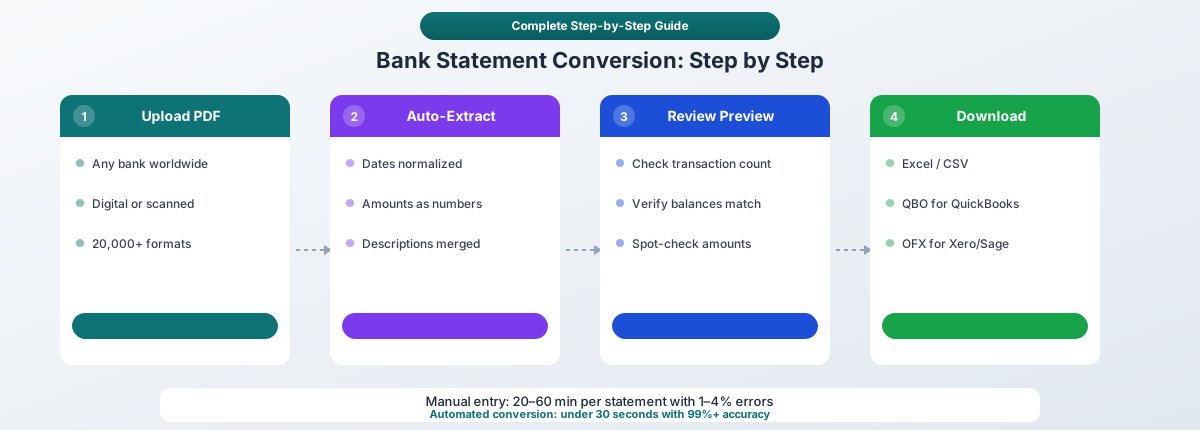
Step 1: Upload Your PDF
Drag your bank statement onto the PDFSub converter or click to browse your files. Statements from any bank work - Chase, Bank of America, Wells Fargo, HSBC, international banks, credit unions, and over 20,000 bank formats worldwide.
Where to get your statement: Download it directly from your bank's online portal or mobile app. These "native digital PDFs" contain embedded text and convert with the highest accuracy. Navigate to your bank's statements section, select the month, and download as PDF.
Password-protected PDFs: Most major US banks apply password protection to downloaded statements:
| Bank | Typical Password |
|---|---|
| Chase | Full 9-digit SSN |
| Bank of America | SSN or TIN |
| Wells Fargo | SSN or last 4 digits of SSN |
| Capital One | Date of birth (MMDDYYYY) |
If your PDF is password-protected, you'll need to enter the password when prompted. Alternatively, open it in any PDF viewer with the password and print to a new unprotected PDF.
Step 2: Automatic Processing
The converter analyzes your document and extracts transaction data automatically. This includes:
- Dates - detected and normalized regardless of format (MM/DD/YYYY, DD/MM/YYYY, YYYY-MM-DD)
- Descriptions - full transaction text preserved, including multi-line descriptions merged correctly
- Amounts - parsed as numbers with proper sign (negative for debits, positive for credits)
- Running balances - extracted and validated against statement totals
- Account information - bank name, account number, statement period
For digital PDFs, this processing happens entirely in your browser - the file never leaves your device. This matters enormously for financial documents: no upload means no server exposure, no data retention risk, and no GDPR compliance concerns.
Processing typically takes under 10 seconds for a standard statement. Multi-page statements (10–50+ pages) may take slightly longer, but the converter handles header/footer detection, page-break transaction merging, and continuation line handling automatically.
Step 3: Review the Preview
Before downloading, review the extracted data in the preview panel. Check that:
- Transaction count matches your expectation
- Opening and closing balances are correct
- Dates are in the right format
- Amounts look accurate (spot-check a few against the original)
- Descriptions are complete (not truncated or split)
This 30-second review catches any issues before you import the data into your accounting software.
Step 4: Choose Your Format and Download
Select the output format that matches your workflow:
| Format | Best For | Use When |
|---|---|---|
| Excel (.xlsx) | Manual review, custom analysis | You want to review, categorize, or manipulate data before importing |
| CSV | Maximum compatibility | Your software requires CSV, or you need to import into multiple systems |
| QBO | QuickBooks Desktop & Online | You use QuickBooks and want the richest import with automatic matching |
| OFX | Xero, Wave, Sage | You use Xero (auto-maps without column configuration) or other OFX-compatible software |
| QFX | Quicken | You use Quicken for personal finance management |
| JSON | API integrations, custom apps | You're building automated workflows or feeding data into custom systems |
Understanding Output Formats
Excel (.xlsx)
The most flexible format. Opens in Microsoft Excel, Google Sheets, LibreOffice Calc, and virtually every spreadsheet application. Ideal when you want to:
- Review and categorize transactions before importing
- Create custom reports, pivot tables, or charts
- Apply formulas for analysis (spending by category, running totals, tax deduction calculations)
- Share with clients or colleagues who need a readable spreadsheet
CSV (Comma-Separated Values)
Plain text, universally readable. Nearly every accounting program, database, and spreadsheet application can import CSV files. The trade-off: no formatting, no formulas, no multi-sheet support. When importing CSV into Xero, you'll need to manually map columns to the correct fields (date, amount, description). QuickBooks Online also accepts CSV but with more limited matching than QBO format.
QBO (QuickBooks Web Connect)
The preferred format for QuickBooks users. QBO files are based on the OFX specification with QuickBooks-specific extensions. They include unique transaction IDs that prevent duplicate imports - if you re-import the same QBO file, QuickBooks recognizes transactions it's already seen.
Important: ".QBO" does NOT mean "QuickBooks Online" - it stands for QuickBooks Web Connect format and works with both QuickBooks Desktop and QuickBooks Online.
QBO includes: date, amount, payee name, memo, check number, transaction ID, account ID, bank ID, currency, and ending balance - the richest data set of any import format for QuickBooks.
OFX (Open Financial Exchange)
An open standard (XML-based) for exchanging financial data, managed by the Financial Data Exchange (FDX) consortium. OFX is the format used when you connect your bank account directly to accounting software - the same format works for file imports.
Best for Xero users: Xero auto-imports OFX files without requiring manual column mapping. You upload the file and transactions appear immediately with correct dates, amounts, and descriptions. Wave, Sage, and FreshBooks also accept OFX.
QFX (Quicken Web Connect)
Intuit's proprietary variant of OFX, used exclusively by Quicken personal finance software. Structurally similar to OFX with additional fields for Intuit's systems.
JSON (JavaScript Object Notation)
Machine-readable structured data. Used by developers building automated workflows, fintech integrations, and custom dashboards. Increasingly important for Open Banking API integrations and automated reconciliation pipelines.
Digital vs. Scanned Statements
The single biggest factor affecting conversion accuracy is whether your PDF contains embedded text or is a scanned image.
Digital (Native) PDFs
Created by your bank's online system when you download a statement. You can select and highlight individual words when viewing the PDF.
- Accuracy: 99%+ for text extraction - no recognition errors
- Speed: Seconds to process
- Privacy: Can be processed entirely in your browser (no upload required)
- Availability: Most banks offer digital statement downloads going back 7–10 years
Scanned PDFs
Images of paper statements - created by scanning or photographing a physical document. You cannot select any text.
- Accuracy: 95–99% with professional OCR tools; 65–70% with generic OCR
- Speed: Slower - requires image processing and character recognition
- Privacy: Typically requires server-side processing (the file must be uploaded for OCR)
- Common sources: Historical statements from before online banking, statements from small banks or credit unions that only mail paper, client-provided documents
How to Tell the Difference
Open the PDF and try to highlight a word with your mouse cursor. If individual words highlight in blue, it's a native digital PDF. If nothing highlights (or the entire page highlights as one block), it's a scanned image.
Always prefer digital downloads. If you have the option, download statements from your bank's website rather than scanning paper copies. The accuracy difference is significant and eliminates the need for OCR entirely.
Bank Statement Conversion in Your Accounting Workflow
For Bookkeepers (Multi-Client Firms)
A typical bookkeeper manages 10–40 clients (average around 30), and each client may have 2–5 bank accounts. That's potentially 90+ statements per month or 1,080 per year. At 20 minutes of manual entry per statement, that's 360 hours per year - nine full work weeks - spent on data entry that could be automated.
The workflow:
- Receive statements from clients (PDF via email, client portal, or direct download)
- Convert to importable format - batch convert all statements for the period
- Import into accounting software - QBO for QuickBooks clients, OFX for Xero clients, CSV for others
- Categorize transactions - apply rules for recurring vendors, match to chart of accounts
- Reconcile - verify imported data matches bank statement totals
- Produce reports - generate P&L, balance sheet, and other reports for client review
Automated conversion eliminates step 2's manual labor and dramatically reduces errors in the import. The 360 hours saved annually can serve 5–10 additional clients without hiring.
For Tax Preparers
Bank statements serve as source documents for verifying income, deductions, and business expenses. During tax season:
- Quarterly check-ins (April, June, September, December) keep records current and reduce the year-end scramble
- Converted statements in Excel provide searchable, sortable transaction data for identifying deductible expenses
- Structured data enables automated categorization - flagging potential deductions that might be missed in a manual review
For Small Business Owners
Monthly bank reconciliation is a fundamental financial control. Converting your statement to Excel or importing directly into your accounting software enables:
- Spending analysis by vendor, category, or time period
- Cash flow tracking with accurate, up-to-date numbers
- Tax preparation with organized, categorized expenses
- Audit readiness with a clear trail from bank statement to accounting record
For Individuals
Personal finance management benefits from structured data too:
- Track spending patterns across months
- Identify subscriptions and recurring charges
- Prepare documentation for mortgage applications, visa applications, or tax filing
- Organize financial records for estate planning or legal matters
Privacy and Security: Why It Matters for Financial Documents
Bank statements contain some of the most sensitive personal and business data imaginable: account numbers, transaction history, balances, spending patterns, employer information, and sometimes Social Security Numbers.
The Risk of Cloud Uploads
When you upload a bank statement to an online converter, that file travels across the internet and sits on a third-party server during processing. Even with encryption, the service provider has theoretical access to your data. If their security is compromised - and accounting firms face an average of 900 cyberattack attempts during tax season - your clients' financial data could be exposed.
In 2024, the IRS received over 250 reports of data breach incidents from tax professionals, impacting more than 200,000 clients. Since 2020, reported attacks on accounting practices have jumped 300%.
Professional Obligations
If you're a CPA or enrolled agent, the AICPA Code of Professional Conduct (Rule 1.700.001) requires that you not disclose confidential client information without specific consent. The IRS requires all tax professionals to maintain a Written Information Security Plan (WISP) under the Gramm-Leach-Bliley Act - and since 2023, PTIN renewal asks explicitly whether you have one.
Using a tool that uploads client bank statements to external servers potentially creates a data handling obligation under both AICPA rules and IRS requirements. You need to ensure any cloud processing meets your security plan's requirements.
Browser-Based Processing as a Solution
PDFSub processes digital bank statements entirely in your browser. The file never leaves your device - there's no upload, no server exposure, no data retention. This eliminates the privacy concern entirely:
- No third-party access to client data
- No GDPR data processor obligations (since no personal data is collected)
- No cloud storage to secure, audit, or certify
- Full compliance with WISP requirements (data stays on the practitioner's machine)
Server-side processing is used only when necessary - for scanned documents that require OCR - and can be avoided entirely by using digital statement downloads.
Handling International Bank Statements
If you work with international clients or have accounts outside the United States, you'll encounter formatting differences that trip up most conversion tools:
Date Formats
| Region | Format | Example |
|---|---|---|
| United States | MM/DD/YYYY | 03/15/2026 |
| Europe, Latin America | DD/MM/YYYY | 15/03/2026 |
| Japan, China, Korea | YYYY-MM-DD | 2026-03-15 |
| Germany | DD.MM.YYYY | 15.03.2026 |
The date "03/04/2026" is March 4 in the US but April 3 in Europe. When all dates in a statement have day values of 12 or less, there's no algorithmic way to determine the correct format without knowing the country of origin.
Number Formats
| Region | One Thousand and Fifty Cents |
|---|---|
| US, UK, Japan, China | 1,000.50 |
| Germany, France, Spain, Brazil | 1.000,50 |
| Switzerland | 1'000.50 |
| India | 1,000.50 (but lakhs use 1,00,000) |
An amount of "10.000,45" from a European bank means ten thousand and forty-five cents - not ten point zero zero zero four five.
Character Encodings
Chinese statements use GBK encoding (not UTF-8), Japanese use Shift_JIS, and many European banks use ISO 8859 variants. Opening these files on a US system produces garbled characters unless the encoding is correctly detected and converted.
PDFSub handles 130+ languages with automatic detection of date formats, number formats, and character encodings - including right-to-left Arabic and Hebrew, CJK characters, Cyrillic, Devanagari, and all European character sets.
The Business Case: Why Automate?
Time Savings
| Statement Type | Manual Entry | Automated | Savings |
|---|---|---|---|
| Personal (30–70 transactions) | 15–30 minutes | ~10 seconds | 15–30 min per statement |
| Small business (100–500 transactions) | 45 min – 2 hours | ~20 seconds | 45 min – 2 hrs per statement |
| Corporate (500+ transactions) | 2+ hours | ~30 seconds | 2+ hrs per statement |
Error Reduction
| Metric | Manual Entry | Automated |
|---|---|---|
| Error rate | 1–4% | Under 0.5% |
| Errors per 1,000 transactions | 10–40 | 1–5 |
| Cost per error (correction time) | ~$50 | ~$50 |
| Monthly cost at 10,000 transactions | $500–$2,000 | $50–$250 |
ROI for a Bookkeeper
A bookkeeper with 30 clients, 3 accounts each, processing monthly:
- Annual statements processed: 1,080
- Time saved: 360 hours/year (at 20 min per statement)
- Labor cost saved: $14,400/year (at $40/hour)
- Additional capacity: Serve 5–10 more clients without hiring
- Software cost: $480–$1,900/year
- Net annual benefit: $12,500–$13,900
Tips for Best Results
Use native PDFs. Download statements from your bank's website rather than scanning paper. Native PDFs convert with 99%+ accuracy. Scanned PDFs drop to 95% or lower.
Check for passwords. If the converter can't read your PDF, it's likely password-protected. Try the passwords listed above for your bank.
Verify the output. After converting, spot-check a few transactions against your original PDF. Verify the opening and closing balance, transaction count, and a few random amounts. This takes 30 seconds and catches any issues before import.
Keep the original PDF. Always retain the source document alongside your converted file. Tax law requires retention of financial records, and the original PDF is your audit trail.
Batch process. If you have multiple statements, convert them together. PDFSub processes multiple files sequentially - upload them all at once rather than one at a time.
Match format to software. Use QBO for QuickBooks, OFX for Xero, and CSV as a universal fallback. Using the right format avoids manual column mapping and enables features like duplicate transaction detection.
Frequently Asked Questions
What banks does PDFSub support?
PDFSub supports over 20,000 bank formats worldwide - every major US bank (Chase, Bank of America, Wells Fargo, Citi, Capital One, US Bank, PNC, TD Bank), international banks, credit unions, and digital banks. The converter auto-detects the bank format from the PDF structure.
Can I convert credit card statements too?
Yes. Credit card statements from Visa, Mastercard, American Express, and Discover issuers convert the same way as bank statements. The converter extracts transaction dates, merchant names, amounts, and categorizes charges and payments.
How accurate is the conversion?
For native digital PDFs (downloaded from online banking), accuracy is 99%+ for text extraction. Scanned documents typically achieve 95–99% accuracy depending on scan quality. PDFSub validates extracted data against statement totals to catch discrepancies.
Is my data safe?
For digital PDFs, processing happens entirely in your browser - the file never leaves your device. No upload, no server storage, no third-party access. Scanned documents requiring OCR are processed server-side with encryption, and files are deleted after processing.
Can I convert statements from international banks?
Yes. PDFSub supports 130+ languages and handles international date formats (DD/MM/YYYY, YYYY-MM-DD), number formats (1.234,56 vs 1,234.56), character encodings (GBK, Shift_JIS, UTF-8), and right-to-left scripts (Arabic, Hebrew).
How do I import into QuickBooks?
Convert your statement to QBO format, then in QuickBooks go to Banking → Upload Transactions → select the QBO file. QuickBooks auto-matches transactions and flags potential duplicates using the unique transaction IDs embedded in the QBO file.
How do I import into Xero?
Convert to OFX format for the smoothest experience - Xero auto-imports OFX files without manual column mapping. Go to Accounting → Bank Accounts → select the account → Import a Statement → choose the OFX file.
Can I convert multiple statements at once?
Yes. Upload multiple PDFs and PDFSub processes them sequentially. Each statement is auto-detected independently, even if they're from different banks with different layouts.
Try It Free
Ready to convert your first statement? Upload a PDF now - start a 7-day free trial with full access to all conversion features and output formats.