Convert Wells Fargo Statements to Excel (2026)
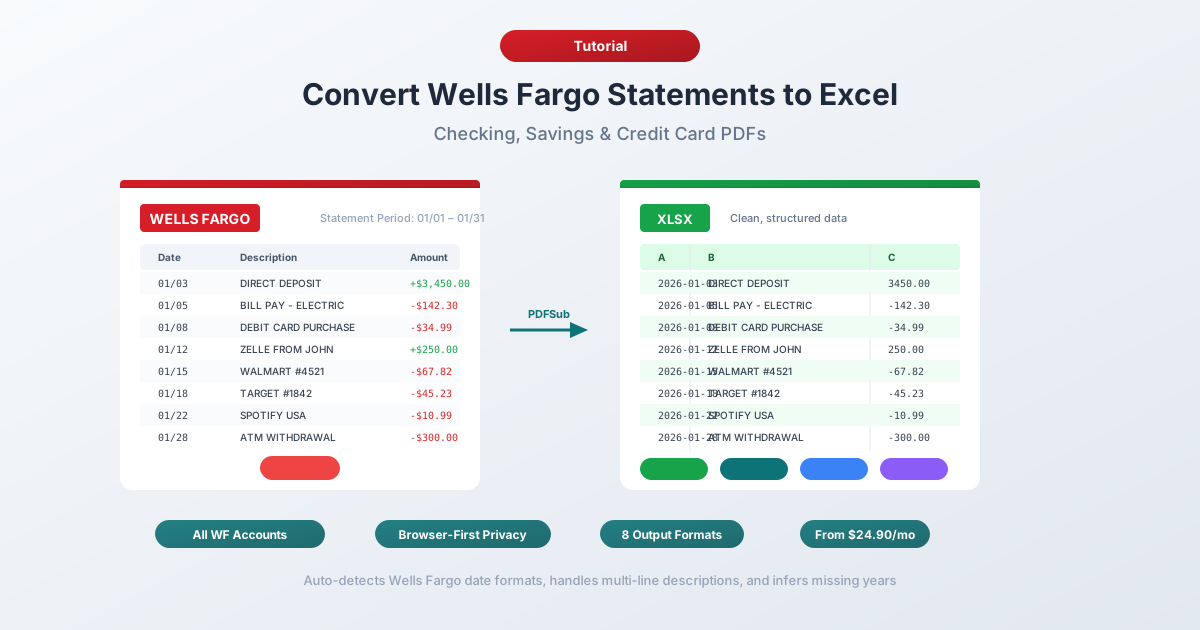
Step-by-step guide to converting Wells Fargo checking, savings, and credit card statement PDFs into Excel, CSV, or QBO format.
You've got a Wells Fargo bank statement PDF and you need the data in a spreadsheet. Maybe you're reconciling accounts, categorizing expenses, or pulling together documentation for tax season. Whatever the reason, Wells Fargo doesn't give you a clean path from statement to spreadsheet.
Wells Fargo serves over 70 million customers - the third-largest bank in the U.S. - and every one of those customers gets their statements as PDFs. No Excel option, no CSV version of the official statement. And if you've tried selecting text in a Wells Fargo PDF and pasting it into Excel, you already know the result: a mess of jumbled text with dates, descriptions, and dollar amounts crammed into one column.
Here's how to actually get your Wells Fargo statement data into Excel, with methods that work for checking, savings, and credit card accounts.
What Wells Fargo Gives You (And What It Doesn't)
Before converting anything, it helps to understand what Wells Fargo actually offers.
PDF statements - available for up to 7 years through Wells Fargo Online under Statements & Documents. These are the official statements matching what you'd receive in the mail. PDF format only, no alternative.
Activity downloads - available through the Account Activity tab. Wells Fargo offers CSV, QFX (Quicken), and QBO (QuickBooks) exports for recent transaction activity. Sounds like it should solve the problem, right?
Not quite. The activity download has real limitations:
- Only ~18 months of history - Wells Fargo's activity exports cover roughly a year and a half, far less than the 7 years of PDF statements available
- Not official statements - the download is a transaction feed. It's missing opening/closing balances, fee summaries, interest breakdowns, and daily balance tables
- No statement-level detail - items like service charges, overdraft fees, and interest paid are summarized differently in the CSV than on the official statement
- Date range restrictions - you may need to download in chunks depending on the volume of transactions
So if you need data older than 18 months, need the complete statement (not just a transaction list), or need to match official records for auditing purposes - the PDF is your only option.
Method 1: Use a Bank Statement Converter (Recommended)
The fastest and most accurate method is a specialized bank statement converter - a tool designed specifically to extract transaction data from bank statement PDFs.
Unlike generic PDF-to-Excel tools, bank statement converters understand the structure of financial documents. They know that Wells Fargo checking statements use a 5-column layout with Date, Description, Additions/Deposits, Withdrawals/Debits, and Ending Daily Balance. They handle multi-line descriptions, section-based grouping, and Wells Fargo's unique daily balance column.
Step-by-Step with PDFSub
- Download your Wells Fargo statement - Log into wellsfargo.com → Statements & Documents → select the statement → download PDF
- Go to PDFSub's Bank Statement Converter
- Upload the Wells Fargo PDF - drag and drop or click to browse
- Review the extracted data - PDFSub shows you the transactions before you download, so you can verify accuracy
- Choose your format - Excel (XLSX), CSV, QBO (QuickBooks), OFX (Xero), or any of 8 supported formats
- Download - click Download or use "Download All" for a ZIP with every format
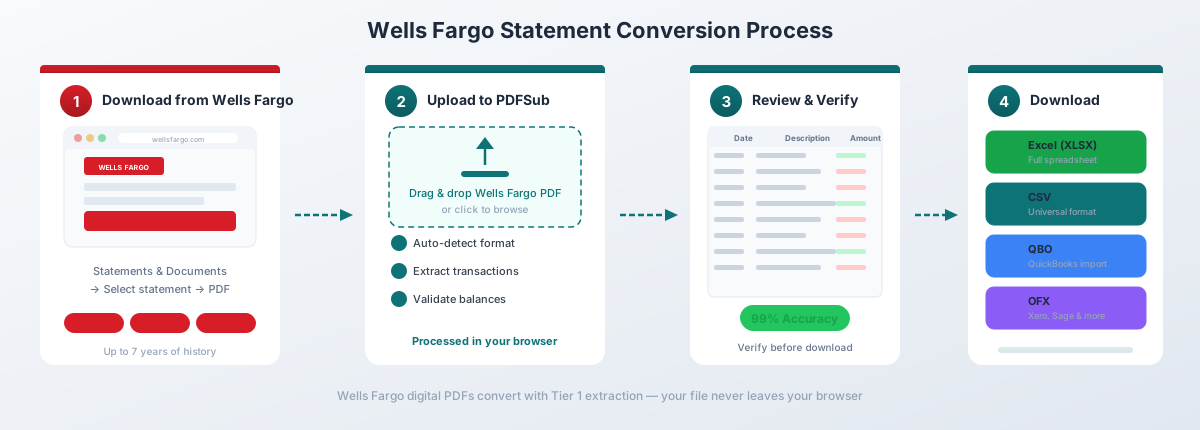
For Wells Fargo's digital PDFs (downloaded directly from Online Banking), PDFSub's Tier 1 extraction handles the conversion entirely in your browser - the file never leaves your device. This matters when you're working with sensitive financial data.
Why this works well for Wells Fargo specifically:
- Auto-detects Wells Fargo's 5-column layout and correctly maps the Ending Daily Balance column (which is not a running transaction balance - more on that below)
- Handles Wells Fargo's multi-line transaction descriptions (2–3 lines are common) without creating duplicate rows
- Recognizes section headers like "Deposits and Other Credits" and "Withdrawals and Other Debits" and skips them rather than treating them as transactions
- Works with all Wells Fargo account types - Simple Checking, Everyday Checking, Prime Checking, savings, and credit card
- Exports to QBO format for direct QuickBooks import with FITID duplicate detection
Bank statement conversion is included in the All-In-One plan at $20/user/mo (annual; 500 pages per user) with a 7-day free trial.
Method 2: Wells Fargo's Built-In Activity Download
If you only need recent transactions (not the full statement), Wells Fargo's native CSV export is the quickest option.
How to Download
- Log into wellsfargo.com
- Navigate to your account
- Click the "Account Activity" tab
- Set the date range for the transactions you need
- Click "Download" and select your format (CSV, QFX, or QBO)
- Open the downloaded file in Excel
What You Get
Wells Fargo's CSV includes these columns:
| Column | Description |
|---|---|
| Date | Transaction date (MM/DD/YYYY) |
| Amount | Signed amount (negative for debits) |
| Description | Merchant or transaction detail |
Limitations to Watch For
The ~18-month history cap. Wells Fargo's activity downloads only cover roughly 18 months. For anything older, you need the PDF statements. This is shorter than Chase (~24 months) and significantly less than the 7 years of PDF statements available.
Not the official statement. The CSV export is a transaction feed - it doesn't include opening/closing balances, fee breakdowns, interest charges, or the daily balance table. If you need these for accounting or audit purposes, you need the PDF.
Different from the statement. Transaction descriptions in the CSV download may not match the PDF statement exactly. The CSV tends to use abbreviated descriptions, while the PDF has the full multi-line detail.
This method works for quick personal finance tracking of recent activity. For anything more comprehensive, convert the PDF.
Method 3: Copy-Paste from PDF (Not Recommended)
You can try selecting text in a Wells Fargo PDF and pasting it into Excel. Here's what actually happens:
Everything lands in a single column. Dates, descriptions, amounts, and balances get smashed together. A transaction that looks clean in the PDF - with Date, Description, Deposit amount, and Ending Daily Balance neatly separated - becomes a jumble of text fragments in Excel with no column separation.
You can try Excel's Text to Columns feature (Data tab → Text to Columns) to split it apart, but:
- Wells Fargo's multi-line descriptions (often 2–3 lines per transaction) break the row alignment
- The Ending Daily Balance column gets confused with transaction amounts
- Section headers ("DEPOSITS AND OTHER CREDITS") get mixed in with transaction data
- Zelle transactions include long reference numbers that create extra-wide rows
- You'll spend 30+ minutes cleaning up a single statement
For one or two simple statements with few transactions, this is tedious but doable. For anything more, it's not worth the effort.
Method 4: Adobe Acrobat Pro
Adobe Acrobat Pro has an "Export PDF → Spreadsheet → Microsoft Excel Workbook" feature. For Wells Fargo statements, the results are consistently disappointing.
Here's what typically happens:
- Misaligned columns. Wells Fargo's 5-column layout confuses Acrobat's table detection. The Ending Daily Balance column frequently gets merged with the Withdrawals column, or split into its own disconnected table.
- Multi-line description chaos. Since Wells Fargo descriptions commonly span 2–3 lines, Acrobat treats each line as a separate row. A single Zelle payment becomes three rows with fragments of the description scattered across them.
- Section headers become data rows. "Deposits and Other Credits" and "Fees and Service Charges" section headers get mixed into the transaction table, breaking any automated processing.
- Daily balance misattribution. The Ending Daily Balance gets associated with the wrong transaction or appears as a separate unlinked column.
If you have Acrobat Pro, it's worth a quick try - some Wells Fargo statements convert better than others depending on the statement period and account type. But expect significant manual cleanup.
Understanding the Wells Fargo PDF Format
Wells Fargo statements have several distinctive characteristics that set them apart from other banks:
The Ending Daily Balance Column
This is the most important thing to understand about Wells Fargo statements. The fifth column - "Ending Daily Balance" - is not a running transaction balance. It shows the account balance at the end of each calendar day, not after each individual transaction.
This means if you have three transactions on the same day, only the last one shows a balance in the Ending Daily Balance column. The other two have a blank in that column. Generic converters that expect a running balance (like Chase provides) will misinterpret this and either create errors or flag missing data.
Section-Based Transaction Layout
Wells Fargo organizes transactions into clearly labeled sections:
- Deposits and Other Credits - incoming money (paychecks, transfers in, refunds)
- Withdrawals and Other Debits - outgoing money (purchases, bill pay, transfers out)
- Fees and Service Charges - monthly maintenance fees, overdraft charges, wire fees
- Daily Ending Balance - a summary table showing the balance at the close of each business day
This grouping helps specialized converters categorize transactions automatically, but confuses generic PDF-to-Excel tools that don't understand the structure.
Multi-Line Descriptions
Wells Fargo transaction descriptions regularly span 2–3 lines. A typical Zelle transaction looks like this on the statement:
03/15  Zelle payment from JOHN SMITH          150.00
       Ref #1234567890
The reference number on the second line is part of the same transaction, not a separate one. Bill Pay transactions follow a similar pattern:
03/18  BILL PAY COMCAST CABLE                           89.99
       ON-LINE XFER CONFIRMATION# 12345678
Converters that don't handle multi-line descriptions will create duplicate rows - one for the main description and one for the reference number or confirmation detail.
Date Format
Wells Fargo uses MM/DD format for transaction dates (e.g., "03/15") without the year. The year must be inferred from the statement period shown in the header. Good converters do this automatically. If yours doesn't, you'll need to add the year column manually.
Account Type Differences
Wells Fargo offers several checking account tiers, and the statements differ slightly between them:
Personal Checking (Simple, Everyday, Prime)
All three tiers use the same 5-column layout. The main differences are in the fee sections:
- Simple Checking - no monthly fee, limited features
- Everyday Checking - $10/month fee (waivable), shows fee waiver status
- Prime Checking - $25/month fee (waivable), includes additional features like non-Wells Fargo ATM fee rebates shown as separate line items
The fee waiver conditions are detailed on the statement, and these extra lines can interfere with extraction if not handled properly.
Savings Accounts
Wells Fargo savings statements use a similar layout but include an interest summary section showing the annual percentage yield (APY) and interest earned. The transaction volume is typically lower, making these statements easier to convert.
Credit Card Statements
Wells Fargo credit card statements have a distinctly different layout from checking/savings:
- Double date columns - transaction date and posting date side by side
- Rewards/points section - a summary of points earned, redeemed, and remaining balance
- APR breakdown - purchases, cash advances, and balance transfers each with their own rate and interest calculation
- Payment summary - minimum payment due, new balance, and payment due date in a prominent box at the top
The rewards and APR sections should be skipped during transaction extraction, but some generic tools mistake them for transaction data.
Business Accounts
Wells Fargo business checking statements include more detailed transaction type classifications and may have additional sections for merchant services, payroll debits, and commercial deposits. Combined statements - where multiple accounts appear in a single PDF - are also common for business customers. These require converters that can separate transactions by account number.
Common Conversion Problems and Solutions
Problem: Deposits and withdrawals in the wrong column
Wells Fargo separates deposits and withdrawals into different sections on the statement, but uses the same columns. Some converters merge everything into a single "Amount" column without preserving the sign (positive/negative). Solution: Use a converter that reads the section headers to determine transaction direction, or manually add signs after conversion.
Problem: Daily balance appears as a transaction amount
The Ending Daily Balance column can be mistaken for a deposit or withdrawal amount by tools that don't understand Wells Fargo's layout. Solution: Use a specialized bank statement converter that recognizes this column, or delete the balance column after conversion if you only need transaction amounts.
Problem: Zelle transactions create extra rows
Zelle payments include reference numbers and sometimes recipient details on separate lines. Generic converters often create one row per line, resulting in orphaned reference numbers appearing as separate transactions with no amount. Solution: Use a converter that handles multi-line descriptions, or manually merge the extra rows after conversion.
Problem: Combined statements mix up accounts
If you have multiple Wells Fargo accounts and receive a combined statement, the transactions from different accounts appear in separate sections of the same PDF. Some converters merge all transactions together without indicating which account they belong to. Solution: Use a converter that detects account number headers and separates the data accordingly, or convert each account section separately.
Problem: Fee section creates confusing entries
The "Fees and Service Charges" section sometimes includes explanatory text (like fee waiver conditions) that gets extracted as transactions. Solution: Use a converter that recognizes Wells Fargo's fee section format, or manually review and clean up the fee entries after conversion.
Importing into Accounting Software
Once your Wells Fargo data is converted, here's how to get it into common accounting platforms:
QuickBooks Online - Use QBO format for the cleanest import. Go to Banking → Link Account → Upload from computer → select the QBO file. QuickBooks will match transactions and include FITID duplicate detection. See our guide to importing bank statements into QuickBooks for detailed steps.
QuickBooks Desktop - Use QBO or IIF format. File → Import → From Web Connect (for QBO files).
Xero - Use OFX format. Go to Accounting → Bank Accounts → your account → Import a Statement. Xero accepts OFX and CSV. OFX is preferred because it includes transaction IDs for duplicate prevention. See our guide to importing bank statements into Xero for detailed steps.
FreshBooks - Use CSV format. Go to Accounting → Bank Import → Import Transactions → select CSV. You'll need to map columns manually.
Wave - Use CSV or OFX format. Go to Accounting → Transactions → Import → select your bank → upload the file.
Excel/Google Sheets - Use XLSX or CSV format. Open directly or import via Data → From Text/CSV.
Tips for Working with Converted Wells Fargo Data
Once you have your Wells Fargo transactions in Excel, here are some practical tips:
Verify with the opening and closing balance. Add up all deposits, subtract all withdrawals, and check that the result matches the difference between the opening and closing balances shown on the statement header. This is the fastest accuracy check.
Understand the Ending Daily Balance. Don't confuse this with a running transaction balance. If you need a true running balance, create a formula column: opening balance + cumulative sum of signed transaction amounts.
Standardize the date column. Excel sometimes interprets dates as text rather than date values. Select the date column → Data → Text to Columns → select Date format (MDY) to ensure proper date handling. Remember that Wells Fargo uses MM/DD without the year, so you may need to add the year manually if your converter didn't infer it.
Combine multiple months carefully. If you're stitching together several months of data, watch for transactions that appear on two consecutive statements. The last few transactions of one statement period may also appear at the start of the next.
Add a category column. Use Excel's SEARCH function to auto-categorize based on merchant names and transaction types:
=IF(SEARCH("ZELLE",B2)>0,"Transfers",IF(SEARCH("BILL PAY",B2)>0,"Bills",IF(SEARCH("ATM",B2)>0,"Cash","Other")))Convert monthly, not annually. Don't wait until tax season to convert 12 months of statements at once. Convert each month as it arrives and keep an organized folder structure.
Frequently Asked Questions
Can I download Wells Fargo statements as Excel files directly?
No. Wells Fargo only provides statements in PDF format. You can download recent transaction activity (up to ~18 months) as CSV through the Activity tab, but this is a transaction feed - not the official statement. For full statements with balances and fees, you must convert the PDF.
How far back can I get Wells Fargo statements?
Up to 7 years for PDF statements through Wells Fargo Online (Statements & Documents). The Activity tab CSV export only covers approximately 18 months. For statements older than 7 years, contact Wells Fargo customer service at (800) 869-3557 and ask about archived statement retrieval.
What is the Ending Daily Balance column?
The Ending Daily Balance shows your account balance at the close of each calendar day - not after each individual transaction. If you had five transactions on March 15th, only the last transaction of that day will show a value in the Ending Daily Balance column. The others will be blank. This is different from Chase and Bank of America, which show a running balance after every transaction.
Why do Zelle transactions create extra rows?
Wells Fargo displays Zelle payments with multi-line descriptions that include the sender/recipient name and a reference number on separate lines. Generic converters treat each line as a separate transaction. Use a specialized bank statement converter that handles multi-line descriptions, or manually merge the extra rows after conversion.
Which format should I choose for QuickBooks import?
Choose QBO format. It's designed for QuickBooks and includes transaction IDs (FITIDs) that prevent duplicate imports. CSV works too but requires manual column mapping and doesn't have built-in duplicate detection. See our guide to importing bank statements into QuickBooks for detailed steps.
Does this work for Wells Fargo business accounts?
Yes. Both personal and business Wells Fargo accounts produce digital PDFs that convert well. Business account statements may have different layouts (additional sections for merchant services, payroll, combined multi-account statements), but specialized converters handle these variations.
Does this work for Wells Fargo credit card statements?
Yes. Credit card statements use a different layout from checking/savings (double date columns, rewards section, APR breakdown), but specialized converters handle these differences. The rewards and APR sections are skipped during transaction extraction so they don't contaminate your data.
How accurate is the conversion?
For Wells Fargo's digital PDFs (downloaded directly from wellsfargo.com), specialized bank statement converters typically achieve 95–99% accuracy. Generic PDF-to-Excel tools average around 70% on Wells Fargo statements due to the 5-column layout and multi-line descriptions. Scanned or photographed Wells Fargo statements will have lower accuracy because they require OCR processing.