Convert U.S. Bank Statements to Excel (2026)
Step-by-step guide to converting U.S. Bank checking, savings, and credit card statement PDFs into Excel, CSV, or QBO format.
You have a U.S. Bank statement PDF and you need the data in a spreadsheet. Maybe you're reconciling client books, categorizing business expenses, or pulling together a year's worth of transactions for your accountant. Whatever the reason, U.S. Bank doesn't hand you a clean Excel file - you get a PDF, and it's up to you to figure out the rest.
U.S. Bank is the fifth-largest bank in the United States with approximately $664 billion in assets, headquartered in Minneapolis under its parent company U.S. Bancorp (NYSE: USB). Its history is a patchwork of mergers - Firstar, Star Banc, Mercantile Bancshares, and most recently Union Bank, whose acquisition closed in May 2023. That merger history matters for conversion because it means statement formats aren't entirely uniform. A U.S. Bank statement from a legacy Union Bank account may look different from one originating in the Midwest. Regional format variations persist, and they can trip up generic converters that expect a single, consistent layout.
Here's how to get your U.S. Bank statement data into Excel, CSV, or QBO - with methods that work across checking, savings, credit card, and business accounts.
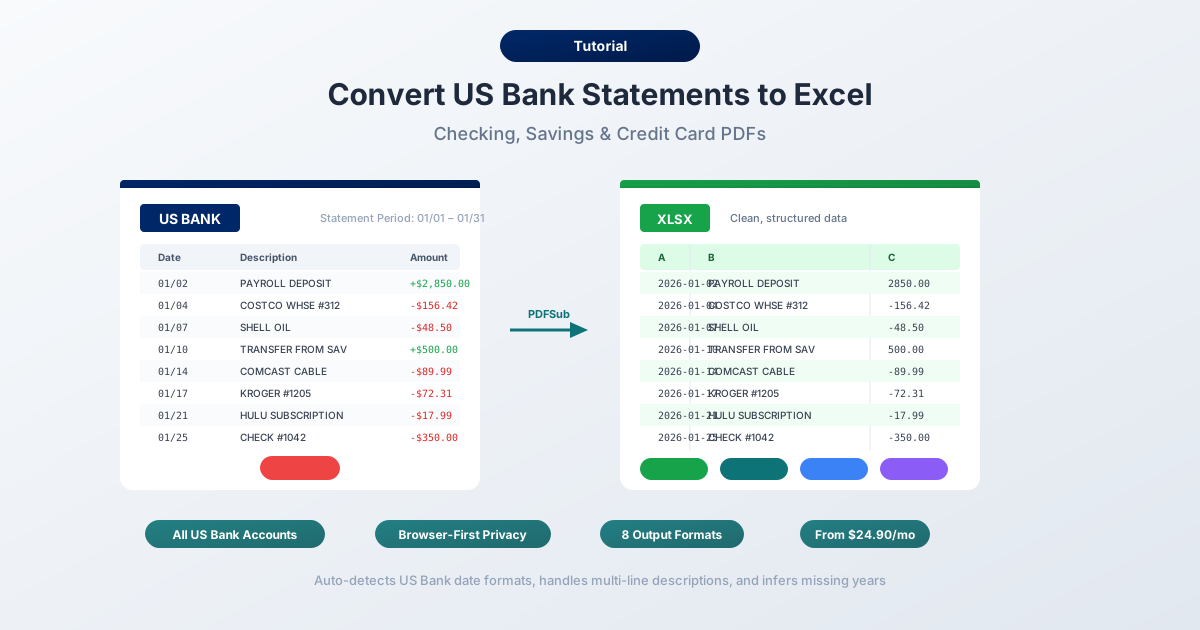
What U.S. Bank Gives You (And What It Doesn't)
Before you start converting anything, it's worth understanding what U.S. Bank actually provides and where the gaps are.
PDF statements - available through U.S. Bank's online banking portal under "Documents & Statements." These are the official monthly statements - the same document you'd receive in the mail or through their "Uni-Statement" combined paper mailing. PDF format only, no alternative file type for the official statement.
Activity downloads - U.S. Bank's online banking lets you download recent transaction activity as a CSV file. Sounds like it should solve the problem, right?
Not quite. The activity download has significant limitations:
- Roughly 90 days of history - U.S. Bank's CSV export covers approximately three months of recent activity, far less than the years of PDF statements available in the document archive
- Not the official statement - the CSV is a raw transaction feed. It doesn't include opening/closing balances, fee breakdowns, interest summaries, or the statement-level detail your accountant or auditor needs
- Abbreviated descriptions - transaction descriptions in the CSV download are often truncated or formatted differently than on the PDF statement
- No balance reconciliation - without opening and closing balances, you can't easily verify the data is complete
Direct Connect - U.S. Bank offers a Direct Connect feature for linking online banking directly to QuickBooks. It costs $3.95/month as an add-on fee. That might be reasonable for one account, but for businesses with multiple accounts - checking, savings, credit card, payroll - the fees add up. And Direct Connect only provides a transaction feed, not the full statement detail.
So if you need data older than 90 days, need the complete statement for audit purposes, or don't want to pay a recurring fee per account for QuickBooks connectivity - the PDF is your only option.
Method 1: Use a Bank Statement Converter (Recommended)
The fastest and most accurate method is a specialized bank statement converter - a tool built specifically to extract transaction data from bank statement PDFs.
Unlike generic PDF-to-Excel tools, bank statement converters understand the structure of financial documents. They know that U.S. Bank checking statements separate Withdrawals and Deposits into distinct columns - a cleaner layout than the single signed-amount column used by many other banks. They handle section-based groupings, multi-line ACH and wire transfer descriptions, and U.S. Bank's MM/DD date format that omits the year.
Step-by-Step with PDFSub
- Download your U.S. Bank statement - Log into usbank.com → Documents & Statements → select the account → choose the statement period → download PDF
- Go to PDFSub's Bank Statement Converter
- Upload the U.S. Bank PDF - drag and drop or click to browse
- Review the extracted data - PDFSub shows you the transactions before you download, so you can verify accuracy against the statement
- Choose your format - Excel (XLSX), CSV, QBO (QuickBooks), OFX (Xero), or any of 8 supported formats
- Download - click Download or use "Download All" for a ZIP with every format
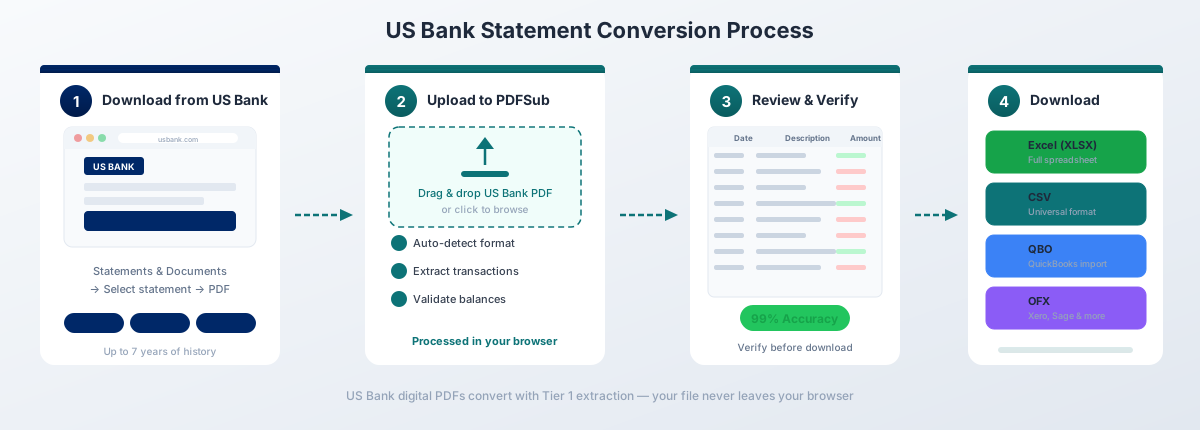
For U.S. Bank's digital PDFs (downloaded directly from online banking), PDFSub's Tier 1 extraction handles the conversion entirely in your browser - the file never leaves your device. This matters when you're working with sensitive financial data containing account numbers, routing numbers, and transaction details.
Why this works well for U.S. Bank specifically:
- Auto-detects U.S. Bank's separate Withdrawals and Deposits columns and maps them correctly - preserving the natural debit/credit split rather than merging into a single amount column
- Handles multi-line descriptions common in ACH transfers and wire transactions without creating duplicate rows
- Recognizes section headers like "Deposits and Additions" and "Checks and Other Withdrawals" and skips them rather than treating them as transaction data
- Accounts for regional format variations from U.S. Bank's merger history, including legacy Union Bank layouts
- Works with all U.S. Bank account types - Gold Checking, Platinum Checking, SmartSaver, business checking, and credit cards
- Exports to QBO format for direct QuickBooks import with FITID duplicate detection - no $3.95/month Direct Connect fee needed
Bank statement conversion is included in the All-In-One plan at $20/user/mo (annual; 500 pages per user) with a 7-day free trial.
Method 2: U.S. Bank's Built-In Activity Download
If you only need recent transactions (not the full statement), U.S. Bank's native CSV export is the quickest option - but understand its limitations before relying on it.
How to Download
- Log into usbank.com
- Select the account you want to export
- Navigate to "Account Activity"
- Set the date range for the transactions you need (limited to approximately 90 days)
- Click "Download" and select CSV format
- Open the downloaded file in Excel
What You Get
U.S. Bank's CSV includes basic transaction data:
| Column | Description |
|---|---|
| Date | Transaction date (MM/DD/YYYY) |
| Transaction | Description of the transaction |
| Amount | Signed amount (negative for debits, positive for credits) |
Limitations to Watch For
The ~90-day history cap. U.S. Bank's activity download covers roughly three months - significantly less than Chase (~24 months) or Wells Fargo (~18 months). For anything older, you need the PDF statements. This is one of the shortest CSV export windows among major U.S. banks.
Not the official statement. The CSV is a transaction feed. It doesn't include opening/closing balances, fee schedules, interest summaries, check images, or the account summary section. If you need these for accounting or compliance, you need the PDF.
Different from the statement. Transaction descriptions in the CSV may not match the PDF exactly. ACH and wire transfer descriptions are often truncated in the CSV, losing reference numbers and originator details that appear on the full statement.
Single amount column. Even though U.S. Bank's PDF statements separate Withdrawals and Deposits into distinct columns, the CSV export merges them into a single signed Amount column. This can complicate categorization if your workflow depends on that separation.
This method works for quick personal finance tracking of very recent activity. For anything more comprehensive - or anything older than 90 days - convert the PDF.
Method 3: Copy-Paste from PDF (Not Recommended)
You can try selecting text in a U.S. Bank PDF and pasting it into Excel. Here's what actually happens:
Everything lands in a single column. Dates, descriptions, withdrawal amounts, deposit amounts, and balances get compressed into one long string per line. The separate Withdrawals and Deposits columns - which are U.S. Bank's most useful structural feature - are lost entirely.
You can try Excel's Text to Columns feature (Data tab → Text to Columns) to split it apart, but:
- The separate Withdrawal and Deposit columns lose their alignment - amounts that were clearly in the "Deposits" column on the PDF end up adjacent to random description fragments
- Multi-line descriptions for ACH transfers and wire transactions break the row structure - a single transaction becomes two or three partial rows
- Section headers ("DEPOSITS AND ADDITIONS," "CHECKS AND OTHER WITHDRAWALS") get mixed in with transaction data
- Check numbers, when present, create extra fields that throw off column alignment
- You'll spend 20–40 minutes cleaning up a single month's statement
For a one-off need with a statement containing fewer than 20 transactions, this is tedious but possible. For anything more complex - particularly business accounts with high transaction volumes - it's not worth the effort.
Method 4: Adobe Acrobat Pro
Adobe Acrobat Pro has an "Export PDF → Spreadsheet → Microsoft Excel Workbook" feature. For U.S. Bank statements, the results are mixed.
Here's what typically happens:
- Column confusion with Withdrawals and Deposits. U.S. Bank's separate debit and credit columns are Acrobat's main challenge. The tool frequently merges them into a single column, or worse, associates amounts with the wrong column. A deposit amount may appear in the Withdrawals column or vice versa.
- Multi-line description fragmentation. ACH transfers and wire transactions commonly span 2–3 lines on U.S. Bank statements. Acrobat treats each line as a separate row, creating orphaned reference numbers and originator details that appear as transactions with no amount.
- Section headers become data rows. "Deposits and Additions" and "Checks and Other Withdrawals" section headers get extracted as transaction rows, contaminating the data and requiring manual cleanup.
- Regional format inconsistencies. Statements from legacy Union Bank accounts or accounts in regions affected by U.S. Bank's merger history may have slightly different layouts. Acrobat doesn't adapt to these variations - it treats every page with the same generic table detection logic.
If you already have Acrobat Pro, it's worth a quick try - some simpler U.S. Bank statements (savings accounts with few transactions) convert reasonably well. But for checking accounts with dozens of transactions, expect significant manual cleanup.
Understanding the U.S. Bank PDF Format
U.S. Bank statements have several distinctive characteristics that differentiate them from other major banks:
Separate Withdrawals and Deposits Columns
This is U.S. Bank's most notable structural feature. Unlike Chase or Bank of America, which use a single Amount column with positive and negative signs, U.S. Bank places debits and credits in separate columns:
| Date | Description | Withdrawals | Deposits | Balance |
|---|---|---|---|---|
| 01/03 | DIRECT DEPOSIT ACME CORP | 3,450.00 | 8,450.00 | |
| 01/05 | DEBIT CARD PURCHASE AMAZON | 47.99 | 8,402.01 |
This layout is actually cleaner for conversion - when a converter correctly identifies the columns, there's no ambiguity about whether a transaction is a debit or credit. The challenge is that generic tools often fail to detect the two separate amount columns and merge them, losing the debit/credit distinction entirely.
Section-Based Layout with Clear Headers
U.S. Bank organizes transactions into clearly labeled sections:
- Deposits and Additions - incoming money (direct deposits, transfers in, refunds, interest credits)
- Checks and Other Withdrawals - outgoing money (checks, debit card purchases, ACH debits, wire transfers)
- Daily Balance Summary - a table showing the account balance at the end of each day
- Service Charges and Fees - monthly maintenance fees, overdraft charges, wire fees, foreign transaction fees
Each section has a bold header, and some sections include subtotals. Specialized converters use these headers to categorize transactions automatically - but generic PDF tools treat them as data rows, creating phantom entries that need manual removal.
Date Format
U.S. Bank uses MM/DD format for transaction dates (e.g., "01/15") without the year. The year must be inferred from the statement period printed in the header area. Good converters handle this automatically by reading the statement period dates. If yours doesn't, you'll need to add the year column manually - and watch for statements that span two calendar years (December–January).
Multi-Line Descriptions
ACH transfers and wire transactions on U.S. Bank statements commonly span 2–3 lines:
01/15  ACH DEPOSIT ACME CORPORATION
       PAYROLL 012345 EMPLOYEE ID 67890
The second line is part of the same transaction - it provides the ACH originator detail, reference number, or additional description. Converters that don't handle multi-line descriptions will create a duplicate row for the second line, usually with no amount, which then breaks any running balance calculation.
Wire transfers can be even longer - sometimes 3–4 lines with beneficiary details, SWIFT codes, and reference numbers.
Account Type Differences
U.S. Bank offers multiple account tiers, and the statements vary between them:
Personal Checking (Gold, Platinum)
Both Gold Checking and Platinum Checking use the same basic layout with separate Withdrawals and Deposits columns. The differences appear in the fee and benefit sections:
- Gold Checking - $6.95/month fee (waivable with $1,500 average balance or linked savings), standard fee section
- Platinum Checking - $14.95/month fee (waivable with $25,000 combined balance), includes additional benefit summaries like ATM fee rebates and safe deposit box discounts
The fee waiver details appear as explanatory text on the statement - not as transactions - but generic converters sometimes mistake this text for data rows.
Savings Accounts (SmartSaver, Standard)
U.S. Bank savings statements use a simplified version of the checking layout. Transaction volumes are typically low, and the main difference is the interest summary section showing APY and interest earned for the period. These statements are generally easier to convert because of the lower transaction count and simpler structure.
Credit Card Statements
U.S. Bank credit card statements have a distinctly different layout from checking and savings:
- Transaction date and posting date - two date columns per transaction, which can confuse converters expecting a single date column
- Rewards summary - a section showing points earned, redeemed, and current balance
- Interest charge breakdown - separate APR calculations for purchases, cash advances, and balance transfers
- Payment information box - minimum payment, new balance, and due date in a prominent header section
- Foreign transaction detail - if applicable, includes the original currency, exchange rate, and converted USD amount
The rewards and interest sections should be skipped during transaction extraction, but some tools treat them as transactions.
Business Accounts
U.S. Bank business checking statements are notably more complex. They include additional sections for:
- Treasury management - lockbox deposits, commercial card activity, and sweep account transfers
- Commercial deposits - detailed breakdowns of large deposits with multiple check references
- Payroll debits - itemized payroll processing entries
- Combined statements - U.S. Bank's "Uni-Statement" combines multiple accounts into a single paper mailing (and sometimes a single PDF), which requires account-aware extraction
Business account statements can run 10–20 pages for a single month, and the transaction density per page is higher than personal accounts. Converters need to handle pagination, repeated headers, and the additional section types.
Common Conversion Problems and Solutions
Problem: Withdrawals and deposits merged into one column
U.S. Bank's separate Withdrawal and Deposit columns are one of its cleaner design choices - but many converters fail to detect the dual-column structure and merge everything into a single Amount column. When this happens, you lose the debit/credit distinction. Solution: Use a converter specifically designed for bank statements that recognizes U.S. Bank's column layout. If you're stuck with a single-column output, deposits are typically positive and withdrawals negative - but verify against the original PDF.
Problem: Union Bank legacy format differences
U.S. Bank completed its acquisition of Union Bank in May 2023, but some accounts that migrated from Union Bank still produce statements with formatting differences - slightly different column widths, different section header wording, or different transaction description abbreviations. Generic converters that rely on exact text matching for header detection may fail on these legacy-format statements. Solution: Use a converter that handles format variations adaptively rather than relying on rigid template matching. If conversion fails on a legacy Union Bank statement, try converting it as a generic bank statement rather than selecting "U.S. Bank" specifically.
Problem: ACH and wire transfer descriptions create extra rows
Multi-line descriptions for ACH transfers and wire transactions are common on U.S. Bank statements. Each additional line (originator detail, reference number, beneficiary information) gets treated as a separate transaction by generic converters. Solution: Use a converter that handles multi-line descriptions, or manually merge the extra rows after conversion. Look for rows with a description but no amount - those are typically continuation lines from the previous transaction.
Problem: Check numbers misaligned
When checks appear on U.S. Bank statements, the check number is displayed in a separate position from the description. Some converters treat the check number as a standalone data point, creating misalignment in the extracted table. Solution: Use a converter that maps U.S. Bank's check number field correctly, or add a separate "Check Number" column after conversion and manually populate it from the original PDF.
Problem: Daily Balance Summary mixed with transactions
The Daily Balance Summary section at the end of U.S. Bank statements lists the account balance at the close of each business day. Generic converters often mistake these balance entries for transactions - creating phantom deposits or withdrawals that don't exist. Solution: Use a converter that recognizes the Daily Balance section and skips it, or manually delete the balance rows after conversion. They're easy to identify: they have dates and dollar amounts but no transaction description.
Importing into Accounting Software
Once your U.S. Bank data is converted, here's how to get it into common accounting platforms:
QuickBooks Online - Use QBO format for the cleanest import. Go to Banking → Link Account → Upload from computer → select the QBO file. QuickBooks will match transactions and include FITID duplicate detection. This eliminates the need for U.S. Bank's $3.95/month Direct Connect fee. See our guide to importing bank statements into QuickBooks for detailed steps.
QuickBooks Desktop - Use QBO or IIF format. File → Import → From Web Connect (for QBO files).
Xero - Use OFX format. Go to Accounting → Bank Accounts → your account → Import a Statement. Xero accepts OFX and CSV. OFX is preferred because it includes transaction IDs for duplicate prevention. See our guide to importing bank statements into Xero for detailed steps.
FreshBooks - Use CSV format. Go to Accounting → Bank Import → Import Transactions → select CSV. You'll need to map columns manually.
Wave - Use CSV or OFX format. Go to Accounting → Transactions → Import → select your bank → upload the file.
Excel/Google Sheets - Use XLSX or CSV format. Open directly or import via Data → From Text/CSV.
Tips for Working with Converted U.S. Bank Data
Once you have your U.S. Bank transactions in Excel, here are some practical tips:
Verify with the opening and closing balance. Add up all deposits, subtract all withdrawals, and check that the result matches the difference between the opening and closing balances shown on the statement header. This is the fastest accuracy check - and U.S. Bank's separate Withdrawal/Deposit columns make this arithmetic straightforward.
Preserve the dual-column structure. If your converter maintained the separate Withdrawals and Deposits columns, keep them that way. This makes pivot tables and categorization much easier. You can always add a calculated "Net Amount" column later if needed: =IF(D2>0, D2, -C2) where C is Withdrawals and D is Deposits.
Standardize the date column. U.S. Bank's MM/DD format without the year can cause Excel to interpret dates incorrectly - especially for statements spanning a year boundary. Select the date column → Data → Text to Columns → select Date format (MDY) to ensure proper date handling. Verify that the year was correctly inferred.
Handle Uni-Statement combined PDFs carefully. If you received a combined Uni-Statement with multiple accounts, make sure your converter separated the transactions by account. If it didn't, sort by account number first before doing any reconciliation or analysis. Each account section should balance independently.
Combine multiple months systematically. When stitching together several months of data, watch for transactions that appear on two consecutive statements - particularly pending transactions at month-end that post at the beginning of the next period. The closing balance of month N should equal the opening balance of month N+1.
Add a category column. Use Excel's SEARCH function to auto-categorize based on description keywords common in U.S. Bank statements:
=IF(SEARCH("ACH DEPOSIT",B2)>0,"Income",IF(SEARCH("DEBIT CARD",B2)>0,"Purchases",IF(SEARCH("ATM",B2)>0,"Cash","Other")))Convert monthly, not annually. Don't wait until year-end to convert 12 months of statements. Convert each month as it arrives and maintain an organized folder structure. This makes error detection much easier - a problem in one month is simpler to troubleshoot than an error buried in a year's worth of data.
Frequently Asked Questions
Can I download U.S. Bank statements as Excel files directly?
No. U.S. Bank only provides statements in PDF format. You can download approximately 90 days of recent transaction activity as a CSV through online banking, but this is a transaction feed - not the official statement. For full statements with balances, fees, and interest summaries, you must convert the PDF.
How far back can I get U.S. Bank statements?
U.S. Bank's online document archive typically stores 7 years of PDF statements. The CSV activity download covers only about 90 days. For statements older than 7 years, contact U.S. Bank customer service at (800) 872-2657 to request archived statements - there may be a fee for retrieval.
What happened to Union Bank statements?
Union Bank was acquired by U.S. Bank in May 2023. Former Union Bank accounts were migrated to U.S. Bank's platform, but some legacy format differences in statements may persist - particularly for statements generated during the transition period. If you're converting older Union Bank statements from before the migration, they'll have a different format entirely and should be treated as a separate bank template.
Why does U.S. Bank's Direct Connect cost extra?
U.S. Bank charges $3.95/month for Direct Connect, which links your online banking directly to QuickBooks for automatic transaction downloads. This is a per-account fee - multiple accounts means multiple charges. An alternative is converting your PDF statements to QBO format and importing manually, which achieves the same result without the monthly fee.
What is the Uni-Statement?
U.S. Bank's Uni-Statement is a combined paper statement that bundles multiple accounts - checking, savings, credit card - into a single mailing. If you download the PDF version of a Uni-Statement, it contains transactions from all accounts in one document. You'll need a converter that can detect account boundaries and separate the data accordingly, or convert each account section individually.
Which format should I choose for QuickBooks import?
Choose QBO format. It's designed for QuickBooks and includes transaction IDs (FITIDs) that prevent duplicate imports. CSV works too but requires manual column mapping and doesn't have built-in duplicate detection. See our guide to importing bank statements into QuickBooks for detailed steps.
Does this work for U.S. Bank business accounts?
Yes. Both personal and business U.S. Bank accounts produce digital PDFs that can be converted. Business account statements are more complex - they include additional sections for treasury management, commercial deposits, and payroll - but specialized converters handle these variations. Expect business statements to take slightly longer to process due to higher page counts and transaction density.
How accurate is the conversion?
For U.S. Bank's digital PDFs (downloaded directly from usbank.com), specialized bank statement converters typically achieve 95–99% accuracy. The separate Withdrawals and Deposits columns actually make U.S. Bank statements slightly easier to convert accurately than single-amount-column banks. Generic PDF-to-Excel tools average around 65–75% on U.S. Bank statements due to the dual-column layout, multi-line descriptions, and section-based structure. Scanned or photographed statements will have lower accuracy because they require OCR processing.
Does this work for U.S. Bank credit card statements?
Yes. Credit card statements use a different layout from checking/savings - including double date columns (transaction date and posting date), rewards summaries, and interest charge breakdowns. Specialized converters handle these differences and skip the rewards/interest sections during transaction extraction. The key columns extracted are transaction date, posting date, description, and amount.
Are former Union Bank accounts on the same format now?
Most former Union Bank accounts have been fully migrated to U.S. Bank's standard statement format as of 2024. However, you may encounter occasional formatting differences - especially on statements issued during the 2023 transition period. If a converter fails on a Union Bank-era statement, try processing it without bank-specific template matching, as it may use a non-standard layout.