How to Convert PDF to Excel: 6 Methods That Actually Work (2026)
Over 290 billion PDFs are created every year, yet the format has zero concept of rows, columns, or cells. Here's how to get your data into Excel - from free built-in tools to AI-powered extraction.
You have data trapped in a PDF and you need it in Excel. Maybe it's a financial report, an invoice from a vendor, a bank statement, or a table of product data exported from a legacy system. The problem? PDFs are designed to look identical on every screen - not to transfer structured data.
An estimated 290+ billion PDFs are created every year, growing at roughly 12% annually. Adobe reports over 400 billion PDFs opened and 100 million daily Acrobat users worldwide. PDFs have become the default format for sharing financial documents, legal contracts, government forms, and business reports. Yet the gap between "viewing a PDF" and "working with its data" costs US companies an average of $28,500 per employee annually in manual data entry according to a 2025 Parseur/QuestionPro survey - with workers spending over 9 hours per week transferring data from documents into spreadsheets.
This guide covers every method available in 2026, from free built-in tools to AI-powered extraction, with honest assessments of what works and what doesn't.
Why PDF to Excel Conversion Is Fundamentally Hard
Before diving into methods, it helps to understand why this problem exists at all. PDFs and Excel spreadsheets are architecturally incompatible - not just different, but designed with opposing goals.
How PDFs Actually Store Data
A PDF page doesn't "contain" a table. It contains a content stream - a sequence of binary operators based on PostScript that position individual characters at precise x,y coordinates on a canvas. The PDF specification (ISO 32000-2:2020) defines text rendering through operators like:
- BT / ET: Begin and end a text object
- Tf: Set font and font size
- Tm: Set absolute position using a six-number matrix
- Tj / TJ: Render a text string (TJ includes per-glyph kerning adjustments)
What looks like a table to your eyes - neat rows and columns with aligned numbers - is actually hundreds of individual text positioning commands. There are no <table>, <tr>, or <td> tags. No row or column identifiers. No cell boundaries. The converter has to reverse-engineer the table structure by analyzing spatial relationships between characters - which characters are aligned vertically (suggesting a column), which are on the same horizontal line (suggesting a row), and where gaps indicate cell boundaries.
This is why direct conversion often produces messy results: columns get merged because characters are slightly misaligned, numbers become text strings because currency symbols are separate positioned elements, and multi-line descriptions get split into phantom rows.
Tagged vs. Untagged PDFs
The PDF specification includes an optional "structure tree" for accessibility - tagged PDFs that identify headings, paragraphs, and table cells for screen readers. If present, this metadata makes extraction dramatically easier. The reality: the vast majority of PDFs are untagged. Most PDF generators skip the tagging step because it's optional and adds complexity. Bank statements, invoices, and financial reports are almost never tagged.
Font Encoding and the Unicode Problem
PDFs use two separate lookup paths for each character: one for the glyph outline (how it looks) and one for the Unicode mapping (what it means). When the ToUnicode CMap table is missing, incomplete, or deliberately scrambled - as happens with some PDF generators and security tools - text extraction produces garbled output even though the PDF renders perfectly on screen. You see the right characters visually, but copy-paste or programmatic extraction produces nonsense.
Method 1: PDFSub (Browser-Based, Works for All PDF Types)
PDFSub handles the full range of PDF-to-Excel conversions - from simple single-page tables to complex multi-page financial documents with merged cells, multi-line descriptions, and international number formats.
How It Works
- Upload your PDF - Drag and drop any PDF file. PDFSub auto-detects the document type and structure.
- Automatic extraction - Tables are detected and data is extracted into structured rows and columns. For digital PDFs, this happens entirely in your browser - the file never leaves your device.
- Review the preview - Check the extracted data before downloading. Column headers, data types, and row alignment are visible in the preview.
- Download - Export as Excel (.xlsx), CSV, or other formats.
Why It Works
Browser-first privacy. Digital PDFs are processed entirely in your browser using client-side JavaScript. No file upload, no server exposure, no data retention. This matters for financial documents, tax records, and anything containing sensitive information. Under GDPR, client-side processing avoids classification as a data processor entirely since no personal data is collected or transmitted.
Handles scanned documents. If the PDF is a scanned image (no selectable text), PDFSub falls back to server-side OCR with automatic cleanup. The two-tier approach means both digital and scanned PDFs produce usable results.
Financial document expertise. The extraction engine understands financial formatting: negative numbers in parentheses, currency symbols as separate elements, debit/credit column splits, running balance validation, and international number formats (1.234,56 vs 1,234.56).
130+ languages. Works with PDFs in any language - including CJK (Chinese, Japanese, Korean) with complex character encodings, right-to-left Arabic and Hebrew, and European languages with accented characters.
Method 2: Microsoft Excel Power Query (Windows Only)
Excel 2019 and Microsoft 365 (Windows) include a built-in PDF import feature through Power Query. This is the most accessible option for people who already have Excel installed.
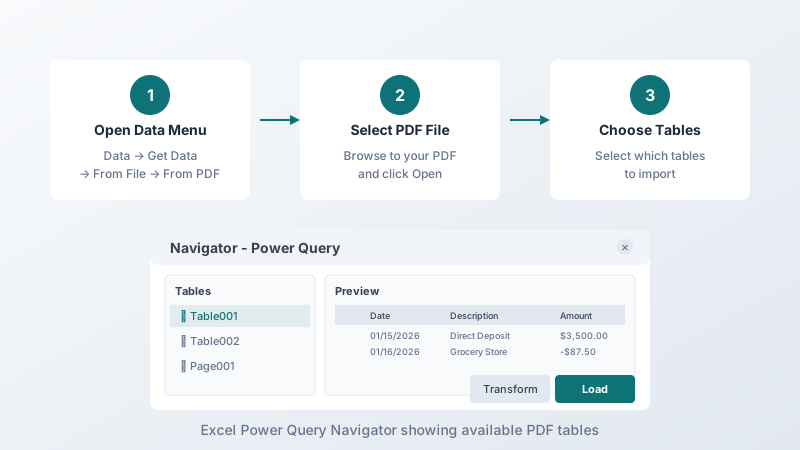
How to Do It
- Open Excel and go to Data → Get Data → From File → From PDF
- Select your PDF file
- Power Query displays a Navigator panel showing detected tables - each table is listed separately, and you can also view raw page text
- Select the table you need and click Transform Data to clean up column headers, data types, and formatting before loading - or click Load to bring it directly into your spreadsheet
What Power Query Does Well
- Simple, well-structured tables with clear borders or consistent spacing convert reliably
- Multi-page tables are often detected and merged correctly if the layout is consistent
- Repeating imports can be set up as refreshable connections - useful if you receive the same report format regularly
- No cost beyond your existing Microsoft 365 or Excel 2019 license
What Power Query Struggles With
- Not available on Mac. The PDF connector is entirely missing from Excel for Mac. Microsoft has not announced plans to add it. Mac workaround: open the PDF in Microsoft Word (which converts it to editable text), then copy the tables into Excel.
- No OCR capability. If the PDF is a scanned image with no embedded text layer, Power Query sees nothing - it requires selectable text.
- Complex layouts break. Merged cells, multi-level headers, nested tables, and irregular column structures produce jumbled results. A "Total" row with a merged description cell can cause all subsequent rows to misalign.
- Headers and footers repeat. Multi-page tables where the header row repeats on each page result in header text interspersed with data rows. You need to manually filter these out.
- Currency and number formatting. Power Query may import numbers as text strings when currency symbols, parenthetical negatives, or non-US thousand separators are present. Requires manual type conversion after import.
Power Query for Mac Users (Workaround)
As of January 2026, Microsoft brought Power Query to Excel for the web, which potentially expands PDF import access. However, the PDF connector specifically may still be Windows-only. The most reliable Mac workaround remains:
- Open the PDF in Microsoft Word (File → Open → select the PDF)
- Word converts the PDF to an editable document (imperfectly)
- Copy the table from Word and paste into Excel
- Use Text to Columns and data type conversions to clean up
Method 3: Adobe Acrobat Pro
Adobe Acrobat Pro can export PDFs to Excel format. As the creator of the PDF format, Adobe's tool has deep understanding of PDF internals - but that doesn't always translate to clean Excel output.
Pricing
- Acrobat Pro: $19.99/month (annual commitment) or $29.99/month (month-to-month). Total: $239.88–$359.88/year.
- Acrobat Export PDF (conversion-only): $1.99/month ($23.88/year). Converts PDFs to Word, Excel, or RTF.
- Free online tool: Available at adobe.com with limited conversions per day. Requires account creation.
- File limits: 100 MB file size, 600 pages maximum for cloud services.
How to Do It
- Open your PDF in Acrobat Pro
- Go to File → Export To → Spreadsheet → Microsoft Excel Workbook
- Choose your save location
- For scanned PDFs, Acrobat automatically applies OCR before export
What Adobe Does Well
- Automatic OCR for scanned documents - detects and processes image-based PDFs
- Multiple language support for OCR (English, German, Spanish, French, Portuguese, and others)
- Form field recognition - structured PDF forms export with field names and values
What Adobe Struggles With
- Merged cells create excessive columns. Users commonly report that columns and tabs produce many blank columns in the Excel output - a well-documented issue in Adobe's support forums.
- Multi-line text splits into multiple rows. A single cell containing a wrapped description becomes two or three separate rows, breaking alignment for the entire table.
- Expensive for occasional use. At $240–$360/year, it's overkill if you only need to convert PDFs occasionally. The standalone Export PDF at $24/year is more reasonable but lacks the full Acrobat toolset.
- Server-side processing. Files are uploaded to Adobe's cloud for conversion, which may be a concern for sensitive financial documents.
Method 4: Google Sheets (Free, but Limited)
Google Sheets has no native PDF import feature. There's no "Import PDF" option anywhere in the menus. However, there are workarounds.
Google Docs Method (Free)
- Upload the PDF to Google Drive
- Right-click the file → Open with → Google Docs
- Google converts the PDF to an editable document
- Copy the tables from the Google Doc and paste into Google Sheets
- Clean up formatting, column alignment, and data types
When this works: Simple PDFs with basic tables and minimal formatting.
When this fails: Complex tables, multi-column layouts, scanned documents. The conversion frequently mangles table structure - cells merge, columns shift, and rows split.
Alternative: Convert First, Then Upload
The more reliable approach is to convert the PDF to Excel or CSV using another tool (PDFSub, Adobe, etc.), then upload the resulting file to Google Sheets. This two-step process avoids Google's inconsistent PDF parsing.
Method 5: Online Converters (Quick but Privacy Trade-Off)
Several free online tools convert PDF to Excel without requiring software installation.
Popular Options
| Tool | Free Tier | File Limits | OCR |
|---|---|---|---|
| Smallpdf | 2 tasks/day | 5 GB | Yes (paid) |
| iLovePDF | Limited | 100 MB | Yes (paid) |
| PDF2Go | Limited | Varies | Basic |
| Zamzar | 2 files/day | 50 MB | No |
The Privacy Problem
When using any online converter, your file gets uploaded to their servers for processing. The service provider has full access to the document during processing - text content, metadata, embedded images, everything. Even if the provider claims to delete files after processing, system-level snapshots, logs, or third-party integrations may retain fragments.
For bank statements, tax documents, invoices, medical records, or any document containing financial data, personally identifiable information, or confidential business data, server-side processing creates measurable risk. Under GDPR, the moment a service stores your document on their server, they become a data processor with compliance obligations. As of 2025, over 2,245 GDPR fines have been recorded totaling approximately EUR 5.65 billion.
When online converters make sense: Non-sensitive documents where convenience outweighs privacy. Quick one-off conversions of public data. Documents you'd be comfortable emailing to a stranger.
When to avoid them: Financial statements, tax returns, medical records, legal documents, anything with SSNs or account numbers, proprietary business data.
Method 6: Python Libraries (For Developers)
If you're a developer or data analyst processing PDFs programmatically, several open-source Python libraries handle PDF table extraction.
Library Comparison
| Library | License | OCR | Table Detection | Best For |
|---|---|---|---|---|
| pdfplumber | MIT | No | Manual + configurable | Complex tables, fine-grained control |
| Tabula-py | MIT | No | Auto-detection | Quick extraction of bordered tables |
| Camelot | MIT | No | Lattice + Stream modes | Bordered tables (lattice mode excels) |
| PyMuPDF | AGPL | No | Basic | Fast text extraction (licensing issues for SaaS) |
pdfplumber
Built on pdfminer.six. Provides access to every character, line, rectangle, and curve on a page with precise coordinates. Table extraction uses configurable strategies for detecting cell boundaries. Offers visual debugging - you can draw detected tables on page images. Requires more configuration than Tabula for simple cases but handles complex tables better than any other open-source library.
Tabula-py
Python wrapper for Tabula-java (requires JVM installed). Good at auto-detecting table boundaries. Outputs directly to pandas DataFrames. The JVM dependency makes deployment harder, and it struggles with complex multi-level headers.
Camelot
Two modes: Lattice mode uses image processing (OpenCV morphological transforms) to detect ruled lines and find cell boundaries from line intersections - highly accurate for bordered tables. Stream mode groups characters by whitespace proximity to infer columns. Provides accuracy/quality metrics per table. Lattice mode achieves F1 scores exceeding 0.85 on ICDAR benchmarks but fails on tables with thin or faint lines.
When to Use Python
- Batch processing hundreds or thousands of similar documents
- Building automated pipelines for recurring reports
- When you need full control over extraction logic and post-processing
- When the document format is known and consistent
- Research and data journalism projects
When Not to Use Python
- One-off conversions (setup time exceeds the time saved)
- Non-technical users
- Scanned PDFs (these libraries don't include OCR - you need a separate OCR step first)
- When speed of delivery matters more than customization
Common Conversion Problems and How to Fix Them
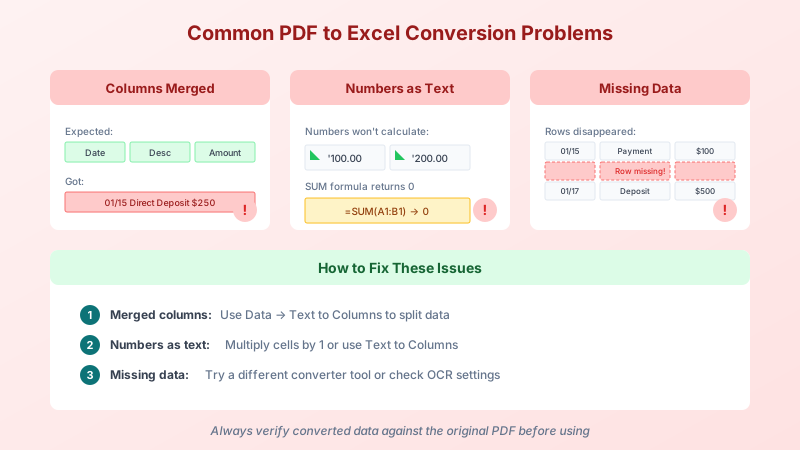
Every conversion method produces imperfect results on some documents. Here are the most common failures and practical fixes.
Numbers Imported as Text
The problem: Excel treats extracted numbers as text strings, which breaks SUM, AVERAGE, and all calculations. This happens because PDFs don't distinguish between numbers and text - a currency symbol, a negative sign, or a thousands separator makes the entire cell a text string.
How to detect: Look for a green triangle in the top-left corner of cells, or try SUM on a column - if it returns 0, the values are text.
Fixes:
- Select the column → Data → Text to Columns → click Finish (this forces Excel to re-parse the data)
- Multiply by 1: in a helper column, use
=A1*1to force numeric conversion - Use NUMBERVALUE:
=NUMBERVALUE(A1, ".", ",")handles European formatting - Find and Replace to strip currency symbols: replace "$" with nothing, replace "(" with "-", replace ")" with nothing
Negative Numbers in Parentheses
The problem: Accounting convention displays negative numbers as (200.00) rather than -200.00. Every PDF converter outputs the literal string "(200.00)" which Excel treats as text.
Fix: Find and Replace in two steps: replace "(" with "-" and replace ")" with nothing. Then convert the column to number format. Or use: =IF(LEFT(A1,1)="(",-VALUE(SUBSTITUTE(SUBSTITUTE(A1,"(",""),")","")) ,VALUE(A1))
Columns Merged Together
The problem: Data from multiple columns ends up in a single cell - "01/15/2026 Direct Deposit $3,500.00" all in column A.
Fix: Data → Text to Columns with a delimiter (space, comma, tab, or fixed width). For fixed-width, Power Query's column splitting is more reliable because you can visually adjust the break points.
Multi-Line Descriptions Split into Extra Rows
The problem: A single transaction with a two-line description becomes two rows in Excel, with the second line having empty date, amount, and balance fields. This breaks row alignment for the entire spreadsheet.
Fix: This is the hardest problem to fix manually. Look for rows where the date column is empty - these are likely continuation lines. Concatenate them with the row above using a helper formula, then delete the empty rows. For bank statements specifically, a specialized converter like PDFSub's bank statement converter handles multi-line descriptions automatically by detecting continuation patterns.
Headers and Footers Mixed into Data
The problem: Multi-page PDFs repeat header rows, page numbers, dates, and document titles on every page. Generic converters extract these as data rows, interspersed with actual data.
Fix: After conversion, sort or filter by the date column. Header rows and page footers typically don't contain valid dates and will sort to the top or bottom. Delete them manually. For recurring reports with the same format, record a macro to automate the cleanup.
Date Ambiguity (MM/DD vs DD/MM)
The problem: The date 03/04/2026 could be March 4 (US format) or April 3 (European format). When all dates in a document have day values of 12 or less, there is no algorithmic way to determine the correct format. Converters typically default to MM/DD/YYYY but this silently produces wrong dates for non-US documents.
Fix: Check the source document's locale. If it's from a European, Asian, or Latin American source, the format is almost certainly DD/MM/YYYY. In Excel, select the date column, right-click → Format Cells → Number → Date, and choose the correct locale. If dates have already been misinterpreted, you may need to swap day and month using =DATE(YEAR(A1), DAY(A1), MONTH(A1)).
Missing Data
The problem: Some content doesn't appear in the conversion at all - typically watermarks, data in images, or text using fonts with missing Unicode mappings.
Fix: Open the original PDF and try selecting the missing text. If you can't select it, it's an image - you need OCR capability. If you can select it but it copies as garbled characters, the PDF has a font encoding issue. Try a different converter - each handles font mapping differently. PDFSub handles both scenarios: browser-side extraction for embedded text and server-side OCR for scanned content.
Which Method to Use for Your Document Type
Different PDFs need different approaches. Here's a decision matrix:
| Document Type | Best Method | Why |
|---|---|---|
| Bank statements | PDFSub or specialized converter | Multi-line descriptions, running balance validation, debit/credit columns need financial-aware extraction |
| Invoices | PDFSub or Adobe Acrobat | Irregular layouts, line items with tax calculations, currency formatting |
| Financial reports (10-K, quarterly) | Power Query or pdfplumber | Dense multi-column tables with nested line items; Power Query handles repeating structures well |
| Simple data tables | Power Query (free) | Clean bordered tables from business reports convert reliably |
| Scanned paper documents | PDFSub or Adobe Acrobat (OCR) | Must have OCR capability - Power Query and Python libraries cannot process images |
| Government forms | Adobe Acrobat or PDFSub | Fixed-position fields, mix of pre-printed structure and filled data |
| Recurring batch reports | Python (Tabula/Camelot) | Programmable pipeline for identical format documents processed regularly |
| International documents | PDFSub | Handles 130+ languages, non-US number/date formats, CJK character encodings |
OCR vs. Native PDF: Why It Matters
The single biggest factor in conversion accuracy is whether your PDF contains embedded text or is a scanned image.
Native (Digital) PDFs
Created digitally by software - your bank's online portal, accounting software exports, Word-to-PDF conversions. You can select and copy text when viewing the PDF.
- Accuracy: Effectively 100% for character extraction (no recognition errors). Failures come from font encoding issues or layout misinterpretation, not character recognition.
- Speed: Fast - no image processing needed
- Privacy: Can be processed entirely in the browser (no server upload required)
Scanned PDFs
Images of paper documents created by scanners, phone cameras, or fax-to-PDF. You cannot select text - it's a picture.
- Accuracy: Varies dramatically by engine and scan quality
| OCR Engine | Typed Text Accuracy | Cost |
|---|---|---|
| ABBYY FineReader | 99.3–99.8% | From $16/month |
| Google Cloud Vision | ~98% | Free for 1,000 pages/month; $1.50/1,000 after |
| AWS Textract | 95–99% | ~$1.50/1,000 pages (text); $15/1,000 (tables) |
| Tesseract (open source) | <95% | Free |
A study of scanned financial reports found Tesseract (the most common open-source OCR) produced a character error rate of 46% - meaning nearly half of characters were wrong. Commercial alternatives are dramatically better but cost money.
Bottom line: Always use native digital PDFs when available. Download statements from your bank's website instead of scanning paper. If you must scan, use the highest resolution possible (300+ DPI) and ensure the page is flat and evenly lit.
AI-Powered PDF Extraction (2025–2026)
Large Language Models are changing the PDF extraction landscape. Instead of rule-based parsing, AI models can "understand" document structure contextually.
What AI Can Do That Rules Can't
- Handle varied layouts without predefined templates - the AI infers table structure from visual context
- Interpret domain-specific terminology - understanding that "(200.00)" means negative $200 in accounting, or that "Cr" means credit
- Process multi-language documents without language-specific rules
- Merge multi-line descriptions by understanding that a continuation line belongs to the previous transaction
Current Limitations
- Hallucination risk - AI may generate plausible-looking data that doesn't exist in the original document. Always verify output against the source.
- Token limits - very large PDFs (hundreds of pages) may exceed the model's context window, requiring pagination
- Cost - AI extraction costs significantly more per page than rule-based extraction
- Latency - processing takes longer than direct text extraction
The Hybrid Approach
The most effective modern tools use a hybrid strategy: fast rule-based extraction for clean digital PDFs (handling 80%+ of documents), with AI fallback for complex layouts, scanned documents, and edge cases. This gives you the speed and accuracy of deterministic parsing with the flexibility of AI when needed.
Tips for Better Results (Regardless of Method)
Before Conversion
Use native PDFs when possible. Download statements and reports from the source system rather than scanning paper. You can tell a PDF is native if you can highlight individual words in your PDF viewer.
Check for password protection. Some banks and institutions password-protect PDFs. The password is usually the last 4 digits of your account number, your date of birth, or your SSN. Remove the protection before converting - most methods fail silently on encrypted PDFs.
Check page order. Multi-page documents occasionally have pages out of order, especially scanned PDFs. A converter will extract pages sequentially, so out-of-order pages produce out-of-order data.
After Conversion
Always verify the output. No converter is 100% accurate on every document. Check that:
- Row count matches the original (count transactions in the PDF vs. rows in Excel)
- Opening and closing balances match (for financial documents)
- Spot-check 3–5 individual values against the source
- Column headers are correctly identified
- Dates are in the expected format
This takes 60 seconds and catches errors that could cost hours or produce incorrect financial reports.
Save both the original and the converted file. Keep the original PDF alongside your Excel export. If any value is ever questioned, you can verify against the source. For financial documents, many regulations (tax law, audit requirements) mandate retention of original records.
Frequently Asked Questions
Can I convert a password-protected PDF to Excel?
You need to remove the password protection first. If you know the password, open the PDF in Adobe Reader or any PDF viewer, print to a new PDF without protection, then convert. Most bank statement passwords are the last 4 digits of your account number. If you don't know the password, contact whoever created the document.
Why do my numbers show as text in Excel after conversion?
PDFs don't distinguish between numbers and text - they're all characters positioned on a page. When Excel imports data, currency symbols ($, EUR), parenthetical negatives like (200), thousands separators, or non-standard decimal marks cause Excel to default to text formatting. Fix by selecting the column → Data → Text to Columns → Finish, or multiply by 1 to force numeric conversion.
Is there a way to automate PDF to Excel conversion?
Yes. Power Query connections can refresh automatically. Python libraries (Tabula-py, pdfplumber, Camelot) enable fully automated pipelines for recurring documents. PDFSub supports bulk uploads for processing multiple files. For enterprise-scale automation, APIs from Adobe, AWS Textract, and Google Document AI process PDFs programmatically.
Which method gives the most accurate results?
It depends entirely on your document. For clean native PDFs with simple bordered tables, Power Query often works well and it's free. For financial documents (bank statements, invoices, reports), specialized tools like PDFSub that understand financial formatting produce significantly better results. For scanned documents, you need OCR capability - Power Query and Python libraries cannot process images at all.
Can I convert multiple PDFs at once?
Some online tools support batch conversion. PDFSub allows multiple file uploads processed sequentially. Power Query can import from multiple files with some setup. For regular batch processing, Python scripts provide the most flexibility for large volumes.
Does the free version of Excel support PDF import?
Power Query PDF import requires Excel 2019 or Microsoft 365 (Windows only). The free web version of Excel and Excel for Mac do not include the PDF connector. If you need a free option without Excel 2019, use PDFSub's browser-based converter or an online tool.
Can I convert a PDF table to Google Sheets?
Google Sheets has no native PDF import. The workaround is to convert the PDF to Excel or CSV first using another tool, then upload the file to Google Sheets. Alternatively, upload the PDF to Google Drive and open it with Google Docs - but this method frequently mangles table structure and is unreliable for multi-column data.
How do I handle PDFs with tables in multiple languages?
Most converters assume English formatting (MM/DD/YYYY dates, comma thousands separators). For documents in other languages, you need a converter that supports international formats. PDFSub handles 130+ languages with automatic detection of date formats (DD/MM/YYYY, YYYY-MM-DD), number formats (1.234,56 vs 1,234.56), and character encodings (UTF-8, GBK, Shift_JIS, ISO 8859).
Summary
Converting PDF to Excel isn't always straightforward, but the right method for your document type makes a significant difference:
| Method | Cost | OCR | Best For |
|---|---|---|---|
| PDFSub | 7-day free trial | Yes | Financial documents, international PDFs, privacy-sensitive data |
| Power Query | Free (with Excel 2019/365) | No | Simple tables, Windows users |
| Adobe Acrobat | $20–$30/month | Yes | Native PDFs, form exports |
| Google Docs | Free | No | Very basic tables only |
| Online converters | Free (limited) | Varies | Non-sensitive, occasional use |
| Python libraries | Free (open source) | No | Developers, batch processing |
The key principle: match your method to your document type and sensitivity level. Simple tables from digital PDFs convert well with free tools. Financial documents, scanned PDFs, and international documents benefit from specialized extraction. And for anything containing sensitive data, prioritize tools that process files in your browser rather than uploading to third-party servers.