Convert HSBC Bank Statements to Excel (2026)
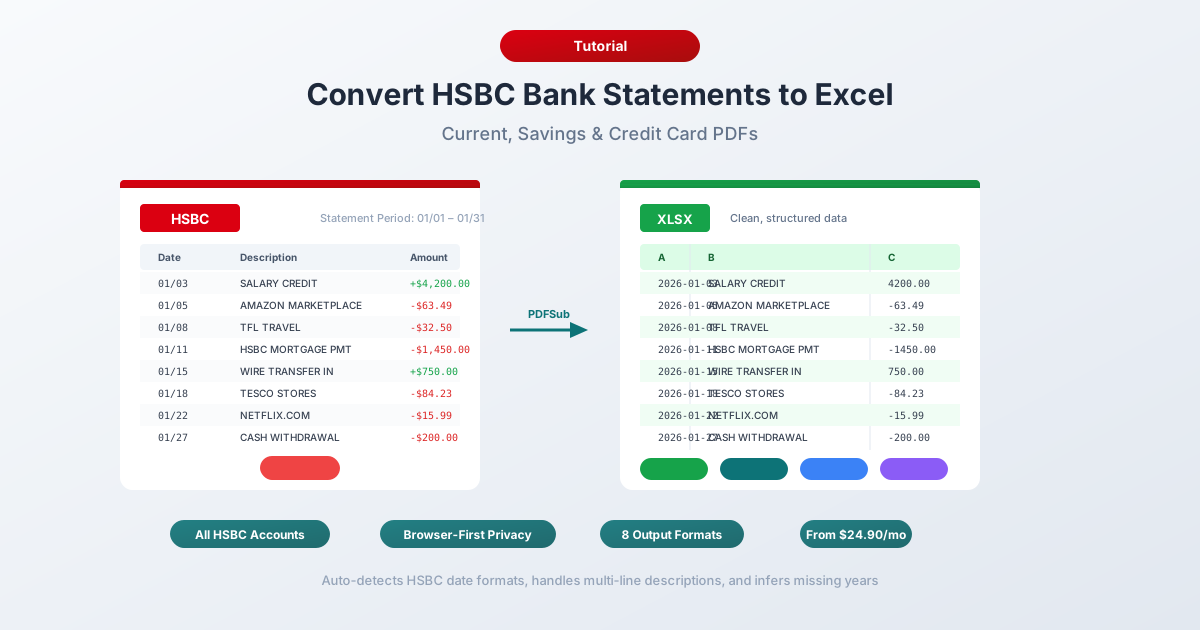
Step-by-step guide to converting HSBC checking, savings, and credit card statement PDFs into Excel, CSV, or QBO format - covering UK, Hong Kong, US, and international statement formats.
You've got an HSBC bank statement PDF and you need the data in a spreadsheet. Sounds simple enough - except HSBC is not a simple bank.
HSBC operates in 56 markets, serves approximately 41 million customers, and manages over $3.2 trillion in assets. It's the largest bank in the United Kingdom, the most valuable bank in Europe, and the 7th largest bank globally. That scale means HSBC doesn't have one statement format. It has many - and they differ significantly depending on which country your account is in.
A UK HSBC statement has different columns, different date formats, and completely different transaction codes than a Hong Kong HSBC statement. An HSBC US statement uses yet another layout. And if you have a multi-currency account in Hong Kong, there's an extra column that throws off the entire table structure.
This guide covers how to convert HSBC statement PDFs from any country into Excel, with specific attention to the format differences that trip up generic converters.
What HSBC Gives You (And What It Doesn't)
Before converting anything, it helps to understand what HSBC actually provides - and how it varies by region.
PDF statements - available through HSBC's online banking and mobile app. Retention varies dramatically by country:
- UK: Up to 6 years of eStatements
- Hong Kong: Up to 7 years (84 months) of eStatements
- US: Only about 2 years - and HSBC exited the US mass-market retail banking business in 2021-2022, leaving roughly 300,000 wealthy customers with HSBC Premier accounts
These are the official statements matching what you'd receive by post. PDF only, no other format for the full statement.
Transaction downloads - HSBC offers limited CSV or QIF exports through its online banking platform in some regions. In the UK, you can typically download recent transactions in CSV format through the app or website. In Hong Kong, transaction downloads are available but may be restricted to shorter windows.
The download limitations are similar to other banks:
- Limited history - usually 12–24 months depending on region
- Not official statements - just a transaction feed missing opening/closing balances, interest breakdowns, and fee summaries
- Incomplete for multi-currency accounts - CSV exports may not include the currency code column, making foreign currency transactions ambiguous
- No standardized format across regions - the column structure and date format in the CSV differs between UK, HK, and US accounts
So if you need historical data, need the complete statement, or are working across multiple HSBC regions, converting the PDF is your best option.
Method 1: Use a Bank Statement Converter (Recommended)
The fastest and most accurate method is a specialized bank statement converter - a tool designed specifically to extract transaction data from bank statement PDFs.
Unlike generic PDF-to-Excel tools, bank statement converters understand financial document structure. They know that HSBC UK statements use "Payment Type" codes like DD and SO. They handle the date-per-day compression where HSBC only prints the date once for multiple same-day transactions. They can parse multi-currency tables without misaligning the columns.
Step-by-Step with PDFSub
- Download your HSBC statement - Log into HSBC Online Banking or the mobile app → Statements → select the statement period → download PDF
- Go to PDFSub's Bank Statement Converter
- Upload the HSBC PDF - drag and drop or click to browse
- Review the extracted data - PDFSub shows you the transactions before you download, so you can verify accuracy
- Choose your format - Excel (XLSX), CSV, QBO (QuickBooks), OFX (Xero), or any of 8 supported formats
- Download - click Download or use "Download All" for a ZIP with every format
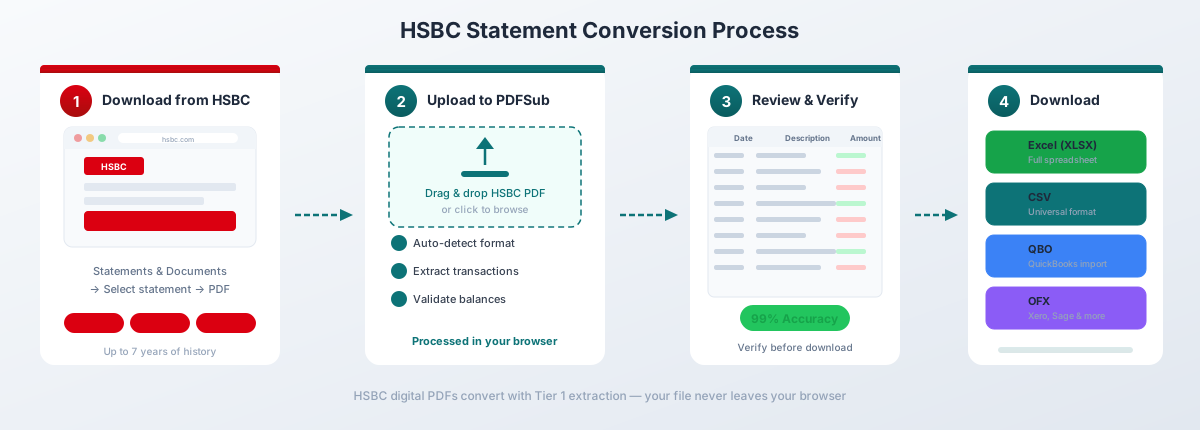
For HSBC's digital PDFs, PDFSub's Tier 1 extraction handles the conversion entirely in your browser - the file never leaves your device. This matters when you're working with sensitive financial data, especially for HSBC Premier and private banking customers dealing with large balances.
Why this works well for HSBC specifically:
- Auto-detects HSBC's regional date format (DD/MM/YYYY for UK and HK, MM/DD/YYYY for US) and infers the missing year from the statement period when dates omit it
- Handles HSBC's date-per-day compression - filling in the date for every transaction, not just the first one each day
- Recognizes UK transaction codes (DD, SO, FPO, BGC, etc.) and preserves them in the output
- Processes multi-currency Hong Kong statements without column misalignment
- Works with all HSBC account types - current accounts, savings, credit cards, and Premier accounts across regions
- Exports to QBO format for direct QuickBooks import, OFX for Xero, and CSV for Sage or MYOB
Bank statement conversion is included in the All-In-One plan at $20/user/mo (annual; 500 pages per user) with a 7-day free trial.
Method 2: HSBC's Built-In Download Options
If you only need recent transactions (not the full statement), HSBC's native export is the quickest option - but the experience varies significantly by region.
UK (HSBC UK / First Direct)
- Log into HSBC UK Online Banking or the mobile app
- Navigate to your account
- Select the date range
- Download as CSV or QIF
The UK CSV typically includes: Date, Description, Amount, and Balance. Transaction codes (DD, SO, etc.) are often embedded in the description field rather than a separate column.
Hong Kong (HSBC HK)
- Log into HSBC HK Personal Internet Banking
- Navigate to Accounts → Transaction History
- Set the date range and download
Hong Kong downloads may include a currency code column for multi-currency accounts, but the formatting can be inconsistent.
Limitations Across All Regions
- Short history window - typically 12–24 months, far less than the PDF statement archive
- Not the official statement - missing balances, fees, interest, and statement-level detail
- Inconsistent formats - the CSV structure differs between UK, HK, and US, so if you're consolidating across regions, you'll need to standardize manually
- Multi-currency gaps - foreign currency transactions may lose their currency identifier in the export
This method works for quick recent transaction tracking. For anything comprehensive, historical, or cross-regional, convert the PDF.
Method 3: Copy-Paste from PDF (Limited Use)
You can try selecting text in an HSBC PDF and pasting it into Excel. The results depend heavily on which country's statement you're working with.
UK statements paste reasonably well for simple transactions, but the Payment Type codes and multi-line descriptions break the column alignment. Section headers get mixed into the data.
Hong Kong statements are significantly worse. HSBC HK statements often contain Chinese text rendered as images rather than selectable text. When you try to copy, you get the English text but the Chinese characters are simply missing - they're embedded as non-selectable graphics in the PDF. This makes copy-paste unreliable for HK statements.
All regions share the same fundamental problem: dates, descriptions, and amounts land in a single column. HSBC's date-per-day compression makes it worse - if five transactions share a date, only the first row has the date, and the other four rows start with the description. This breaks any attempt to parse the pasted text into columns.
For a handful of simple UK transactions, copy-paste is tedious but doable. For Hong Kong multi-currency statements or anything beyond a single page, it's not practical.
Understanding the HSBC PDF Format
HSBC statements vary more than almost any other global bank because the format is determined by the issuing country, not by HSBC centrally. Here's what each major region produces.
UK Statement Layout
| Column | Description |
|---|---|
| Date | Transaction date (DD/MM/YYYY or DD Mon) |
| Payment Type | Code like DD, SO, FPO, BGC, etc. |
| Description | Merchant or transaction detail |
| Paid Out | Debit amount (withdrawals) |
| Paid In | Credit amount (deposits) |
| Balance | Running balance after transaction |
UK statements use separate "Paid Out" and "Paid In" columns rather than a single signed amount. This is the standard UK banking convention, but it means converters need to handle two amount columns and assign the correct sign.
Hong Kong Statement Layout
| Column | Description |
|---|---|
| Date | Transaction date (DD/MM/YYYY or DD Mon) |
| Description | Transaction detail (English + Chinese) |
| Withdrawals | Debit amount |
| Deposits | Credit amount |
| Balance | Running balance |
| CCY | Currency code (for multi-currency accounts) |
The CCY (currency) column is what makes Hong Kong statements uniquely challenging. It only appears on multi-currency accounts, which shifts the entire table structure. A converter that expects five columns will misalign everything when the sixth column appears.
US Statement Layout
| Column | Description |
|---|---|
| Date | Transaction date (MM/DD/YYYY) |
| Description | Transaction detail |
| Withdrawals | Debit amount |
| Deposits | Credit amount |
| Balance | Running balance |
US statements follow the more familiar American format with MM/DD/YYYY dates. However, HSBC exited US mass-market retail banking in 2021-2022, so US statements are increasingly rare - only HSBC Premier customers with significant assets remain.
HSBC Transaction Codes (UK)
UK HSBC statements include a "Payment Type" column with abbreviated codes that are unique to the British banking system. These codes are critical for understanding your transactions but are often unfamiliar to anyone outside the UK.
| Code | Meaning | Description |
|---|---|---|
| DD | Direct Debit | Recurring payment authorized by you (bills, subscriptions) |
| SO | Standing Order | Fixed recurring payment you've set up |
| FPO | Faster Payment Out | Outgoing bank transfer (arrives same day) |
| FPI | Faster Payment In | Incoming bank transfer |
| BGC | Bank Giro Credit | Payment received via the Giro system |
| BACS | BACS Payment | Bankers' Automated Clearing (salary, benefits) |
| CHAPS | CHAPS Payment | Same-day high-value transfer (usually over GBP 10,000) |
| CHQ | Cheque | Cheque payment or deposit |
| TRF | Transfer | Internal transfer between your own accounts |
| ATM | Cash Machine | ATM withdrawal |
| CR | Credit | General credit to account |
| DR | Debit | General debit from account |
| BP | Bill Payment | Payment made through HSBC bill pay |
| FP | Faster Payment | Generic faster payment (direction not specified) |
| DEB | Debit Card | Point-of-sale card transaction |
| OTR | Other | Miscellaneous transaction |
These codes are completely different from US banking abbreviations. If you're a UK accountant or bookkeeper, these codes are essential context for categorizing transactions. When converting HSBC UK statements, make sure your converter preserves the Payment Type column rather than merging it into the description.
Multi-Currency Handling
HSBC is one of the few retail banks that offers true multi-currency accounts - particularly in Hong Kong, where customers can hold balances in HKD, USD, GBP, EUR, CNY, JPY, AUD, and other currencies within a single account.
This creates a unique conversion challenge:
The CCY column appears inconsistently. For single-currency transactions, the CCY column may be blank or omitted entirely. For foreign currency transactions, it contains the three-letter currency code. This inconsistency causes column misalignment in many converters - the parser expects a fixed number of columns but encounters a variable structure.
Exchange rate information. Some HSBC HK statements include the exchange rate used for currency conversions as a secondary line below the transaction. This looks like a continuation row but is actually supplementary data that shouldn't be treated as a separate transaction.
Multi-currency balance sections. Hong Kong statements often include separate balance summaries for each currency held. These appear at the end of the statement and use a different table structure from the transaction listing.
When converting multi-currency HSBC statements, verify that:
- Each transaction has the correct currency code
- Exchange rate lines are not duplicated as phantom transactions
- The balance for each currency reconciles independently
HSBC Statement Differences by Country
Beyond the column layout differences, each HSBC region has its own quirks that affect conversion.
United Kingdom
- Date format: DD/MM/YYYY or abbreviated (e.g., "15 Jan")
- Year omission: Many UK statements show only the day and month, relying on the statement period header for the year
- Payment Type column: Unique to UK - not present in other regions
- Separate Paid Out / Paid In columns: UK convention, not a single signed amount
- First Direct: HSBC's UK subsidiary uses a slightly different format with different section headers
- Statement retention: 6 years of eStatements available online
Hong Kong
- Date format: DD/MM/YYYY or DD Mon
- Bilingual text: Descriptions appear in both English and Chinese
- Non-selectable Chinese text: Chinese characters are often rendered as images in the PDF, not as text - making copy-paste and basic text extraction impossible for the Chinese portions
- Multi-currency CCY column: Variable column structure based on currency
- Password-protected eStatements: HSBC HK frequently sends eStatements as password-protected PDFs via email. The password is typically the last 4 digits of your HKID followed by your date of birth (DDMM) or a similar personal identifier
- Statement retention: 7 years (84 months) available through Internet Banking
- Hang Seng Bank: HSBC's subsidiary in Hong Kong uses a different format entirely
United States
- Date format: MM/DD/YYYY (American convention)
- Simplified format: Fewer transaction codes than UK statements
- Limited customer base: HSBC exited US mass-market retail in 2021-2022. Only approximately 300,000 Premier/wealthy customers remain
- Statement retention: Approximately 2 years online - the shortest of any HSBC region
- Credit card statements: Include dual date columns (transaction date and posting date), which is standard for US credit cards but adds complexity to extraction
India
- Date format: DD/MM/YYYY
- Description style: More verbose descriptions including payee details and NEFT/IMPS reference numbers
- Cheque transactions: Include cheque numbers as a separate field
- Section structure: May include separate sections for savings, current, and fixed deposit accounts on a single statement
Middle East (UAE, Saudi Arabia, etc.)
- Bilingual layout: English and Arabic text, with Arabic running right-to-left
- Date format: DD/MM/YYYY
- Islamic banking products: Separate statements for Amanah (Islamic) accounts with different terminology (profit vs. interest)
- Multiple currencies: Similar to HK, Middle East statements often involve multiple currencies (AED, SAR, USD)
Common Conversion Problems and Solutions
HSBC statements present several unique challenges that don't appear with domestic-only banks. Here are the most common problems and how to solve them.
Missing Year in Dates
Problem: Many HSBC statements - particularly UK and HK - show dates as "15 Jan" or "15/01" without the year. If you're converting a January statement, a transaction dated "15 Jan" is unambiguous. But for statements spanning December–January (credit card statements, for example), the year is ambiguous without context.
Solution: Good converters infer the year from the statement period printed in the header (e.g., "01 January 2026 to 31 January 2026"). If your converter doesn't handle this, you'll need to add the year manually in Excel after conversion. Use the statement period as your guide.
Date-Per-Day Compression
Problem: HSBC UK statements print the date only once when multiple transactions occur on the same day. The first transaction of the day shows "15 Jan" in the Date column, but subsequent same-day transactions have a blank Date field. Generic converters often treat these as dateless rows or assign them incorrect dates.
Solution: Specialized bank statement converters fill in the blank date fields by carrying forward the last printed date. If your converter doesn't do this, sort your Excel output by row order (not by date) and manually fill down the blank date cells using Ctrl+D in Excel.
Multi-Currency Table Misalignment (Hong Kong)
Problem: Hong Kong multi-currency statements include a CCY column that only appears when a foreign currency transaction is present. This variable column count causes many converters to misalign the data - amounts end up in the description column, or balances shift one column to the right.
Solution: Use a converter that specifically handles variable column structures. If you're fixing this manually, identify the rows with currency codes and shift them into alignment. In Excel, you can use an IF formula to detect the misalignment: if a cell in the Amount column contains text (a currency code), the entire row is shifted and needs correction.
Non-Selectable Chinese Text (Hong Kong)
Problem: HSBC HK statements render Chinese characters as embedded images rather than selectable text. This means any text-based extraction - copy-paste, pdf-to-text tools, or basic PDF parsers - will capture the English text but produce blank spaces or garbled output where the Chinese should be.
Solution: For most accounting purposes, the English text is sufficient since it contains the transaction amounts, dates, and English descriptions. If you need the Chinese text, you'll need OCR (optical character recognition) processing. PDFSub's higher-tier extraction can handle this when the basic browser-based extraction doesn't capture it.
Password-Protected eStatements
Problem: HSBC frequently sends eStatements as password-protected PDFs, particularly in Hong Kong and for credit card statements. You can't convert a PDF you can't open.
Solution: The password is typically derived from personal information - in Hong Kong, it's often the last 4 digits of your HKID plus your date of birth. In the UK, it may be your date of birth or postcode. Once you have the password, open the PDF in Chrome, enter the password, then use Print (Ctrl+P / Cmd+P) → Save as PDF to create an unlocked copy. Convert the unlocked version.
Credit Card Dual Date Columns
Problem: HSBC credit card statements (particularly US) include both a transaction date and a posting date for each entry. This creates two date columns where a checking statement has one, and converters that expect a single date column may misparse the data.
Solution: Decide which date you need (transaction date for expense tracking, posting date for reconciliation) and either configure your converter to use the correct one or delete the unwanted date column after conversion.
Importing into Accounting Software
HSBC's global presence means its customers use a wide variety of accounting software depending on their region.
Xero (Popular in UK and Australia)
Xero is the dominant cloud accounting platform in the UK and Australia - two of HSBC's largest markets. To import converted HSBC data:
- Convert the HSBC PDF to OFX format using PDFSub
- In Xero, go to Accounting → Bank Accounts → your account
- Click Import a Statement → choose the OFX file
- Xero will match transactions against existing records
OFX is the preferred format for Xero because it includes transaction IDs that prevent duplicate imports. CSV works too but requires manual column mapping. See our guide to importing bank statements into Xero for detailed steps.
QuickBooks (Popular in US and Canada)
For HSBC customers using QuickBooks:
- Convert the HSBC PDF to QBO format using PDFSub
- In QuickBooks, go to Banking → Upload Transactions
- Select the QBO file and map it to the correct account
- QuickBooks will use the FITID transaction IDs to prevent duplicates
QBO format is purpose-built for QuickBooks and requires the least manual intervention. See our guide to importing bank statements into QuickBooks for detailed steps.
Sage (Popular in UK)
Sage 50 and Sage Business Cloud are widely used by UK businesses alongside HSBC:
- Convert the HSBC PDF to CSV using PDFSub
- In Sage, use the Bank Import feature
- Map the CSV columns to Sage's expected fields (Date, Reference, Description, Amount)
- The UK Payment Type codes (DD, SO, etc.) can be mapped to Sage's transaction type field
MYOB (Popular in Australia and New Zealand)
For HSBC customers in Australia and New Zealand using MYOB:
- Convert the HSBC PDF to OFX or CSV format
- In MYOB, go to Banking → Bank Feeds → Import Statement
- Map the columns and import
Multi-Region Consolidation
If you hold HSBC accounts in multiple countries and need to consolidate into a single accounting system, convert each region's statements separately. Standardize the date format (choose either DD/MM/YYYY or MM/DD/YYYY) and currency before combining. PDFSub's Excel output uses a consistent date format regardless of the source region, which simplifies this process.
Tips for Working with Converted HSBC Data
Once you have your HSBC transactions in Excel, here are some practical tips:
Verify with the opening and closing balance. Add up all transactions and check that they match the balance change shown on the statement header. For multi-currency accounts, verify each currency separately.
Preserve the Payment Type codes. If you're working with UK statements, keep the Payment Type column (DD, SO, FPO, etc.) - it's valuable for categorizing transactions and identifying recurring payments. Direct Debits (DD) are typically bills, Standing Orders (SO) are regular payments you control, and Faster Payments (FPO/FPI) are one-off transfers.
Standardize dates across regions. If you're combining HSBC statements from different countries, the dates will be in different formats. Convert everything to a single format (ISO 8601 YYYY-MM-DD is safest) to prevent Excel from misinterpreting "01/02/2026" as January 2nd (US) versus February 1st (UK).
Handle the date-per-day compression. After conversion, check for blank date cells. Select the date column, use Find & Replace to identify blanks, and fill them down from the previous row. In Excel: select the date column → Go To Special → Blanks → type = and click the cell above → Ctrl+Enter to fill all blanks.
Add a category column. Use Excel's SEARCH function to auto-categorize based on merchant names or Payment Type codes:
=IF(ISNUMBER(SEARCH("DD",C2)),"Direct Debit",IF(ISNUMBER(SEARCH("SO",C2)),"Standing Order","Other"))Convert monthly, not annually. Don't wait until tax season to convert 12 months of statements at once. Convert each month as it arrives and keep an organized folder structure by region and currency.
Frequently Asked Questions
Can I download HSBC statements as Excel files directly?
No. HSBC only provides statements in PDF format across all regions. You can download recent transaction activity as CSV through online banking in some regions, but this is a transaction feed - not the official statement. For full statements with opening/closing balances, fees, and interest breakdowns, you must convert the PDF.
How far back can I get HSBC statements?
It depends on your region. UK: up to 6 years. Hong Kong: up to 7 years (84 months). US: approximately 2 years. For statements older than these limits, contact HSBC customer service for your region and request archived statement retrieval - this may involve a fee.
Do HSBC UK and HSBC HK statements use the same format?
No. They use different column layouts, different date formats, different transaction codes, and different languages. UK statements include a "Payment Type" column with codes like DD and SO. Hong Kong statements include bilingual English/Chinese descriptions and may have a CCY (currency) column. You cannot use a single template to convert both.
How do I handle the password on HSBC eStatements?
HSBC's password is typically derived from personal information. In Hong Kong, try the last 4 digits of your HKID followed by your date of birth (DDMM format). In the UK, try your date of birth or postcode. Once unlocked, open the PDF in Chrome and use Print → Save as PDF to create an unprotected copy for conversion.
Why are the Chinese characters missing from my converted Hong Kong statement?
HSBC HK statements render Chinese text as embedded images rather than selectable text in the PDF. Basic text extraction only captures the English text. For most accounting purposes, the English text includes all the data you need (dates, amounts, balances, English descriptions). If you specifically need the Chinese text, you'll need OCR-based extraction.
Which format should I choose for Xero import?
Choose OFX format. Xero is the most popular accounting software in the UK and Australia - two of HSBC's key markets - and OFX is its preferred import format. It includes transaction IDs that prevent duplicate imports. CSV works too but requires manual column mapping. See our guide to importing bank statements into Xero for detailed steps.
Which format should I choose for QuickBooks import?
Choose QBO format. It's designed for QuickBooks and includes transaction IDs (FITIDs) that prevent duplicate imports. CSV works but requires manual column mapping and doesn't have built-in duplicate detection. See our guide to importing bank statements into QuickBooks for detailed steps.
Does this work for First Direct or Hang Seng Bank statements?
First Direct (HSBC's UK subsidiary) and Hang Seng Bank (HSBC's Hong Kong subsidiary) use their own statement formats that differ from the main HSBC format. Specialized bank statement converters that handle HSBC typically also handle these subsidiary formats, but verify with a test conversion first.
How accurate is the conversion?
For HSBC's digital PDFs (downloaded directly from online banking), specialized bank statement converters typically achieve 95-99% accuracy. The main variables affecting accuracy are: multi-currency column shifts (HK), non-selectable Chinese text (HK), date-per-day compression (UK), and password protection. Generic PDF-to-Excel tools average around 60-70% on HSBC statements due to the international format complexity. Scanned or photographed statements will have lower accuracy because they require OCR processing.
HSBC closed my US account. Can I still get statements?
HSBC exited US mass-market retail banking in 2021-2022. If your account was closed as part of this exit, you may still be able to access statements through HSBC's secure message center or by contacting HSBC US customer service. Download any available PDF statements as soon as possible - access to closed account documents may be limited over time.