Convert Citi Bank Statements to Excel (2026)
Step-by-step guide to converting Citi checking, savings, and credit card statement PDFs into Excel, CSV, or QBO format - including how to handle Citi's section-based transaction grouping.
You've got a Citi bank statement PDF and you need the data in a spreadsheet. Maybe you're reconciling accounts, doing bookkeeping, or pulling together tax documents. Whatever the reason, Citi makes this harder than it should be - and in a way that's uniquely frustrating compared to other major banks.
The core problem: Citi groups transactions by type, not by date. All your deposits are lumped together in one section. All your withdrawals in another. All your checks in another. If you're trying to build a chronological ledger in Excel - which is what most people actually need - a straight copy-paste or generic PDF export gives you a jumbled mess that requires significant manual rearranging.
Here's how to actually get your Citi statement data into Excel, with methods that work for checking, savings, and credit card accounts.
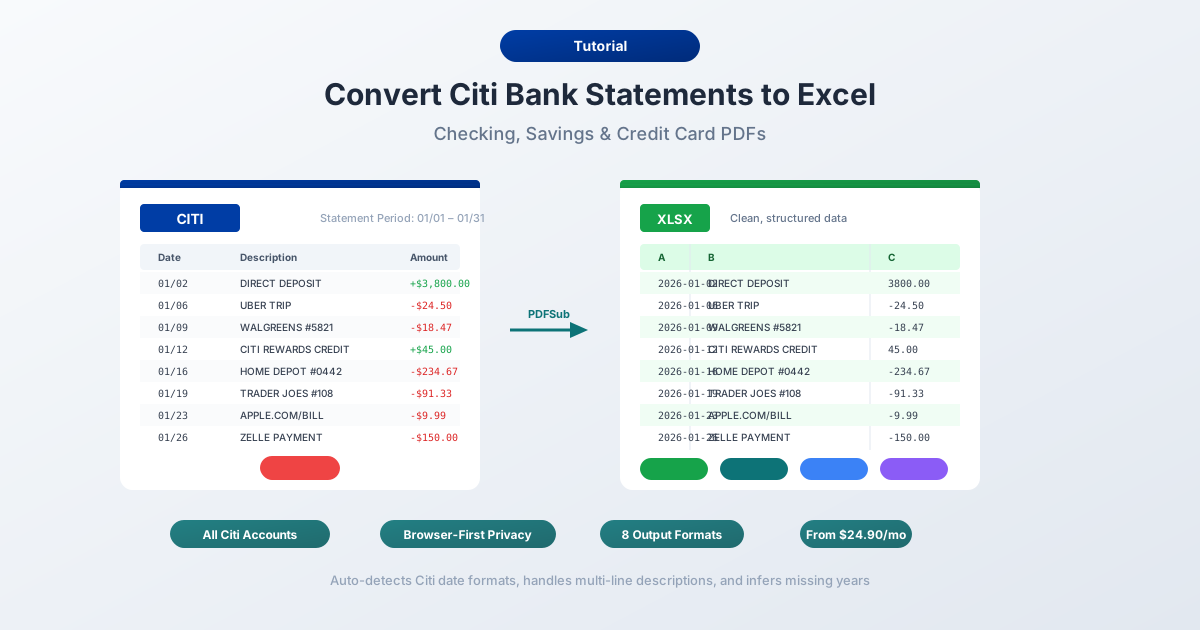
What Citi Gives You (And What It Doesn't)
Before converting anything, it helps to know what Citi actually offers.
PDF statements - available for up to 24 months through Citi Online under Statements & Documents. Citi keeps statements readily accessible for two years; older statements up to 7 years are available by request through customer service. These are the official statements matching what you'd get in the mail. PDF format only.
Activity downloads - available through your account's transaction history on citibankonline.com. Citi offers CSV and QFX (Quicken) export options here. Sounds like it should solve the problem, right?
Not quite. The activity download has real limitations:
- ~180 days of history - Citi's CSV export only covers roughly six months of recent transactions
- Not official statements - it's a transaction feed, missing opening/closing balances, fee summaries, interest breakdowns, and daily balance tables
- No QBO format - unlike Chase and BofA, Citi doesn't offer a native QBO (QuickBooks) export, so QuickBooks users are stuck mapping CSV columns manually
- Credit card limitations - credit card activity downloads have even shorter windows and may not include all transaction details
So if you need data from more than six months ago, or you need the complete statement (not just transactions), the PDF is your only option.
Method 1: Use a Bank Statement Converter (Recommended)
The fastest and most accurate method is a specialized bank statement converter - a tool designed specifically to extract transaction data from bank statement PDFs.
Unlike generic PDF-to-Excel tools, bank statement converters understand the structure of financial documents. They know that Citi checking statements group transactions by category - "Deposits & Credits," "Checks Paid," "ATM/Debit Card Withdrawals," and "Other Withdrawals" - rather than listing everything chronologically. They handle multi-line descriptions, running balances, and Citi's date formatting quirks.
Step-by-Step with PDFSub
- Download your Citi statement - Log into citibankonline.com → Statements & Documents → select the statement → download PDF
- Go to PDFSub's Bank Statement Converter
- Upload the Citi PDF - drag and drop or click to browse
- Review the extracted data - PDFSub shows you the transactions before you download, so you can verify accuracy
- Choose your format - Excel (XLSX), CSV, QBO (QuickBooks), OFX (Xero), or any of 8 supported formats
- Download - click Download or use "Download All" for a ZIP with every format
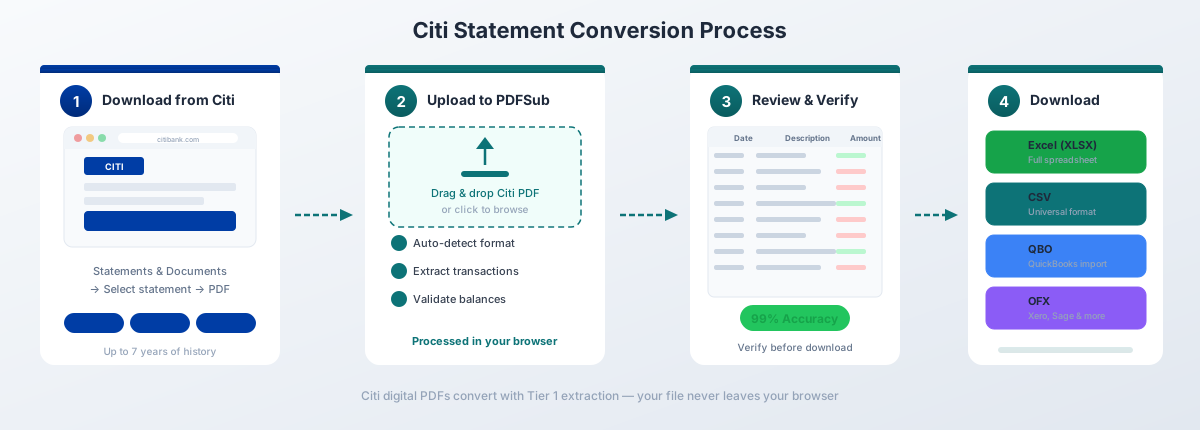
For Citi's digital PDFs, PDFSub's Tier 1 extraction handles the conversion entirely in your browser - the file never leaves your device. This matters when you're working with sensitive financial data.
Why this works well for Citi specifically:
- Understands Citi's section-based grouping and correctly assigns debit/credit signs based on which section a transaction appears in (since Citi uses positive amounts everywhere - the section heading is what tells you it's a deposit vs. a withdrawal)
- Handles Citi's MM/DD date format (no year) and infers the correct year from the statement period header
- Processes multi-line transaction descriptions (2–3 lines are common on Citi statements) without creating duplicate rows
- Works with all Citi account types - checking, savings, and credit card
- Skips non-transaction content like rewards summaries, APR breakdowns, Citi Flex Plan details, and marketing banners
- Exports to QBO format for direct QuickBooks import with FITID duplicate detection - filling the gap left by Citi's missing native QBO export
PDFSub's All-In-One plan is $20/user/mo (annual) or $25/user/mo (monthly), including 500 bank statement pages per user and a 7-day free trial.
Method 2: Citi's Built-In Download Options
If you only need recent transactions (not the full statement), Citi's native CSV export is the quickest option.
How to Download
- Log into citibankonline.com
- Navigate to your account
- Click "View Account Details" and go to "Transaction History"
- Set the date range for the transactions you need
- Click the download icon and select CSV
- Open the downloaded file in Excel
What You Get
Citi's CSV includes these columns:
| Column | Description |
|---|---|
| Date | Transaction date (MM/DD/YYYY) |
| Description | Merchant or transaction detail |
| Debit | Withdrawal amount (if applicable) |
| Credit | Deposit amount (if applicable) |
Limitations to Watch For
The ~180-day window. Citi limits CSV exports to roughly six months of recent transactions. Need a full year? You'll have to download in chunks and combine them manually - and if you need anything older than six months, the CSV isn't available at all.
No QBO or OFX format. If you use QuickBooks or Xero, Citi doesn't provide a native import format. You'll need to convert the CSV or PDF to QBO/OFX using a third-party tool.
Split debit/credit columns. Unlike Chase and BofA (which use a single signed amount column), Citi's CSV uses separate Debit and Credit columns. This is actually easier to work with in Excel, but it can cause import issues with accounting software that expects a single amount column.
Not the official statement. The CSV is a transaction feed - it doesn't include opening/closing balances, fee summaries, interest charges, or the daily balance table. If you need these for auditing or tax purposes, you need the PDF.
This method works for quick personal finance tracking of recent activity. For anything more comprehensive, convert the PDF.
Method 3: Copy-Paste from PDF (Not Recommended)
You can try selecting text in a Citi PDF and pasting it into Excel. Here's what actually happens:
Everything lands in a single column. Dates, descriptions, amounts, and balances get smashed together. And with Citi, you have an extra problem: because transactions are grouped by type rather than chronologically, even a clean copy-paste gives you data that's out of date order. You'd need to not only separate the columns but also re-sort everything by date.
You can try Excel's Text to Columns feature (Data tab → Text to Columns) to split it apart, but:
- Citi's multi-line descriptions (often 2–3 lines per transaction) break the row alignment
- Section headers ("DEPOSITS & CREDITS," "CHECKS PAID") get mixed in with transaction data
- Amounts are all positive - without the section context, you can't tell debits from credits
- Running balances don't line up with their transactions
- Marketing banners, promotional offers, and check images embedded in the PDF bleed into the text
- You'll spend 45+ minutes cleaning up a single statement
For one or two very simple statements, this is painful but technically possible. For anything more, it's not worth the time.
Understanding the Citi PDF Format
Citi statements have a distinctive structure that sets them apart from Chase and Bank of America. Understanding this structure explains why generic converters struggle and why specialized tools exist.
The Section-Based Grouping Problem
This is the single biggest challenge with Citi statements. Most banks list transactions in chronological order - you see January 3rd, then January 5th, then January 8th, regardless of whether they're deposits or withdrawals. Citi does the opposite.
A typical Citi checking statement organizes transactions into sections like this:
- Account Summary - opening balance, total credits, total debits, closing balance
- Deposits & Credits - all deposits grouped together
- Checks Paid - all cleared checks, listed by check number
- ATM/Debit Card Withdrawals - all card-based withdrawals
- Other Withdrawals - ACH debits, online transfers, wire transfers, etc.
Within each section, transactions are listed by date. But across sections, the same date can appear multiple times. You might have a deposit on January 15th in the Deposits section, a debit card purchase on January 15th in the ATM/Debit Card section, and an ACH payment on January 15th in the Other Withdrawals section - all separated by pages of other transactions.
This means that when you convert a Citi PDF to Excel, you get a spreadsheet where all the deposits come first, then all the checks, then all the withdrawals. For bookkeeping or reconciliation, you'll need to sort by date after conversion to get a chronological view.
Checking/Savings Statement Layout
Citi checking and savings statements use this column structure:
| Column | Description |
|---|---|
| Date | Transaction date (MM/DD - no year) |
| Description | Transaction detail (often 2–3 lines) |
| Amount | Always positive - section heading determines debit vs. credit |
| Balance | Running balance after transaction |
The date format is MM/DD without the year. The year must be inferred from the statement period shown in the header. For statements that span December–January, this means some transactions in the same statement have different years.
Credit Card Statement Layout
Citi credit card statements are more complex, with up to 8 distinct sections:
- Account Summary - previous balance, payments, new charges, fees, interest, new balance
- Payment Information - minimum due, due date, late payment warning
- Rewards Summary - ThankYou Points earned, redeemed, and balance (Double Cash, Custom Cash, Strata Premier, etc.)
- Transaction Detail - purchases and returns with Trans Date and Post Date
- Fees Charged - annual fees, late fees, etc.
- Interest Charged - APR breakdown by balance type (purchases, cash advances, balance transfers)
- Citi Flex Plan - installment plan details if any purchases are being paid in installments
- Year-to-Date Totals - cumulative interest and fees
The critical difference for conversion: credit card transactions have two dates - the Transaction Date (when you made the purchase) and the Post Date (when it posted to your account). Some converters only capture one, which can cause reconciliation issues.
The Rewards Summary and Citi Flex Plan sections should not be extracted as transactions - they're informational content. But they often appear between transaction sections, so converters that don't know to skip them will create garbage rows.
Citi Transaction Codes
Citi uses specific codes in transaction descriptions. Understanding these helps when reviewing converted data:
| Code | Meaning |
|---|---|
| DIRECT DEP | Direct deposit (payroll, government benefits) |
| ACH CREDIT | Incoming ACH transfer |
| ACH DEBIT | Outgoing ACH transfer |
| ZELLE PAYMENT | Zelle person-to-person transfer |
| CHECKCARD | Debit card purchase |
| ATM WITHDRAWAL | Cash withdrawal from ATM |
| ONLINE TRANSFER | Transfer between Citi accounts |
| MOBILE CHECK DEPOSIT | Check deposited via Citi Mobile app |
| WIRE TRANSFER | Incoming or outgoing wire |
| RECURRING PMT | Recurring automatic payment |
| E-PAYMENT | Online bill payment |
| POS PURCHASE | Point-of-sale debit card transaction |
Common Conversion Problems and Solutions
Problem: All amounts are positive - can't tell debits from credits
Why it happens: Citi uses positive amounts for everything. A $500 deposit and a $500 withdrawal both show as "500.00" in the PDF. The only way to tell them apart is the section heading.
Solution: Use a bank statement converter that understands Citi's section-based layout. PDFSub reads the section headers and applies the correct sign (positive for credits, negative for debits). If you're working with raw extracted data, look at the section each transaction appeared in and add the sign manually.
Problem: Dates are missing the year
Why it happens: Citi formats dates as MM/DD without the year. A transaction dated "01/15" could be any year.
Solution: The year comes from the statement period header (e.g., "Statement Period: 12/20/2025 – 01/19/2026"). Good converters infer the year automatically. If yours doesn't, add the year manually based on the statement period. Watch out for December–January statements where transactions in the same statement span two calendar years.
Problem: Multi-line descriptions creating extra rows
Why it happens: Citi transaction descriptions often span 2–3 lines. A single transaction might look like:
01/15  CHECKCARD 0115 AMAZON.COM
       AMZN.COM/BILL WA
       Card 1234
Generic converters treat each line as a separate row.
Solution: Specialized converters recognize that lines without a date are continuation lines belonging to the previous transaction. They concatenate the description into a single cell.
Problem: Combined statements for Priority/Citigold accounts
Why it happens: Citi Priority ($30K+ balance), Citigold ($200K+), and Citigold Private Client ($1M+) customers may receive combined statements that include multiple accounts - checking, savings, and money market - in a single PDF.
Solution: Look for account number headers within the statement that separate different accounts. When converting, you may need to extract each account's transactions separately, or use a converter that handles multi-account statements.
Problem: Citi Flex Plan installments mixed with regular transactions
Why it happens: If you've set up Citi Flex Plan on any credit card purchase, the monthly installment appears as a separate line item in the transaction section. The original purchase and the Flex Plan payments can create confusion.
Solution: Flex Plan installments typically include "CITI FLEX PLAN" in the description. You can filter or tag these in Excel after conversion for clearer bookkeeping.
Problem: Check images and marketing banners interfere with extraction
Why it happens: Citi embeds images of cleared checks and promotional banners directly into the PDF. Some converters try to extract text from image captions or banner copy, creating junk rows.
Solution: Use a converter that knows to skip non-transaction content. If you're getting extra rows, look for entries without valid dates or amounts and delete them.
Importing Converted Citi Data into Accounting Software
Once your Citi statement is converted, here's how to get it into the most common accounting tools:
QuickBooks Desktop/Online - Use QBO format for the cleanest import. QBO files include FITIDs (Financial Transaction IDs) that prevent duplicate imports if you upload the same statement twice. Go to Banking → Upload Transactions → select your QBO file. See our guide to importing bank statements into QuickBooks for detailed steps.
Xero - Use OFX format. Xero's bank feed import accepts OFX files directly. Go to Accounting → Bank Accounts → your account → Import a Statement. See our guide to importing bank statements into Xero for detailed steps.
Excel/Google Sheets - Use XLSX or CSV. Both open directly in Excel or can be uploaded to Google Sheets. CSV is plain text and universally compatible; XLSX preserves column formatting and date types.
FreshBooks, Wave, Sage - Use CSV or OFX depending on the software. Most modern accounting tools accept at least one of these formats.
Since Citi doesn't offer native QBO or OFX exports, converting the PDF statement is often the only path to a clean import for QuickBooks and Xero users.
Tips for Working with Converted Citi Data
Once you have your Citi transactions in Excel, here are some practical tips:
Sort by date immediately. Because Citi groups transactions by type, your converted spreadsheet will have all deposits first, then all checks, then all withdrawals. Sort by the Date column (oldest to newest) to get a chronological view that makes sense for reconciliation.
Verify with the opening and closing balance. Add up all transactions and check that they match the balance change shown on the statement header. This is the fastest accuracy check. The formula: Opening Balance + Total Credits - Total Debits = Closing Balance.
Check the sign on every amount. Because Citi uses positive amounts for both debits and credits, confirm that your converter applied the correct signs. A quick check: filter for negative amounts and verify they're all withdrawals/payments. Filter for positive amounts and verify they're all deposits/credits.
Standardize the date column. Excel sometimes interprets dates as text rather than date values, especially with Citi's MM/DD format. Select the date column → Data → Text to Columns → select Date format (MDY) to ensure proper date handling.
Add a category column. Use Excel's SEARCH function to auto-categorize based on transaction codes and merchant names:
=IF(SEARCH("DIRECT DEP",B2)>0,"Income",IF(SEARCH("ZELLE",B2)>0,"Transfers","Other"))Convert monthly, not annually. Don't wait until tax season to convert 12 months of statements at once. Convert each month as it arrives and keep an organized folder structure.
Frequently Asked Questions
Can I download Citi statements as Excel files directly?
No. Citi only provides statements in PDF format. You can download recent transaction activity (roughly 180 days) as CSV through the transaction history feature, but this is a transaction feed - not the official statement. For full statements with balances and fees, you must convert the PDF.
How far back can I get Citi statements?
24 months of statements are immediately available through Citi Online (Statements & Documents). Older statements - up to 7 years - can be requested by calling Citi customer service at (800) 374-9700. There may be a fee for archived statement retrieval. The CSV activity download only covers roughly 180 days.
Why are all my amounts positive after conversion?
This is a Citi-specific issue. Citi PDFs show all transaction amounts as positive numbers - the section heading ("Deposits & Credits" vs. "Other Withdrawals") is what indicates whether it's a credit or debit. If your converter doesn't read the section headers, every amount will be positive. Use a converter that understands Citi's section-based layout, like PDFSub.
Does this work for Citi credit card statements?
Yes. Citi credit card statements (Double Cash, Custom Cash, Strata Premier, Strata, Simplicity, Diamond Preferred, Costco Anywhere Visa, and others) produce digital PDFs that convert well. Credit card statements have a more complex layout with rewards summaries, APR breakdowns, and Citi Flex Plan sections, but specialized converters know to extract only the transaction data.
Which format should I choose for QuickBooks import?
Choose QBO format. It's designed for QuickBooks and includes transaction IDs (FITIDs) that prevent duplicate imports. This is especially important for Citi users since Citi doesn't offer a native QBO export - converting the PDF to QBO via PDFSub is often the easiest path. See our guide to importing bank statements into QuickBooks for detailed steps.
I have a combined statement with multiple Citi accounts. Will it convert correctly?
Citi Priority, Citigold, and Citigold Private Client customers often receive combined statements covering multiple accounts (checking, savings, money market) in a single PDF. Specialized converters can typically handle these, but you should review the output carefully to ensure transactions from different accounts aren't mixed together. If they are, look for the account number in the description column to separate them.
Does this work for Citi business accounts?
Yes. Citi business checking and corporate card statements produce digital PDFs that follow a similar structure to personal accounts. Business statements may include additional detail like employee card breakdowns and expense categories, but the transaction extraction process is the same.
How accurate is the conversion?
For Citi's digital PDFs (downloaded directly from citibankonline.com), specialized bank statement converters typically achieve 95-99% accuracy. The main risk area is the sign assignment - making sure debits and credits are correctly identified from Citi's section headers. Generic PDF-to-Excel tools average around 65-70% on Citi statements because they can't interpret the section-based layout. Scanned or photographed Citi statements will have lower accuracy because they require OCR processing.