What Is QBO File Format? A Guide for Accountants
QBO is QuickBooks' native bank statement import format. Here's what's inside a QBO file, how it works, and why it's better than CSV for QuickBooks imports.
If you've spent any time importing bank transactions into QuickBooks, you've heard the advice: "just use QBO format." Every QuickBooks forum, every bookkeeper community, every accounting blog says the same thing. QBO is the way to go.
But what actually is a QBO file? It's not a spreadsheet. It's not a database. You can't open it in Excel and see rows and columns. If you double-click one, your computer might not even know what to do with it.
This guide breaks down the QBO file format from the inside out --- what it contains, how it's structured, why QuickBooks prefers it over CSV, and how QBO files are created when your bank doesn't offer one for download.
QBO in One Sentence
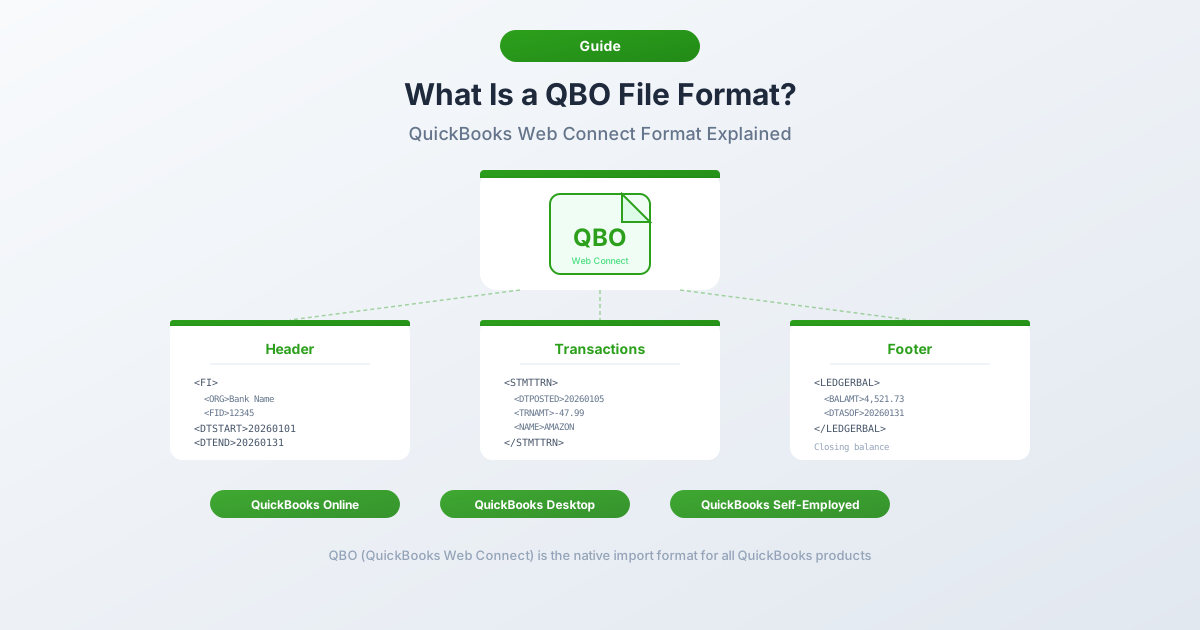
A QBO file is an XML-based financial data file that follows the Open Financial Exchange (OFX) specification, customized for QuickBooks. It stores bank transactions in a structured, machine-readable format --- complete with unique transaction IDs that QuickBooks uses for automatic duplicate detection.
The .qbo extension stands for "QuickBooks Web Connect." It's the file format Intuit designed for importing bank data into QuickBooks without requiring a live bank feed connection.
Think of it this way: if CSV is a plain-text list of transactions, QBO is a self-describing package that tells QuickBooks exactly what each piece of data means --- which field is the date, which is the amount, which is the payee --- with no ambiguity and no manual mapping required.
The History Behind QBO
The story of QBO starts in 1997, when three companies --- Microsoft, Intuit, and CheckFree --- came together to create the Open Financial Exchange (OFX) specification. The goal was straightforward: build a universal standard for exchanging financial data electronically between banks, consumers, and financial software.
Before OFX, every bank and every software package used its own proprietary format. OFX solved this by defining a single SGML-based (later XML-based) structure that any compliant system could read and write.
Intuit adapted OFX for their products, creating two branded formats:
- QFX (Quicken Financial Exchange) --- for importing into Quicken
- QBO (QuickBooks Web Connect) --- for importing into QuickBooks
Both are essentially OFX files with Intuit-specific metadata tags added --- most notably INTU.BID, a bank identifier code that tells the software which financial institution generated the file.
Originally, banks generated QBO files directly through their online banking portals. Customers would log in, select "QuickBooks" or "Web Connect" as the download format, and get a .qbo file ready for import. But as banks modernized and moved toward API-based connections (Plaid, Yodlee, MX), many dropped direct QBO downloads entirely.
Today, fewer banks offer QBO exports. The transactions still exist --- they're just locked inside PDF statements. That shift is what makes QBO converters essential for modern accounting workflows.
Inside a QBO File
Open a QBO file in any text editor and you'll see structured markup that looks like a cross between XML and HTML. Here's a complete, annotated example:
OFXHEADER:100
DATA:OFXSGML
VERSION:102
SECURITY:NONE
ENCODING:USASCII
CHARSET:1252
COMPRESSION:NONE
OLDFILEUID:NONE
NEWFILEUID:NONE

<OFX>
  <SIGNONMSGSRSV1>
    <SONRS>
      <STATUS>
        <CODE>0
        <SEVERITY>INFO
      </STATUS>
      <DTSERVER>20260215120000
      <LANGUAGE>ENG
      <FI>
        <ORG>First National Bank
        <FID>12345
      </FI>
      <INTU.BID>12345
    </SONRS>
  </SIGNONMSGSRSV1>

  <BANKMSGSRSV1>
    <STMTTRNRS>
      <TRNUID>0
      <STATUS>
        <CODE>0
        <SEVERITY>INFO
      </STATUS>
      <STMTRS>
        <CURDEF>USD
        <BANKACCTFROM>
          <BANKID>021000021
          <ACCTID>123456789
          <ACCTTYPE>CHECKING
        </BANKACCTFROM>
        <BANKTRANLIST>
          <DTSTART>20260101
          <DTEND>20260131

          <STMTTRN>
            <TRNTYPE>DEBIT
            <DTPOSTED>20260103
            <TRNAMT>-85.50
            <FITID>202601030001
            <NAME>WHOLE FOODS MARKET
            <MEMO>Grocery purchase
          </STMTTRN>

          <STMTTRN>
            <TRNTYPE>CREDIT
            <DTPOSTED>20260115
            <TRNAMT>3500.00
            <FITID>202601150001
            <NAME>ACME CORP PAYROLL
            <MEMO>Direct deposit
          </STMTTRN>

          <STMTTRN>
            <TRNTYPE>CHECK
            <DTPOSTED>20260120
            <TRNAMT>-1200.00
            <FITID>202601200001
            <CHECKNUM>4521
            <NAME>LANDLORD PROPERTIES LLC
            <MEMO>January rent
          </STMTTRN>

        </BANKTRANLIST>
        <LEDGERBAL>
          <BALAMT>4214.50
          <DTASOF>20260131
        </LEDGERBAL>
      </STMTRS>
    </STMTTRNRS>
  </BANKMSGSRSV1>
</OFX>
Let's walk through each section.
Header block --- The first nine lines are the OFX header. They define the file's data format (OFXSGML), version (102), encoding (USASCII), and character set (1252 for Windows Latin-1). This header tells QuickBooks how to parse the rest of the file.
SIGNONMSGSRSV1 --- The sign-on message response. This contains the server timestamp (DTSERVER), language (ENG), and financial institution information (FI). The INTU.BID tag is Intuit's bank identifier --- it tells QuickBooks which bank the file came from and affects the bank logo shown during import.
BANKMSGSRSV1 --- The banking message set. This wraps all bank account data. Credit card statements use CREDITCARDMSGSRSV1 instead.
STMTRS --- The statement response. It specifies the currency (CURDEF), the account information (BANKACCTFROM with routing number, account number, and account type), and contains the transaction list.
BANKTRANLIST --- The transaction list with a date range (DTSTART and DTEND). Every individual transaction lives inside this block as a STMTTRN element.
STMTTRN --- A single transaction. Each one includes the transaction type, date, amount, a unique identifier (FITID), payee name, and optional memo and check number.
LEDGERBAL --- The closing balance as of the statement end date. QuickBooks uses this for reconciliation verification.
Key Fields Explained
Not all QBO fields carry equal weight. Here are the ones that matter most --- and why.
| Field | Description | Example | Why It Matters |
|---|---|---|---|
| FITID | Financial Institution Transaction ID | 202601030001 |
The unique identifier that prevents duplicate imports. QuickBooks remembers every FITID it has ever seen. |
| TRNTYPE | Transaction type | DEBIT, CREDIT, CHECK, DEP, ATM, POS, XFER |
Tells QuickBooks how to classify the transaction. |
| DTPOSTED | Transaction date | 20260103 |
YYYYMMDD format --- unambiguous, no regional date confusion. |
| TRNAMT | Transaction amount | -85.50 |
Negative for debits (money out), positive for credits (money in). |
| BANKID | Bank routing number | 021000021 |
Identifies the financial institution. Used for account matching. |
| ACCTID | Account number | 123456789 |
Identifies which account the transactions belong to. |
| ACCTTYPE | Account type | CHECKING, SAVINGS, CREDITLINE |
Determines how QuickBooks categorizes the account. |
| NAME | Payee name | WHOLE FOODS MARKET |
The transaction description shown in QuickBooks. Max 32 characters. |
| MEMO | Additional description | Grocery purchase |
Supplementary detail. Also limited to 32 characters in the OFX spec. |
| CHECKNUM | Check number | 4521 |
Optional. Preserved for check transactions so you can match to physical checks. |
The most critical field is FITID. Without unique, consistent FITIDs, the entire duplicate detection system falls apart. Each FITID must be unique within a given bank account --- if two transactions share the same FITID, QuickBooks treats them as the same transaction and silently skips the second one.
Why QBO Is Better Than CSV for QuickBooks
Both QBO and CSV can get transaction data into QuickBooks. But the experience is fundamentally different. Here's a side-by-side comparison:
| Feature | QBO | CSV |
|---|---|---|
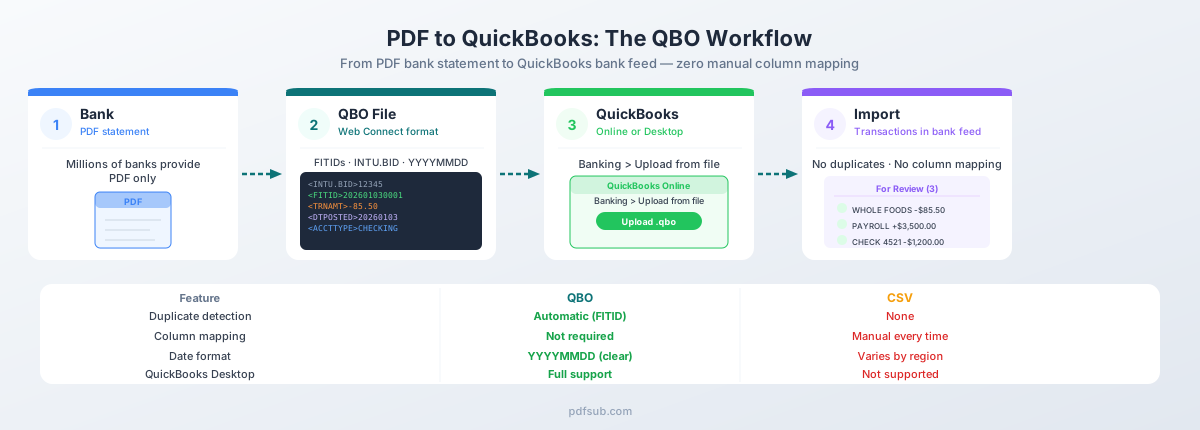
| Duplicate detection | Automatic via FITID | None --- reimporting creates duplicates |
| Column mapping | Not needed --- fields are pre-defined | Required --- you manually assign Date, Description, Amount |
| Date parsing | Unambiguous YYYYMMDD format | Depends on regional settings --- MM/DD or DD/MM confusion |
| Amount handling | Structured with clear sign convention | Must strip currency symbols, fix decimal separators |
| Account identification | Built in (routing number, account number, type) | Not included |
| Balance verification | Closing balance included for reconciliation | Not available |
| Check numbers | Preserved in CHECKNUM field | May be lost or require a separate column |
| Import workflow | Upload, confirm, done | Upload, map columns, select date format, verify, confirm |
| QuickBooks Desktop | Full support via Web Connect | Not supported for bank transaction imports |
Duplicate detection is the decisive advantage. Every transaction in a QBO file carries a unique FITID. QuickBooks stores every FITID it has ever processed in a permanent registry. If you accidentally import the same file twice --- or import overlapping date ranges from two different files --- QuickBooks silently skips the duplicates. No double entries. No cleanup required.
With CSV, there's zero protection. Import the same file twice and you'll have every transaction duplicated. You won't even get a warning. Cleaning up those duplicates means manually deleting entries one by one, which is exactly the kind of tedious work you were trying to avoid.
QuickBooks Desktop is QBO-only. If you're working with QuickBooks Desktop (Pro, Premier, or Enterprise), CSV isn't even an option for bank transaction imports. Web Connect --- meaning QBO files --- is the primary import path. This alone makes QBO essential for any firm supporting Desktop clients.
Where QBO Files Come From
There are three sources for QBO files, and the landscape has shifted dramatically over the past decade.
Banks (via Web Connect downloads). This was the original source. Banks generated QBO files directly from their online banking portals. This is becoming increasingly rare --- as banks move toward API-based data sharing, many have removed direct file downloads entirely. The ones that still offer it often limit exports to 90 days.
Bank statement converters. This is now the primary source for most accounting professionals. Tools like PDFSub take PDF bank statements --- the format every bank still provides --- and convert them into properly structured QBO files with valid FITIDs, correct date formatting, and accurate debit/credit classification. For catch-up bookkeeping, closed accounts, international banks, and historical data, converters are the only practical option.
Manual creation. You could theoretically write a QBO file by hand in a text editor. But one misplaced tag, one invalid FITID, one encoding error, and QuickBooks rejects the file. Manual creation is a last resort, not a workflow.
The shift away from bank-provided QBO downloads is what makes converters indispensable. Your clients' banks produce PDF statements. QuickBooks needs QBO files. The converter bridges that gap.
How to Import a QBO File into QuickBooks
The import process is straightforward --- one of the key advantages of using QBO over CSV.
QuickBooks Online
- Go to Banking (or Transactions then Bank Transactions)
- Click Link account then select Upload from file
- Browse for your
.qbofile or drag and drop it - QuickBooks reads the file and identifies the account information
- Map the file to an existing bank account --- or let QuickBooks create a new one
- Review the parsed transactions in the preview
- Click Done to complete the import
Transactions appear in the For Review tab. From there, categorize each transaction, match it to existing entries, or add it to your books.
QuickBooks Desktop
- Go to File then Utilities then Import then Web Connect Files
- Select your
.qbofile - QuickBooks validates the file format
- Map the file to an existing bank account or create a new one
- Transactions appear in the Bank Feeds window
For a complete walkthrough with screenshots and troubleshooting, see our full guide: How to Import Bank Statements into QuickBooks.
Common QBO Issues and Fixes
QBO files are reliable, but certain issues crop up regularly. Here's what to watch for.
"Unable to verify financial institution." The INTU.BID tag in the file doesn't match a recognized bank in Intuit's directory. This is cosmetic --- it affects the bank logo shown during import but doesn't prevent transactions from importing. Accept the prompt and proceed.
Duplicate FITIDs causing skipped transactions. If two transactions in the same file share an FITID, QuickBooks imports only the first one and silently skips the second. This also happens if you import a file with FITIDs that QuickBooks has already seen from a previous import. Every FITID must be unique within a given account, and once seen, it's permanently recorded.
Encoding errors and garbled characters. Non-ASCII characters in payee names or memos --- accented letters, ampersands, angle brackets --- can break the SGML parser. Ampersands must be encoded as &, and angle brackets must be escaped. A well-built converter handles this automatically.
"File cannot be read" errors. Usually caused by malformed SGML --- a missing closing tag, an extra line break inside a tag value, or a header that doesn't match the body format. Open the file in a text editor and check for structural issues. The header version (VERSION:102) must match the body's OFX version.
QuickBooks version compatibility. QuickBooks Desktop versions older than three years lose Web Connect functionality. If your client is running QuickBooks Desktop 2022, they may not be able to import QBO files at all. The fix is upgrading QuickBooks or switching to QuickBooks Online.
Credit card imported as bank account. If a credit card statement is wrapped in BANKMSGSRSV1 tags instead of CREDITCARDMSGSRSV1, QuickBooks creates the account as a bank account rather than a credit card. The QBO file needs the correct message wrapper for the account type.
QBO vs. QFX vs. OFX: What's the Difference?
These three formats cause constant confusion because they're nearly identical under the hood.
| Format | Extension | Based On | Target Software | Key Difference |
|---|---|---|---|---|
| OFX | .ofx |
Open Financial Exchange standard | Universal --- Xero, Wave, GnuCash, etc. | The open standard. No vendor-specific tags. |
| QBO | .qbo |
OFX + Intuit metadata | QuickBooks | Adds INTU.BID for bank identification in QuickBooks. |
| QFX | .qfx |
OFX + Intuit metadata | Quicken | Same as QBO but intended for Quicken instead of QuickBooks. |
The underlying transaction structure is identical across all three. You can rename a .ofx file to .qbo and QuickBooks will almost always read it. The INTU.BID tag is the only meaningful Intuit addition --- it controls the bank logo shown during import.
In practice: Use .qbo for QuickBooks, .qfx for Quicken, and .ofx for other accounting platforms like Xero or Wave. The transaction data inside is the same.
Creating QBO Files from PDF Bank Statements
Most accountants encounter QBO files in one context: they have a PDF bank statement and need to get the data into QuickBooks. The PDF needs to become a QBO file.
PDFSub's Bank Statement Converter handles this conversion end to end. Upload a PDF bank statement, and PDFSub extracts the transactions --- dates, amounts, descriptions, running balances --- and generates a properly formatted QBO file with:
- Valid, unique FITIDs for every transaction --- so QuickBooks' duplicate detection works correctly
- Correct TRNTYPE classification --- debits, credits, checks, deposits, and transfers identified automatically
- Proper SGML encoding --- special characters escaped, dates in YYYYMMDD format, amounts with correct signs
- Account metadata --- account type detection (checking, savings, credit card) with the appropriate QBO message wrapper
- Closing balance --- the
LEDGERBALtag populated from the statement's ending balance
The converter works with statements from over 20,000 banks in 130+ languages. Digital PDFs (text-based statements) are processed entirely in your browser --- the file never leaves your computer. Scanned or image-heavy PDFs use server-side AI extraction.
The All-In-One plan is $20/user/mo (annual) or $25/user/mo (monthly), including 500 bank statement pages per user. All paid plans include a 7-day free trial.
Frequently Asked Questions
Can I open a QBO file to see what's inside?
Yes. QBO files are plain text. Open one in any text editor --- Notepad on Windows, TextEdit on Mac, VS Code, or Sublime Text --- and you'll see the SGML-formatted transaction data. Every field is human-readable: dates, amounts, payee names, FITIDs, account numbers, and the closing balance.
Is a QBO file the same as an OFX file?
Nearly identical. QBO is based on the OFX standard with Intuit-specific tags added (primarily INTU.BID for bank identification). The transaction structure, field names, and data formatting are the same. You can rename .ofx to .qbo and QuickBooks will usually accept it.
Why does QuickBooks skip some transactions when I import a QBO file?
QuickBooks tracks every FITID it has ever processed. If a transaction's FITID has been seen before --- from a previous import or from a bank feed --- QuickBooks silently skips it to prevent duplicates. This is a feature, not a bug. If you need to reimport transactions, you'll need a file with new, unique FITIDs.
Does the same QBO file work for both QuickBooks Online and Desktop?
Yes. The QBO file format is identical for both versions. The import process differs --- Online uses Banking then Upload from file, while Desktop uses File then Utilities then Import then Web Connect Files --- but the file itself is the same.
How many transactions can a single QBO file contain?
There's no hard limit in the OFX specification. However, QuickBooks Online restricts file uploads to approximately 350 KB, which translates to roughly 1,000 to 1,500 transactions depending on description lengths. For larger imports, split the file by month or quarter.
Can I create a QBO file from a CSV or Excel spreadsheet?
Yes, but you'll need a conversion tool. The QBO format requires specific SGML markup, valid FITIDs, OFX-compliant date formatting, and proper header information. Converting manually is error-prone. PDFSub and similar tools handle the formatting automatically.
Do QBO files work with accounting software other than QuickBooks?
QBO files are primarily designed for QuickBooks. However, because QBO is based on the OFX standard, some other accounting software can read .qbo files or will accept them if renamed to .ofx. For non-QuickBooks software like Xero or Wave, the standard .ofx extension is recommended.
What's the maximum character length for payee names in QBO files?
The OFX specification limits the NAME field to 32 characters and the MEMO field to 255 characters, though QuickBooks may truncate longer memo values during display. If a payee name exceeds 32 characters, it will be cut off. A good converter truncates at word boundaries to preserve the most useful part of the description.