PDFSub vs Adobe Acrobat: Honest Comparison (2026)
A detailed head-to-head comparison of PDFSub and Adobe Acrobat - features, pricing, privacy, and more.
PDFSub is best for:
- Users who want 98+ tools at $25/month annual instead of Acrobat Pro's $19.99/mo with annual lock-in
- Professionals who need AI summarization, translation, and bank statement conversion that Acrobat lacks
- Privacy-conscious users who want browser-based processing instead of Adobe's cloud-first approach
- Small teams that want flat pricing with e-sign included - no separate Adobe Sign costs and no per-envelope fees
PDFSub is NOT best for:
- Users who need Acrobat's advanced inline text and image editing for complex document rewriting
- Enterprises standardized on Adobe Creative Cloud and Document Cloud ecosystems
- Organizations requiring Adobe Sign's advanced routing, delegation, and compliance workflows
Adobe Acrobat invented the PDF format in 1993. Three decades later, it remains the industry standard for PDF editing, signing, and document management. When someone says "PDF editor," most people picture Adobe Acrobat.
But the industry standard comes with an industry-standard price tag - $19.99/month for Acrobat Pro, locked into an annual commitment. And for all its power, Acrobat has blind spots: no bank statement conversion, no document translation, and a complexity that overwhelms users who just need to get things done.
PDFSub takes the opposite approach: a browser-based platform with 98+ tools, AI-powered features, and specialized financial document processing - at $20/month annual (or $25/month monthly), with e-sign and form filling included at no per-envelope fee.
This comparison examines where each tool genuinely excels and where it falls short.
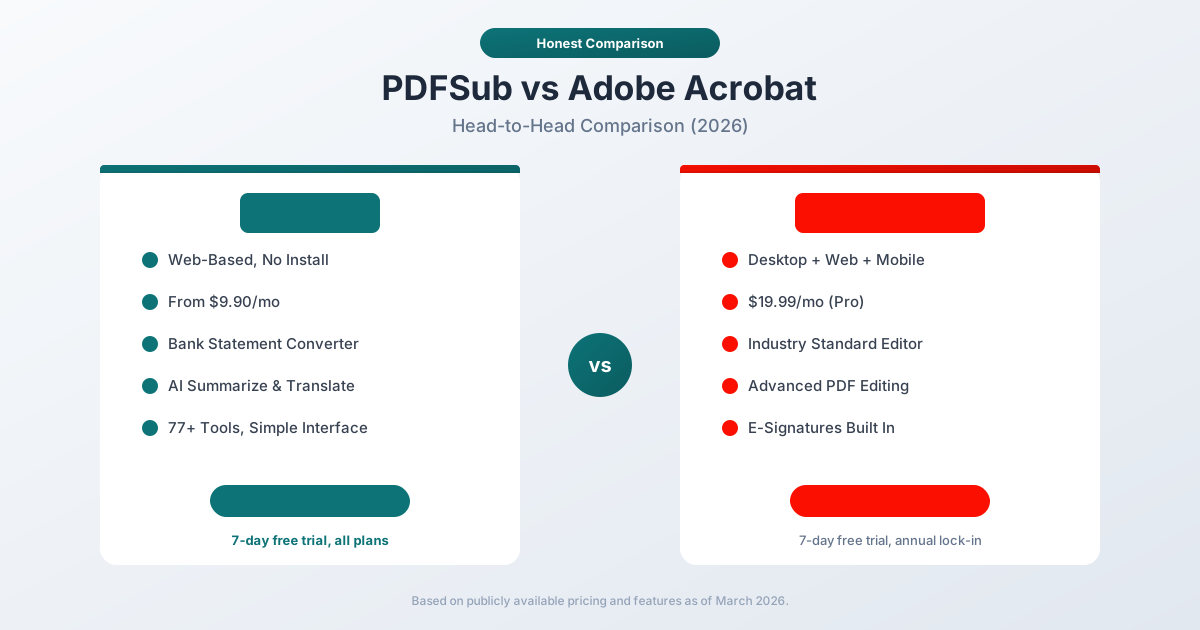
Quick Verdict
The 30-second split.
Choose PDFSub if…
- You need AI summarization, translation across 130+ languages, document chat, and structured data extraction - Acrobat's AI Assistant is narrower and costs $4.99/mo extra.
- You convert bank statements, invoices, or receipts to structured data - Acrobat has no equivalent feature.
- You want flat-rate e-sign and form filling with no per-envelope fees (Adobe Sign typically charges per envelope above a baseline).
- You work across multiple devices including Linux or Chromebook, where Acrobat Pro's desktop doesn't run.
Choose Adobe Acrobat if…
- You need pre-press / print-production workflows or deep Creative Cloud integration (InDesign, Illustrator, Photoshop round-tripping).
- You edit text and images inline inside PDFs daily - Acrobat's in-place editor remains best-in-class.
- You author complex interactive forms with calculations, JavaScript, and digital-signature fields, or run Action Wizard automation.
- Your organization needs Adobe Sign's advanced routing, delegation, audit trails, or enterprise SSO under a single Adobe vendor footprint.
They solve overlapping but different problems. The right choice depends on what you actually do with PDFs.
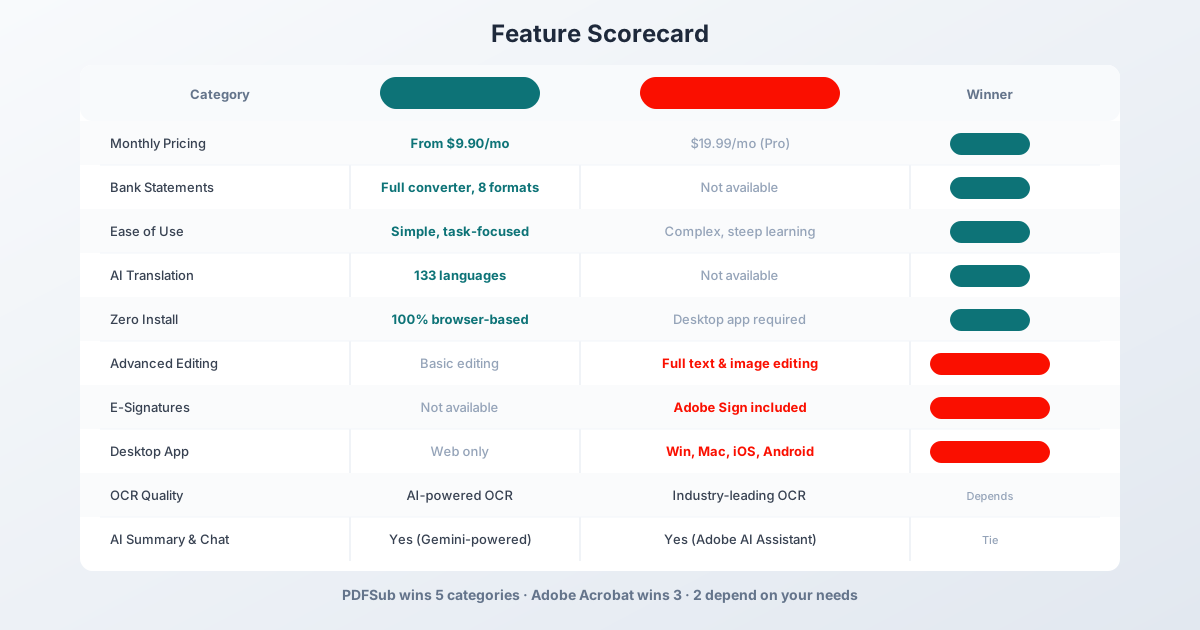
Company Overviews
PDFSub is a document platform offering 98+ PDF and document tools. It supports 130+ languages for AI translation and processing, converts bank statements from 20,000+ financial institutions, includes e-sign and form filling with no per-envelope fees, and runs editing tools entirely in your browser. Conversions and advanced processing are powered by the PDFSub Engine - an isolated service with no internet access. Files are processed in an isolated environment and auto-deleted. It launched as a modern web alternative to traditional desktop PDF software.
Adobe Acrobat is Adobe's flagship PDF product, part of the Document Cloud suite. It offers the most comprehensive PDF editing capabilities in the market - full text and image editing, form creation, e-signatures via Adobe Sign, advanced OCR, and deep integration with the broader Adobe Creative Cloud ecosystem. Adobe effectively created the PDF standard and continues to set the benchmark for full-featured PDF editing.
Ease of Use
This is where the two tools diverge most dramatically.
PDFSub is task-oriented. You select a tool (merge, compress, translate, extract data), upload your file, and get your result. The interface is simple and focused - there is no learning curve beyond understanding what each tool does. A first-time user can merge PDFs within 30 seconds of landing on the page.
Adobe Acrobat Pro is a professional application with a corresponding learning curve. The desktop app has dozens of toolbars, panels, and nested menus. Features like form creation, redaction, and advanced editing require training to use effectively. Adobe has improved the web and mobile experiences significantly, but Acrobat remains complex software designed for power users.
For someone who needs to merge, split, compress, or convert PDFs, Acrobat is dramatically more complex than necessary. It is like buying a commercial kitchen range to boil water.
Winner: PDFSub - simpler interface, faster time-to-result for common PDF tasks.
PDF Editing
This is Adobe Acrobat's strongest category, and it is not close.
Adobe Acrobat Pro offers full in-document text editing - you can click on any text in a PDF and edit it as if it were a Word document. You can add, remove, and resize images. You can rearrange pages, crop content, add headers and footers, create interactive forms, and redact sensitive information. The editing experience is unmatched by any competitor.
PDFSub offers basic PDF modifications: merge, split, compress, rotate, reorder pages, add watermarks, and add page numbers. It does not offer in-document text editing. If you need to change a paragraph in a PDF or modify an image embedded in a document, PDFSub cannot do that.
For users who regularly need to edit PDF content - correcting text, updating images, creating fillable forms - Adobe Acrobat is the clear choice.
Winner: Adobe Acrobat - full text and image editing is unmatched in the industry.
E-Signatures
Adobe Acrobat Pro includes Adobe Sign, one of the most widely accepted e-signature solutions. You can send documents for signature, create signature workflows, track signing progress, and integrate with popular business tools. Adobe Sign is legally binding in most jurisdictions and carries significant brand recognition.
PDFSub includes e-sign and form filling with no per-envelope fees on the All-In-One plan. You can sign documents, send them for signature, and fill PDF forms - without paying per envelope the way Adobe Sign and DocuSign typically charge.
For businesses that send a high volume of contracts, agreements, or forms for signing, PDFSub's per-user e-sign eliminates per-envelope costs entirely. Acrobat's Adobe Sign carries stronger brand recognition and more advanced routing/delegation workflows, but at a higher long-term cost for high-volume signers.
Winner: Depends - Adobe Sign for advanced workflows and broad recognition; PDFSub for flat-rate signing with no per-envelope fees.
AI Features
Both platforms have introduced AI capabilities, but with different approaches.
PDFSub offers:
- AI document summarization
- AI translation (130+ languages, preserving layout)
- AI-powered document chat (ask questions about your PDF)
- AI data extraction from invoices, receipts, and financial documents
- AI-powered table extraction
- AI financial report analysis
Adobe Acrobat offers:
- Adobe AI Assistant (summarize, answer questions about PDFs)
- AI-powered image generation for PDFs
- Auto-tag for accessibility
Both tools can summarize documents and answer questions about PDF content. The key differentiators are translation (PDFSub offers 130+ languages; Acrobat does not translate documents) and financial document extraction (PDFSub extracts structured data from invoices, receipts, and bank statements; Acrobat does not).
Winner: PDFSub on breadth of AI features, especially translation and financial extraction. Adobe Acrobat's AI Assistant is capable but narrower in scope.
Bank Statement Conversion
This is one of PDFSub's most distinctive features - and something Adobe Acrobat simply does not do.
PDFSub converts bank statements from 20,000+ financial institutions into 8 formats:
- XLSX (Excel)
- CSV
- TSV
- JSON
- QBO (QuickBooks)
- OFX (Xero, Wave)
- QFX (Quicken)
- QIF (Legacy accounting)
The extraction uses a 4-tier approach: coordinate-based browser extraction, server-side extraction, OCR + AI, and AI vision for the most challenging formats. Most digital bank statements are processed entirely in your browser without uploading.
Adobe Acrobat can convert a PDF bank statement to Word or Excel, but this is generic PDF-to-Office conversion - it does not understand bank statement structure. The resulting Excel file will have the text content but not properly structured transaction rows with dates, descriptions, amounts, and running balances. You would need to manually reformat the data.
If you are an accountant, bookkeeper, or financial professional, this single feature may justify choosing PDFSub over Acrobat.
Winner: PDFSub - purpose-built bank statement conversion versus generic file conversion.
Pricing Comparison
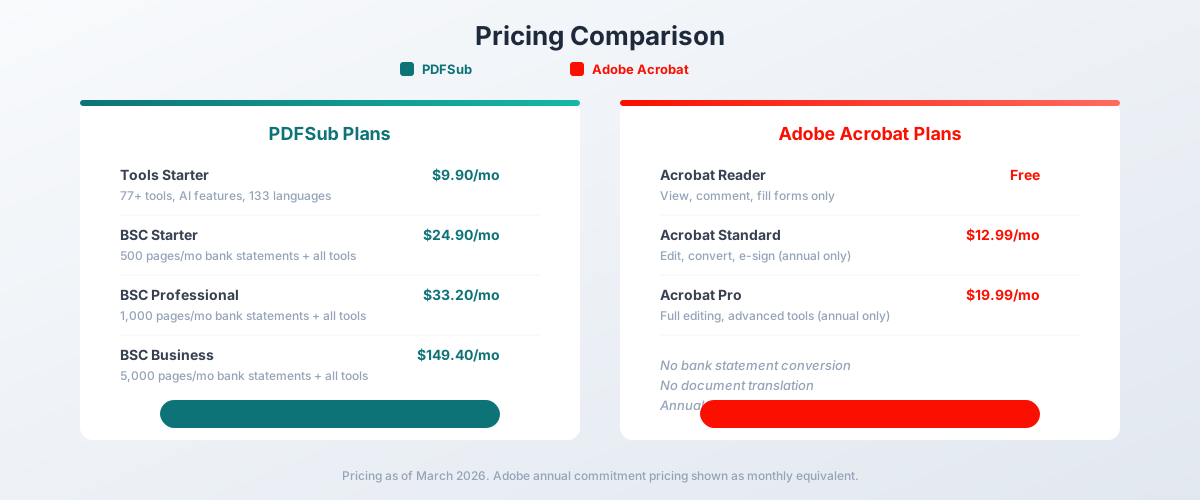
PDFSub Pricing
| Plan | Price | Commitment |
|---|---|---|
| All-In-One (annual) | $20/mo ($240/yr, saves $60) | Annual, cancel anytime |
| All-In-One (monthly) | $25/mo | Monthly, cancel anytime |
| Add-ons | Stackable | 500 AI credits, 500 bank statement pages, 40 GB storage, priority support |
All-In-One includes 98+ tools, 500 AI credits/mo, 500 bank statement pages/mo, e-sign + form filling with no per-envelope fees, 50 GB cloud storage; unlimited team seats (each billed at the same per-user rate) available (each billed per-user); Google Drive + Dropbox integration. 7-day free trial with full functionality.
Adobe Acrobat Pricing
| Plan | Monthly Price | Commitment |
|---|---|---|
| Acrobat Reader | Free | N/A |
| Acrobat Standard | $12.99/mo | Annual only ($155.88/yr) |
| Acrobat Pro | $19.99/mo | Annual only ($239.88/yr) |
Adobe's pricing requires an annual commitment. If you cancel mid-year, you pay an early termination fee (typically 50% of remaining months). Month-to-month pricing is significantly higher ($29.99/month for Pro).
The Commitment Question
PDFSub's All-In-One at $20/month annual costs $240/year (saves $60 vs the $25/month monthly plan). Adobe Acrobat Standard at $12.99/month costs $155.88/year - and you cannot cancel without penalty.
If you need bank statement conversion, PDFSub All-In-One at $240/year (includes 500 bank statement pages every month) costs less than Acrobat Pro ($239.88/year) plus a separate bank statement service like DocuClipper ($348+/year). The combined Acrobat + DocuClipper cost would be $587.88/year compared to PDFSub's $240.
Winner: PDFSub when AI features, e-sign without per-envelope fees, and bank statement conversion are factored in.
Pros and Cons of Each
PDFSub - Pros
- Browser-based: no installation, works on Linux/ChromeOS/older Macs, no IT approval required
- AI baked in across the platform - chat, summarize, translate (130+ languages), extract - at no extra cost
- Purpose-built financial extraction: bank statements, invoices, receipts to structured accounting formats
PDFSub - Cons
- No inline text editing inside PDFs the way Acrobat allows direct paragraph rewriting
- No desktop app - login and AI features require internet
- Form authoring covers fill + basic creation, not Acrobat's full interactive-form designer
Adobe Acrobat - Pros
- Best-in-class inline PDF editing - change paragraphs, swap images, edit at any zoom level
- Adobe Sign integration with widely accepted legal status and advanced routing/delegation workflows
- Deep Creative Cloud ecosystem fit - InDesign export, Photoshop round-trip, enterprise SSO
Adobe Acrobat - Cons
- No bank statement, invoice, or receipt extraction into structured accounting formats
- AI Assistant costs an additional $4.99/mo on top of Acrobat Pro's $19.99/mo
- Annual-only contracts with a 50% early termination penalty; no Linux or Chromebook support for the desktop app
Desktop vs. Web
Adobe Acrobat offers a full desktop application for Windows and Mac, plus web and mobile apps. The desktop app is the most powerful version - some advanced features are only available there. Offline editing is a key advantage.
PDFSub is entirely web-based. It works in any modern browser on any operating system, including Linux and Chromebooks. No installation, no updates, no disk space. However, you need an internet connection to access the interface (though most file processing happens locally in your browser).
For users on restrictive corporate devices where software installation is controlled by IT, PDFSub's browser-based approach is actually an advantage - no admin permissions required.
Winner: Adobe Acrobat - desktop and mobile apps provide offline capability and native performance.
OCR & Scanned Documents
Both tools handle scanned documents, but through different approaches.
Adobe Acrobat has been the gold standard for OCR for decades. Its OCR engine is accurate, handles complex layouts well, and produces searchable PDFs that maintain the original document appearance. OCR in Acrobat makes scanned documents editable and searchable.
PDFSub uses AI-powered OCR through its tiered extraction system. For bank statements and financial documents, OCR feeds into the AI extraction pipeline to produce structured data. For general documents, OCR enables AI summarization and translation of scanned content.
Both tools produce good OCR results. Adobe's advantage is that it can make scanned PDFs editable as native text. PDFSub's advantage is that it can extract structured data from the OCR results.
Winner: Depends - Adobe for making scanned PDFs editable; PDFSub for extracting structured data from scanned documents.
Who Should Choose PDFSub
PDFSub is the better choice if:
- You want lower costs without per-envelope e-sign fees. $20/month annual (or $25/month monthly) versus Acrobat Pro at $239.88/year, plus you avoid per-envelope Adobe Sign charges.
- You need bank statement conversion. Adobe Acrobat has no equivalent feature at any price.
- You need document translation. 130+ languages with layout preservation versus nothing from Adobe.
- You want simplicity. Task-focused interface versus complex professional software.
- You want browser-based access. No installation required, works on any device.
- You process financial documents. Invoices, receipts, bank statements, and financial reports with AI extraction.
Who Should Choose Adobe Acrobat
Adobe Acrobat is the better choice if:
- You need to edit PDF text and images. Full in-document editing is Adobe's core strength.
- You need e-signatures. Adobe Sign is integrated and widely accepted.
- You need offline access. Desktop app works without internet.
- You create complex forms. Interactive form creation and distribution.
- Your organization standardizes on Adobe. Creative Cloud integration and enterprise licensing.
- You need advanced redaction. Legal-grade content redaction for sensitive documents.
The Bottom Line
Adobe Acrobat is the most powerful PDF editor ever made. If you need to edit text inside PDFs, create interactive forms, or sign documents, nothing matches it. That power comes with a corresponding price tag and complexity.
PDFSub is a modern web platform that handles common PDF tasks more simply and affordably, while adding capabilities Adobe does not offer: AI-powered translation, bank statement conversion, financial document extraction, and browser-first privacy.
Most people do not need Adobe Acrobat's full power. They need to merge PDFs, compress files, summarize documents, and occasionally extract data. For those users, PDFSub delivers more value at a lower price point with zero learning curve.
The easiest way to decide? If you regularly edit text inside PDFs or need e-signatures, Adobe Acrobat is probably necessary. If you do not, PDFSub's 7-day free trial will likely show you that you never needed Acrobat in the first place.
Frequently Asked Questions
Can PDFSub replace Adobe Acrobat?
For most users, yes. PDFSub handles merging, splitting, compressing, converting, and all common PDF tasks plus AI features and bank statement conversion. The main things you would lose are in-document text editing, e-signatures, and the desktop app. If you do not use those Acrobat features regularly, PDFSub is a more affordable replacement.
Is Adobe Acrobat worth $240/year?
For power users who regularly edit PDF content, create forms, and use e-signatures - absolutely. For users who mainly merge, compress, and convert PDFs, it is significantly overpriced. PDFSub offers more tools for common tasks at less than half the annual cost.
Does Adobe Acrobat convert bank statements?
No. Acrobat can convert a PDF to Excel, but this is generic file conversion that does not understand bank statement structure. The result requires significant manual cleanup. PDFSub's bank statement converter produces properly structured transaction data with dates, descriptions, amounts, and balances.
Can I use Adobe Acrobat web version for free?
Adobe offers limited free tools on acrobat.adobe.com (convert, compress, merge with restrictions). Acrobat Reader is free for viewing and commenting. Full editing, forms, and e-signatures require a paid subscription.
Which has better AI features?
PDFSub offers broader AI capabilities: summarization, 130+ language translation, document chat, data extraction from financial documents, and table extraction. Adobe AI Assistant can summarize and answer questions but does not translate documents or extract structured financial data.
Does PDFSub work offline?
No. PDFSub requires a browser and internet connection to access the interface. However, most file processing happens locally in your browser, so your documents are not uploaded to servers for basic operations. Adobe Acrobat's desktop app works fully offline.
Can I cancel Adobe Acrobat anytime?
Technically yes, but there is an early termination fee if you cancel an annual plan before the year is up. Adobe charges approximately 50% of the remaining subscription cost. PDFSub offers both monthly ($25/month) and annual ($20/month, billed yearly) plans with no early termination penalties.
Already decided to switch? This page covers neutral side-by-side facts. For a migration-focused walkthrough - overlapping during cancellation, mapping Acrobat workflows to PDFSub, and switching FAQ - see the best Adobe Acrobat alternative guide.