How to Import Bank Statements into Zoho Books
Zoho Books supports bank feeds and manual imports. Here's how to get PDF bank statements into Zoho - with the right CSV formatting and column mapping.
Zoho Books is a solid accounting platform - especially for businesses already in the Zoho ecosystem. Its bank feed integration handles day-to-day transactions well. But when you need to import historical data, onboard a new client, or pull in statements from a bank that Zoho doesn't connect to, you'll need the manual import path.
The good news: Zoho Books has one of the most flexible import systems of any accounting platform. It supports CSV, TSV, XLS, OFX, QIF, and even CAMT.053/CAMT.054 (European banking standards). It handles separate debit/credit columns, single amount columns, and amount-type columns. And its column mapping interface lets you match virtually any CSV structure to Zoho's fields.
The challenge is getting your data into the right shape before you start. PDF bank statements need to be converted, columns need to match Zoho's expected structure, and dates need to be in the right format for your locale. This guide walks through every step.
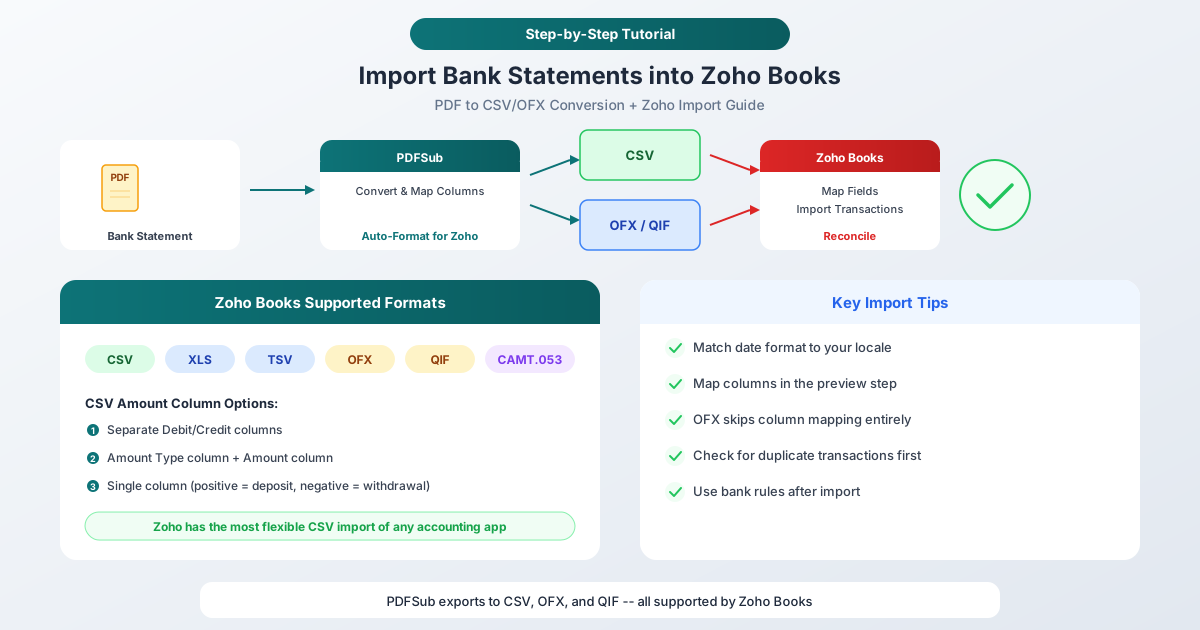
Zoho Books Import Methods
Method 1: Bank Feeds (Automatic)
Zoho Books integrates with banking aggregators to pull transactions automatically. Go to Banking > Add Bank or Credit Card and search for your institution.
Works well for:
- Major banks in supported countries (US, UK, Canada, Australia, India, and more)
- Ongoing, current transactions
- Accounts that are currently open
Doesn't work for:
- Closed accounts
- Historical transactions beyond the feed window (typically 90 days)
- Banks not in Zoho's aggregator network
- International banks from unsupported regions
- Periods when the bank feed connection breaks
Method 2: Manual File Import
Banking > select your bank account > Import Statement. Upload a file, map columns, and confirm.
Supported file formats:
| Format | Description | Column Mapping Needed? |
|---|---|---|
| CSV | Comma-separated values | Yes |
| TSV | Tab-separated values | Yes |
| XLS | Excel spreadsheet | Yes |
| OFX | Open Financial Exchange | No (auto-mapped) |
| QIF | Quicken Interchange Format | No (auto-mapped) |
| CAMT.053 | ISO 20022 statement | No (auto-mapped) |
| CAMT.054 | ISO 20022 notification | No (auto-mapped) |
If you're choosing between CSV and OFX, here's the trade-off: CSV gives you full control over the data but requires column mapping. OFX is auto-mapped by Zoho, which means fewer steps and fewer formatting errors.
CSV Import: Format Requirements
Required Columns
At minimum, your CSV needs:
- Date - transaction date
- Description - transaction name, payee, or memo
- Amount - in one of three configurations (see below)
The Three Amount Column Options
This is where Zoho Books stands out from other accounting platforms. It supports three different amount column structures:
Option 1: Separate Debit/Credit Columns
| Date | Description | Debit | Credit |
|---|---|---|---|
| 2026-03-01 | RENT PAYMENT | 1500.00 | |
| 2026-03-05 | CLIENT PAYMENT | 3200.00 |
During import, you'll select "Double Column" and map the debit and credit columns separately.
Option 2: Amount + Type Columns
| Date | Description | Amount | Type |
|---|---|---|---|
| 2026-03-01 | RENT PAYMENT | 1500.00 | Debit |
| 2026-03-05 | CLIENT PAYMENT | 3200.00 | Credit |
During import, you'll select "Single Column and Amount Type" and map the amount and type columns.
Option 3: Single Column with Signed Values
| Date | Description | Amount |
|---|---|---|
| 2026-03-01 | RENT PAYMENT | -1500.00 |
| 2026-03-05 | CLIENT PAYMENT | 3200.00 |
During import, you'll select "Single Column with Negative Values." Positive = deposit, negative = withdrawal.
This flexibility means you rarely need to restructure your CSV. Whatever format your bank statement conversion produces, Zoho can probably handle it.
Date Format
Zoho Books uses your organization's locale setting to interpret dates. Before importing, check your date format preference in Settings > Organization > Date Format.
Common formats:
- MM/DD/YYYY - US standard
- DD/MM/YYYY - UK, EU, Australia, India
- YYYY-MM-DD - ISO (unambiguous, recommended)
- DD-MMM-YYYY - e.g., 15-Mar-2026
Make sure your CSV dates match your organization's configured format. Mismatched date formats are the number one cause of import errors in Zoho Books.
Step-by-Step: Importing a PDF Bank Statement into Zoho Books
Step 1: Convert the PDF to CSV (or OFX)
Banks provide statements as PDFs. Zoho Books can't read PDFs directly, so you need to convert first.
- Go to pdfsub.com/tools/bank-statement-converter
- Upload your bank statement PDF
- PDFSub auto-detects the bank layout and extracts transactions
- Review the extracted data for accuracy
- Export as CSV or OFX
Tip: If you want to skip column mapping entirely, export as OFX. Zoho Books reads OFX files automatically with no manual mapping needed.
Step 2: Prepare the CSV (If Using CSV)
If you exported as CSV, do a quick check:
- Open the file in a spreadsheet application
- Verify the date column matches your Zoho locale format
- Check that amounts are correctly signed (or in the right debit/credit columns)
- Remove any summary rows at the top or bottom (opening balance, closing balance, totals)
- Make sure there are no completely empty rows in the middle of the data
Step 3: Import into Zoho Books
- Go to Banking in the left sidebar
- Select the bank account you want to import into (or create one if it doesn't exist)
- Click Import Statement (or Add Transaction > Import Statement)
- Choose your file format (CSV, OFX, etc.)
- Upload your file
Step 4: Map Columns (CSV Only)
If you uploaded a CSV, Zoho shows a column mapping interface:
- Select the amount type:
- Double Column (separate debit/credit)
- Single Column and Amount Type
- Single Column with Negative Values
- Map each column from your file to Zoho's fields:
- Date → Transaction Date
- Description → Description/Payee
- Amount → Amount (or Debit/Credit)
- Preview the mapping - Zoho shows sample rows so you can verify
- Set the date format if Zoho doesn't detect it automatically
- Click Import
Step 5: Review and Categorize
After import:
- Go to the bank account's transaction list
- Verify the transaction count matches your statement
- Spot-check a few dates and amounts
- Use bank rules to auto-categorize recurring transactions
- Manually categorize the rest
- Run a bank reconciliation to match imported transactions against your book entries
Using OFX for a Smoother Import
If you're importing bank statements regularly, OFX format is the path of least resistance with Zoho Books. Here's why:
- Zero column mapping - Zoho reads the structured data automatically
- Transaction types are explicit - no ambiguity about debit vs. credit
- Unique transaction IDs - helps Zoho prevent duplicate imports
- Date format is standardized - no locale confusion
PDFSub exports bank statement conversions in OFX format alongside CSV. For Zoho Books, we recommend trying OFX first. If you need more control over the data (filtering specific transactions, adjusting descriptions), use CSV.
Using QIF Format
Zoho Books also supports QIF (Quicken Interchange Format). QIF is older than OFX but still widely used. Like OFX, QIF is auto-mapped - no column configuration needed.
PDFSub exports to QIF as well. Use QIF if you encounter issues with OFX import (rare, but it happens with certain account configurations in Zoho).
Troubleshooting Zoho Import Errors
"Date format is incorrect"
Cause: The dates in your file don't match the date format configured in your Zoho organization settings.
Fix: Check Settings > Organization > Date Format in Zoho Books. Then verify your CSV dates match exactly. If your org uses DD/MM/YYYY but your CSV has MM/DD/YYYY, either change the CSV or temporarily change the Zoho setting during import.
"Amount field is empty"
Cause: The amount column mapping is wrong, or the amounts contain non-numeric characters.
Fix: Check for currency symbols ($, EUR), thousand separators, or spaces in the amount column. Remove everything except digits, the decimal point, and the negative sign.
"Duplicate transactions detected"
Cause: Some or all transactions in your file already exist in Zoho, either from a bank feed or a previous import.
Fix: Zoho will flag potential duplicates and let you choose whether to skip them. Review the flagged transactions - if they're genuine duplicates, skip them. If they're different transactions with similar details, import them.
"File could not be processed"
Cause: File encoding, corrupted data, or unsupported characters.
Fix: Save your CSV as UTF-8 encoded. Remove any BOM (byte order mark) if present. Check for invisible control characters by viewing the file in a plain text editor.
"Some transactions were not imported"
Cause: Individual rows had formatting errors even though the file as a whole was accepted.
Fix: Check Zoho's import summary for which rows were skipped and why. Common causes: missing dates, empty amounts, or dates outside the bank account's configured date range.
CAMT.053 and CAMT.054 Support
If you work with European banks, Zoho's support for ISO 20022 CAMT formats is worth noting. CAMT.053 (Account Statement) and CAMT.054 (Account Notification) are XML-based banking standards used across the EU and increasingly worldwide.
These files are auto-mapped with no manual configuration. If your bank provides CAMT files, import them directly into Zoho Books without any conversion step.
Tips for Zoho Power Users
Set Up Bank Rules Early
After your first import, go to Banking > Bank Rules and create rules for your most common transactions. A well-configured rule set can auto-categorize 60-80% of transactions, turning hours of manual categorization into minutes of review.
Use Zoho's Multi-Currency Support
Zoho Books handles multi-currency accounts natively. If you're importing statements from foreign currency accounts, make sure the bank account in Zoho is configured with the correct currency. Exchange rates can be set manually or pulled from Zoho's integrated rate service.
Reconcile After Every Import
Don't just import and forget. Run a bank reconciliation after each import to match your imported transactions against your book entries. This catches errors early - before they snowball into year-end accounting headaches.
Frequently Asked Questions
Can Zoho Books import PDF bank statements directly?
No. Zoho Books cannot read PDF files directly. You need to convert the PDF to CSV, OFX, QIF, or another supported format first. PDFSub's Bank Statement Converter handles this conversion, extracting transactions from PDF statements and exporting them in Zoho-compatible formats.
What's the maximum number of transactions per import?
Zoho Books doesn't publish a hard transaction limit for imports, but very large files (thousands of transactions) may timeout. If you're importing a full year of data, split it into monthly files for reliability.
Does Zoho Books support QBO format?
No. Zoho Books does not support QBO (QuickBooks Web Connect) files. Use OFX or CSV instead. If you already have QBO files, you can convert them to OFX (the formats are closely related) or re-convert the original bank statement PDF to CSV or OFX using PDFSub.
How do I handle bank statements with multiple accounts?
Import each account's transactions into the corresponding bank account in Zoho Books. If your PDF statement contains multiple accounts (common with business banking), PDFSub's converter detects and separates accounts automatically. Export each account's transactions separately and import them into the matching Zoho bank account.
Can I automate bank statement imports into Zoho?
Zoho's bank feed is the automated option for current transactions. For historical or manual imports, there's no built-in automation. Some users set up a monthly workflow: download PDF statement, convert with PDFSub, import into Zoho. The whole process takes 5-10 minutes per account per month.
Summary
Zoho Books has the most flexible bank statement import system of the major accounting platforms. It accepts six file formats, three different amount column configurations, and provides a clear column mapping interface. That flexibility means you rarely need to restructure your data - but you still need to convert PDF statements into a format Zoho can read.
PDFSub bridges that gap. Convert your bank statement PDFs to CSV, OFX, or QIF, and import into Zoho Books with confidence that the format is correct.
Convert bank statements for Zoho Books - PDF to CSV, OFX, or QIF for seamless Zoho import.