How to Redact PDFs for Legal Discovery: A Step-by-Step Guide
Redaction errors in legal discovery can result in sanctions, malpractice claims, and disciplinary action. Here's how to redact PDFs correctly - with true data removal, not just visual cover-ups.
You are about to produce 4,000 documents to opposing counsel. Somewhere in those PDFs are three paragraphs of privileged attorney-client communications, two pages of work product analysis, and seventeen instances of Social Security numbers that federal rules require you to redact before filing.
You draw black rectangles over the sensitive text, save the PDFs, and produce the set.
You just handed opposing counsel everything you tried to hide. The text is still in the file. They can select it, copy it, paste it, and read it. Every privileged communication. Every SSN. Every piece of work product you thought you removed.
This is not hypothetical. It has happened to defense teams in federal criminal cases, to government agencies producing FOIA records, and to law firms handling multimillion-dollar litigation. The consequences range from court sanctions to malpractice claims to bar disciplinary proceedings.
This guide covers what true redaction actually does at the PDF file level, what federal rules require you to redact, how to verify that redaction worked, and how to build a redaction workflow that protects your clients and your license.
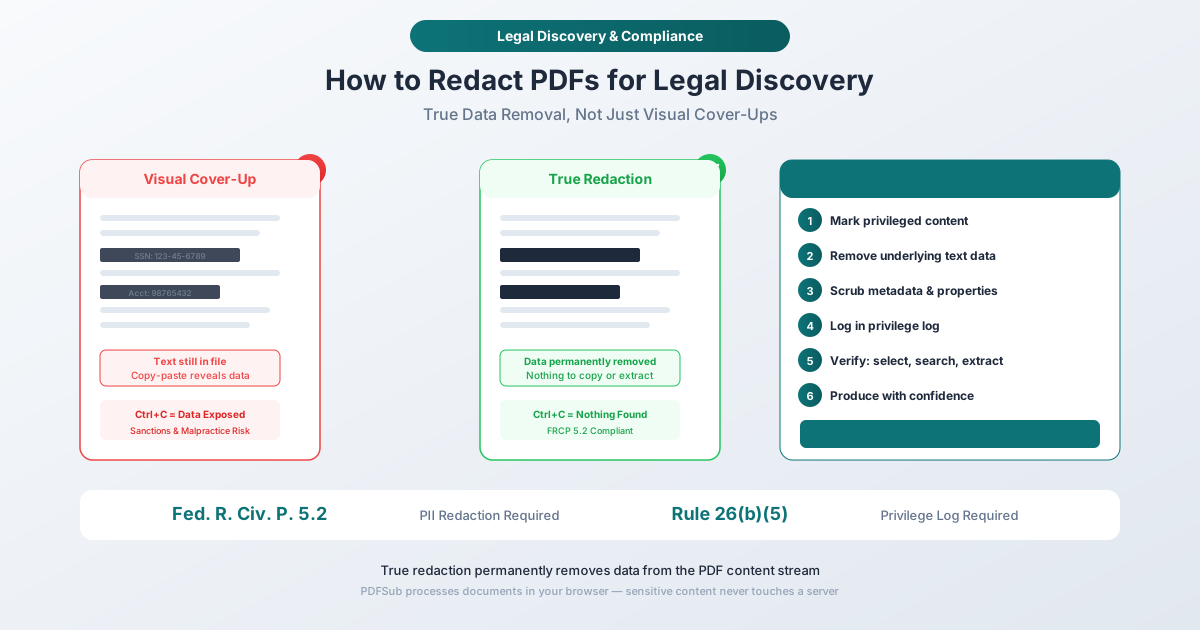
True Redaction vs. Visual Cover-Up: The Technical Reality
Before discussing legal requirements, you need to understand what happens inside a PDF file when you "redact" it. This distinction is the single most important concept in this entire guide.
How PDFs Store Text
A PDF page is a content stream - a sequence of operators that position individual characters at precise coordinates on a canvas. When a PDF displays "SSN: 123-45-6789," the file contains instructions that place each character at a specific x,y position. This is fundamentally different from a Word document or a web page. The text is baked into a coordinate-based rendering stream.
When you draw a black rectangle over that text using an annotation tool, highlight tool, or shape tool, you are adding a new graphical element to the page. The original text operators remain exactly where they were. The black rectangle sits on top of the text like a Post-it note on a printed page.
The result: anyone who receives the PDF can select the area under the rectangle, copy it, and paste the full unredacted text into any text editor. Programmatic tools can extract the text even more easily - no manual selection required.
What True Redaction Does
True redaction permanently modifies the PDF content stream. It does not add a layer on top of text. It deletes the text operators themselves from the file structure. After true redaction:
- The character data is removed from the content stream
- The visible area shows a black (or colored) box
- There is nothing beneath the box - no text to select, copy, or extract
- The text cannot be recovered by any means
- Search tools find no matches for the redacted content
- Metadata references to the redacted content are cleaned
This is an irreversible operation. Once text is truly redacted, it is gone. There is no undo. That is the entire point.
The Comparison
| Visual Cover-Up | True Redaction | |
|---|---|---|
| Visual appearance | Black box over text | Black box over text |
| Underlying text | Still in the PDF content stream | Permanently deleted |
| Select and copy | Full text can be copied | Nothing to select |
| Text search | Matches found | No matches |
| Programmatic extraction | Full text returned | No data returned |
| Metadata | Author, comments, properties intact | Cleaned |
| Reversible | Yes - remove the annotation layer | No - data is destroyed |
From the outside, both look identical. The difference is entirely beneath the surface.
High-Profile Redaction Failures
These are not edge cases. They involve experienced attorneys and government professionals who believed their redactions were effective.
The Manafort Case (2019)
Lawyers for Paul Manafort filed documents in federal court with "redactions" that were actually black highlighting over text. Reporters copied the text beneath the black bars and revealed that Manafort had shared presidential campaign polling data with a Russian associate and discussed a Ukraine peace plan. The redaction failure cost hundreds of thousands of dollars in additional legal fees, generated massive reputational damage, and contributed to the severity of the case outcomes.
The cause was straightforward: someone used a word processor's black highlight feature and exported to PDF. The text layer was fully preserved.
TSA Security Manual (2009)
The Transportation Security Administration published a redacted version of its airport security screening procedures manual. The "redactions" were black rectangles drawn over text. Security researchers removed the overlays and accessed the full document, revealing screening exceptions, law enforcement identification procedures, and checkpoint vulnerabilities. The TSA had to revise its entire screening protocol.
AT&T / NSA Surveillance (2006)
In the Electronic Frontier Foundation's lawsuit against AT&T, the company filed a legal brief with "redacted" trade secrets. The redactions were black boxes over text. The full content - describing NSA surveillance infrastructure inside AT&T facilities - was trivially extractable. The document was downloaded thousands of times.
The Common Thread
In every case, the failure mode was identical: a visual element was placed over text without deleting the text itself. The people who made these mistakes were not careless amateurs. They were lawyers, government officials, and security professionals using tools that simply do not perform true redaction.
What Federal Rules Require You to Redact
Fed. R. Civ. P. 5.2: Privacy Protection for Court Filings
Rule 5.2 of the Federal Rules of Civil Procedure requires that any filing with the court containing certain categories of personal information must include only partial identifiers:
| Information Type | What Must Be Redacted | What May Remain |
|---|---|---|
| Social Security numbers | All but last 4 digits | Last 4 digits only |
| Taxpayer identification numbers | All but last 4 digits | Last 4 digits only |
| Birth dates | Month and day | Year of birth only |
| Names of minors | Full name | Initials only |
| Financial account numbers | All but last 4 digits | Last 4 digits only |
This is not optional. It applies to every filing in every federal civil case. Many state courts have adopted similar or identical rules.
Importantly, Rule 5.2 applies to court filings specifically. Discovery productions between parties are governed by different rules, but the practical reality is that most discovery agreements also require PII redaction - and any document that might eventually be filed with the court needs to be redaction-ready.
FRCP Rule 26(b)(5): Privilege Logs
When you withhold or redact information on the basis of privilege (attorney-client privilege, work product doctrine, or another recognized privilege), Rule 26(b)(5)(A) requires you to:
- Expressly state the privilege claim
- Describe the nature of the withheld material in enough detail for the other party to assess the claim - without revealing the privileged content itself
This means every redaction based on privilege must have a corresponding entry in a privilege log. The log typically includes the date, document type, author, recipient, general subject matter, and the specific privilege being claimed.
If you redact content but fail to log it, opposing counsel can challenge the redaction. If the court finds insufficient justification, you may be ordered to produce the unredacted document - or face sanctions.
What Categories to Redact in Discovery
Beyond the mandatory PII categories in Rule 5.2, discovery redactions typically fall into these categories:
Attorney-client privileged communications - Confidential communications between attorney and client made for the purpose of obtaining or providing legal advice. This includes emails, memos, notes, and any document reflecting the substance of such communications.
Attorney work product - Materials prepared in anticipation of litigation. This can include interview notes, memoranda, legal research, mental impressions, strategies, and legal theories. Under the work product doctrine, opinion work product (mental impressions and legal conclusions) receives stronger protection than fact work product.
Irrelevant personal data - While courts have generally held that you cannot unilaterally redact information you consider "irrelevant" from discovery, you can seek a protective order under Rule 26(c)(1) to shield personal information that is genuinely not relevant to the claims or defenses.
Trade secrets and confidential business information - Often governed by a stipulated protective order rather than redaction, but in some productions, redaction of specific trade secret content may be appropriate.
Step-by-Step Redaction Workflow for Legal Discovery
Step 1: Identify What Needs to Be Redacted
Before touching a single document, establish your redaction categories. Create a written protocol that specifies:
- What categories of information will be redacted (PII per Rule 5.2, privileged content, work product)
- Who reviews documents and makes redaction decisions
- How redaction decisions are documented for the privilege log
- What quality assurance process verifies redaction completeness
For large productions, this protocol should be agreed upon with opposing counsel during the Rule 26(f) conference. Getting alignment early prevents disputes later.
Step 2: Perform True Redaction
Using PDFSub's Redact PDF tool:
-
Upload the document - The tool processes files directly in your browser. The PDF never leaves your device, which eliminates the confidentiality risk of uploading client documents to an external server.
-
Select text to redact - Highlight the specific text, paragraphs, or regions that contain privileged or sensitive information. You can select individual words, full sentences, or rectangular areas.
-
Apply the redaction - The tool permanently removes the selected text from the PDF content stream. This is true redaction - the underlying data is destroyed, not covered.
-
Save the redacted document - Download the new PDF. The redacted content is gone from the file permanently.
Because the tool runs in the browser, sensitive client data - Social Security numbers, privileged communications, financial account numbers - never gets uploaded to any server. This directly addresses the confidentiality obligations under Model Rule 1.6.
Step 3: Scrub Metadata
Redacting visible text is only half the job. PDF files contain metadata that can reveal information you intended to keep confidential:
- Document properties - Author name, creation date, modification dates, the software used to create the document
- Comments and annotations - Review comments, sticky notes, and tracked changes from earlier drafts
- Bookmarks - Navigation bookmarks that may reference redacted sections by name
- Embedded file attachments - Some PDFs contain attached files that may include unredacted versions
- Form field data - Hidden form fields may contain data that was filled in and then "cleared"
- XMP metadata - Extended metadata that can include editing history, version information, and more
After redacting content, review and clean the document's metadata. Remove author information, comments, and any embedded files that are not part of the production.
Step 4: Maintain the Privilege Log
For every redaction based on privilege, create a privilege log entry with:
- Document identifier (Bates number or file name)
- Date of the document
- Author and recipients
- Document type (email, memo, letter, report)
- General subject matter - Enough detail for opposing counsel to assess the privilege claim without revealing the privileged content
- Privilege claimed - Attorney-client privilege, work product, joint defense, etc.
A well-maintained privilege log is your defense against challenges to redaction. Without it, a court may order production of the unredacted document.
Step 5: Verify the Redaction
This is the step most people skip - and it is the step that prevents Manafort-level failures.
Verification checklist:
-
Try to select the redacted area - Open the redacted PDF and attempt to select text in the redacted regions. If you can select text, the redaction failed.
-
Try to copy from the redacted area - Even if selection appears empty, try copying from the redacted region and pasting into a text editor. If any text appears, the redaction failed.
-
Search for known redacted content - If you redacted the text "123-45-6789," use the PDF's search function to search for that string. If it returns results, the redaction failed.
-
Check with a text extraction tool - Use PDFSub's text extraction capabilities to pull all text from the document. Review the output for any content that should have been redacted.
-
Inspect metadata - Verify that document properties, comments, and embedded files have been cleaned.
Perform this verification on every document before production. For large productions, establish a quality assurance sample - verify at least 10% of redacted documents at random, and 100% of documents containing the most sensitive categories (SSNs, financial accounts, privileged communications).
Step 6: Produce with Confidence
Once verification passes, the document is ready for production. Your redacted content has been permanently removed from the file, your privilege log documents the basis for each redaction, and you have verified that no recoverable data remains.
Common Redaction Mistakes to Avoid
Mistake 1: Using Highlight or Annotation Tools
Word processors and basic PDF viewers offer highlighting and annotation tools that look like redaction but do nothing to the underlying text. Black highlighting, comment boxes, and drawing shapes are all visual overlays. None of them remove data.
Mistake 2: Redacting a Printed Copy
Some attorneys print the document, use a black marker on the paper, and then scan the result. While this does remove the digital text layer (the scan creates a new image), it introduces OCR risk: if the scan is later run through optical character recognition software, the text under imperfect marker coverage may be partially reconstructable. It also produces a lower-quality document and adds unnecessary steps.
Mistake 3: Forgetting Metadata
You can perfectly redact every word of privileged text in the body of a document and still leak the same information through document properties, comments, or embedded attachments. Metadata scrubbing must be part of every redaction workflow.
Mistake 4: Redacting Without a Privilege Log
Redaction without documentation invites challenges. If opposing counsel questions a redaction and you cannot produce a privilege log entry justifying it, the court may order production of the unredacted document - or draw adverse inferences.
Mistake 5: Failing to Verify
Verification takes minutes. A redaction failure in a high-stakes case can take years to resolve. Never produce a redacted document without running through the verification checklist.
Building a Firm-Wide Redaction Protocol
For law firms and legal departments handling regular discovery productions, a standardized redaction protocol prevents individual mistakes from becoming firm-wide problems.
Training: Every attorney and paralegal who handles redaction should understand the difference between visual cover-ups and true redaction. A 30-minute training session with live demonstration prevents years of potential malpractice exposure.
Tool standardization: Select a single redaction tool and require its use across the firm. Using inconsistent tools increases the risk that someone reaches for a highlighter instead of a redaction tool.
Quality assurance: Establish a verification step in the production workflow. Assign a second set of eyes - someone other than the person who performed the redaction - to run the verification checklist.
Privilege log integration: Build the privilege log as you redact, not after. Retroactively constructing a privilege log from redacted documents is error-prone and time-consuming.
Document retention: Retain both the original unredacted documents and the redacted production versions. You may need the originals if a privilege claim is challenged and the court conducts an in camera review.
Why Browser-Based Redaction Matters for Legal Ethics
The American Bar Association's Model Rule 1.6 requires lawyers to make "reasonable efforts to prevent the inadvertent or unauthorized disclosure of, or unauthorized access to, information relating to the representation of a client." Model Rule 1.1, Comment 8, further requires technology competence.
When you upload a client's document to a cloud-based PDF tool, you are sending that client's data - potentially including privileged communications, Social Security numbers, and financial account information - to an external server. You may not know where that server is located, who has access to it, how long data is retained, or whether other users' data is processed on the same infrastructure.
Browser-based processing eliminates this risk category entirely. When PDFSub's Redact PDF tool processes a document in your browser, the file never leaves your device. There is no server upload, no cloud storage, no data retention. The processing happens locally in your browser's memory, and when you close the tab, the data is gone.
For attorneys handling sensitive client information - which is virtually all attorneys - this distinction directly addresses the "reasonable efforts" standard in Rule 1.6.
Frequently Asked Questions
Is drawing a black box over text the same as redacting it?
No. Drawing a black box, highlighting in black, or placing an annotation over text are all visual cover-ups. The text remains in the PDF content stream and can be selected, copied, searched, and extracted by anyone who receives the file. True redaction permanently deletes the text from the file structure. The two look identical visually, but only true redaction actually removes the data.
What happens if a redaction failure is discovered during litigation?
The consequences vary by jurisdiction and severity, but they can include court-imposed sanctions (monetary penalties or adverse inference instructions), malpractice claims from the affected client, bar disciplinary proceedings for violating confidentiality obligations, and waiver of the privilege or protection that applied to the exposed information. In the Manafort case, the redaction failure exposed information that dominated a news cycle and materially affected the case.
Do I need to redact metadata in addition to visible text?
Yes. PDF metadata can contain author names, document creation and editing dates, comments, tracked changes, embedded files, and other information that may be privileged or sensitive. A document with perfectly redacted body text can still leak information through its metadata. Always scrub metadata as part of your redaction workflow.
Can I redact irrelevant information from discovery documents?
Federal courts have generally concluded that the Federal Rules of Civil Procedure do not permit a party to unilaterally redact information merely because they consider it irrelevant. However, you can seek a protective order under Rule 26(c)(1) to shield genuinely irrelevant personal information from production. The safer approach is to meet and confer with opposing counsel early in the discovery process and establish agreed-upon redaction protocols.
How do I handle redaction in a privilege log?
For every redaction based on a privilege claim, your privilege log should include the document's identifier (such as a Bates number), the date, author, and recipients, the document type, a general description of the subject matter (detailed enough for the opposing party to assess the claim but not so detailed that it reveals the privileged content), and the specific privilege being asserted. Rule 26(b)(5)(A) requires this - insufficient privilege log entries can result in the court ordering production of the unredacted document.
Is PDFSub's redaction true redaction or a visual overlay?
PDFSub's Redact PDF tool performs true redaction. It permanently removes the selected text from the PDF content stream. After redaction, the text cannot be selected, copied, searched, or extracted by any means. The tool processes files entirely in your browser - the document never leaves your device - which addresses attorney confidentiality obligations under Model Rule 1.6.
Wrapping Up
Redaction errors are among the most avoidable mistakes in legal practice, yet they continue to happen because the tools most people use - highlight features, annotation layers, black shapes - look like they work but don't actually remove data.
The fix is straightforward: use a tool that performs true redaction (not visual cover-ups), scrub metadata after redacting content, maintain a privilege log for every privilege-based redaction, and verify every document before production. Do these four things consistently, and you eliminate an entire category of malpractice exposure.
If you work with discovery documents regularly, PDFSub's Redact PDF tool handles true redaction directly in your browser - no server uploads, no cloud storage, no data retention. For the complete toolkit, including document comparison, e-signatures, OCR, and merging, see the PDF Tools for Lawyers guide.