How to Extract Data from PDFs with AI
Need to pull structured data from contracts, reports, or forms? Here's how AI extraction works - turning unstructured PDF content into organized, usable data.
PDFs are great at preserving documents exactly as they were designed. They're terrible at giving you back the data inside them. You can see a table. You can see a list of dates and dollar amounts. You can read the contract terms and party names. But getting that information out of the PDF and into a spreadsheet, database, or application? That's where things get painful.
Copy-paste gives you jumbled text. Table extraction tools choke on complex layouts. OCR misreads characters. And manually retyping everything is slow, error-prone, and soul-crushing.
AI extraction is different. Instead of relying on rigid rules about where text is positioned on the page, AI reads the document the way a human would - understanding context, identifying relationships, and outputting structured data. This guide explains how it works, when it's the right tool, and how to use it.
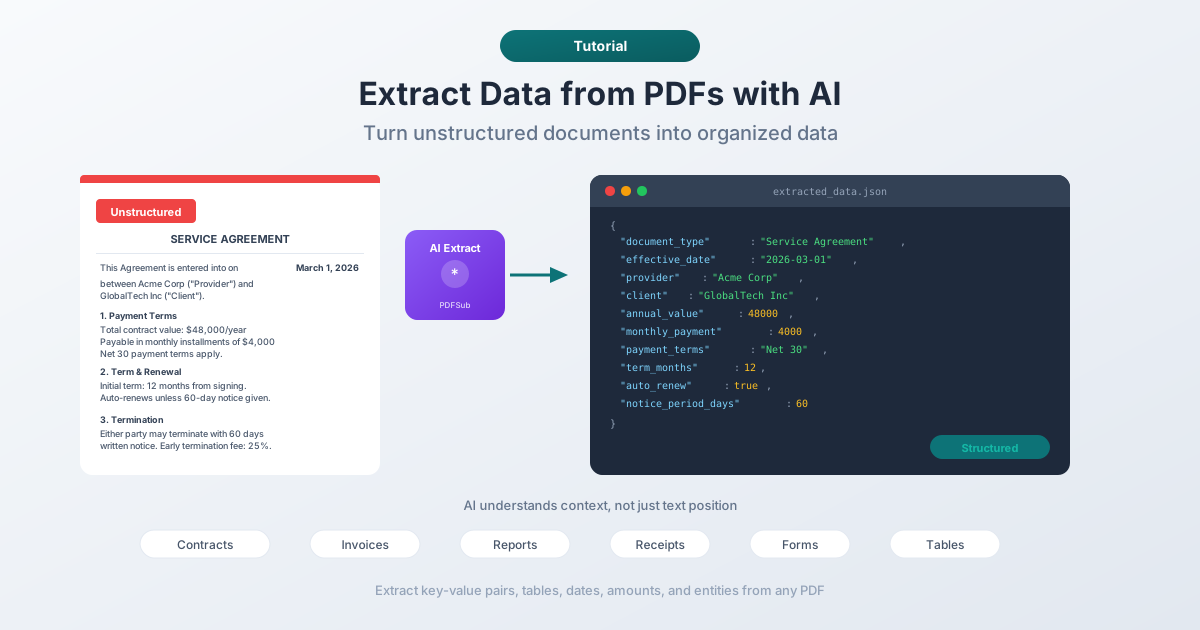
What AI Data Extraction Actually Does
Traditional PDF extraction works by position: "take the text at coordinates (100, 200) and put it in column A." This works for standardized documents where the layout never changes. It breaks immediately when the format varies - different templates, different page sizes, different fonts.
AI extraction works by understanding. It reads the text, recognizes what kind of document it is, identifies the meaningful data points, and outputs them in a structured format. Here's the difference in practice:
Traditional approach:
- Define a template with exact coordinates for each field
- Extract text at those coordinates
- Hope the document matches the template
- Fail when it doesn't
AI approach:
- Upload the document
- AI reads the full content
- AI identifies data points based on context (not position)
- Outputs structured data (JSON, CSV, key-value pairs)
The AI approach is more flexible because it doesn't depend on exact formatting. A contract date might appear on line 3 of one document and line 15 of another - the AI finds it either way because it understands what a date is and why it matters in a contract.
Types of Data You Can Extract
AI extraction isn't limited to one kind of data. Here's what it can pull from different document types:
Key-Value Pairs
The most common extraction target. Names, dates, addresses, amounts, reference numbers - any field with a label and a value.
- Contract: effective date, parties, term length, payment amount
- Invoice: invoice number, date, vendor, line items, total
- Receipt: merchant, date, items, tax, total
- Form: all filled-in fields and their labels
Tables
Tables are notoriously difficult to extract from PDFs because the visual grid you see doesn't exist in the file's underlying structure. The rows and columns are just text positioned to look like a table. AI understands the tabular structure from context and extracts clean rows and columns.
Lists and Enumerations
Bulleted lists, numbered items, nested hierarchies - AI can identify list structures and output them as structured arrays, preserving the hierarchy and ordering.
Summaries and Key Points
Beyond extracting raw data, AI can identify and summarize the most important information. Extract just the key terms from a contract, the main findings from a research report, or the action items from meeting minutes.
Financial Data
Revenue figures, expense breakdowns, quarterly comparisons, year-over-year growth - AI can identify financial data in reports and organize it into structured formats ready for analysis.
How to Extract Data with PDFSub
PDFSub offers several AI extraction tools, each optimized for different document types. All of them use AI credits (included with your plan), and the process is straightforward.
General Data Extraction
For documents that don't fit a specific category - contracts, reports, correspondence, forms, or any PDF with structured information.
Step 1: Go to PDFSub's Extract Data tool.
Step 2: Upload your PDF or drag and drop it into the tool. PDFSub first tries to extract text directly from the PDF (for digital documents). If the text quality is good, it sends the text to the AI. If the PDF is scanned or image-based, it sends the full PDF for vision-based analysis.
Step 3: Review the extracted data. The AI outputs structured key-value pairs and any tables it found. You can copy the results, download as JSON, or export to a format that works for your workflow.
Invoice Extractor
Optimized for invoices and billing documents. Automatically identifies:
- Invoice number and date
- Vendor/supplier information
- Client/billing information
- Line items (description, quantity, unit price, total)
- Tax amounts and totals
- Payment terms and due dates
Go to PDFSub's Invoice Extractor to try it. The AI is tuned to recognize invoice-specific patterns, so it's faster and more accurate on invoices than the general extraction tool.
Table Extractor
Focused exclusively on finding and extracting tables from PDFs. If your document has tabular data - financial tables, comparison charts, data grids, schedules - this tool pulls them out as clean, structured data.
Go to PDFSub's Table Extractor. The tool first attempts coordinate-based table detection (which uses no AI credits). If that doesn't produce good results, you can enable AI extraction for more complex or irregular tables.
Receipt Scanner
Designed for receipts - those crumpled, poorly-printed scraps of paper that are somehow critical for expense reports. The AI handles:
- Merchant name and location
- Date and time
- Individual items and prices
- Tax breakdown
- Total and payment method
Go to PDFSub's Receipt Scanner. It works on both digital receipts (PDF) and scanned/photographed receipts.
AI Extraction vs. Other Methods
How does AI extraction compare to traditional approaches?
Copy-Paste
The simplest method - and the least reliable. Select text in a PDF viewer, copy it, paste it into a spreadsheet. Problems: tables lose their structure, multi-column layouts get jumbled, headers and footers mix with body text, and special characters often get mangled.
Verdict: Fine for grabbing a single sentence. Useless for structured data.
Rule-Based (Template) Extraction
Define exact coordinates for each field: "the invoice number is at position X, Y." Works perfectly for documents that always use the same template. Breaks completely when the template changes. Requires upfront configuration for each document type.
Verdict: Great for high-volume, standardized documents (like processing 10,000 invoices from the same vendor). Not practical for varied document types.
OCR (Optical Character Recognition)
Converts images of text into actual text. Essential for scanned documents. But OCR only gives you raw text - it doesn't understand the data. You still need to parse and structure the output yourself. And OCR errors (confusing "O" with "0", "l" with "1") require manual verification.
Verdict: A necessary step for scanned documents, but not a complete extraction solution on its own.
AI Extraction
Reads the document with contextual understanding. Handles varied formats, identifies data relationships, and outputs structured results. Works on both digital and scanned PDFs. The tradeoff: it uses AI processing (credits), so it costs more per document than pure text extraction.
Verdict: Best for varied document types, complex layouts, and when you need structured output without manual configuration.
| Method | Handles Varied Formats | Structured Output | Accuracy | Cost per Doc |
|---|---|---|---|---|
| Copy-paste | No | No | Low | Free |
| Template-based | No | Yes | High (when matching) | Low |
| OCR only | Scanned only | No | Medium | Low |
| AI extraction | Yes | Yes | High | Moderate |
Getting the Best Results from AI Extraction
Use Digital PDFs When Possible
Digital PDFs (created from Word, InDesign, or other software) contain actual text data. The AI can read this text directly, which is faster, cheaper, and more accurate than processing scanned images. If you have a choice between a digital PDF and a scanned copy, always use the digital version.
One Document Type per Extraction
If you have a PDF that contains multiple document types (e.g., an invoice stapled to a contract), consider splitting the file first and extracting from each part separately. The AI performs better when it can focus on one document type at a time.
Check the Results
AI extraction is highly accurate, but not perfect. Always review the extracted data, especially for:
- Numbers and amounts - verify that dollar signs, decimal points, and commas are correct
- Dates - confirm the format matches your expectations (is it March 1 or January 3?)
- Names and addresses - check for any character recognition errors
Use the Right Tool
PDFSub has specialized extraction tools for specific document types. The Invoice Extractor will outperform the general Extract Data tool on invoices because it's been optimized for that specific format. Similarly, the Receipt Scanner is tuned for receipts, and the Table Extractor is focused on tabular data. Use the most specific tool available for your document type.
Understanding AI Credits
AI extraction uses processing credits because it involves running AI models on your document. Here's what you should know:
- Text-based extraction is cheaper. When PDFSub can extract good text from the PDF directly, it sends that text to the AI. This uses fewer credits than sending the full PDF as an image.
- Image-based extraction costs more. Scanned PDFs and documents with complex visual layouts are sent as images to the AI, which requires more processing power and credits.
- Credits are included with your plan. PDFSub plans include AI credits. The exact number depends on your subscription tier. You can see your remaining credits on your dashboard.
- Non-AI alternatives exist. Some extraction tasks don't need AI at all. The Table Extractor's coordinate-based mode, for example, uses no credits. Basic text extraction is always free.
Frequently Asked Questions
How accurate is AI data extraction?
For digital PDFs with clear formatting, accuracy is typically 95-99% for key fields like dates, amounts, and names. Scanned documents are slightly lower due to OCR challenges - typically 85-95%, depending on scan quality. Complex layouts with overlapping elements or unusual fonts may reduce accuracy further.
Can I extract data from password-protected PDFs?
You'll need to enter the password to unlock the PDF first. PDFSub has a PDF unlock tool that can remove password protection (if you know the password). Once unlocked, the extraction works normally.
Does AI extraction work on handwritten documents?
For handwritten text, accuracy drops significantly. AI can interpret clear handwriting reasonably well, but messy handwriting, medical notes, or cursive script will produce unreliable results. Printed text - even in poor quality scans - is much more reliable.
What output formats are available for extracted data?
PDFSub outputs extracted data as structured JSON and also provides formatted text views. You can copy the data directly, download it, or use it in downstream workflows. For table extraction specifically, you can export to CSV or Excel.
How is this different from PDFSub's Chat with PDF tool?
The Chat with PDF tool lets you ask questions about a document in natural language - "What's the payment term?" or "Summarize section 3." Data extraction is more systematic - it pulls all structured data from the document at once, outputting everything in an organized format. Use Chat for specific questions, and Data Extraction when you want comprehensive structured output.
AI extraction turns the data locked inside PDFs into something you can actually use. Instead of copying and pasting, manually building spreadsheets, or configuring templates for every document format, you upload the file and get structured data back. It works on contracts, invoices, receipts, reports, forms, and just about any other document with data worth extracting.
Try it at pdfsub.com/tools/extract-data.