How to Convert Excel to PDF Online
Need to share a spreadsheet as a PDF? Here's how to convert Excel to PDF - preserving tables, formatting, and print layout.
You built a spreadsheet. The numbers are right, the formatting looks clean. Then you send the .xlsx file and the recipient sees a mess - columns cut off, charts shifted, conditional formatting missing.
Spreadsheets are the worst file type to share directly. Every recipient's version of Excel and screen resolution can change how the document renders. Converting to PDF locks the layout in place.
Here's how to convert Excel to PDF with tables intact and no columns disappearing off the edge.
Why Convert Excel to PDF?
Consistent layout. A spreadsheet that looks perfect on your 27-inch monitor might be unreadable on a laptop. PDFs define exact page dimensions and column widths.
Prevent edits. When you share a spreadsheet, the recipient can change formulas or delete rows. A PDF is a locked snapshot.
Professional sharing. Financial reports, invoices, and budget summaries look more polished as PDFs. Most stakeholders expect PDF for formal deliverables.
Print-ready. A PDF ensures the document prints as intended - no cut-off columns or blank pages.
Method 1: PDFSub (Online)
- Go to PDFSub's Excel to PDF converter
- Upload your
.xlsor.xlsxfile - The file is processed server-side by the PDFSub Engine in a secure, isolated environment
- Download your converted PDF
PDFSub handles multi-sheet workbooks, charts, conditional formatting, and merged cells. Works from any device.
Method 2: Microsoft Excel (Desktop)
On Windows: Click File > Save As, choose PDF, click Options to select which sheets to include (Active Sheet, Entire Workbook, or Selection), then Save.
On Mac: Click File > Save As, select PDF from the format dropdown, then Save.
Important: Excel only converts the printable area. Wide spreadsheets get split across pages or cut off. Set up your print layout first.
Method 3: Google Sheets
- Click File > Download > PDF document (.pdf)
- Adjust paper size, orientation, margins, and scale in the dialog
- Click Export
Google Sheets gives decent control over layout but doesn't support all Excel formatting features.
Solving the Print Layout Problem
The biggest challenge isn't conversion - it's getting wide spreadsheets to fit on a page.
Set your print area. Select the cells you want, go to Page Layout > Print Area > Set Print Area. Without this, Excel includes every cell with data.
Choose the right orientation. Portrait for narrow spreadsheets (6-8 columns). Landscape for wider ones.
Scale to fit. Go to Page Layout > Scale to Fit, set Width to 1 page, Height to Automatic. Be careful - very wide sheets may become unreadable when scaled down.
Repeat header rows. For long spreadsheets, use Page Layout > Print Titles and set rows to repeat at the top. Without this, page two has no column labels.
Control page breaks. Use View > Page Break Preview and drag the blue lines to control where pages split.
Charts, Formulas, and Multi-Sheet Workbooks
Charts convert well - they're rendered as vector graphics and stay sharp. Interactive elements (filters, slicers) are flattened to their current state.
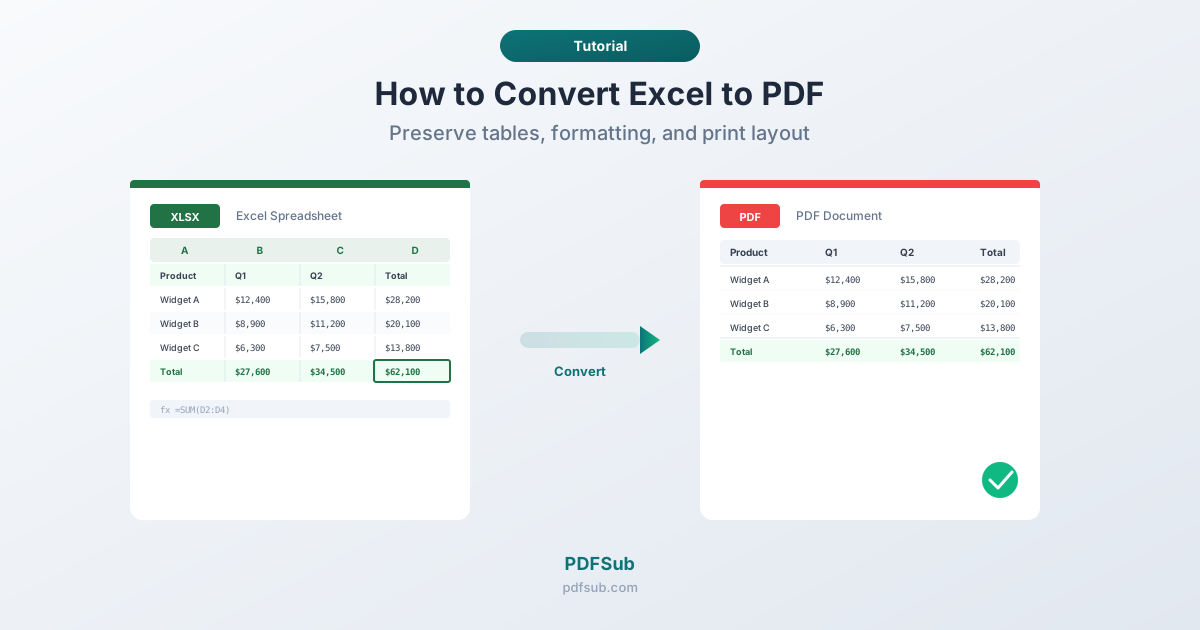
Formulas are not preserved. The PDF contains the calculated values, not the formulas. This is usually what you want.
Multi-sheet workbooks can be exported as a single PDF with each sheet as a section. In Excel, use Options > Entire Workbook when saving. Check each sheet's print layout individually - they can have different orientations.
Frequently Asked Questions
Can I convert Excel to PDF without Excel installed?
Yes. PDFSub's Excel to PDF converter handles the conversion server-side. Upload your file from any device with a browser. Google Sheets can also export to PDF if you upload to Google Drive first.
Why are my columns getting cut off?
Your spreadsheet is wider than the page. Switch to landscape orientation, set a print area for only necessary columns, or scale to fit (Page Layout > Scale to Fit > Width: 1 page).
Does the PDF preserve formulas?
No. PDFs contain the calculated values, not the formulas. A cell showing $1,250.00 from a SUM formula appears as static text $1,250.00.
How do I convert just one sheet from a multi-sheet workbook?
Make sure only the desired sheet tab is selected before exporting. In the Save As dialog, check that "Active Sheet" is selected rather than "Entire Workbook."
Can I convert large Excel files (50MB+)?
Yes, though large files take longer. The main concern is layout - a spreadsheet with 10,000 rows produces a very long PDF. Consider filtering or setting a print area to include only what you need.
Spreadsheets are for working with data. PDFs are for sharing it. Getting the print layout right means your tables and charts arrive exactly as intended.